Chrome Web Extension
 Edge Web Extension
 Android App


Do you find that Chrome notifications interfere with your browsing experience? Not to worry, whthere are multiple solutions for you! Irritating notifications can be easily disabled with just a few clicks. Continue reading below to learn a step-by-step guide on how to block notifications on Chrome.
Why Are Chrome Notifications Bad?
Chrome notifications are considered a form of spam. They can drain your device’s central processing unit (CPU) by forcing your browser to upload and stream unnecessary links and ads that you aren’t interested in seeing. The impact it has on your device’s CPU causes your online browsing to slow down and be less efficient. Often the notifications are trying to gain access to your online behavior by getting you to accept cookies on your browser. Responding to some notifications can result in malware infecting your device.
The different types of Chrome notifications vary based on the different websites you visit and what information they are trying to collect from you. The notifications you come across may ask for things such as your location, joining a mailing list, by accepting cookies or viewing a video advertisement. These notifications appear on all areas of the website: the bottom corners, the top or sides of the webpage, right in the middle blocking the site, or even behind the page you’re visiting. They are intrusive, repetitive, and annoying.
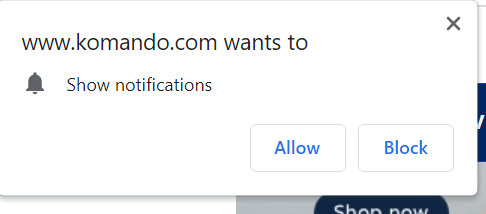
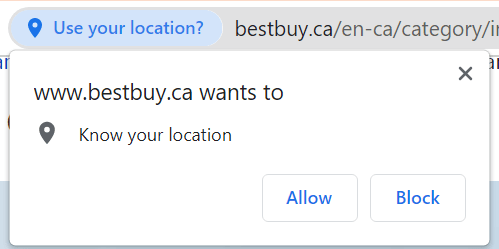
A reliable and safe tip to avoid notifications on Chrome is to disable notifications through Chrome’s settings and download a trusted blocking extension that removes intrusive pop-ups and improves your browsing. Follow along to learn the best tips to block notifications on Chrome and improve your online experience.
How to Block Notifications from Within Chrome

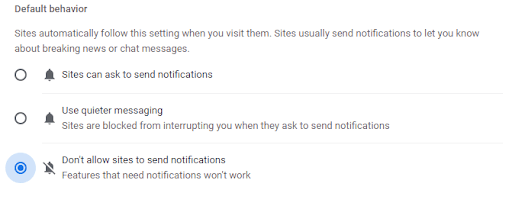
Chrome’s settings offer tools that disable notifications while you search the web. Here are the steps to blocking notifications:
- Open the Chrome browser
- In the top right-hand corner click the three-dot menu icon
- Select Settings from the menu
- Click Privacy and Security on the left-hand side
- Select Site Settings
- Scroll down and click on Notifications
- Click and enable Don’t allow sites to send notifications
How to Block Chrome Notifications on Android
Turning off Chrome notifications is easy on your Android device as well. it’s quite similar to how you disable notifications through Chrome settings. Here are the steps:
- Open Chrome on your Android device
- In the top right-hand corner click the three-dot menu icon
- Tap on Settings from the menu
- Click Privacy and Security
- Select Site Settings
- Scroll down and tap on where it says Notifications
- Click and enable Don’t allow sites to send notifications
Block Notifications on iOS
Blocking Chrome notifications on iOS can be achieved as follows:
- Open Chrome on your iOS device
- Tap the three dots menu icon on the bottom right of the screen
- Scroll through the different tools to find and select Settings
- Scroll down and click on Content Settings
- Enable the Block Pop-ups function
It’s as quick and simple as that. By enabling the functions for blocking notifications and pop-ups through Chrome’s settings you will experience fewer notifications as you surf the web.
Using a Pop-Up Blocker to Block Notifications on Chrome
Chrome’s settings features are great for limiting the amount of notifications you encounter, but additional tools are very advantageous for ensuring all the notifications are blocked from your browser. There’s no harm in using a pop-up blocker extension simultaneously with Chrome’s settings – it’s providing a double filter to keep notifications out of your browser. So let’s explore effective third-party Chrome notification blockers to further improve your online experience.
Arguably the most effective way to block notifications on Chrome is by downloading a pop-up blocker such as Poper Blocker. The Poper Blocker extension has features designed to stop notifications from appearing as you visit websites. By enabling and disabling the different blocking features, you have full control over which types of pop-ups, notifications, and ads you wish to see or be blocked.
Here’s how to block notifications on Chrome with Poper Blocker:
- Download the Poper Blocker extension to your Chrome browser
- Click on the puzzle piece icon in the top right corner of your browser (this is known as the extension’s icon)
- Find and click on the pin on the right side of the Poper Blocker extension
- Now the Poper Icon will appear on the top right side of your browser beside the Chrome extensions icon
- Click on the Poper Blocker icon
- Find and enable Hide website notifications
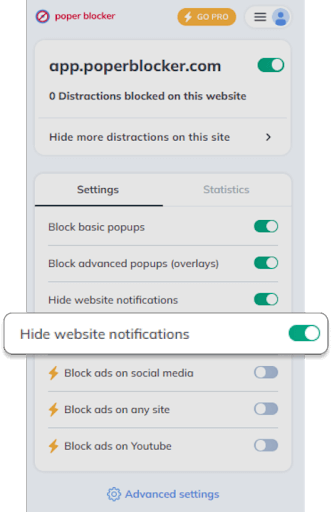
Extensions work harder and are more effective than built-in browser settings. They also give you more control over what you want to be blocked and what you wish to still appear. For example, you may be happy for some specific websites to send you notifications but in general, you wish to have most websites notifications blocked. Using an extension like Poper Blocker will allow you to whitelist websites from which you wish to receive notifications.
Here’s how to create a whitelist with Poper Blocker:
- Click on Poper Blocker’s extension icon in the top right corner of your browser
- Find Advanced Settings at the bottom of the drop-down menu
- You will be brought to a new tab of Poper’s advanced settings
- At the bottom of the page find allow popups on these websites (whitelist)
- Enter the websites you wish to add to your whitelist in the appropriate field

Block Cookie Notifications
When you visit a website, you have probably come across notifications asking you to accept cookies. If you accept cookies, you are giving cookie script access to your device so that it can track and save your behavior on that specific site. So when you return to that website in the future, the cookies script will have your preferences saved and the website will tailor what it shows you based on these preferences.
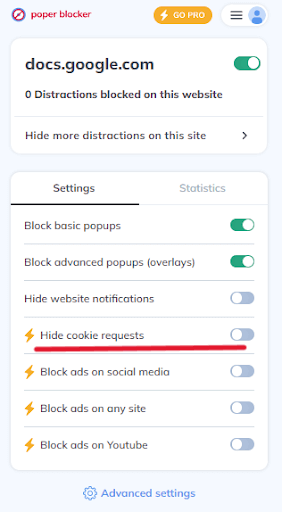
To avoid cookie notifications, Poper Blocker has a reliable feature that does the trick to hide all cookies. Deleting cookies from your browser is so effortless and easy with Poper Blocker, all you have to do is enable hide cookie requests under the Poper Blocker extensions icon in the top right corner of your Chrome browser.
Block Auto-Playing Videos
Auto-play videos are startling, irritating, and irrelevant to you as you browse the web. Have you ever visited a website and all of a sudden an auto-playing video appears in the corner and the disruptive sound and content startle you and impact your experience on the website? It’s very common and can be very frustrating and intrusive. There are ways to automatically remove auto-playing videos from popping up on your browser. Poper Blocker is coming out with a feature that blocks auto-play videos from running when you visit websites. To activate and utilize this feature, you will follow similar steps as listed above for activating other Poper Blocker features. Stay tuned for the release of the block auto-play videos feature!
Wrapping Up
There are various types of notifications that appear and disrupt your browsing experience as you surf the web on Google Chrome. Luckily, there are useful tools in Chrome’s settings that limit the amount of notification pop-ups you see and there are also amazing third-party tools that block the additional notifications that Chrome’s tools miss. Poper Blocker is a reliable and helpful extension that will ensure all the notifications you wish to block on Chrome will be hidden, including cookies notifications, and in the near future, auto-play videos as well. Simplify your online experience and hide annoying notifications on Chrome today!
Read More – How to Block Ads on Chrome: Effective Strategies
FAQs
You can block notifications on Chrome by downloading a pop-up blocker extension such as Poper Blocker.
You can block notifications with Chrome’s settings by clicking Menu (three-dot icon) > Settings > Privacy & Security > Site Settings > Notifications > Don’t allow to send notifications.
You can block Chrome notifications on an Android device by clicking Menu (three-dot icon) > Settings > Privacy & Security > Site Settings > Notifications > Don’t allow to send notifications.
You can block cookie notifications by downloading a trusted extension onto your Chrome browser like Poper Blocker. Poper Blocker has a feature that allows you to hide cookie notifications from appearing on websites.