Chrome Web Extension
 Edge Web Extension
 Android App


Nowadays, keeping your privacy on the web is a challenge. The second you click or type anything, countless invisible trackers collect data about you. Every time you browse the internet, they gather information about what sites you visit and what actions you take. Some are relatively harmless; others can lead to more targeted ads.
It’s quite a shocking revelation, really. According to the Pew Research Center, 73% of American adults think they have little say over how data about them gets used by companies. And when it comes to the government, that number climbs to a staggering 79%.
But is it possible to stop them all? There’s no shortage of ad-blocking software that claims it can keep trackers at bay. However, most of them just don’t cut it. In this article, we’ll look at how online tracking works, and reveal a way to protect yourself from prying eyes.
What Are Trackers and How Do They Work?
These digital hounds hide out on websites, silently collecting data about your online activity. With various uses like improving user experience, targeted advertising, and analytics, they have many ways to dig into your info. Usually, the information they collect includes browsing habits, IP addresses, and personal details like age and gender.
What Are the Main Concerns of Internet Users Regarding Online Tracking?
The problem with online tracking is that it’s gotten so sophisticated, it’s become pernicious. Internet users have a lot to say about their concerns:
Invasion of Privacy
One of the top ones is privacy invasion. Trackers are like cyber bloodhounds: they sniff out every digital scent you leave behind, whether through browsing habits or online purchases, and even where you’re at this very second. It makes people feel perpetually watched.
But there’s more than just an eerie feeling to be concerned about — there’s also the right to privacy in the first place.
Data Security and Identity Theft
This is another major point of contention. All those scraps of information trackers collect? They’re stored in big databases, which can tempt hackers looking for a quick pay day. Once a data breach occurs, all that personal gold gets snatched up by cyber thieves who can wreak havoc on your finances or even steal your identity.
Manipulation of Information and Targeted Advertising
Companies with access to masses of user information use it to build detailed profiles that let them target individuals with personalized ads. The ads themselves aren’t always bad, but some folks think it’s unfair that companies can use their personal interests to manipulate what they buy.
Internet Freedom and Autonomy
Trackers are so ubiquitous online that they influence content and filter what we see as much as search engines do — if not more. If people only ever see one side of the coin because “the tracker told me I’m interested” then they won’t get a well-rounded perspective on things, which kind of defeats the purpose of searching for things independently in the first place.
How to Block Trackers Using Poper Blocker
The internet connects us together, but it’s also notoriously bad for privacy. Trackers are embedded into many websites, quietly harvesting data about you and your online activities. Poper Blocker is a simple but ingenious tool that is not only good at ad-blocking but also disabling these tracking attempts. Here’s how to use it.
Step 1: Installing Poper Blocker
Firstly, get hold of the extension version of Poper Blocker for your chosen browser (it’s available on Chrome and Edge). Visit the Edge or Chrome Web Store, search for Poper Blocker and add it to your browser. The extension will then appear in your toolbar – click its icon, and you’re good to go.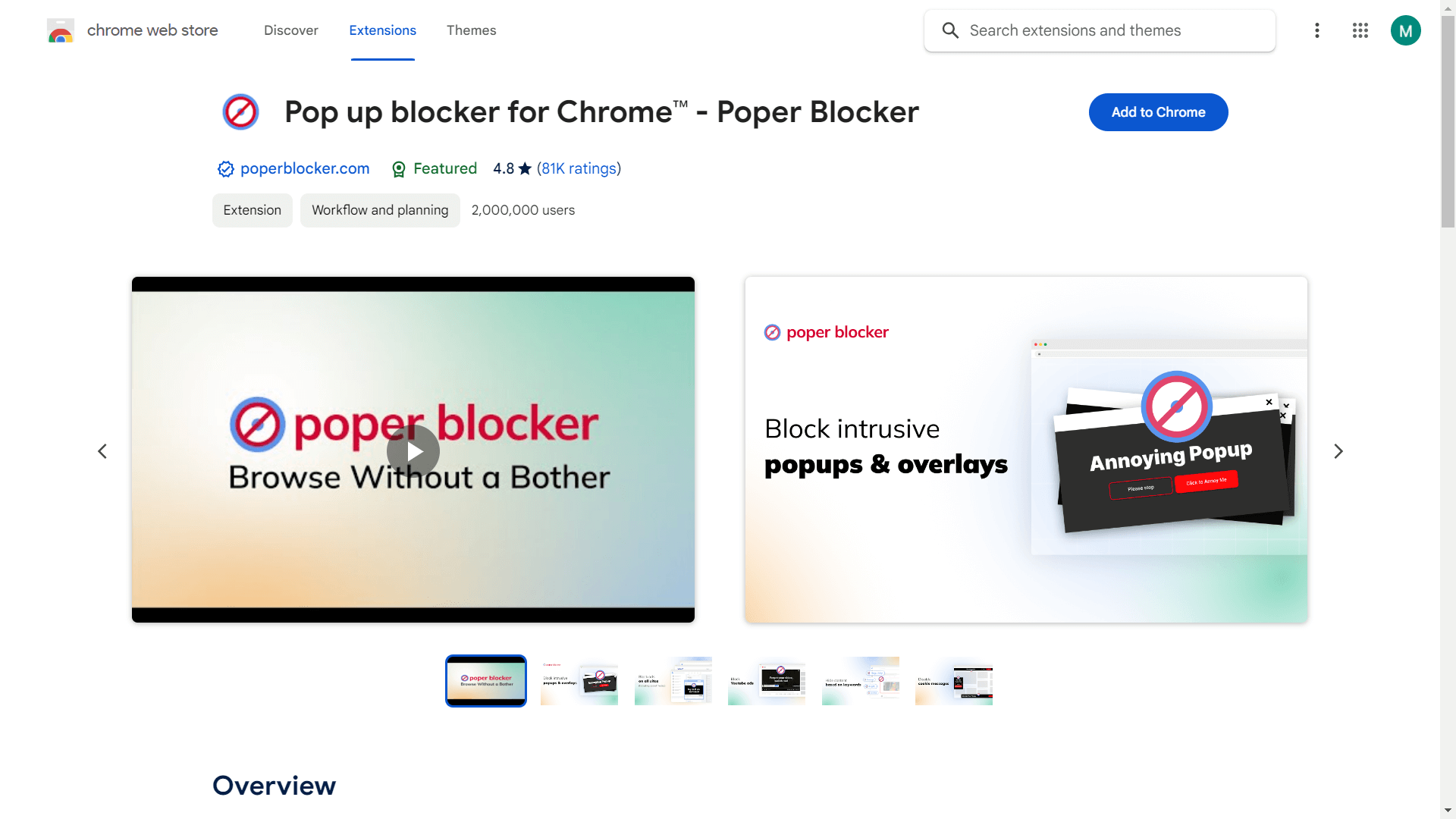
Step 2: Turning On Tracker Blocking
Clicking the toolbar icon brings up a screen full of settings. You’ll want to flick on ‘Block online trackers’ as this is what stops code that tracks your personal data executing in the first place. This keeps you private from prying eyes and helps pages load faster too (as they don’t have scripts running all over them).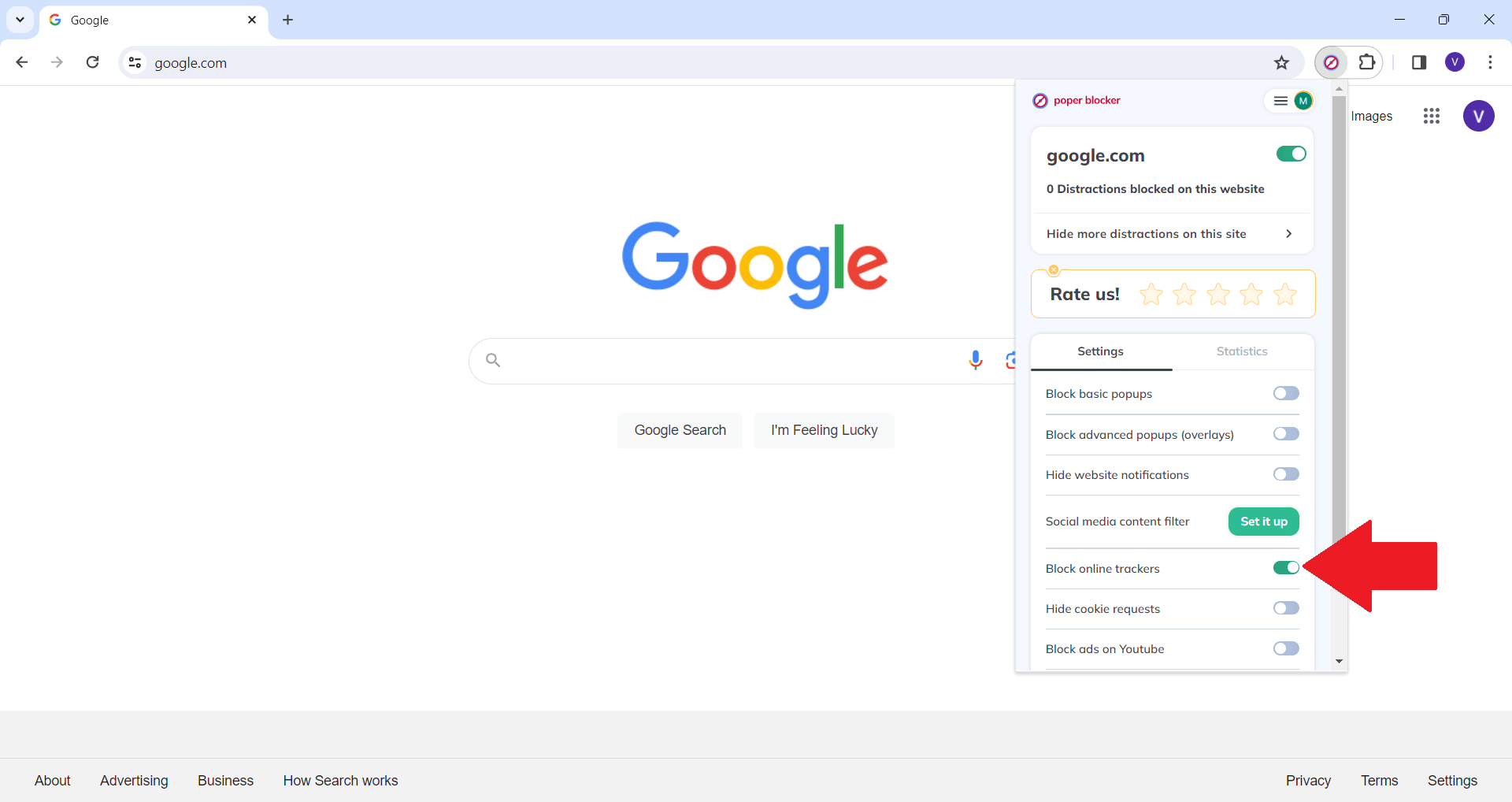
Stage 3: Controlling Cookie Blocking
Poper Blocker can also take control of cookies if you want. Cookies are small files used by sites to remember who you are and what you like so they can show you relevant ads etc., but sometimes they’re not essential or even desirable. Turn on ‘Hide cookie requests’ and this pop-up blocker will enable cookie blocking to reject non-essential ones that some sites try to install without asking.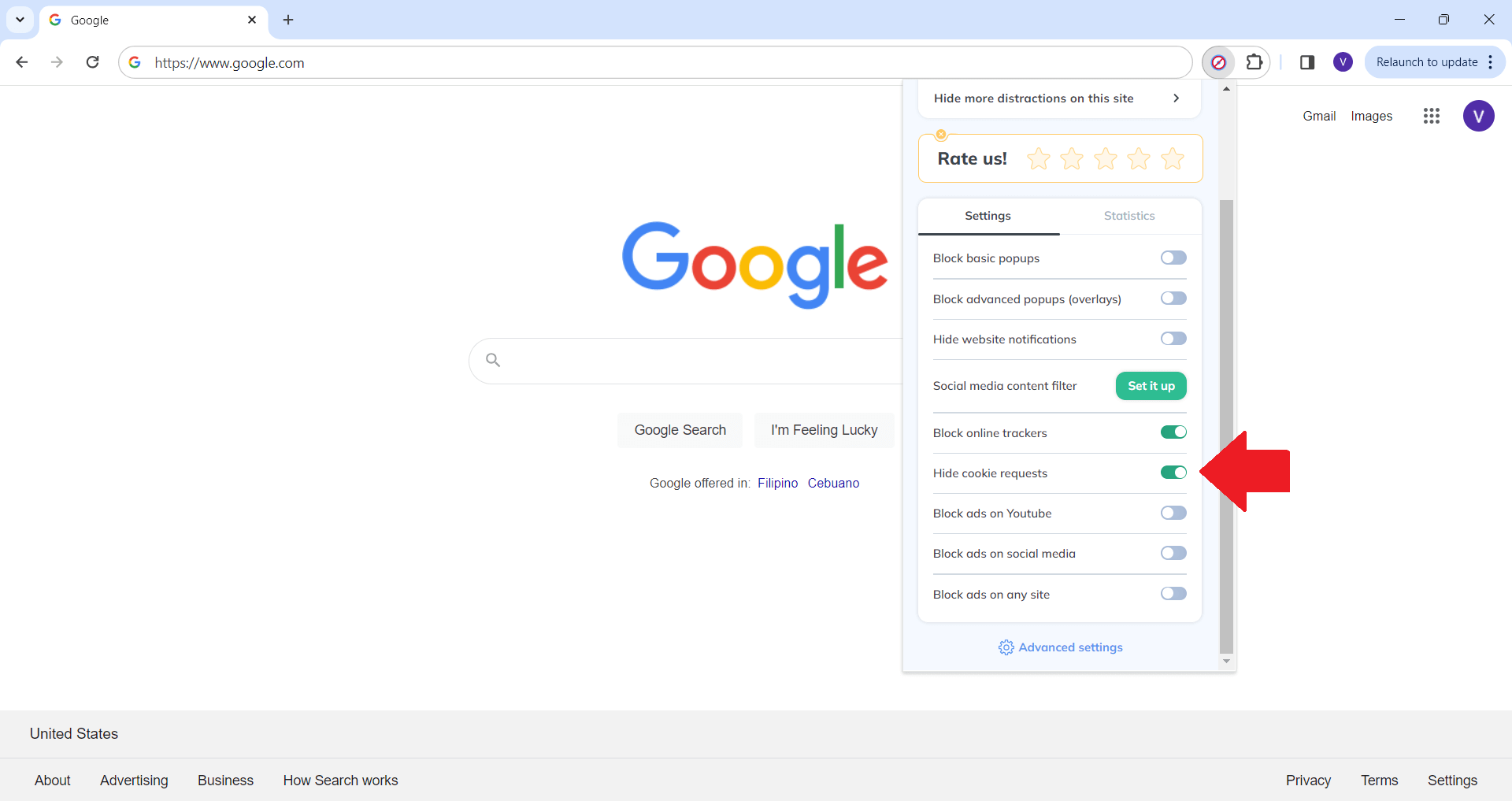
Stage 4: Enjoying Serious Speed-Ups
With everything activated, pages should generally load faster because there’s less junk weighing them down. This is especially true on ad-heavy sites – trackers often piggyback onto ads – so expect things like news articles to spring up more quickly than before thanks to their new found lack of tracking weight.
Shield your browsing from prying eyes – Install Poper Blocker
Taking Charge of Your Internet Privacy
Nowadays, protecting your privacy on the web is more than just a good idea – it’s practically mandatory. Tools like Poper Blocker can give you peace of mind. By blocking those who try to track your moves online, this handy browser extension lets you keep control over your personal data. And the benefits don’t stop there; cutting off trackers also means faster loading times and fewer annoying ads cluttering up your browser window.
In this day and age, we have to make conscious choices about how we move through digital spaces. Of course, some websites might not function as well if their trackers are removed. But at least you’ll feel better knowing that your digital footprint is secure (and get peace of mind out of the deal). As we spend more time in cyberspace, tools like Poper Blocker will become all the more important for keeping our private lives private.
Stop trackers in their tracks – Install Poper Blocker now!
FAQs
Do trackers slow down my device?
Definitely. Trackers can really hurt your device’s performance, especially in high numbers. They hog up the bandwidth and processing power of your computer, which results in longer load times for web pages. By constantly sending and receiving data, web tracking will also eat away at your battery life — much faster than normal. With Poper Blocker though, you’d be enhancing the quality of your device by reducing these useless amounts.
What’s the difference between first-party and third-party cookies?
It’s important to be aware that there are different types of cookies. First-party cookies are made directly by the website you’re visiting and are generally pretty reliable. They’re used most commonly to remember settings or login details for faster access to sites later on. Third-party cookies however are created by a different domain than the one you’re currently on; this is frequently done for tracking through ads in order to see how well it does with different people across multiple sites. Knowing this difference can help with making better decisions regarding protecting your online privacy.
Are all trackers bad?
No, while some trackers are indeed used as means for ad tracking to invade your advertising space or steal your info, others unfortunately are needed for basic website functions. For instance: remembering preferences like language or items put in a shopping cart. The key is finding balance between blocking harmful ones while allowing those that do good by providing a better user experience.
Can I block trackers on every website I visit?
Yes! With tools like Poper Blocker, you’ll be able to block trackers from any site you visit. Just keep in mind that disabling certain trackers might make some sites harder to work with when using their features like social media buttons or comment sections. It’s all about deciding what functionality is worth it against what privacy has to offer.
What does blocking trackers do to my online experience?
Blocking trackers does wonders when it comes to privacy, that’s for sure. Your activities cannot be tracked by companies when you’re using a tracker blocker. It’ll also improve your site loading times as it shoots down the data that is unnecessary for your browser to process. However, some sites may act differently, such as not recommending anything at all or making you manually adjust settings each time you visit.
Block unwanted trackers effortlessly with Poper Blocker. Install now!
Once simply irritating, pop-up ads have grown into something more insidious that interrupts our online experience. Pop-ups, a type of ad that famously drives people nuts, have an average conversion rate of 11.09%, Optimonk says. Meanwhile, 31% of U.S. adults use ad-blocking tools to keep their personal data private, eMarketer reports.
The mess of the internet is hard to avoid when it’s being thrown in your face but thankfully there are a bunch of blockers built to help out. However, these helpful tools don’t always work as intended, and can sometimes block important content along with the annoying ads.
This guide is here to give you back control over what exactly you’re seeing online and how Poper Blocker can be your new best friend in this journey.
Why Disable Your Pop-Up Blocker?
Disabling your pop-up blocker sounds like a recipe for disaster, but there are good reasons to do so. If you understand them, you can browse more efficiently:
Access to Essential Features
In some cases, websites need to interact with you through pop-ups, like login forms or chat boxes. With the blocker disabled temporarily these useful features will appear when needed and not bother you otherwise.
Content Verification
Certain sites will also show important notices and warnings in separate windows. It’s better to see them now than ignore them until it’s too late.
Interactive Content
Some educational sites include interactive quizzes and extra information in pop-ups; leave their blocker alone to access all the features.
Website Functionality
Forms and surveys might not work correctly with a pop-up blocker enabled. Their technology could be vital to site functionality as well. By disabling the blocker on those pages everything should work normally again.
How to Disable Pop-Up Blocker on Chrome (Desktop)
Chrome for desktop offers a built-in pop-up blocker that prevents unwanted ads from appearing. But what should you do if you want to allow pop-ups for certain sites?
Here’s how to access your pop-up settings and make any adjustments:
- Launch the Chrome browser on your desktop.
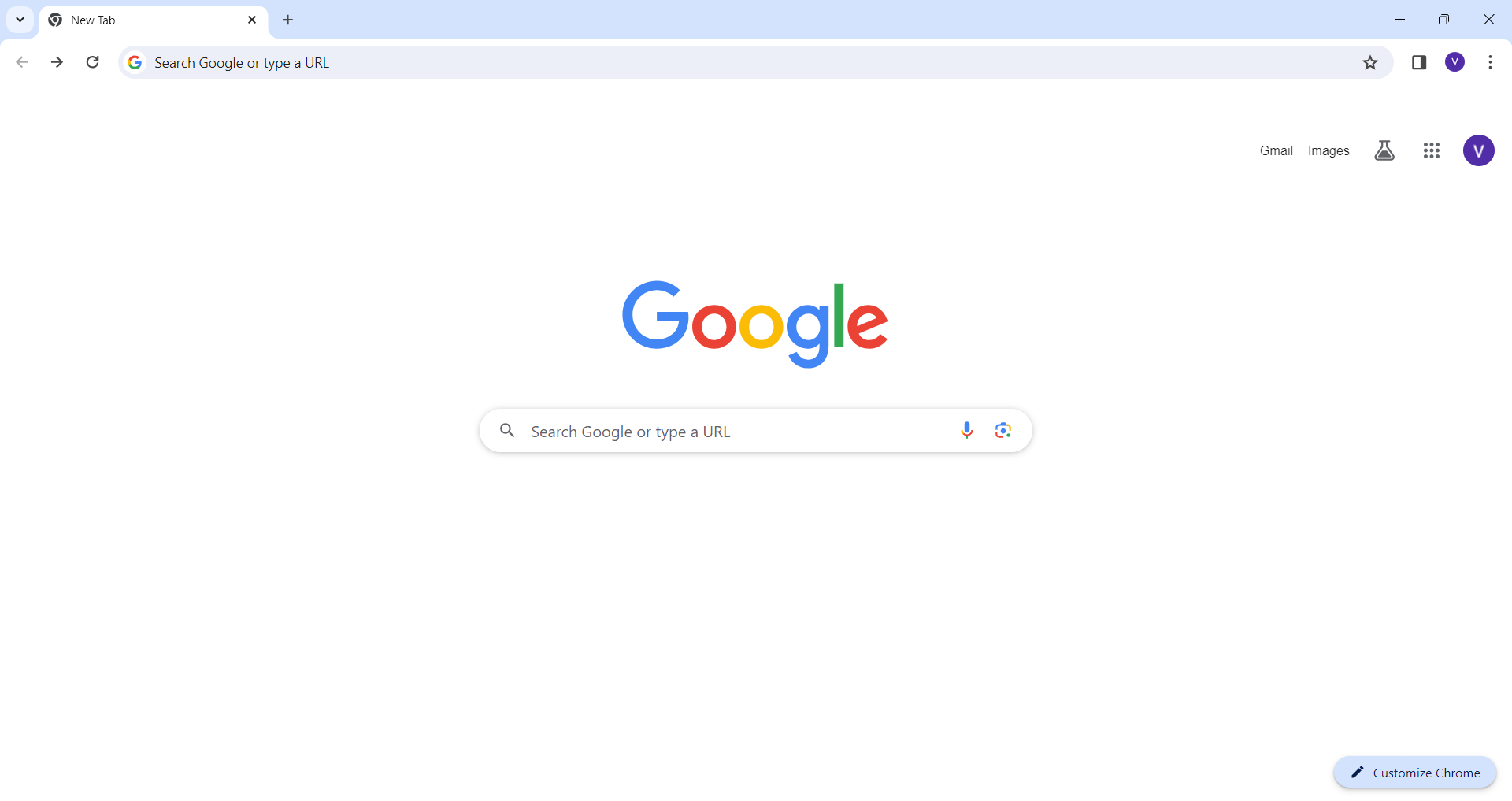
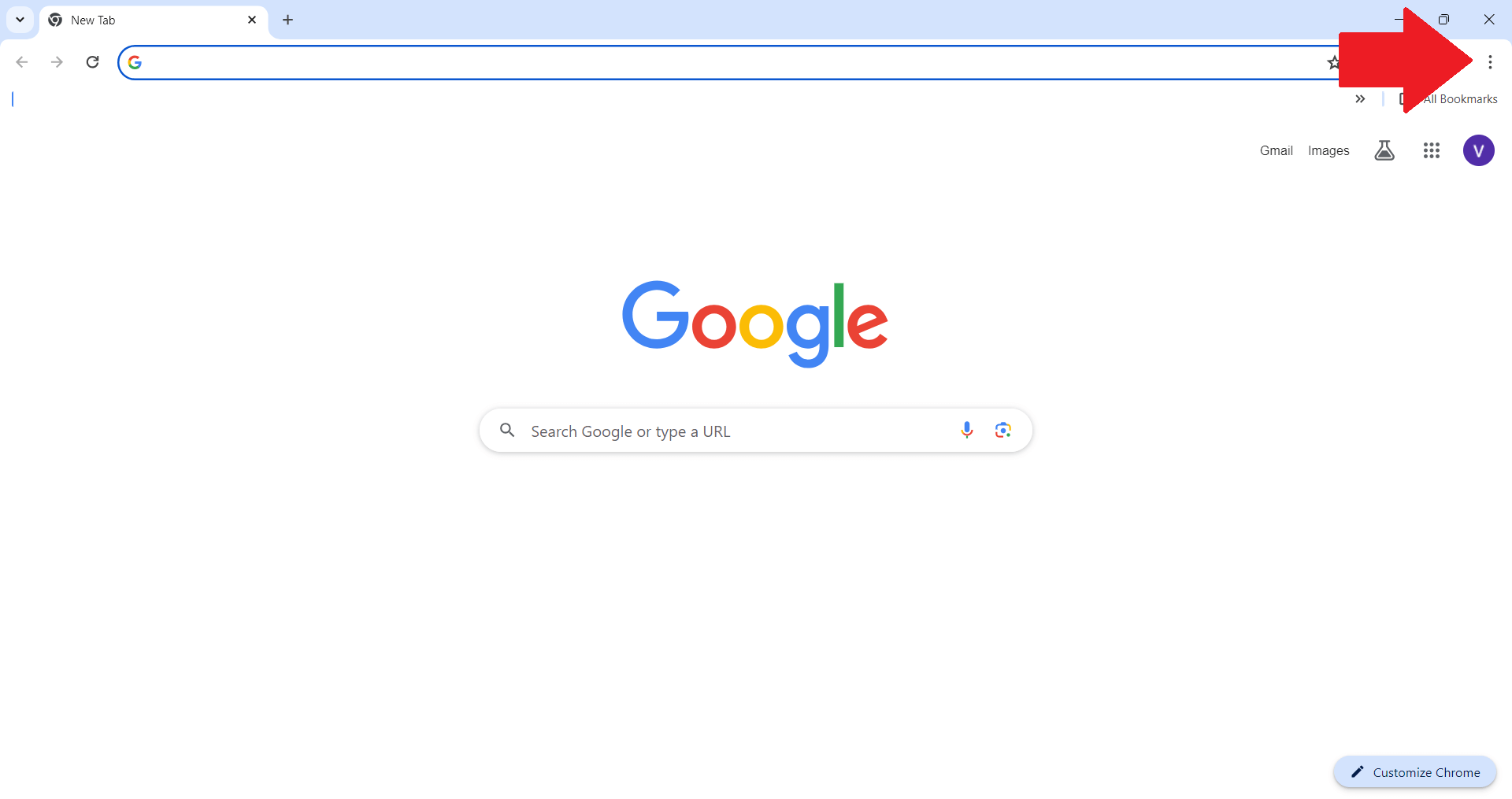
- Click on the three vertical dots in the upper right corner to open the Chrome menu.
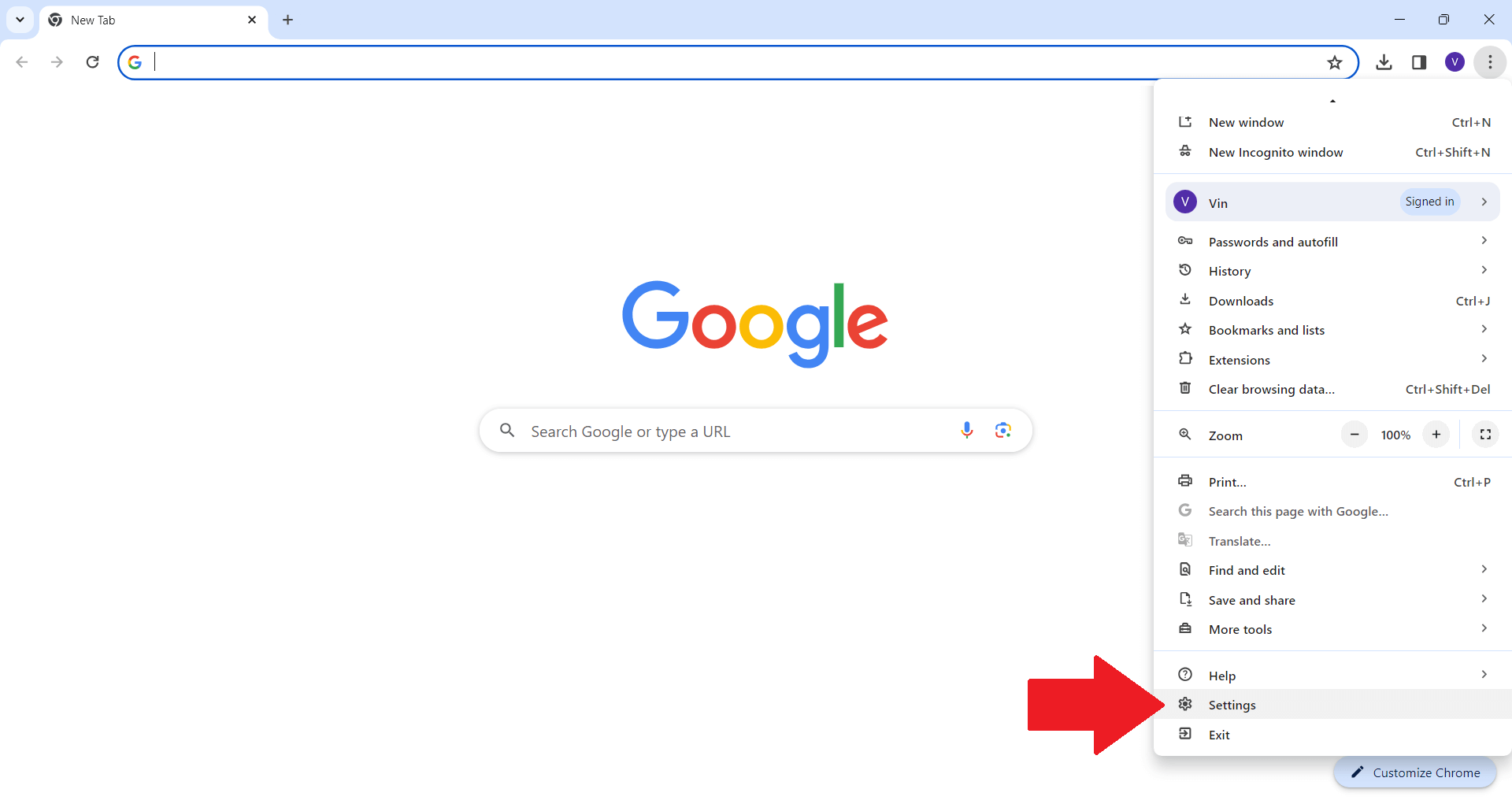
- Select “Settings” from the dropdown menu.
- Scroll down and click on “Privacy and security” on the left sidebar.
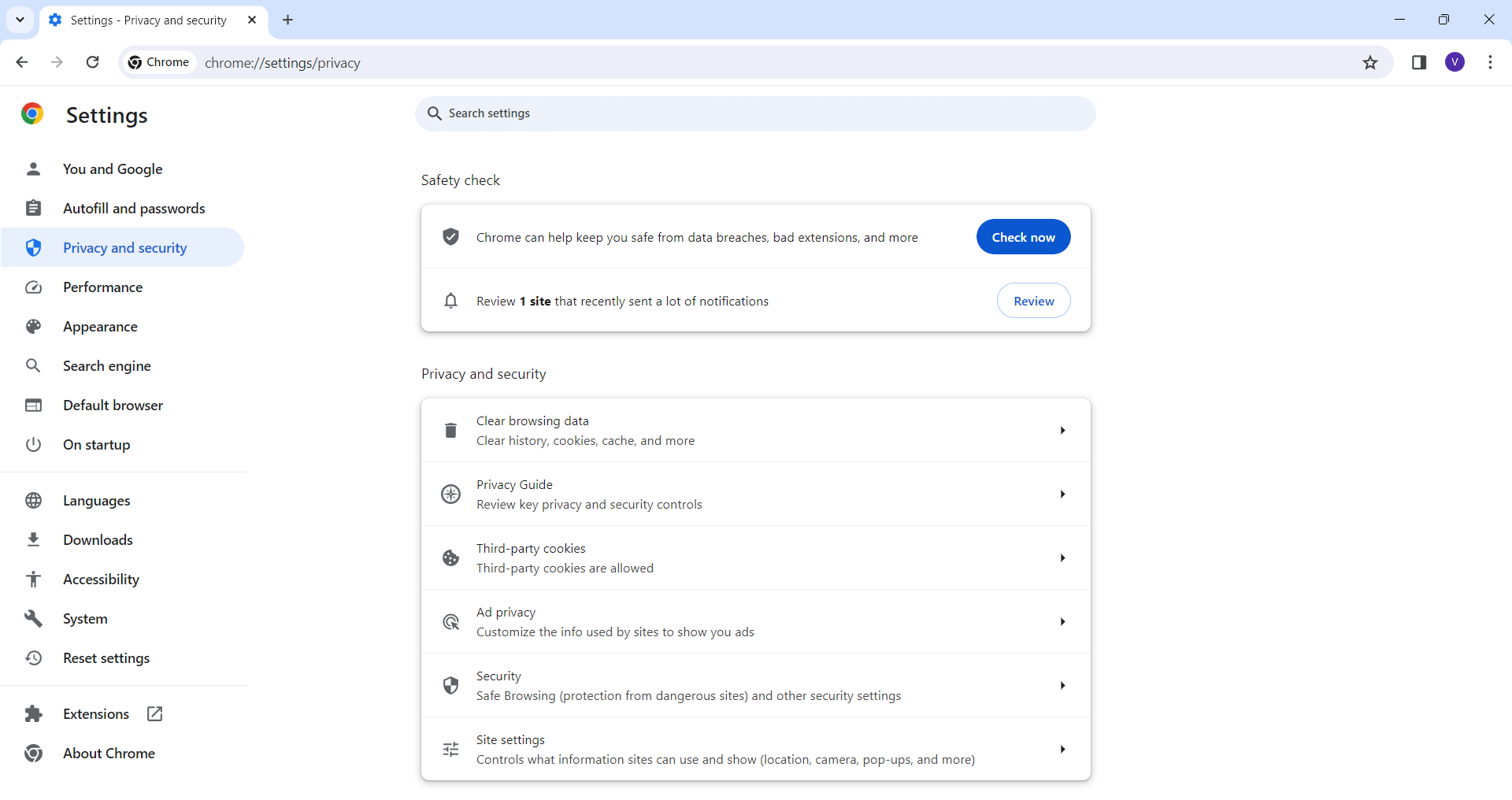
- Choose “Site Settings”.
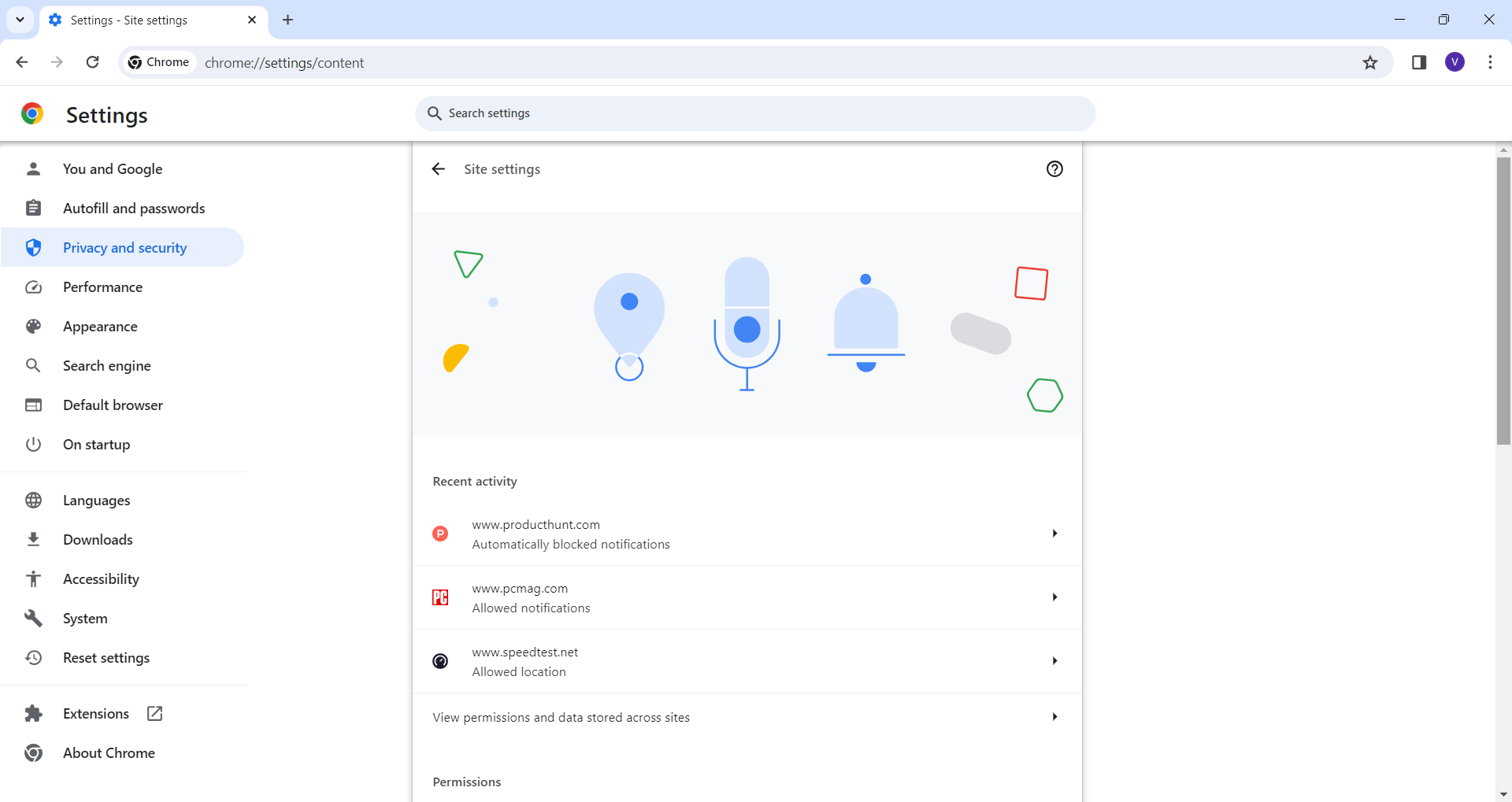
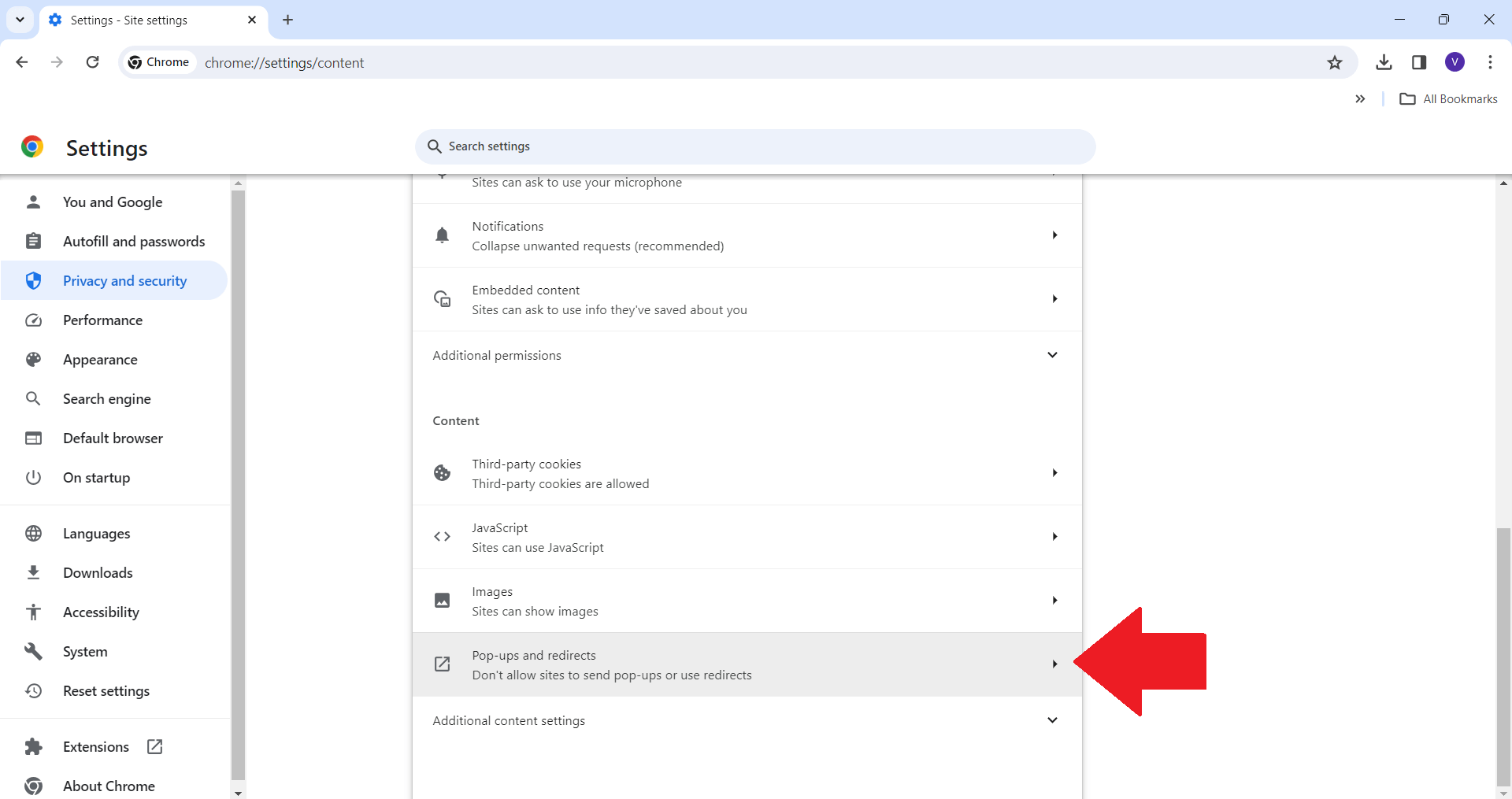
- Scroll down to find and click on “Pop-ups and redirects”.
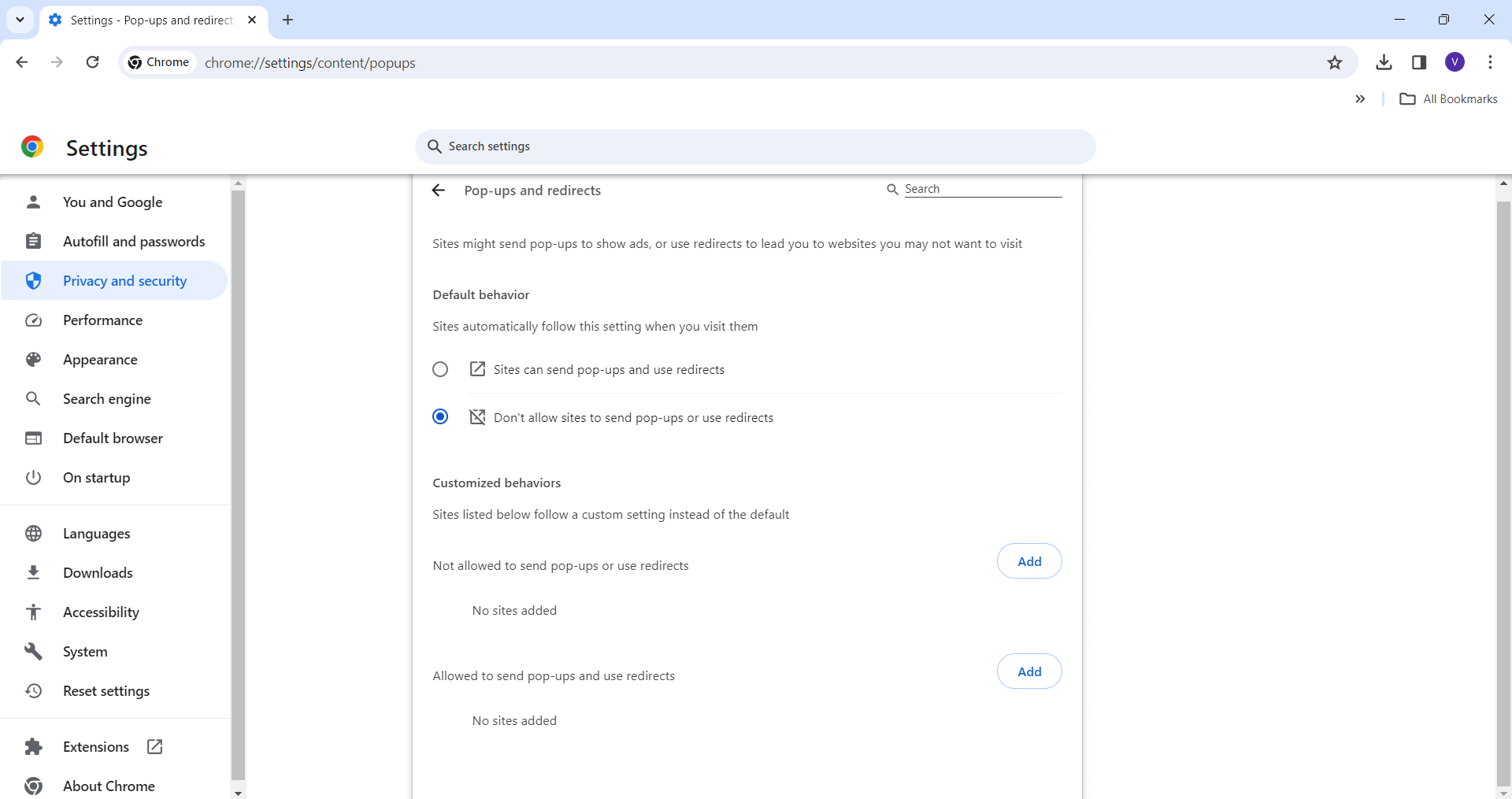
- Here, you can toggle the option to Allowed to disable the pop-up blocker entirely or leave it as Blocked to prevent pop-ups. If you wish to allow pop-ups from specific sites, you can add them to the “Allow” section by clicking Add next to “Allow” and entering the site’s URL.
How to Turn Off Pop-Up Blocker on Safari (Mac)
Mac Safari is a pretty handy tool for browsing, providing you with a no-frills way to handle settings including the ability to control pop-up blockers. This is really useful if you need to access some features without any pesky pop-up distractions.
Here’s how you can go ahead and modify your Safari settings for a smoother web experience:
- Open Safari on your Mac.
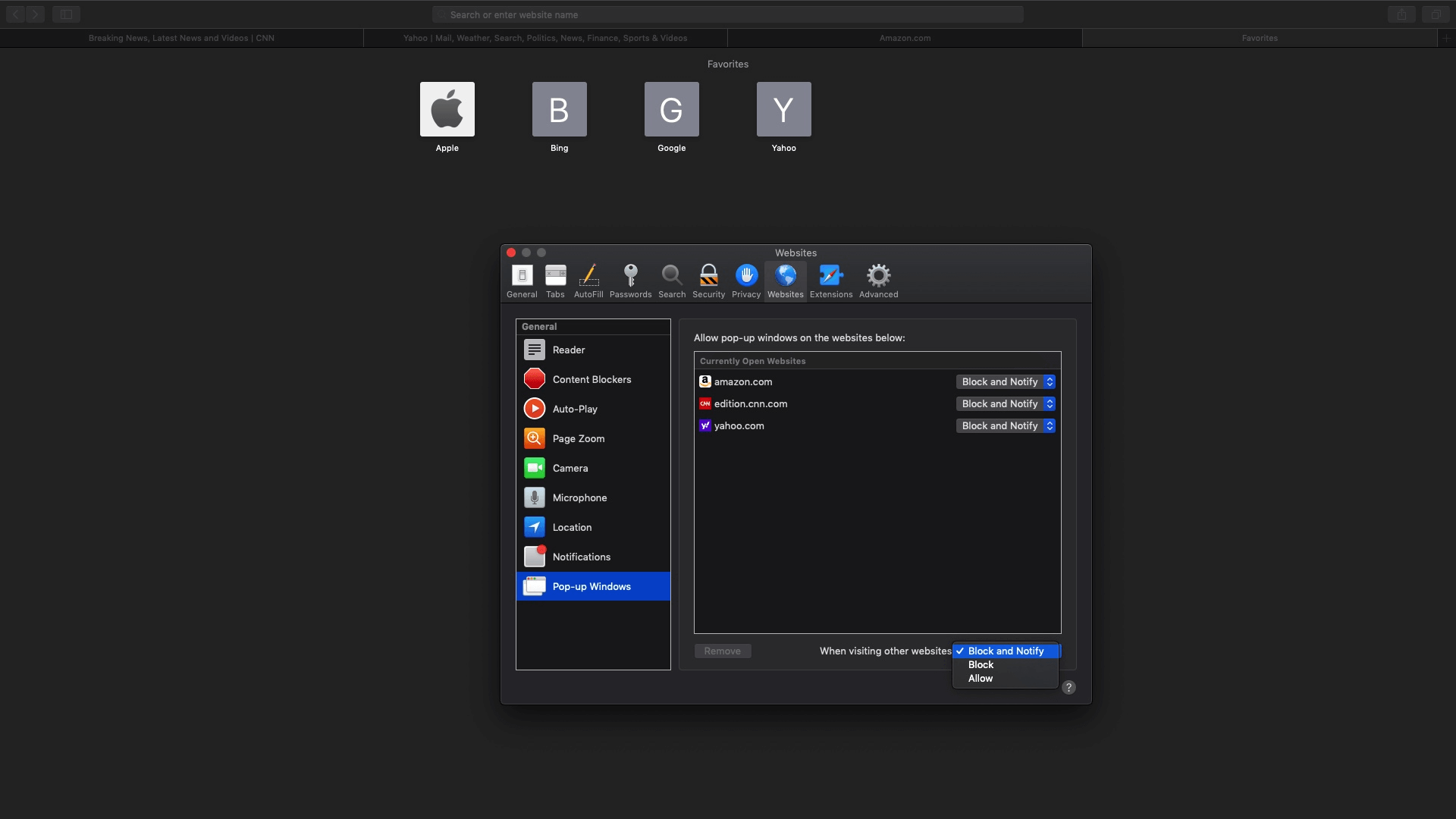
- Go to the Safari menu in the upper left corner of your screen and select “Preferences”.
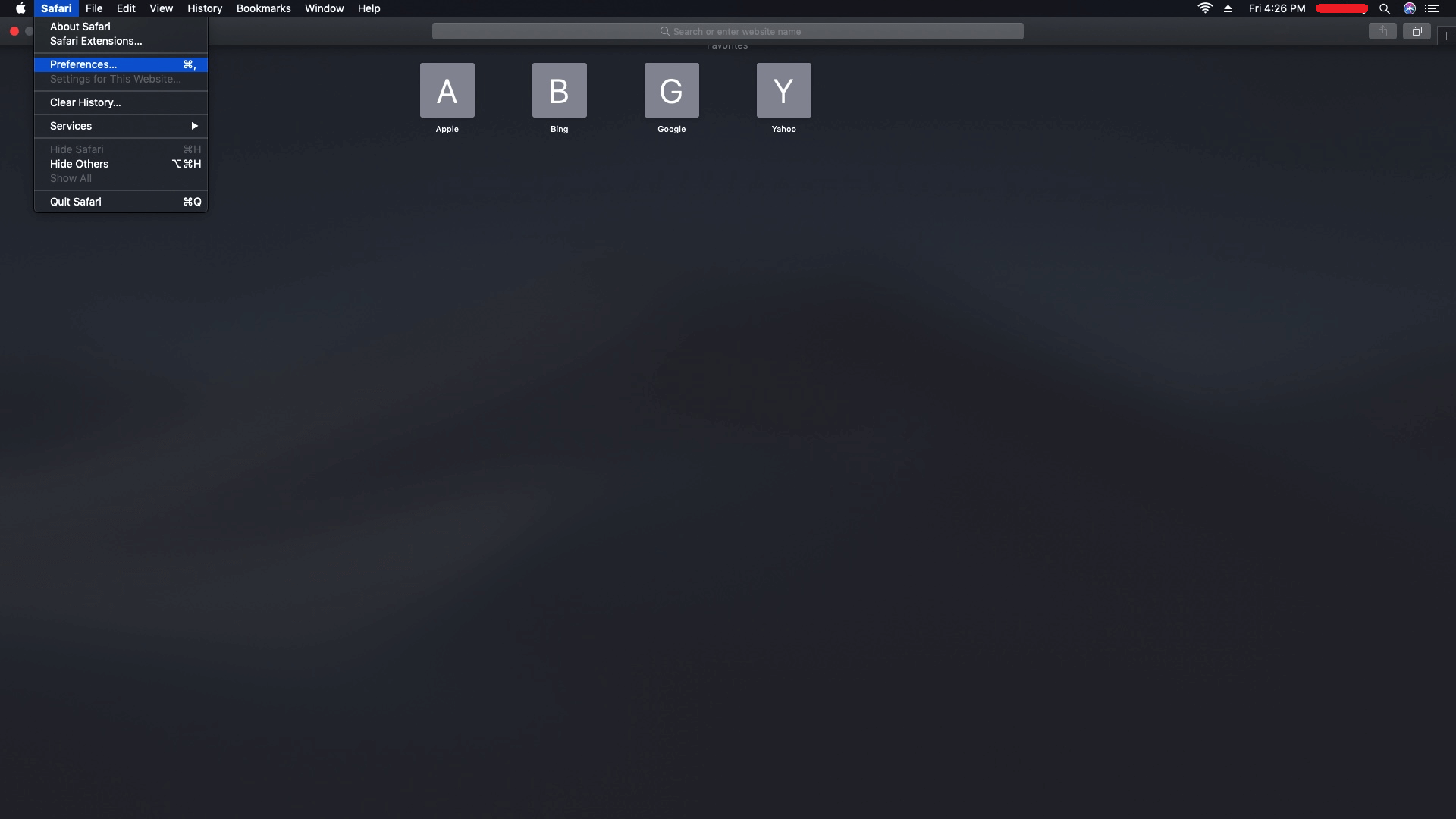
- Click on the “Website”s tab at the top of the Preferences window.
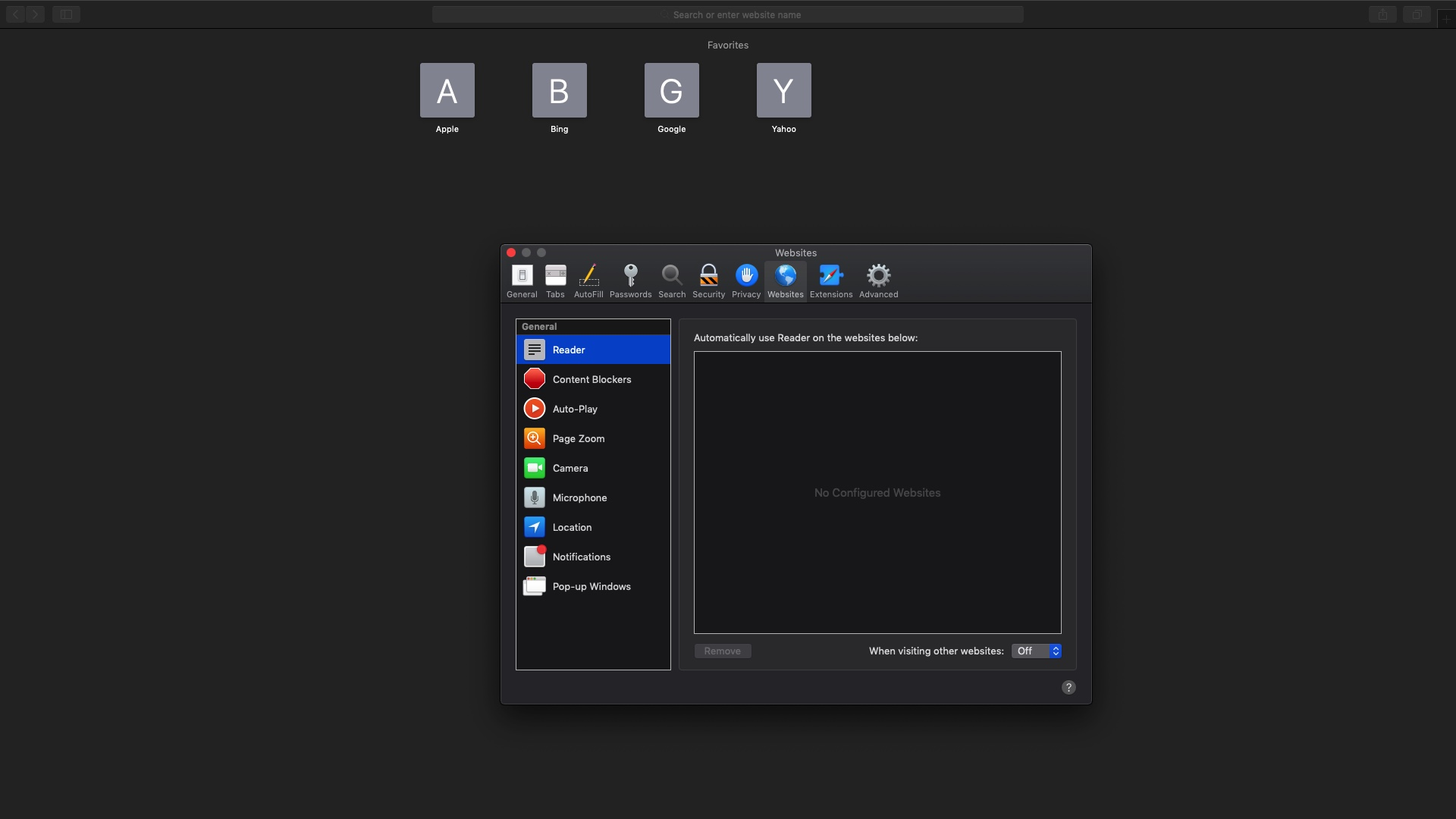
- On the left sidebar, select “Pop-up Windows”.
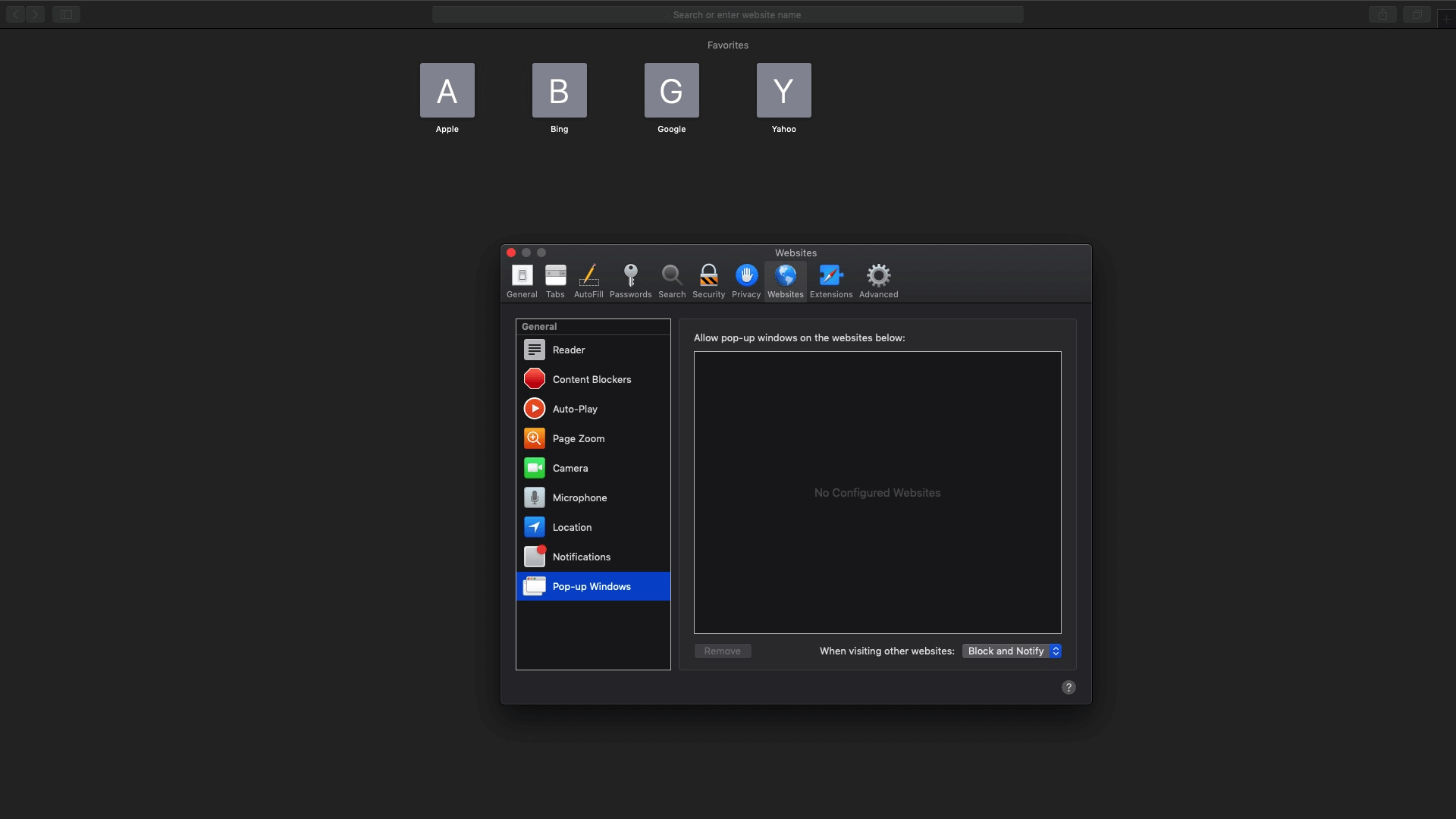
- Here, you’ll see a list of websites currently open in Safari. For each site, you can choose to Allow or Block pop-ups.
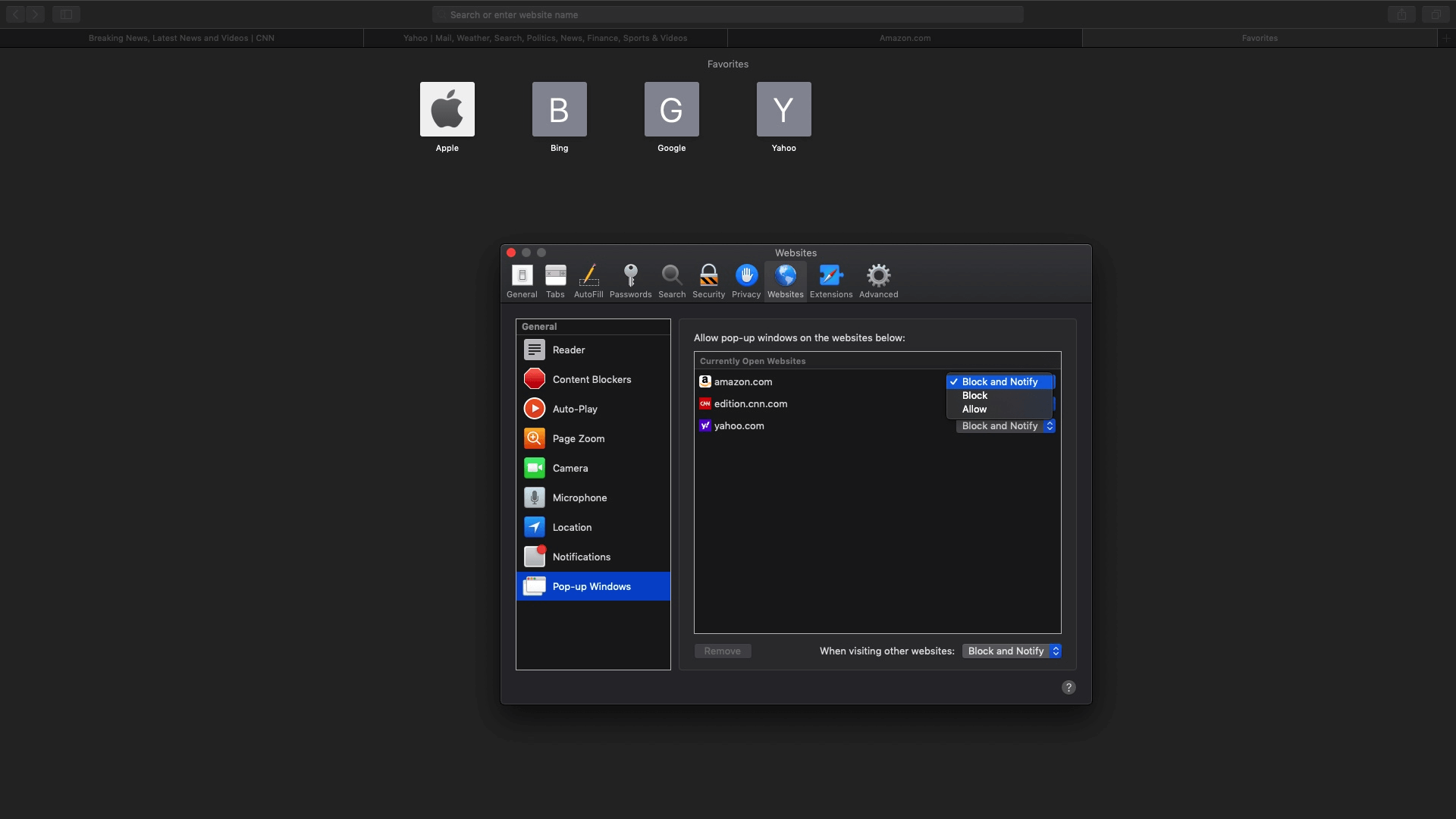
- To set a default behavior for all websites, use the dropdown menu at the bottom of the window labeled When visiting other websites. Choose Allow to disable the pop-up blocker across all sites.
How Do I Disable Pop-Up Blocker on Edge
Microsoft Edge gives you a way to simplify the web surfing process. They offer easy-to-understand settings to do a lot of things, including managing pop-up blockers.
This guide here will show you how to modify the settings on your Edge browser. You can use it to turn on or off the pop-up blocker and make sure your web experience matches up with what you want:
- Open the Microsoft Edge browser on your computer.
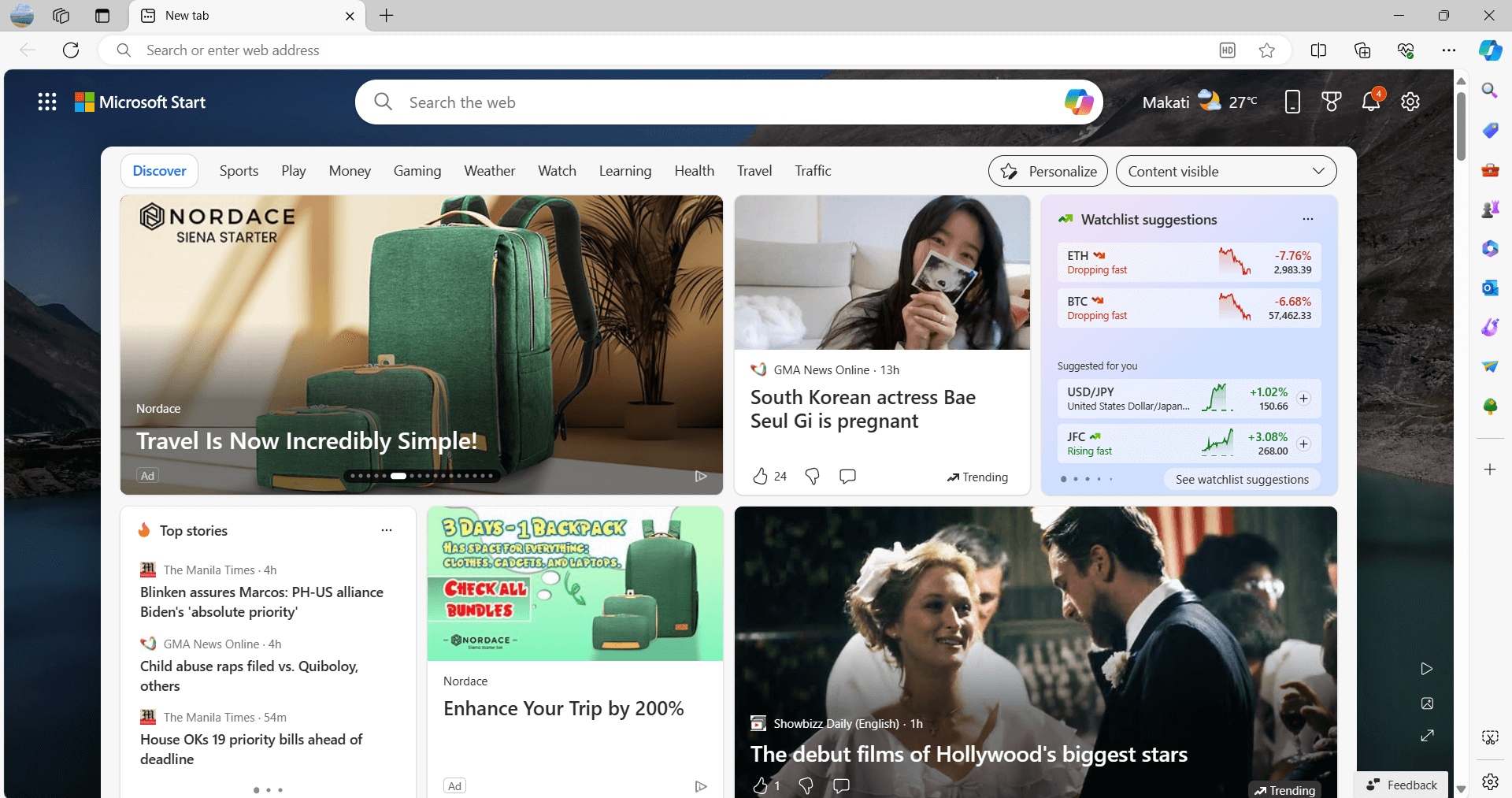
- Click on the three dots located in the upper right corner to access the menu.
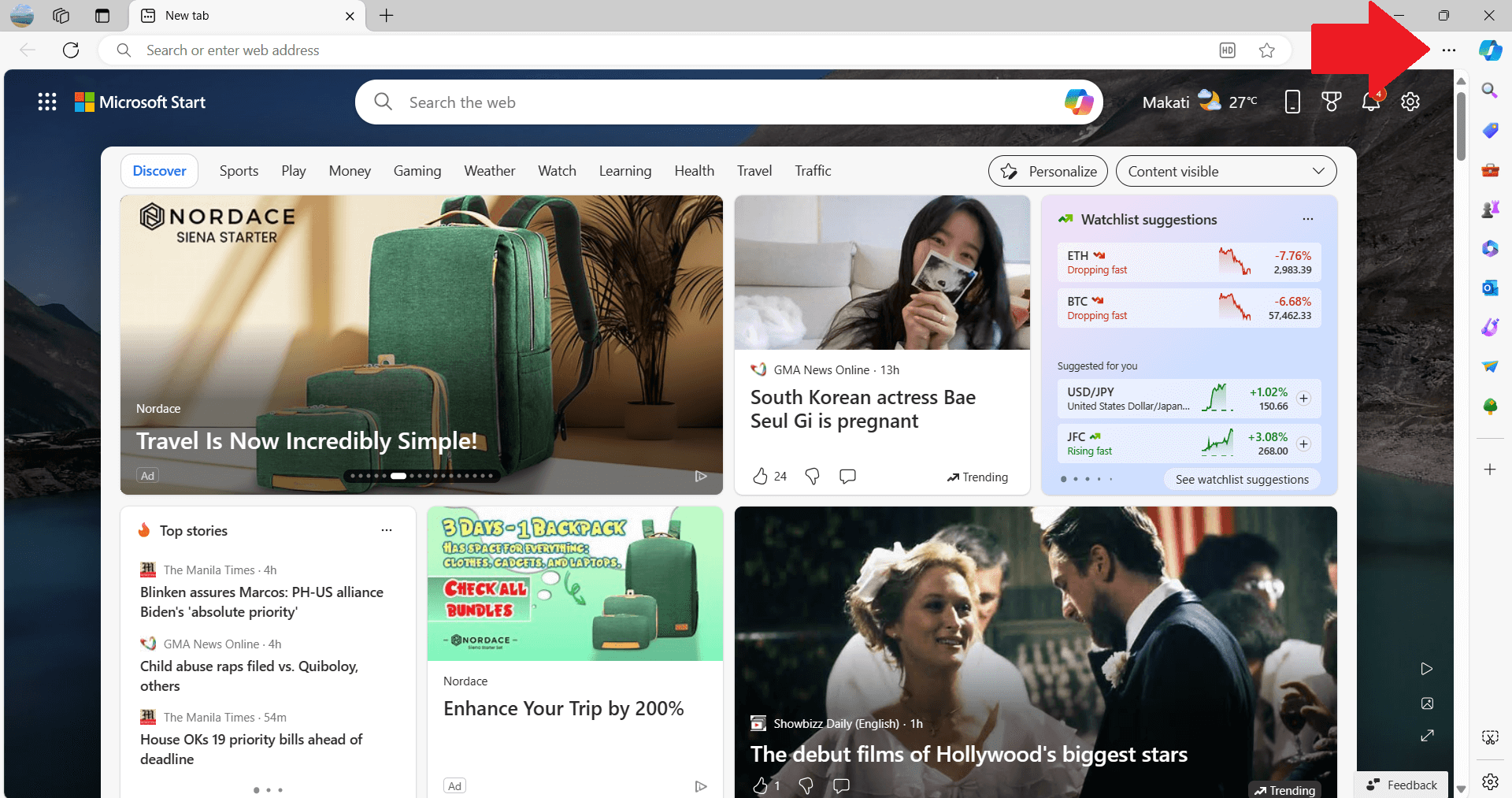
- From the dropdown menu, select “Settings”.
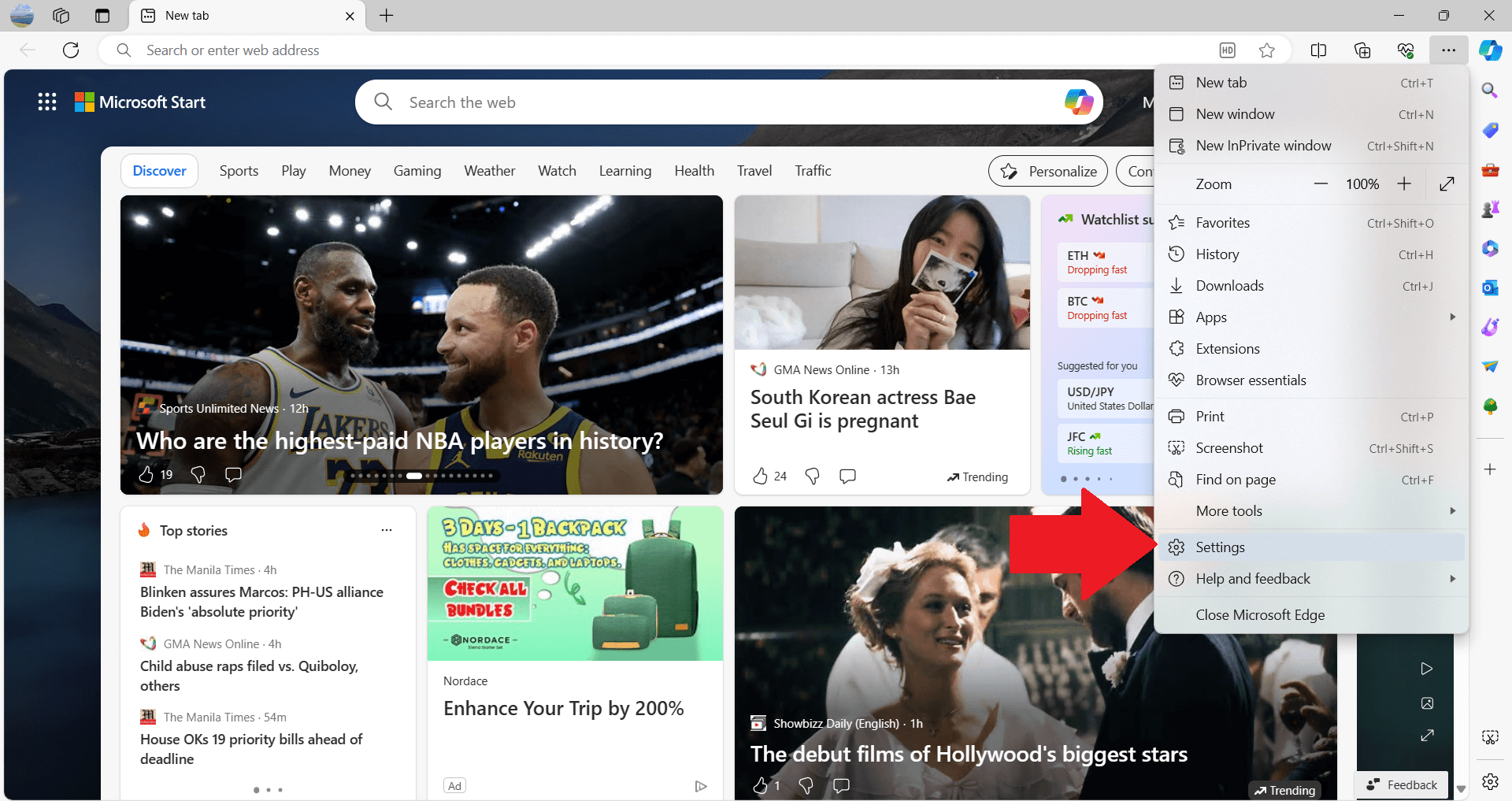
- Look for “Cookies and site permissions” on the left sidebar and click on it.
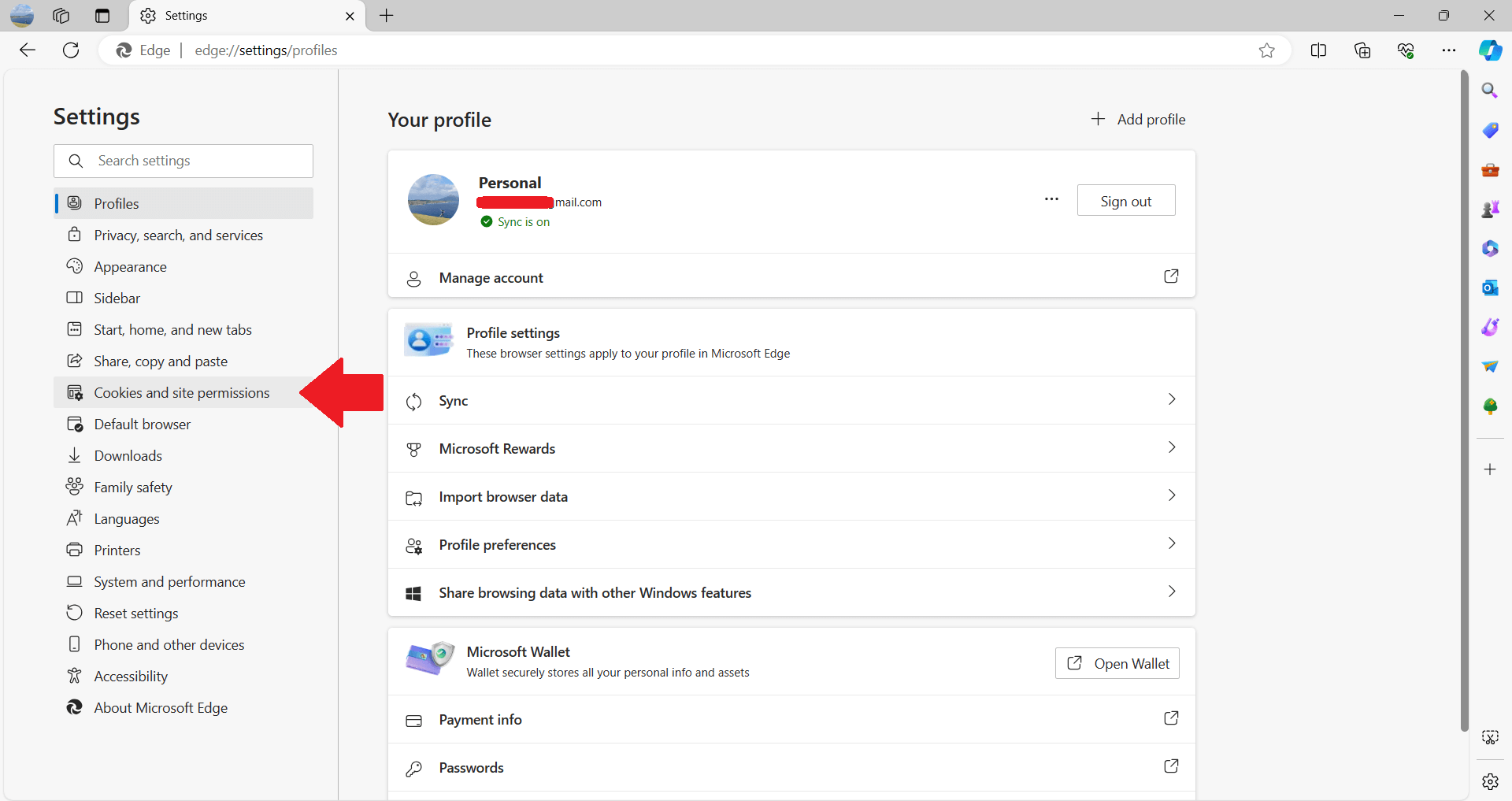
- Click on “Pop-ups and redirects”.
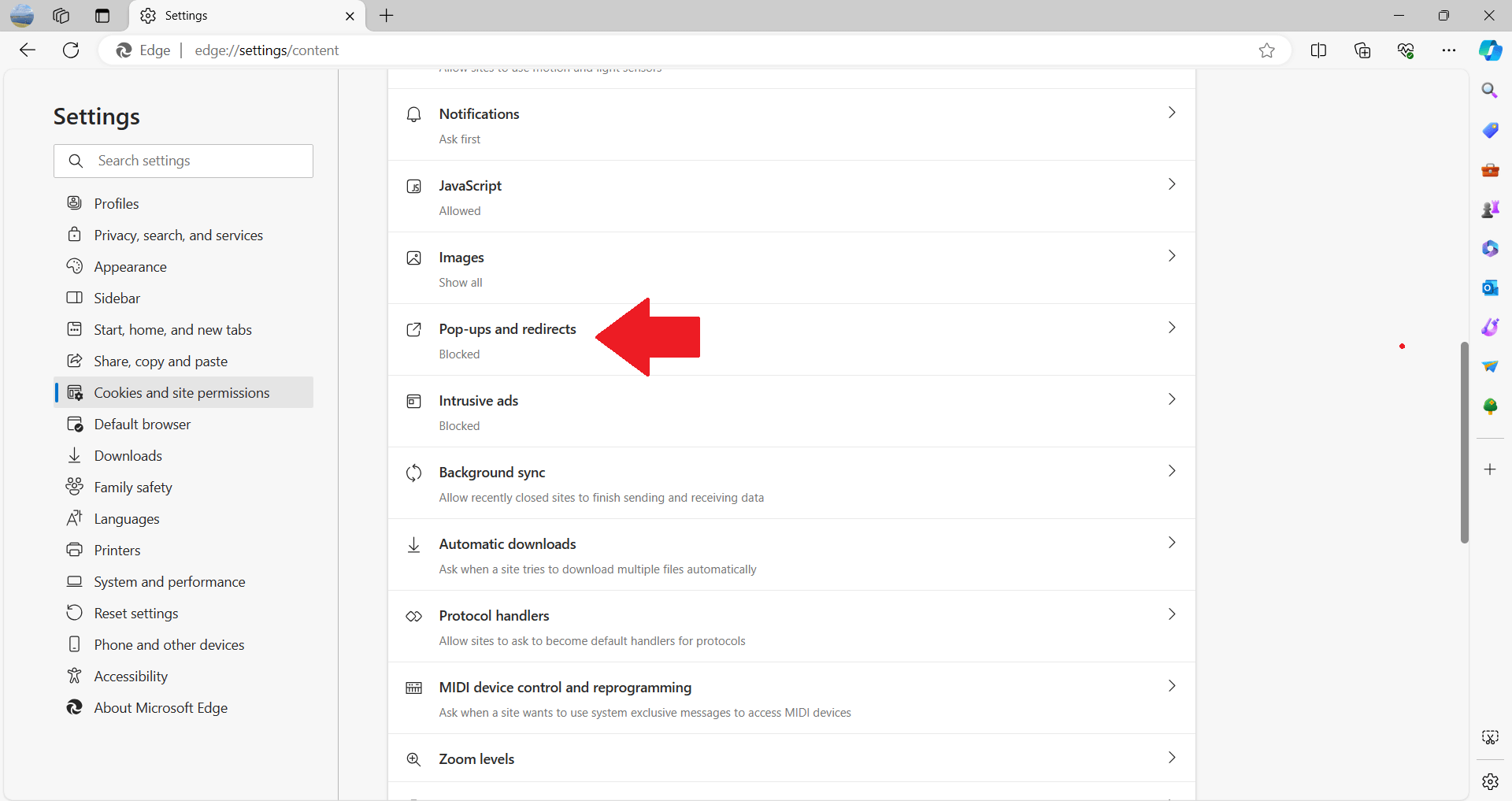
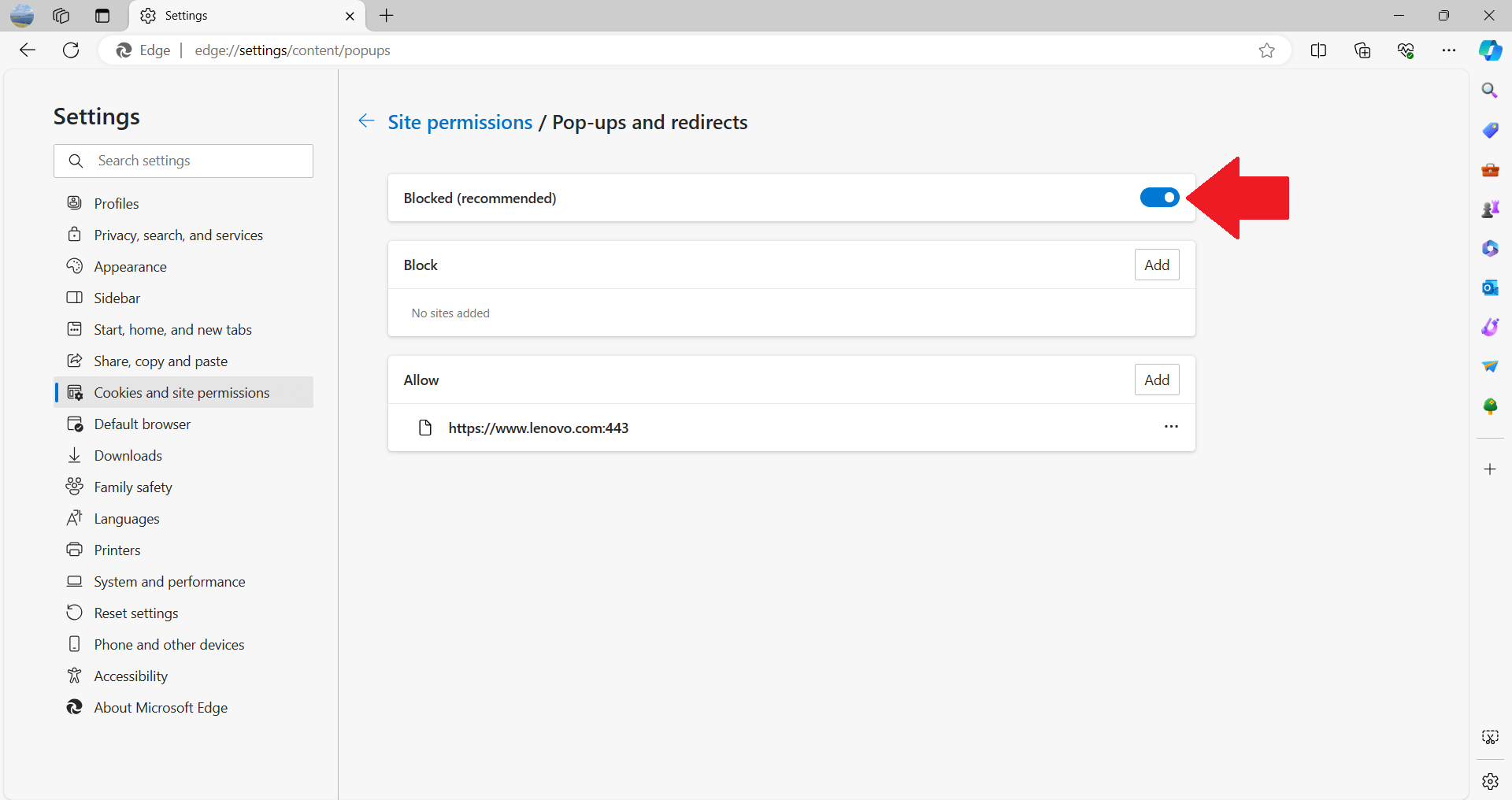
- Find “Blocked (recommended)”. Here, you can toggle the switch to off to disable the pop-up blocker or leave it on to continue blocking unwanted pop-ups.
How Do I Turn Off Pop-Up Blocker on Firefox (Desktop)
Firefox lets you take full control of your browsing experience, with options ranging from managing pop-up blockers to deciding if you even want them. By following these simple steps, you can adjust the pop-up settings to either block or allow pop-ups:
- Launch the Firefox browser on your computer.
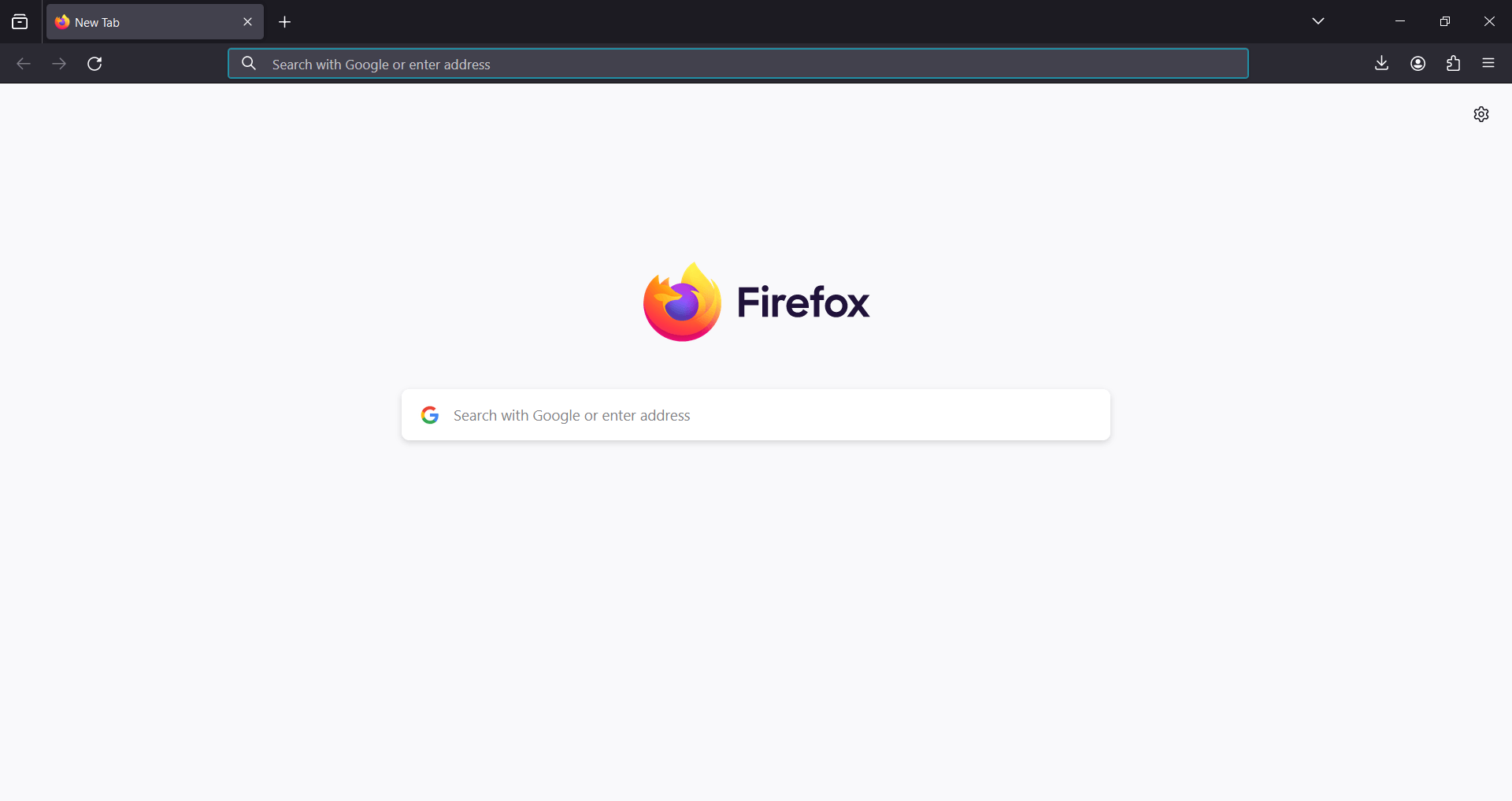
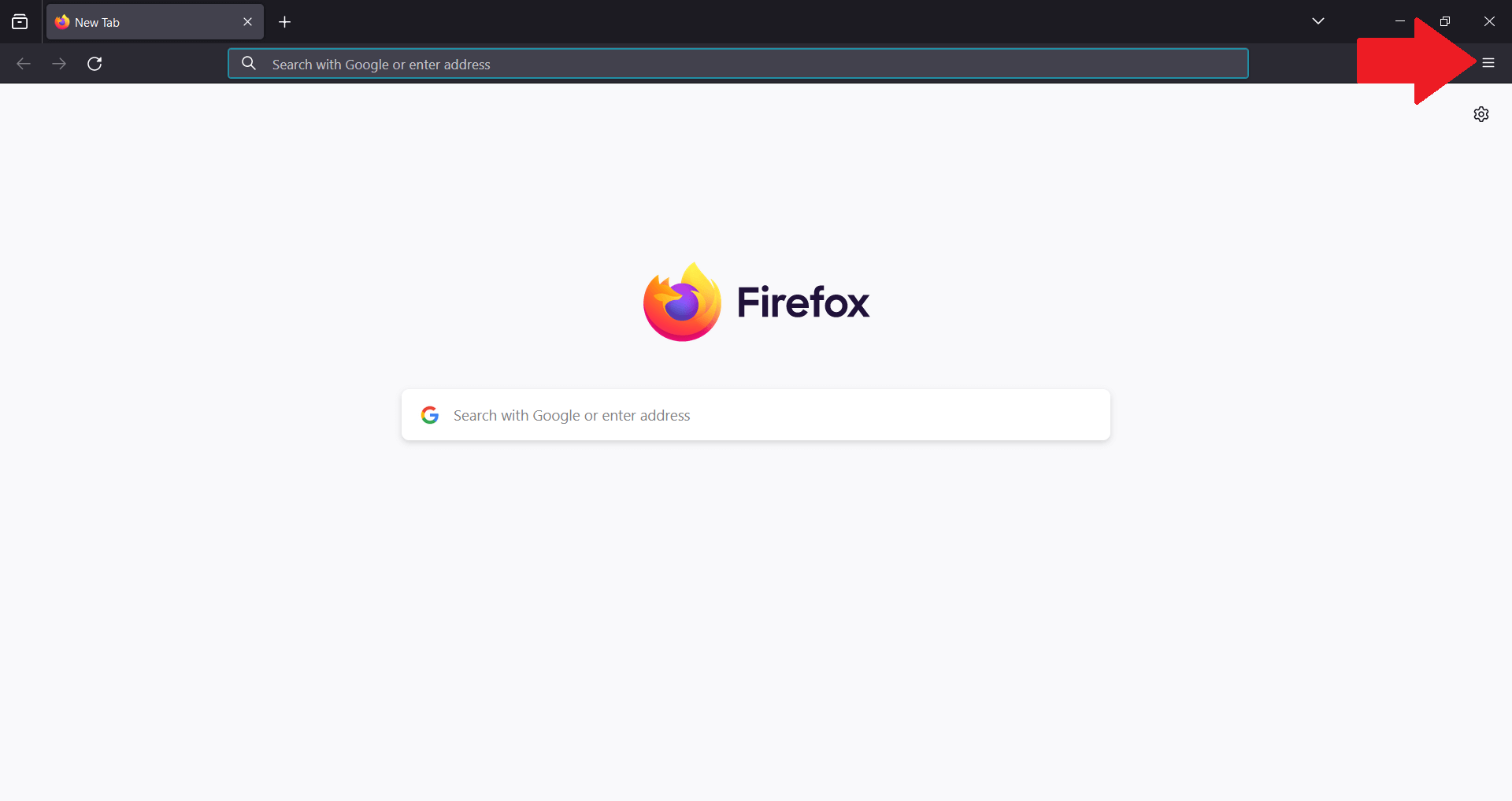
- Click on the three horizontal lines in the upper right corner to open the menu.
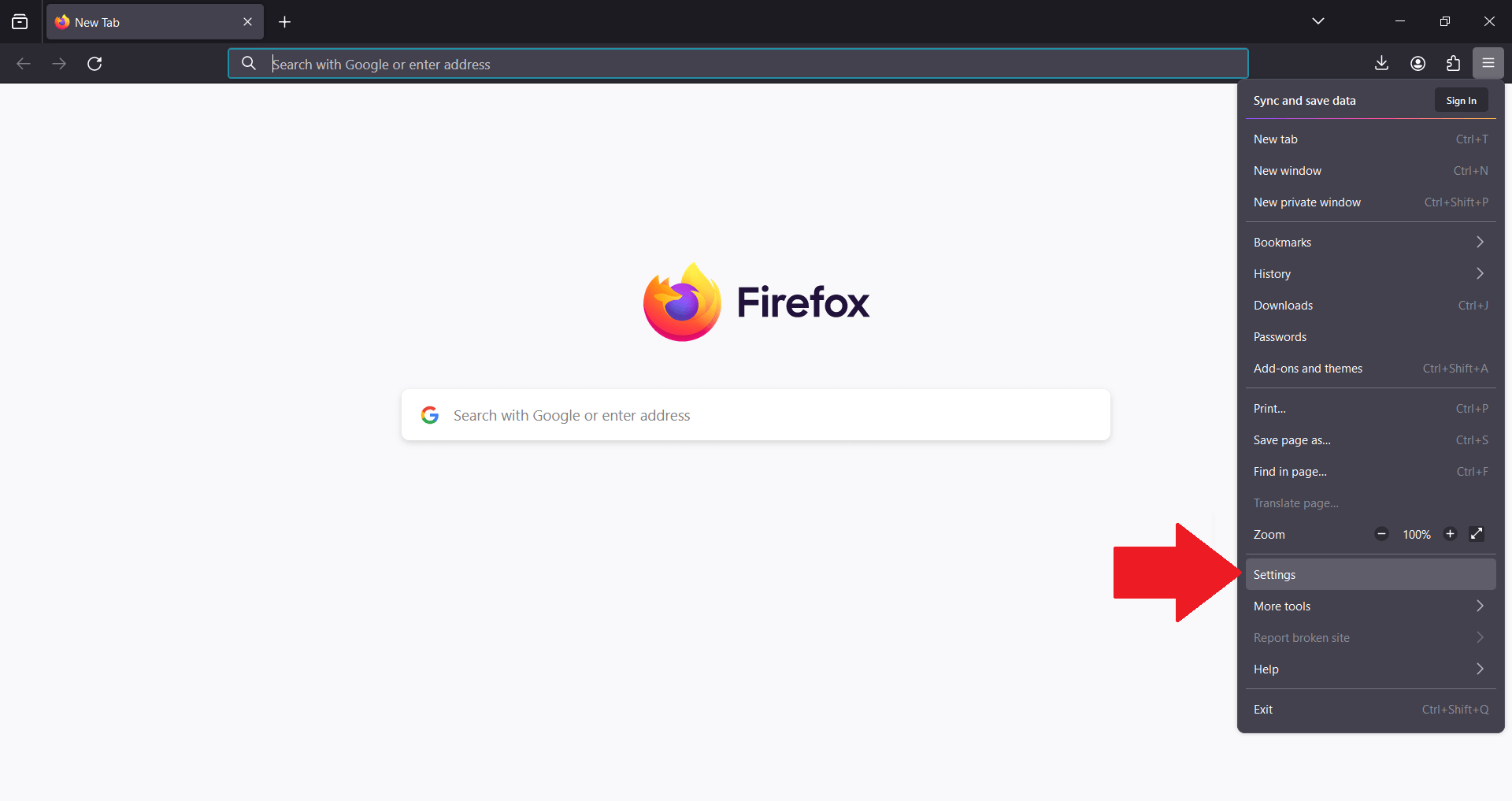
- Select “Settings” from the dropdown menu.
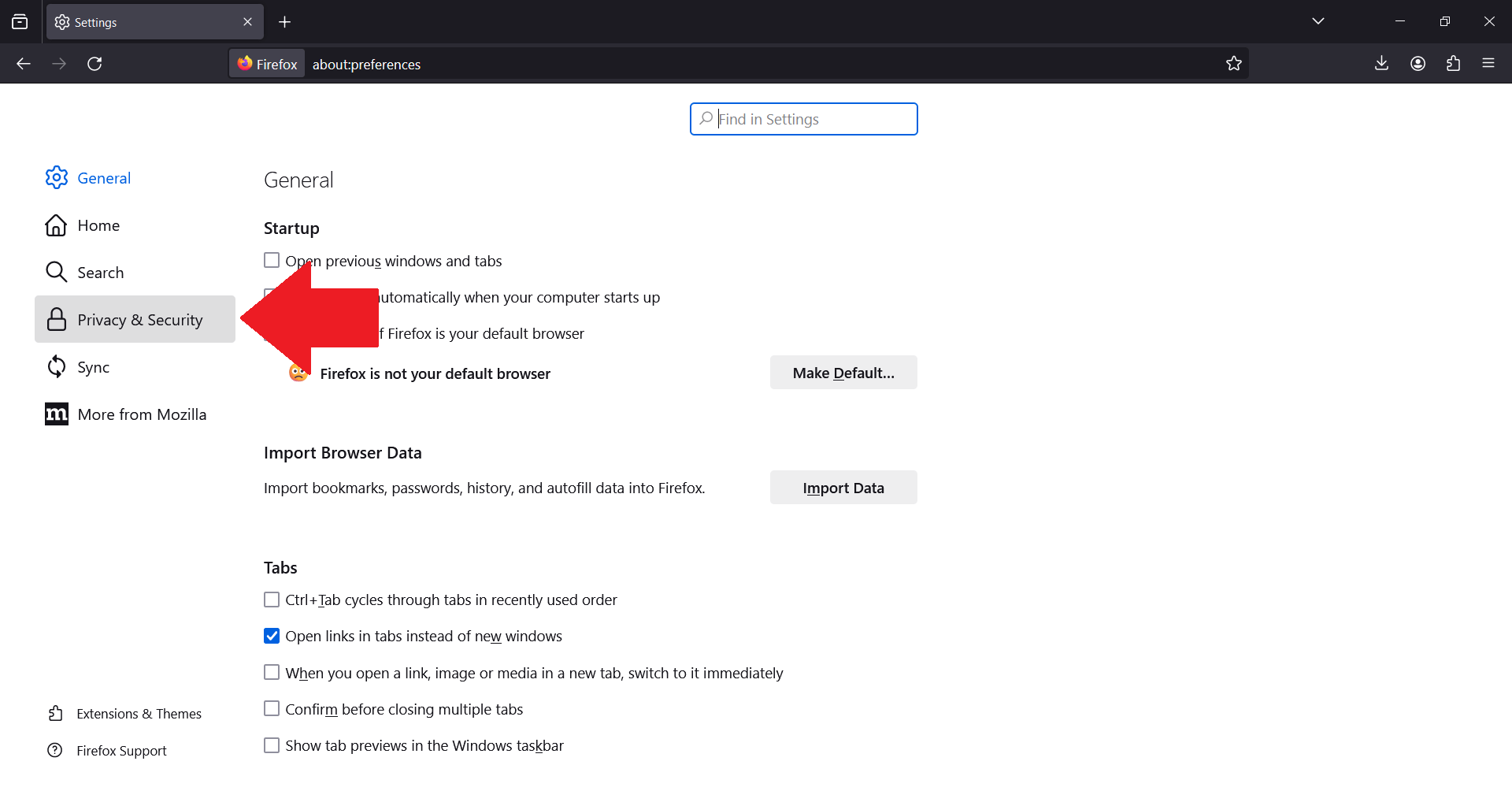
- Navigate to the “Privacy & Security” panel on the left side.
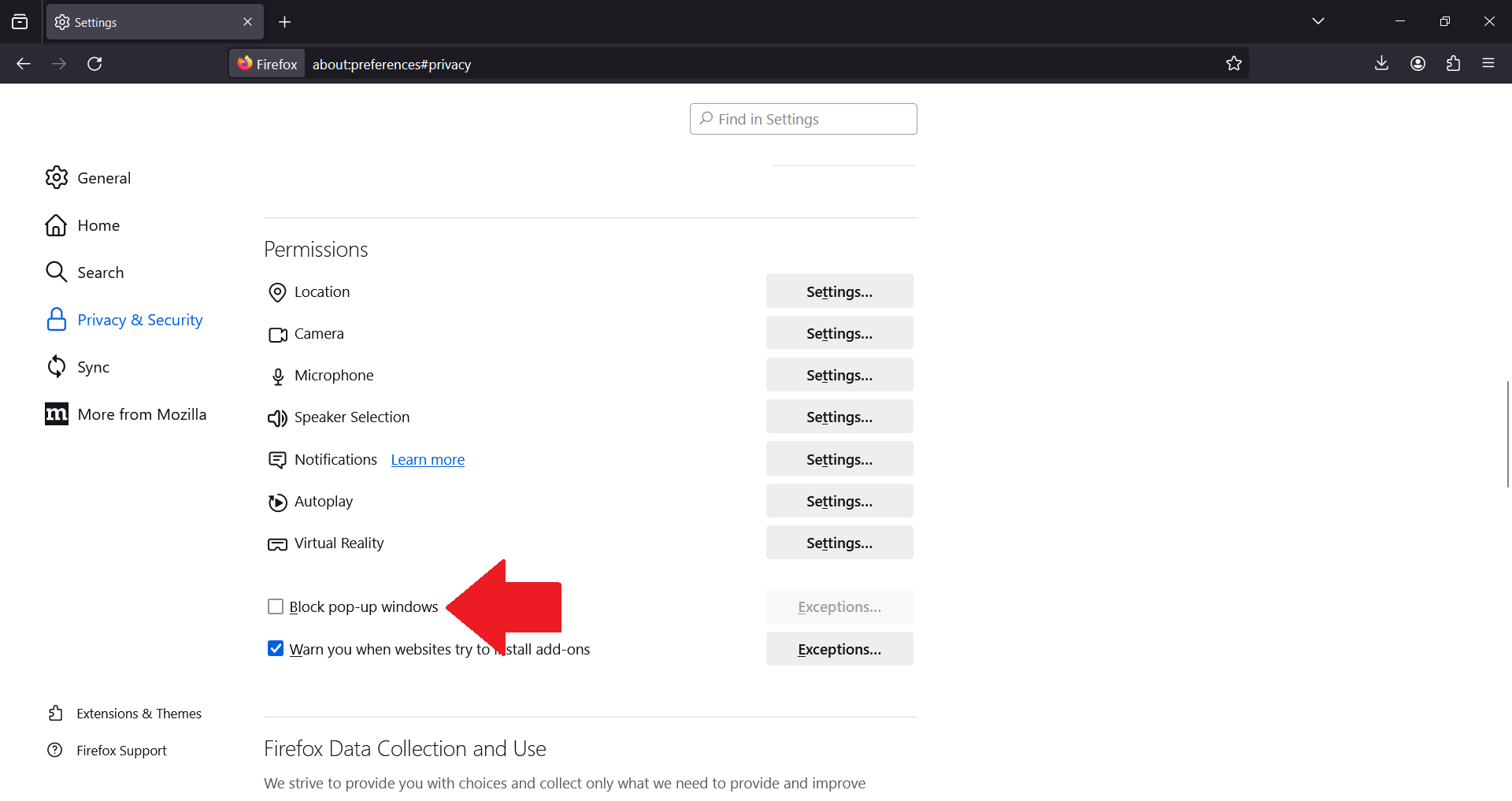
- Scroll down to the “Permissions” section.
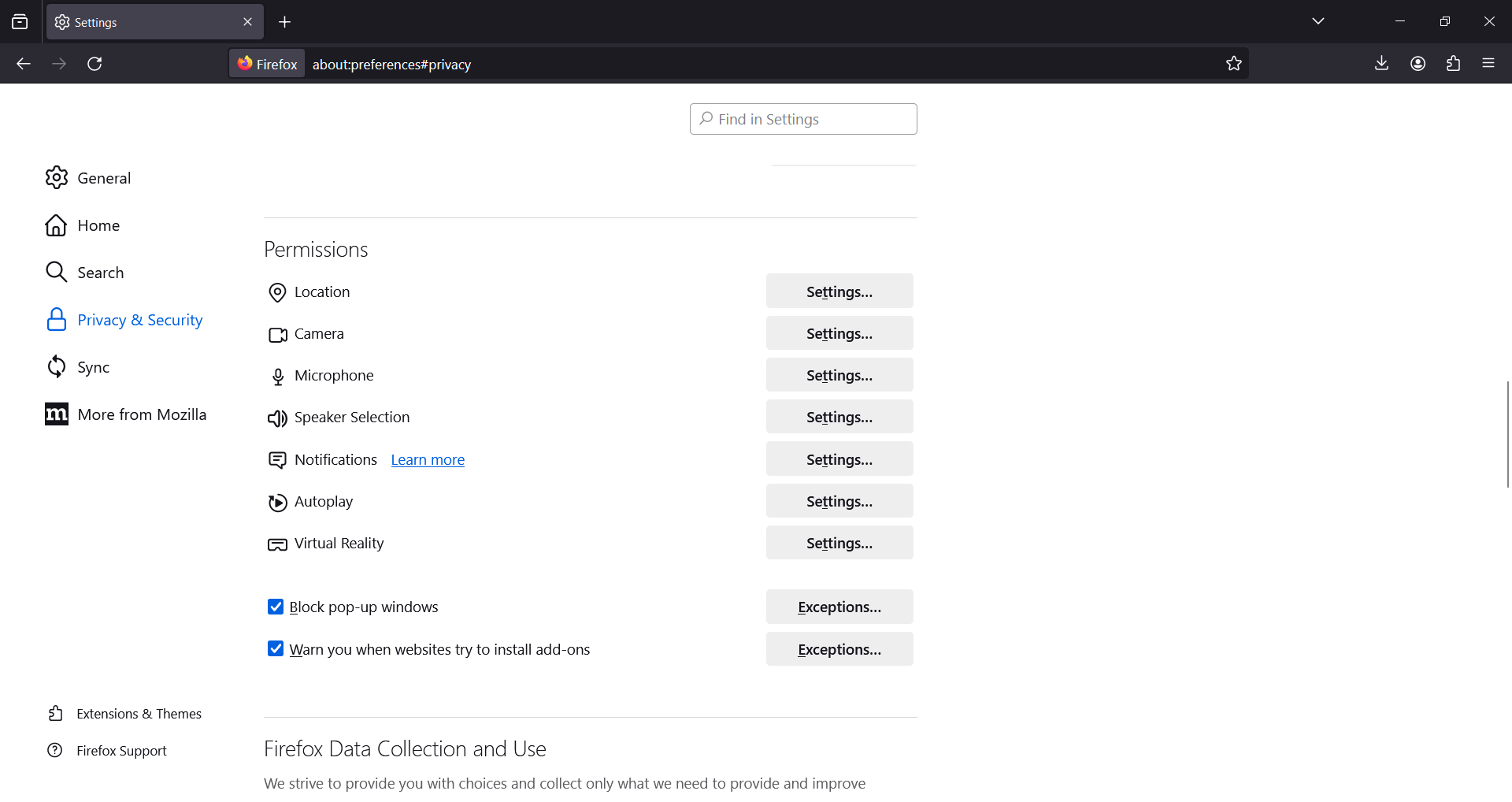
- Locate the “Block pop-up windows” option. To disable the pop-up blocker, uncheck this box. If you prefer to keep blocking pop-ups except for certain sites, click on “Exceptions” and enter the URLs of sites you wish to allow.
How to Disable Pop-Up Blocker on Opera (Desktop)
Opera provides a user-friendly experience for managing pop-up settings. By following these steps, you can enjoy a customized browsing experience:
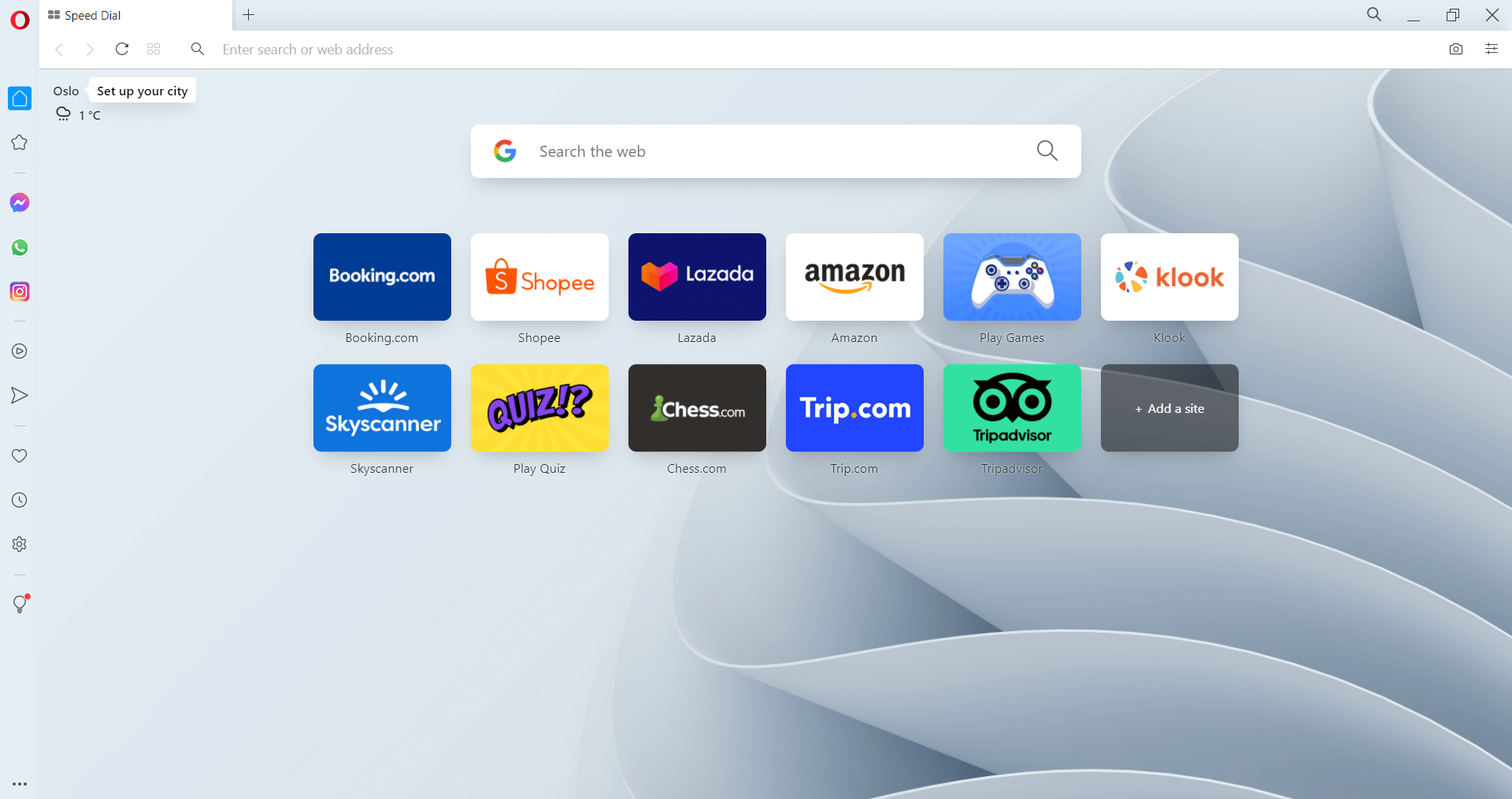
- Open the Opera browser on your desktop.
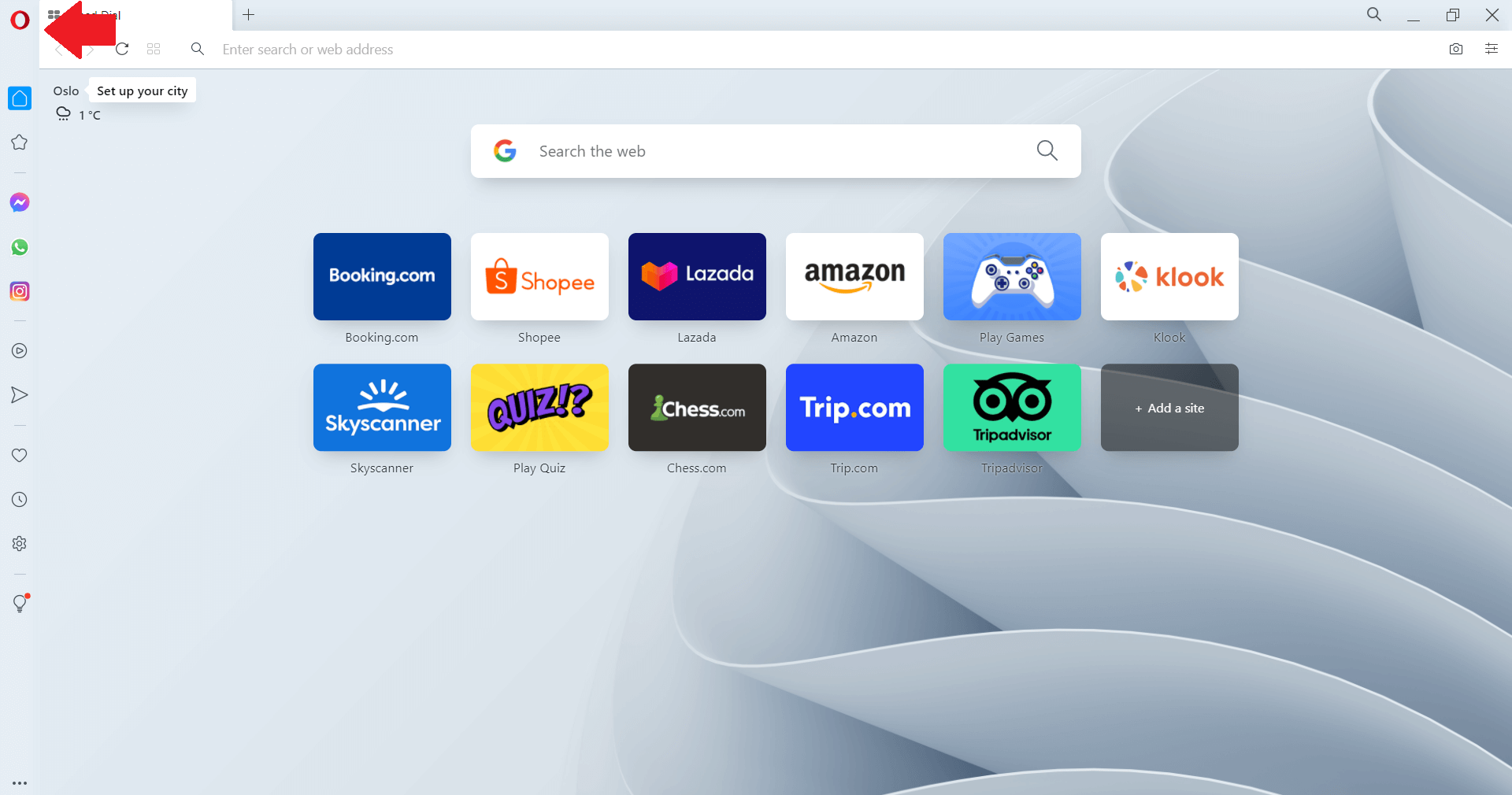
- Click on the Opera icon in the top left corner to access the menu.
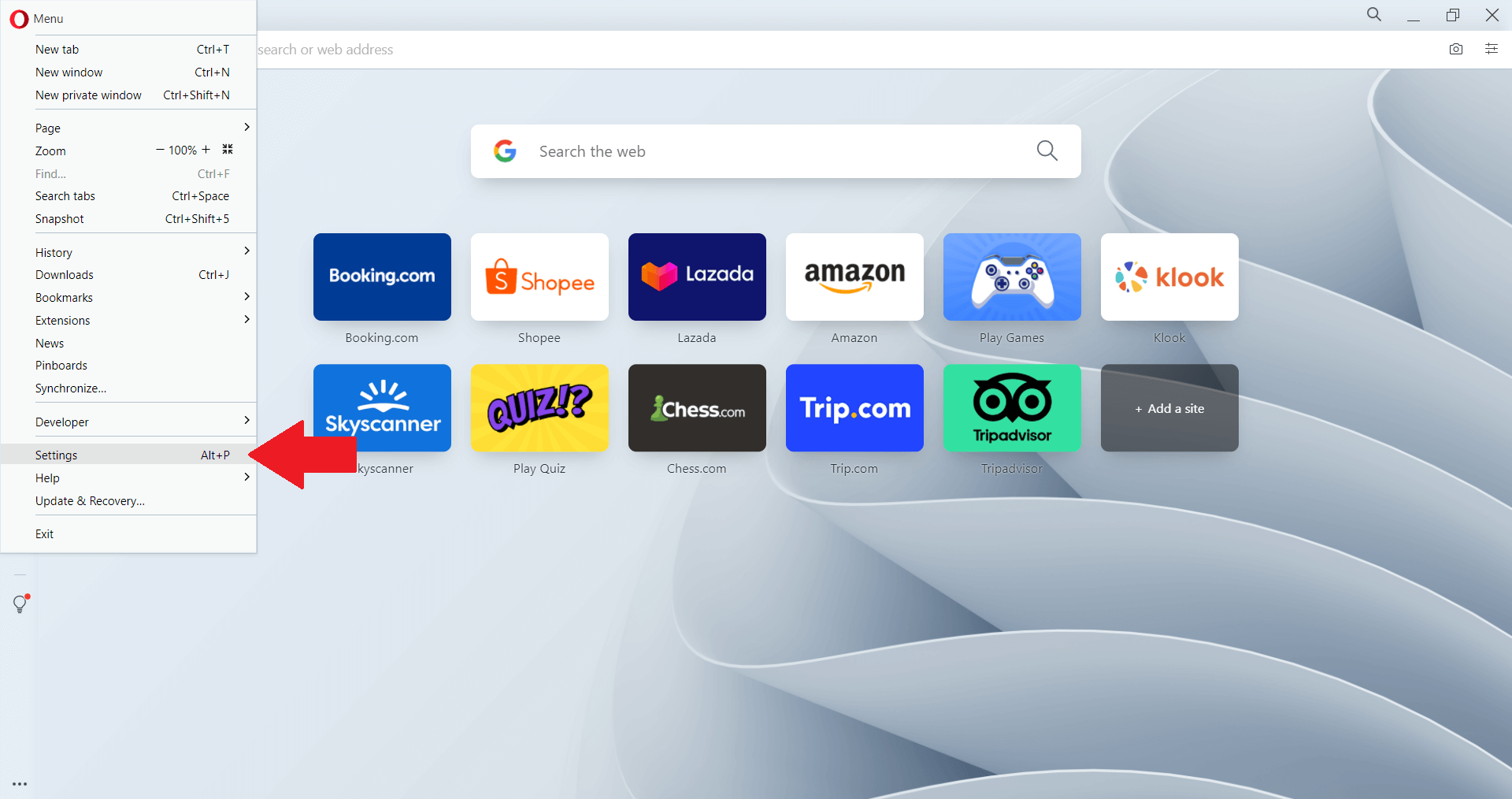
- Select “Settings” from the dropdown menu. Alternatively, you can press Alt+P on your keyboard for a shortcut.
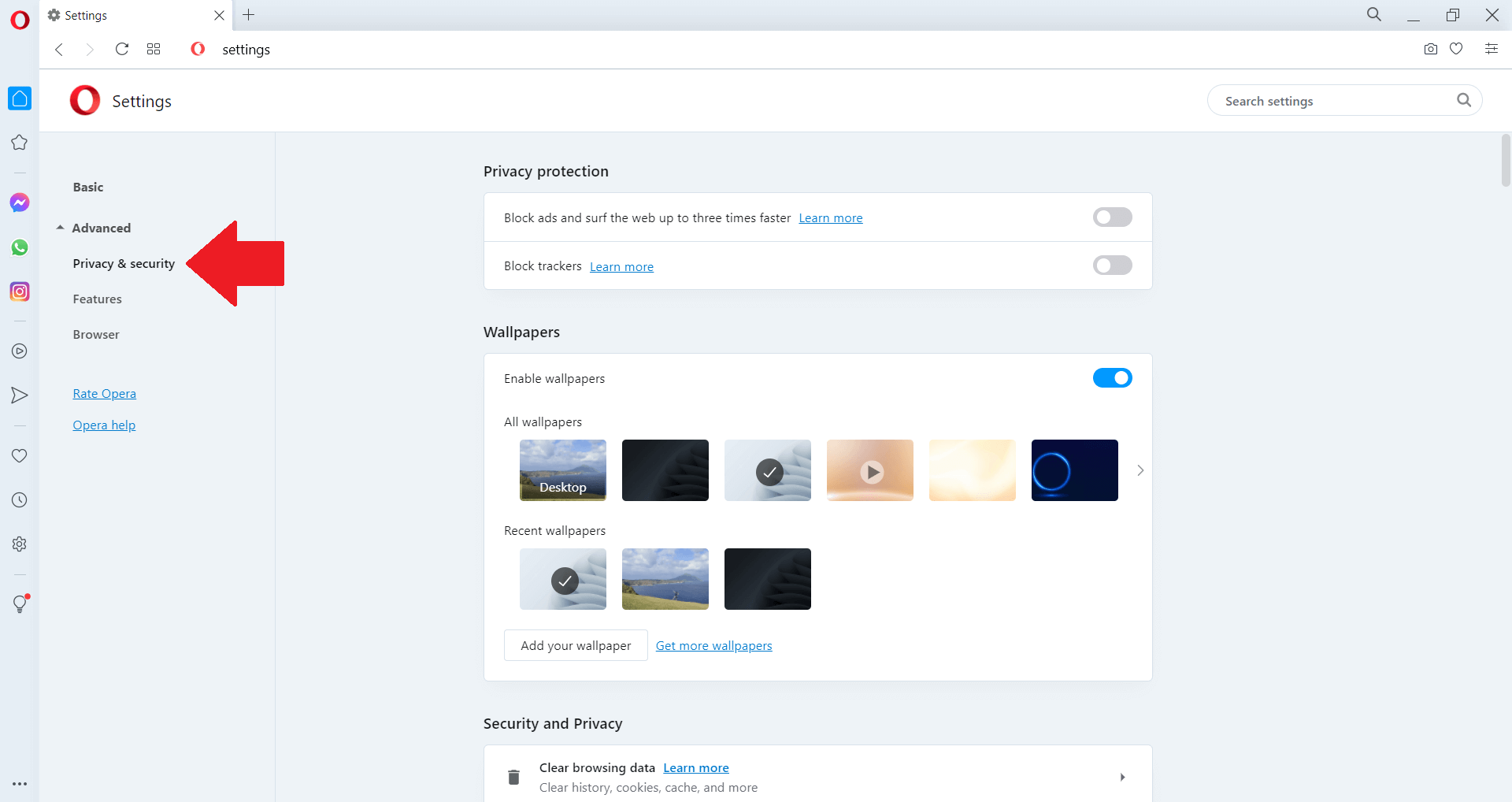
- In the sidebar and under “Advanced”, click on “Privacy & Security”.
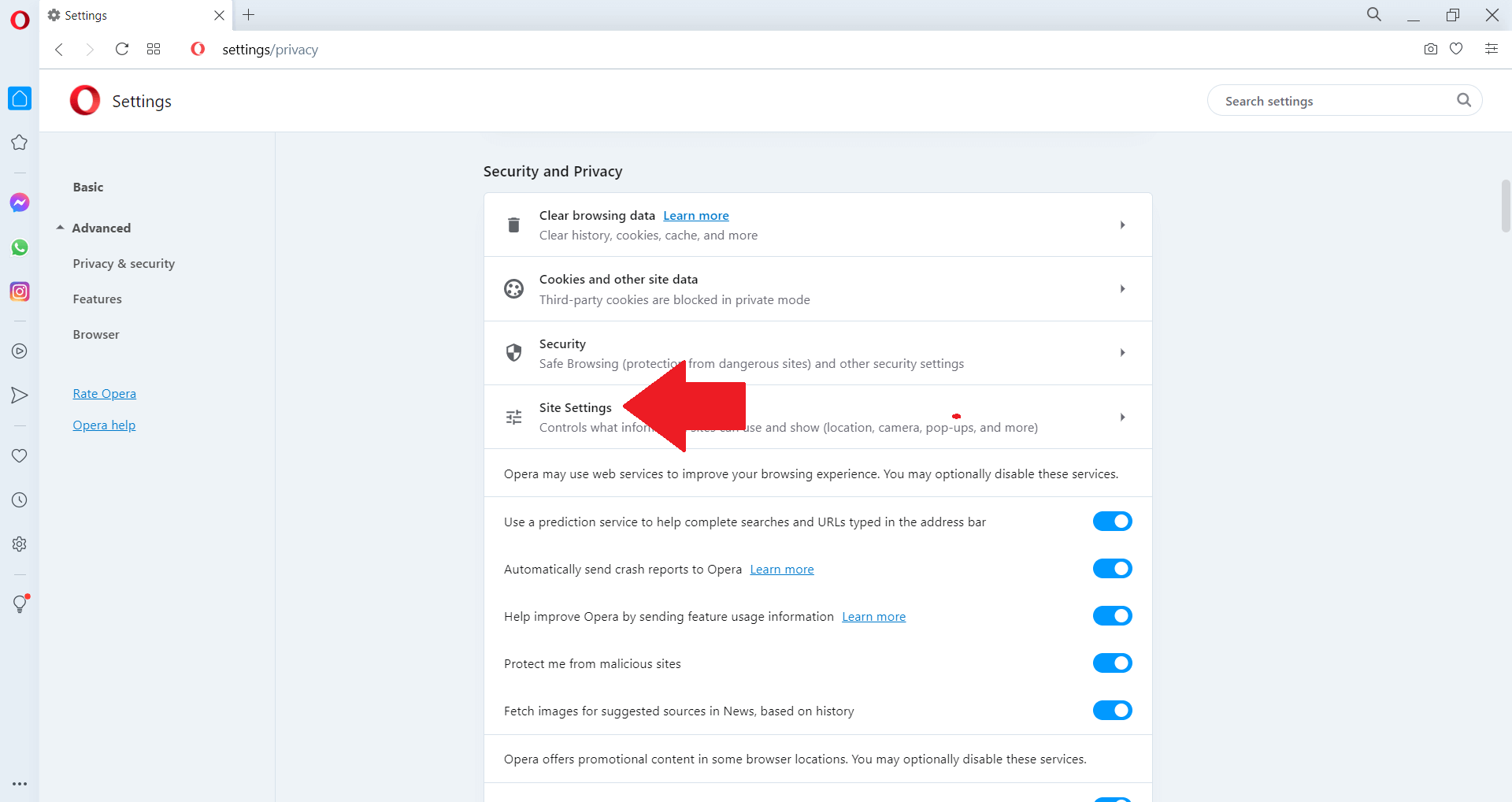
- Look for “Site Settings” and click on it.
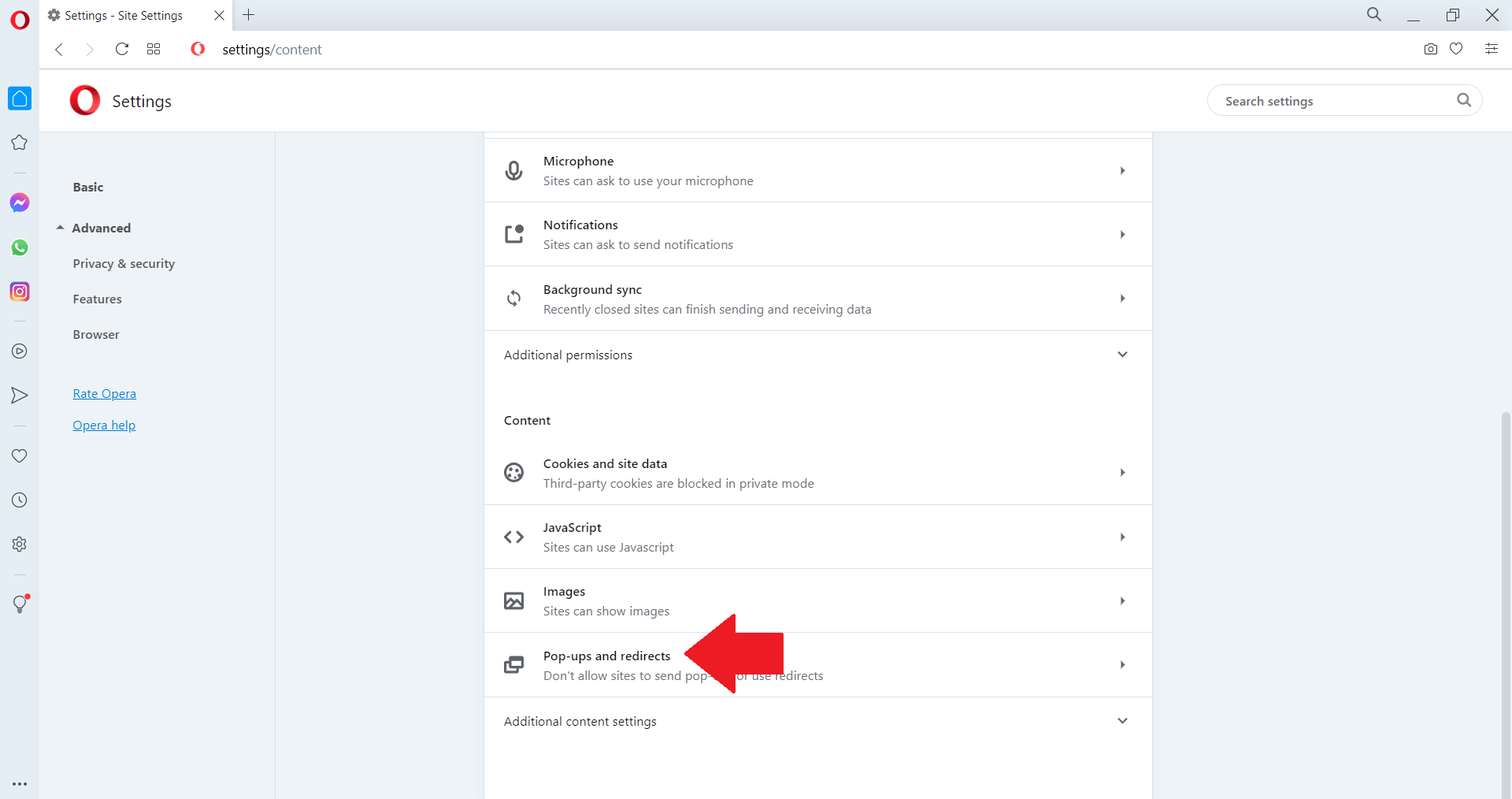
- Scroll down to find the “Pop-ups and redirects” section.
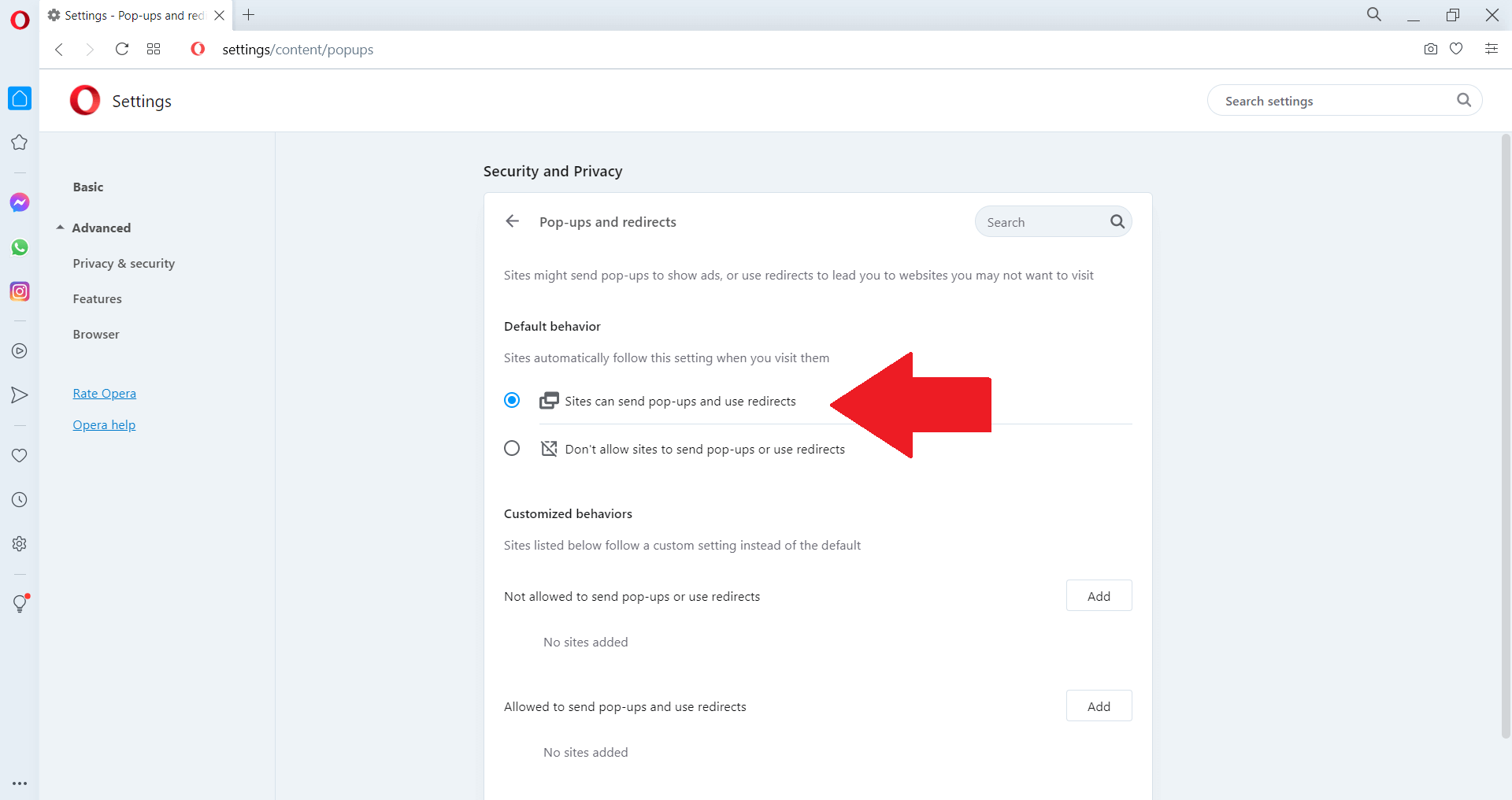
- Here, you can choose to Allow or Block pop-ups by toggling the option. If you want to disable the pop-up blocker, select “Sites can send pop-ups and use redirects”.
How Do You Disable Pop-Up Blockers on iPhone/iOS
What follows is a set of step-by-step instructions. It’s designed for users of Safari and Chrome on iOS devices, with the goal of helping you learn to manage your pop-up settings:
Safari
- Open the Settings app on your iPhone or iPad.
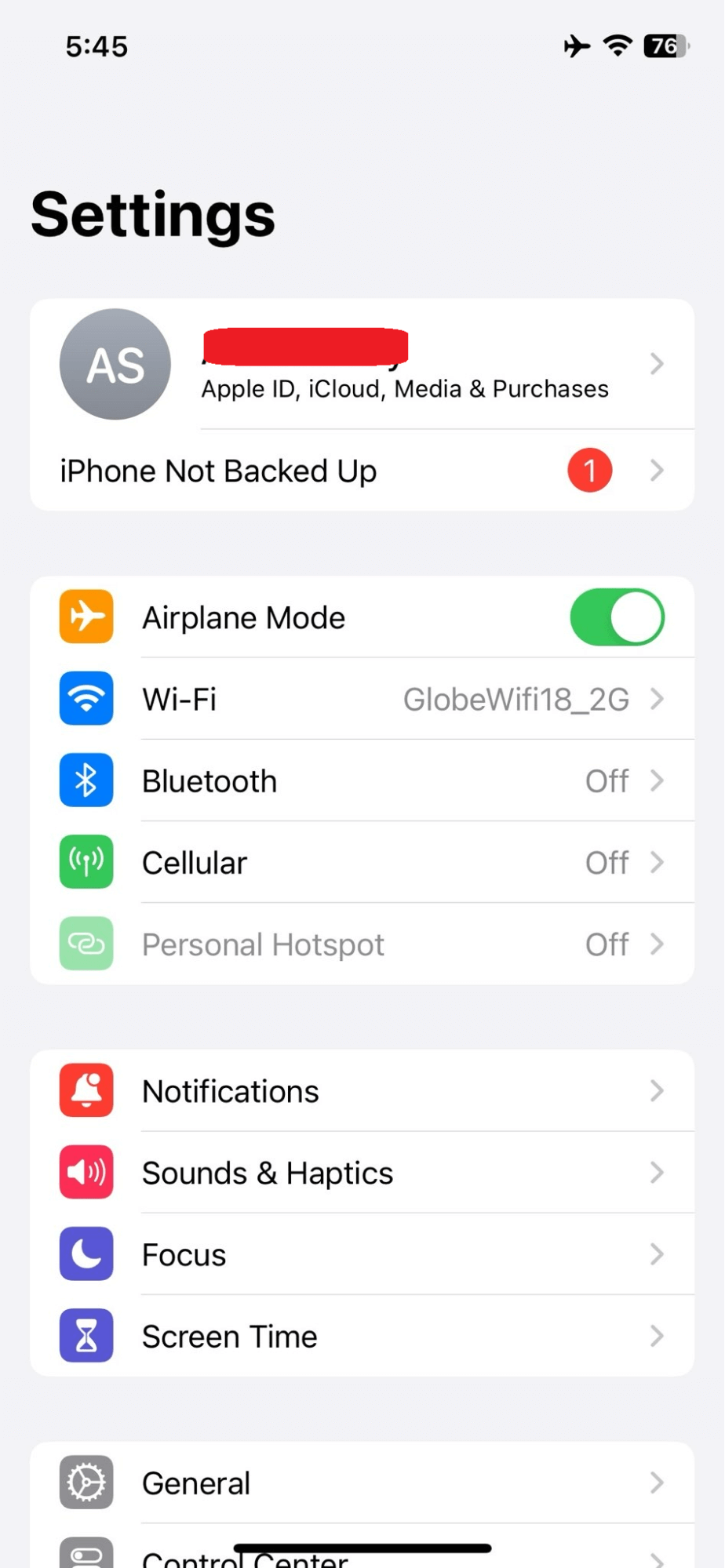
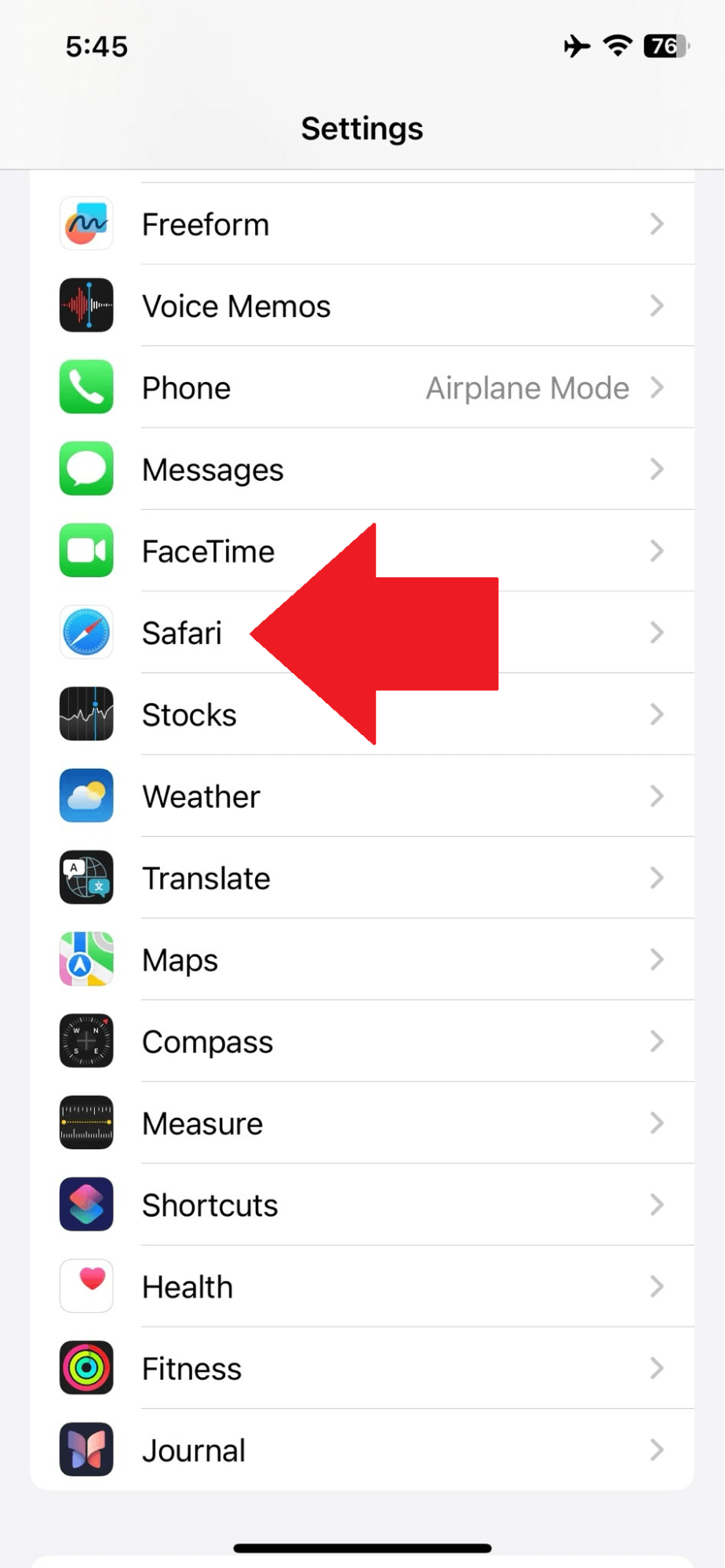
- Scroll down and tap on Safari to open Safari settings.
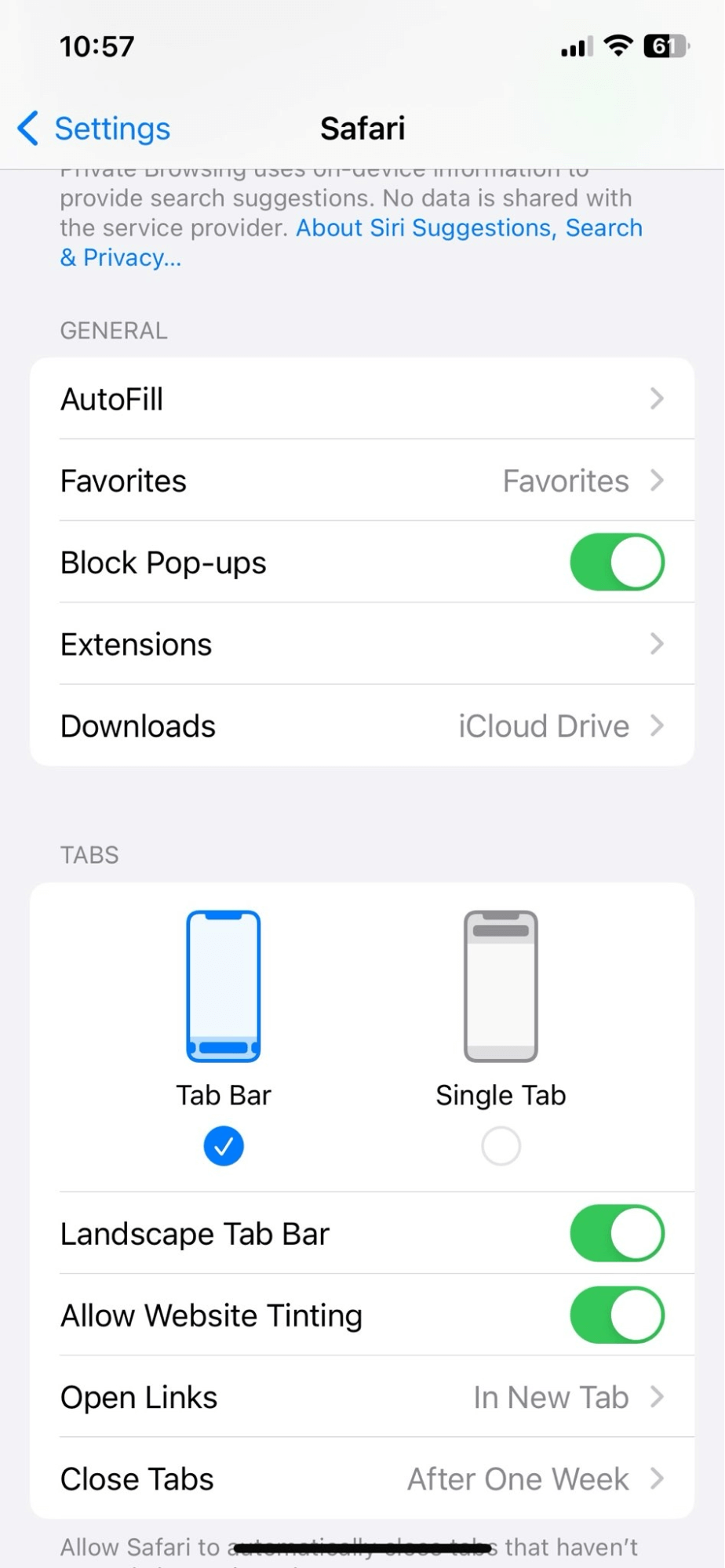
- Look for the “Block Pop-ups” option.
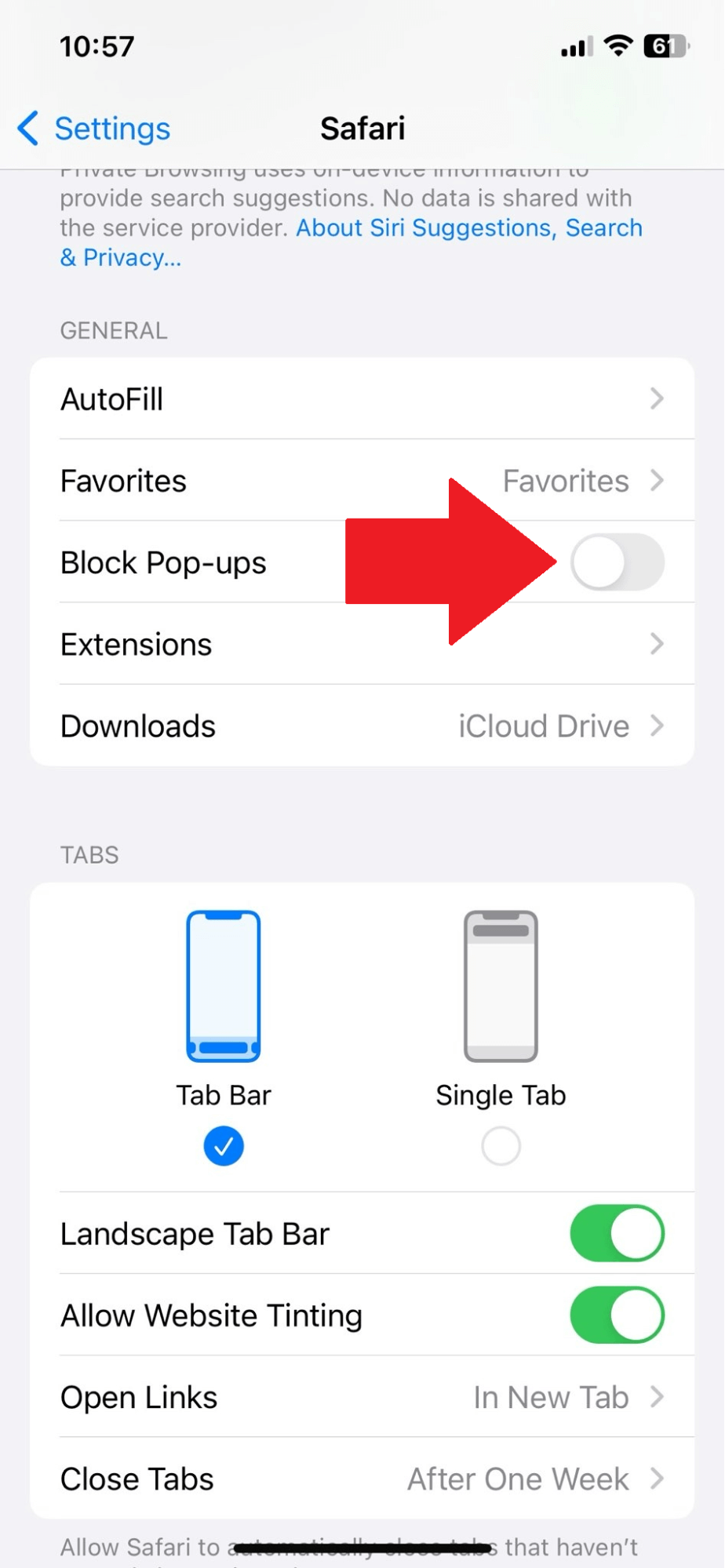
- Toggle the switch to off (white) to disable pop-up blocking, allowing pop-ups to appear in Safari.
Chrome
- Launch the Chrome app on your iOS device.
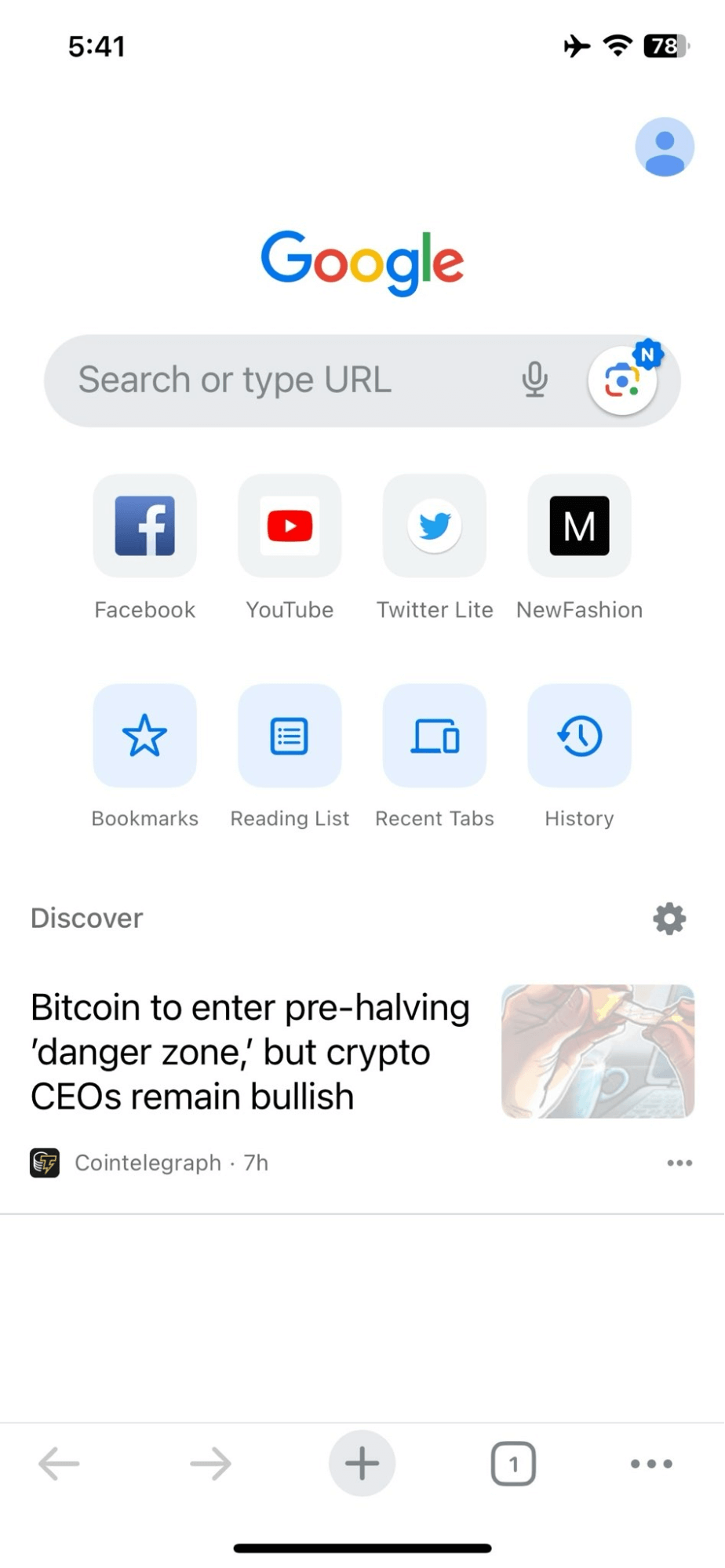
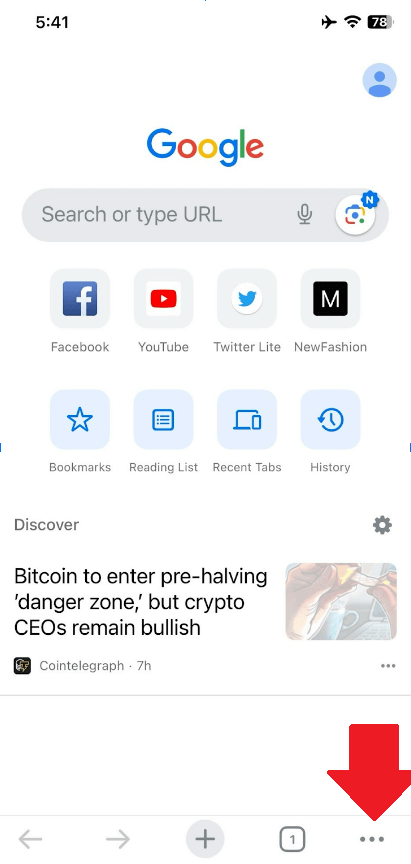
- Tap on the three dots at the bottom right corner to access the menu.
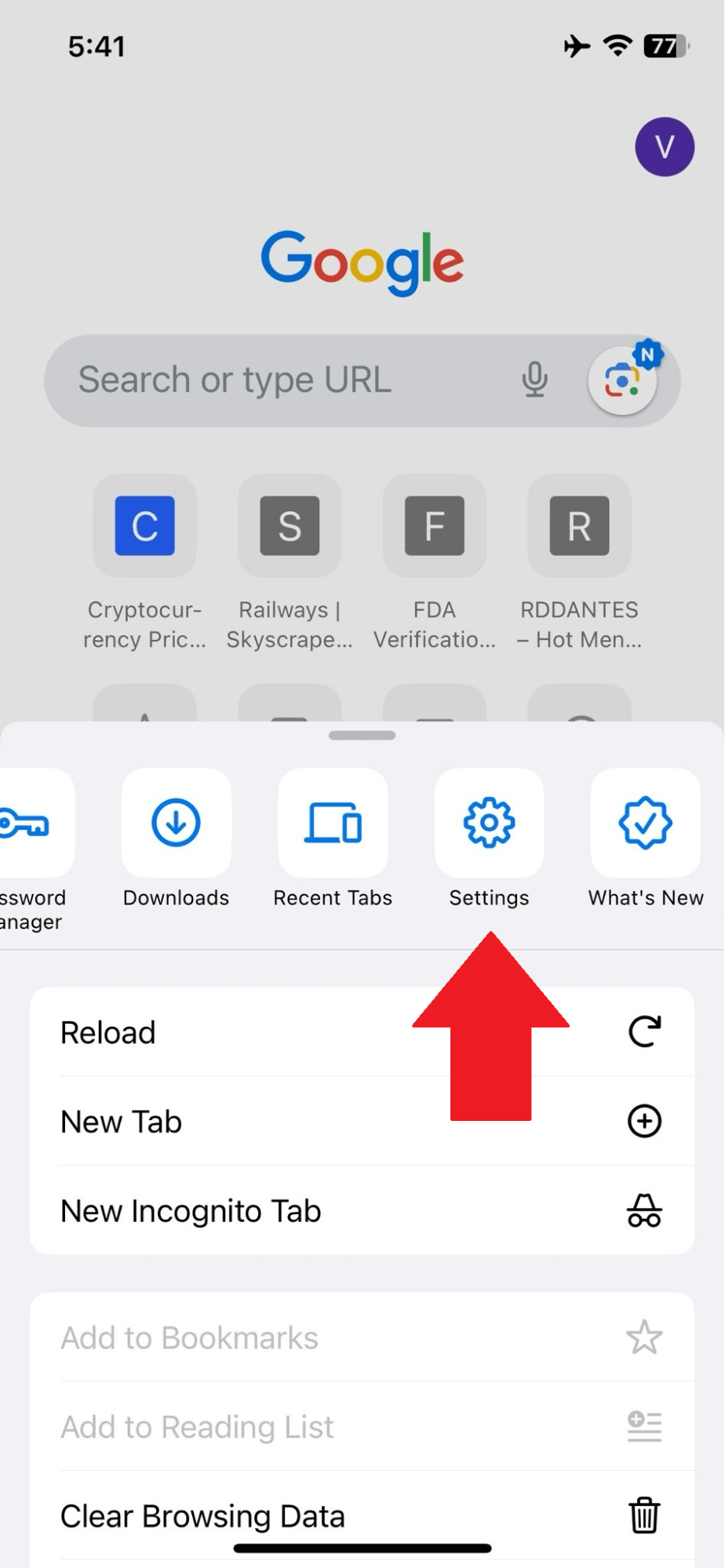
- Select “Settings” from the menu options.
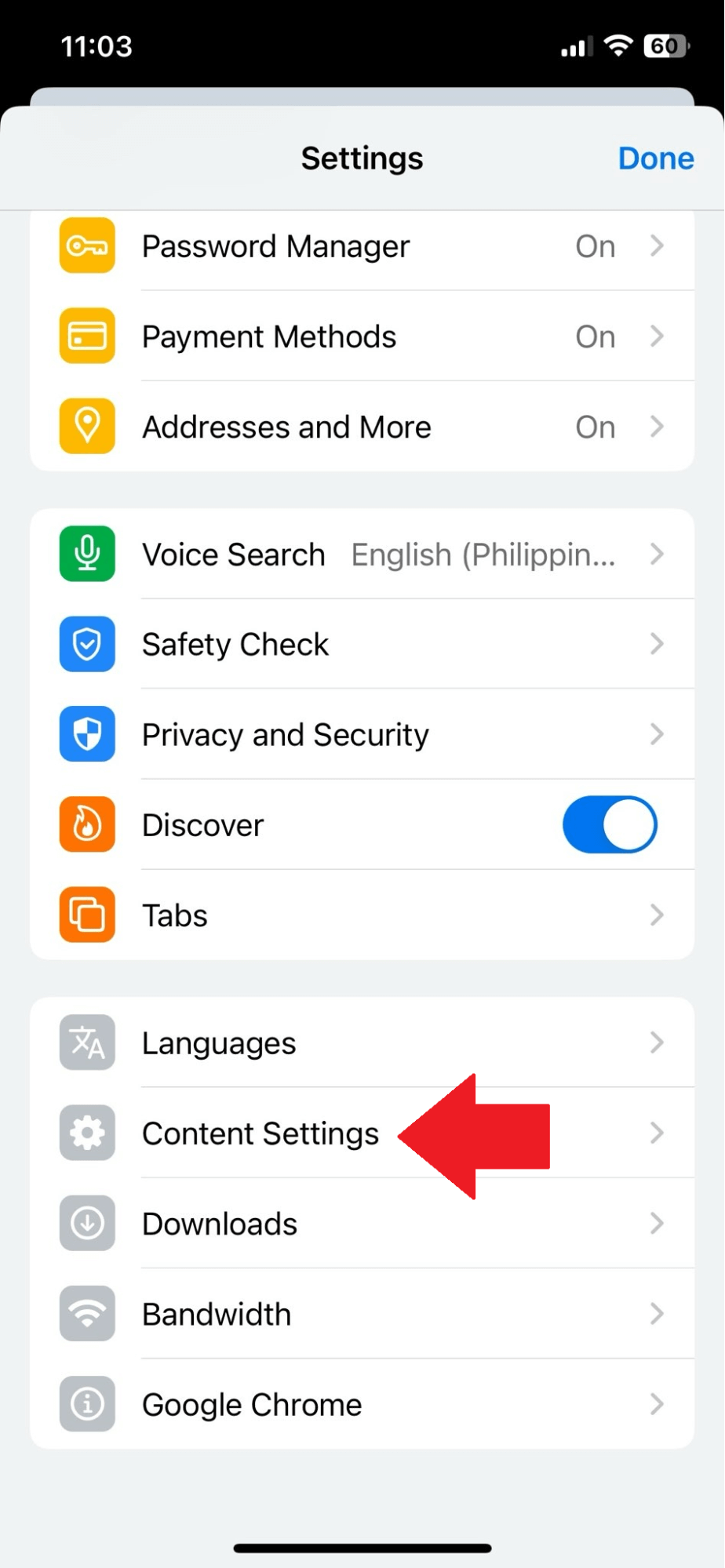
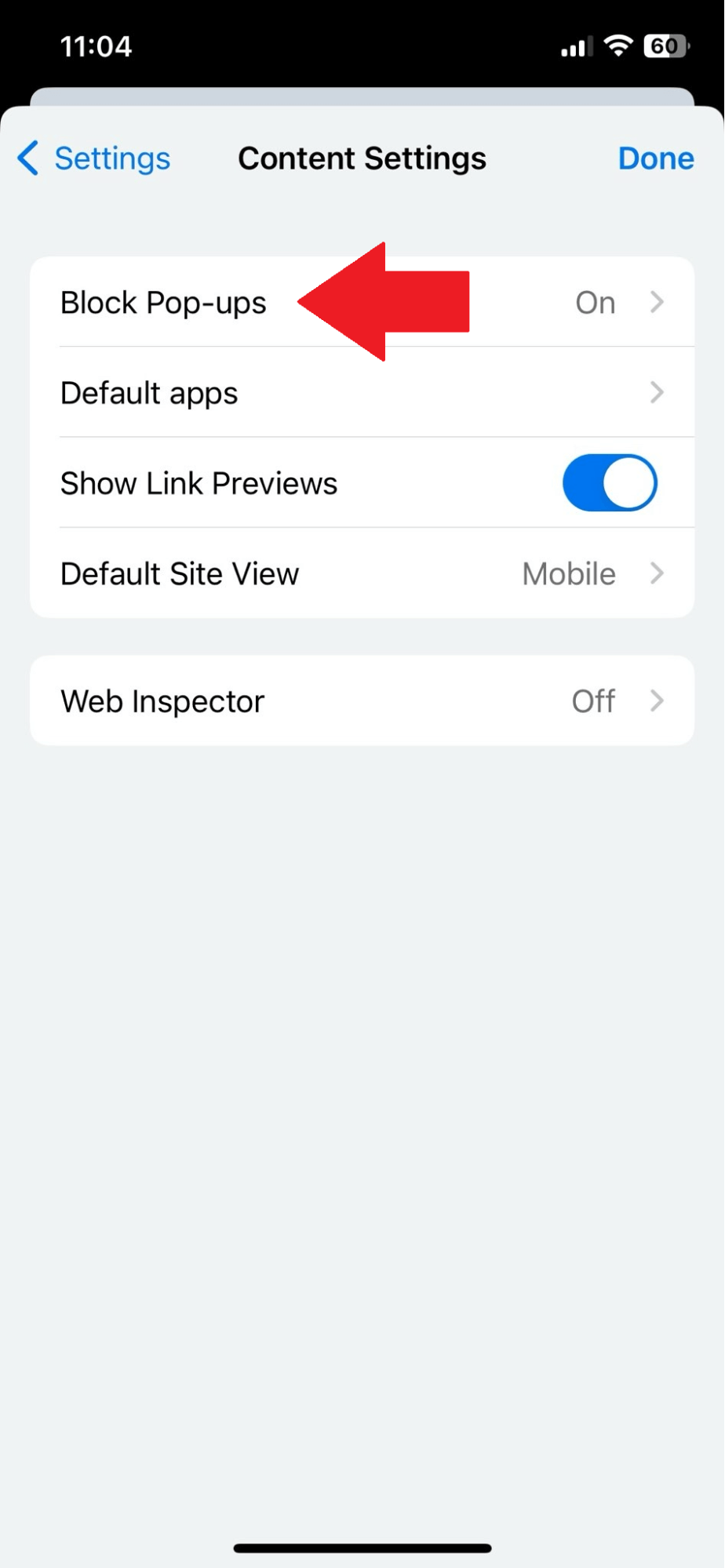
- Scroll down and tap on “Content Settings”.
- Tap on “Block Pop-ups”.
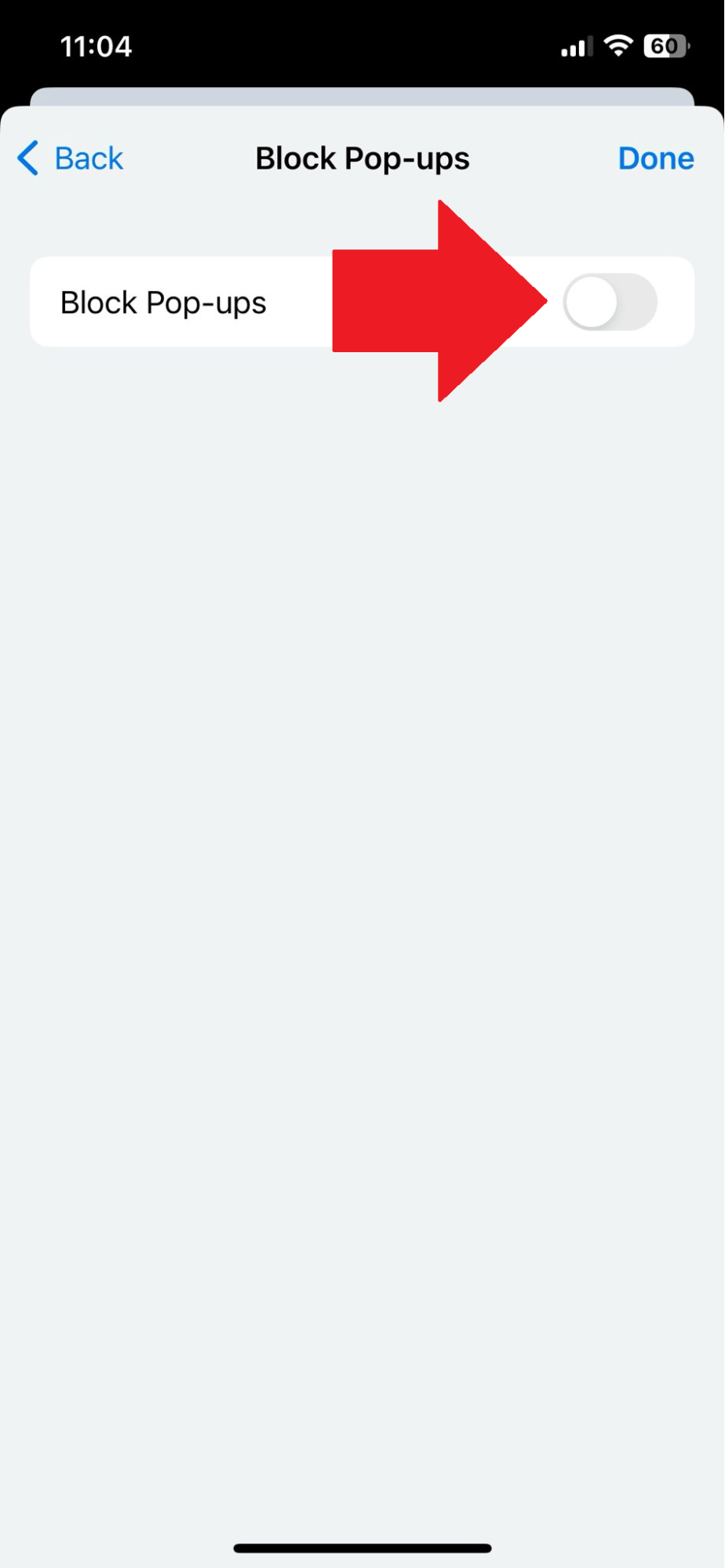
- Switch the toggle to off to disable pop-up blocking in Chrome, permitting pop-ups to show.
How Can I Turn Off Pop-Up Blocker on Android
Dealing with pop-up settings on Android might look quite confusing, but it’s actually quite simple. Here’s a simplified guide for each browser in order to make your web experience as smooth and personalized as possible:
Chrome
- Open the Chrome app on your Android device.
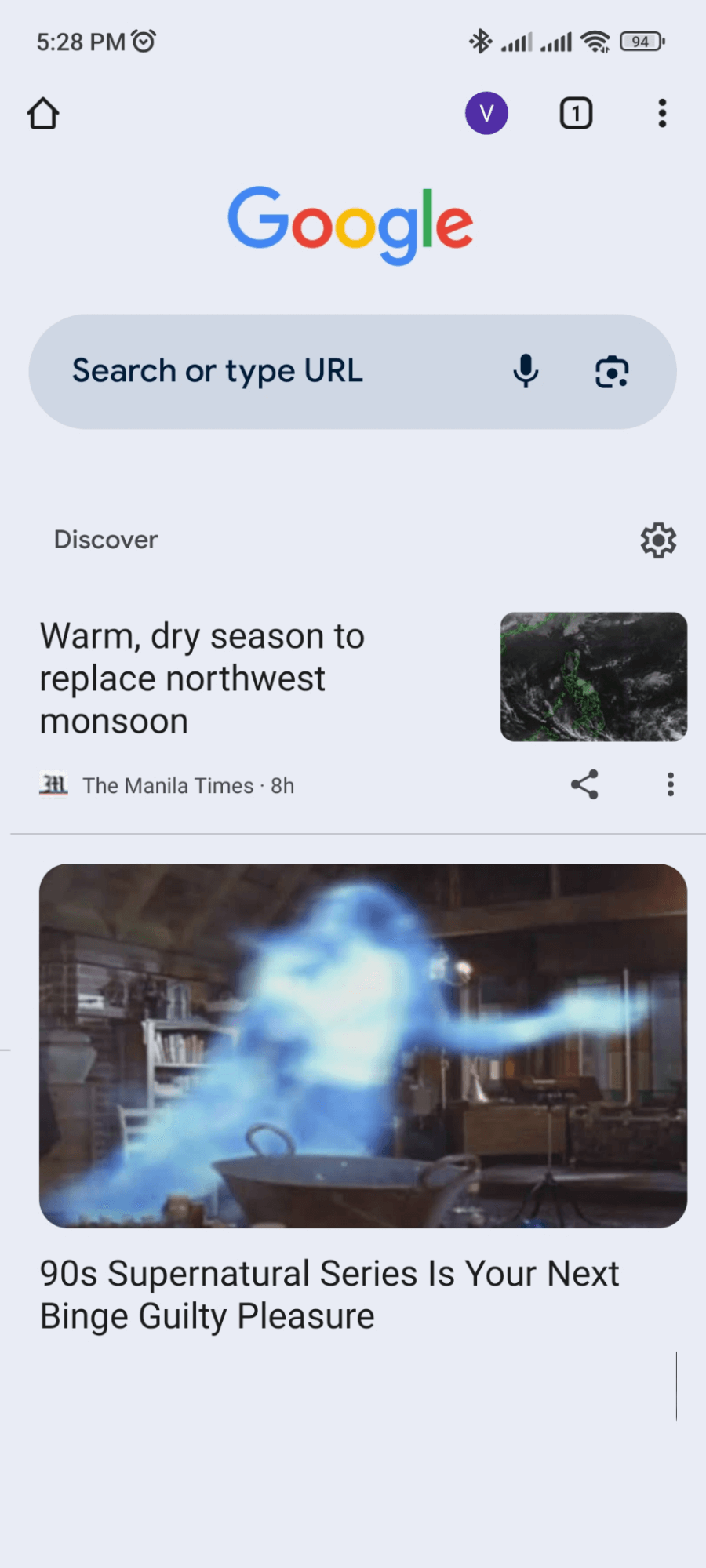
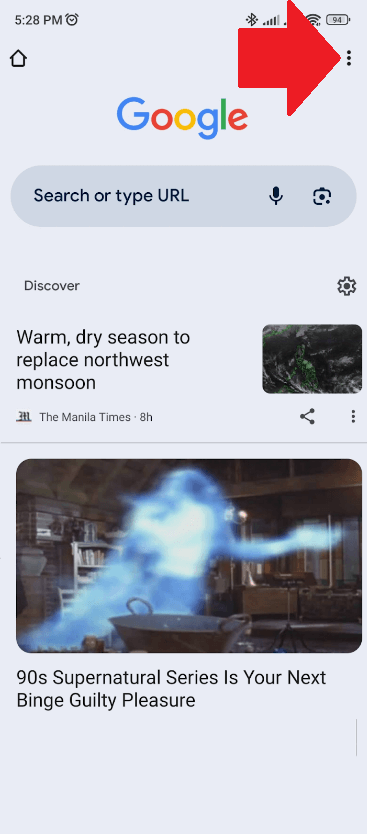
- Tap the three dots in the top right corner to access the menu.
- Select “Settings” from the dropdown menu.
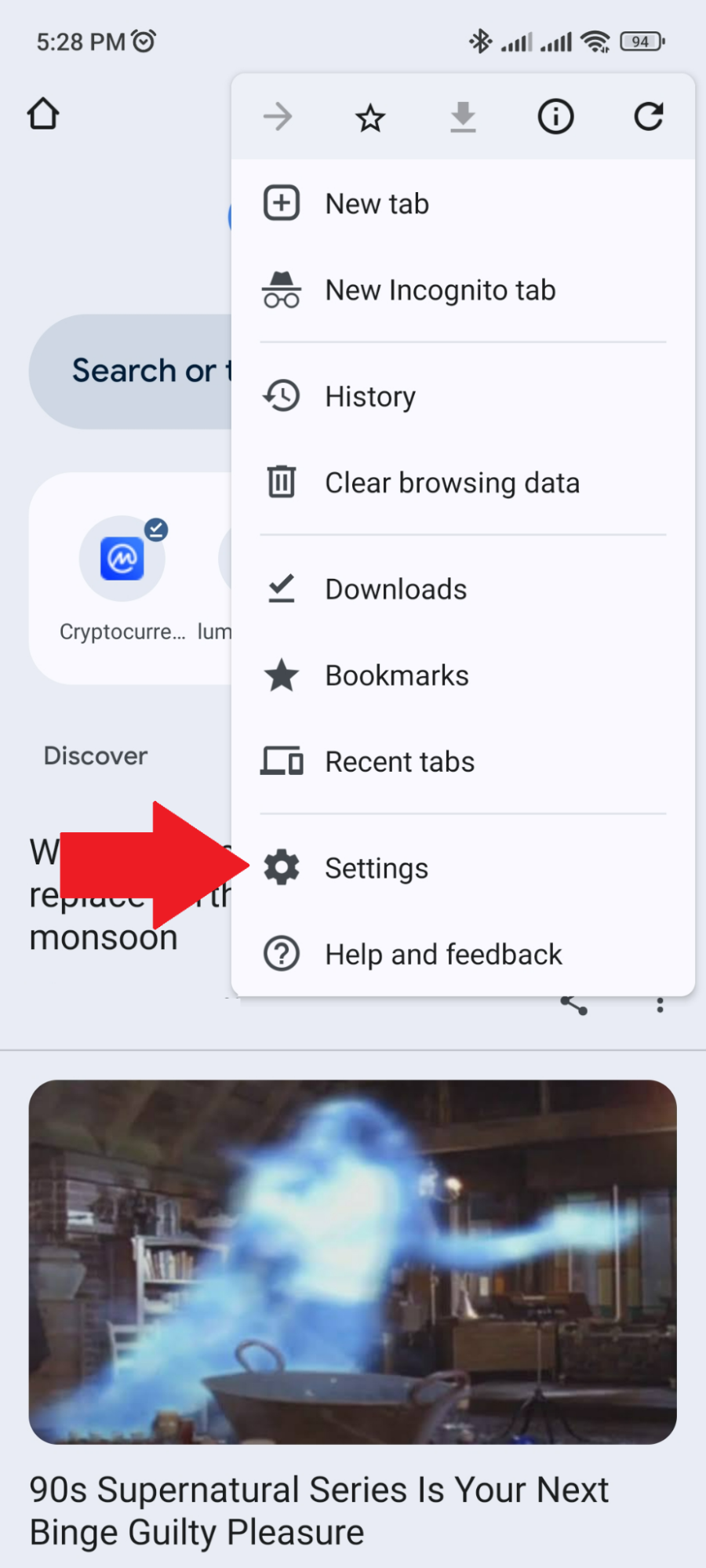
- Scroll down and tap “Site settings”.
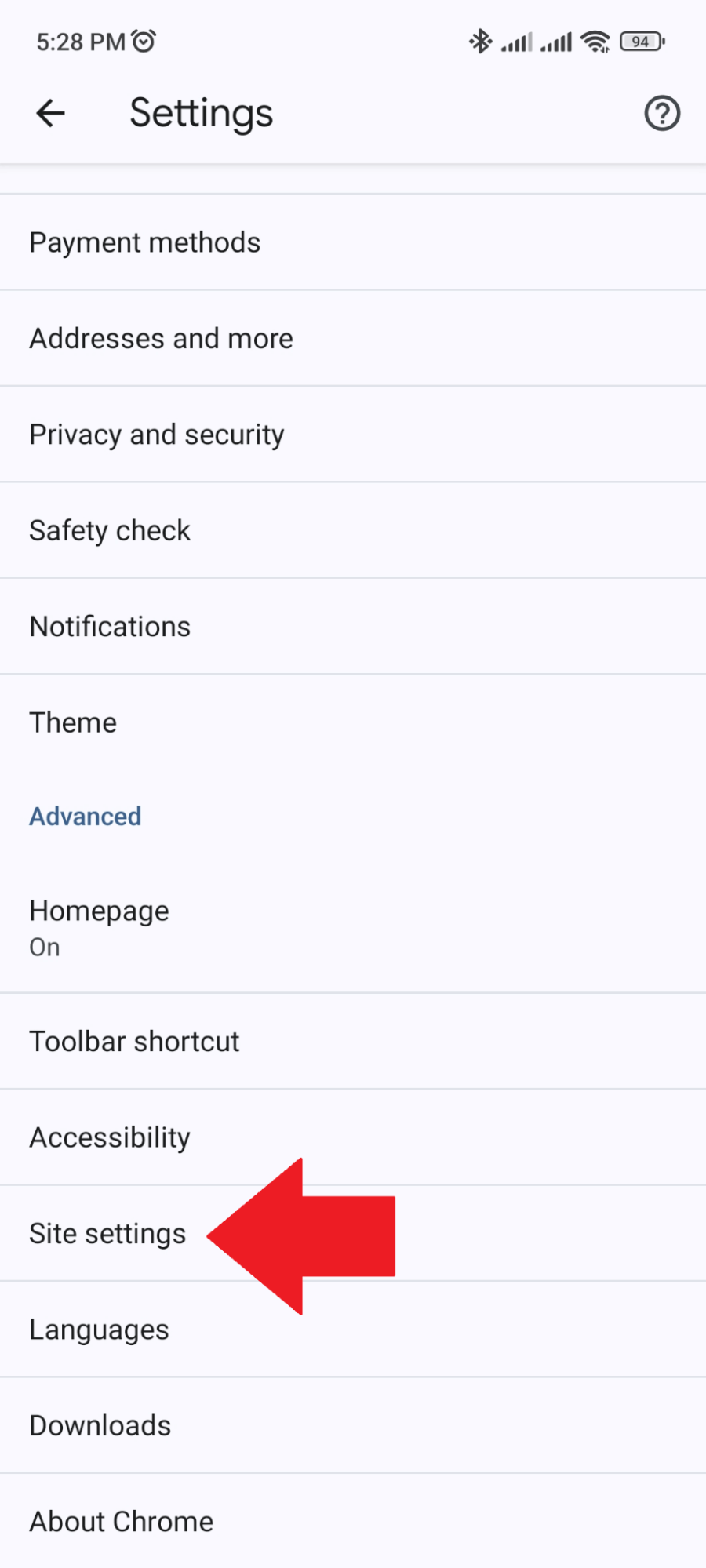
- Find and tap “Pop-ups and redirects”.
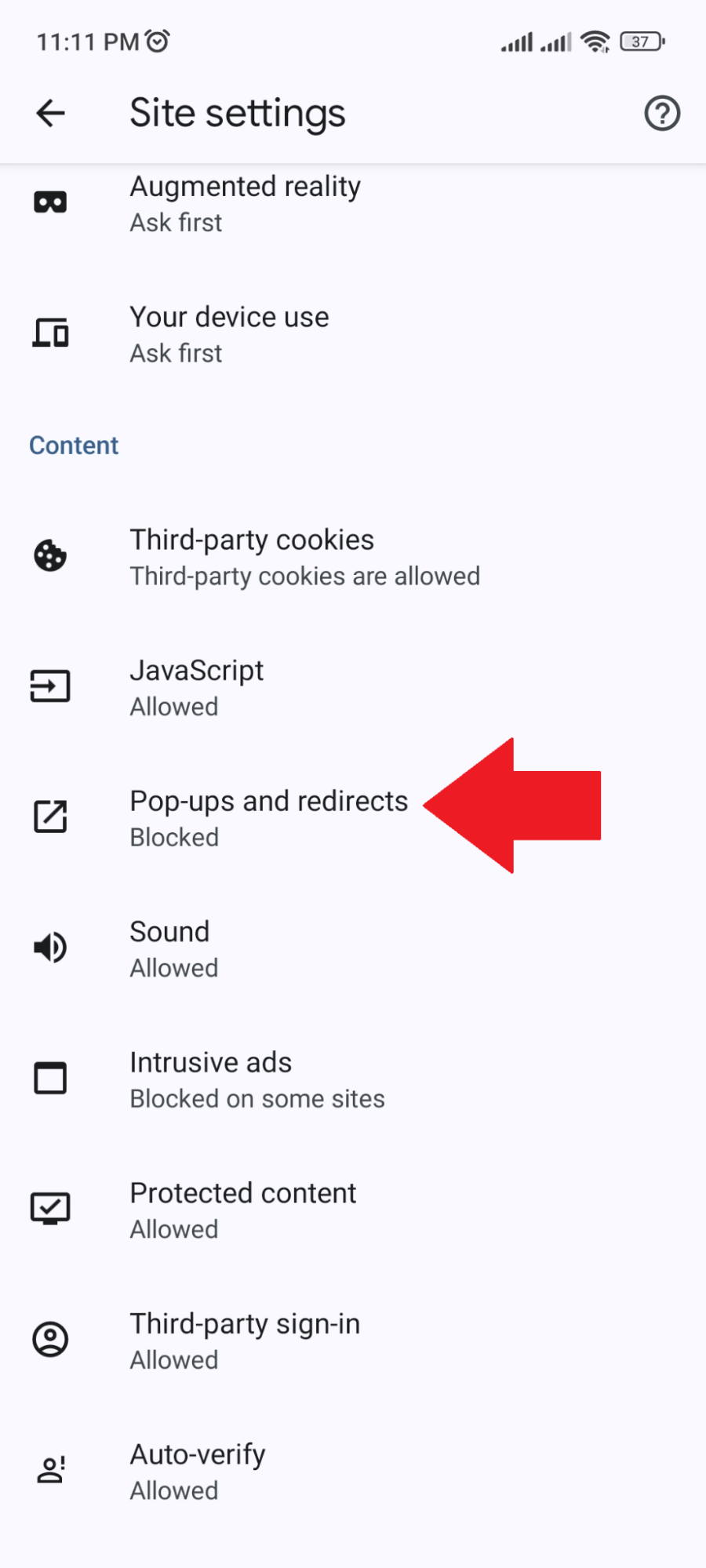
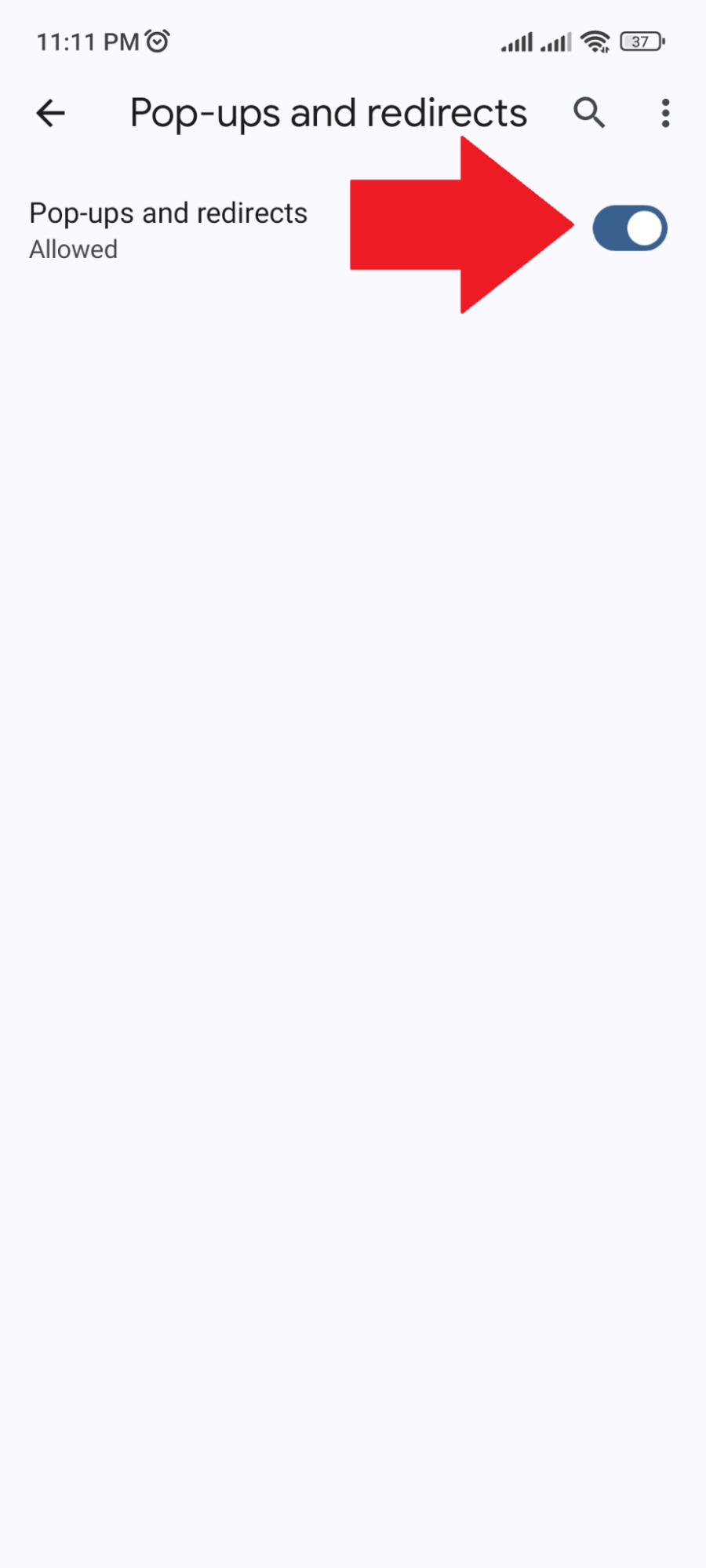
- Toggle the option to Allow or Block pop-ups and redirects, according to your preference.
Samsung Internet
- Launch the Samsung Internet app on your device.
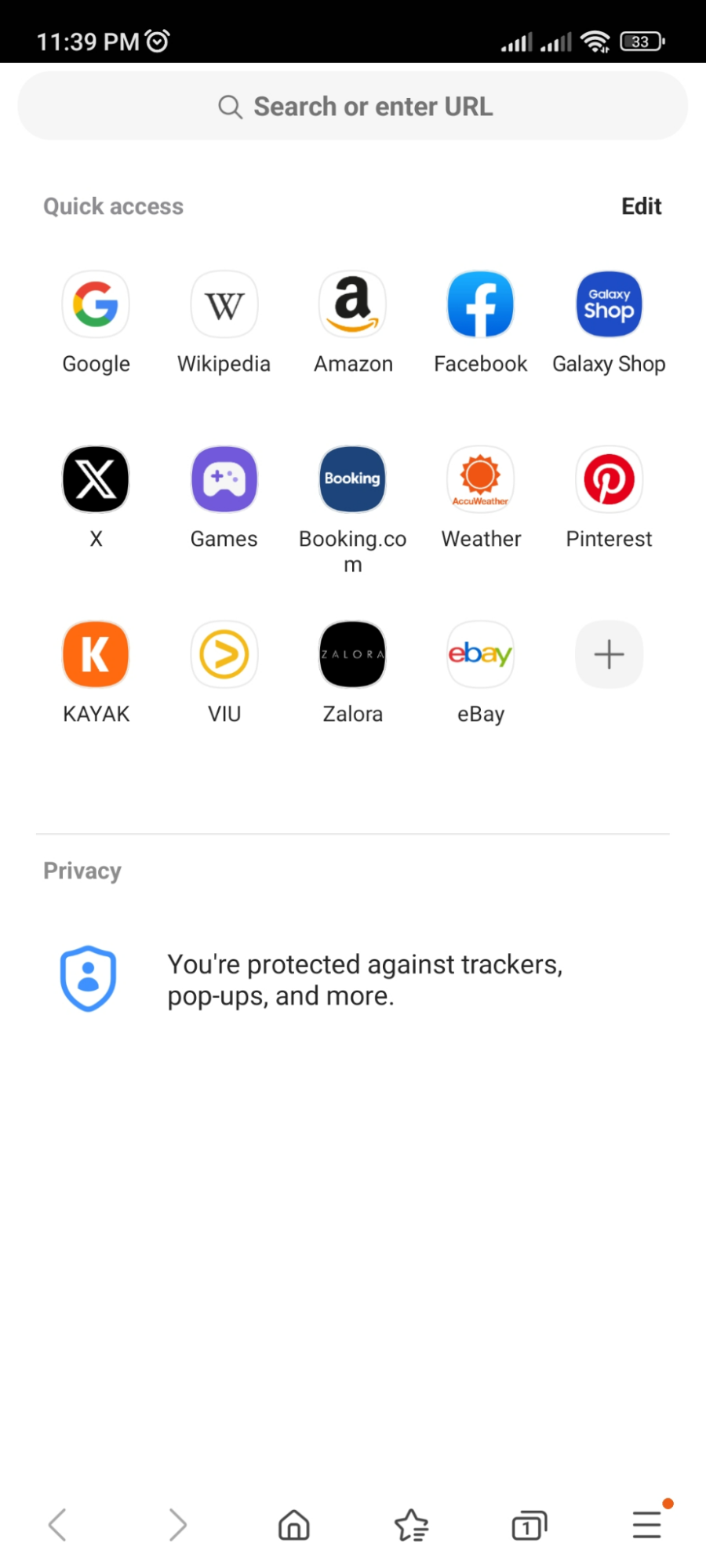
- Tap the Menu icon (three horizontal lines) at the bottom right corner.
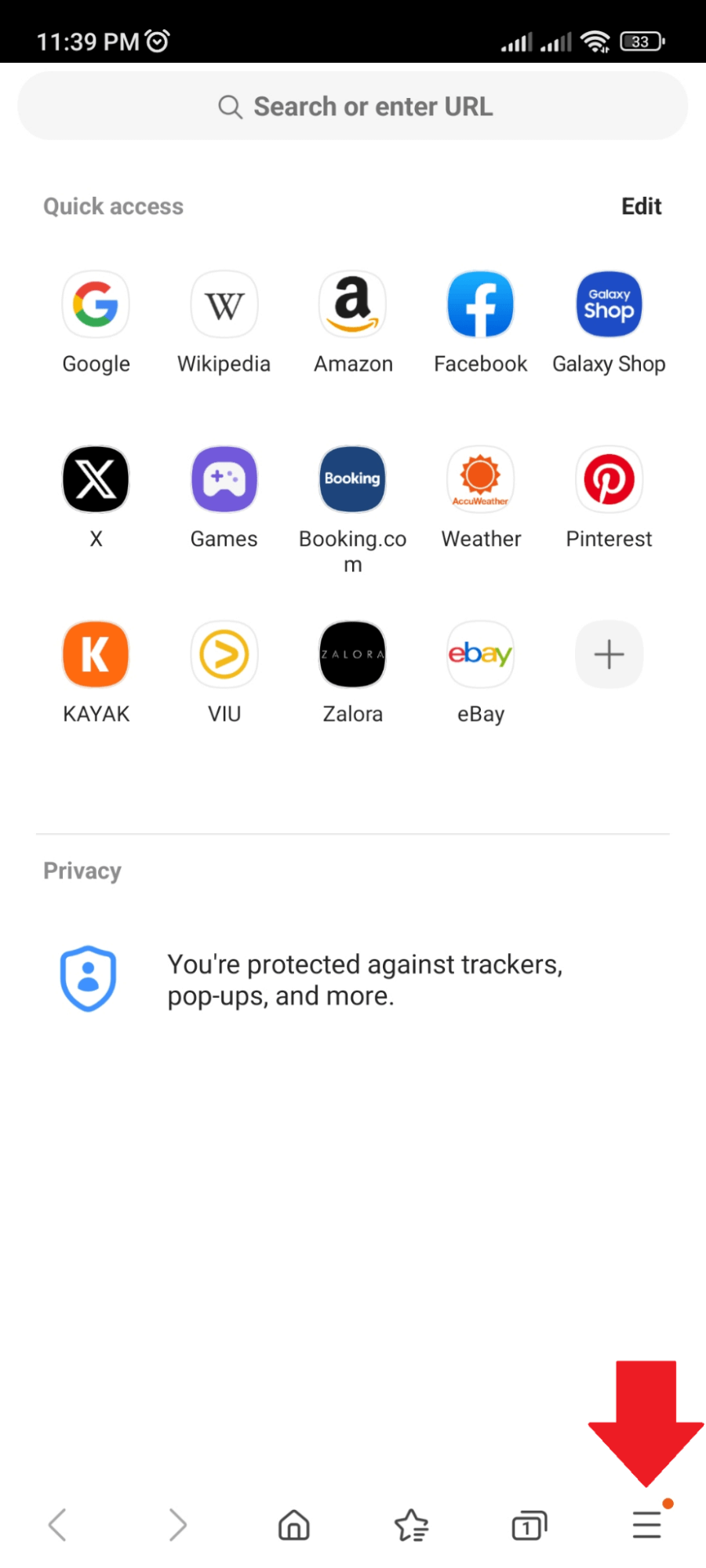
- Select “Settings” from the menu.
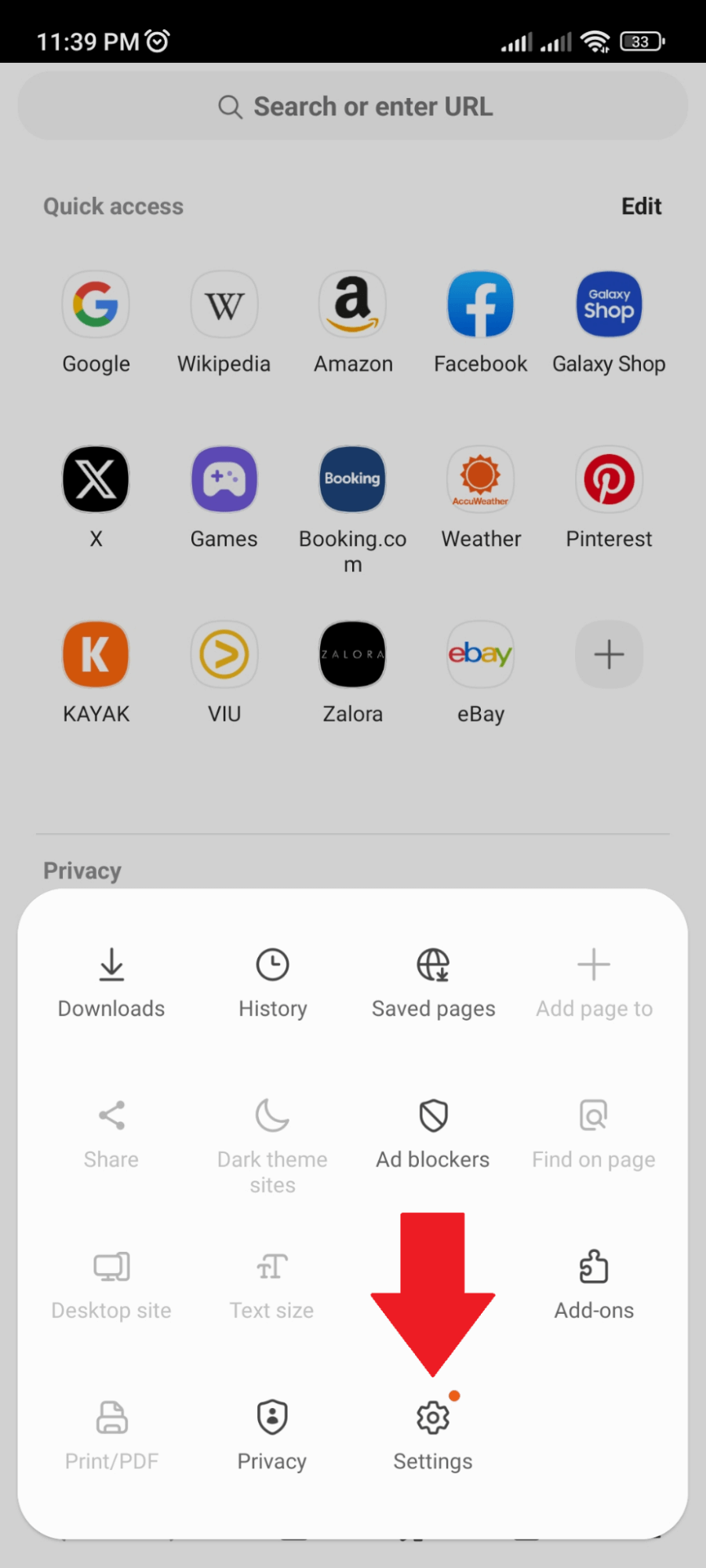
- Scroll down to find the “Privacy dashboard”.
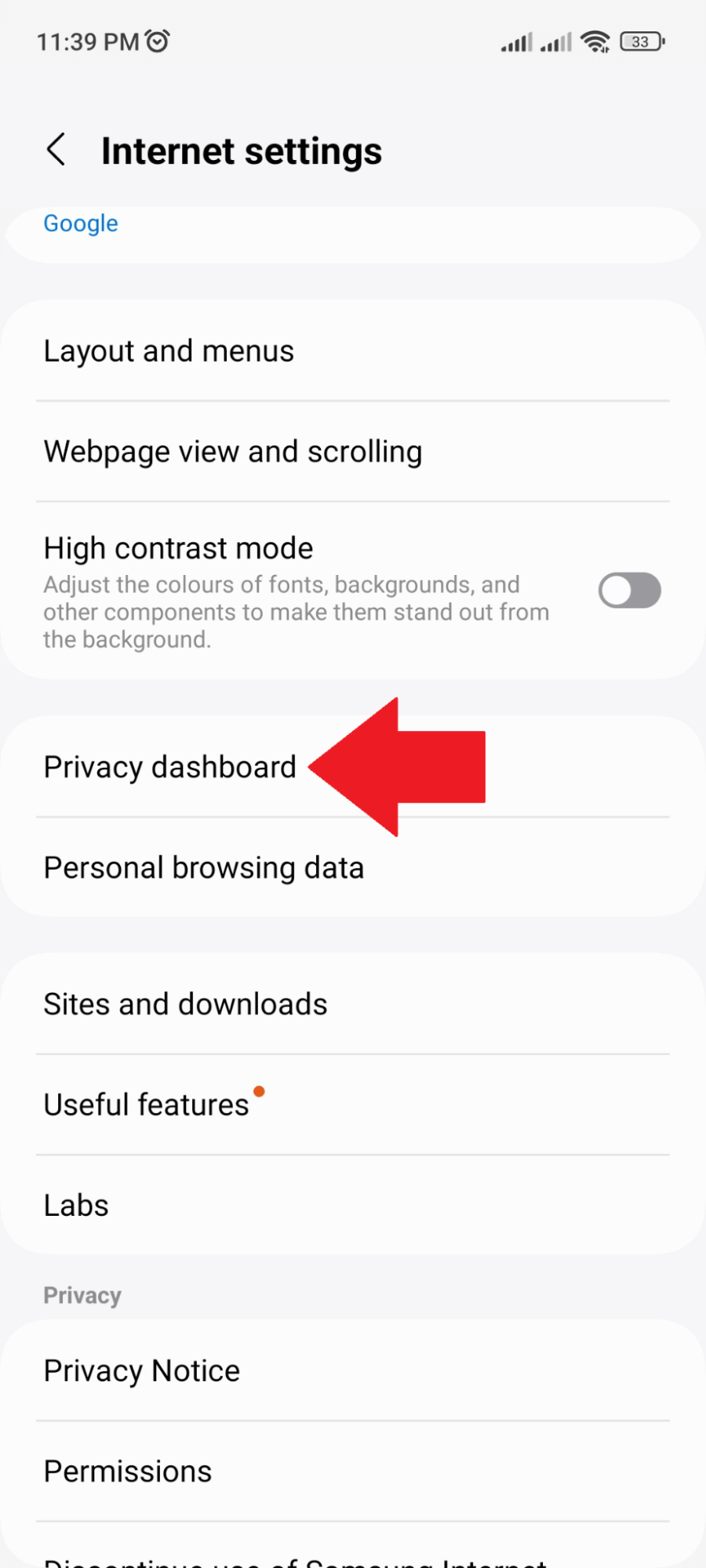
- Look for “Block pop-ups”. Switch the toggle to off to disable pop-up blocking or on to enable it, based on your needs.
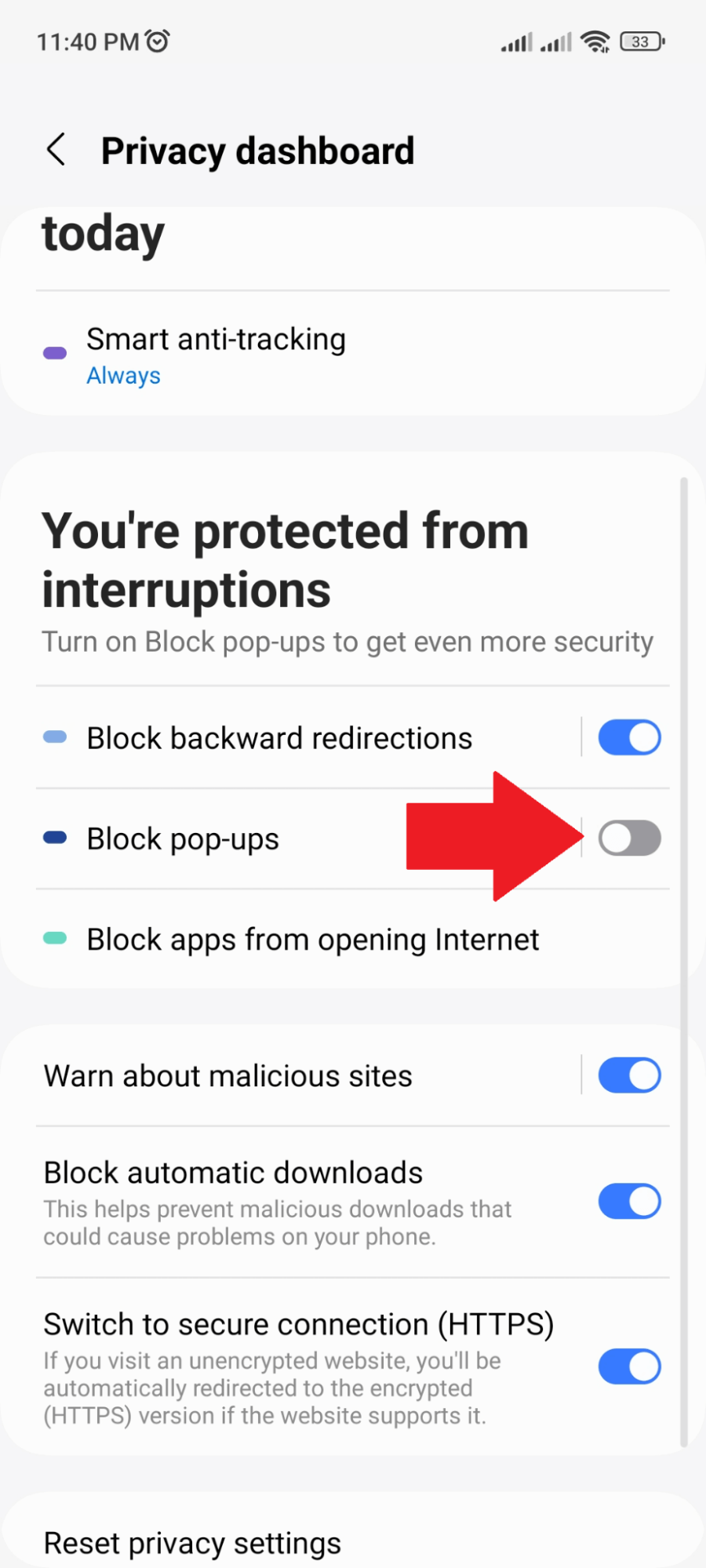
Firefox
For Firefox on Android, the process to directly access pop-up settings might not be as straightforward as in Chrome or Samsung Internet. However, you can still manage site permissions, including pop-ups, on a site-by-site basis:
- Open the Firefox app on your Android device.
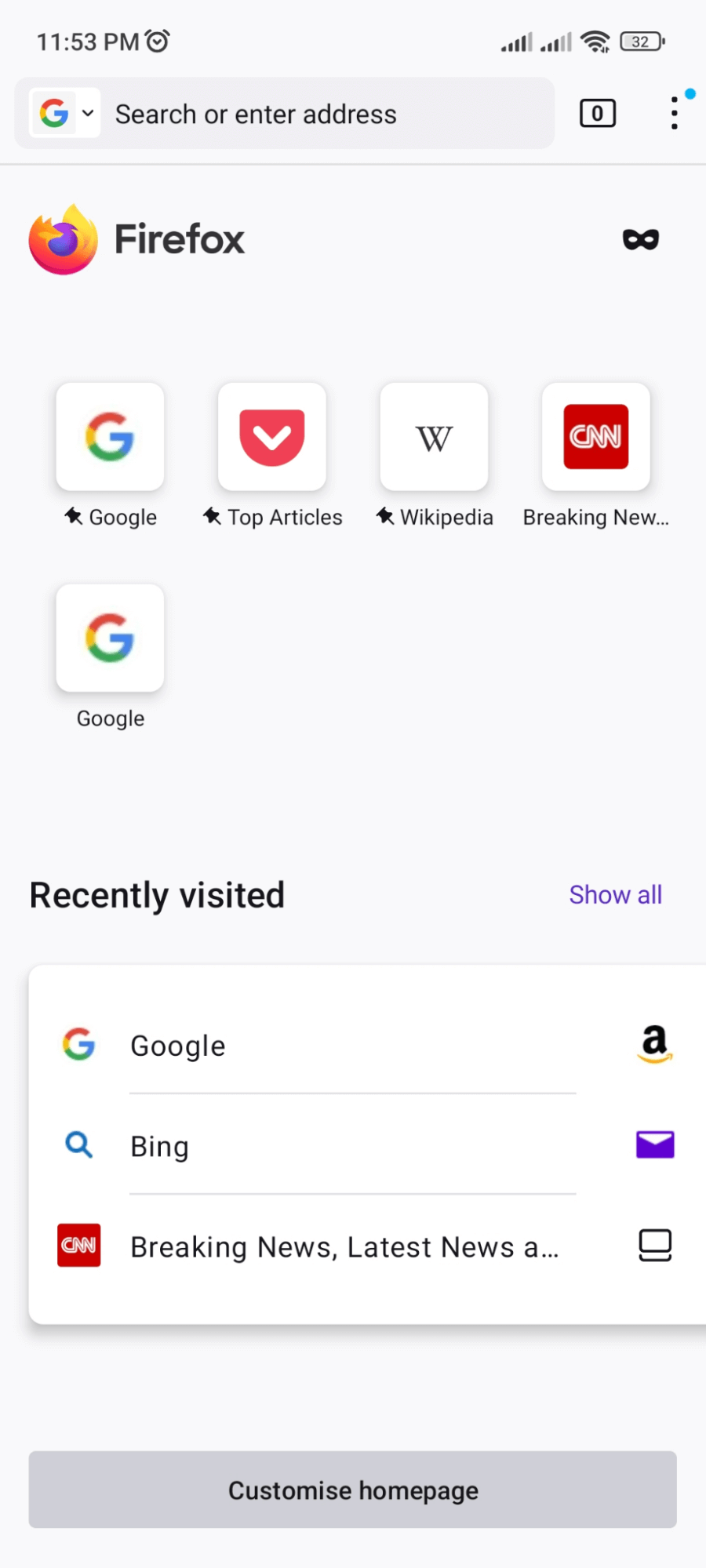
- Tap the three dots in the upper right corner to access the menu.
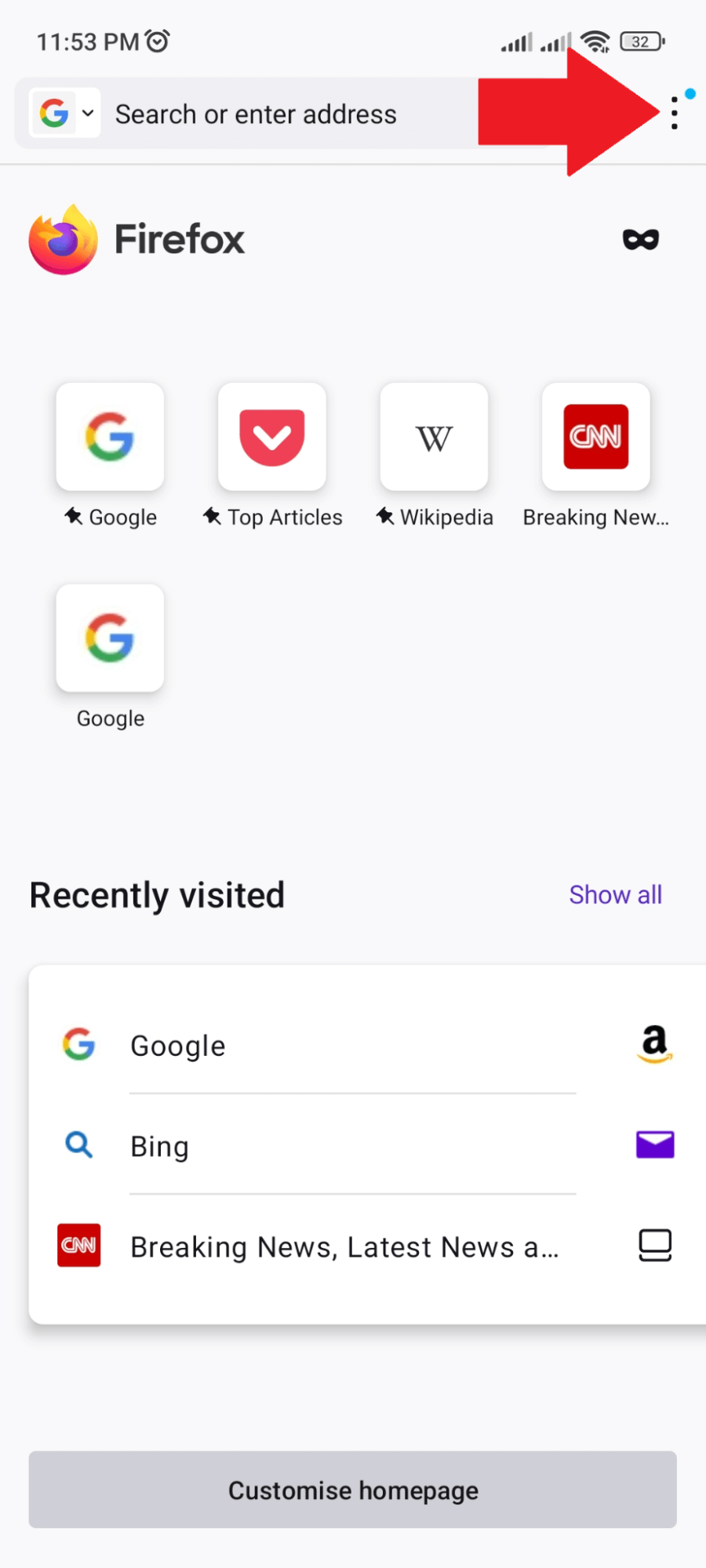
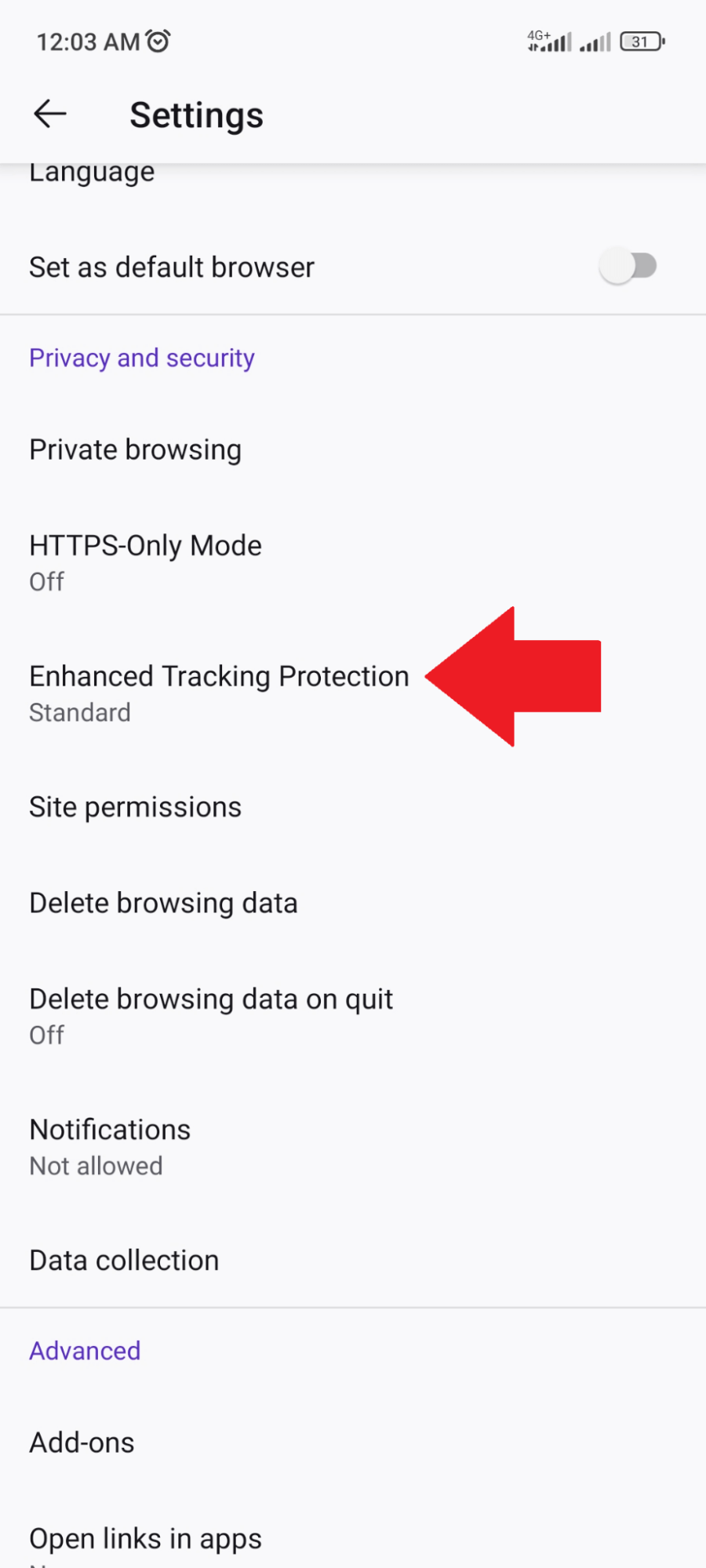
- Select “Settings”.
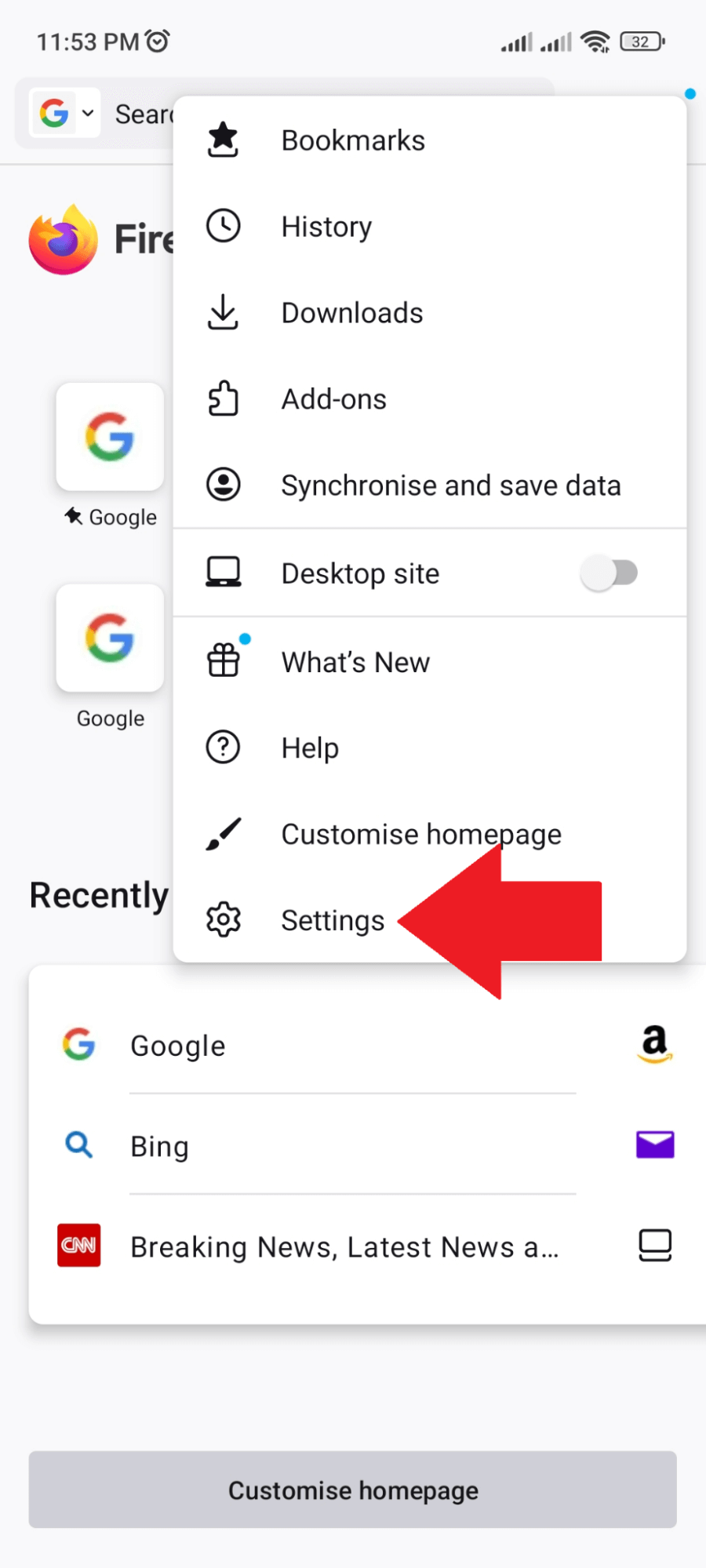
- Click “Enhanced Tracking Protection”.
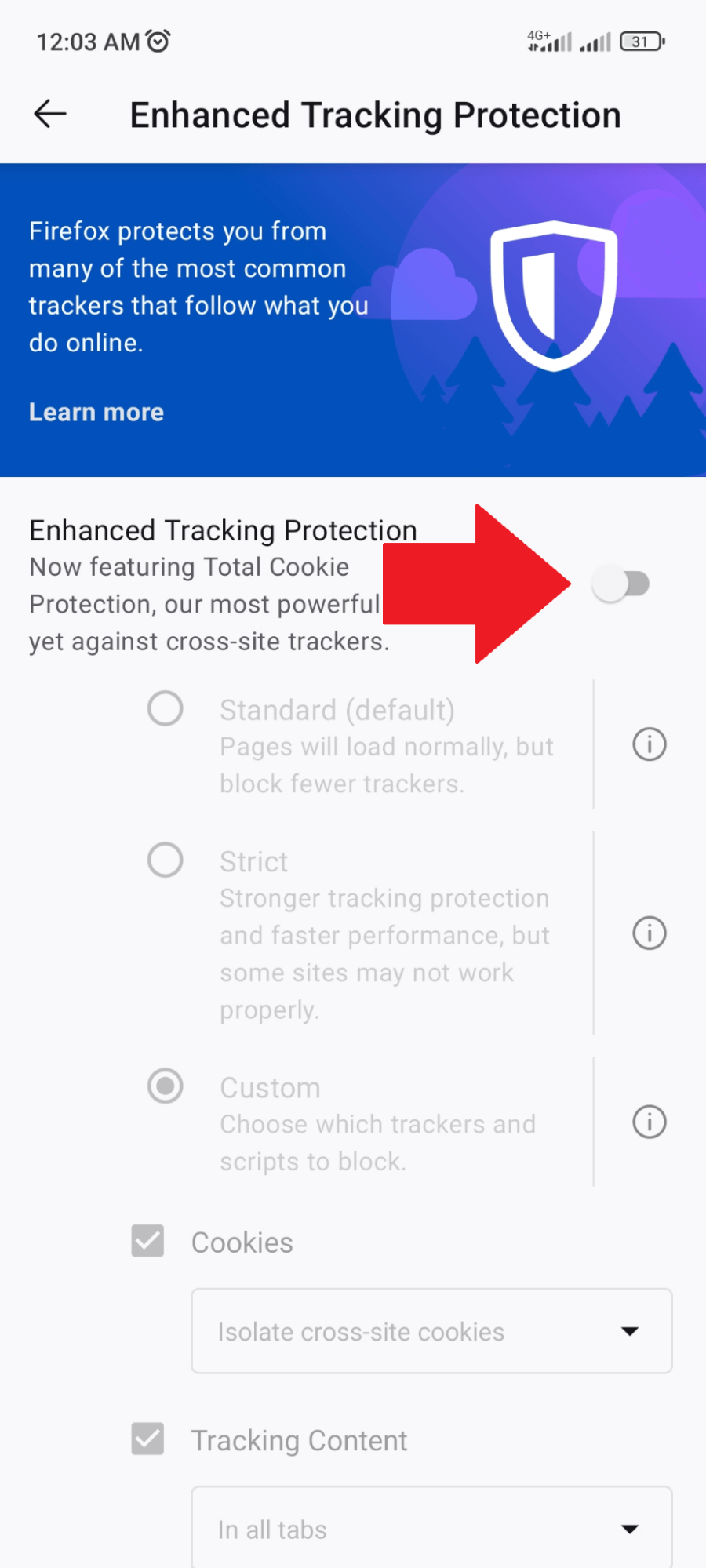
- Here, you can disable Enhanced Tracking Protection to permit necessary pop-ups to come through.
Use Poper Blocker so You Won’t Need to Disable Your Pop-up Blocker
For those of you who are tired of being bombarded by ads, this one’s for you. Poper Blocker (Available for Chrome and Microsoft Edge) isn’t just your run-of-the-mill ad-blocking tool. It’s full of features that make it the perfect companion for anyone searching for a smoother and safer browsing session.
Here’s what it offers:
Whitelisting
With this feature, you can handpick which websites get to show their pop-ups. This way, necessary notifications like banking alerts or chat windows won’t be blocked. You can enjoy an uninterrupted time on the web without sacrificing important messages.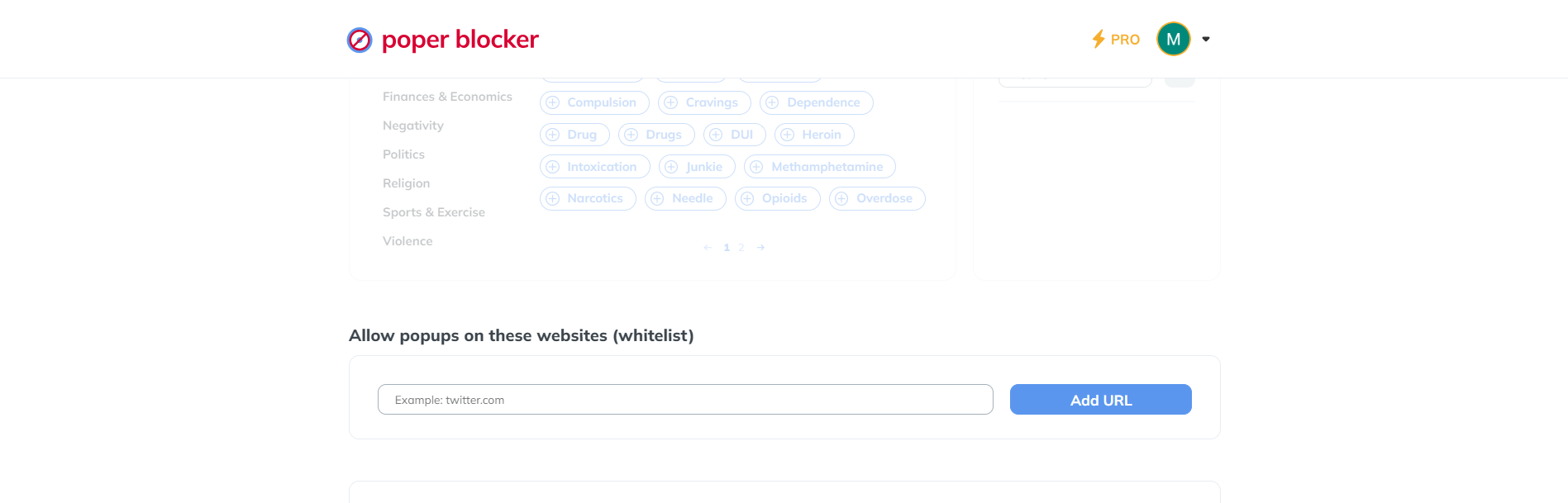
Works Alongside Other Ad-blockers
You shouldn’t have to download multiple extensions just to get rid of ads. Poper Blocker works perfectly fine with other ad-blocking tools so that together they can form an impenetrable wall against unwanted ads.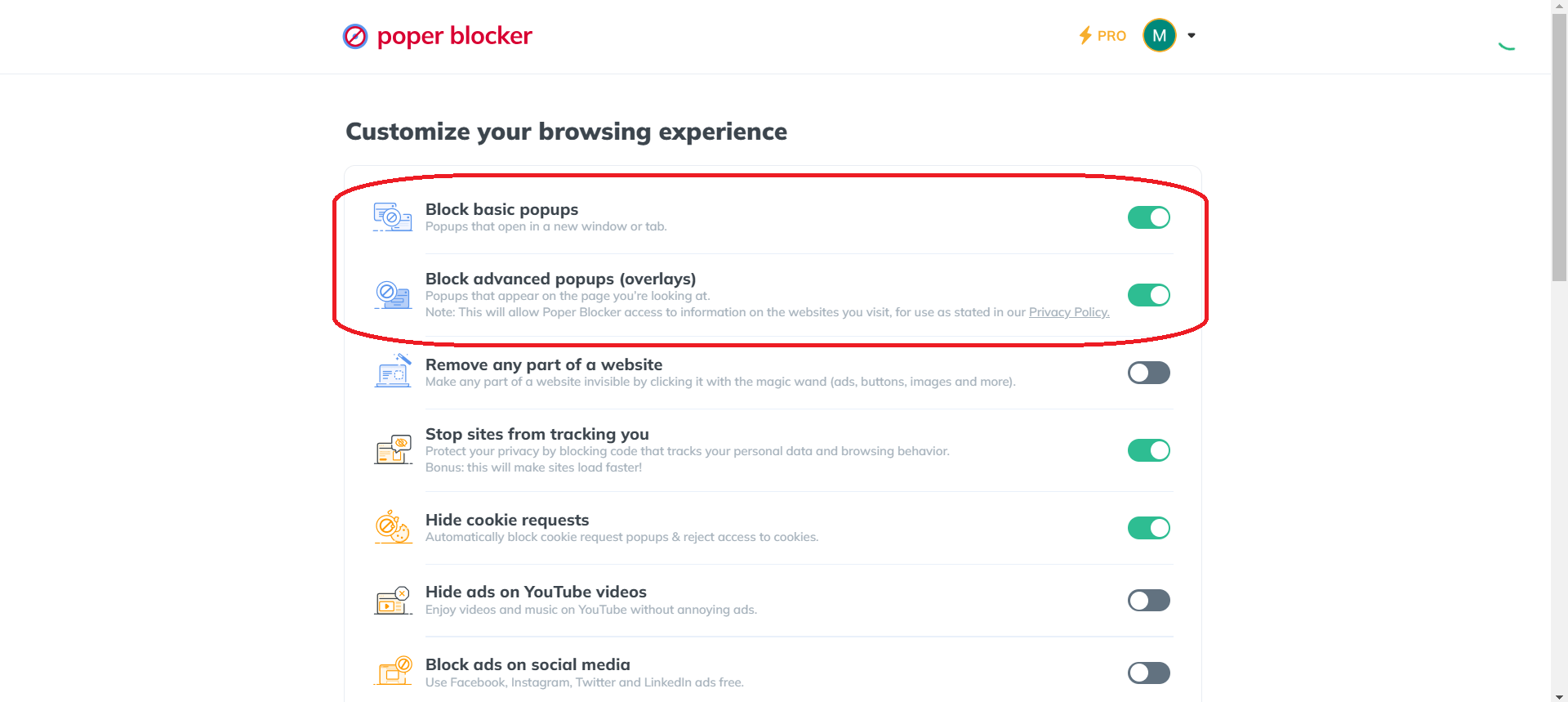
Poper Blocker concentrates on blocking pop-ups and pop-unders while others take care of different kinds of ads. With this layered approach, users like you can surf the internet faster and more securely than ever before.
Responsive Developers
The team behind Poper Blocker takes every feedback seriously. We’re always updating the extension based on user suggestions and new ad strategies to deliver the best experience possible.
Even as online advertisements continue to evolve in complexity, you’ll never be left vulnerable with Poper Blocker as your trusty sidekick while you conquer the web safely and efficiently.
Make pop-ups a thing of the past with Poper Blocker
The Final Act: It’s In Your Hands
Getting lost in the vastness of the internet can be a joy, but it’d be a lot more enjoyable if you weren’t constantly being interrupted by annoying pop-ups. But here’s the thing: sometimes you really do need them. Like when you’re trying to log in to your bank account, or make a payment on an online store, or get a notification that could save your life—stuff like that. Stopping them is easy enough, but it’s no secret that accessing features like these becomes downright impossible unless you know how to turn off those blockades.
But where there’s a problem, there’s always an answer. And Poper Blocker was built for problems just like this one. It offers users the power to customize their browsing experience without leaving themselves open to malware or pop-up ads from hell. By using whitelist technology (which it shares with other ad-blockers), this tool allows you to see what you need while blocking everything else out.
The search for balance between access and privacy continues as we fight through the tangled web of tech we’ve made for ourselves. But tools like Poper Blocker are making it easier than ever before to enjoy all of the content we want without being barraged with clickbait every time we try to read something important.
Install Poper Blocker and enjoy a seamless browsing experience now
FAQs
Can disabling pop-up blockers make my computer vulnerable?
Disabling pop-up blockers does not inherently make your computer more susceptible to malware or viruses. However, it’s crucial to exercise caution. Pop-ups can be a vehicle for malicious software, so ensure you’re interacting with trusted sites. Utilizing a reputable security solution alongside a selective approach to disabling blockers can mitigate the potential risks of spam pop-ups.
Why do some sites still show pop-ups after disabling the blocker?
Some websites employ sophisticated scripts or alternative methods to bypass pop-up blockers. These techniques can include embedding pop-ups within the site’s content or utilizing new browser windows or tabs that may not be recognized as pop-ups by standard blockers. In such cases, adjusting the blocker’s settings or adding specific sites to a whitelist can offer a more tailored browsing experience.
How can I temporarily disable pop-up blockers for specific sites?
Most browsers and pop-up blocking extensions offer a feature to whitelist specific URLs, allowing pop-ups from those sites while keeping the blocker active elsewhere. This is typically done through the settings menu of your browser or extension, where you can add the site’s URL to a list of exceptions. This method ensures that essential pop-ups, like authentication dialogs or payment gateways, remain accessible without fully disabling your pop-up protection.
Are there browser-specific pop-up blockers?
Yes, in addition to the built-in pop-up blocking features found in most modern browsers, there are numerous browser-specific extensions and add-ons designed to enhance your control over pop-ups and other intrusive content. These tools often offer more granular control than the default browser settings, including detailed whitelisting options, the ability to block specific types of content, and even customization of blocking rules based on your browsing habits.
What’s the difference between a pop-up and a pop-under ad?
Pop-up ads are designed to open over the top of web content, immediately capturing your attention. In contrast, pop-under ads open in a new window or tab beneath the current browser window, remaining hidden until you close or minimize your main browser window. Both are used for advertising or to draw your attention to specific information, but pop-unders are typically considered less intrusive since they don’t interrupt your immediate browsing experience. However, both can be equally distracting and unwanted, leading many users to seek solutions for blocking them.
Get Poper Blocker: Your ultimate solution to block unwanted pop-ups!