Chrome Web Extension
 Edge Web Extension
 Android App


The future of personalized ads looks both paradoxical and promising. Retail industry professionals are pushing money into personalization tools like no other sector, with 79% investing more in such tech, according to a SmarterHQ report. However, trust is still an issue. A study by Segment found that while 37% of consumers do trust companies to protect their personal data and use it responsibly, the same percentage don’t trust online retailers with any of their personal information at all.
The discord shows how complicated the conversation about data privacy has become as the world of online advertising grows ever more sophisticated. Amid all this, internet users are choosing to opt out of ads personalization, underscoring a growing awareness and desire for control over their digital breadcrumb trail.
What Are Personalized Ads?
Imagine a shadow that watched you every time you went online. It follows your every move and records it, learning everything about what you do on the internet. That’s essentially how personalized ads work — by creating an online profile tailored specifically to each individual user’s interests and behaviors.
Everything is taken into account when these profiles are made:
- Your search history
- Websites you visit
- Even your social media activity
Advertisers then use this information to target you in ways that will make sure they catch your attention and get their product across to you.
Why Opt out of Personalized Ads?
Refusing personalized ads is an act of privacy concern. It reflects a growing unease toward the increasing invasiveness of online platforms in our lives. Here are the reasons to think about:
Privacy Concerns
Personalized ads rely on collecting and analyzing your online activities, which leads to the accumulation of vast amounts of data about your interests, habits, and preferences. This feels like a serious invasion of privacy, especially when it is done without consent or knowledge.
Overwhelming and Irrelevant Content
Even though personalized ads aim to feel relevant, they mostly tend to be more overwhelming than helpful. More often than not you’ll be faced with content that adds no value to your day or doesn’t hold any interest.
Data Security
The databases storing the collected data can become susceptible to breaches and cyber attacks. Naturally, this poses a risk to your personal information which could lead to identity theft or other forms of digital fraud.
Mental Health
Having constant exposure to targeted ads can have a subtle yet profound impact on mental well-being especially when consumerism or ideal lifestyles become main themes for them. Unrealistic standards will plague thoughts leading people into feelings of inadequacy or desire for things they don’t need.
Consumer Manipulation
These personalized ads are created specifically with you in mind. They’re meant to influence your purchases by creating needs that do not exist; manipulating consumer behaviors in ways that may not align with their actual needs or financial best interests.
How to Turn Off Ad Personalization on Various Platforms
There’s no doubt that personalized ads are a growing part of our online experiences. Intrusive, yes, but you have the power to turn them off! Here is a step-by-step guide on how to disable ad personalization across different platforms. Each step puts you in the driver’s seat of your online experience and lets you enjoy less invasive browsing sessions.
How to Turn off Personalized Ads on Google
The big dog in online advertising, Google won’t stop showing tailored ads unless you want it to. Here’s how to turn off Google personalized ads. You can do this by:
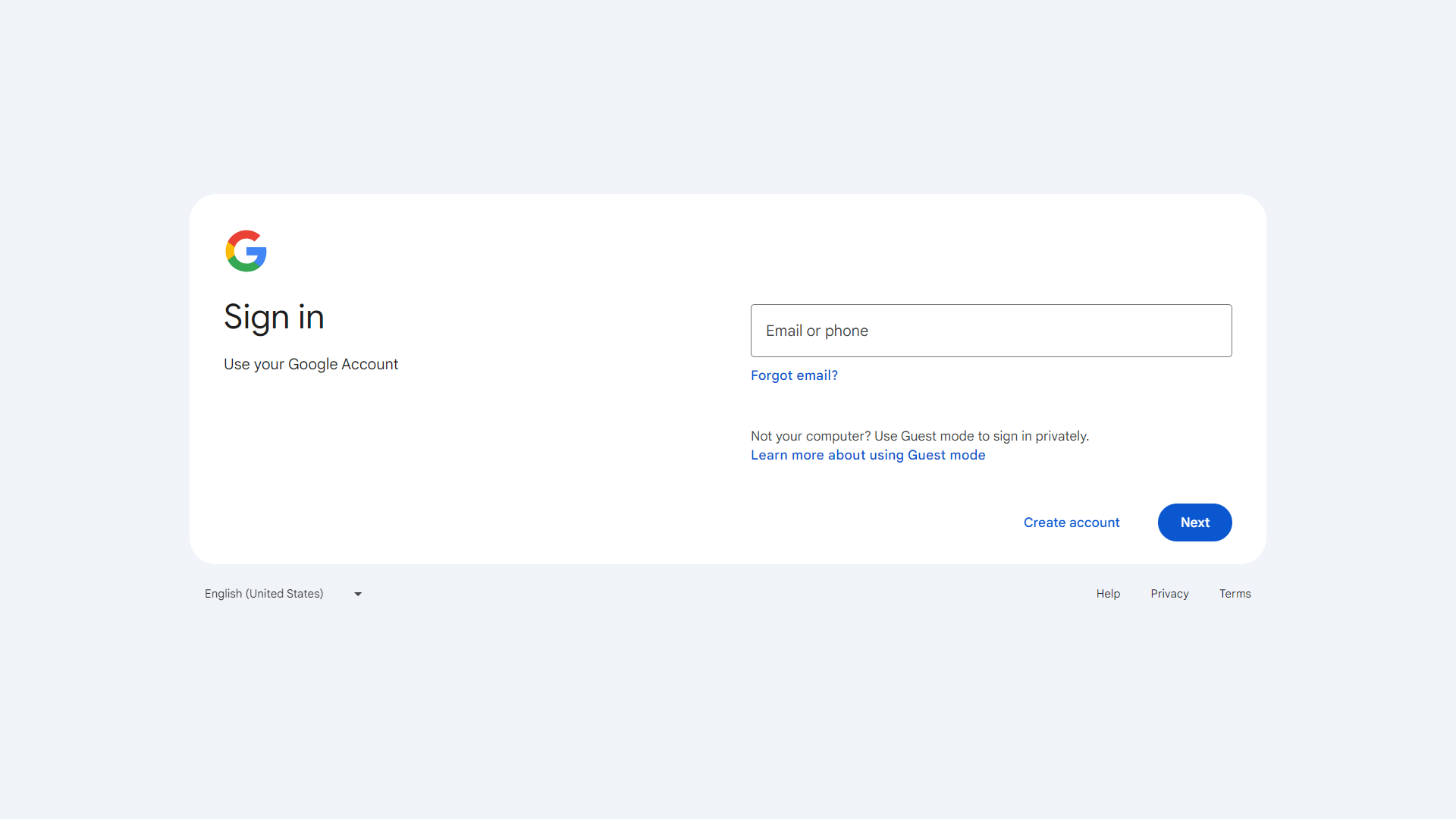
- Accessing your Google Account: Sign in to your account.
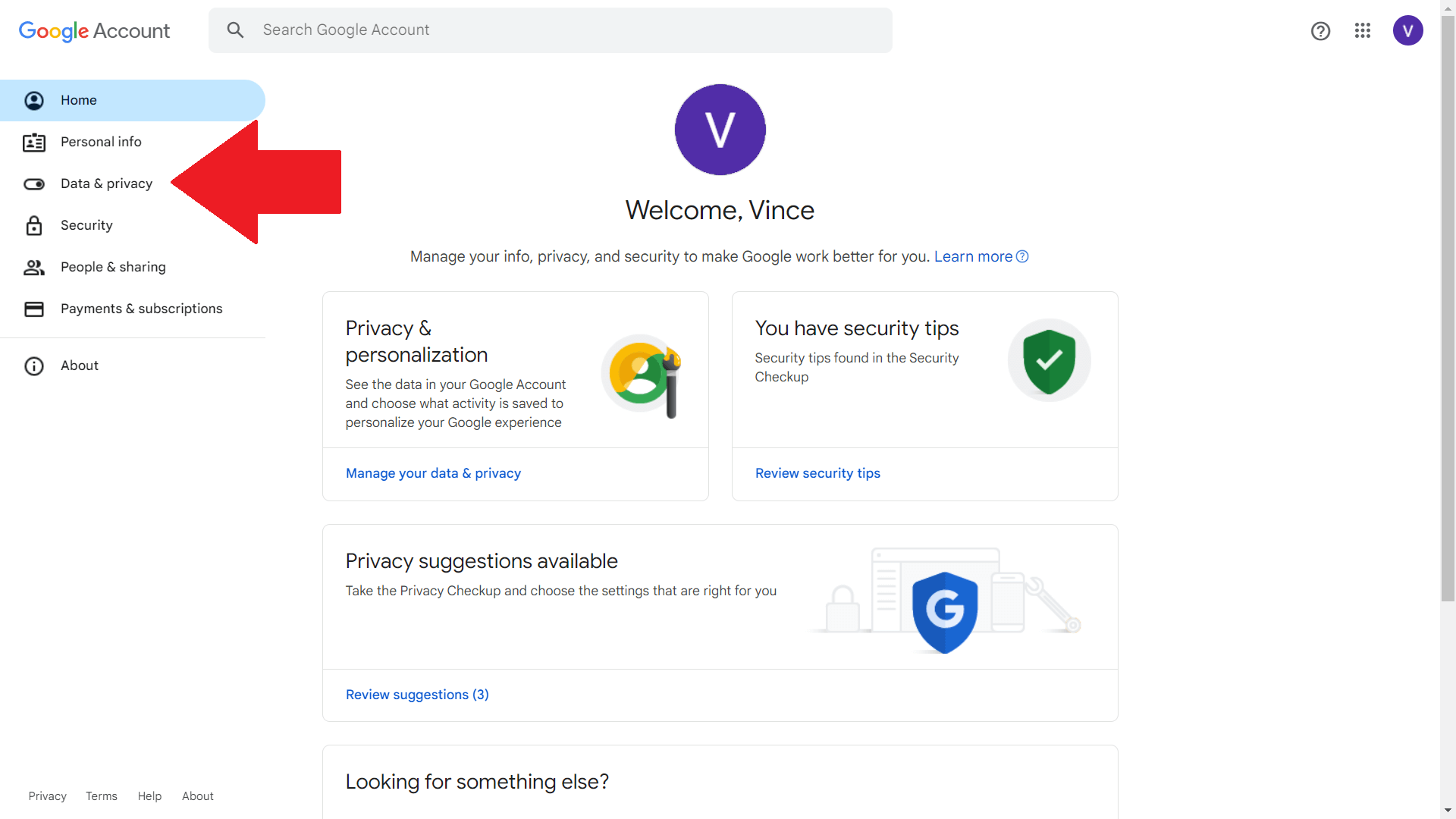
- Data & Privacy: Access your privacy settings by clicking on “Data & Privacy”.
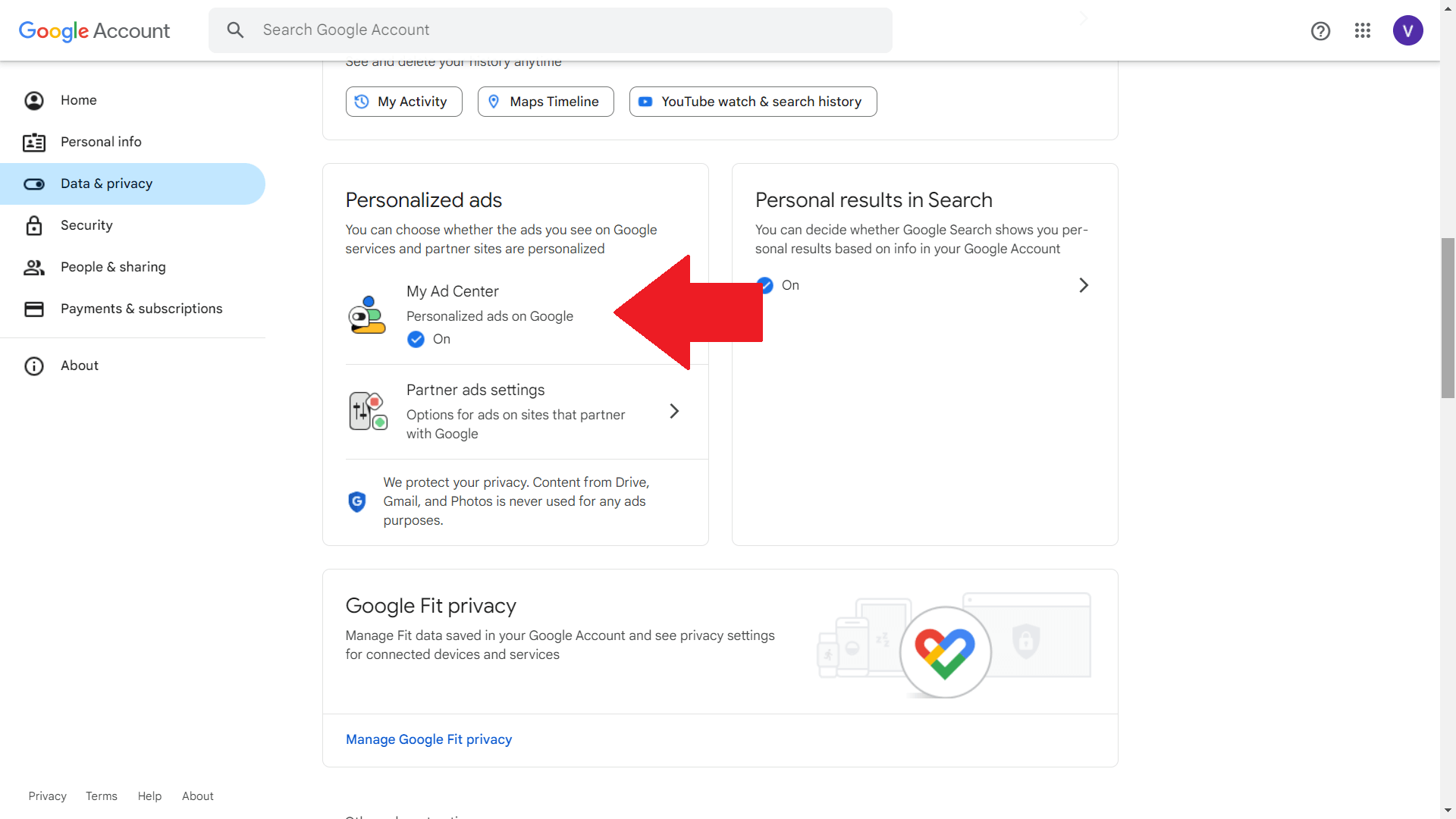
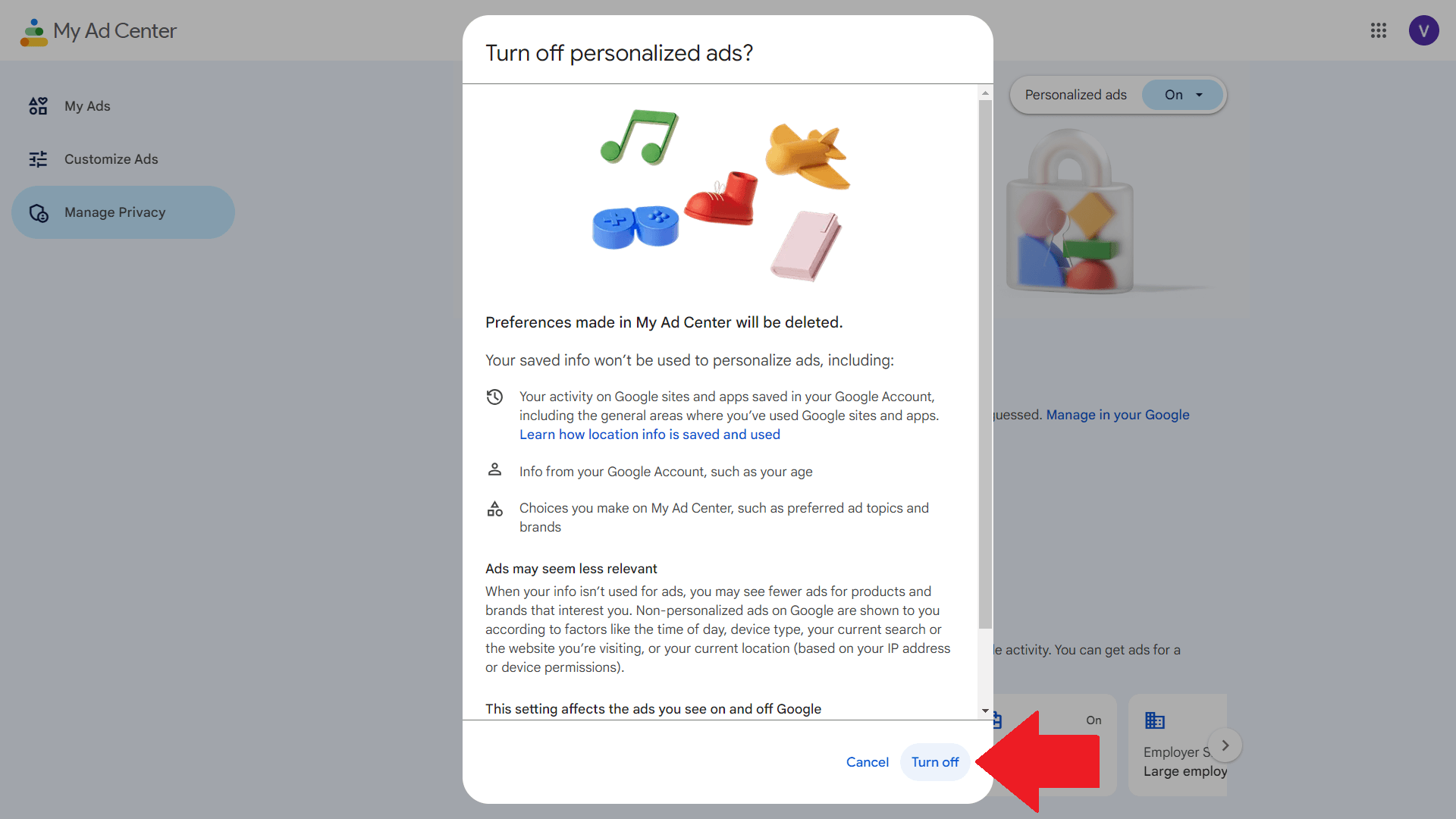
- Visiting My Ad Center: Scroll down and head over to the “Personalized ads” section, and then click on “My Ad Center”.
- Disabling Personalization: Find “Personalized ads”, switch it off, and then click on the Turn-off button to confirm the action. Now Google will stop using your activity history for ad targeting.
How to Turn off Personalized Ads on YouTube
Owned by Google and also plagued with personalization, YouTube will continue tailoring ads based on your video history — unless you switch it off. Here are the basic steps on how to turn off ad personalization on YouTube:
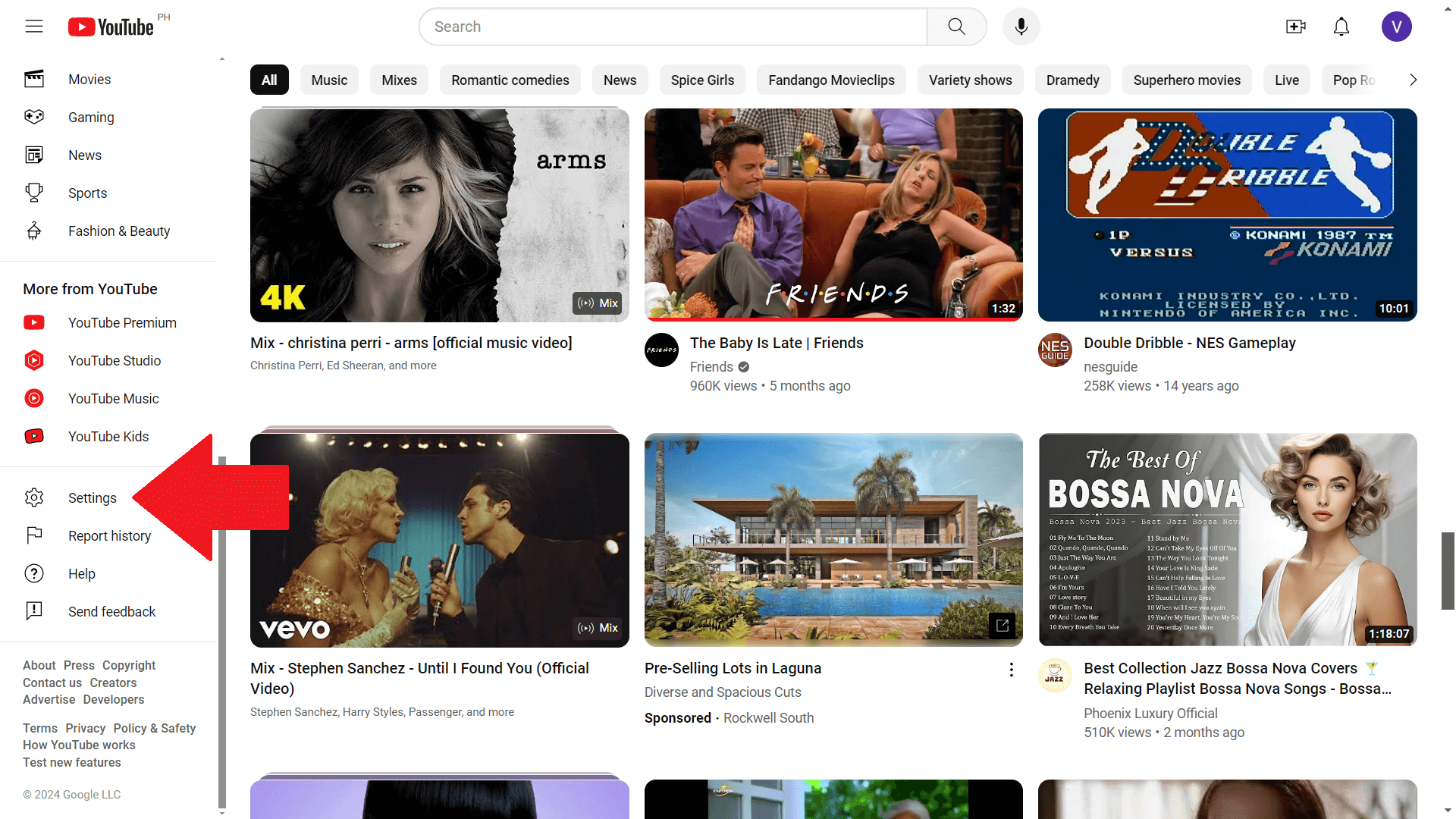
- Opening YouTube Settings: Log into your account and go to settings.
- Finding Privacy Section: Go to the privacy settings menu.
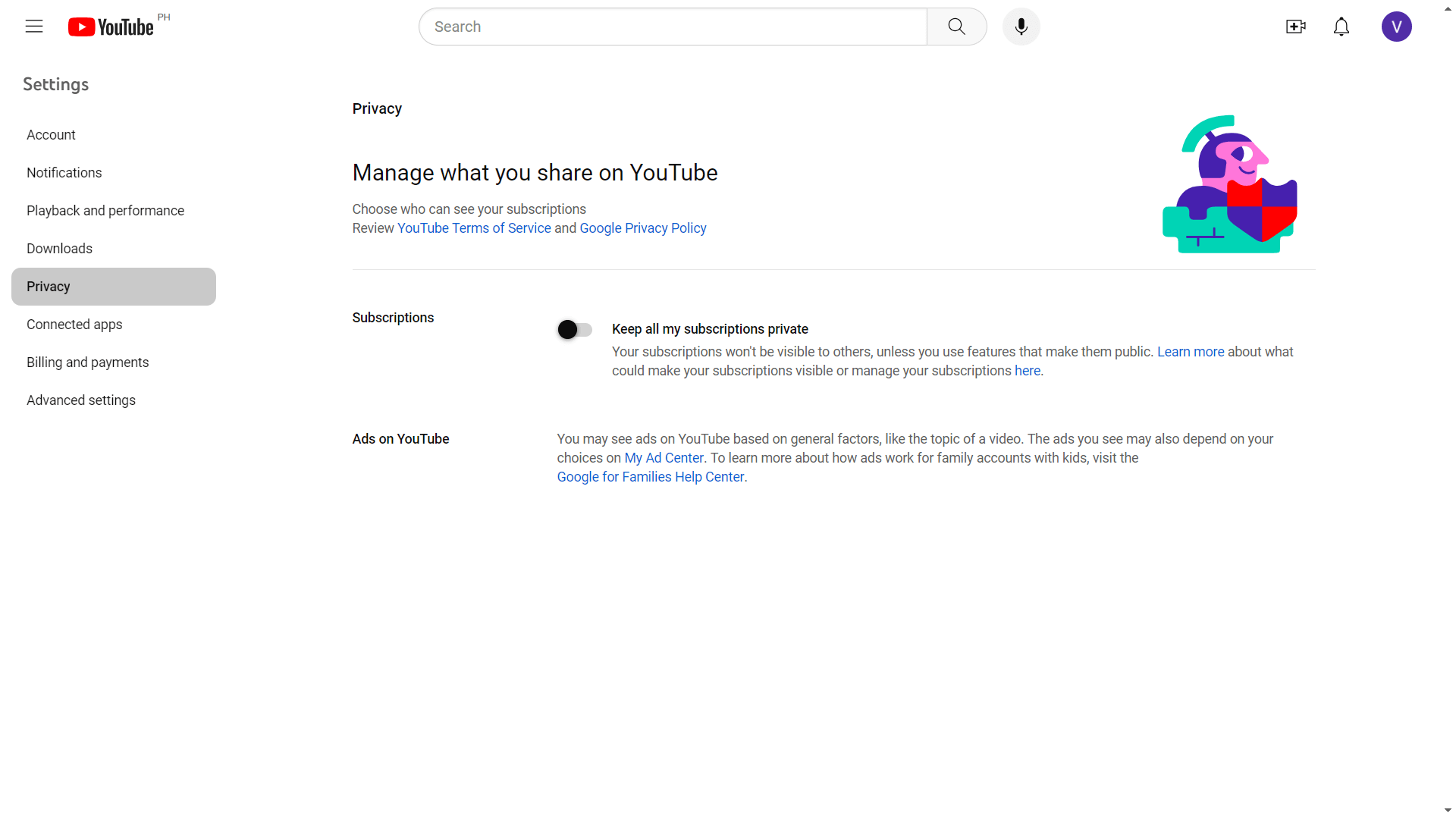
- Turning Off Personalized Ads: Click on “My Ad Center” and on the next page, switch the “Personalized ads” off so that whatever videos you watch do not impact what ads show up next.
How to Turn off Personalized Ads on Facebook
This social media giant truly knows too much about us, even our targeted ad preferences. To cancel their access:
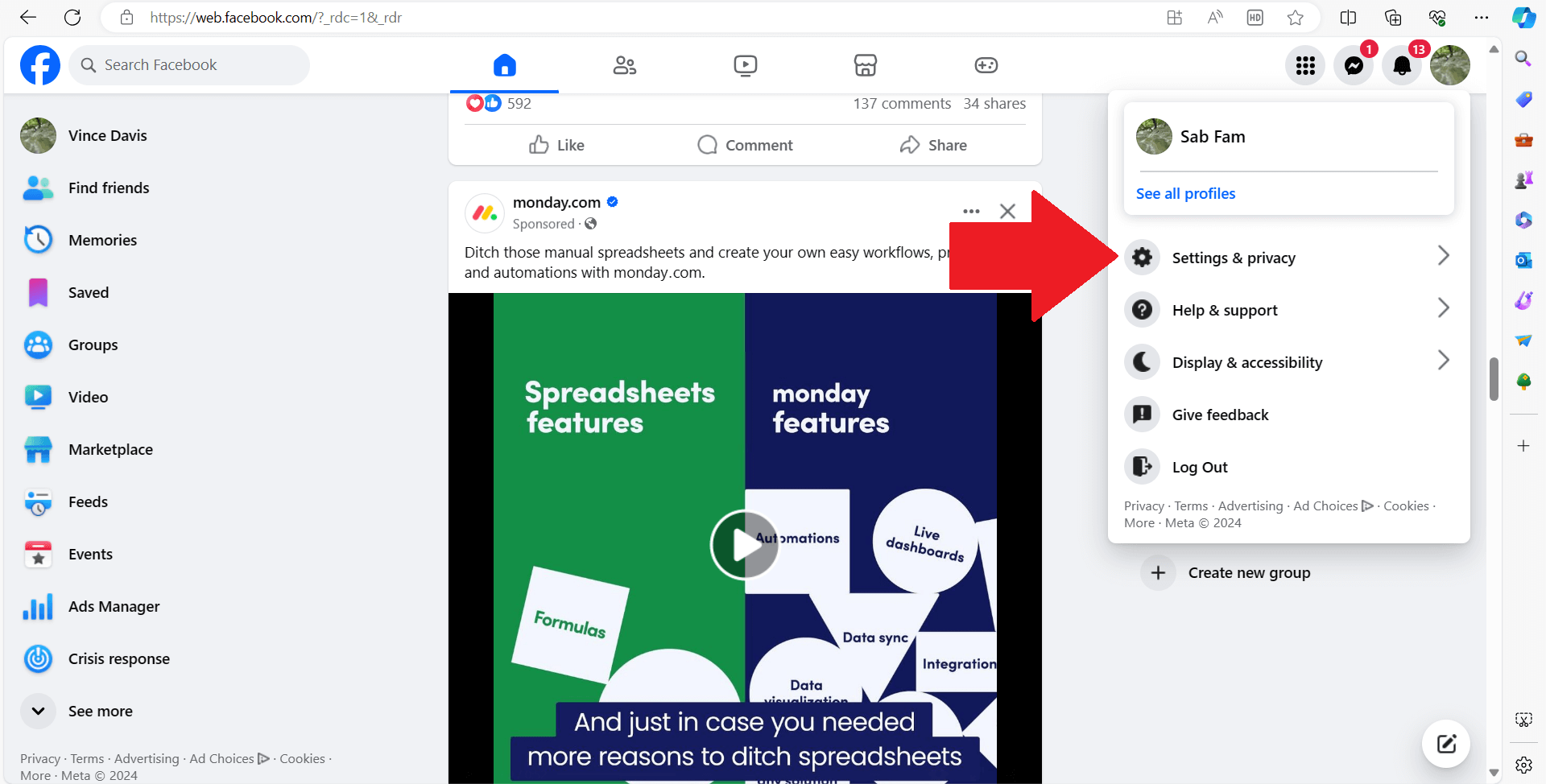
- Access Facebook Settings: Log in and head over to “Settings & privacy”, and then click on “Settings”.
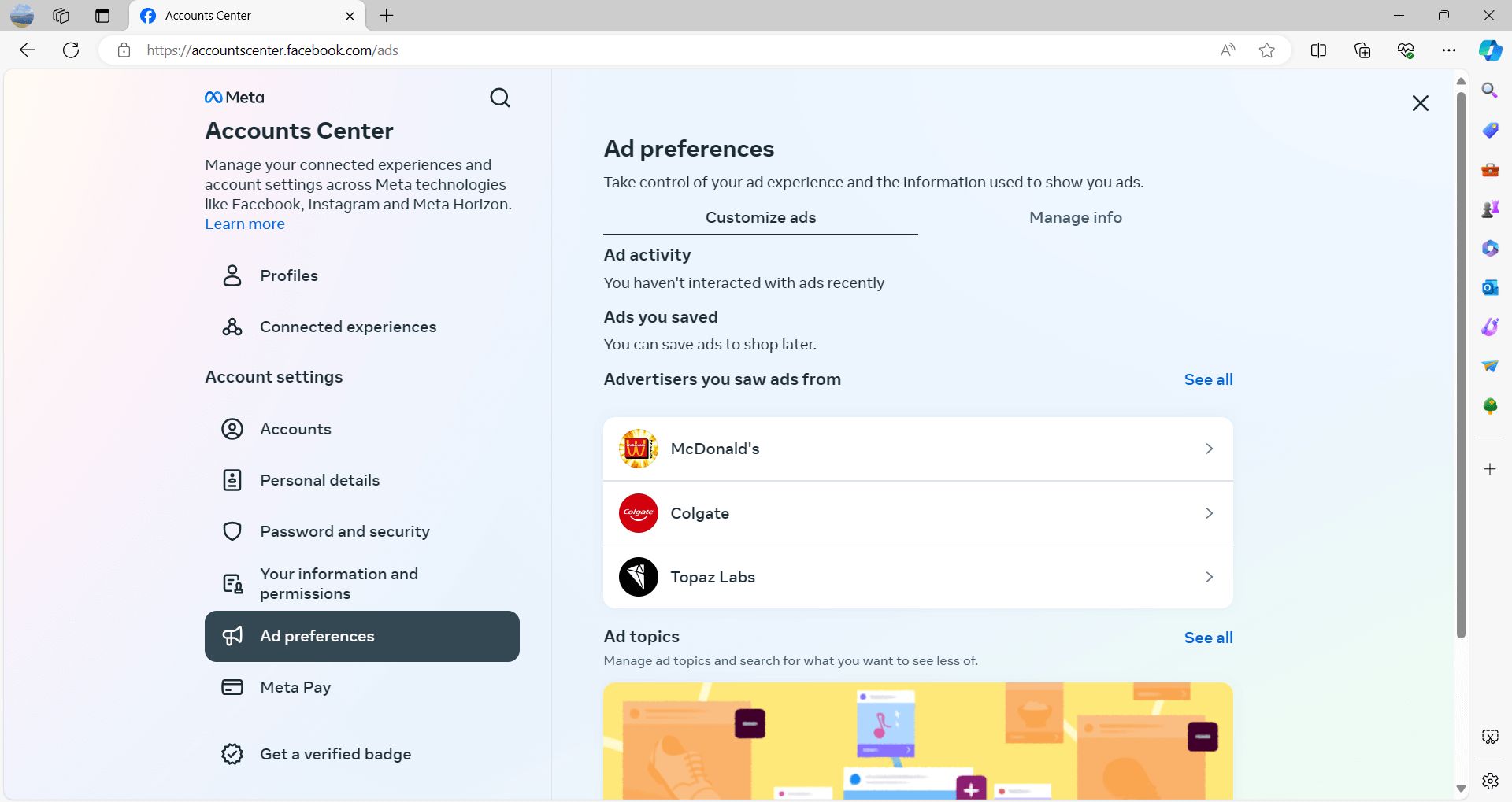
- Find Ad Preferences Section: Click on “Ad Preferences”.
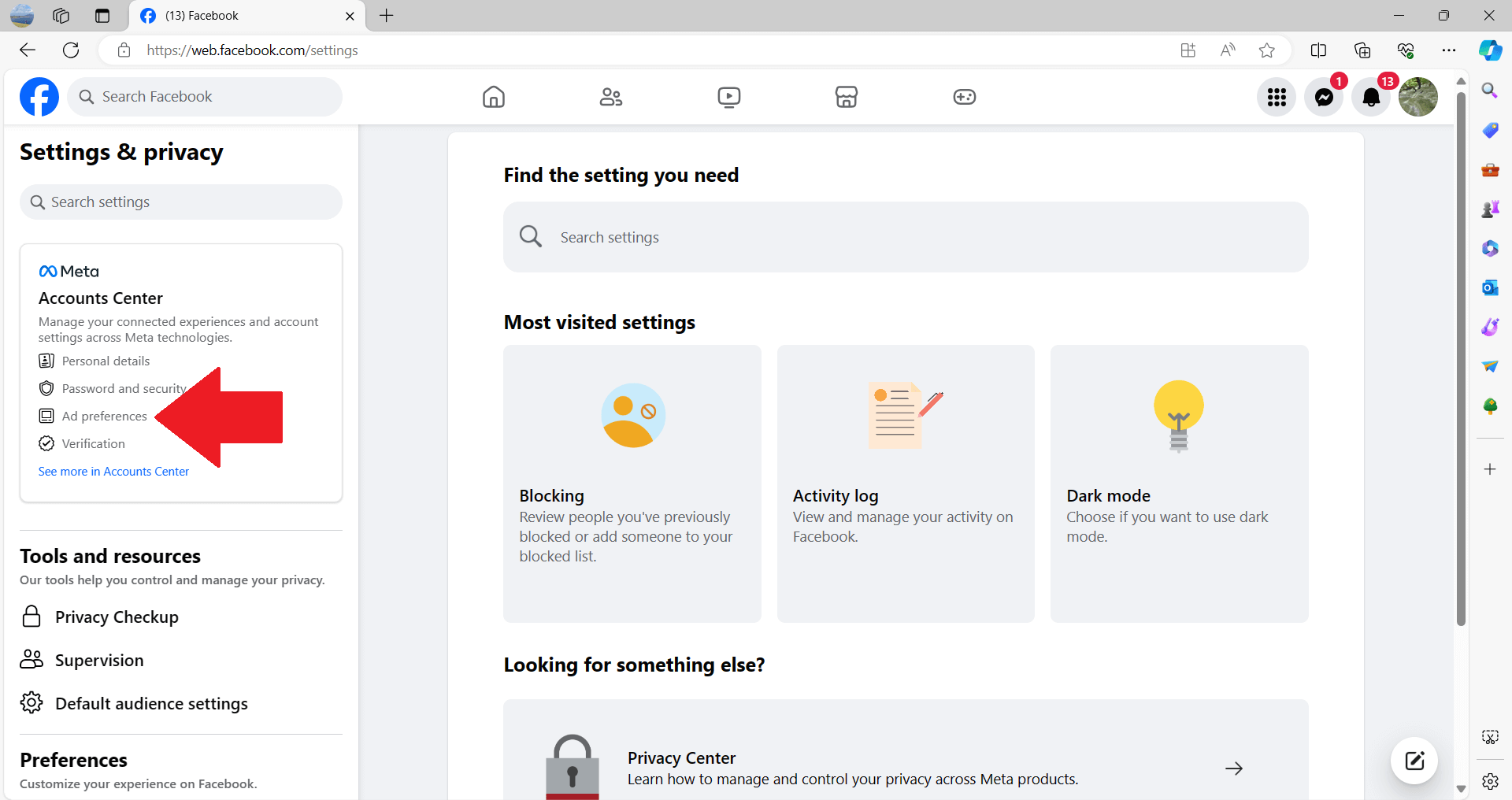
- Adjust Preferences: This page will show all data points Facebook uses for ad targeting so that you can switch them off if need be.
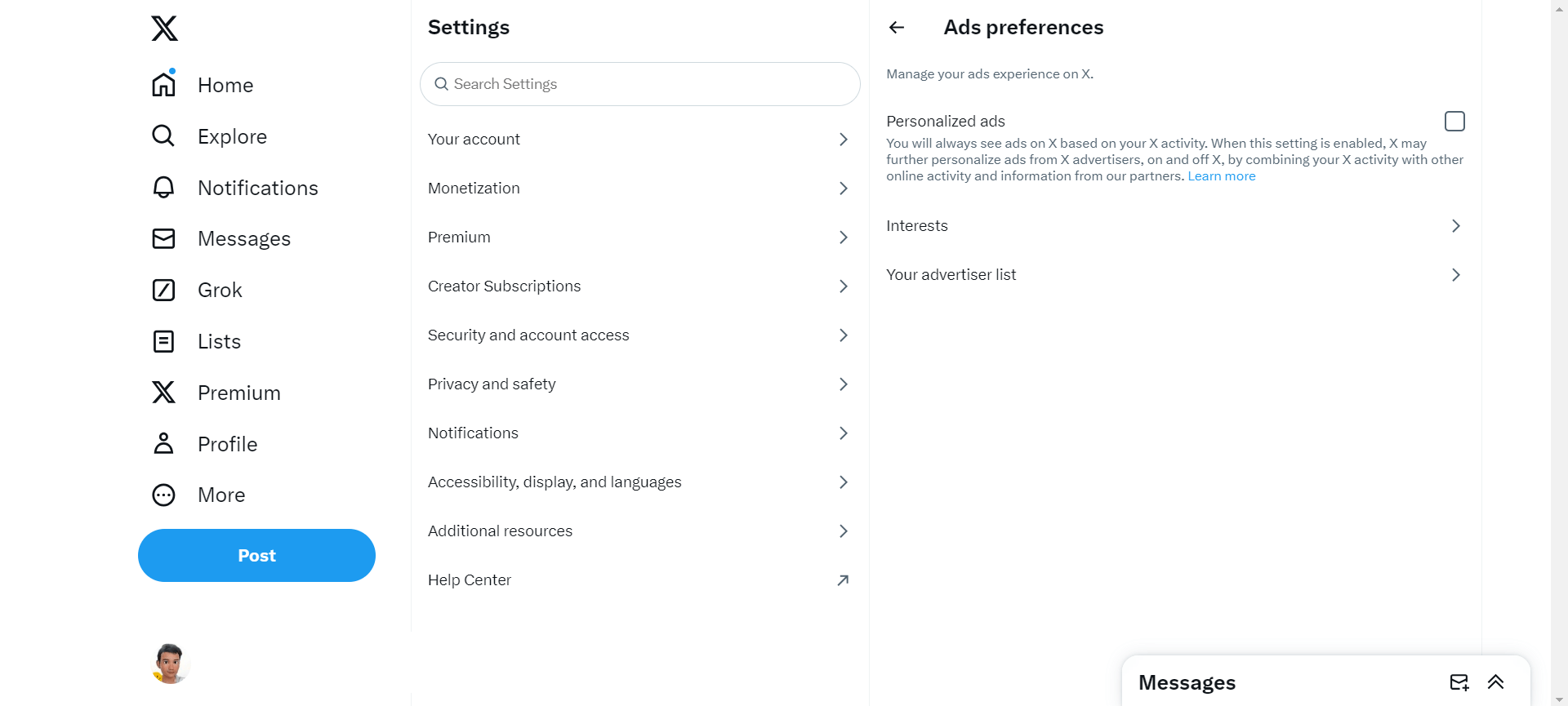
How to Turn off Personalized Ads on Twitter (X)
Yes, Twitter has more than hot takes; they have targeted ads too, but only if you let them:
- Go to Twitter Privacy Settings: Log on, go to the settings menu, and click on “Settings and privacy”.
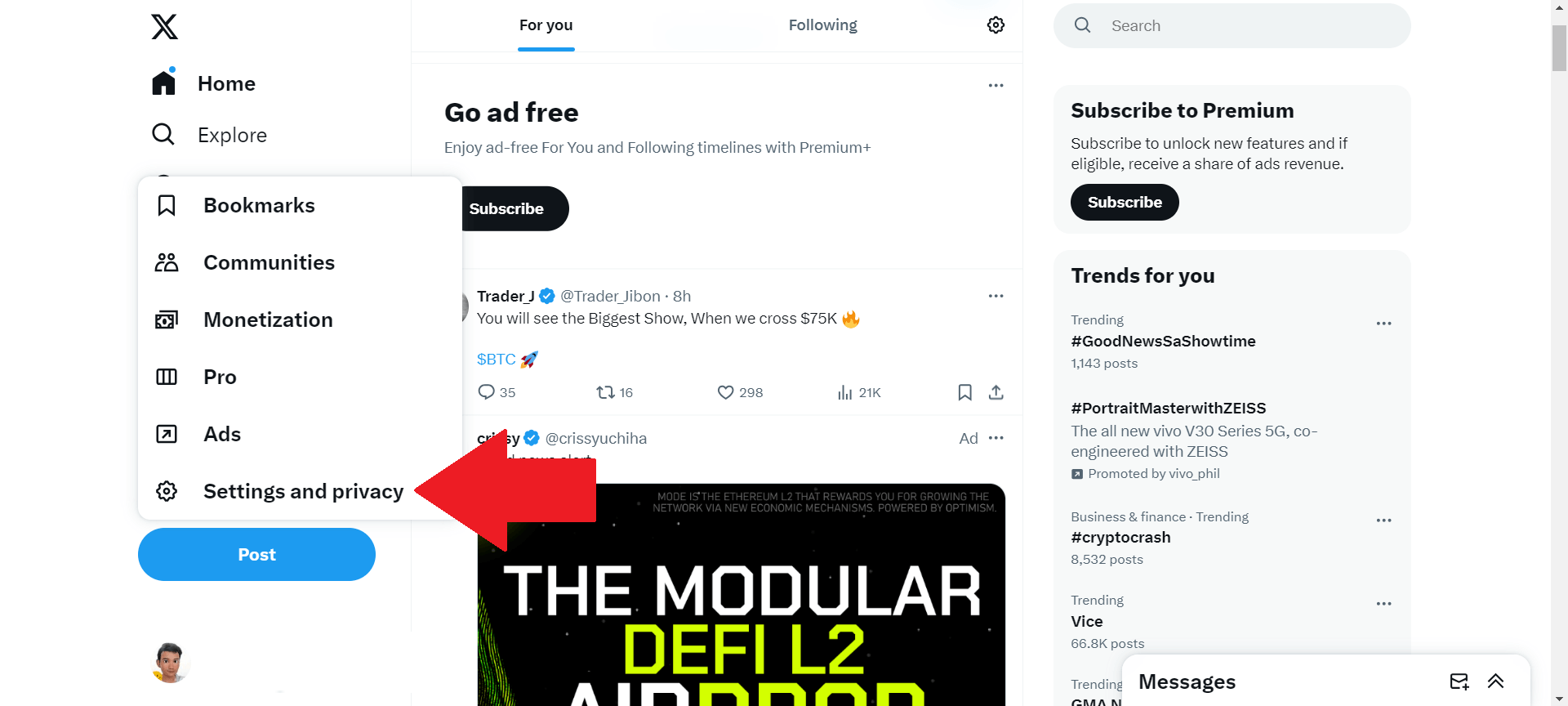
- Access Your Ads Preferences: Click on “Privacy and safety” and then “Ads preferences”.
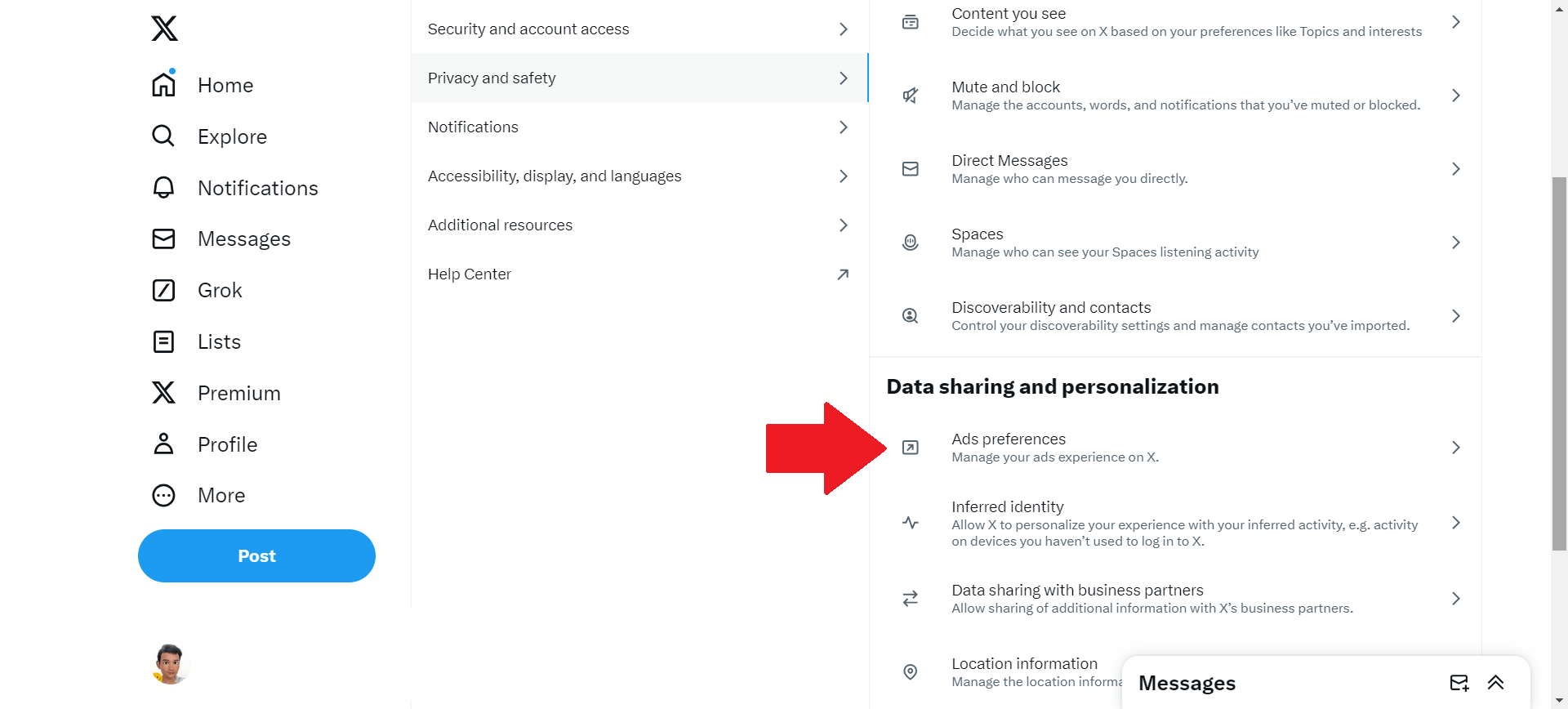
- Turn Off Personalization Features: Manage your ad preferences here!
How to Turn off Personalized Ads on Instagram
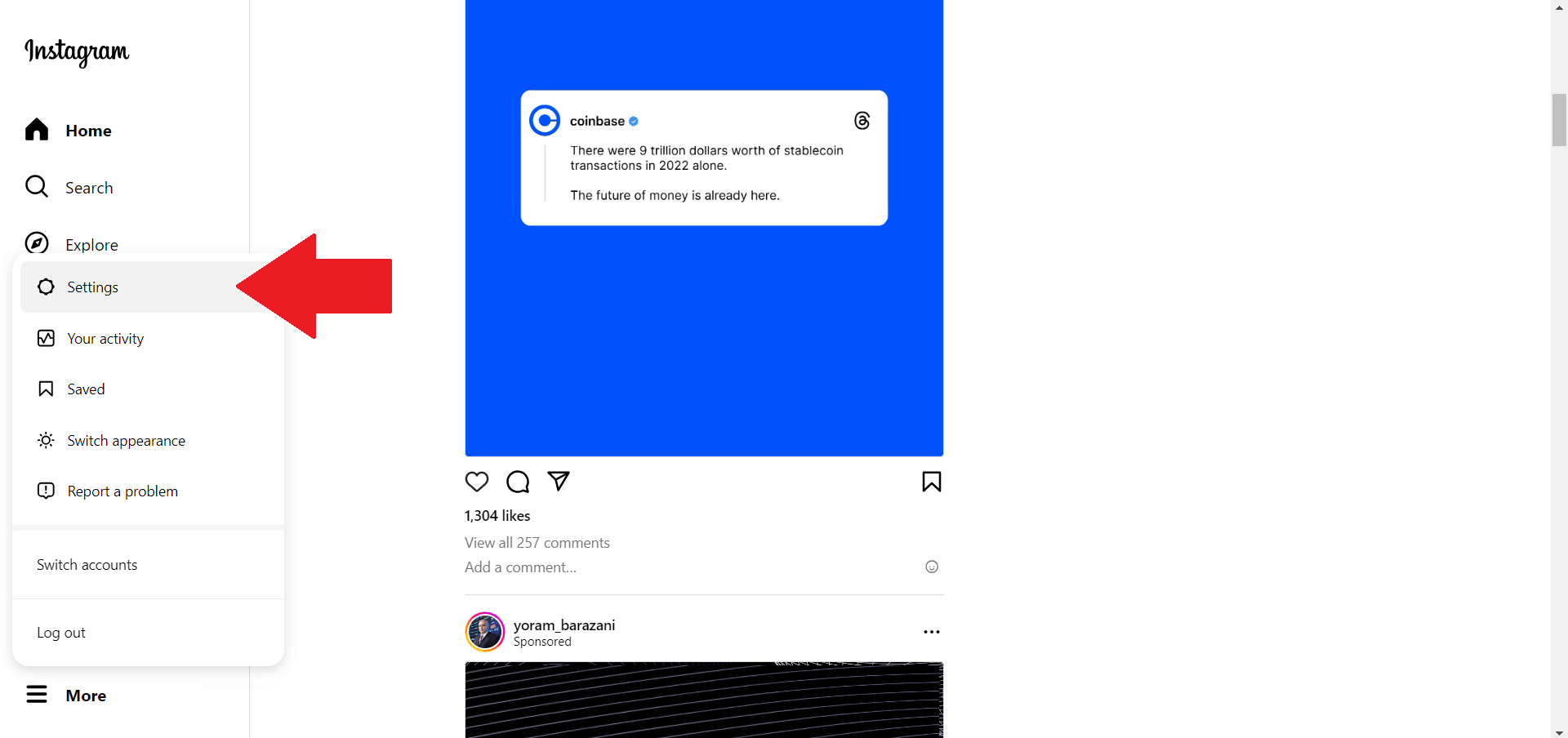
Just like its friends at Facebook, Instagram will show you ads based on your activity. Unless, of course, you turn that feature off:
- Open Instagram Settings: Log on and navigate to settings.
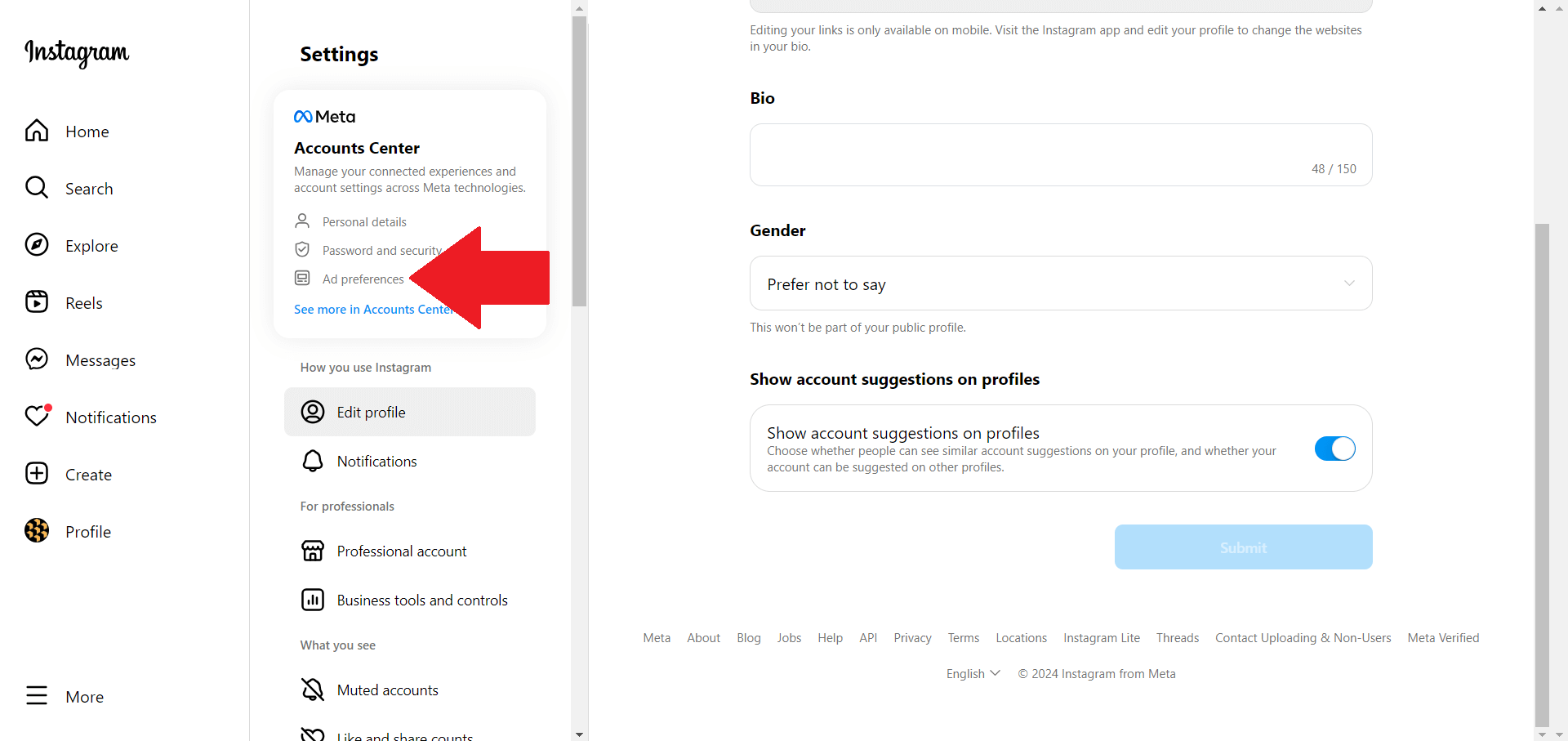
- Find the Ad Preferences Section: Look for “Ad preferences” and click on it.
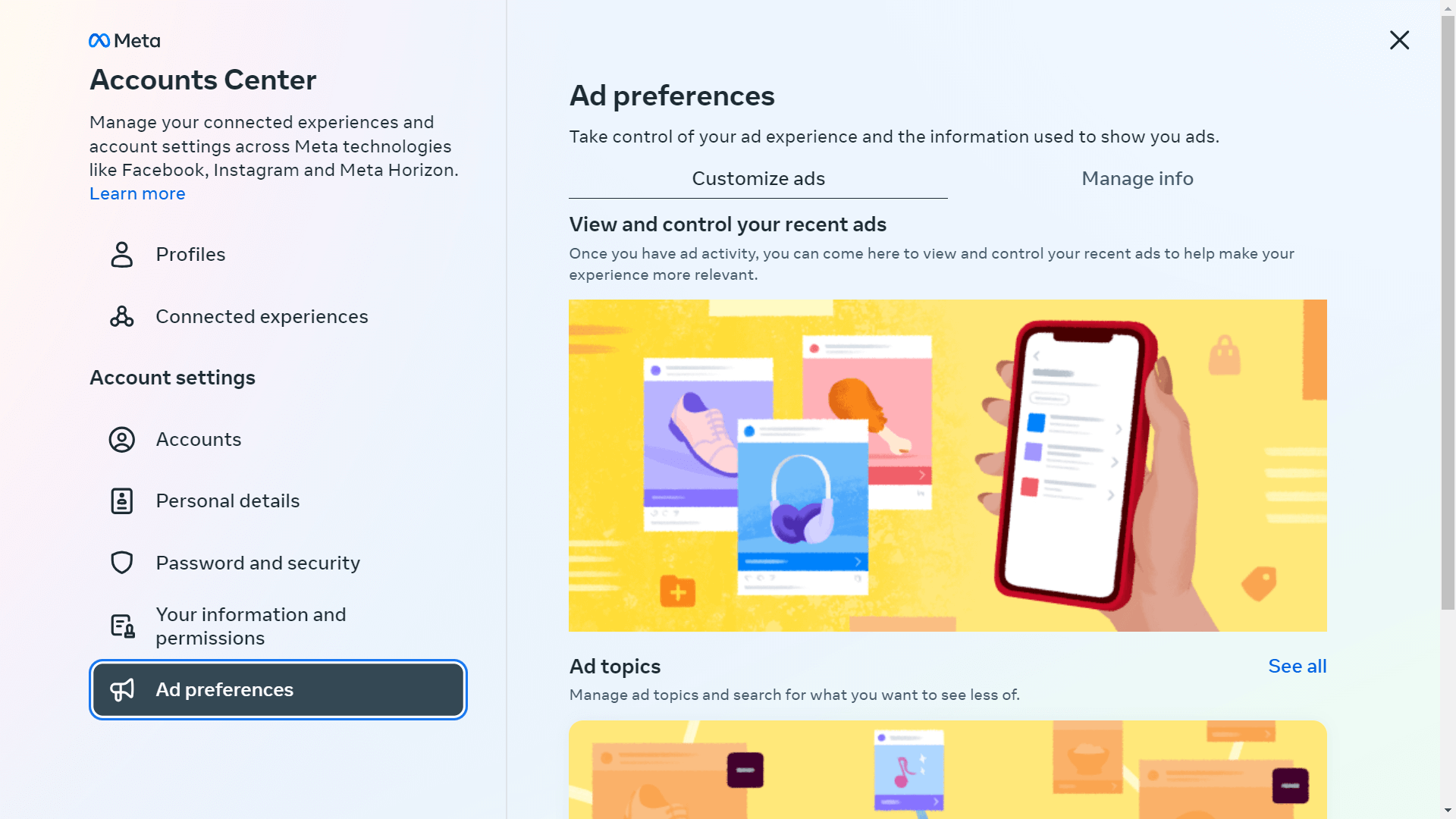
- Opt-Out of Personalization: Here, you can manage your ad preferences and say goodbye to tailored ads.
Remember: Personalized ads are not going anywhere. They are just becoming less tailored to your online behavior.
Use Poper Blocker to Block Ads and Trackers
Unwanted ads are a menace that we all have to suffer through, but Poper Blocker can give you the relief you need. This great extension is dedicated to making sure no pop-ups, pop-unders, or overlays manage to slip past it and ruin your browsing experience. But what makes it special is how well it performs against the most persistent ads other blockers tend to let through.
Here’s how you can activate the “Stop sites from tracking you” feature:
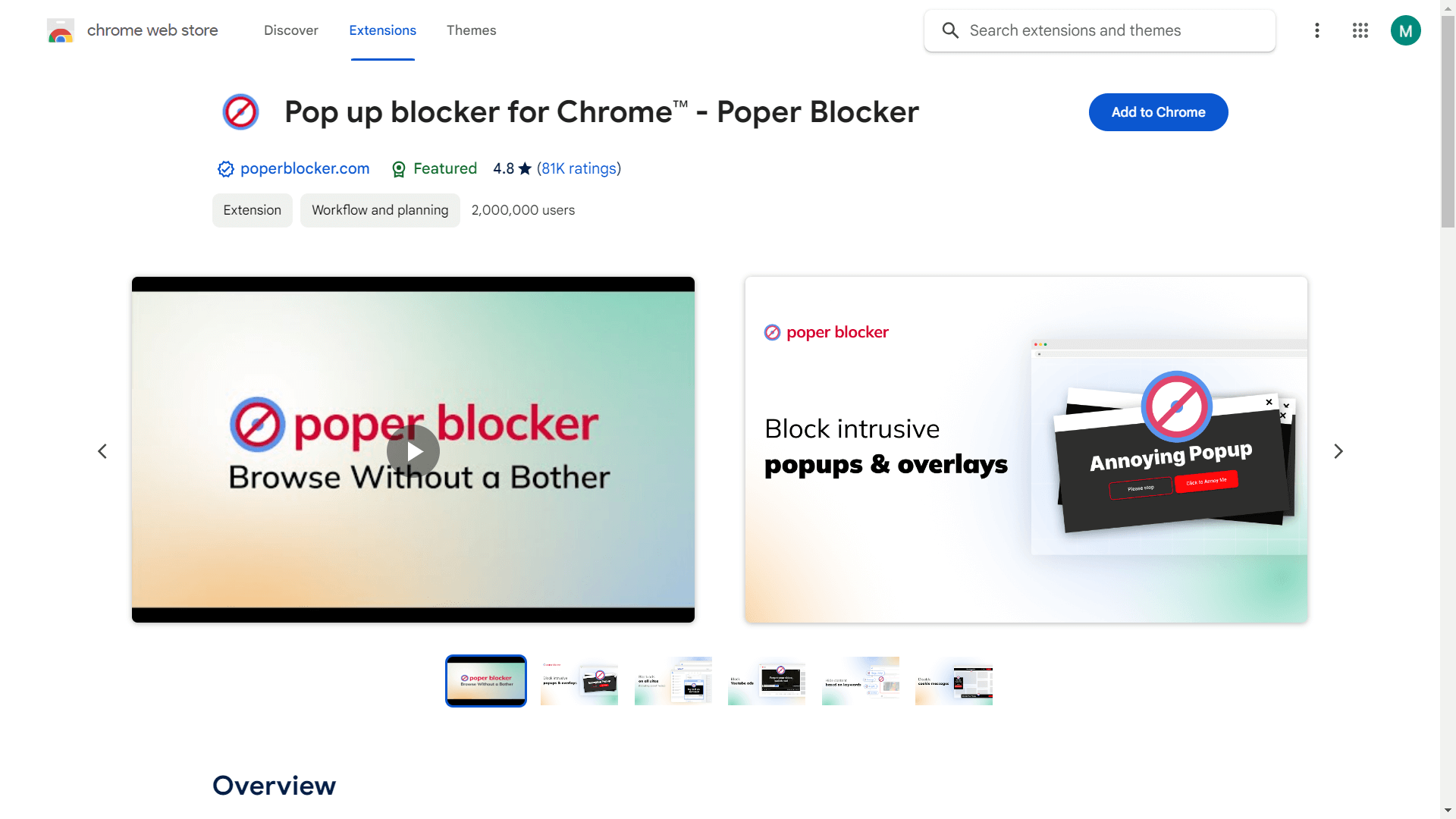
- Download and install Poper Blocker from your browser’s extension store (Chrome or Edge).
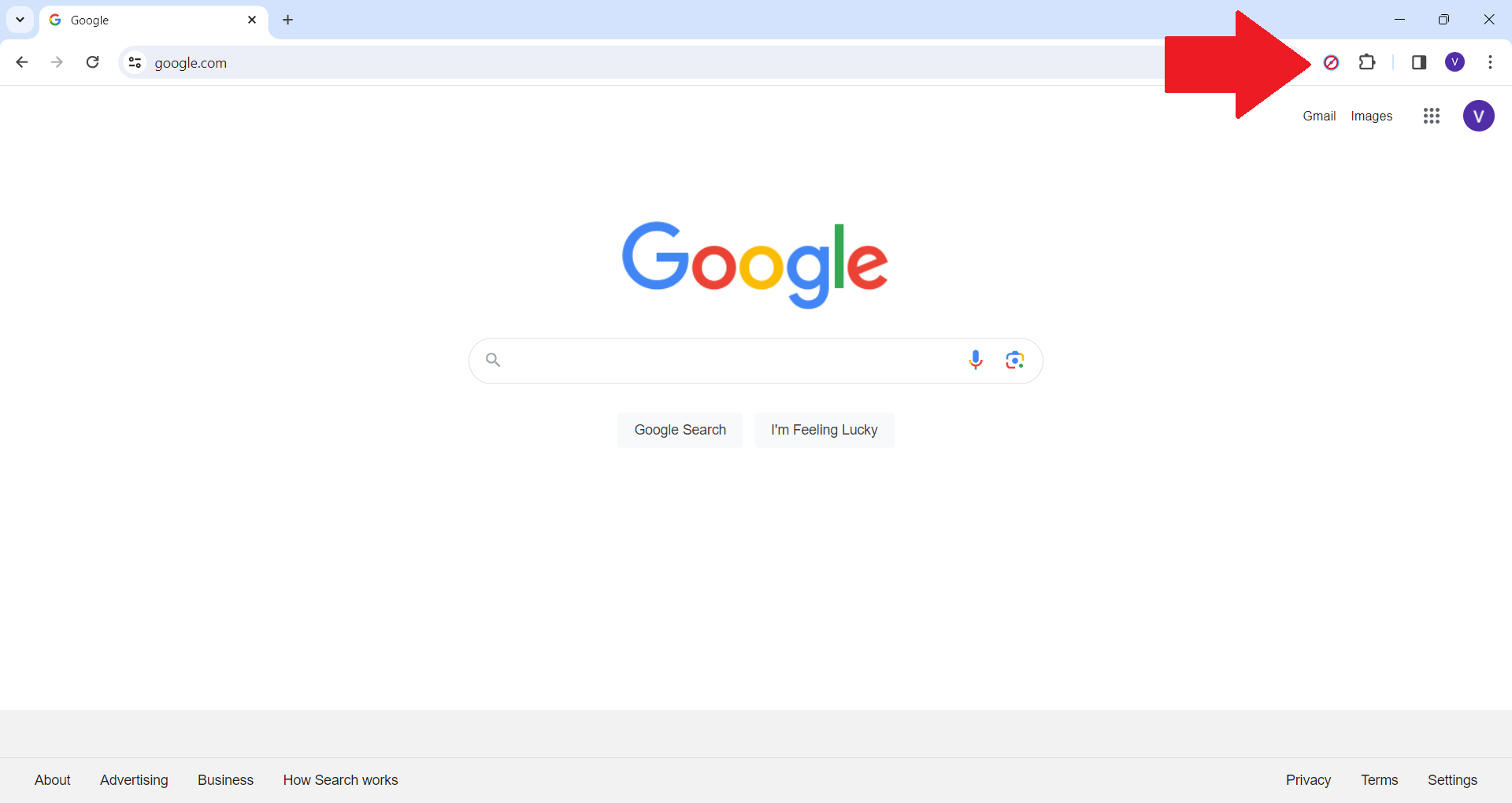
- Once installed, click on the Poper Blocker icon in your browser toolbar.
- In the dropdown menu, navigate to the ‘Settings’ option.
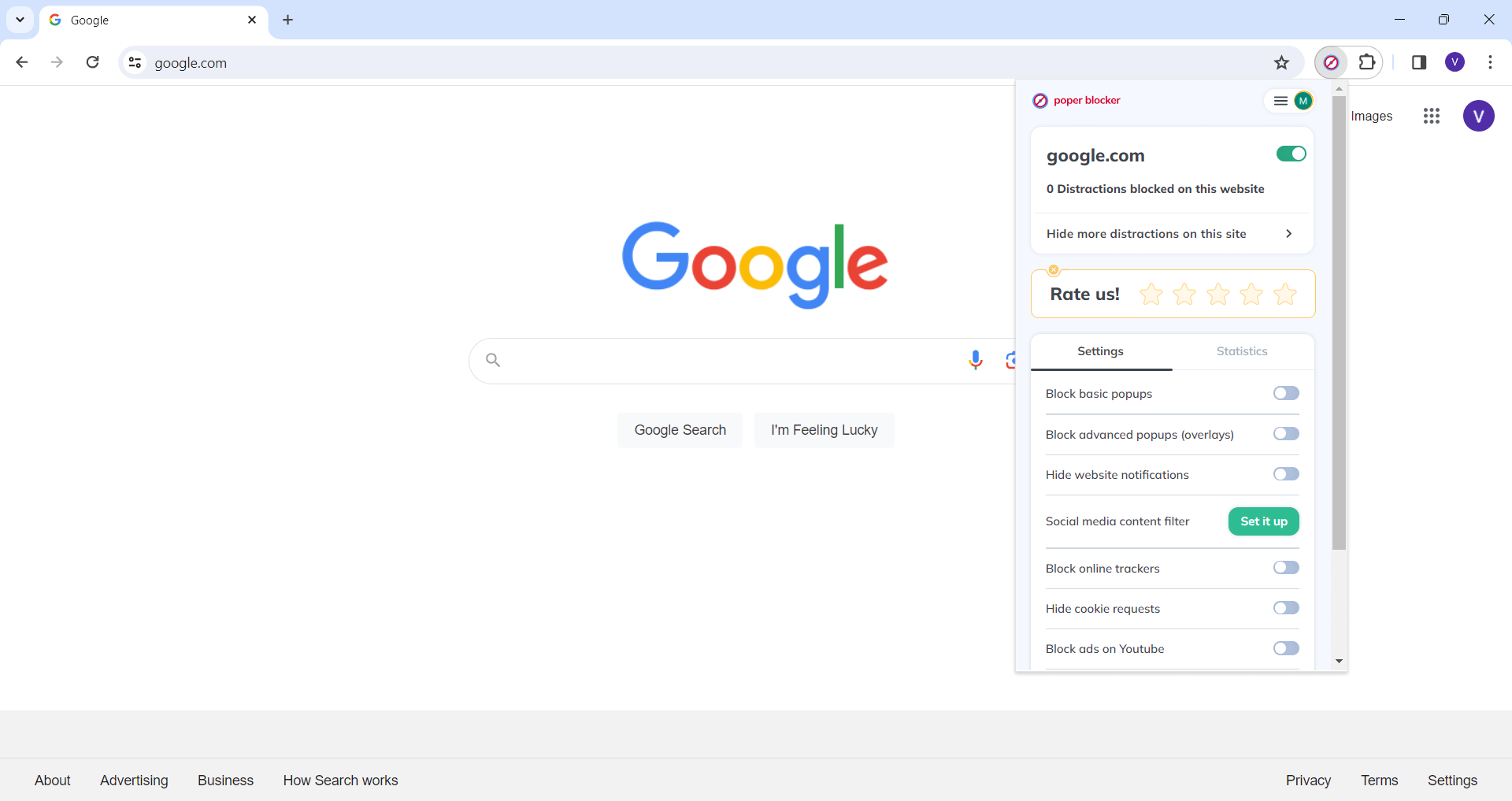
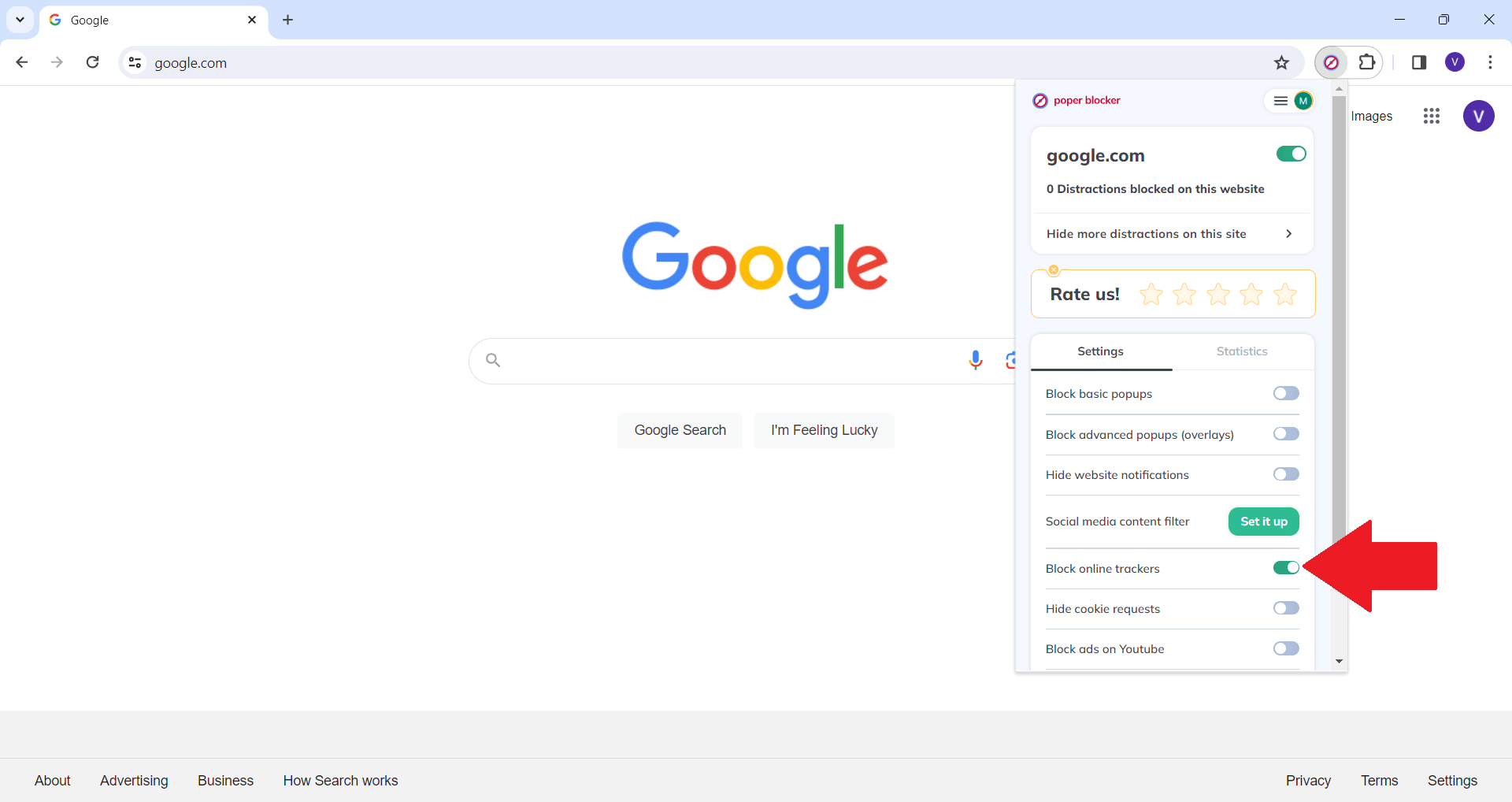
- Locate the “Block online trackers” and toggle the switch to the ‘On’ position to activate this feature.
Poper Blocker is an all-around ad-blocker. It doesn’t just shield your personal data and browsing habits from pesky trackers; it also stops those ads from getting to you in the first place. Here are some of the additional key features:
- Hide YouTube Ads: Stop ads from ruining your groove — block video ads automatically and enjoy uninterrupted watching.
- No Social Media Ads: Facebook, Instagram, Twitter or LinkedIn have no place for brands and businesses if you don’t want them there.
- Block Ads on Any Site: Even if video ads still slip through the cracks, every other type of spammy ad will be eliminated across the web.
Wave goodbye to personalized ads with Poper Blocker. Install now!
Opting Out of Personalized Ads: Online Experience Done Your Way
To recap, your digital world is sculpted by you and for you. Personalized ads may be a thing, but choosing otherwise says much more about your privacy and how you want to surf around the web. Ads are unavoidable when you’re online; however, personalizing their content is entirely up to you. It’s strange that there aren’t more people using tools like Poper Blocker or similar products. They’re incredibly important to block trackers and annoying ads which can both result in faster browsing speeds and protect your data from getting stolen. The point is, every time you tweak a setting or enable a blocker, it’s another step closer to having an internet that’s all yours.
You know what they say: Every action has an equal opposite reaction. Or something along those lines. So make sure that the actions you take determine the shape of this digital space that we all live in together. You shouldn’t just be looking at memes or watching videos on YouTube as an internet user, you should also actively engage with technology so that it caters more towards your needs than ever before!
Don’t let ads dictate your browsing. Get Poper Blocker now!
FAQs
Can I completely stop all ads online?
Achieving a completely ad-free online experience is a tall order. Ads are a fundamental part of the internet’s economic model, supporting many of the free services and content we enjoy. While tools like Poper Blocker can significantly reduce the number of ads you encounter, especially intrusive ones like pop-ups and trackers, some ads may still slip through. These are often the less personalized, more generic ads that are less tailored to your browsing history.
Will opting out of personalized ads affect my browsing experience?
Opting out of personalized ads changes the type of advertisements you encounter but doesn’t degrade your browsing experience’s quality or speed. In fact, some users find that depersonalizing ads makes their online experience more enjoyable, as they no longer feel constantly targeted by marketers. However, it’s important to note that ads will still be present; they just won’t be customized based on your online activity.
Is my data still collected if I opt out of personalized ads?
Even when you opt out of personalized ads, some level of data collection is likely to continue. This is because websites and advertisers often collect data for purposes other than personalization, such as analytics or basic functionality. However, the key difference is that this data should not be used to tailor ads specifically to your interests.
Can I reverse my decision to opt out of personalized ads?
Absolutely. If you find that you prefer ads that are more relevant to your interests, most platforms make it easy to revert your settings. This flexibility allows you to experiment with different levels of ad personalization and find the balance that works best for you.
Does an ad blocker affect website functionality?
Some websites may detect ad blockers like Poper Blocker and limit access to their content or functionality. This is because many websites rely on ad revenue to operate. Poper Blocker offers customizable settings, allowing you to disable the blocker for specific sites where you want to support the content creators or need full functionality. This way, you can maintain a balance between enjoying an ad-reduced experience and supporting your favorite websites.
Make the switch to smarter browsing – Download Poper Blocker
LinkedIn, the go-to platform for professional networking, is not just about connecting with others; it’s also about curating a feed that resonates with your professional interests and goals. It is even more significant when looking at these compelling numbers:
- According to Hubspot, LinkedIn is 277% more effective in lead generation than Facebook and Twitter.
- Hootsuite’s research highlights that LinkedIn, the number one B2B platform, is used by 75% of marketers to reach out to business decision-makers through paid ads.
With the influx of diverse content, you might wonder, “How do I mute words on LinkedIn?” Let’s look further into the bounds of social media filtering and discover how to tailor your LinkedIn experience.
Why Mute Words on LinkedIn? The Top Reasons
The art of muting words on LinkedIn is a crucial one, underappreciated by many. Here’s why it’s so important:
1. Sales Pitches
Your feed can be filled with a whole bunch of sales pitches when you’re looking to make professional connections. It gets old and honestly detracts from the purpose of being there! When you mute common sales-related terms, your feed will only be filled with content that’s relevant to your personal growth rather than constant marketing.
2. Political Opinions
Everyone has them, but sometimes they don’t have a place where you need to grow professionally. Tuning out politics in your feed allows for more professional conversations that circle around career development instead!
3. Irrelevant Industry News
You do not need to see what’s happening outside of your industry! Staying updated within your specific industry is crucial for professional growth. That being said, muting words related to industries or topics outside of yours can help keep your feed concentrated on the beneficial things that are directly connected to your field.
4. Overused Buzzwords
Certain buzzwords make posts less meaningful because everyone uses them! For an authentic and engaging LinkedIn experience we should all try our best to sound as human as possible. Genuine insights and experiences are highlighted over clichéd expressions when these words are muted!
Examples to Add More Clarity
While customizing your LinkedIn feed, it can be a good idea to identify specific keywords you would like to mute. Some common themes and specific words that people usually hide are provided below:
- Overused Marketing Terms: Words such as “synergy,” “game-changer,” and “innovative” are often used in marketing content. By muting these, it is possible to remove generic promotional materials hence allowing more unique information.
- Job-Related Spam: Job seekers might find terms like “hiring now” or “urgent requirement” helpful but they may not make any sense to other people. Therefore, by muting these phrases, one can keep the regular job advertisements off their feeds.
- Industry-Specific Jargon: Some industry-specific jargon may not apply in some cases based on where you belong. For example, if the trading or financial industry is not your thing, then silencing words such as ‘blockchain’ or ‘cryptocurrency’ would enable you to get more value from your timeline.
- Generic Motivational Content: Motivational posts sometimes include terms like “life coach” or “success tips.” In case this does not resonate with one’s career goals, then muting these will assist them in aligning their timelines towards more practical and career-oriented information.
LinkedIn Features to Control Your Feed
LinkedIn is a platform that can be tailored however you please. Customizing your feed so it matches your professional interests and needs is key. Here’s a detailed guide on how to use LinkedIn’s features to make your feed your own:
Unfollow or Mute People, Companies, and Hashtags
You have the power to unfollow or mute certain individuals, companies, or hashtags if they’re no longer what you want in your LinkedIn experience. This will prevent their posts from appearing in your feed. Here’s how:
- Go to the profile of the person or company you want to unfollow. Click the ‘More’ button and select ‘Unfollow’.
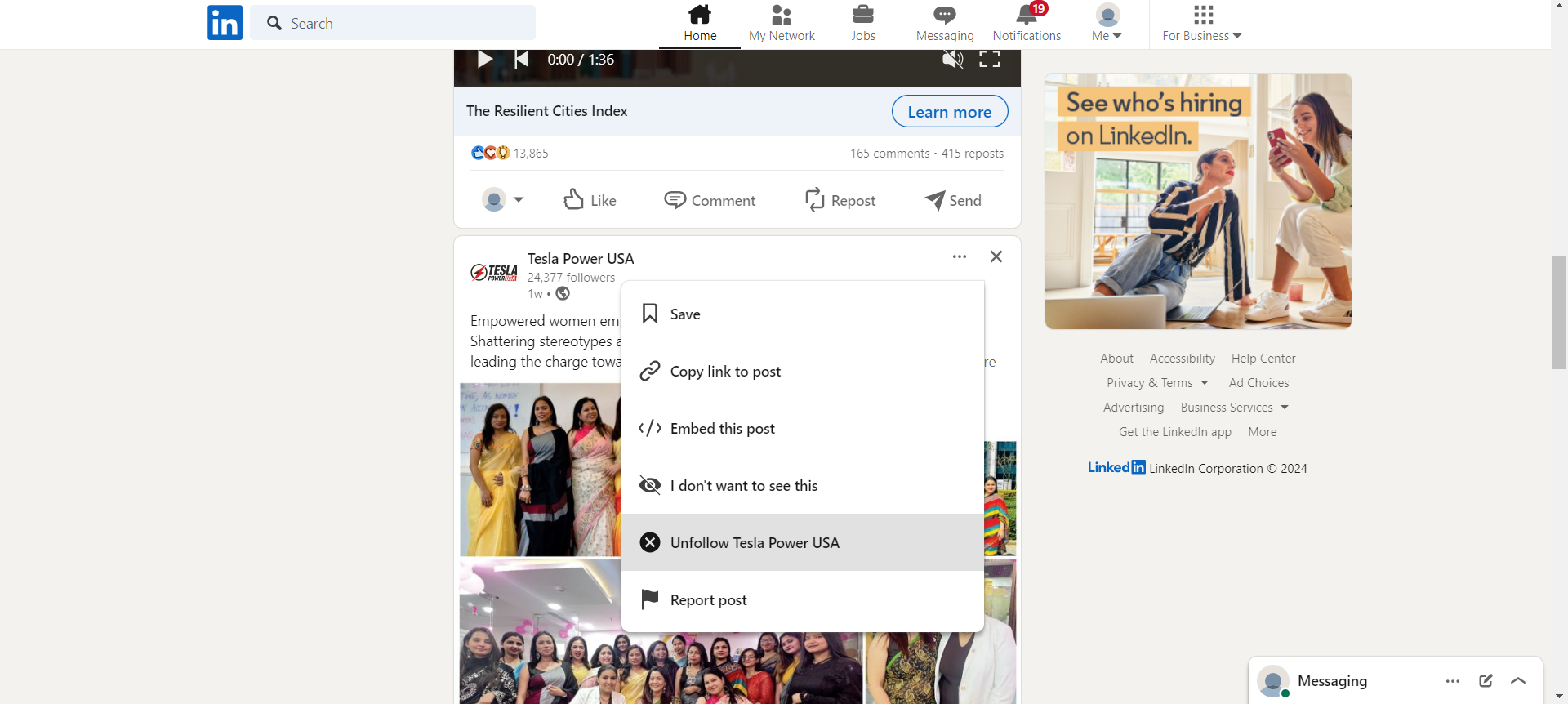
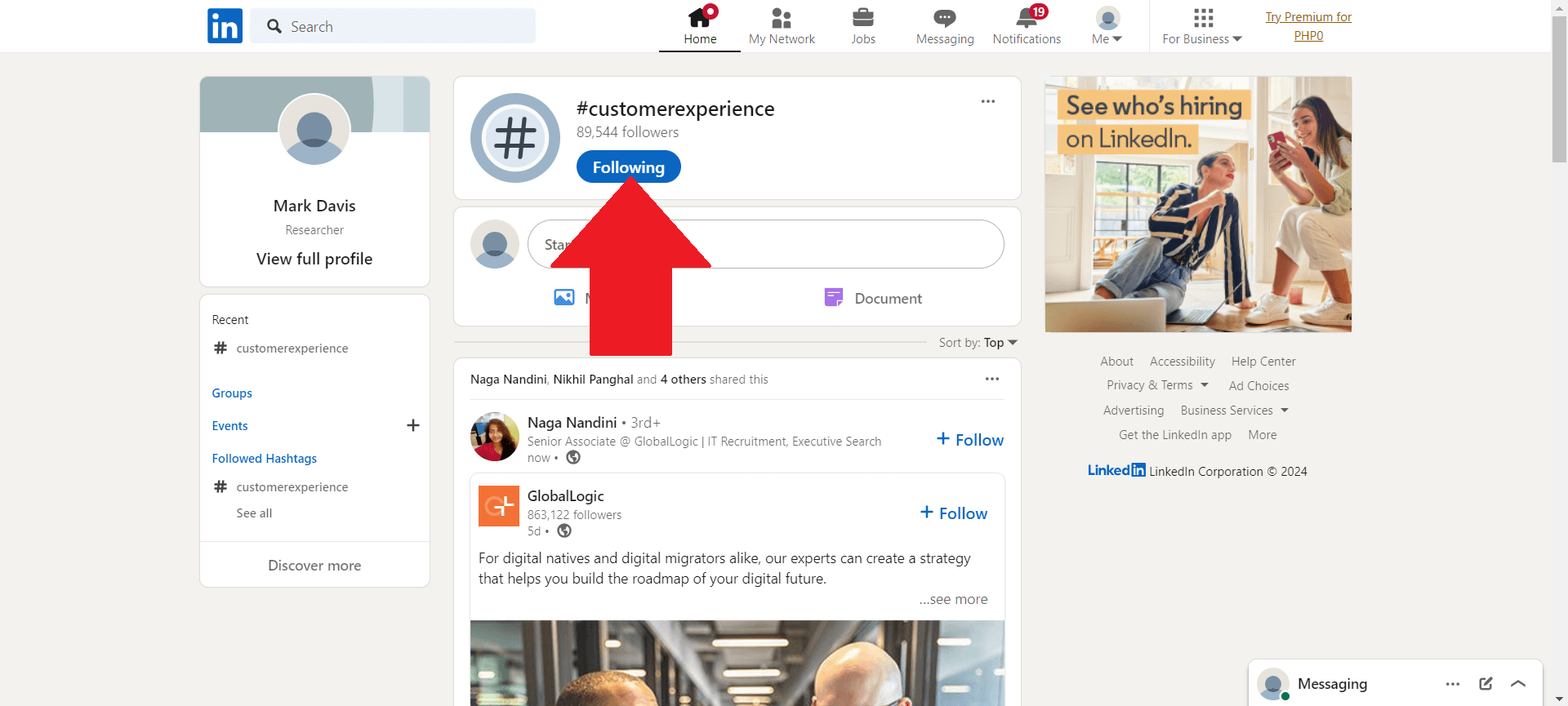
- When you see a post with an unwanted hashtag, click on the hashtag, then click on the ‘Following’ button to unfollow it.
Click on “I Don’t Want to See This Post”
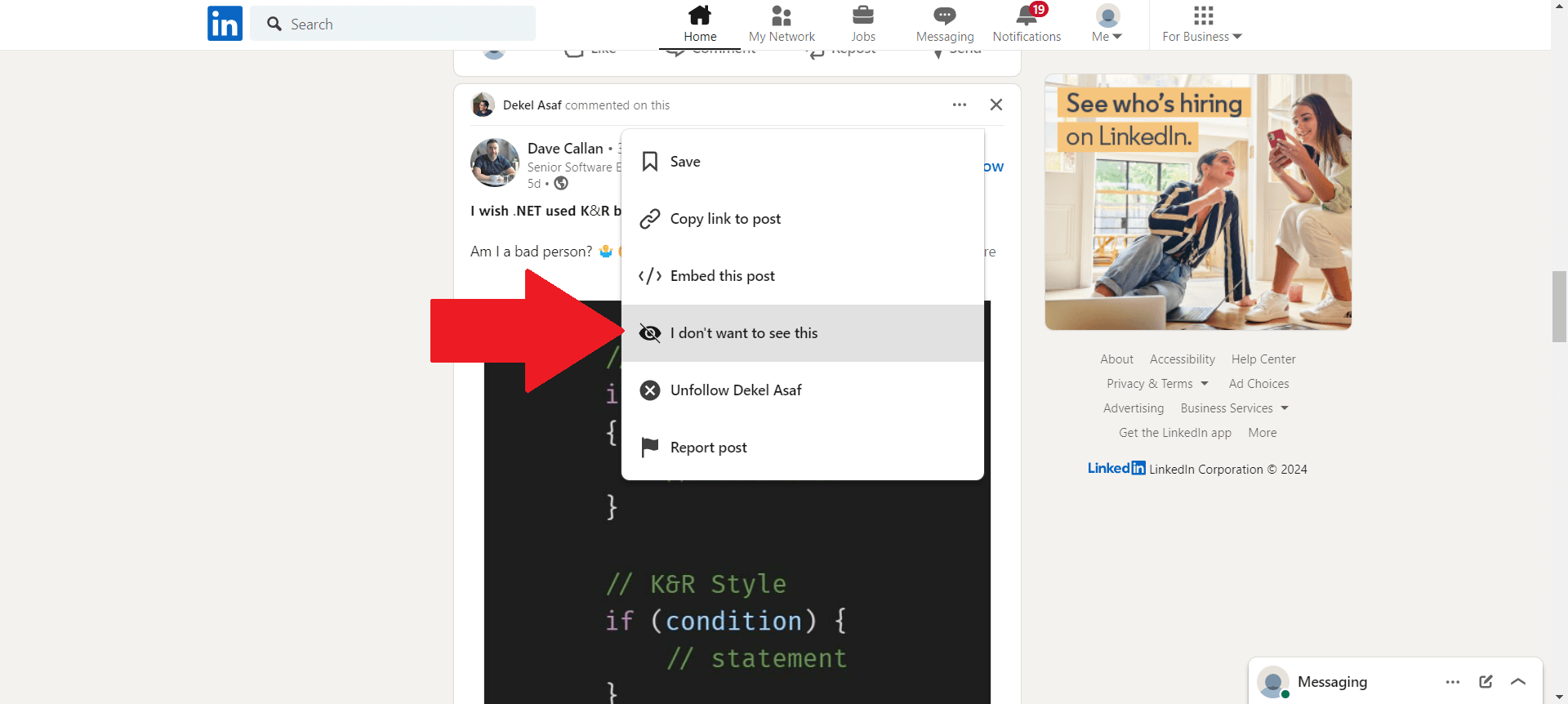
This feature allows you to remove certain posts from your feed that you don’t care for. These are the steps:
- Find a post you don’t want to see.
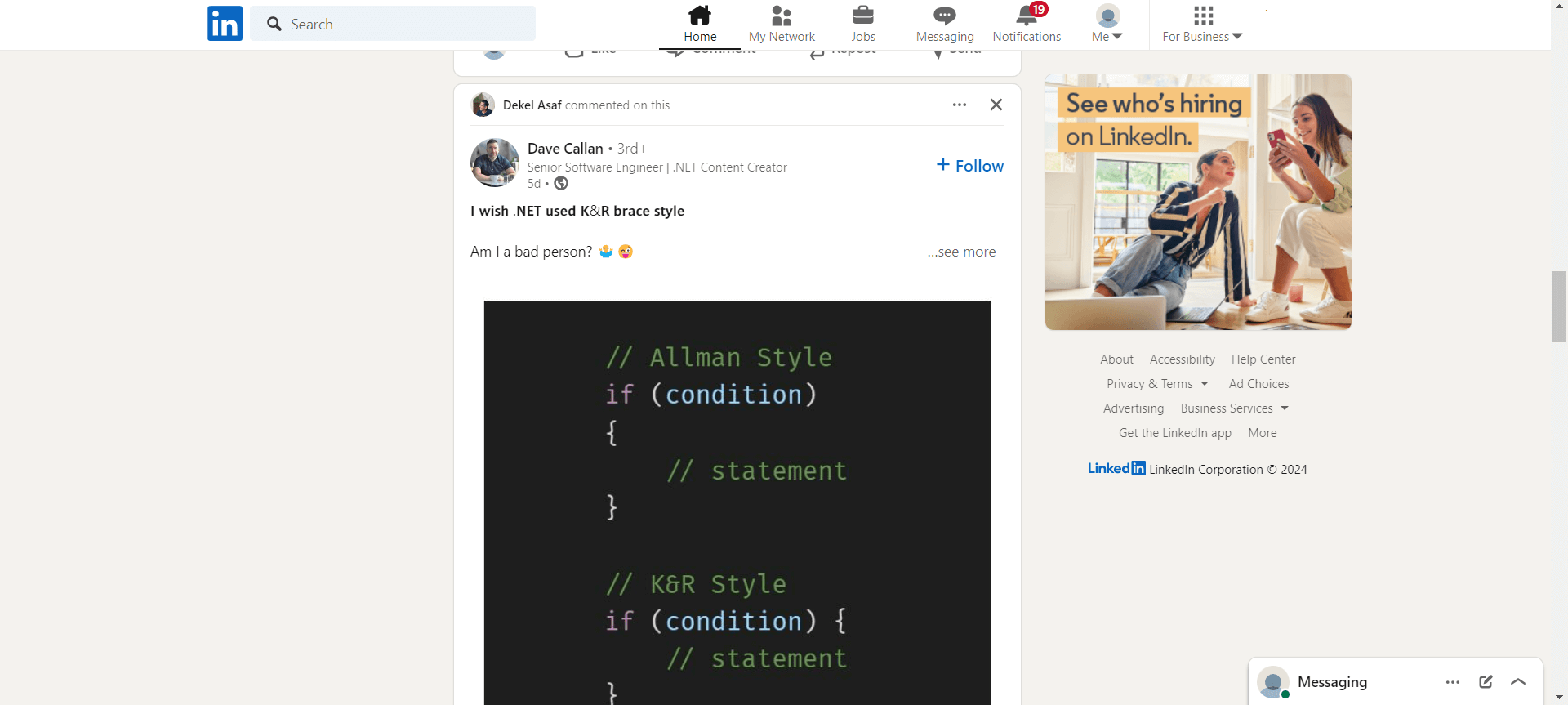
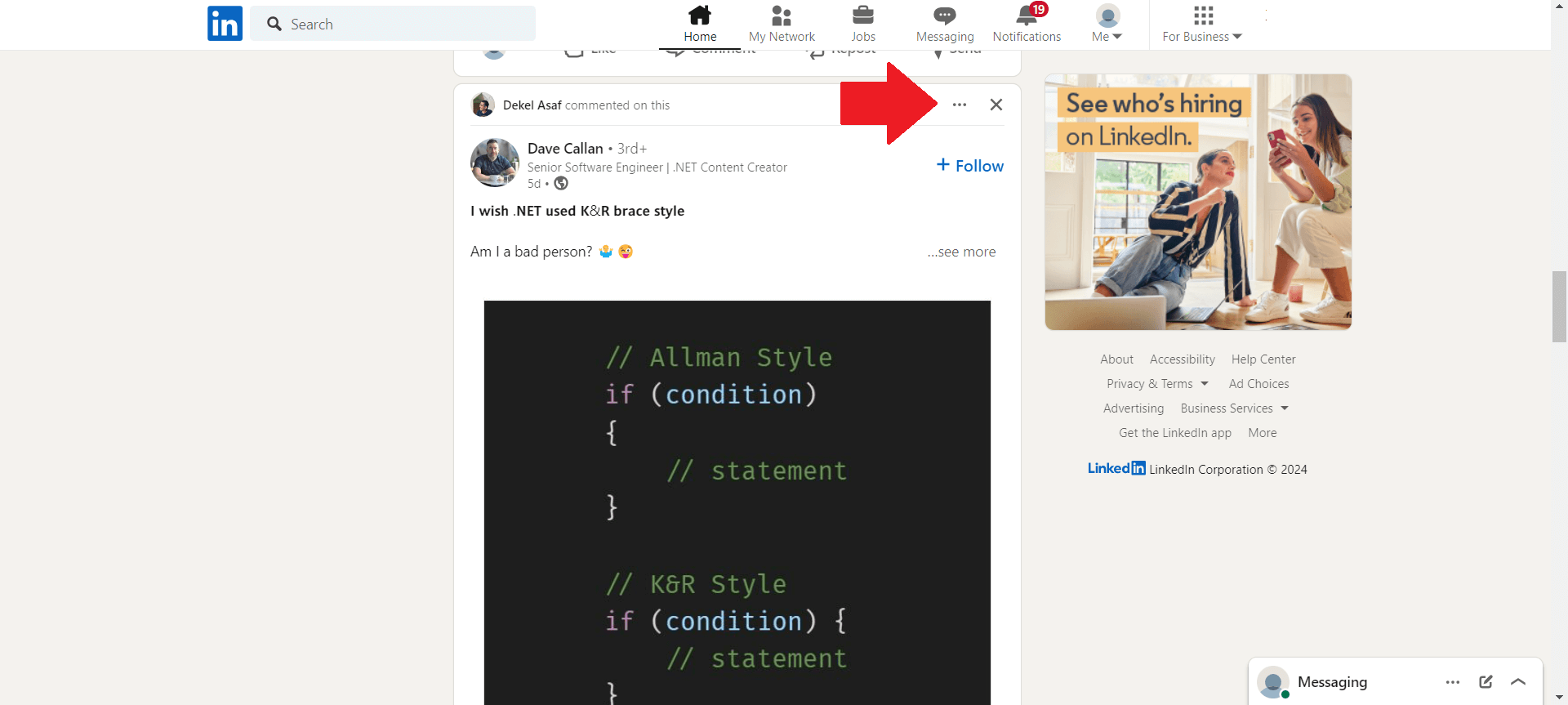
- Click the three dots (…) in the top right corner of the post.
- Select ‘I don’t want to see this’, and choose a reason if prompted.
Flag Inappropriate Content
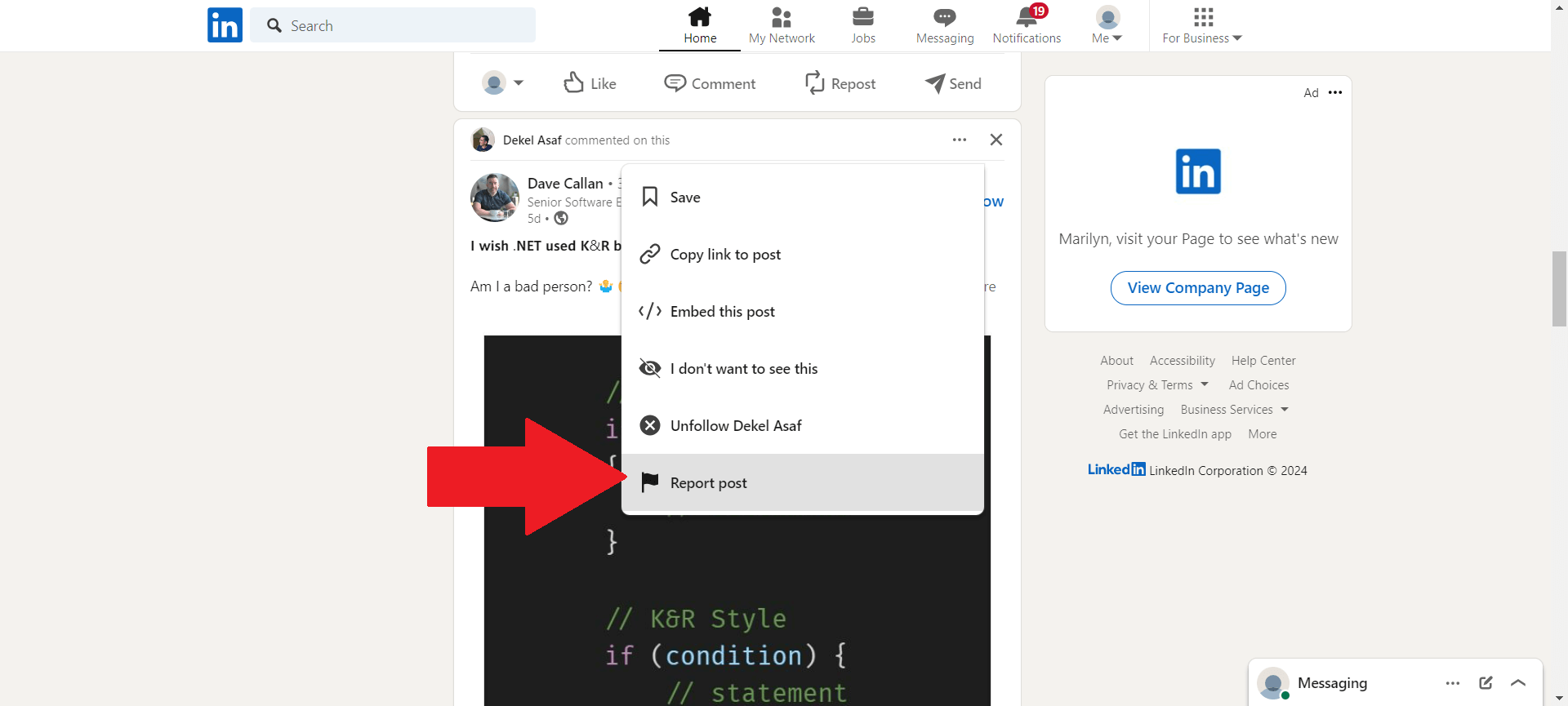
In order for LinkedIn’s environment to stay professional, flagging inappropriate content helps moderate what gets posted. Here’s what you’ve got to do:
- Click the three dots (…) on the post you find inappropriate.
- Choose ‘Report post’ and follow the prompts to specify the issue.
Add New Perspectives to Your Feed
Following new people or companies can introduce fresh ideas and perspectives into your feed. This is how you do it:
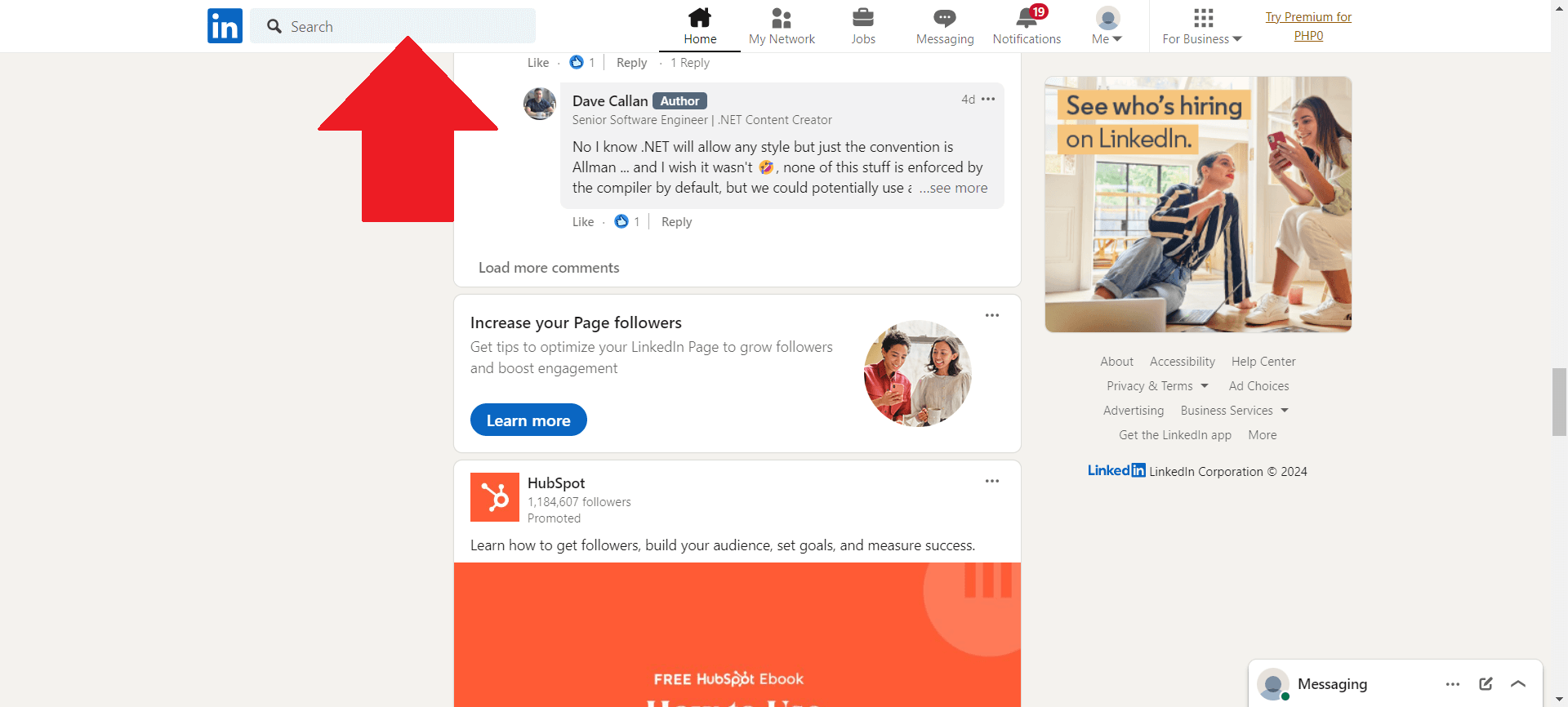
- Use LinkedIn’s search bar at the top of any LinkedIn page.
- Find new individuals or companies by typing them into that search bar.
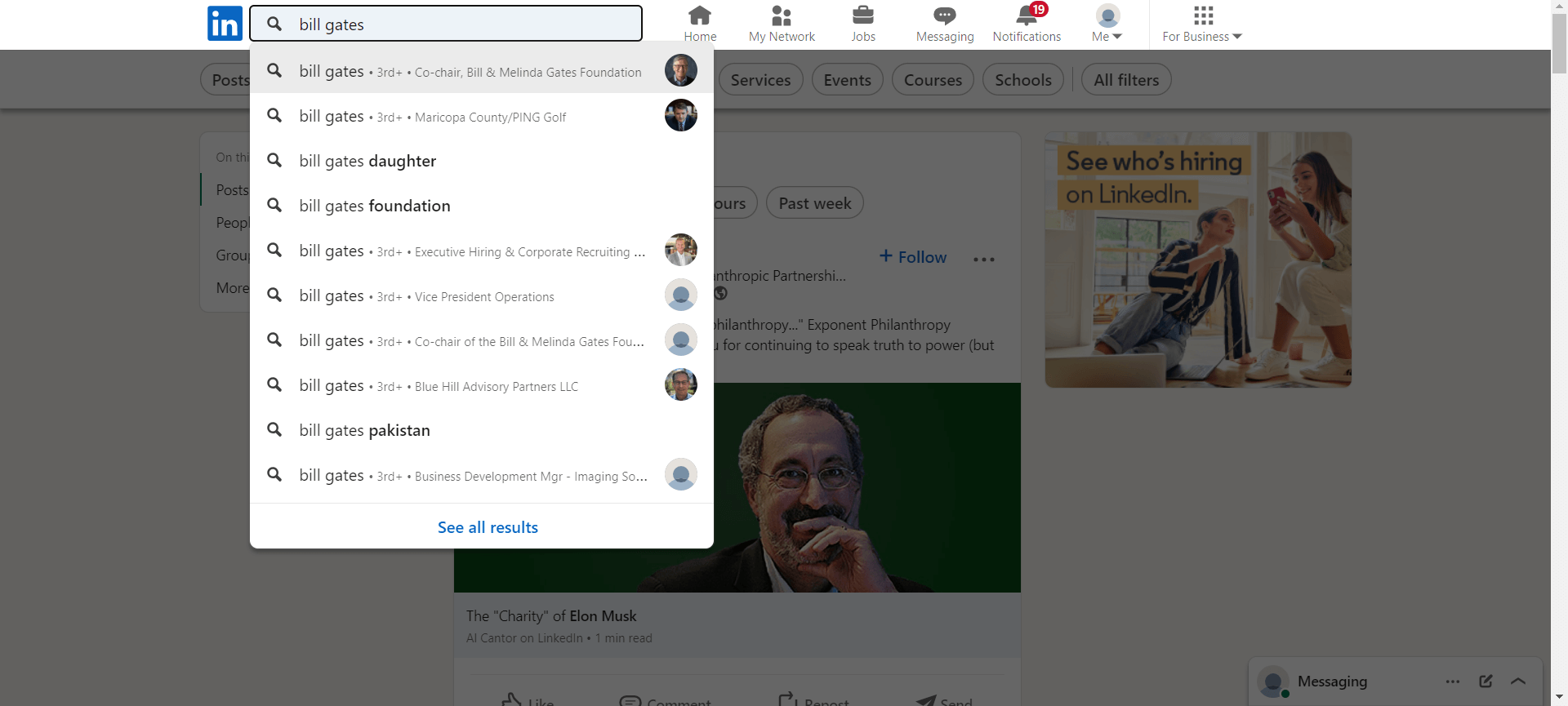
- Visit their profile and click ‘Follow’.
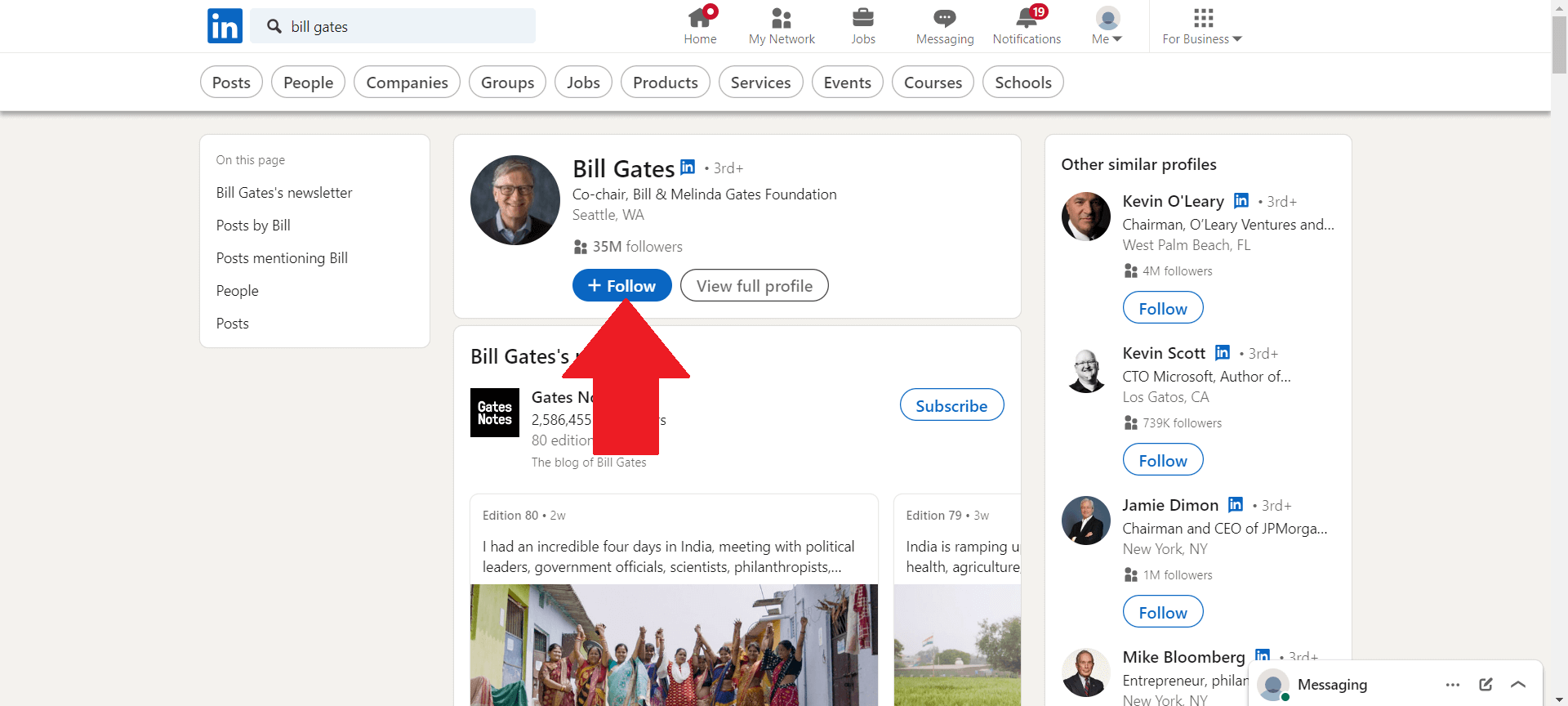
- Alternatively, explore LinkedIn’s suggestions on your feed or in the ‘My Network’ section

Sort Updates
It’s nice to have content that you actually want to see. Sorting out your feed by recent or top updates will allow you to view posts that suit your preference. These are the basics:
- On the LinkedIn homepage, find the ‘Sort by’ option.
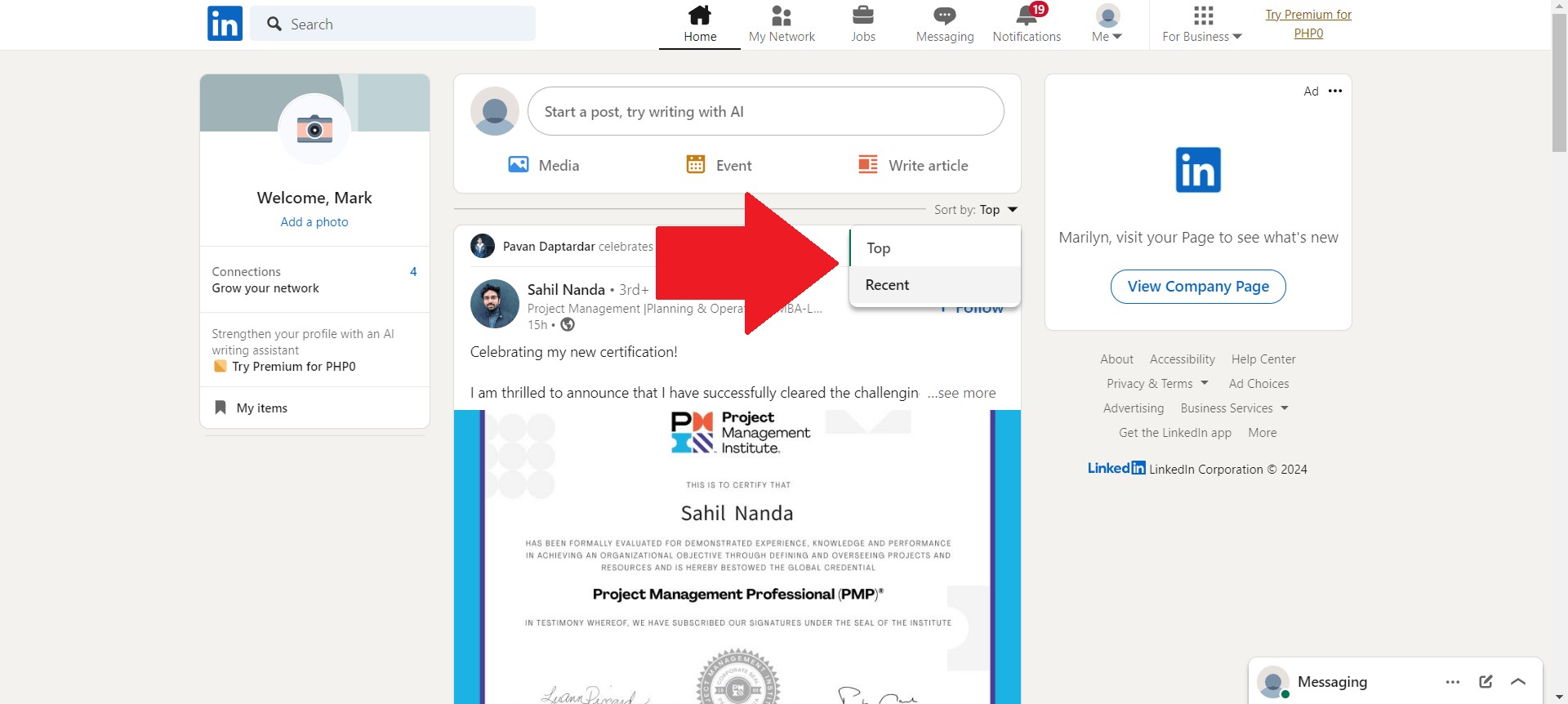
- Choose between ‘Top’ and ‘Recent’ to reorder the posts in your feed.
Hide Content in Your Feed
If a post doesn’t interest you, there is no need for it to be cluttering up your feed. Hiding it is an immediate solution. To hide a post:
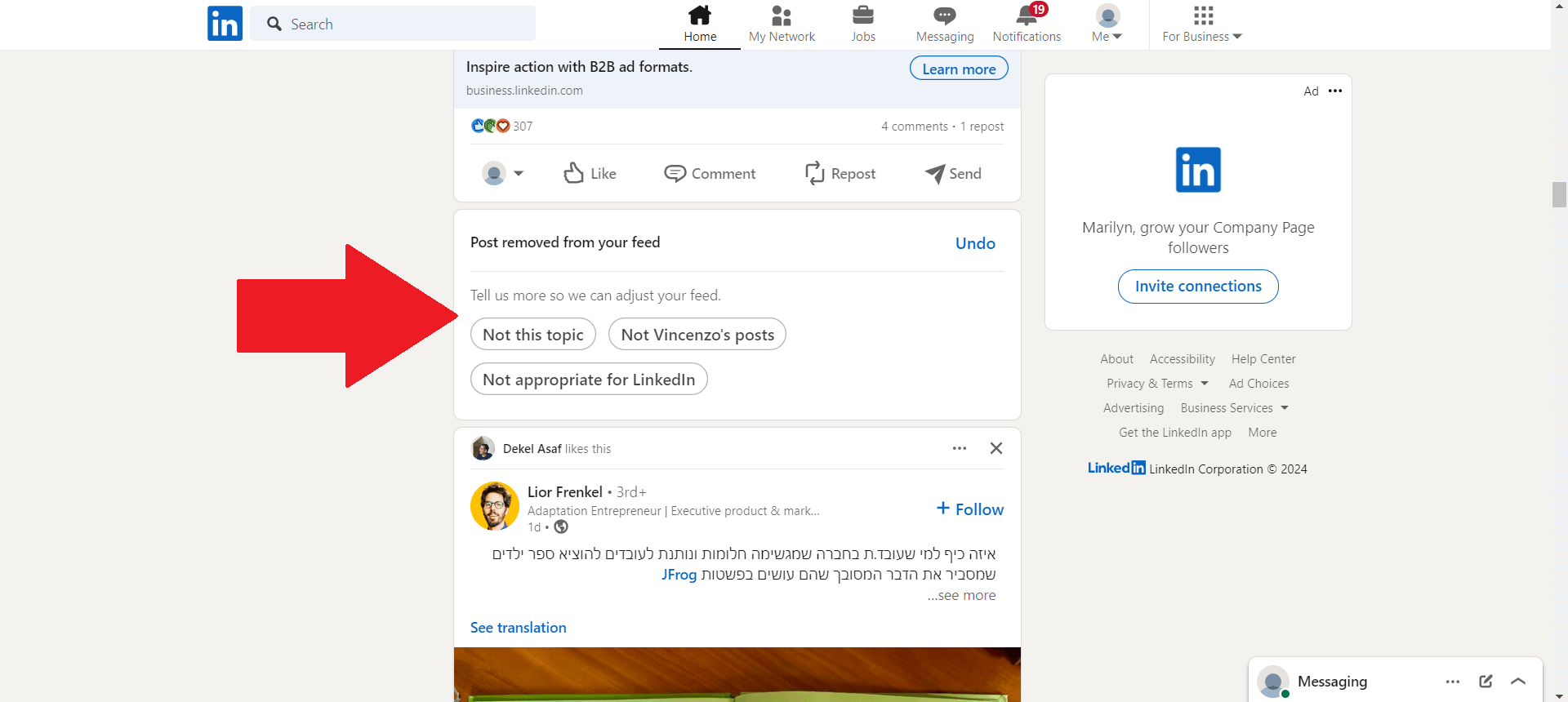
- Click the X on the top right of the post.
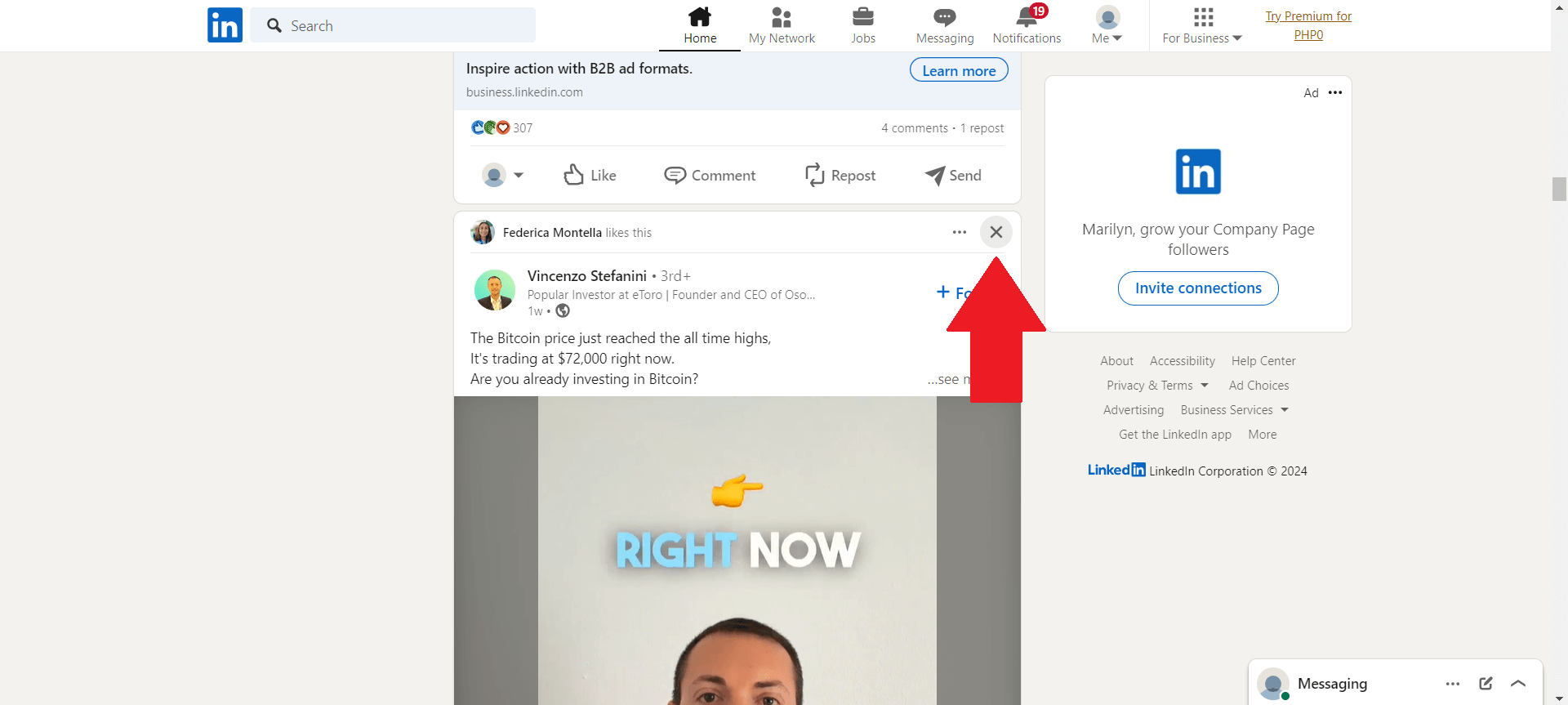
- The post will be removed from your feed. Additionally, you can select a reason so LinkedIn can adjust your feed. It can be because you don’t like the topic, you don’t like the posts of the user, or the post is not appropriate for LinkedIn.
By following these practices, you can effectively customize your LinkedIn feed so it better suits your professional interests and goals. This will not only enhance your experience on the platform but also make sure that every minute you spend scrolling through LinkedIn is productive and aligned with what you’re trying to accomplish in life.
How to Mute LinkedIn Posts with Specific Words from Your Feed Using Poper Blocker
One thing is certain, Poper Blocker (Available on Chrome and Edge) isn’t just another LinkedIn customization tool. It breaks the mold of LinkedIn’s native features and empowers users to have full control over their social media feed.
Advanced Word Muting Feature
At its core, the Poper Blocker extension has a “Hide social media posts that contain a specific word” feature, which is as straightforward as it gets.
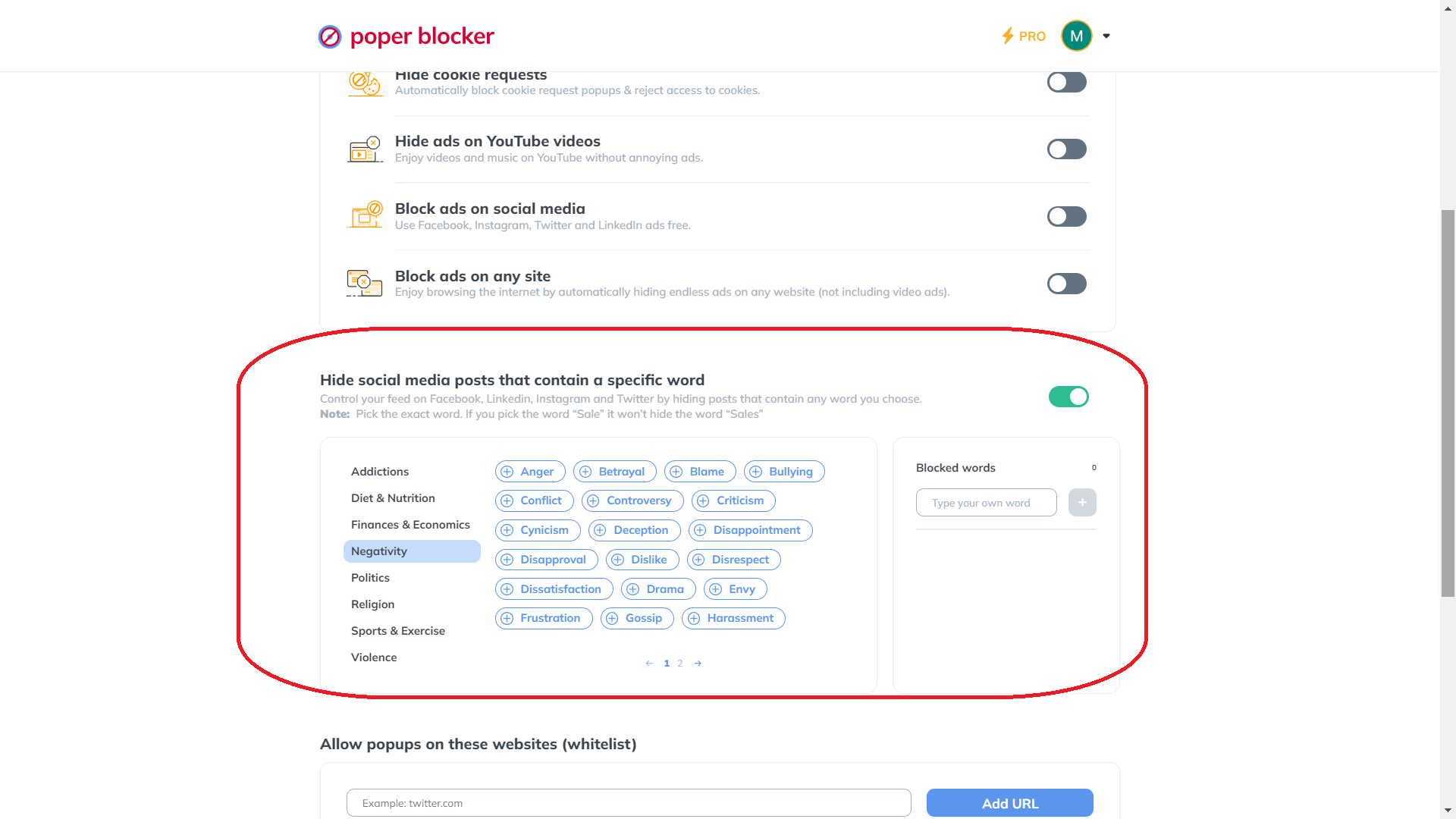
You can specify words that you don’t want appearing on your feed and it will automatically mute keywords on LinkedIn. Whether it’s repeated marketing language or content related to topics you don’t care for, the choice is yours. This feature allows you to leave content curation up to you.
Unlimited Customization with Pro Version
If you’re looking for more granular customization options, the Pro version of Poper Blocker offers an unlimited word list. In other words, there are no restrictions on how many terms you decide to mute. This provides a highly customizable browsing experience.
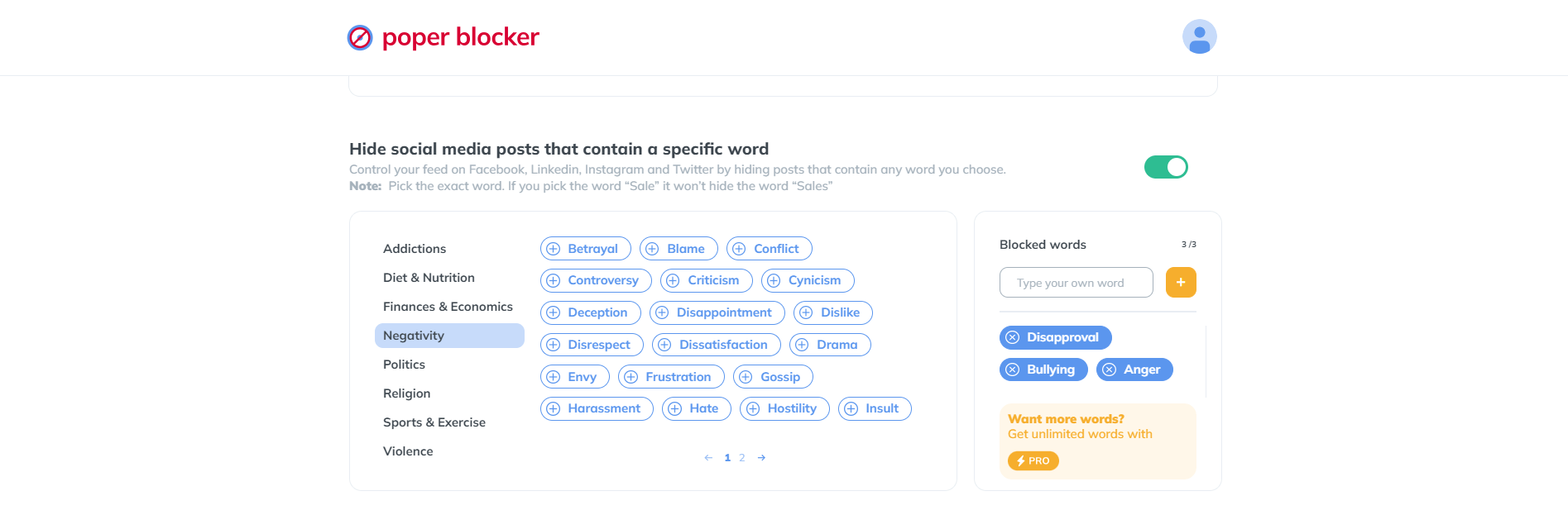
Whether you’re a professional who wants only industry-specific news or someone who wants nothing to do with certain subjects altogether, rest assured knowing that the Pro version will cater to your needs.
Achieve a clutter-free LinkedIn feed – Install Poper Blocker for instant results!
Taking Control of Your LinkedIn Feed
Maintaining your feed on LinkedIn is crucial for professional growth. In order to connect with the right people, and stay updated with trends and opportunities you need to use every tool at your disposal. Poper Blocker is an amazing tool that goes beyond LinkedIn’s native capabilities. By giving users the ability to mute specific words or topics it allows you to filter out the noise and focus on what truly matters.
Not only does this make your experience more enjoyable, but it also makes it easier to build a vibrant presence that is strategically aligned with your career aspirations. This means you will be able to have more meaningful conversations, find opportunities that are actually useful, and network more effectively overall. Taking control of your feed isn’t just about convenience; it’s a strategic move that could take your career to the next level.
Streamline your LinkedIn feed with Poper Blocker. Download for a tailored experience!
Looking to mute on other platforms? Read:
FAQs
Does hiding content on LinkedIn affect my network visibility?
Hiding content is a personal preference that doesn’t tamper with the way others view your profile or how they interact with your posts. The discreet feature allows you to tailor your feed without having to change anything about the way you’re seen online or through professional relationships. This ensures that while your feed might be full of things that help you grow in your career, it won’t change the amount of engagement you get from connections.
Can I mute specific industries or topics on LinkedIn?
No, but Poper Blocker can do it for you. While LinkedIn doesn’t directly allow users to mute specific industries or topics, Poper Blocker has a “Hide social media posts that contain a specific word” feature. Using this feature will filter out and hide posts related to those specific industries or topics by making sure they don’t show up in your feed at all. Instead of directly muting them on LinkedIn, you input keywords relevant to those industries or topics into Poper Blocker’s tool, which will then adapt and adjust what posts appear so it’s more suitable for your interests and needs.
Will using Poper Blocker affect my LinkedIn notifications?
Not at all. It works independently from LinkedIn’s notification settings, meaning messages, connection requests, and other activities won’t be hindered by it. When used correctly alongside LinkedIn’s existing framework, Poper Blocker only enhances the feed and makes it better suit user’s needs without actually messing with anything fundamental about the platform itself.
Is there a way to temporarily mute certain topics?
As of right now, there isn’t an option for users to temporarily mute specific topics on LinkedIn. However, users do have the freedom to unfollow accounts so they no longer see their posts as they scroll through their feed. If interest in one particular topic wanes over time, however, you can always come back and adjust these settings so that it’ll stop showing up again. This way you’re still able to control what content appears on your feed without missing anything in the long run.
How does muting words enhance my LinkedIn networking experience?
By muting them entirely, users of the platform can streamline their feed to only show them what they care about. By seeing more of what matters to them, connections are likely to be engaged in a more meaningful fashion. They may also be more likely to participate in relevant discussions or discover opportunities that are closely aligned with career goals. The use of muting features is an effective one and Poper Blocker only takes it further by ensuring that your time on LinkedIn is spent building valuable connections and absorbing content that contributes positively to your professional journey.
Make LinkedIn work for you – Get Poper Blocker for smart content control!
Tired of constantly being interrupted by LinkedIn ads? So are we. The world’s biggest professional network has more than 1 billion users. While helpful in expanding your horizons and growing your career, those ads can be a little too much. Did you know you can block them?
These are just some of the statistics that underline how many ads are on LinkedIn and how effective they can be:
- Research by Hootsuite shows that over seven in 10 marketers rate LinkedIn as a reliable platform for getting a good return on investment.
- While Indeed continues to dominate as the most popular platform used by job seekers, three out of every four people surveyed said they still turned to LinkedIn when looking for a job as reported by Westwood One.
Why Should I Block LinkedIn Ads?
LinkedIn’s seamless concept is what makes it so great but when it comes to ads, things get complicated real quick. Consider these reasons for blocking them:
- Remove Distractions: Ads are loud and in-your-face, taking up precious viewing space.
- Irrelevant Topics: Not all ads are going to interest you. Some may even leave you confused as to why they showed up in your feed at all!
- Privacy Issues: Many don’t like the idea of targeted ads invading their page for personal reasons.
- Easily Accessible Content: A no-ads experience will simplify your time spent on LinkedIn, making it more pleasurable and efficient overall.
Types of LinkedIn Ads
Knowing how to navigate the types of ads on LinkedIn will help you professionally network with ease. Each type of ad has a different purpose and shows up in a variety of forms on the site:
1. Sponsored Content
These ads look just like regular posts in your feed, so you won’t even know it’s there until you really get looking. Companies could use this format to post single-image ads, video ads, or even carousel ads. Sponsored Content is basically meant to promote a company’s products or services and usually comes with a call-to-action, which encourages users to learn more, sign up, or buy something.
2. Sponsored InMail
This kind of ad takes a direct approach by sending personalized messages to people’s LinkedIn inboxes. Most often these messages promote webinars, events, or specific products and are targeted based on what the company thinks might get their attention based on their profile and interests.
3. Display Ads
These are those traditional banner-type advertisements that pop up throughout various pages on LinkedIn. These can be annoying sometimes but they’re not personalized at all so you’re just seeing what everyone else is seeing.
4. Dynamic Ads
The cool thing about dynamic ads is that they personalize the content using your own LinkedIn profile data. How? We have no idea! But as an example, some would use your profile picture in the ad and others might show suggested job opportunities for you.
5. Job Ads
For someone who’s actively seeking employment, job ads appear right after searches related to jobs when browsing through LinkedIn. They’re specifically tailored for each person based on their career interests and profile information so no two people should see the same ones.
How to Stop Seeing Ads on Linkedin
When you’re in a professional setting, ads are not just distracting, they can seriously disrupt your workflow or train of thought. Here is an easy-to-follow guide that will help you get rid of unwanted advertisements on LinkedIn.
Blocking Ads with Poper Blocker
Poper Blocker is a handy and intuitive LinkedIn ad blocker that works well on this social networking platform. Here’s how it works:
- Download and Install: Visit the Poper Blocker website and download the extension for your browser (Chrome or Edge). The installation process only takes a few seconds.
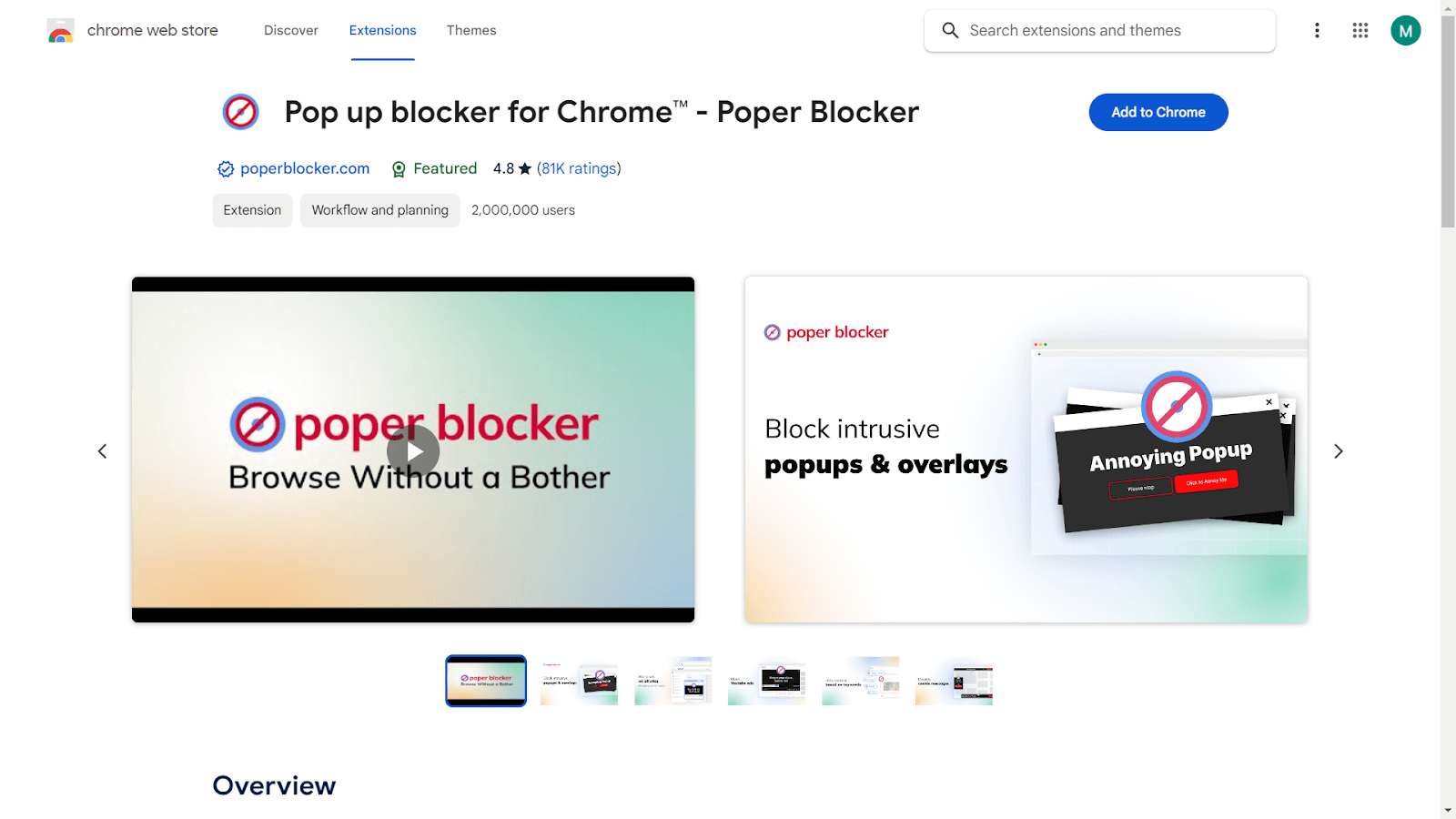
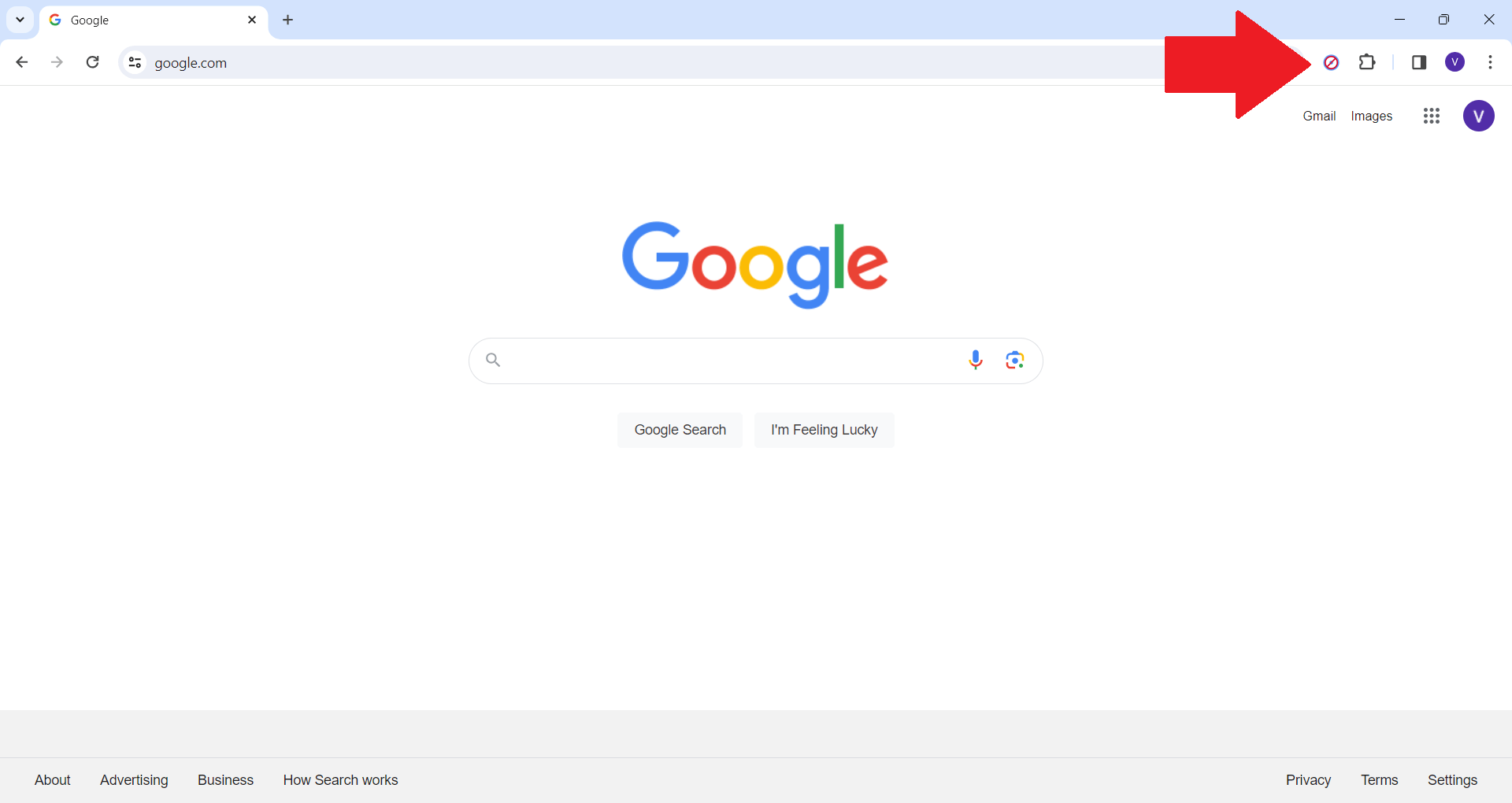
- Activate the Extension: Once the extension is installed, simply click the Poper Blocker icon (the one with the “no entry” symbol) which should be located somewhere near your address bar.
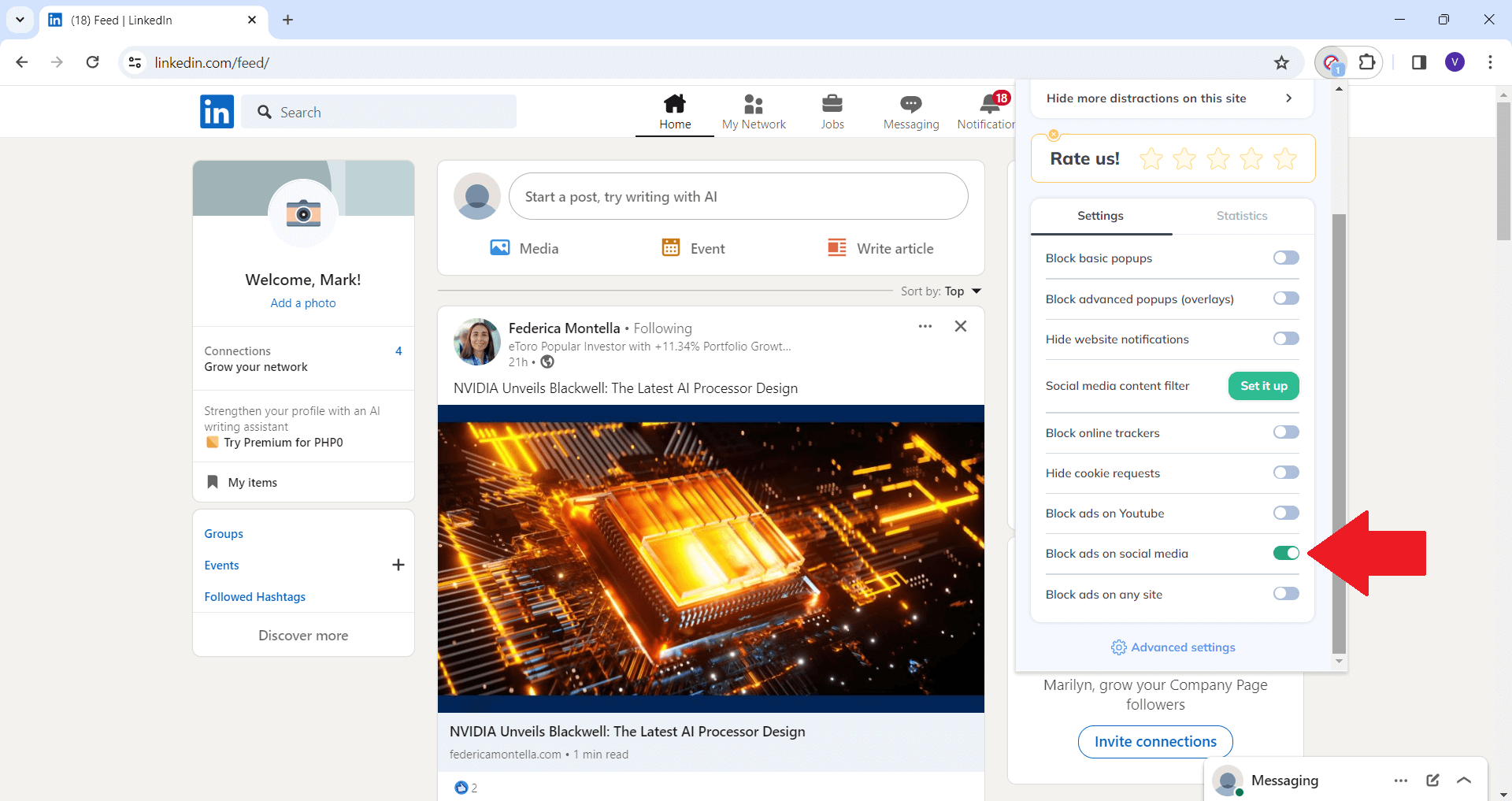
- Customize it as you please: By default, Poper Blocker blocks all ads on every website you visit, but if you want to receive some ads while eliminating Sponsored Content on LinkedIn, you can do so by accessing its settings menu and turning on “Block ads on social media”.
- Voila! With this extension active, you’ll now be able to navigate through content without seeing any sponsored posts whatsoever.
Take control of your LinkedIn feed – Get Poper Blocker!
Adjusting Your Ad Settings On LinkedIn
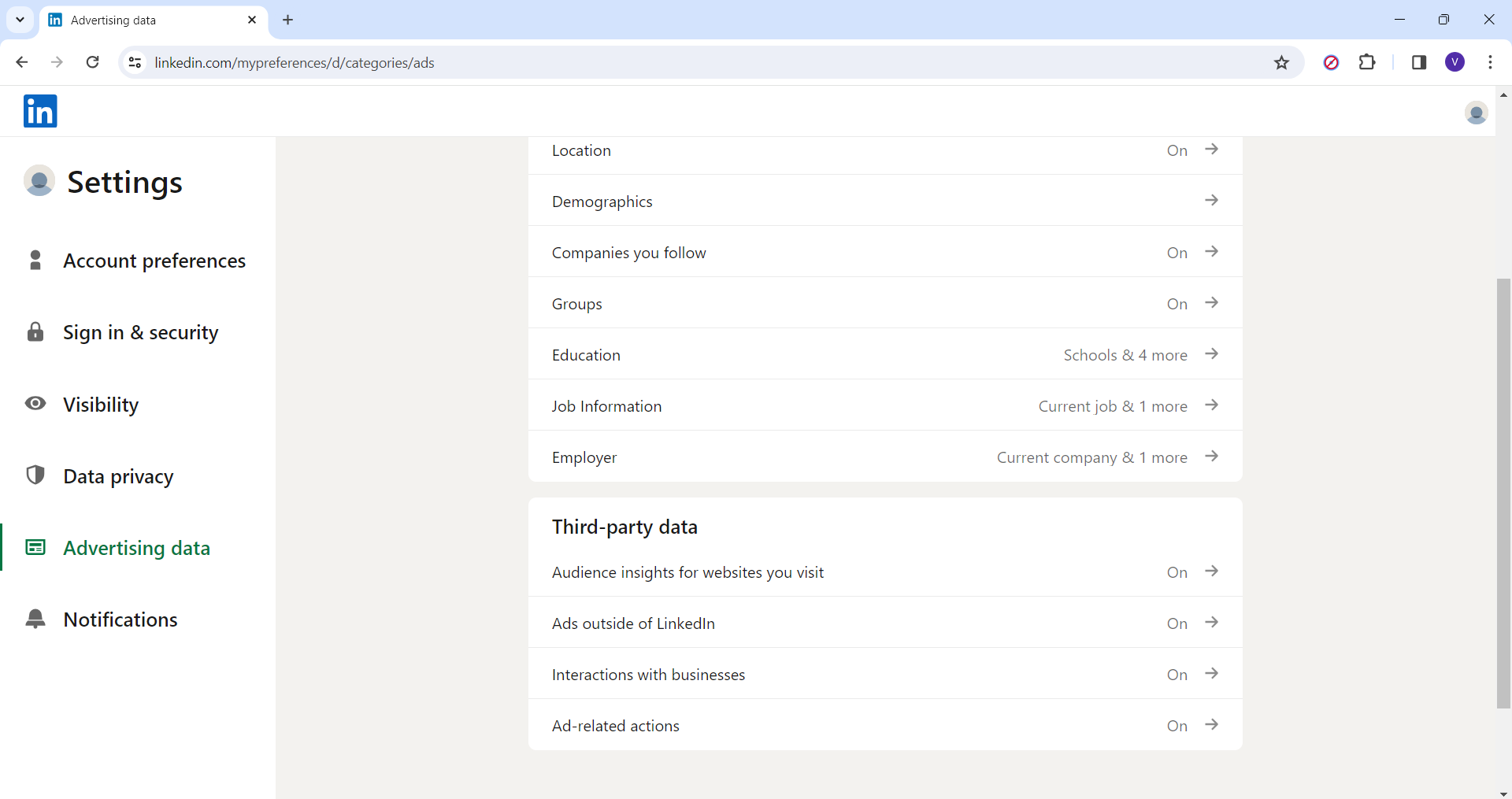
LinkedIn indeed has ad preferences that allow users to filter out unnecessary promotions. Although this feature doesn’t completely stop LinkedIn ads, it significantly reduces their intrusiveness. Here’s how to do it:
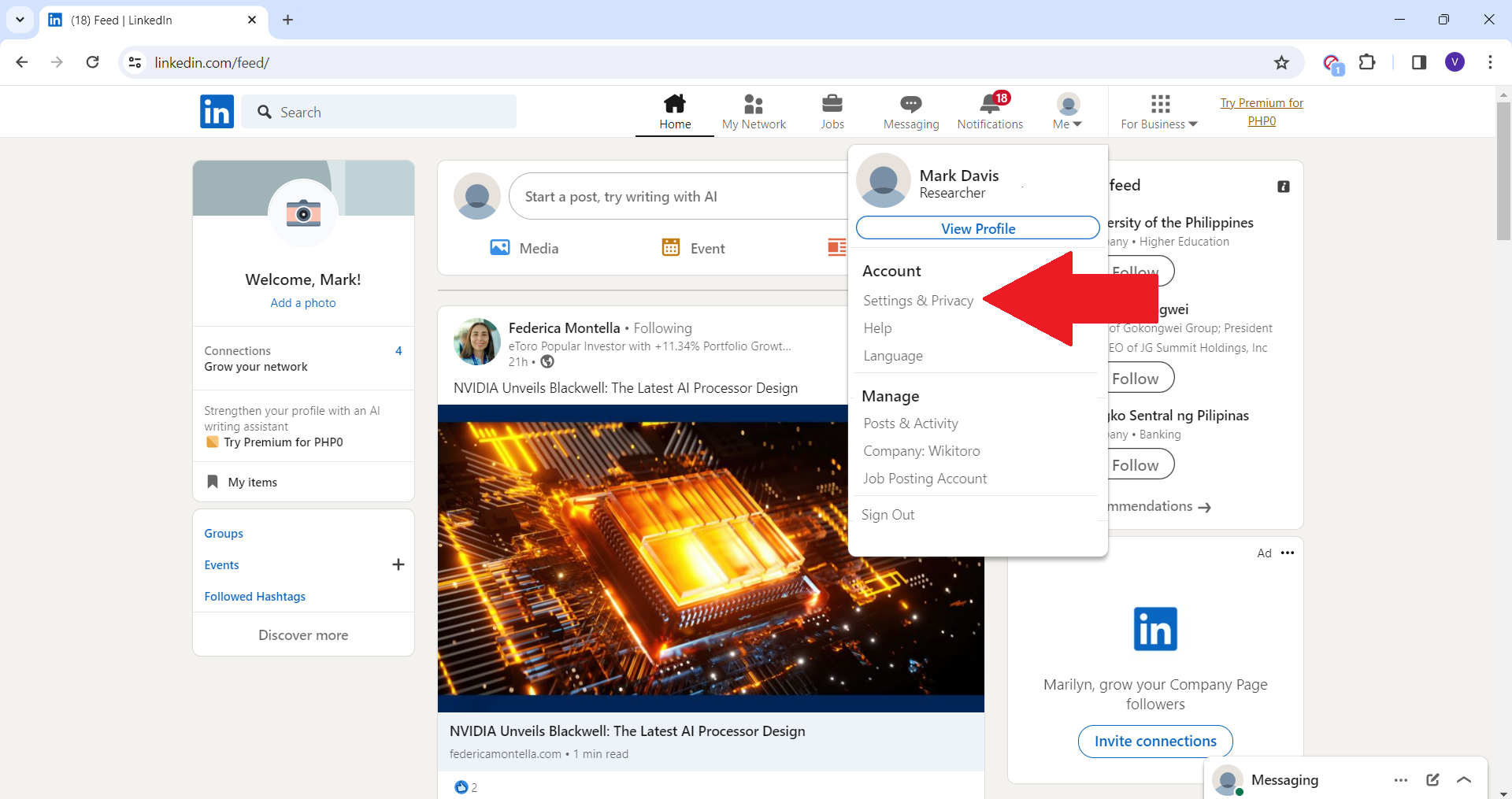
- Accessing Account Preferences: Click on your profile picture at the top right corner of LinkedIn’s homepage, and select ‘Settings & Privacy’ from the menu.
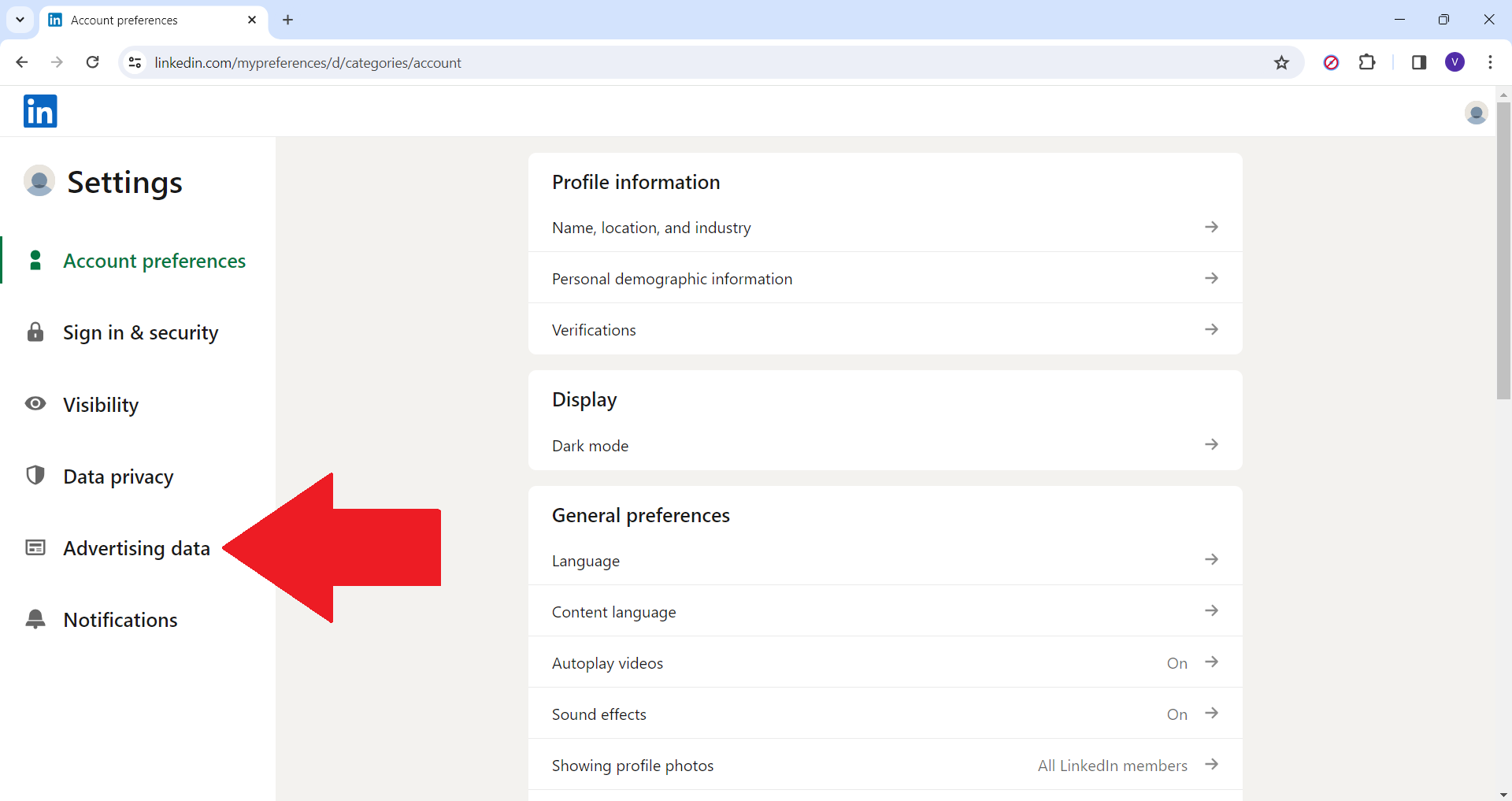
- Navigating to Advertising Data: On the left sidebar, click on “Advertising Data” This section will allow you to configure your advertising preferences.
- Adjusting Your Preferences: In this section of the site, you can decide what types of ads appear based on your interests and activities within their ecosystem.
- Offering Feedback: Lastly, whenever an advertisement pops up that doesn’t pique your interest or seems irrelevant altogether, don’t just brush past it – take two seconds and choose to hide it. LinkedIn uses your feedback to serve you with more fitting ads in the future.
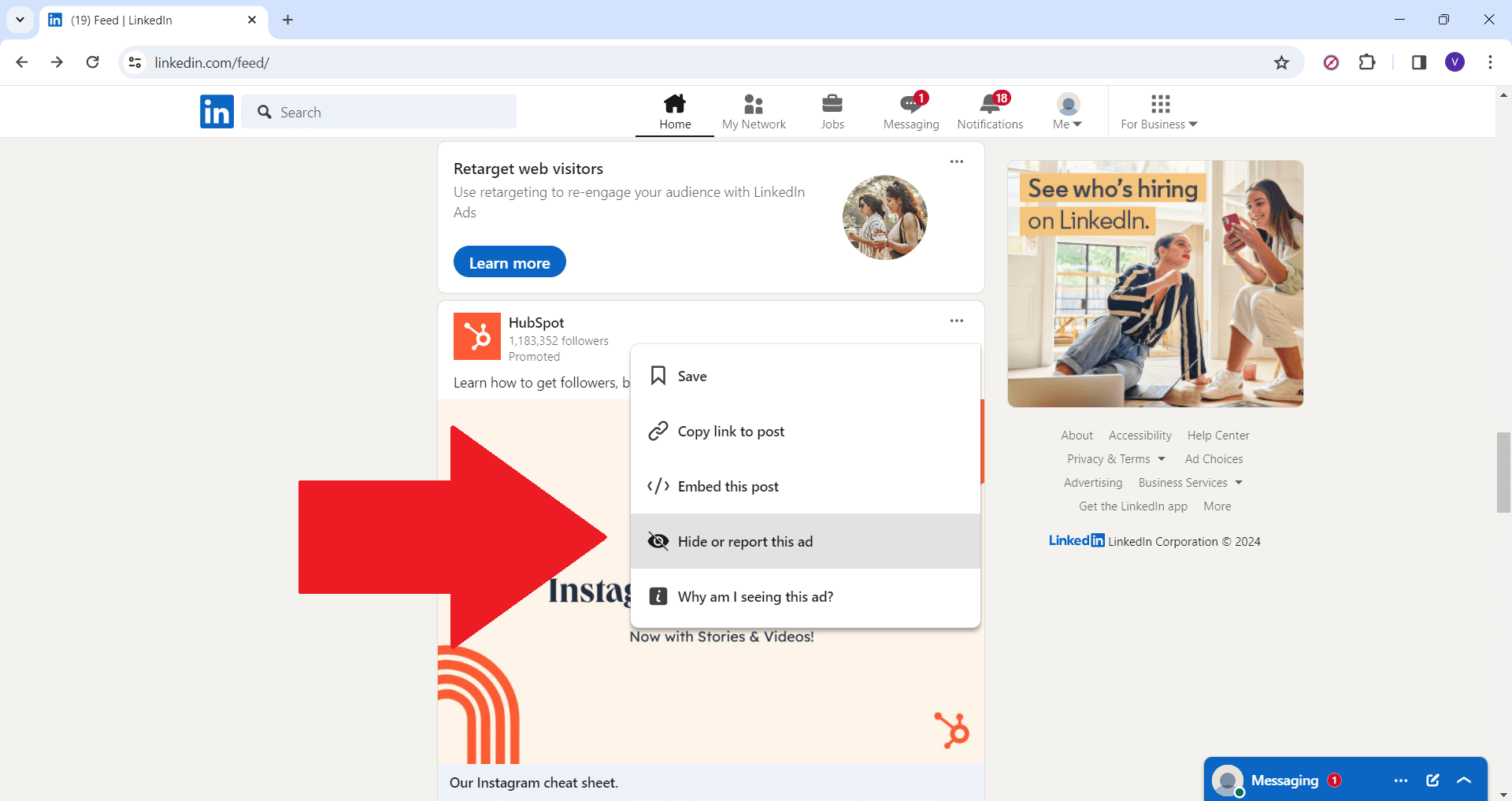
By combining these two methods, you’ll be able to take full control of your experience on LinkedIn. Not only will you be removing unwanted distractions but you’ll also be making sure that the ones that do appear are relevant and aligned with your professional interests.
Your LinkedIn, Your Rules
To wrap things up, while LinkedIn ads have their place on the platform, it’s important to be able to regulate your digital habitat in order to have a focused and efficient professional life. Solutions such as Poper Blocker are a viable way to find relief from the never-ending flow of Sponsored Content ads. Combine this with the use of LinkedIn’s own ad management tools and you’ll be able to further customize what appears on your feed; that way it aligns with what you actually want to see at work.
Ultimately, everyone has their own preferences for how they want a website like this set up; so if you choose to block all ads completely… well that’s not really anyone else’s business but yours! This way, you’ll have more time for relevant content that matters most in your career—without annoying distractions.
Tired of ads? Make LinkedIn better with Poper Blocker
FAQs
Can I customize the ads I see on LinkedIn?
Yes, you can! In ‘Settings & Privacy’ in your account, under the “Advertising Data” section you will find an option to update your ad preferences. This customizes the ads you see based on your professional interests and activities. For example, if you’re interested in technology, you can indicate that and we’ll show more tech-related ads that are relevant to you – making them less annoying.
Will ad blockers affect how LinkedIn works for me?
Using an ad-blocker like Poper Blocker will remove Sponsored Content ads without impacting any of LinkedIn’s core features. You’ll still be able to do all the things you normally do on our platform, such as network, search for jobs, and share content. The ad blocker functions in the background so that your experience is clean and free from unwanted disruptions while also ensuring that you get what you need done quickly and easily.
Are all ads targeted?
Yes, most ads shown on LinkedIn are targeted using information in your profile and activity on our site — such as job title, company name, skills and interests — to make sure they’re relevant to professional life. However, if something feels off or sketchy about this targeting or if it’s eating up too much of your privacy or screen space, you have full control via your ad settings to limit it.
Can I block ads in my mobile app?
Poper Blocker is designed primarily for desktop browsers but does work with Chrome mobile browser at this time. It doesn’t work directly inside applications like LinkedIn’s own mobile app though; but don’t worry— we’ve got a couple other options available. As a start, within the app’s settings users have various controls over how many ads they see (and how relevant those are), so please make sure these settings are correctly set up according to your preferences. Mobile-only users who wish to have a completely ad-free experience will either have to wait until we find a way for the ad blocker to kick in when you launch the app, or use LinkedIn exclusively on your desktop with an enabled ad-blocker extension.
Can I block job ads?
Not entirely. Job ads are integrated with the platform’s job search features — so they’re pretty much everywhere and they might always be there. However, you can minimize their presence by customizing your ad settings: if you make it clear in those settings that you’re not currently looking for a new job, they won’t show them as frequently. Some might still appear because of their integration with LinkedIn’s core services for professional growth and networking.
Focus more, distract less on LinkedIn – Grab Poper Blocker now!