Chrome Web Extension
 Edge Web Extension
 Android App


Can you picture yourself waking up and not reaching for your phone first thing in the morning? Bet you can’t! Mobile devices have become an integral part of our daily routines and it has dramatically changed the way we live, work, and play. While it has given us a lot of convenience, this constant connectivity has also a lot of downsides including stress, poor sleep, and strained relationships.
Let’s talk about why taking a break from screens is so helpful and how to take control of your screen time again. You’ll find out about the benefits, the process, and useful tips for a successful break from screens.
What is a digital detox?
A digital detox is a process of taking a deliberate break from electronic devices like smartphones, tablets, computers, and social media platforms. It’s a conscious effort to lessen the screen time and reconnect with the real world. This practice encourages reflection on technology use and habitual resets to achieve a healthier balance.
Unlike total abstinence, digital detoxification can be tailored to fit individual needs. Rather than eliminating all digital interactions, this focuses on reducing harmful usage patterns. Many see this as the first step towards improving one’s well-being and mental health.
Reasons why people need a digital detox
Modern gadgets are helpful but they come with some downsides. Here are some of the reasons why many people decide to take a break from them:
1. Sadness and low mood
Spending too much time looking at screens can make people feel unhappy. When you constantly see perfect pictures on social media, you might start comparing yourself in a negative way, which can lower your mood.
2. Increased irritability and anger
The endless flow of information and online interactions can overwhelm the mind and cause frustration and mood swings. When you’re online most of the time, you tend to be more irritable and angry.
3. Poor sleep
Using screens, especially before bed messes up your sleep patterns big time. According to the Sleep Foundation, the blue light emitted by screens disrupts the body’s natural sleep-wake cycle. It slows down the release of melatonin, the natural hormone that prepares you for sleep.
4. Compulsion to stay connected
When you’re urged to constantly check your phone’s notifications, messages, and updates, it’s creating a sense of duty. This increasing need may disrupt your daily routines and affect your mental health.
Benefits of a digital detox
Taking regular breaks from technology offers many advantages and it can improve both your mental and physical health. Here are the main benefits:
Less stress
Your stress levels may likely go up if you’re always connected and getting notifications and work messages. Taking a break allows the body to relax and reduces your anxiety over time.
Better sleep
When you avoid screens before bedtime, you’re giving yourself some time to relax and this promotes better sleep. Good sleep is important for your physical health, clear thinking, and emotional stability.
More productivity
Spending less time on screens means fewer distractions. This will give you more time to focus better and work more efficiently. Not only will you achieve a sense of accomplishment, but you’ll also have more free time for activities you enjoy.
Higher self-esteem
Social media can cause unhealthy comparisons and lower self-esteem. When you pull yourself away from these perfect images online, you’ll be able to appreciate your own value more.
Stronger relationships
More face-to-face interactions help you build deeper relationships and improve your social skills. And when you’re able to establish stronger connections, you’ll have the right kind of support, especially during tough times.
Better physical health
Spending less time on screens can do a lot of wonders for your physical health. It reduces eye strain, neck pain, and posture problems, and also encourages more physical activity.
How to do a digital detox
Starting a break from technology needs careful planning and realistic goals. To make it more effective and successful, follow these steps:
1. Set clear goals
Identify why you want to take a break. Is it to reduce stress, improve sleep, or strengthen relationships? Having clear reasons will keep you motivated. Remember that knowing your “why” gives you purpose and determination.
2. Create a plan
Set a duration and strict rules for your break. For example, no screens after 8 PM or a social media-free weekend. When you set clear rules for yourself, you won’t get confused and make excuses for deviating from the plan.
3. Inform others
Let friends and family know about your plan for a digital cleanse to set their expectations and even gain some support. Those close to you will surely understand your absence from digital communication and they might even be able to help you stay on track.
4. Replace screen time
Fill the time that you would have spent on screens with other interesting activities like:
- Reading
- Exercising
- Spending time outdoors
You should find enjoyable and enriching alternatives to make the process more rewarding.
If you still need to use the internet but want to avoid distractions, consider using Poper Blocker. This browser extension (Available for Chrome and Edge) is especially useful for those who need to be online for work but want to stay focused. These are some of its features that could support your goals:
Pop-up blocker: This prevents annoying pop-ups from appearing so you can browse without any interruptions or distractions.
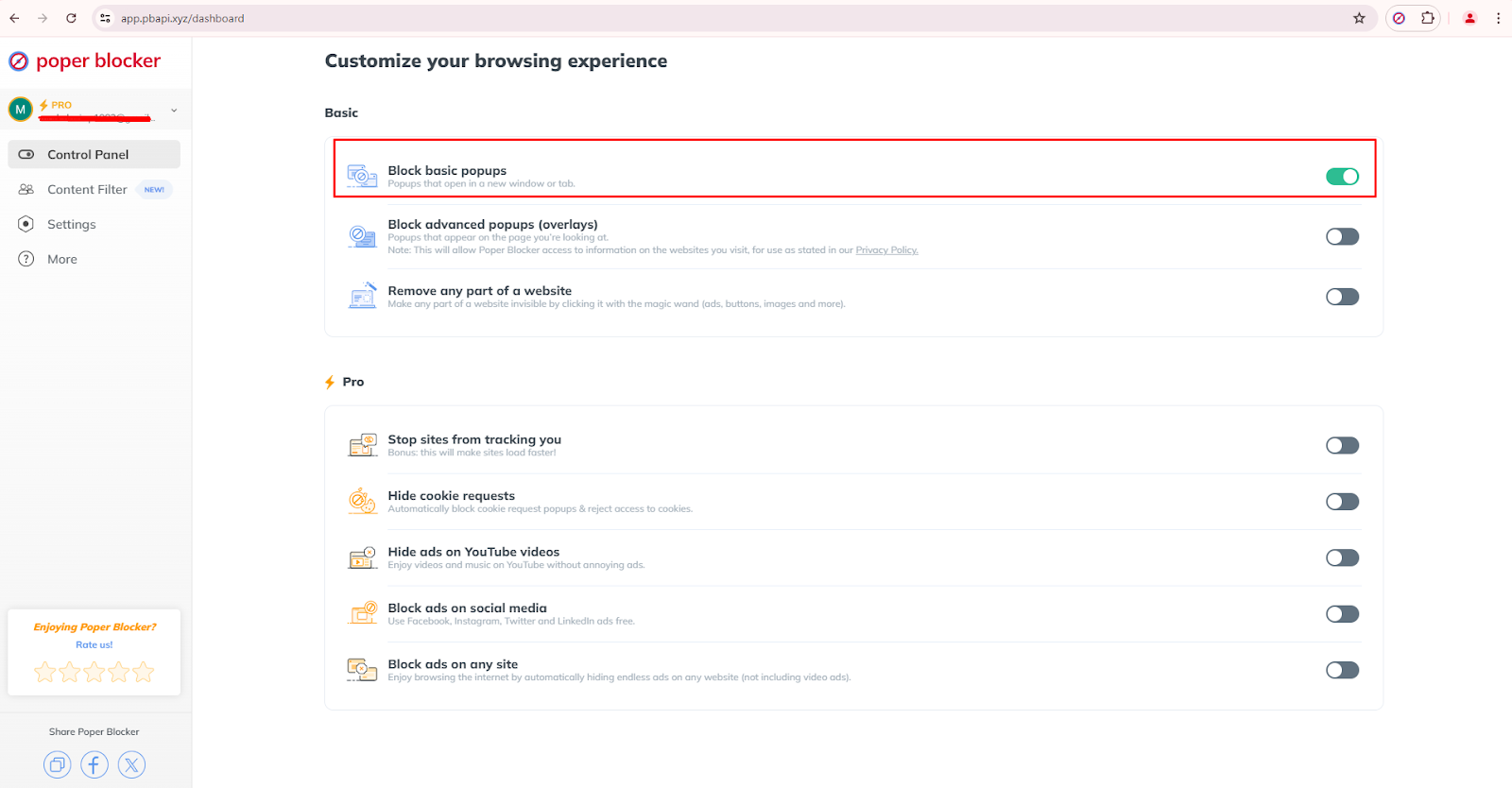
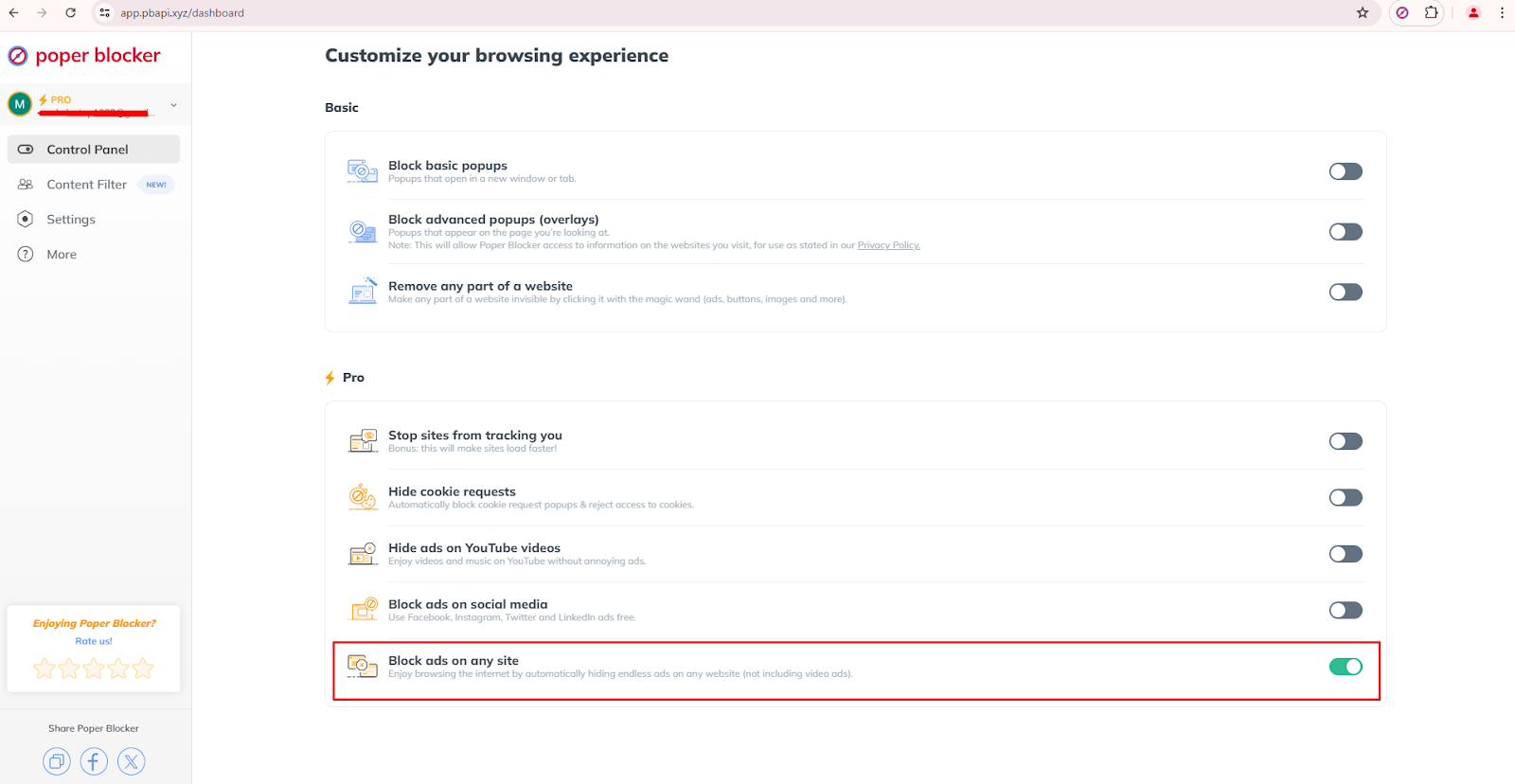
Ad blocker: This automatically removes unwanted ads from web pages. It also has optimized ad-blocking features for YouTube and social media.
Read More:
- How to Block YouTube Ads
- How to Block Ads on Twitter?
- How to Block Ads on Instagram?
- How to Stop Ads on Facebook?
- How to Stop Ads on LinkedIn?
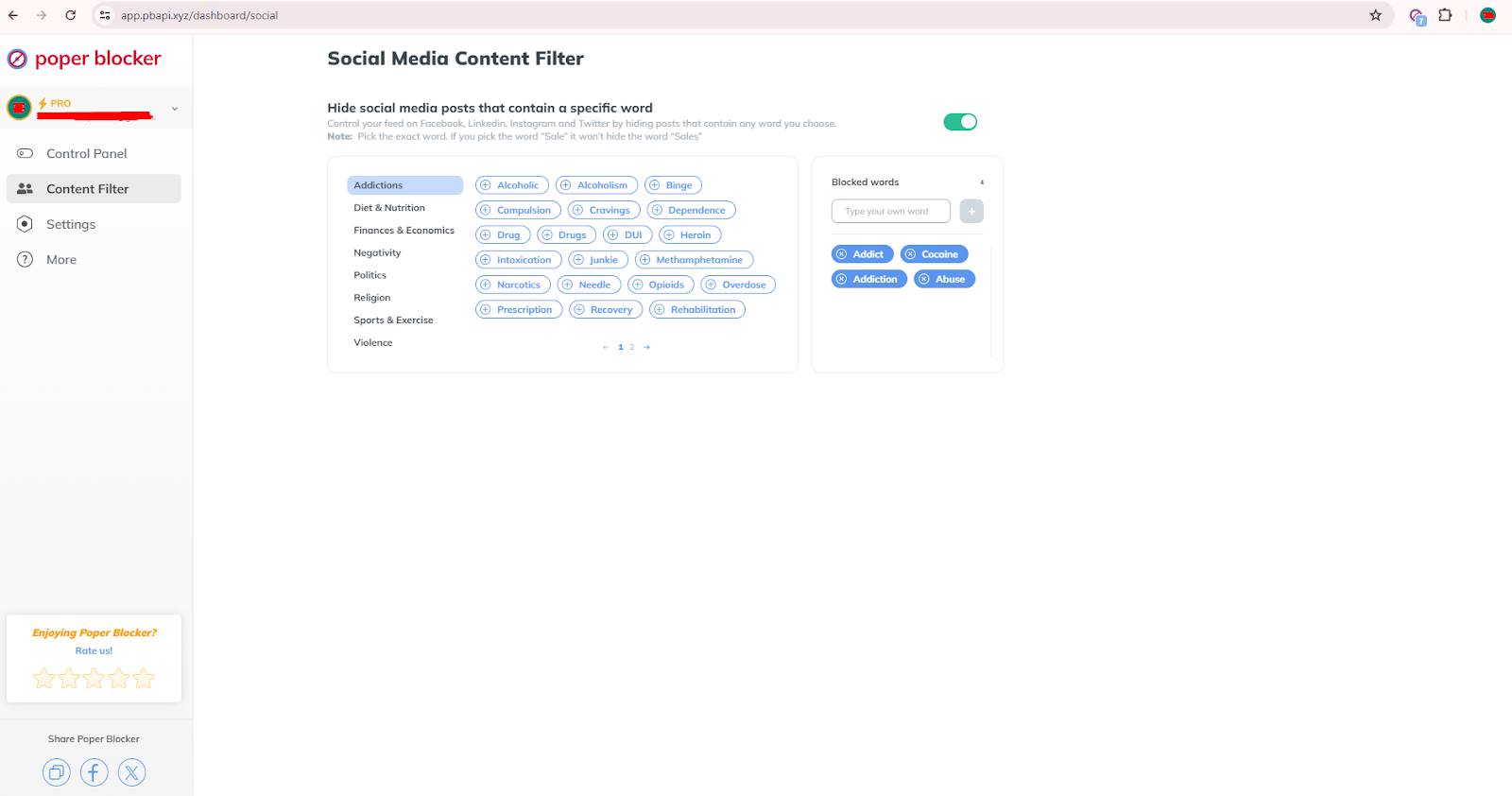
Social media filtering: This feature limits social media content by filtering out posts on Facebook, Instagram, X (Twitter), and LinkedIn that contain a specific keyword.
Setting goals and knowing when to stop
Setting clear goals helps your tech break be effective. Think about why you want to detox and set specific, measurable targets. Examples include no screen time an hour before bed or setting a social media detox but limiting your access to 30 minutes daily.
After a set period, assess your feelings to decide when to end your detox and adjust your habits to maintain a healthy balance. Knowing when to stop will help you avoid burnout and experience long-term positive changes.
Digital detox tips
Starting a tech break can be challenging, but the right strategies can make it easier and more effective. Here’s how to manage it successfully:
Start small
Begin with short breaks and gradually increase the duration. Remember, small steps make the process easier and more likely to succeed.
Create tech-free zones
Designate areas in your home where digital devices are not allowed. This can be your bedroom or the dining room. Doing this will enforce boundaries and reduce the temptation to check your devices impulsively.
Use technology mindfully
Assess and reduce non-essential screen time. Focus on quality over quantity and be deliberate about your tech use. Keep in mind that each moment online should have a purpose and not for non-essential stuff.
Discover some alternatives
Find new hobbies or revisit old ones to fill your time. This can help in reducing that urge to return to your screens. Participate in physical or creative activities for a rewarding and enriching experience, which can never be replaced with anything virtual.
A fresh start with fewer screens
Taking a tech break can greatly improve various aspects of your life. When you change your relationship with technology, you’ll be able to enjoy better mental health, improved relationships, and increased productivity. Now is the perfect time to start.
And for a more successful digital detox, use the Poper Blocker extension to block all those unwanted distractions. So, what are you waiting for? Begin today for a healthier and more fulfilling life.
FAQs
How long should a digital detox last?
The length of a digital detox varies for each person. Some find short daily breaks helpful, while others prefer week-long detoxes. Assess your needs and tech usage to decide what suits you best.
What activities can replace screen time during a digital detox?
Try various offline activities like reading, hiking, cooking, drawing, or spending quality time with loved ones. Finding fun alternatives will make the detox successful.
Can I still use my phone for essential tasks during a digital detox?
Yes, the goal is to cut down on unnecessary screen time, not eliminate it. Using your phone for essential tasks like calling, texting, or work is still fine. Focus on eliminating non-essential uses like social media.
How do I manage work-related tasks during a digital detox?
Set specific times to check emails and messages, and keep your work tasks separate from personal screen time to maintain discipline and focus during the detox.
What are the signs that I need a digital detox?
If you feel anxious without your phone, have sleep issues due to screen time, or notice strained relationships, it might be time for a detox. These signs often indicate that you have an unhealthy reliance on digital devices.
Online distractions from popups, ads, and overlays can severely affect your browsing experience. In fact, a survey has revealed that about 70% of internet users find online advertisements annoying and unpleasant. The frustration caused by too many ads is not just limited to wasting time. When you’re getting constant interruptions, it can easily break your focus, reduce your productivity, and even cause frustration. In addition to that, the dilemma of dealing with constant cookie requests can be another layer of annoyance.
But here’s an effective solution to block all these nuisances: Poper Blocker. Whether you’re dealing with pop-ups on shopping sites, banner ads on social media, or unsolicited cookie requests, this browser extension can handle all of that. It has a user-friendly interface where you can optimize your browsing environment even if you don’t have any technical experience. And the good news is that it blocks pop-ups in Microsoft Edge and Google Chrome as well. Let’s look further at the main features of this tool.
Block basic pop-ups
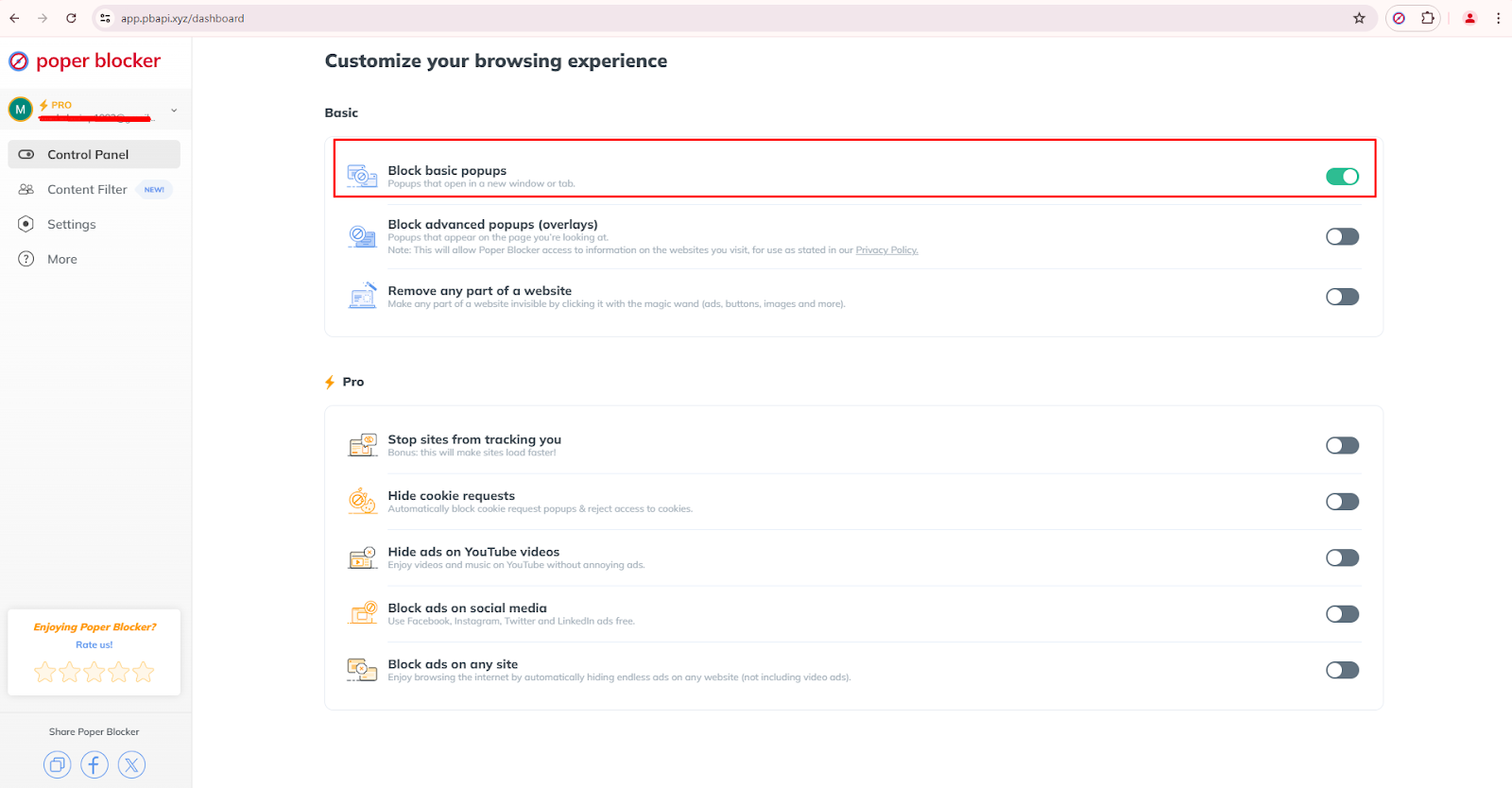
One of Poper Blocker’s features is the automatic blocking of basic pop-ups. These are usually the ones that open in new windows or tabs. This feature is available in the Basic section of the Control Panel and has the capability to minimize interruptions effectively while you’re browsing websites with less technical designs. Here is how to activate this pop-up blocker feature:
- Open the Poper Blocker Control Panel.
- Find the Basic section.
- Turn on the button for “Block basic popups”.
Block ads on any site
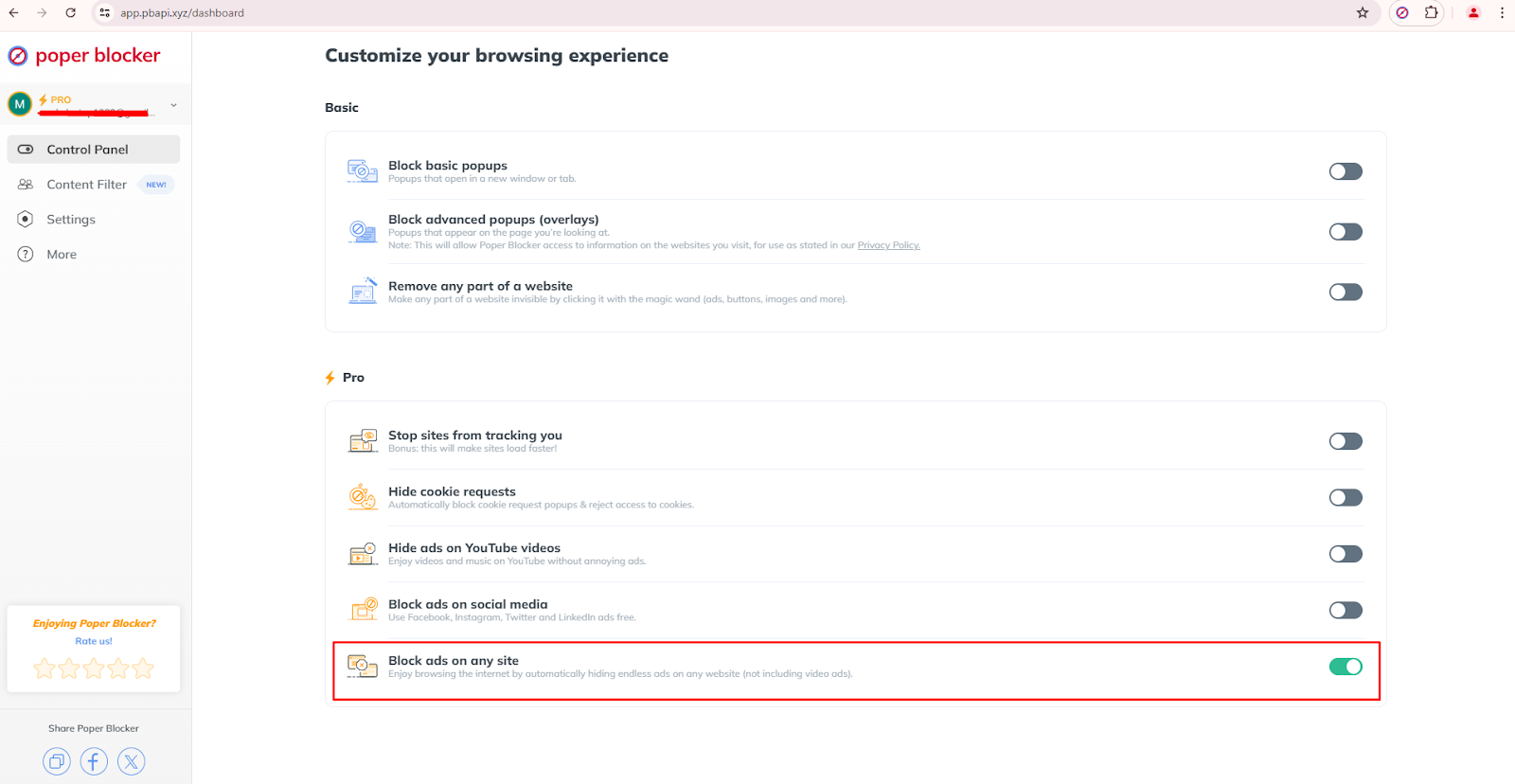
Browsing any website becomes enjoyable when Poper Blocker automatically hides endless ads. This Pro feature is highly effective in removing annoying ads (excluding video ads) across all websites. In addition to reducing distractions, it can also improve website loading times.
Follow these steps to turn it on:
- Access the Control Panel.
- Go to the Pro section.
Scroll all the way down and enable the “Block ads on any site” button.
Block advanced popups (overlays)
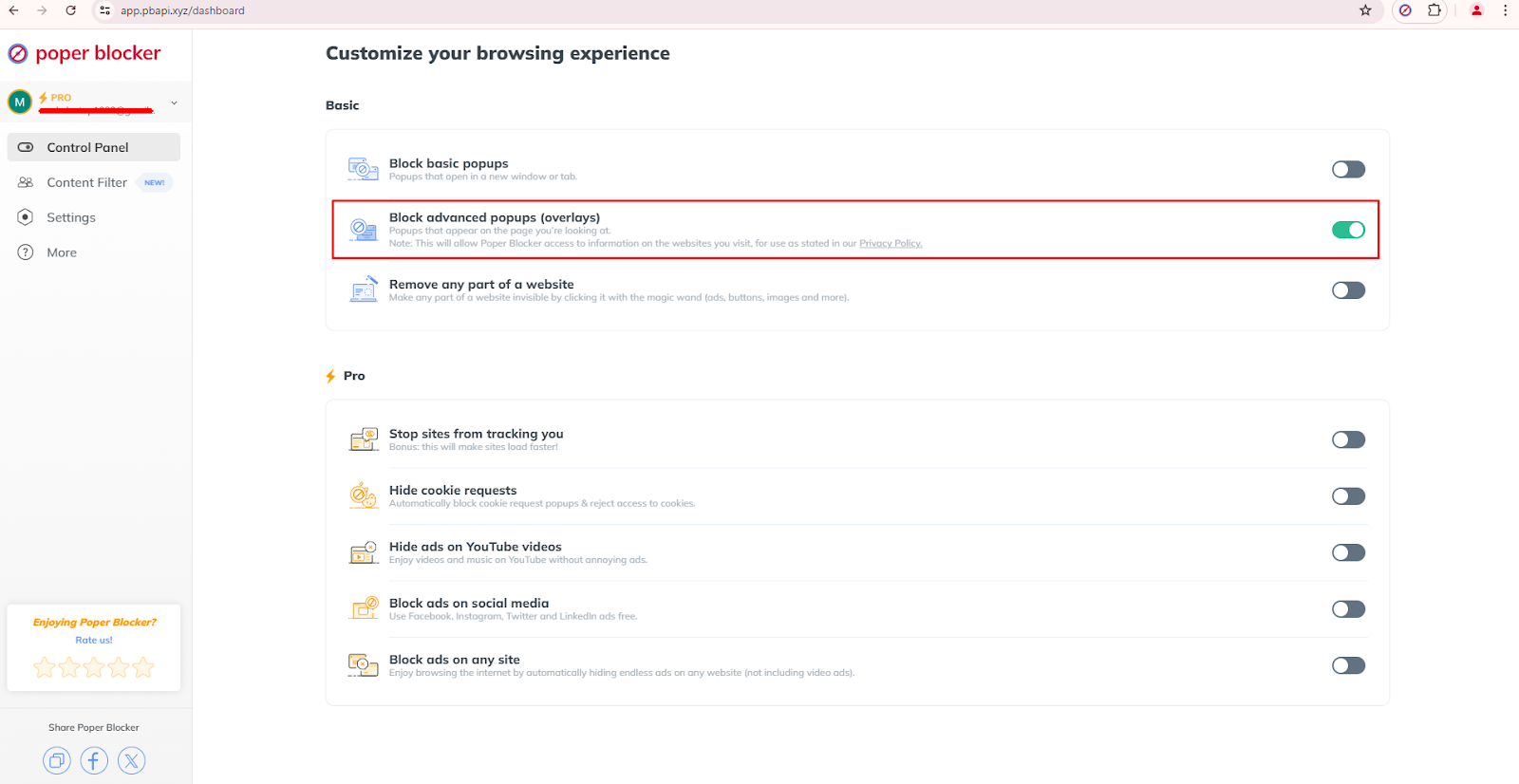
Advanced popups or overlays appear on the page you’re viewing and this usually obscures content. The good news is that Poper Blocker can also handle these intrusive elements. Once it’s active, it will block overlays and these will no longer interfere with your browsing.
You can enable it via these basic steps:
- Access the Control Panel.
- Look for the Basic section.
- Turn on the “Block advanced popups (overlays)” button to activate this feature.
Hide cookie requests
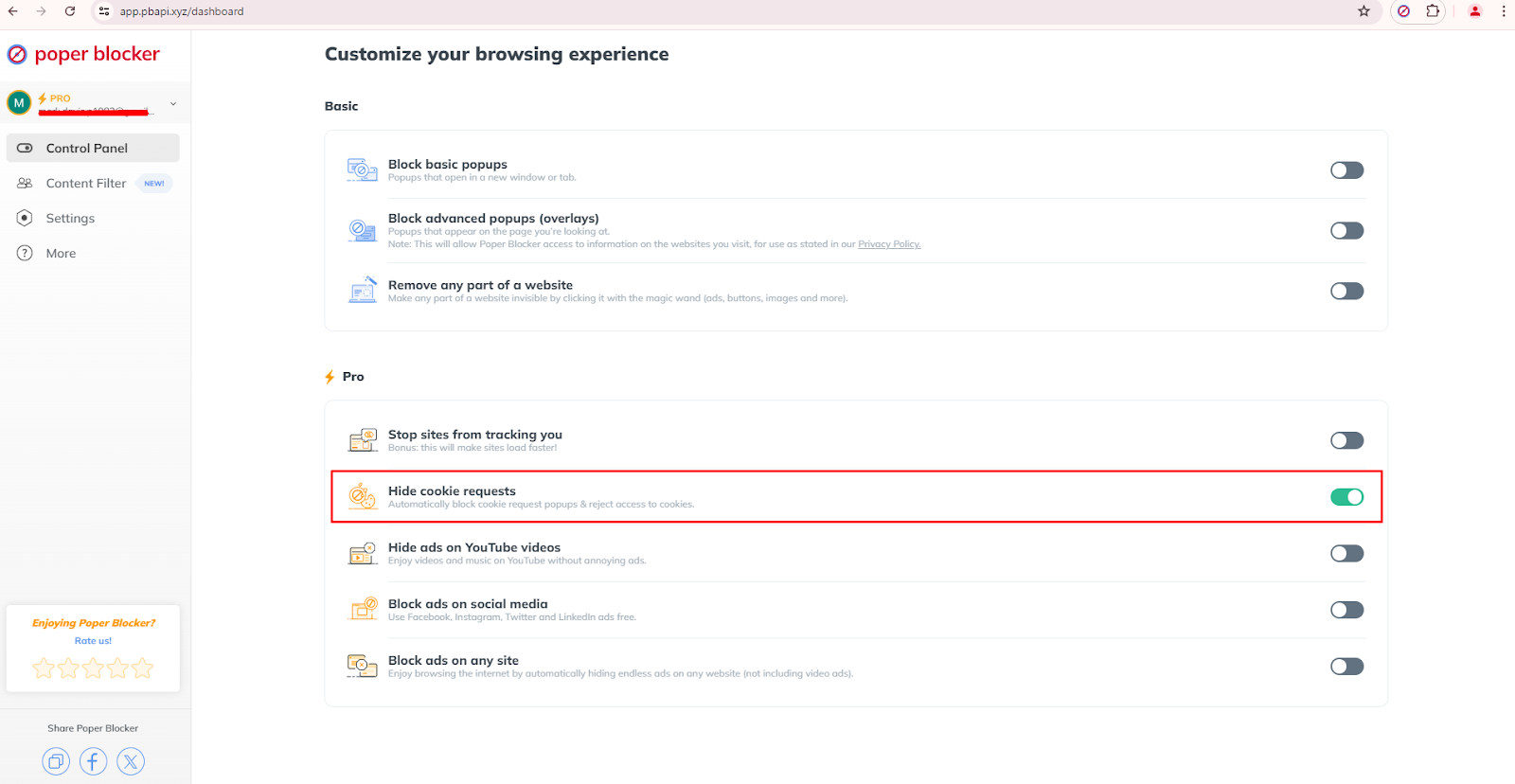
Cookie request popups can be constantly annoying while you’re browsing several sites. With the help of Poper Blocker, you can set an automatic blockage of these requests. But that’s not all, it can also reject cookie access so you’re actually hitting two birds with one stone.
Take note: this is located in the Pro section of the Control Panel, so if you don’t want to be interrupted by continuous cookie consent prompts, then this is the feature that you need.
Want to know how to activate it? Follow these 3 steps:
- Open the Control Panel.
- Look for the Pro section.
- Enable the button for “Hide cookie requests”.
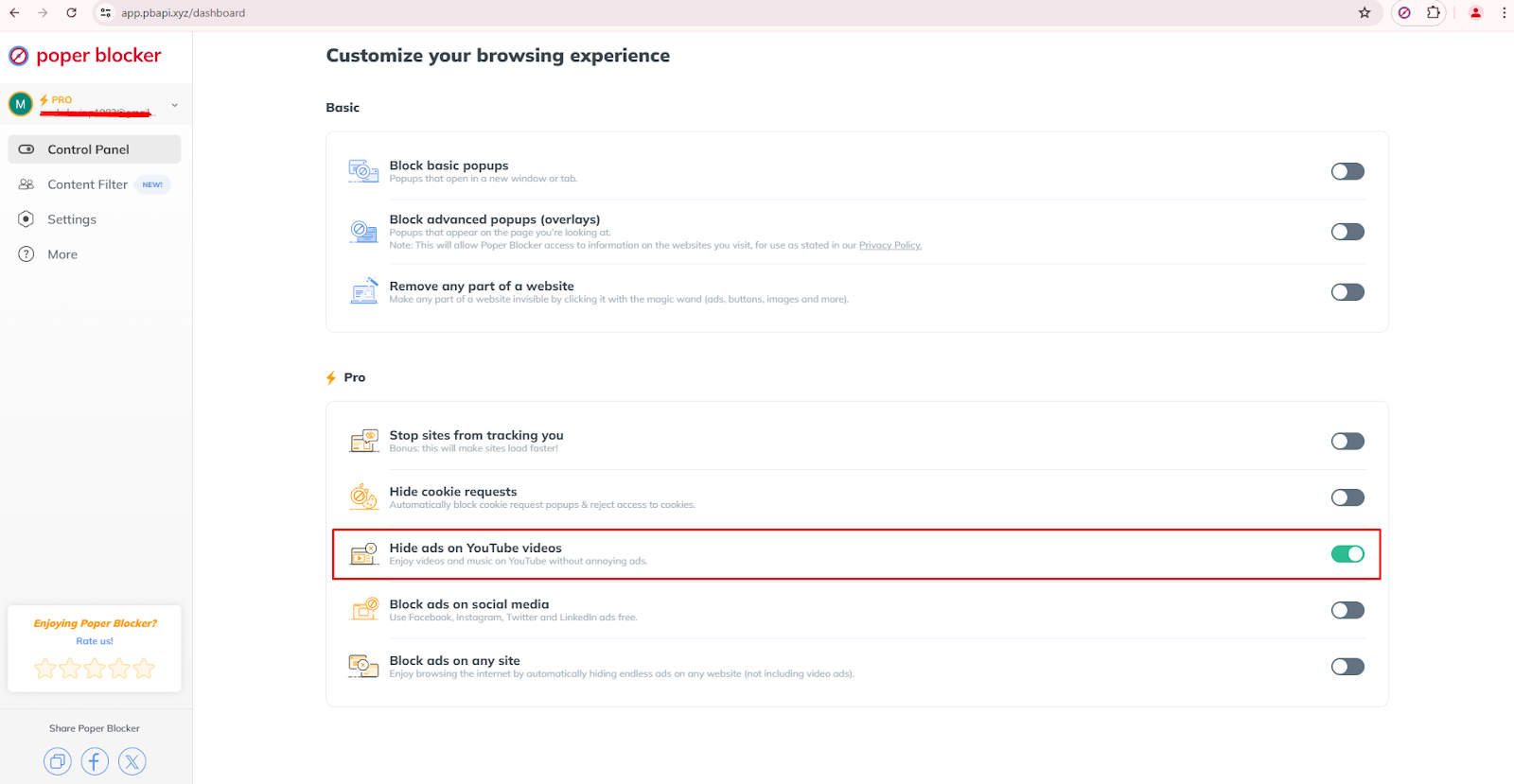
Block ads on YouTube videos
Ads on YouTube are becoming more prominent and can definitely interrupt your viewing experience. But with the help of this Poper Blocker Pro feature, you’ll be able to watch videos and listen to music without these advertisements. Whether you’re watching tutorials, music videos, or documentaries, this feature lets you enjoy an uninterrupted YouTube experience.
Here’s how to enable it:
- Open the Control Panel.
- Navigate to the Pro section.
- Enable the “Hide ads on YouTube videos” button.
Read more: How to Block YouTube Ads
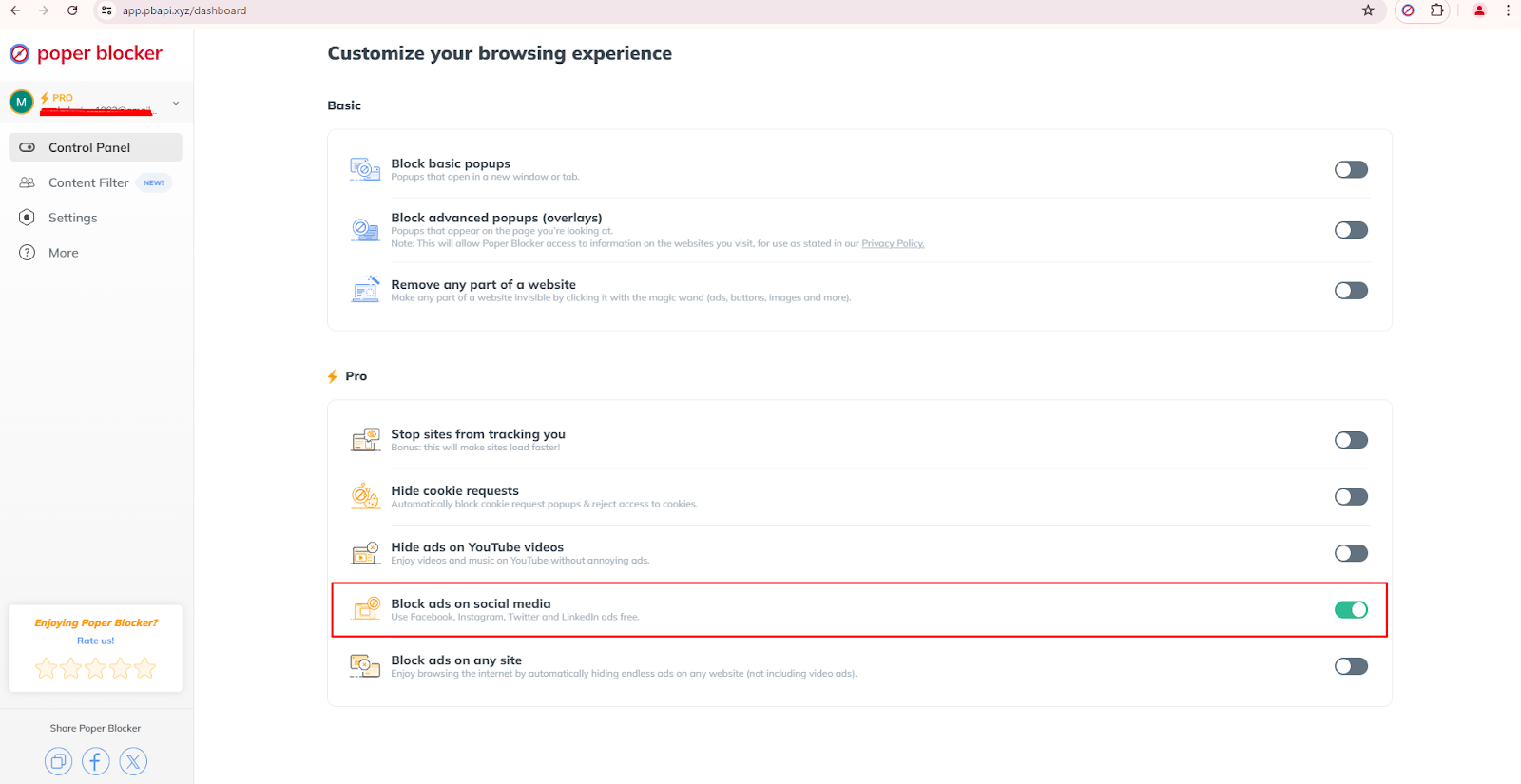
Block ads on social media
Ads on social media platforms like Facebook, Instagram, Twitter, and LinkedIn can also be blocked by Poper Blocker. This is one of the extension’s Pro features, which will allow you to see only the posts from users and pages that you are following. No more unnecessary or annoying ads when browsing on your favorite social platforms.
To enable this feature, follow these steps:
- Access the Control Panel.
- Go to the Pro section.
- Toggle the “Block ads on social media” button to activate this feature.
Social media content filter
This tool also has a powerful feature for social media filtering of content based on specific keywords. When this is enabled, you’ll have more control of your feed on Facebook, LinkedIn, Instagram, and Twitter.
Here’s how to use and customize this feature:
- Open the Control Panel.
- Go to the Content Filter section.
- Turn on “Hide social media posts that contain a specific word.”
Here’s a tip: choose the precise words for effective filtering. For instance, entering the word “sale” will not hide “sales” so take some time to use the right words to block.
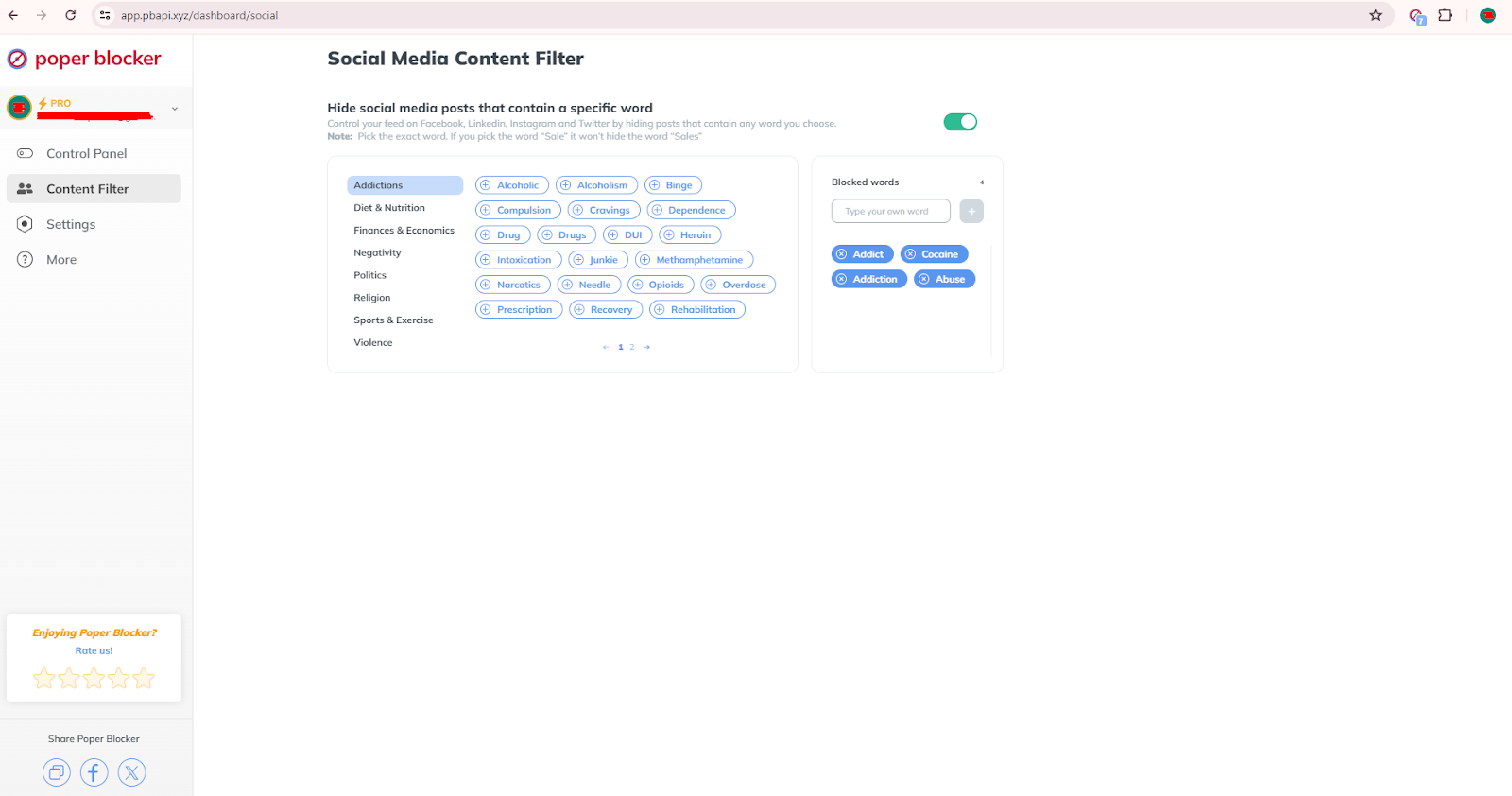
In addition, the tool also has groups categories of commonly blocked words, such as:
- Addictions
- Diet & Nutrition
- Finances & Economics
- Negativity
- Politics
- Religion
- Sports & Exercise
- Violence
Whitelisting
In contrast to blocking, whitelisting allows certain sites to display popups as needed. You see, not all pop-ups are ads or spam. In fact, a lot of trusted sites use them for legit purposes, such as:
- Important information
- Critical warnings or updates
- Answers to questions
- Other relevant content
The whitelist feature is beneficial when you trust specific sites and do not want to miss any important notifications or features that they provide.
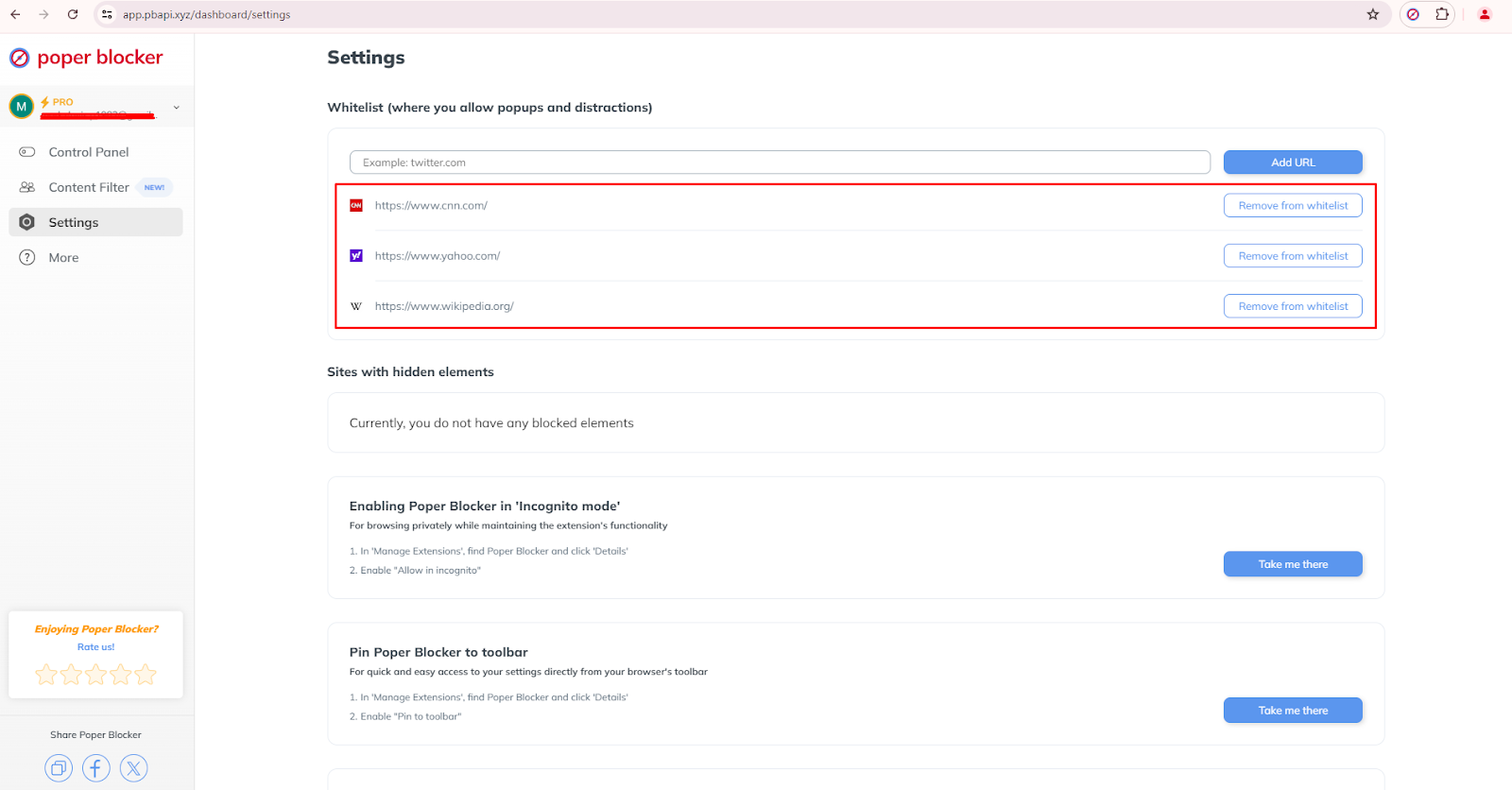
To use it, follow these steps:
- Open the Control Panel.
- Go to the Settings section.
- Locate “Whitelist (where you allow popups and distractions)” at the top.
- Enter the site that you’d like to include in the whitelist and then click on the “Add URL” button. Repeat this specific step if you want to add another site.
Enjoy an ad-free, seamless browsing experience!
From blocking basic and advanced popups to filtering social media content, Poper Blocker has a diversity of spam and ad-blocking solutions that you can tailor and customize according to your needs. And because this extension continuously receives updates, you’re assured that you’re receiving the best functionality.
Our users often find a noticeable improvement in their productivity and most of them have reported general satisfaction since they can now browse without any disruptions. And that’s not all. This extension also addresses specific concerns like cookie requests and social media clutter, so you’re getting more than what you deserve.
So don’t let unwanted ads and pop-ups ruin your day. Try Poper Blocker today and witness the difference!
FAQs
What browsers are supported by Poper Blocker?
Poper Blocker supports Google Chrome and Microsoft Edge. Their suite of features is optimized for each of these browsers so you get to enjoy a consistent and efficient user experience across all of these supported platforms.
How do I turn on the blocking of basic pop-ups with Poper Blocker?
You can enable the blocking of basic pop-ups by accessing the Control Panel and going to the Basic section. When this feature is activated, no pop-ups will open in new windows or tabs so you’ll experience reduced interruptions during your browsing sessions.
Can Poper Blocker filter social media content?
Yes, Poper Blocker can hide specific posts on Facebook, LinkedIn, Instagram, and Twitter by using specific keywords. This can be configured in the Content Filter section of the Control Panel. Make sure that you block the right words to maximize its efficiency..
Is there support for removing cookie request popups?
Yes, Poper Blocker automatically blocks cookie request popups and rejects cookie access. This is found in the Pro section of the Control Panel. When it’s turned on, it will block cookie consent messages.
Can I whitelist certain websites?
Yes, you can whitelist websites to allow specific popups. This option is available in the Settings section under “Whitelist.” Adding trusted URLs here allows you to get those notifications and popups from those sites that are not blocked.