Chrome Web Extension
 Edge Web Extension
 Android App
 iOS App


You open a page because you want answers. Maybe it’s an article, a product review, or a quick video. Instead, your screen gets hijacked. An email form slides in. A discount box blocks the text. Close that one, and another one appears. Miss the tiny X? You’re redirected somewhere random. Sound familiar?
This is everyday browsing now, especially on mobile, slower devices, and ad-heavy sites.
This is also where the confusion begins around what a pop-up is vs an overlay. The terms often get lumped together, but they are not the same thing. They behave differently, interrupt users in different ways, and come with different consequences for usability, performance, and search visibility.
In this guide, we’re going to explain how pop-ups and overlays actually work, why the difference matters, and how Poper Blocker can be your tool for cleaning up the mess on your desktop and mobile.
What is a pop-up?
You are reading an article. Halfway through a paragraph, something slides in from the side. Or drops from the top. Or opens in a brand-new window you never asked for.
That is a pop-up.
In web browsing, a pop-up is an element that appears automatically on top of or outside the main page content. It can load as a new browser window, open in a separate tab, or sit as a floating box layered over the page itself. In most cases, it appears without direct user intent. Timing rules, scroll depth, cursor movement, or delayed triggers usually control when it shows up.
Pop-ups are widely used for newsletter sign-ups, discount offers, coupon codes, and account prompts. Many publishers rely on them to capture leads or push short-term promotions. You will also see more advanced versions triggered when you move your cursor toward the back button. These are often labeled as exit intent prompts and are designed to catch your attention right before you leave.
Of course, not every pop-up serves a helpful purpose.
Many types of pop-up ads go far beyond basic marketing. Aggressive affiliate promotions, autoplay video windows, and redirect-based pop-ups can interrupt browsing altogether. Some are built to deceive. Fake virus warnings claim your device is infected and pressure you to click immediately. Others fall squarely into the category of pop-up scams, while the most dangerous cases escalate into a ransomware pop-up that attempts to lock your browser or demand payment.
From a user perspective, pop-ups introduce friction. They break reading flow, steal focus, and cause accidental taps, especially on mobile screens where space is limited. When overused, they turn into spam pop-ups that clutter sessions and slow pages down.
That frustration explains why modern browsers introduced native blocking features and why so many users actively search for ways to stop pop-up ads across desktop and mobile platforms.
What is an overlay?
An overlay is a visual layer that sits directly on top of a webpage’s existing content. Nothing opens in a new window. Instead, the page stays put while the background is dimmed or partially blocked, with a focused message placed front and center. Think semi-transparent screens with a clear call to act.
You’ll see overlays everywhere online. Log-in prompts, cookie consent notices, age checks, image lightboxes, and product tours all rely on them. Some lock the page until you respond. Others still allow limited scrolling or clicks underneath.
The real distinction comes down to integration. Overlays are built into the page experience rather than launching separately. Used sparingly, they can feel more controlled. When used too often, they slow people down. That’s why many users actively look for ways to block overlays when access to content starts feeling gated.
Popup vs overlay – key differences
Pop-ups and overlays often get lumped together, but they behave very differently once they hit your screen. Knowing how each one works explains why some feel mildly annoying while others make you want to close the tab immediately.
- Interaction blocking: Pop-ups tend to hijack the experience. They either open in a new window or pull focus away from what you were trying to read. Overlays stay on the same page, placing a layer on top of the content instead of pulling you somewhere else.
- Trigger type: Pop-ups usually appear on a timer or load automatically. Overlays are more intentional and often fire based on actions like a first visit, scroll depth, or account login.
- User flow: Pop-ups break momentum. You are reading, scrolling, or clicking, then suddenly interrupted. Overlays pause the experience but keep context intact, which makes them easier to recover from.
- Use cases: Pop-ups are commonly used for ads, email capture, or promotions. Overlays show up more in UI guidance, confirmations, and system messages.
- Mobile behavior: Pop-ups are clumsy on small screens and frustrating to close. Overlays can still be intrusive, but dismissal is usually simpler.
Both formats can damage usability when overused. Heavy scripts slow pages down and push users away. In conversations about pop-ups and SEO, analysts point to mobile frustration and early exits as real risks. Knowing the difference helps users browse more comfortably and helps site owners choose wisely.
Why blocking pop-ups & overlays matters
Interruptions while browsing
For most users, the problem is simple. Constant interruptions ruin the experience. Pop-ups and overlays break focus, cover the content you came for, and add friction where there should be none.
Mobile frustration
On mobile, it gets worse. One wrong tap and you are sent to a random page, an app store listing, or a download you never asked for. No surprise people actively look for ways to stop pop-up ads on Android and across desktop browsers.
Privacy and security concerns
Privacy and safety are part of the issue, too. Many pop-ups track behavior, load third-party scripts, or push users toward questionable destinations. Some even copy system alerts or browser warnings. That is exactly how fake virus warnings and shady redirects catch people off guard.
SEO
There is also the SEO angle. Google has made its position clear on intrusive mobile experiences. In a Moz report mentioning Google’s updated mobile guidelines, one thing was notable. It says that if an overlay, modal, or pop-up blocks users from reading the main content of a page, there may be consequences. Pages like this can lose their mobile-friendly label, along with the ranking advantages that come with it.
Mobile performance (specifically Android devices)
Then there is performance on Android devices. Extra scripts, images, and network requests slow pages down and increase data usage. Remove them, and browsing feels cleaner, faster, and far less frustrating.
Use Poper Blocker to solve it
If pop-ups and overlays are turning a simple browsing session into a mess of distractions, this tool is built to deal with that problem head-on. Poper Blocker works across Chrome, Microsoft Edge, and Android, so the experience stays consistent whether you are on a laptop, desktop, or phone.
At its very core, the extension focuses on pop-up blocking. The moment an intrusive element tries to load, Poper Blocker identifies it and stops it before it takes over your screen. That covers common offenders like aggressive ad windows, misleading system alerts, forced redirects, and prompts designed to push clicks rather than content.
Pop-ups are the main priority, but overlays do not slide through unnoticed. When a full-screen banner or layered message blocks text, buttons, or navigation, Poper Blocker steps in to restore access. The goal is simple: let you read, scroll, and click without fighting the page.
The setup is straightforward. It runs quietly in the background without breaking site layouts or requiring constant input. If you want to block ads on Edge while keeping pages usable, the extension handles that balance automatically.
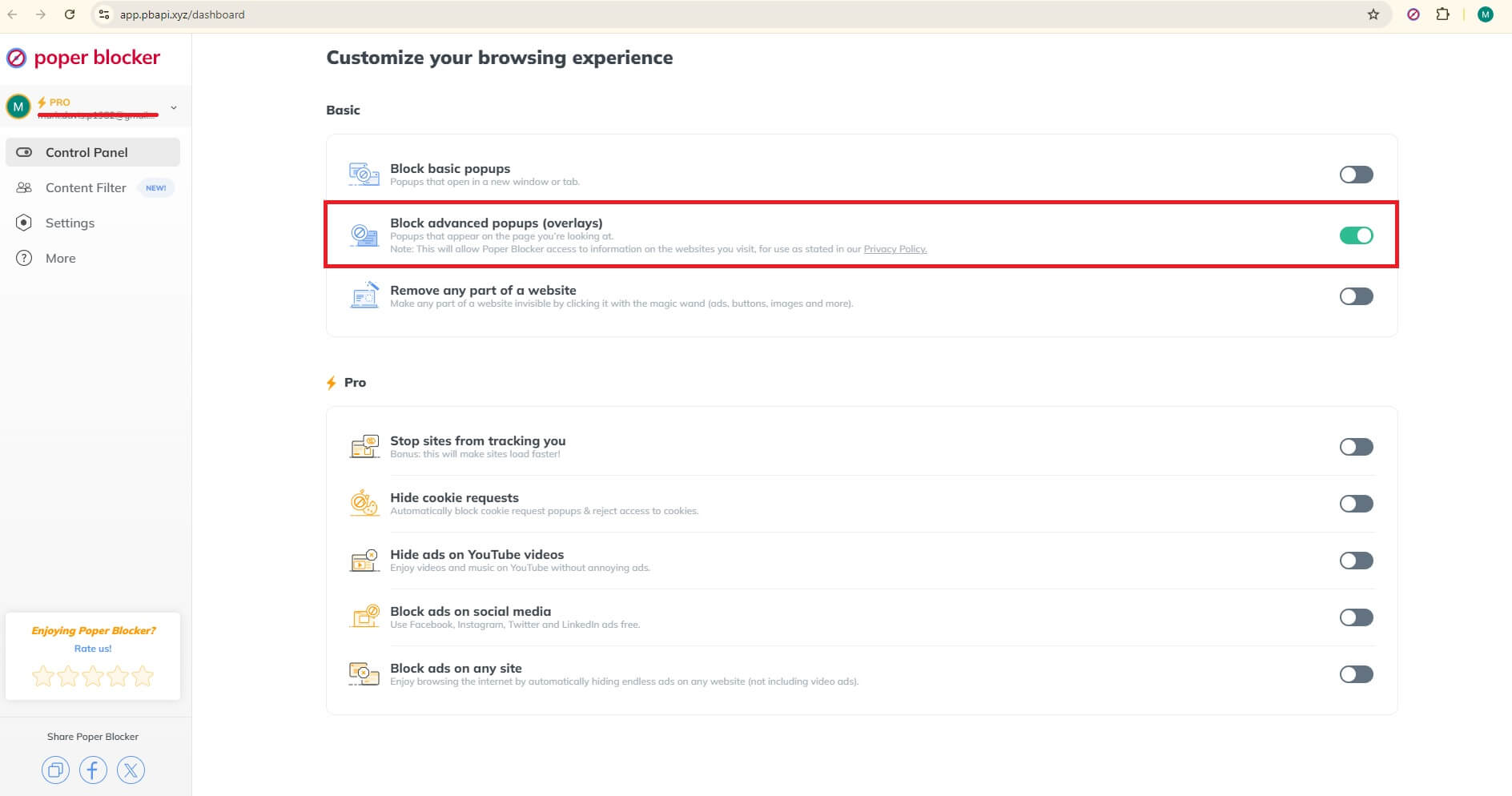
Mobile users benefit just as much. The pop-up blocker for Android helps clear clutter that causes slow loading, accidental taps, and constant interruptions, especially on content-heavy or ad-heavy sites.
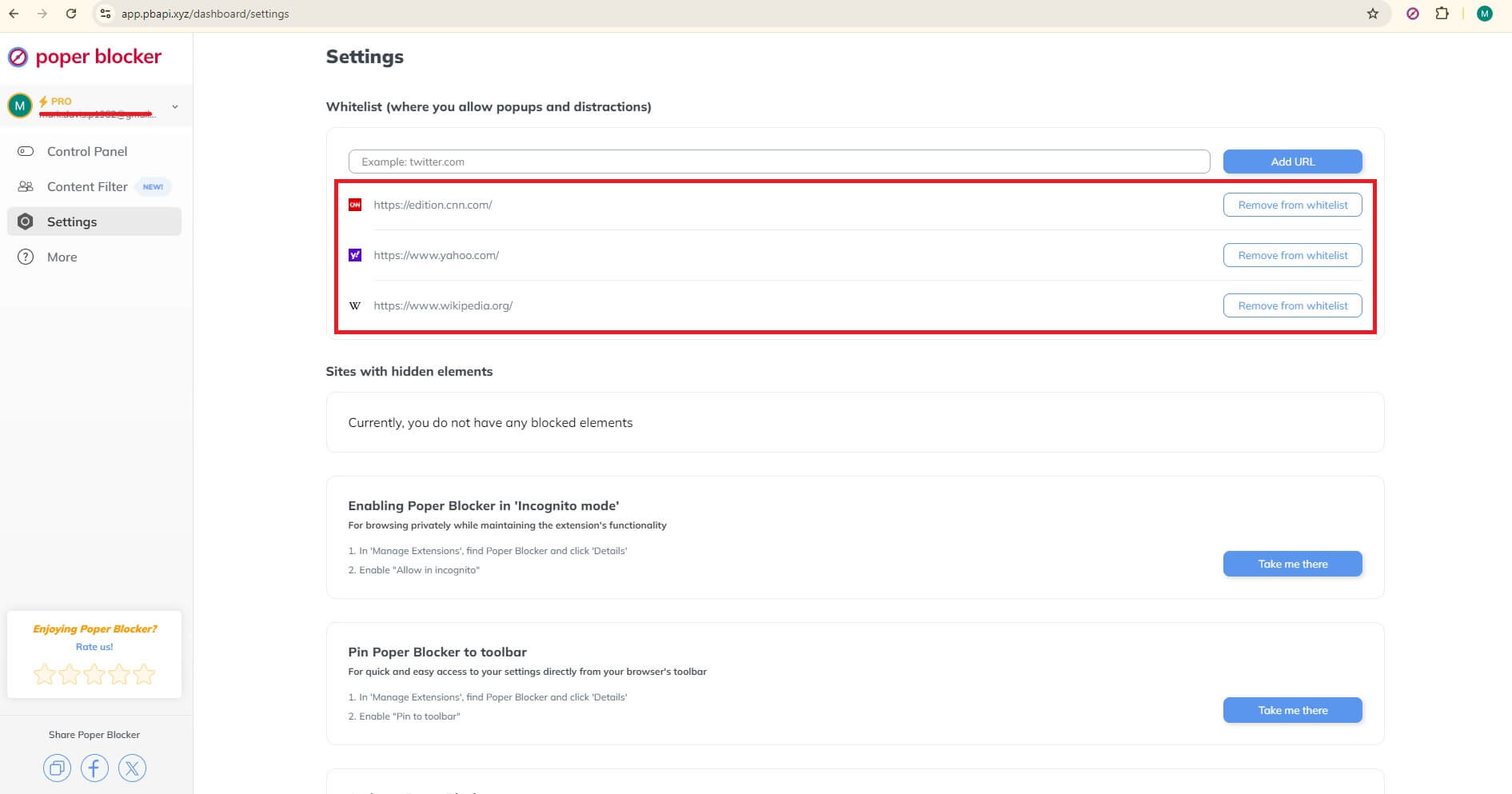
There is also room for control. Trusted websites can be whitelisted in seconds, so essential pop-ups or overlays can still function when they are genuinely needed. No digging through browser menus or the need to disable your pop-up blocker entirely. Say hello to fewer interruptions and a cleaner browsing experience.
Best practices for users
A few simple habits go a long way. You get fewer interruptions, fewer broken pages, and far less frustration overall.
Don’t block everything automatically
Going nuclear rarely helps. Some sites use pop-ups or overlays for practical reasons such as logging into an account, confirming age, completing a payment, or showing consent notices.
In these cases, allowing limited access keeps things working as expected instead of breaking important actions halfway through.
Keep blocking enabled by default
The safer setup is to leave blocking turned on and only make exceptions when something genuinely needs to appear. This filters out most interruptions while giving you flexibility when a site depends on a pop-up to function.
Poper Blocker’s whitelist makes this easy without forcing you to switch protection off entirely.
Use whitelisting for trusted sites
If you visit certain platforms often, whitelisting them can save time and irritation. Important prompts show up when needed, and you avoid endless reloads or strange layout issues caused by blocking required elements.
Be selective when sites demand full access
When a site insists you disable all blocking, stop and think. Many of these prompts serve tracking or advertising goals rather than real functionality.
Staying selective keeps your privacy intact and your browsing sessions fast, clean, and predictable.
It’s time to take back control of your browsing experience
At this point, the pattern should be clear. Pop-ups and overlays are not random annoyances. They are intentional, aggressive tactics that clutter pages, slow load times, and hijack attention, especially on mobile screens where space is limited.
The good news is that this cycle is easy to interrupt once you know where the problems come from. A reliable blocker that handles both pop-ups and intrusive overlays changes how the web feels almost instantly. With Poper Blocker running in the background, pages load faster, content becomes readable again, and interruptions drop off sharply across Chrome, Edge, and Android.
If browsing feels tiring instead of useful, that is your signal. Removing the noise puts you back in charge, so your screen works for you and not against you.
FAQs
What’s the main difference between a pop-up and an overlay?
Think of a pop-up as something that jumps in from the outside. It usually opens as a separate window or floating box and often triggers automatically. An overlay stays within the same page. It sits on top of the content using layers, sometimes dimming the background so your attention shifts to a single message.
Are pop-ups always bad for websites?
No. When used carefully, they can serve a clear purpose. Things like cookie consent notices, age verification, or login prompts are often necessary. The problem starts when pop-ups appear too frequently, block content without warning, or stack on top of each other. That’s when users get frustrated and leave.
Do pop-ups affect page speed and performance?
Yes, especially on mobile. Pop-ups usually rely on extra scripts, trackers, and third-party assets. These add weight to the page, slow down loading times, and increase data usage. On slower connections, that delay is very noticeable.
Can I control which sites are allowed to show pop-ups?
Yes. With Poper Blocker you can whitelist trusted sites. That way, important prompts still work where you need them, while everything else stays quietly out of the way.
You are done reading. Your mouse drifts toward the close button. Then it happens. A full-screen overlay slides into view, offering a discount, a newsletter signup, or a final request to stay just a little longer. If you browse the web regularly, this moment probably feels very familiar. And more often than not, it feels annoying.
What you just encountered is an exit intent pop-up. It is designed to appear the exact second a website thinks you are about to leave. From a marketer’s point of view, this is a last opportunity to capture attention that might otherwise be lost. Data from Wisepops backs this up. On average, exit intent popups convert around 2.81% of website visitors. But from a user’s point of view, it can feel abrupt, disruptive, and oddly aggressive.
That mismatch explains why exit-based popups create such mixed reactions. Some visitors accept them as part of modern browsing. Others look for ways to shut them down entirely.
From this post, you will learn what these popups really are, how websites trigger them, and why they so often interrupt the experience. We will also look at why the exit intent pop-up has spread across so many sites and what options exist if you prefer browsing without constant interruptions competing for your attention.
What is an exit-intent pop-up?
An exit-intent pop-up is a dynamic on-page message designed to appear the moment a website thinks you are about to leave. The aim is very simple: stop the exit and squeeze in one last interaction, whether that is an email signup, a discount reminder, or a nudge toward checkout (source: Shopify).
On desktop, the trigger is usually mouse movement. When your cursor accelerates toward the close button, tab bar, or address field, the software reads this as exit behavior and fires the pop-up immediately. It is a timing play, hitting just before the page disappears.
Mobile works differently. There is no cursor, so platforms rely on behavioral signals instead. These can include tapping the back button, switching browser tabs, scrolling upward at speed, or pausing interactions for a short stretch. Once the pattern fits, the overlay appears.
Marketers use exit-intent popups for a few common reasons:
- Capturing emails
- Recovering abandoned carts
- Promoting limited-time offers
You have probably seen the classics: “Wait! Get 10 percent off,” free shipping reminders, or newsletter signup boxes that block the screen at the last second.
The thinking is simple. If someone is already leaving, there is nothing to lose.
From the user side, though, the experience often feels different. After encountering the same exit pop-up across dozens of sites, the moment stops feeling helpful. It becomes expected. And frequently ignored.
Why exit-intent popups can be annoying for visitors
From a user’s point of view, exit-based overlays tend to show up at exactly the wrong moment. You have made up your mind. You move the cursor to close the tab or hit the back button. Then the screen freezes for a second while an overlay jumps in front of you. Now you are stuck hunting for a tiny X icon and waiting for the page to react. What should have been a clean exit turns into an inconvenience.
That irritation increases fast when sites lean too heavily on the tactic. Some trigger an overlay almost immediately. Others repeat it on every page or recycle the same message, no matter who you are or how often you have seen it before. Oversized designs that block the entire screen, or hide the close button in a corner, make things worse.
After a while, visitors stop seeing these messages as helpful. They start lumping them in with spam pop-ups. The reaction becomes automatic. Close it. Leave the site. Sometimes, close the browser altogether. Even if the offer is legitimate, the timing works against it.
Trust is another casualty. Pushy language, fake urgency, and countdown timers can feel manipulative. In extreme cases, poor design edges into pop-up scams territory, especially when visuals mimic alerts or system warnings.
It is no surprise that many users actively seek ways to eliminate pop-up ads entirely.
Use Poper Blocker to block exit-intent popups
If you are fed up with pages throwing one last interruption at you just as you try to leave, Poper Blocker makes things simple. It is a lightweight browser extension built to stop intrusive overlays, banners, and scripted interruptions before they ever reach your screen.
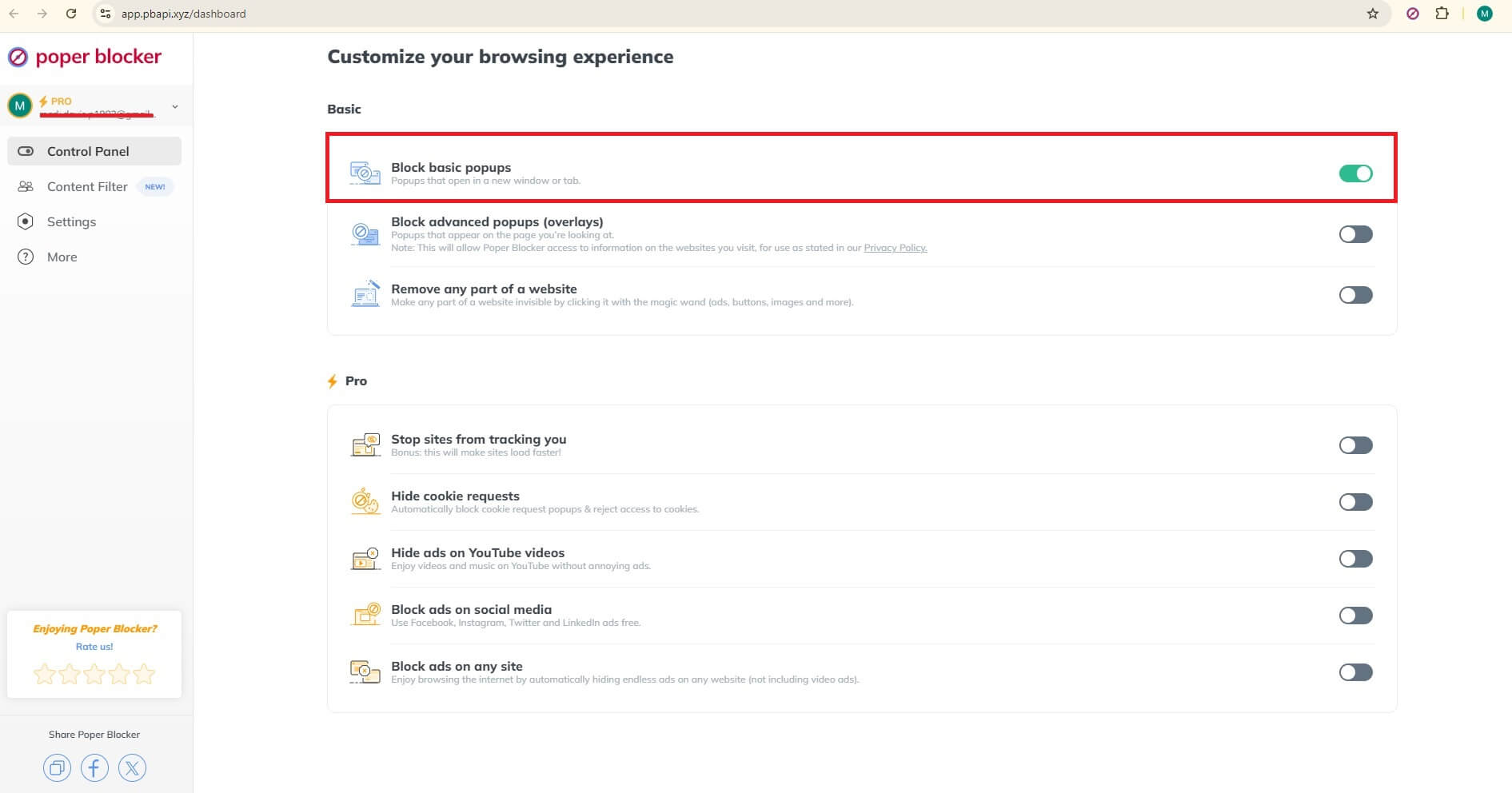
Once installed, Poper Blocker runs quietly in the background. It works on both Chrome and Edge, so it fits neatly into most desktop browsing setups. From the moment it is active, it starts identifying common pop-up behaviors, including exit-based triggers that fire when your mouse moves toward the back button or tab bar.
What makes the built-in pop-up blocker effective is its focus on scripted overlays rather than standard page elements. It does not strip out content or break layouts. Instead, it filters out exit-intent designs, email gates, and forced overlays that interrupt reading or navigation. Whether you are scanning a news article, comparing products, or skimming a blog post, pages remain accessible and easy to move through.
If you are looking for a dependable pop-up blocker for Chrome or a practical pop-up blocker for Edge, the setup is refreshingly minimal. There is no configuration maze to deal with. Pages load as intended, text stays visible, and the decision of when to leave a site stays with you.
Another benefit is peace of mind. Instead of reacting to aggressive overlays or wondering whether a suspicious alert could lead to a ransomware pop-up, you can browse with confidence. Unnecessary interruptions are handled quietly, leaving you free to focus on the content you came for and move on when you are ready.
A quieter way to leave a page
Exit-based overlays exist for a reason. Site owners use them to grab attention at the last second or pull visitors back into a funnel. From a user’s point of view, the experience often feels very different. When the same prompts appear again and again, frustration builds fast. It is no surprise that ongoing debates around pop-ups and SEO point to declining trust and weaker user interaction when these tactics are pushed too far.
There is a simpler option if you prefer a cleaner browsing experience. Poper Blocker removes exit-triggered overlays and similar interruptions, while letting the page itself work as expected. No broken layouts or any missing content.
Install the extension, browse as usual, and notice the difference. Leaving a page becomes uneventful again. Fewer interruptions mean smoother navigation, and a browsing routine that feels steady instead of reactive.
FAQs
Will Poper Blocker block all types of popups, including exit-intent popups?
Short answer: mostly, yes. Poper Blocker focuses on intrusive overlays that interrupt browsing using scripts and behavior-based triggers. That includes exit-based overlays, full-screen modals, and many common types of pop-up ads that appear when you move your cursor toward the back button. In some cases, site elements tied directly to checkout flows or login steps may still show. But forced interruptions designed purely to stop you from leaving are usually filtered out.
Do exit-intent popups still work in 2026?
They do, at least from a marketer’s point of view. Conversion studies continue to show that carefully timed exit overlays can recover abandoned sessions or capture emails. Industry reports often cite conversion lifts in the 3% to 10% range when offers are relevant, and frequency stays under control. The problem is execution. Many sites overuse them, which is why users go looking for a way to block them.
Does blocking exit pop-ups harm website functionality?
Generally, no. Blocking these overlays does not interfere with navigation, content loading, or basic site features. Promotions, surveys, or newsletter prompts might disappear, but the underlying pages continue to work as intended. For most users, the browsing experience feels cleaner rather than broken.
Are exit-intent popups related to security risks?
Most are legitimate marketing tools. Still, some designs look suspiciously like system alerts or fake virus warning messages. This overlap is why users sometimes mistake them for deceptive pop-up scams or malicious redirects. Using a blocker limits exposure to interfaces that imitate security threats and pressure clicks.
If you browse the web daily, you already know how this goes. You open a page, start reading, and then it happens. A banner slides in. Buttons everywhere. Accept all, reject some, manage settings. You click something just to make it disappear and move on.
This repeats across news sites, online stores, blogs, and forums. Over and over. Researchers at Carnegie Mellon University once estimated that reading every privacy policy you encounter could take hundreds of hours each year. Most people do not have that kind of time. So they skim. Or they do not read at all.
What started as a compliance measure has slowly turned into a daily browsing roadblock. In regions with strict privacy laws, these prompts appear on almost every visit. The result is mental overload. Too many choices and interruptions, yet too little patience.
That frustration has a name: consent fatigue. It describes what happens when constant requests to approve data settings wear people down. Instead of making thoughtful decisions, users click whatever gets them back to the content fastest.
Let’s look at why this problem keeps growing and what practical steps you can take to reduce interruptions and regain control of your browsing experience.
The problem: understanding consent fatigue
Consent fatigue describes what happens when people are asked, again and again, to approve, reject, or customize data settings. After a while, it stops feeling like a choice and starts feeling like noise. In plain terms, consent fatigue comes down to mental burnout caused by constant interruptions during routine browsing.
So what is consent fatigue in real life?
It is opening a page and instantly scanning for the fastest way to make the banner disappear. It is skipping the text, ignoring the options, and clicking whatever clears the screen. Not once or twice. Every day. On almost every site.
Have a look at this banner:
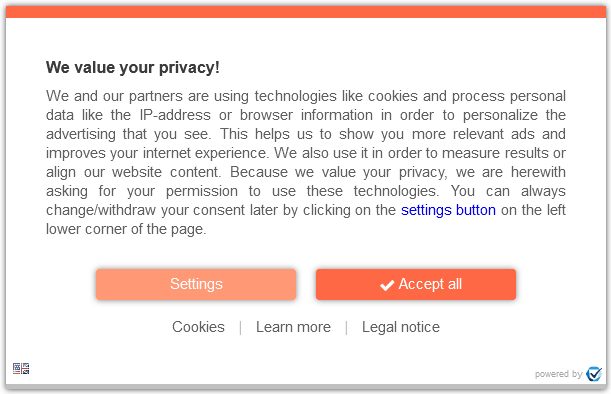
You don’t have a “Reject all” button, and if a user wants the site not to track them, you need to go into “Settings” and switch cookies off. It seems much easier just to accept all cookies and get on with it, no?
Over time, this becomes a habit. Decisions shift from intentional to reflexive. The banner appears, and the response is automatic.
Why consent fatigue keeps growing
Expanding privacy rules
Privacy laws across the EU, UK, and other regions require explicit permission before data collection. On paper, that protects users. In practice, it means nearly every website shows a consent banner on the first visit. The result is a web saturated with pop-ups that block content before users even read the headline.
Overcomplicated consent design
Design choices make the problem worse. Many banners offer one-click acceptance but bury rejection behind extra screens. Users are asked to manage long lists of toggles and dense explanations covering different types of cookies. Faced with friction, most people opt out of the process entirely and accept everything just to move on.
What this does to users
Frustration and shortcut behavior
Constant interruptions wear people down. Clicking “Accept All” becomes the default response, not a considered decision.
Less engagement with privacy controls
Repeated exposure leads users to disengage. Instead of managing preferences, they stop interacting with settings altogether.
Erosion of trust
When banners feel manipulative or excessive, users stop seeing them as protection. They become obstacles to content, not safeguards.
Why consent fatigue matters
Consent fatigue goes further than mild irritation. It changes how people read, think, and make decisions online. Every banner, prompt, and settings panel pulls attention away from the task at hand. What should be a quick visit turns into a stop-start experience filled with interruptions. Over time, patience wears thin.
There is also a quiet change in behavior. After seeing the same prompts again and again, many users click through without reading. Others stop trying to manage settings entirely. Some assume their choices no longer matter. That reaction defeats the entire point of consent frameworks, which depend on informed decisions. When consent becomes routine, it loses meaning.
You can see the effect in everyday browsing patterns:
Time wasted on repetitive prompts
A few seconds here and there does not sound like much. But across dozens of pages, those seconds pile up. Closing banners, scanning options, or hunting for a reject button turns into lost time every single session.
Interrupted focus and broken tasks
Reading an article. Comparing products. Filling out a form. Each interruption breaks concentration. Restarting that mental flow takes effort, and the experience starts to feel disjointed rather than smooth.
Reduced control over personal data
Quick clicks replace deliberate choices. Settings are accepted by default. Over time, users trade control for convenience, often without realizing it.
This leads to a feedback loop. As engagement drops, sites test louder designs and more intrusive prompts. Frustration increases on both sides.
For people who care about browsing without friction and protecting their data, the current approach falls short. Limiting repeated prompts is often the only way to restore focus, clarity, and a sense of control online.
Use Poper Blocker to stop consent fatigue
One of the easiest ways to deal with consent fatigue is to remove what causes it in the first place. If cookie banners never appear, there is no decision to make and no interruption to deal with. Poper Blocker’s cookie consent blocker handles these prompts automatically, before they interrupt your browsing flow.
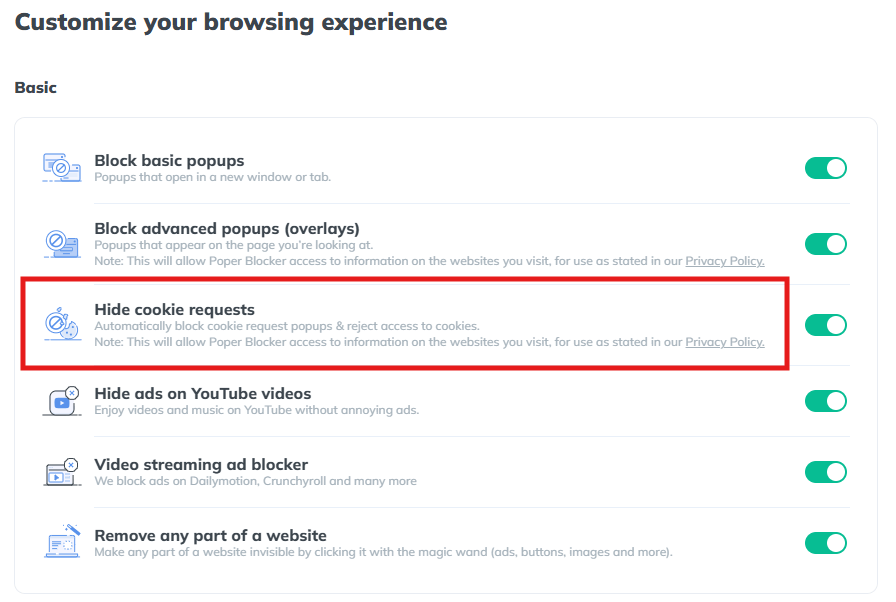
Instead of forcing you to interact with banners on every site, the tool works quietly in the background. You load a page. It does the rest.
Automatic detection of cookie banners
The moment a page loads, Poper Blocker scans it for cookie consent requests. This process runs automatically. There is nothing to configure, nothing to click, and no learning curve. You do not need to whitelist sites or adjust preferences for each domain you visit.
It simply recognizes consent banners as they appear.
Instant removal of cookie prompts
Once a banner is detected, it is removed from view. Cookie pop-ups disappear without changing the page layout or breaking site content. Text stays readable. Buttons remain usable. The site looks the way it should have from the start.
This removes visual clutter and keeps your attention on what you came to read or do.
Automatic rejection of tracking cookies
Poper Blocker goes beyond hiding banners. In the background, it automatically rejects tracking cookies by setting permissions to off. This prevents sites from collecting unnecessary data and helps users block cookies they never meant to allow in the first place.
It also removes the pressure that leads to rushed clicks on Accept All buttons.
Reduced tracking and fewer targeted ads
With tracking disabled, advertisers receive less behavioral data. Over time, this reduces the number of hyper-targeted ads that follow users from site to site. Browsing feels less monitored and more predictable.
Cleaner and uninterrupted browsing
The overall effect is simple. Fewer interruptions. No repeated choices. No constant reminders about any types of cookies. For people experiencing consent fatigue meaning real frustration, removing the prompts often solves the problem faster than managing settings on every site.
Works across Chrome, Edge, and Android
Poper Blocker works across Chrome, Edge, and Android, delivering the same uncluttered experience on desktop and mobile. Whether you browse at work or on your phone, cookie pop-ups stop getting in the way.
Escape the interruptions that drain your browsing experience
Consent fatigue has become a routine part of using the modern web, especially in regions with strict privacy rules. Every visit comes with banners to read, boxes to click, and decisions to rush through just to reach the content you came for. It slows you down, breaks concentration, and often leads to blanket consent simply to move on.
The good news is that there’s a simpler way forward. Poper Blocker removes cookie consent banners at the source and automatically rejects tracking requests in the background. You are no longer pulled into repeated prompts or forced to manage privacy choices site by site. Pages load cleanly, attention stays where it should, and data collection is reduced without extra effort.
If smoother browsing and fewer distractions matter to you, installing Poper Blocker on Chrome, Edge, or Android is a logical next step. It brings back a calmer web experience that feels usable again.
FAQs
Is blocking cookie consent banners legal?
Yes. Blocking consent banners on your own device is both legal and safe. You are simply deciding how your browser behaves and which scripts are allowed to load locally. Privacy regulations apply to websites and how they request consent, not to individuals managing their own browsing setup. In practice, you are exercising personal control, not bypassing laws.
Does Poper Blocker stop essential cookies?
No. Essential cookies remain untouched. These include cookies required for core functions like logging in, saving language preferences, or keeping items in a shopping cart. The blocker targets non-essential elements tied to tracking, analytics, and advertising, leaving site functionality intact.
Will rejecting tracking cookies affect website performance?
Usually, the opposite happens. Pages often load faster and feel less cluttered. Since tracking cookies are not required for displaying content or running basic site features, most websites continue to work exactly as expected.
How do I whitelist a site?
You can whitelist any site directly through the extension settings. This allows you to permit banners or cookies on specific domains where you prefer full access or customized behavior.
Can I still manage privacy manually if I want to?
Absolutely. You stay in control at all times. The blocker can be paused, adjusted, or disabled whenever you choose, giving you flexibility based on your browsing preferences.