Chrome Web Extension
 Edge Web Extension
 Android App
 iOS App


You’re trying to read an article, and suddenly, an overlay asks you to subscribe. Then a cookie banner. Then, an autoplay video ad in the corner. Safari on Mac has a built-in pop-up blocker, but if you’ve already turned it on and pop-ups are still appearing, you’re not doing anything wrong. The problem is that most modern ads and overlays aren’t technically “pop-ups” at all, and Safari’s native settings can’t stop them.
This guide walks you through two layers of protection: what Safari’s built-in settings can actually do, and how to use Poper Blocker, an ad & pop-up blocker for Safari, to handle everything Safari misses. Whether you’re dealing with cookie banners, newsletter gates, YouTube pre-rolls, or floating video players, there’s a fix for all of it.
Why Safari Still Shows Pop-Ups and Ads
Safari has had a basic pop-up blocking feature for years. So why are you still seeing so many interruptions?
StatCounter’s latest data puts Safari at over 5% of global desktop browser usage, ranking it third overall, a share large enough to explain why Safari-specific pop-up and ad behavior continues to be a recurring issue for Mac users.
The short answer: most of what annoys you today isn’t a traditional pop-up. The old-school pop-up was a separate browser window that launched without your permission. Browsers got good at blocking those. But the advertising and content industry adapted.
Here’s what you’re likely dealing with on modern websites:
- Overlay modals – Elements built directly into the page that dim the background and demand an action (subscribe, log in, accept cookies) before you can read anything.
- Cookie consent banners – Technically required by privacy laws, but often deliberately designed to be hard to dismiss.
- Autoplay video ads – Scripts that trigger video players with sound, often floating in a corner as you scroll.
- Newsletter pop-ups and login gates – Timed triggers that launch after you’ve been on the page for a few seconds, or when your cursor moves toward the browser bar.
Safari’s built-in blocker handles the first type, actual new-window pop-ups, reasonably well. But the rest? They’re implemented as page scripts and DOM elements, which means they’re invisible to Safari’s native filter.
Sites like major news outlets, streaming platforms, and blogs are the worst offenders. If you regularly browse those, Safari’s built-in settings alone won’t give you a clean experience. That’s where a dedicated tool comes in.
Using Safari’s Native Pop-Up Blocker
Safari’s built-in pop-up blocker is a solid first step. Here’s how to make sure it’s turned on, and how to customize it per site.
Step 1: Open Safari Settings
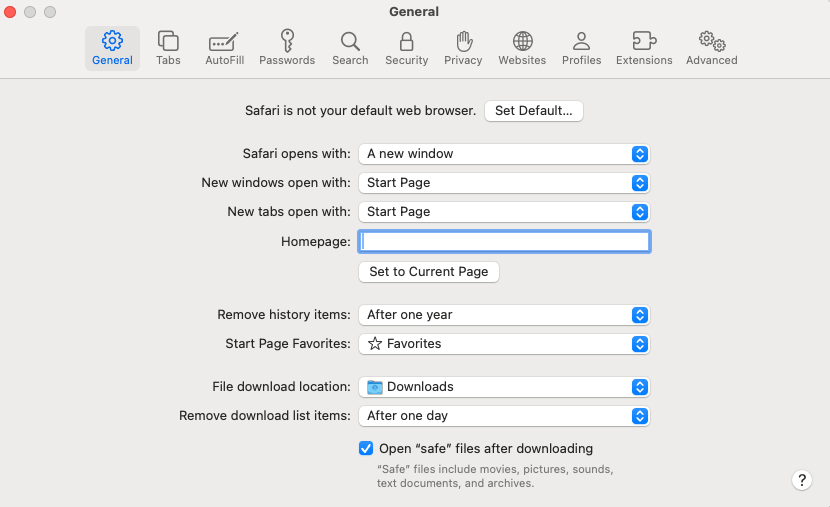
With Safari open, click Safari in the menu bar at the top of your screen, then select Settings (or press ⌘ + ,).
Step 2: Go to the Websites Tab
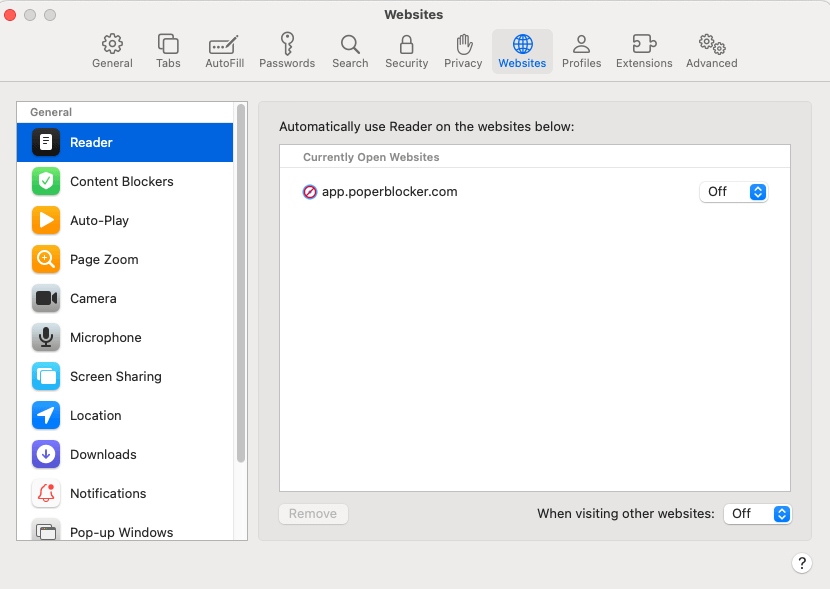
Click the Websites tab at the top of the Settings window.
Step 3: Find Pop-Up Windows
In the left sidebar, scroll down and click Pop-up Windows.
Step 4: Set the Global Default
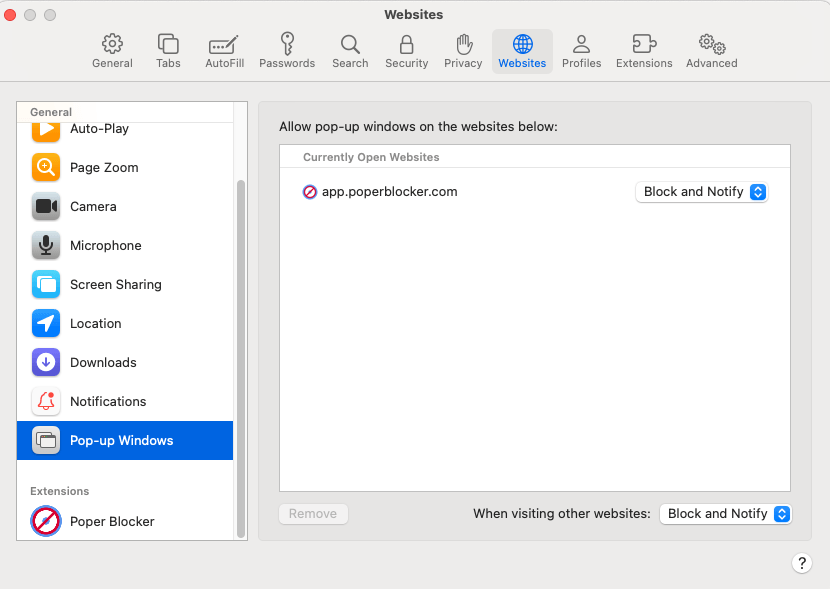
At the bottom of the window, you’ll see a dropdown labeled “When visiting other websites.” Set this to Block or Block and Notify.
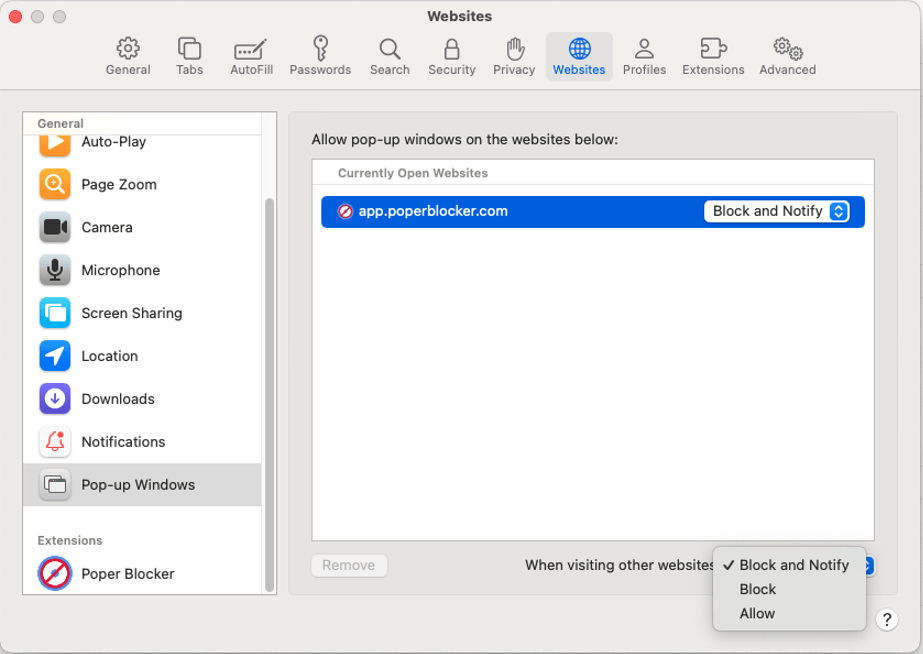
- Block silently prevents pop-ups.
- Block and Notify shows a small icon in the address bar when a pop-up is stopped, letting you allow it manually if needed.
Per-Site Rules
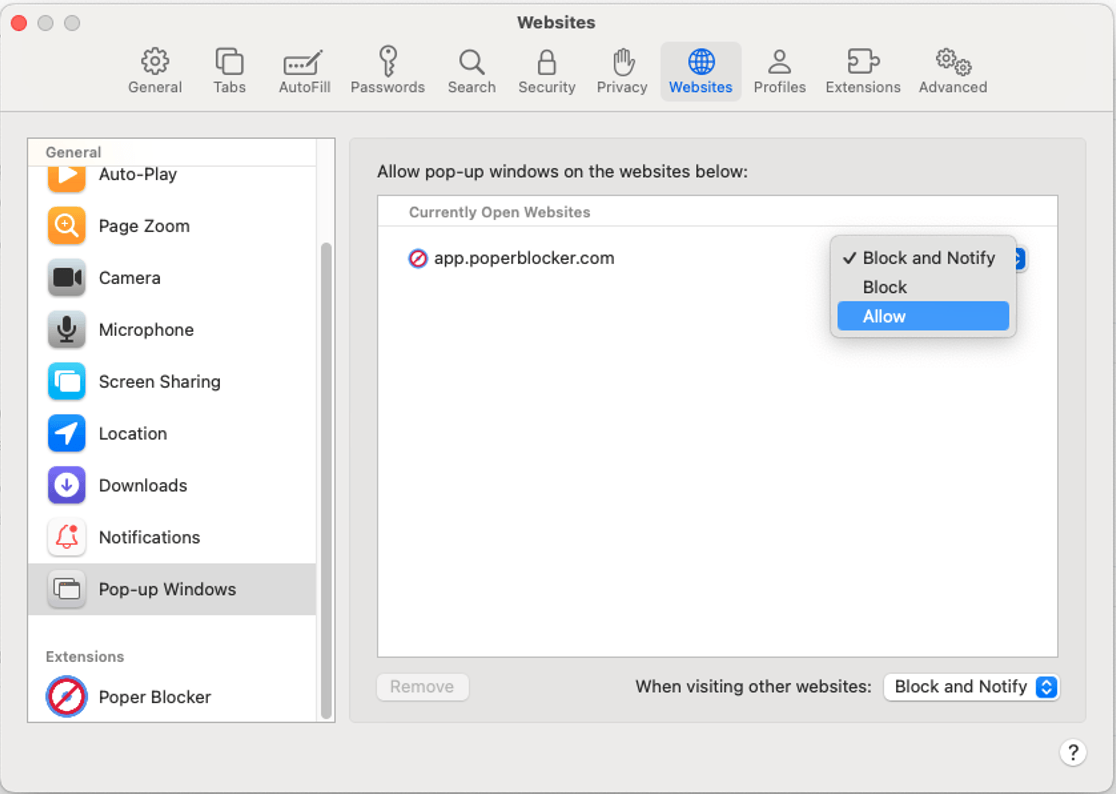
The Websites tab also lets you set rules for individual sites. If a site you trust uses pop-ups legitimately (like a banking portal opening a new window for a form), you can set that domain to Allow while keeping everything else blocked.
💡Still seeing pop-ups after turning this on?
If pop-ups keep appearing even with Safari’s blocker enabled, they’re almost certainly not traditional pop-ups. They’re overlays, modals, or ad scripts embedded in the page itself, and Safari’s settings have no effect on those. You’ll need a dedicated extension like Poper Blocker to remove them.
Use Poper Blocker to Stop Pop-Ups & Ads on Safari for Mac
For everything Safari can’t block natively, Poper Blocker is the most complete solution available as a Safari extension for Mac.
What Poper Blocker Blocks
Poper Blocker goes well beyond the basics. Once installed, it handles:
- Blocks all pop-ups, including the modern scripted overlays that bypass Safari’s settings
- Blocking Ads across all sites, banner ads, sidebar ads, and inline content ads
- Video ads, on YouTube, Dailymotion, Crunchyroll, and other video platforms
- Cookie consent banners, automatically dismissed so they don’t interrupt your reading
- Newsletter pop-ups and subscription gates, the timed overlays that appear after a few seconds on blogs and media sites
- Login walls and floating video players, sticky elements that follow you as you scroll
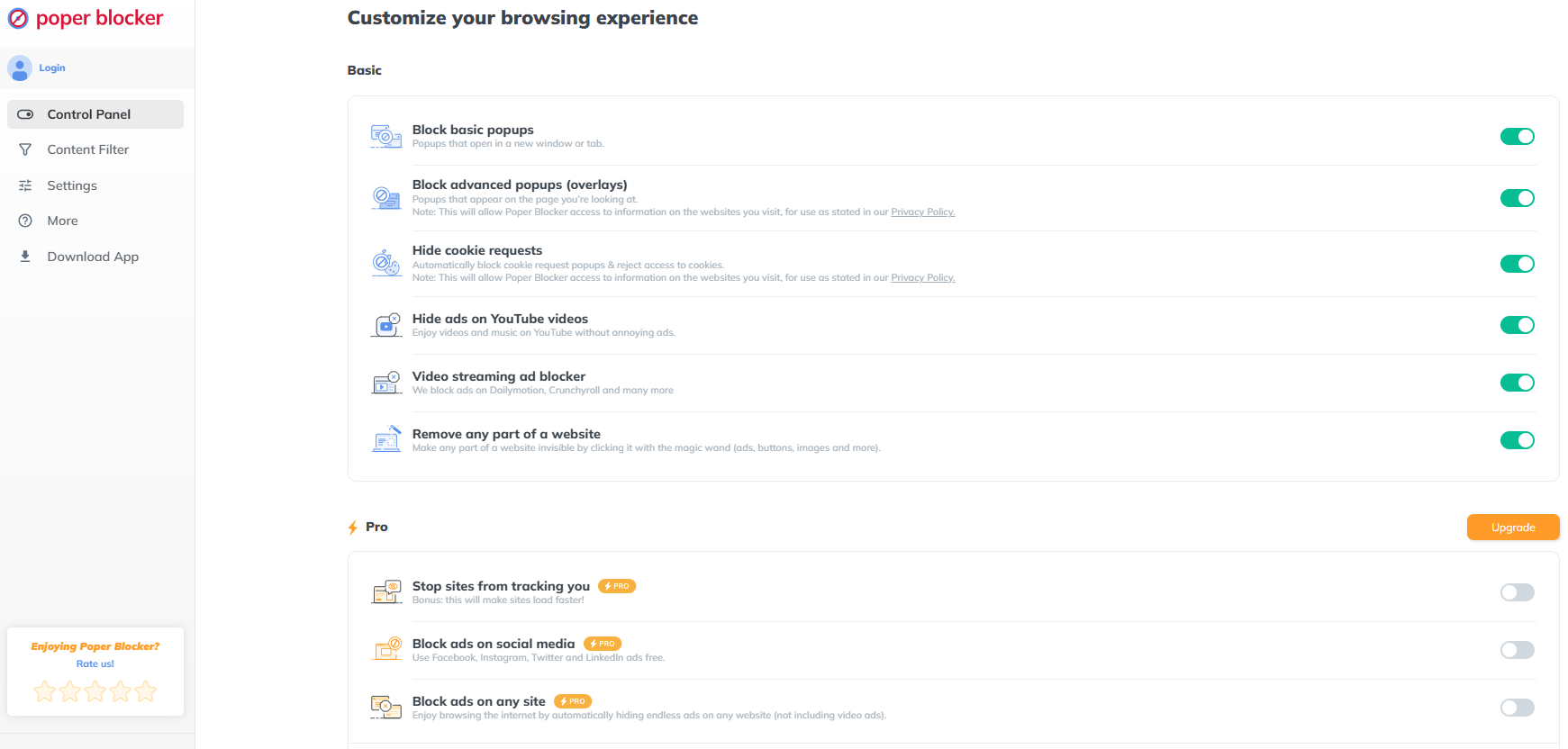
This covers essentially everything that makes browsing feel slow, cluttered, and frustrating.
How to Install Poper Blocker on Safari Mac
Getting set up takes about two minutes:
- Open Safari and go to the Mac App Store.
- Search for Poper Blocker and click Get to install.
- Once installed, go to Safari → Settings → Extensions.
- Find Poper Blocker in the list and make sure the checkbox is enabled.
- Click on Poper Blocker in the extensions list and permit it to run on websites.
- Or you can just click here 🙂
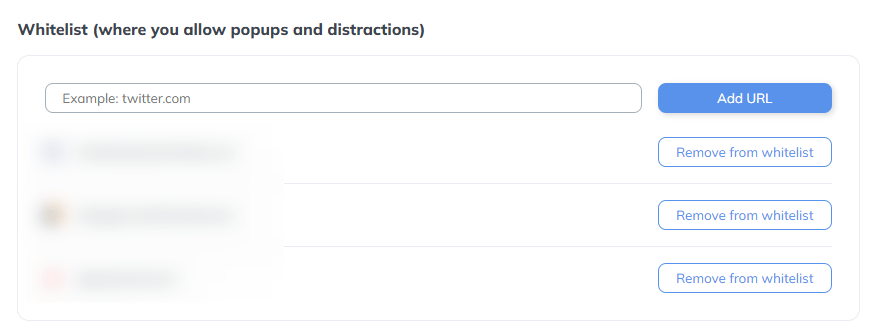
That’s it. Poper Blocker starts working immediately. You don’t need to configure anything, it’s effective out of the box, though you can fine-tune settings if you want to whitelist certain sites.
Want Protection on iPhone Too?
Poper Blocker also has an iPhone app, so if you want the same clean browsing experience on Safari mobile, you can block ads on iPhone using the same tool. One solution across both devices.
Clean Safari browsing on Mac, finally
Safari’s built-in pop-up blocker handles the basics, and it’s worth turning on if you haven’t already. But for the full range of ads, overlays, cookie banners, video ads, and scripted interruptions that define modern web browsing, you need a dedicated extension.
Poper Blocker fills every gap Safari leaves open: it blocks ads across all sites, kills video pre-rolls on YouTube and other platforms, dismisses cookie banners, and removes the overlays and newsletter gates that slow you down before you’ve even started reading.
Install Poper Blocker for Safari to enjoy distraction-free browsing on your Mac.
FAQs
Why does Safari show pop-ups even when the pop-up blocker is on?
Safari’s pop-up blocker only stops traditional pop-ups, new browser windows, or tabs that open without your permission. Most modern ads and interruptions are overlays and scripts embedded directly into the page. Safari can’t detect or block these. A dedicated extension like Poper Blocker is designed specifically to catch them.
How do I block ads on Safari for Mac?
Safari doesn’t have a native ad blocker. To block ads, you’ll need to install a Safari extension. Poper Blocker is one of the most comprehensive options, it blocks display ads, video ads, and overlays across all sites and installs directly from the Mac App Store.
Where is the block pop-ups setting in Safari on Mac?
Safari keeps its pop-up controls tucked inside the Websites menu, not the Privacy tab where most people expect to find it. Open Safari, click Safari in the top menu bar, then go to Settings and choose the Websites tab. From there, select Pop-up Windows in the sidebar. You can block pop-ups entirely or allow them for specific sites you trust. This is also where Safari shows you which sites have already tried to open new windows.
How do I get rid of pop-ups on Safari that look like fake virus warnings?
Don’t click anything inside the page, including fake close buttons. Apple has warned that some ads are specifically designed to scare users into clicking. The safest option is to close the entire tab or quit Safari. If the message keeps returning, check your installed extensions (Safari → Settings → Extensions) and remove anything you don’t recognize.
How do I stop cookie banners from appearing on Safari?
Cookie banners aren’t blocked by Safari’s native settings. Poper Blocker automatically detects and dismisses cookie consent banners so they disappear without you having to interact with them.
Can I block pop-ups on specific websites only?
Yes. Safari’s built-in Websites settings (Safari → Settings → Websites → Pop-up Windows) let you set per-site rules. You can allow pop-ups on sites you trust while blocking them everywhere else. Poper Blocker also offers per-site whitelisting if you want to allow ads on specific sites you want to support.
Does Poper Blocker work on Mac and iPhone?
Yes. Poper Blocker is available as a Safari extension for Mac and as an iPhone app for Safari on iOS. If you want consistent ad and pop-up blocking across both devices, you can use Poper Blocker on both.
What if pop-ups on Mac won’t go away no matter what?
Persistent pop-ups that survive both Safari’s settings and an extension can point to adware or unwanted software on your machine. Check your installed Safari extensions and remove anything unfamiliar, review your Applications folder for software you don’t remember installing, and make sure macOS is up to date. If the problem continues, Apple’s support page for unwanted software is a good next step.