Chrome Web Extension
 Edge Web Extension
 Android App
 iOS App


You’re trying to read an article, and suddenly, an overlay asks you to subscribe. Then a cookie banner. Then, an autoplay video ad in the corner. Safari on Mac has a built-in pop-up blocker, but if you’ve already turned it on and pop-ups are still appearing, you’re not doing anything wrong. The problem is that most modern ads and overlays aren’t technically “pop-ups” at all, and Safari’s native settings can’t stop them.
This guide walks you through two layers of protection: what Safari’s built-in settings can actually do, and how to use Poper Blocker, an ad & pop-up blocker for Safari, to handle everything Safari misses. Whether you’re dealing with cookie banners, newsletter gates, YouTube pre-rolls, or floating video players, there’s a fix for all of it.
Why Safari Still Shows Pop-Ups and Ads
Safari has had a basic pop-up blocking feature for years. So why are you still seeing so many interruptions?
StatCounter’s latest data puts Safari at over 5% of global desktop browser usage, ranking it third overall, a share large enough to explain why Safari-specific pop-up and ad behavior continues to be a recurring issue for Mac users.
The short answer: most of what annoys you today isn’t a traditional pop-up. The old-school pop-up was a separate browser window that launched without your permission. Browsers got good at blocking those. But the advertising and content industry adapted.
Here’s what you’re likely dealing with on modern websites:
- Overlay modals – Elements built directly into the page that dim the background and demand an action (subscribe, log in, accept cookies) before you can read anything.
- Cookie consent banners – Technically required by privacy laws, but often deliberately designed to be hard to dismiss.
- Autoplay video ads – Scripts that trigger video players with sound, often floating in a corner as you scroll.
- Newsletter pop-ups and login gates – Timed triggers that launch after you’ve been on the page for a few seconds, or when your cursor moves toward the browser bar.
Safari’s built-in blocker handles the first type, actual new-window pop-ups, reasonably well. But the rest? They’re implemented as page scripts and DOM elements, which means they’re invisible to Safari’s native filter.
Sites like major news outlets, streaming platforms, and blogs are the worst offenders. If you regularly browse those, Safari’s built-in settings alone won’t give you a clean experience. That’s where a dedicated tool comes in.
Using Safari’s Native Pop-Up Blocker
Safari’s built-in pop-up blocker is a solid first step. Here’s how to make sure it’s turned on, and how to customize it per site.
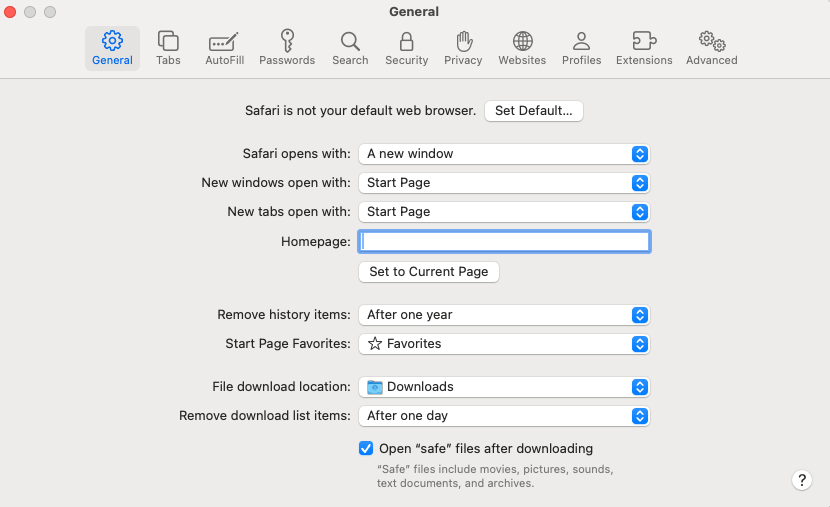
Step 1: Open Safari Settings
With Safari open, click Safari in the menu bar at the top of your screen, then select Settings (or press ⌘ + ,).
Step 2: Go to the Websites Tab
Click the Websites tab at the top of the Settings window.
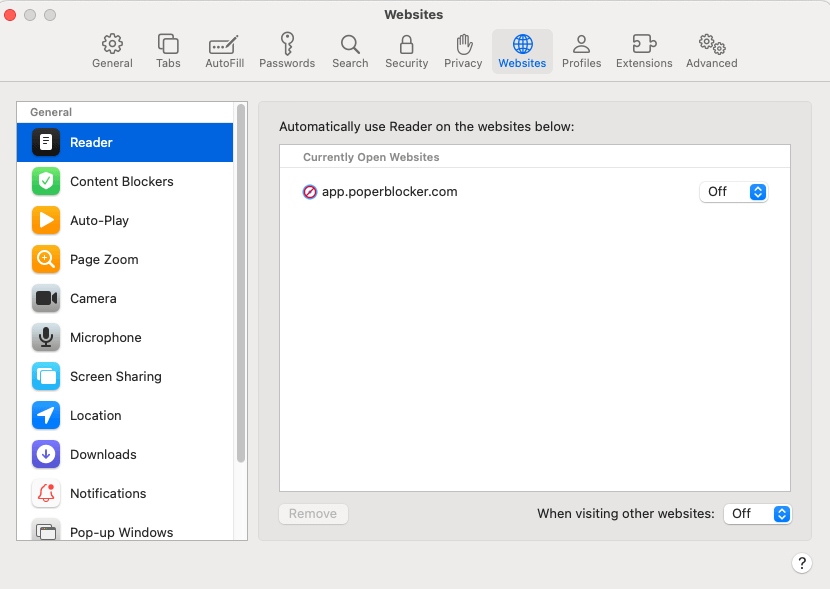
Step 3: Find Pop-Up Windows
In the left sidebar, scroll down and click Pop-up Windows.
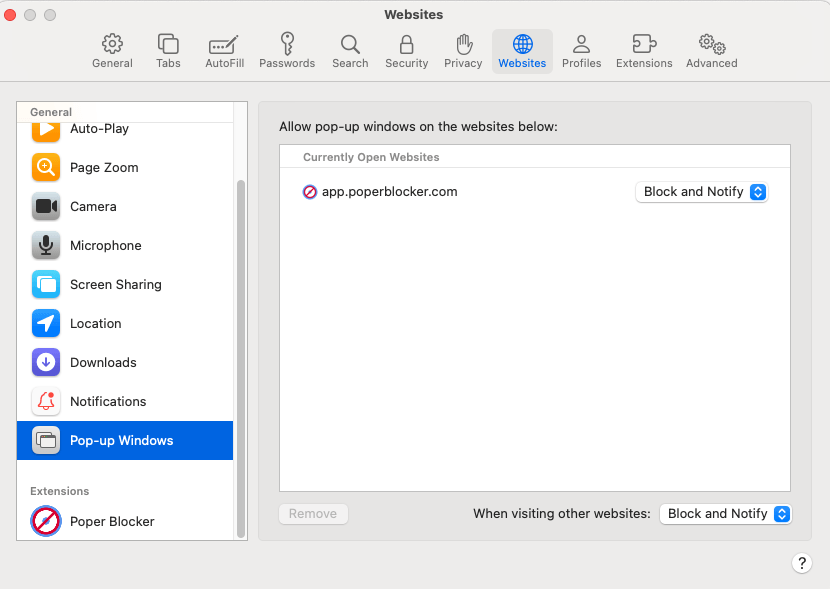
Step 4: Set the Global Default
At the bottom of the window, you’ll see a dropdown labeled “When visiting other websites.” Set this to Block or Block and Notify.
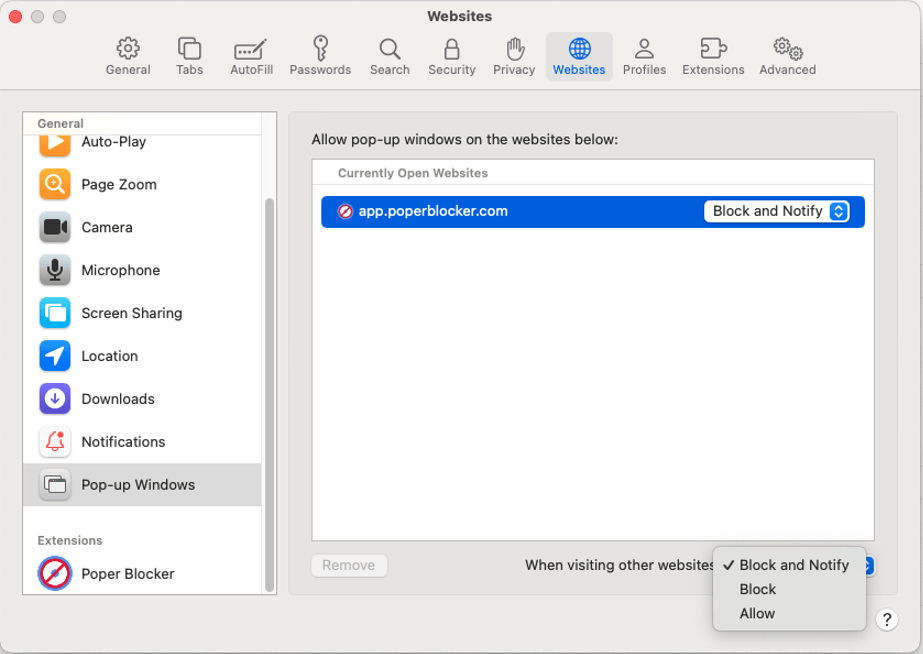
- Block silently prevents pop-ups.
- Block and Notify shows a small icon in the address bar when a pop-up is stopped, letting you allow it manually if needed.
Per-Site Rules
The Websites tab also lets you set rules for individual sites. If a site you trust uses pop-ups legitimately (like a banking portal opening a new window for a form), you can set that domain to Allow while keeping everything else blocked.
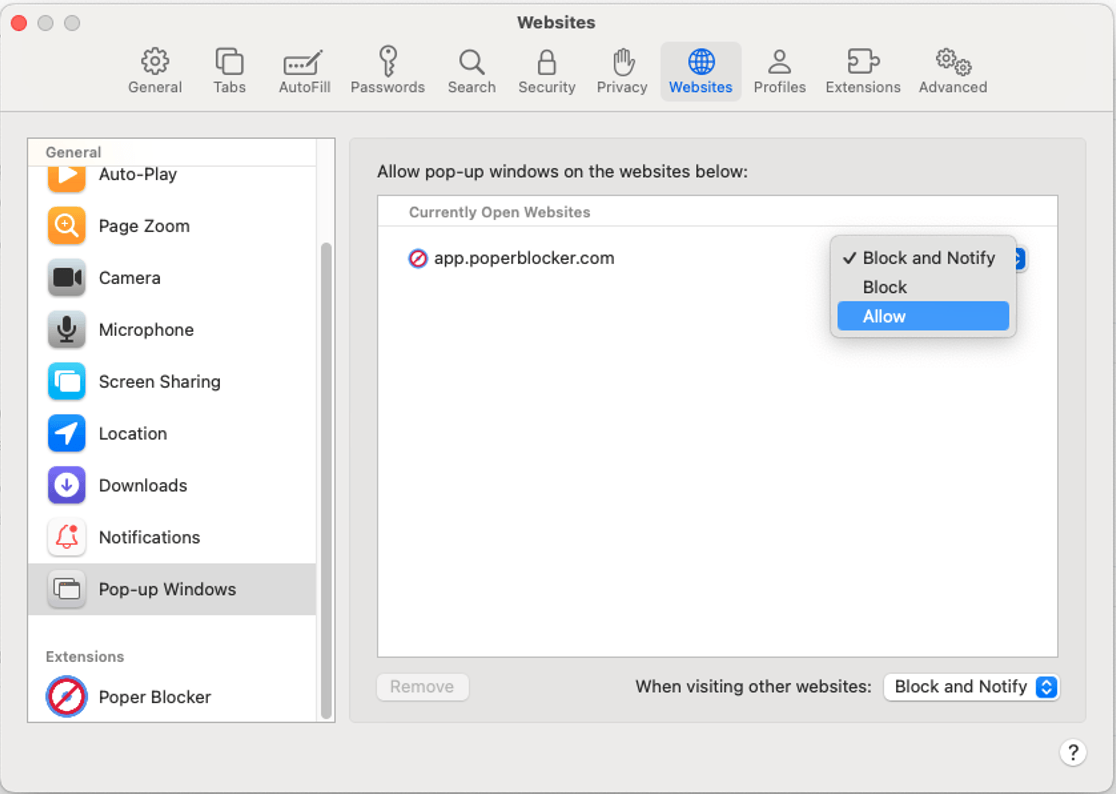
💡Still seeing pop-ups after turning this on?
If pop-ups keep appearing even with Safari’s blocker enabled, they’re almost certainly not traditional pop-ups. They’re overlays, modals, or ad scripts embedded in the page itself, and Safari’s settings have no effect on those. You’ll need a dedicated extension like Poper Blocker to remove them.
Use Poper Blocker to Stop Pop-Ups & Ads on Safari for Mac
For everything Safari can’t block natively, Poper Blocker is the most complete solution available as a Safari extension for Mac.
What Poper Blocker Blocks
Poper Blocker goes well beyond the basics. Once installed, it handles:
- Blocks all pop-ups, including the modern scripted overlays that bypass Safari’s settings
- Blocking Ads across all sites, banner ads, sidebar ads, and inline content ads
- Video ads, on YouTube, Dailymotion, Crunchyroll, and other video platforms
- Cookie consent banners, automatically dismissed so they don’t interrupt your reading
- Newsletter pop-ups and subscription gates, the timed overlays that appear after a few seconds on blogs and media sites
- Login walls and floating video players, sticky elements that follow you as you scroll
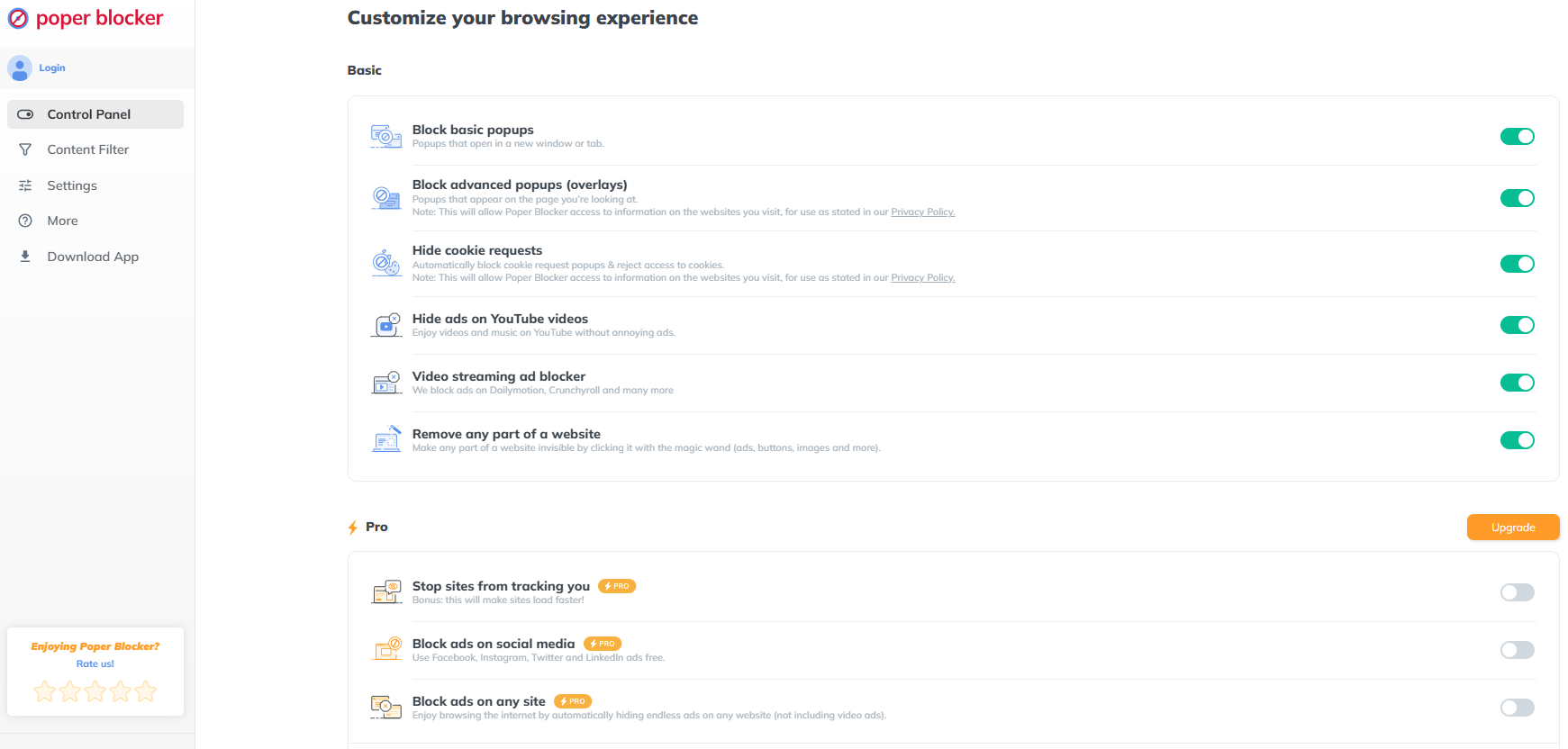
This covers essentially everything that makes browsing feel slow, cluttered, and frustrating.
How to Install Poper Blocker on Safari Mac
Getting set up takes about two minutes:
- Open Safari and go to the Mac App Store.
- Search for Poper Blocker and click Get to install.
- Once installed, go to Safari → Settings → Extensions.
- Find Poper Blocker in the list and make sure the checkbox is enabled.
- Click on Poper Blocker in the extensions list and permit it to run on websites.
- Or you can just click here 🙂
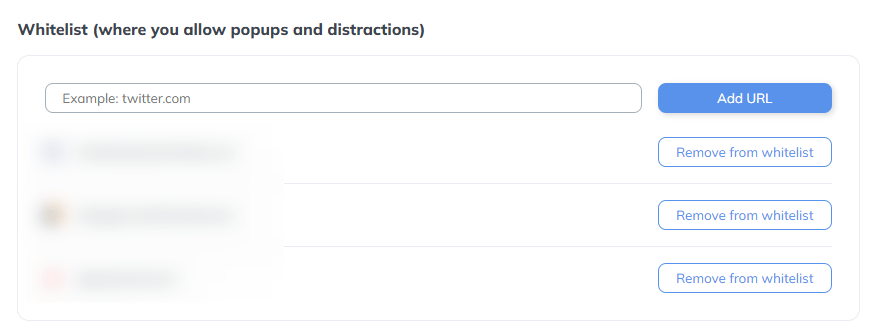
That’s it. Poper Blocker starts working immediately. You don’t need to configure anything, it’s effective out of the box, though you can fine-tune settings if you want to whitelist certain sites.
Want Protection on iPhone Too?
Poper Blocker also has an iPhone app, so if you want the same clean browsing experience on Safari mobile, you can block ads on iPhone using the same tool. One solution across both devices.
Clean Safari browsing on Mac, finally
Safari’s built-in pop-up blocker handles the basics, and it’s worth turning on if you haven’t already. But for the full range of ads, overlays, cookie banners, video ads, and scripted interruptions that define modern web browsing, you need a dedicated extension.
Poper Blocker fills every gap Safari leaves open: it blocks ads across all sites, kills video pre-rolls on YouTube and other platforms, dismisses cookie banners, and removes the overlays and newsletter gates that slow you down before you’ve even started reading.
Install Poper Blocker for Safari to enjoy distraction-free browsing on your Mac.
FAQs
Why does Safari show pop-ups even when the pop-up blocker is on?
Safari’s pop-up blocker only stops traditional pop-ups, new browser windows, or tabs that open without your permission. Most modern ads and interruptions are overlays and scripts embedded directly into the page. Safari can’t detect or block these. A dedicated extension like Poper Blocker is designed specifically to catch them.
How do I block ads on Safari for Mac?
Safari doesn’t have a native ad blocker. To block ads, you’ll need to install a Safari extension. Poper Blocker is one of the most comprehensive options, it blocks display ads, video ads, and overlays across all sites and installs directly from the Mac App Store.
Where is the block pop-ups setting in Safari on Mac?
Safari keeps its pop-up controls tucked inside the Websites menu, not the Privacy tab where most people expect to find it. Open Safari, click Safari in the top menu bar, then go to Settings and choose the Websites tab. From there, select Pop-up Windows in the sidebar. You can block pop-ups entirely or allow them for specific sites you trust. This is also where Safari shows you which sites have already tried to open new windows.
How do I get rid of pop-ups on Safari that look like fake virus warnings?
Don’t click anything inside the page, including fake close buttons. Apple has warned that some ads are specifically designed to scare users into clicking. The safest option is to close the entire tab or quit Safari. If the message keeps returning, check your installed extensions (Safari → Settings → Extensions) and remove anything you don’t recognize.
How do I stop cookie banners from appearing on Safari?
Cookie banners aren’t blocked by Safari’s native settings. Poper Blocker automatically detects and dismisses cookie consent banners so they disappear without you having to interact with them.
Can I block pop-ups on specific websites only?
Yes. Safari’s built-in Websites settings (Safari → Settings → Websites → Pop-up Windows) let you set per-site rules. You can allow pop-ups on sites you trust while blocking them everywhere else. Poper Blocker also offers per-site whitelisting if you want to allow ads on specific sites you want to support.
Does Poper Blocker work on Mac and iPhone?
Yes. Poper Blocker is available as a Safari extension for Mac and as an iPhone app for Safari on iOS. If you want consistent ad and pop-up blocking across both devices, you can use Poper Blocker on both.
What if pop-ups on Mac won’t go away no matter what?
Persistent pop-ups that survive both Safari’s settings and an extension can point to adware or unwanted software on your machine. Check your installed Safari extensions and remove anything unfamiliar, review your Applications folder for software you don’t remember installing, and make sure macOS is up to date. If the problem continues, Apple’s support page for unwanted software is a good next step.
You open a tab for something quick, a recipe, a headline, a bit of research for work. Before the page even settles, a banner slides in, a pop-up wipes out the text, and a video auto-plays at full volume. You close one, another appears. A few minutes later your phone feels warm, the page drags, and whatever you meant to do has slipped away. That scene is painfully familiar for almost anyone who spends time online. Too many ads turn simple tasks into noisy, slow, frustrating chores.
This kind of overload hits on two fronts. It chips away at your focus with constant interruptions, and it quietly breaks the basics that should feel effortless: a page that loads in seconds, a short clip that plays without stuttering, a calm scroll through your feed, or a work tab that stays usable instead of lagging. Attention fatigue sets in quickly and it is hard to shake.
Here, you will see what is going on behind that clutter, what it costs you in time, energy, and privacy, and what you can do about it. Near the end, I will walk through a reliable fix many people rely on: Poper Blocker.
What is ad overload?
The term ad overload describes what happens when advertising takes center stage and the actual content gets pushed to the edges. Instead of calmly reading, watching, or scrolling, you feel dragged from one prompt to the next, with the thing you came for turning into background noise.
This did not appear out of thin air. Most of the content people use every day is “free” because ads pay for hosting, writers, creators, and platforms. That financial setup creates a strong incentive to squeeze in more placements per page, per scroll, and per minute of video. Data monetization adds another layer. Every view, pause, and tap can feed into an auction system that decides which message you see next. On top of that, platforms compete for attention, so they roll out formats designed to keep you tapping and scrolling for longer.
Algorithmic targeting plays a big part as well. Many systems are built to make ads feel relevant, which is where personalized ads come from. Then you have commercial partnerships that blur the line between content and promotion. Influencer deals, creator sponsorships, and “native” formats weave marketing into posts that look like regular updates. On mobile, the pressure is even more obvious. Smaller screens leave less room for the actual content, and many apps lean heavily on ads instead of charging you a subscription fee.
The end result is a stack of interruptions that often arrive in sequence. You close a cookie banner, a newsletter wall appears, then a sticky video player follows you down the page. Streaming platforms and short-form video apps add their own layer, with ad breaks at the start, in the middle, and at the end of what you watch.
Here are common types of ads people run into every day:
- Pop-ups and pop-unders that open new tabs or block the page
- Video ads such as pre-roll, mid-roll, and post-roll
- Overlays that sit on top of a post or video player
- Auto-playing ads that start without a clear tap
- Sponsored posts that mix into social feeds
When the experience starts to feel like a hurdle course, it crosses into excessive advertising.
The hidden costs of too much advertising
Slow page performance and data usage
Every extra ad unit is one more script, image, or video competing with the page you actually came for. On mobile, that often shows up as delayed taps, choppy scrolling, frozen frames, and faster battery drain.
Pop-unders and overlays do more than annoy you. They can slow down play speed, add extra load time to the browser, and make a simple session feel heavy. Now add volume to that experience: people are exposed to an estimated 4,000 to 10,000 ads a day. You are not imagining it if your phone feels tired before you do.
Reduced focus and increased stress
Interruptions cut straight through your concentration. In one study summary, four in 10 consumers said they check their phone once “every few minutes.” The same research found that website ads were most often described as excessive (32%), distracting (31%), and intrusive (27%).
If you are trying to finish a report, revise for an exam, or simply unwind after work, that constant stream of visual and audio nudges adds friction. Over time, it raises stress levels, makes tasks drag on, and turns basic browsing into mental clutter you did not ask for.
Negative effects on user trust
When a page is packed with banners, pop-ups, and animated boxes, people instinctively pull back. It becomes harder to tell which element belongs to the site and which one might be misleading or unsafe.
Trust also drops when ads miss the mark. In the same survey, 37% of consumers said they receive ads they believe are irrelevant. That frustration only grows with ads on news sites, where you are actively looking for clear information, not random pitches that hijack the layout.
Blocked content and frustrating interruptions
Some overlays lock the article until you accept cookies, hand over your email, or agree to push notifications. Video sessions suffer too. In that same survey, 53% of people said they skipped a video ad in the past week.
Once or twice, it feels like a small interruption. When it happens on almost every page or clip, it stops feeling like a short break and starts to feel like a wall between you and what you wanted to see.
Higher bounce rates for websites
Users leave fast when a page is slow, cluttered, or blocked. That hurts genuinely interested readers, and it hurts publishers who rely on repeat visits. Creators lose out as well because annoyed viewers are less likely to stick around for the content that matters.
Over time, this can turn into a brand issue. More than half (52%) of surveyed consumers said overexposure to ads was most likely to negatively impact their perception of a brand.
How Poper Blocker solves the ad overload
If your browser feels crowded with popups, overlays, and random prompts, Poper Blocker acts as a quiet doorman. This ad blocker’s main job is simple: keep the most disruptive formats away from your screen so you can scroll, read, and watch in peace. Instead of spreading itself thin across every type of ad, it concentrates on the usual culprits that ruin articles and streams: popups, popunders, and full-page overlays.
Once installed, it keeps a low profile. You will see a small, discreet notification only when something has been blocked. No constant alerts or long status messages.
Ad blocker (desktop Chrome and Edge)
On desktop, Poper Blocker is a free extension for Chrome and Edge that targets intrusive pop-ups and overlays and cleans up cookie prompts and similar clutter. You do not have to build complex rule lists or study filter syntax. Add it to your browser, pin the icon, and let it handle the annoying stuff while you work, browse the news, or compare prices.
If a site throws multiple popups at you or stacks consent banners on top of the page, Poper Blocker steps in, clears them away, and leaves the content in view.
Block ads on YouTube (desktop and Android)
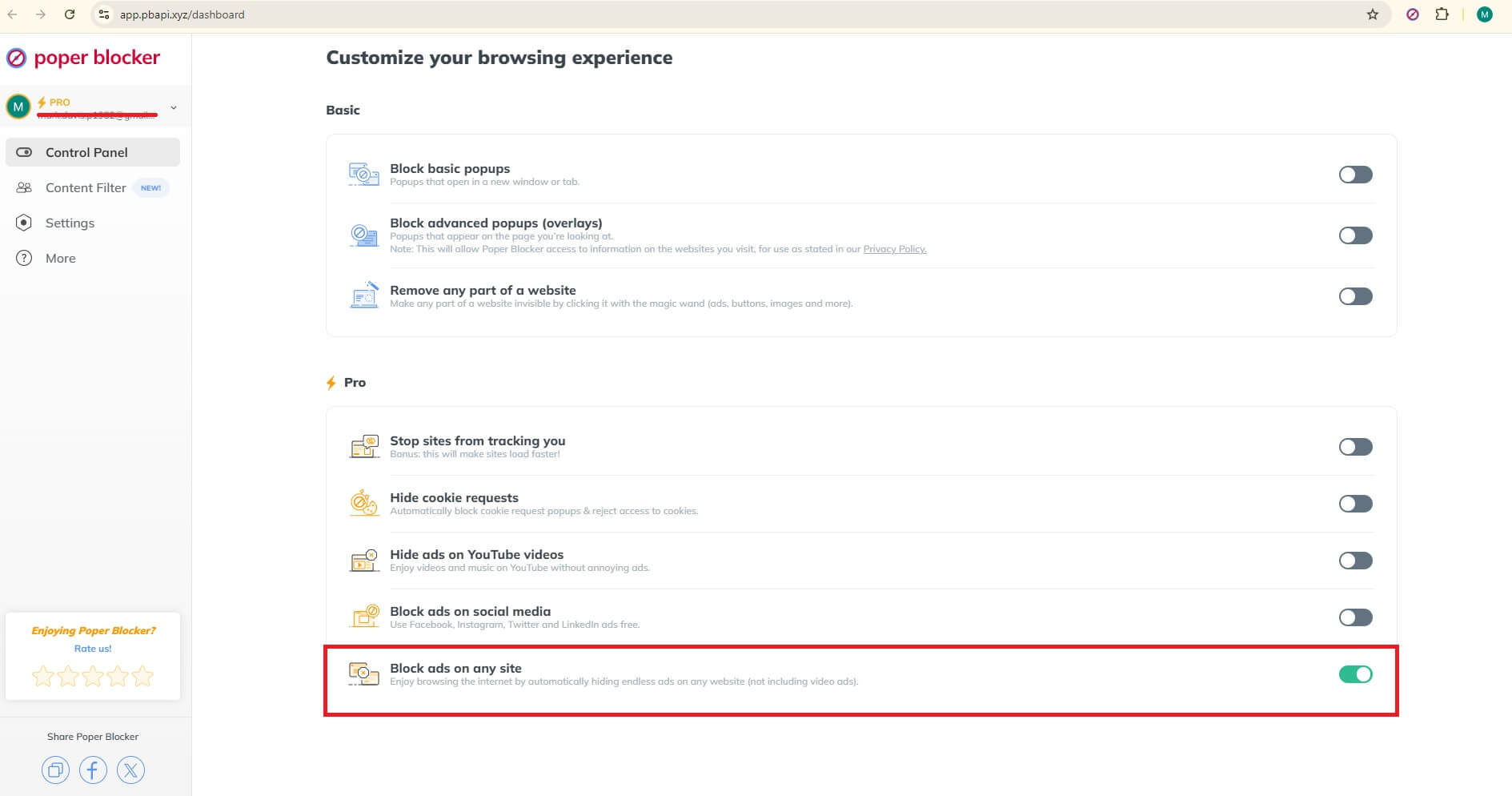
If you watch a lot of YouTube on a desktop, our YouTube ad blocker gives you specific control for that. From the menu, you can turn on the “Hide ads on YouTube videos” option. The setup of Blocking YouTube ads takes a few clicks: install, pin, open the menu, flip the switch.
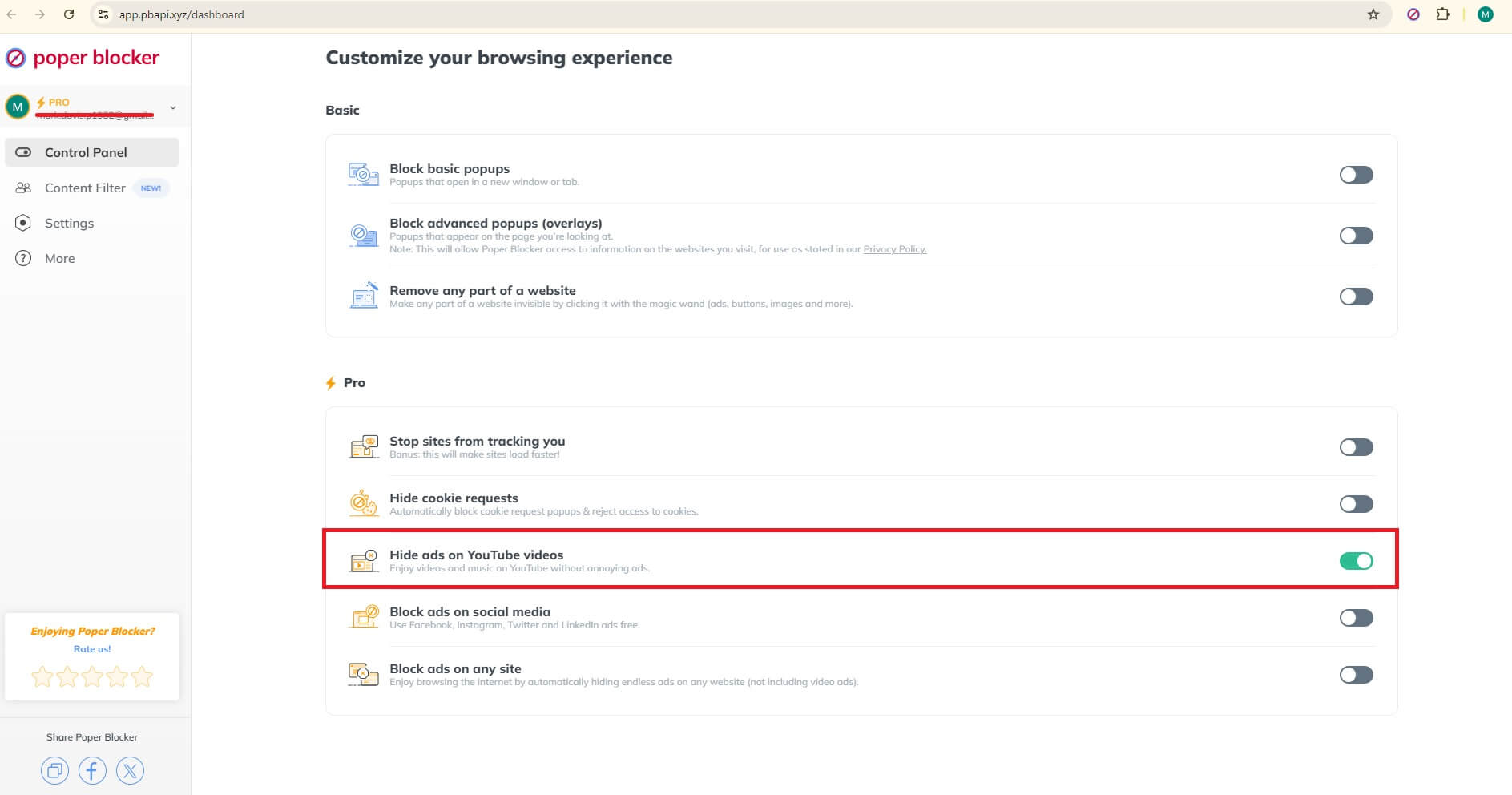
On Mobile, simply find a video you want to watch on YouTube, tap the share button, and select the Poper Blocker app. The video will launch in our built-in YouTube player, where most ads are blocked, so you can watch with fewer interruptions. Plus, you can keep listening to videos while using other apps or when your screen is off.
Social media filters
Poper Blocker also offers a simple way to tune social feeds. You can hide posts that contain specific words, which lowers the volume of sponsored noise, repetitive topics, or anything you prefer to avoid during a quick scroll.
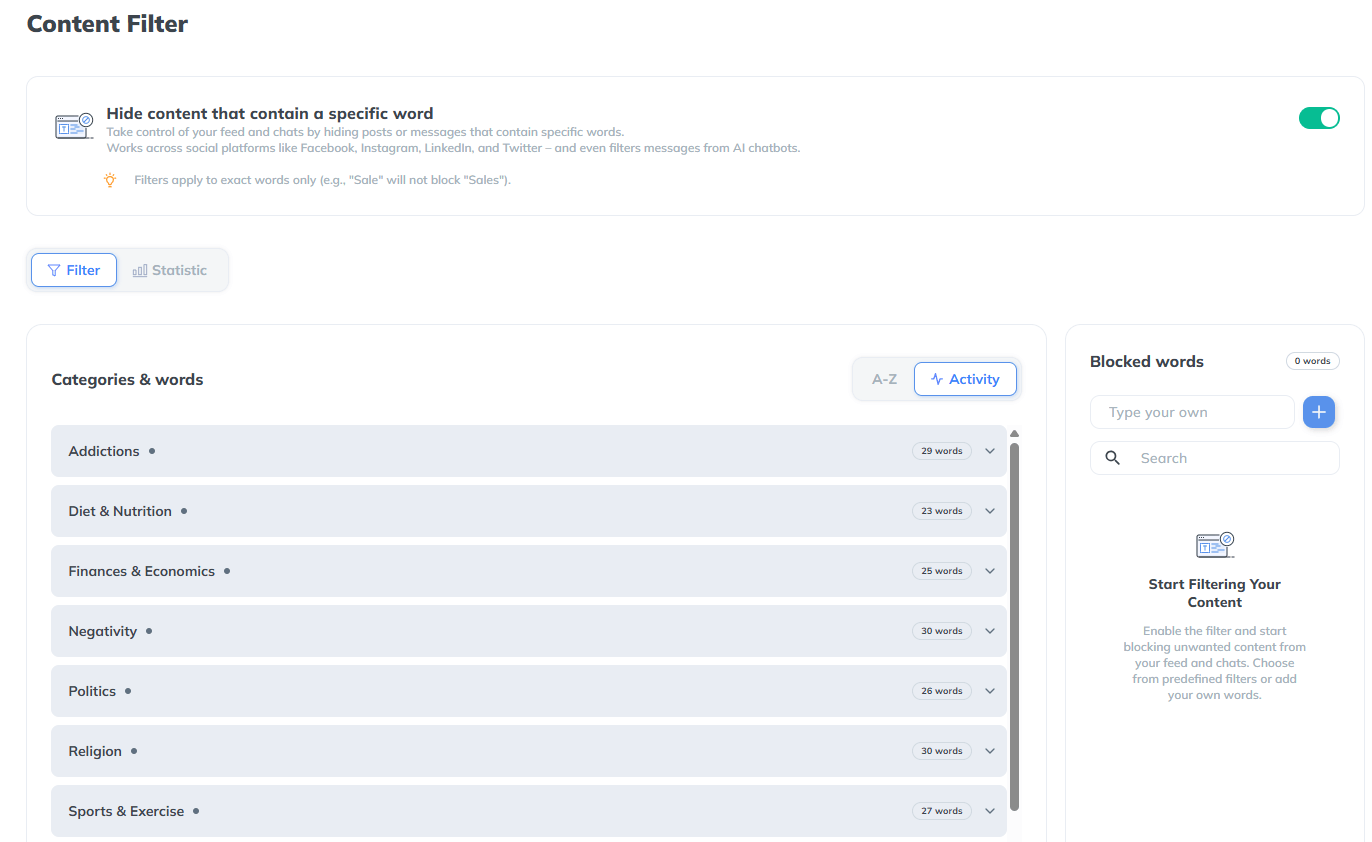
This works across major platforms:
Cross-platform support
Poper Blocker is available on Chrome and Edge on desktop, with the Android app providing cross-browser coverage on mobile. That means you can keep the same protection when you switch between popular browsers.
Works on desktop, Android and iOS
If you move between laptop, phone, and tablet, the general advice stays the same. Use the desktop extension where it is supported, install the Android app on compatible phones, and rely on built-in browser tools on iOS to cut down on popups and redirects while you surf.
Fast, lightweight, user-friendly
Behind the scenes, Poper Blocker leans on a large user community. More than 2 million people send reports every day, and that stream of feedback helps the extension keep pace with new popup tricks on popular sites.
No configuration headaches, installs in seconds
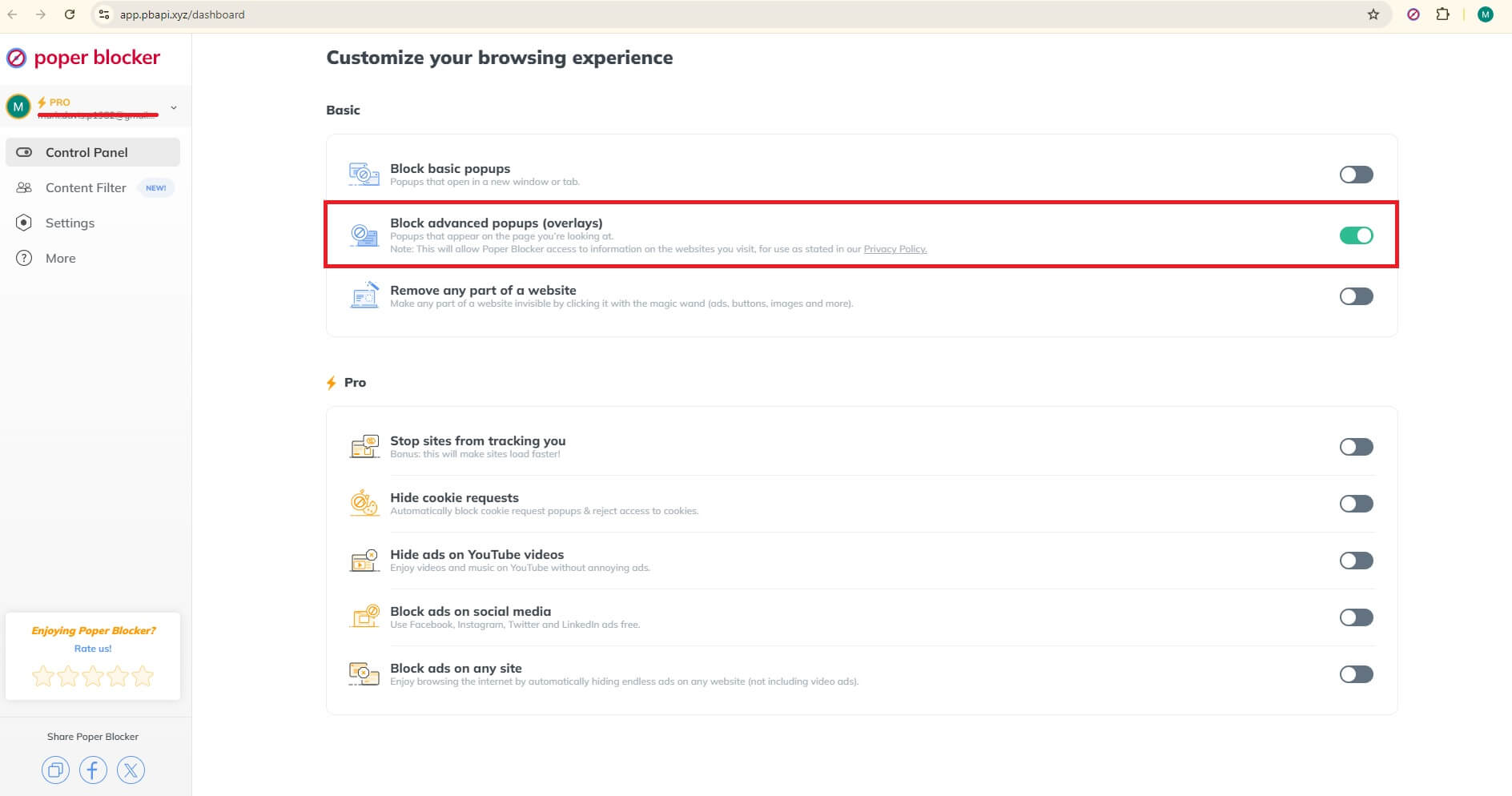
Installation is quick and the everyday controls stay simple. For streaming and other popup-heavy sites, the extension menu offers clear toggles such as “Block basic popups” and “Block advanced popups (overlays).” Set those once, close the menu, and let the tool stay quiet in the background while you watch or browse.
Ready for a quieter web? Try Poper Blocker
Tired of feeling ambushed every time you open a new tab? Pop ups, auto-playing clips, and mid-video interruptions turn simple tasks into little battles. The problem is not just annoying, it eats into your time, attention, and energy in ways you can actually measure.
If you want calmer sessions for work, school, social media, or streaming, install Poper Blocker. It cuts out those annoying overlays and surprise windows so pages load cleaner and video sessions feel smoother. Browsing becomes less draining and more predictable. Start on desktop, then add it on Android if you watch a lot on your phone, and keep your browser settings aligned on your other devices. If you want to move quickly, begin with the place that bothers you most – YouTube, your go-to social feed, or that streaming site you use every night – then roll it out everywhere else.
FAQs
Why do some sites feel “heavier” than others?
Some pages carry more baggage than they let on. Extra ad scripts, tracking pixels, autoplay video players all fire at once. Each one adds another request, more memory usage, and extra CPU work in the background. On slower connections, that pileup causes visible pauses. Stack multiple ad placements together and the slowdown becomes hard to miss. On mobile, it also chews through data faster than most people expect.
How do I know if pop-ups are coming from a site or from my device?
If pop-ups only show up on one site, the source is usually that site’s configuration. When they appear everywhere, across unrelated pages, the problem is closer to home. Adware, a questionable extension, or a permission you forgot about are common causes. Remove extensions you do not recognize, scan the device, review notification permissions, and reset browser settings. Still happening? Update the browser and test with a fresh profile to narrow it down.
What is the best way to support creators without watching every ad?
Ads are only one revenue stream. Many creators rely on memberships, merch, Patreon, tips, and affiliate links. Interaction helps too. Likes, comments, and shares improve visibility and discovery. If ads are acceptable in moderation, whitelist a few channels or sites you trust. A paid subscription also goes a long way. The idea is simple: support where you choose, limit the rest, and keep your attention where it matters.
Why do video platforms keep inserting more ad breaks?
Ad breaks equal revenue. Longer watch time means more inventory to sell. Short-form viewing habits push platforms to monetize every minute they can. At the same time, privacy changes reduce tracking precision, so platforms compensate with additional slots. For viewers, that translates into more interruptions during the same session. For heavy watchers, the effect compounds quickly.
What should I do if an overlay blocks the article until I click something?
Ignore the big, flashy buttons. Look for a small close icon, a subtle “continue” link, or the visible page underneath the overlay. If it keeps reappearing, clear site data for that domain and reload. When a site stays aggressive, close the tab and move on to another source. Poper Blocker can stop recurring overlays so the problem does not repeat next time.
You open a page because you want answers. Maybe it’s an article, a product review, or a quick video. Instead, your screen gets hijacked. An email form slides in. A discount box blocks the text. Close that one, and another one appears. Miss the tiny X? You’re redirected somewhere random. Sound familiar?
This is everyday browsing now, especially on mobile, slower devices, and ad-heavy sites.
This is also where the confusion begins around what a pop-up is vs an overlay. The terms often get lumped together, but they are not the same thing. They behave differently, interrupt users in different ways, and come with different consequences for usability, performance, and search visibility.
In this guide, we’re going to explain how pop-ups and overlays actually work, why the difference matters, and how Poper Blocker can be your tool for cleaning up the mess on your desktop and mobile.
What is a pop-up?
You are reading an article. Halfway through a paragraph, something slides in from the side. Or drops from the top. Or opens in a brand-new window you never asked for.
That is a pop-up.
In web browsing, a pop-up is an element that appears automatically on top of or outside the main page content. It can load as a new browser window, open in a separate tab, or sit as a floating box layered over the page itself. In most cases, it appears without direct user intent. Timing rules, scroll depth, cursor movement, or delayed triggers usually control when it shows up.
Pop-ups are widely used for newsletter sign-ups, discount offers, coupon codes, and account prompts. Many publishers rely on them to capture leads or push short-term promotions. You will also see more advanced versions triggered when you move your cursor toward the back button. These are often labeled as exit intent prompts and are designed to catch your attention right before you leave.
Of course, not every pop-up serves a helpful purpose.
Many types of pop-up ads go far beyond basic marketing. Aggressive affiliate promotions, autoplay video windows, and redirect-based pop-ups can interrupt browsing altogether. Some are built to deceive. Fake virus warnings claim your device is infected and pressure you to click immediately. Others fall squarely into the category of pop-up scams, while the most dangerous cases escalate into a ransomware pop-up that attempts to lock your browser or demand payment.
From a user perspective, pop-ups introduce friction. They break reading flow, steal focus, and cause accidental taps, especially on mobile screens where space is limited. When overused, they turn into spam pop-ups that clutter sessions and slow pages down.
That frustration explains why modern browsers introduced native blocking features and why so many users actively search for ways to stop pop-up ads across desktop and mobile platforms.
What is an overlay?
An overlay is a visual layer that sits directly on top of a webpage’s existing content. Nothing opens in a new window. Instead, the page stays put while the background is dimmed or partially blocked, with a focused message placed front and center. Think semi-transparent screens with a clear call to act.
You’ll see overlays everywhere online. Log-in prompts, cookie consent notices, age checks, image lightboxes, and product tours all rely on them. Some lock the page until you respond. Others still allow limited scrolling or clicks underneath.
The real distinction comes down to integration. Overlays are built into the page experience rather than launching separately. Used sparingly, they can feel more controlled. When used too often, they slow people down. That’s why many users actively look for ways to block overlays when access to content starts feeling gated.
Popup vs overlay – key differences
Pop-ups and overlays often get lumped together, but they behave very differently once they hit your screen. Knowing how each one works explains why some feel mildly annoying while others make you want to close the tab immediately.
- Interaction blocking: Pop-ups tend to hijack the experience. They either open in a new window or pull focus away from what you were trying to read. Overlays stay on the same page, placing a layer on top of the content instead of pulling you somewhere else.
- Trigger type: Pop-ups usually appear on a timer or load automatically. Overlays are more intentional and often fire based on actions like a first visit, scroll depth, or account login.
- User flow: Pop-ups break momentum. You are reading, scrolling, or clicking, then suddenly interrupted. Overlays pause the experience but keep context intact, which makes them easier to recover from.
- Use cases: Pop-ups are commonly used for ads, email capture, or promotions. Overlays show up more in UI guidance, confirmations, and system messages.
- Mobile behavior: Pop-ups are clumsy on small screens and frustrating to close. Overlays can still be intrusive, but dismissal is usually simpler.
Both formats can damage usability when overused. Heavy scripts slow pages down and push users away. In conversations about pop-ups and SEO, analysts point to mobile frustration and early exits as real risks. Knowing the difference helps users browse more comfortably and helps site owners choose wisely.
Why blocking pop-ups & overlays matters
Interruptions while browsing
For most users, the problem is simple. Constant interruptions ruin the experience. Pop-ups and overlays break focus, cover the content you came for, and add friction where there should be none.
Mobile frustration
On mobile, it gets worse. One wrong tap and you are sent to a random page, an app store listing, or a download you never asked for. No surprise people actively look for ways to stop pop-up ads on Android and across desktop browsers.
Privacy and security concerns
Privacy and safety are part of the issue, too. Many pop-ups track behavior, load third-party scripts, or push users toward questionable destinations. Some even copy system alerts or browser warnings. That is exactly how fake virus warnings and shady redirects catch people off guard.
SEO
There is also the SEO angle. Google has made its position clear on intrusive mobile experiences. In a Moz report mentioning Google’s updated mobile guidelines, one thing was notable. It says that if an overlay, modal, or pop-up blocks users from reading the main content of a page, there may be consequences. Pages like this can lose their mobile-friendly label, along with the ranking advantages that come with it.
Mobile performance (specifically Android devices)
Then there is performance on Android devices. Extra scripts, images, and network requests slow pages down and increase data usage. Remove them, and browsing feels cleaner, faster, and far less frustrating.
Use Poper Blocker to solve it
If pop-ups and overlays are turning a simple browsing session into a mess of distractions, this tool is built to deal with that problem head-on. Poper Blocker works across Chrome, Microsoft Edge, and Android, so the experience stays consistent whether you are on a laptop, desktop, or phone.
At its very core, the extension focuses on pop-up blocking. The moment an intrusive element tries to load, Poper Blocker identifies it and stops it before it takes over your screen. That covers common offenders like aggressive ad windows, misleading system alerts, forced redirects, and prompts designed to push clicks rather than content.
Pop-ups are the main priority, but overlays do not slide through unnoticed. When a full-screen banner or layered message blocks text, buttons, or navigation, Poper Blocker steps in to restore access. The goal is simple: let you read, scroll, and click without fighting the page.
The setup is straightforward. It runs quietly in the background without breaking site layouts or requiring constant input. If you want to block ads on Edge while keeping pages usable, the extension handles that balance automatically.
Mobile users benefit just as much. The pop-up blocker for Android helps clear clutter that causes slow loading, accidental taps, and constant interruptions, especially on content-heavy or ad-heavy sites.
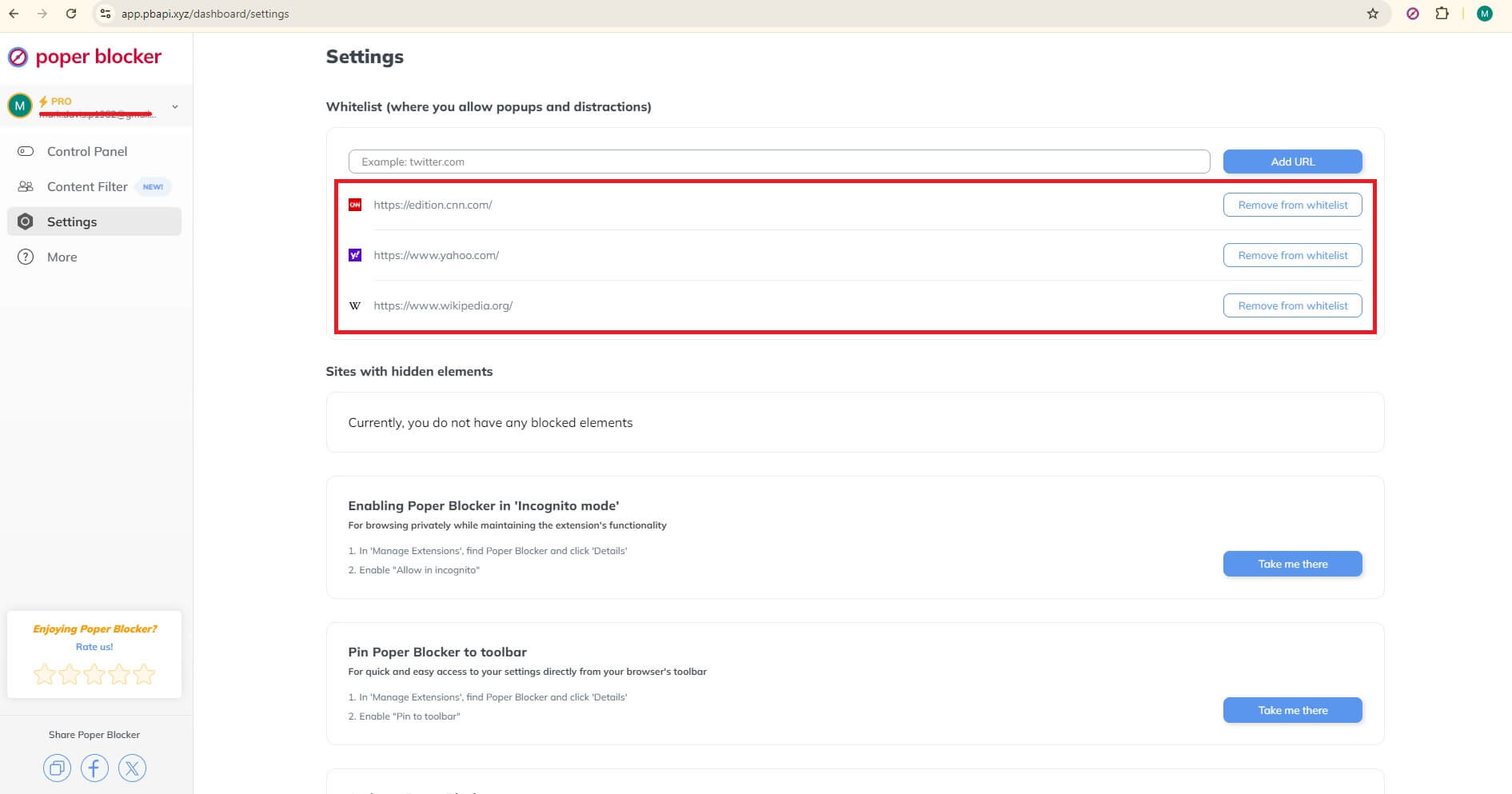
There is also room for control. Trusted websites can be whitelisted in seconds, so essential pop-ups or overlays can still function when they are genuinely needed. No digging through browser menus or the need to disable your pop-up blocker entirely. Say hello to fewer interruptions and a cleaner browsing experience.
Best practices for users
A few simple habits go a long way. You get fewer interruptions, fewer broken pages, and far less frustration overall.
Don’t block everything automatically
Going nuclear rarely helps. Some sites use pop-ups or overlays for practical reasons such as logging into an account, confirming age, completing a payment, or showing consent notices.
In these cases, allowing limited access keeps things working as expected instead of breaking important actions halfway through.
Keep blocking enabled by default
The safer setup is to leave blocking turned on and only make exceptions when something genuinely needs to appear. This filters out most interruptions while giving you flexibility when a site depends on a pop-up to function.
Poper Blocker’s whitelist makes this easy without forcing you to switch protection off entirely.
Use whitelisting for trusted sites
If you visit certain platforms often, whitelisting them can save time and irritation. Important prompts show up when needed, and you avoid endless reloads or strange layout issues caused by blocking required elements.
Be selective when sites demand full access
When a site insists you disable all blocking, stop and think. Many of these prompts serve tracking or advertising goals rather than real functionality.
Staying selective keeps your privacy intact and your browsing sessions fast, clean, and predictable.
It’s time to take back control of your browsing experience
At this point, the pattern should be clear. Pop-ups and overlays are not random annoyances. They are intentional, aggressive tactics that clutter pages, slow load times, and hijack attention, especially on mobile screens where space is limited.
The good news is that this cycle is easy to interrupt once you know where the problems come from. A reliable blocker that handles both pop-ups and intrusive overlays changes how the web feels almost instantly. With Poper Blocker running in the background, pages load faster, content becomes readable again, and interruptions drop off sharply across Chrome, Edge, and Android.
If browsing feels tiring instead of useful, that is your signal. Removing the noise puts you back in charge, so your screen works for you and not against you.
FAQs
What’s the main difference between a pop-up and an overlay?
Think of a pop-up as something that jumps in from the outside. It usually opens as a separate window or floating box and often triggers automatically. An overlay stays within the same page. It sits on top of the content using layers, sometimes dimming the background so your attention shifts to a single message.
Are pop-ups always bad for websites?
No. When used carefully, they can serve a clear purpose. Things like cookie consent notices, age verification, or login prompts are often necessary. The problem starts when pop-ups appear too frequently, block content without warning, or stack on top of each other. That’s when users get frustrated and leave.
Do pop-ups affect page speed and performance?
Yes, especially on mobile. Pop-ups usually rely on extra scripts, trackers, and third-party assets. These add weight to the page, slow down loading times, and increase data usage. On slower connections, that delay is very noticeable.
Can I control which sites are allowed to show pop-ups?
Yes. With Poper Blocker you can whitelist trusted sites. That way, important prompts still work where you need them, while everything else stays quietly out of the way.
You are done reading. Your mouse drifts toward the close button. Then it happens. A full-screen overlay slides into view, offering a discount, a newsletter signup, or a final request to stay just a little longer. If you browse the web regularly, this moment probably feels very familiar. And more often than not, it feels annoying.
What you just encountered is an exit intent pop-up. It is designed to appear the exact second a website thinks you are about to leave. From a marketer’s point of view, this is a last opportunity to capture attention that might otherwise be lost. Data from Wisepops backs this up. On average, exit intent popups convert around 2.81% of website visitors. But from a user’s point of view, it can feel abrupt, disruptive, and oddly aggressive.
That mismatch explains why exit-based popups create such mixed reactions. Some visitors accept them as part of modern browsing. Others look for ways to shut them down entirely.
From this post, you will learn what these popups really are, how websites trigger them, and why they so often interrupt the experience. We will also look at why the exit intent pop-up has spread across so many sites and what options exist if you prefer browsing without constant interruptions competing for your attention.
What is an exit-intent pop-up?
An exit-intent pop-up is a dynamic on-page message designed to appear the moment a website thinks you are about to leave. The aim is very simple: stop the exit and squeeze in one last interaction, whether that is an email signup, a discount reminder, or a nudge toward checkout (source: Shopify).
On desktop, the trigger is usually mouse movement. When your cursor accelerates toward the close button, tab bar, or address field, the software reads this as exit behavior and fires the pop-up immediately. It is a timing play, hitting just before the page disappears.
Mobile works differently. There is no cursor, so platforms rely on behavioral signals instead. These can include tapping the back button, switching browser tabs, scrolling upward at speed, or pausing interactions for a short stretch. Once the pattern fits, the overlay appears.
Marketers use exit-intent popups for a few common reasons:
- Capturing emails
- Recovering abandoned carts
- Promoting limited-time offers
You have probably seen the classics: “Wait! Get 10 percent off,” free shipping reminders, or newsletter signup boxes that block the screen at the last second.
The thinking is simple. If someone is already leaving, there is nothing to lose.
From the user side, though, the experience often feels different. After encountering the same exit pop-up across dozens of sites, the moment stops feeling helpful. It becomes expected. And frequently ignored.
Why exit-intent popups can be annoying for visitors
From a user’s point of view, exit-based overlays tend to show up at exactly the wrong moment. You have made up your mind. You move the cursor to close the tab or hit the back button. Then the screen freezes for a second while an overlay jumps in front of you. Now you are stuck hunting for a tiny X icon and waiting for the page to react. What should have been a clean exit turns into an inconvenience.
That irritation increases fast when sites lean too heavily on the tactic. Some trigger an overlay almost immediately. Others repeat it on every page or recycle the same message, no matter who you are or how often you have seen it before. Oversized designs that block the entire screen, or hide the close button in a corner, make things worse.
After a while, visitors stop seeing these messages as helpful. They start lumping them in with spam pop-ups. The reaction becomes automatic. Close it. Leave the site. Sometimes, close the browser altogether. Even if the offer is legitimate, the timing works against it.
Trust is another casualty. Pushy language, fake urgency, and countdown timers can feel manipulative. In extreme cases, poor design edges into pop-up scams territory, especially when visuals mimic alerts or system warnings.
It is no surprise that many users actively seek ways to eliminate pop-up ads entirely.
Use Poper Blocker to block exit-intent popups
If you are fed up with pages throwing one last interruption at you just as you try to leave, Poper Blocker makes things simple. It is a lightweight browser extension built to stop intrusive overlays, banners, and scripted interruptions before they ever reach your screen.
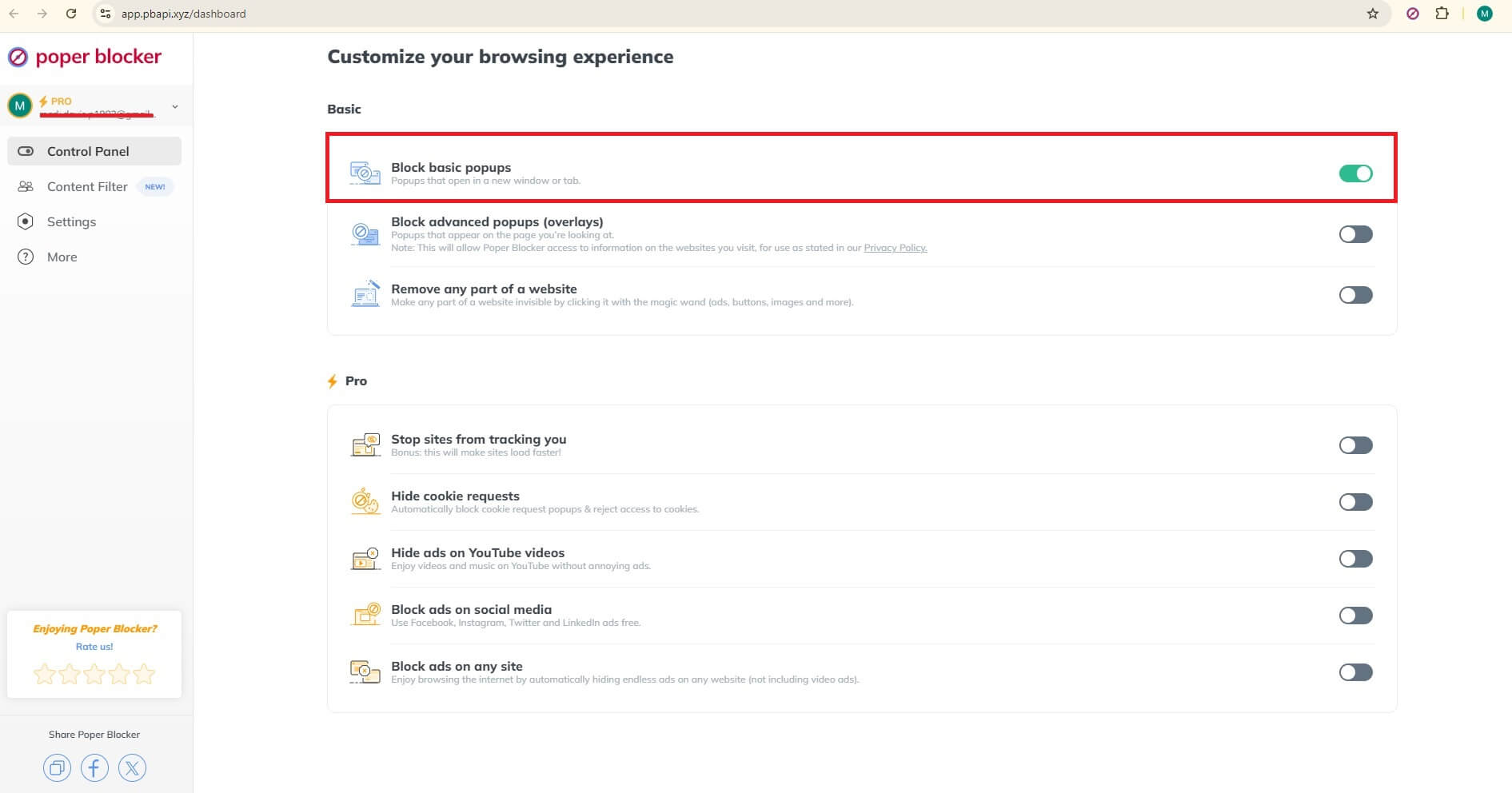
Once installed, Poper Blocker runs quietly in the background. It works on both Chrome and Edge, so it fits neatly into most desktop browsing setups. From the moment it is active, it starts identifying common pop-up behaviors, including exit-based triggers that fire when your mouse moves toward the back button or tab bar.
What makes the built-in pop-up blocker effective is its focus on scripted overlays rather than standard page elements. It does not strip out content or break layouts. Instead, it filters out exit-intent designs, email gates, and forced overlays that interrupt reading or navigation. Whether you are scanning a news article, comparing products, or skimming a blog post, pages remain accessible and easy to move through.
If you are looking for a dependable pop-up blocker for Chrome or a practical pop-up blocker for Edge, the setup is refreshingly minimal. There is no configuration maze to deal with. Pages load as intended, text stays visible, and the decision of when to leave a site stays with you.
Another benefit is peace of mind. Instead of reacting to aggressive overlays or wondering whether a suspicious alert could lead to a ransomware pop-up, you can browse with confidence. Unnecessary interruptions are handled quietly, leaving you free to focus on the content you came for and move on when you are ready.
A quieter way to leave a page
Exit-based overlays exist for a reason. Site owners use them to grab attention at the last second or pull visitors back into a funnel. From a user’s point of view, the experience often feels very different. When the same prompts appear again and again, frustration builds fast. It is no surprise that ongoing debates around pop-ups and SEO point to declining trust and weaker user interaction when these tactics are pushed too far.
There is a simpler option if you prefer a cleaner browsing experience. Poper Blocker removes exit-triggered overlays and similar interruptions, while letting the page itself work as expected. No broken layouts or any missing content.
Install the extension, browse as usual, and notice the difference. Leaving a page becomes uneventful again. Fewer interruptions mean smoother navigation, and a browsing routine that feels steady instead of reactive.
FAQs
Will Poper Blocker block all types of popups, including exit-intent popups?
Short answer: mostly, yes. Poper Blocker focuses on intrusive overlays that interrupt browsing using scripts and behavior-based triggers. That includes exit-based overlays, full-screen modals, and many common types of pop-up ads that appear when you move your cursor toward the back button. In some cases, site elements tied directly to checkout flows or login steps may still show. But forced interruptions designed purely to stop you from leaving are usually filtered out.
Do exit-intent popups still work in 2026?
They do, at least from a marketer’s point of view. Conversion studies continue to show that carefully timed exit overlays can recover abandoned sessions or capture emails. Industry reports often cite conversion lifts in the 3% to 10% range when offers are relevant, and frequency stays under control. The problem is execution. Many sites overuse them, which is why users go looking for a way to block them.
Does blocking exit pop-ups harm website functionality?
Generally, no. Blocking these overlays does not interfere with navigation, content loading, or basic site features. Promotions, surveys, or newsletter prompts might disappear, but the underlying pages continue to work as intended. For most users, the browsing experience feels cleaner rather than broken.
Are exit-intent popups related to security risks?
Most are legitimate marketing tools. Still, some designs look suspiciously like system alerts or fake virus warning messages. This overlap is why users sometimes mistake them for deceptive pop-up scams or malicious redirects. Using a blocker limits exposure to interfaces that imitate security threats and pressure clicks.
If you browse the web daily, you already know how this goes. You open a page, start reading, and then it happens. A banner slides in. Buttons everywhere. Accept all, reject some, manage settings. You click something just to make it disappear and move on.
This repeats across news sites, online stores, blogs, and forums. Over and over. Researchers at Carnegie Mellon University once estimated that reading every privacy policy you encounter could take hundreds of hours each year. Most people do not have that kind of time. So they skim. Or they do not read at all.
What started as a compliance measure has slowly turned into a daily browsing roadblock. In regions with strict privacy laws, these prompts appear on almost every visit. The result is mental overload. Too many choices and interruptions, yet too little patience.
That frustration has a name: consent fatigue. It describes what happens when constant requests to approve data settings wear people down. Instead of making thoughtful decisions, users click whatever gets them back to the content fastest.
Let’s look at why this problem keeps growing and what practical steps you can take to reduce interruptions and regain control of your browsing experience.
The problem: understanding consent fatigue
Consent fatigue describes what happens when people are asked, again and again, to approve, reject, or customize data settings. After a while, it stops feeling like a choice and starts feeling like noise. In plain terms, consent fatigue comes down to mental burnout caused by constant interruptions during routine browsing.
So what is consent fatigue in real life?
It is opening a page and instantly scanning for the fastest way to make the banner disappear. It is skipping the text, ignoring the options, and clicking whatever clears the screen. Not once or twice. Every day. On almost every site.
Have a look at this banner:
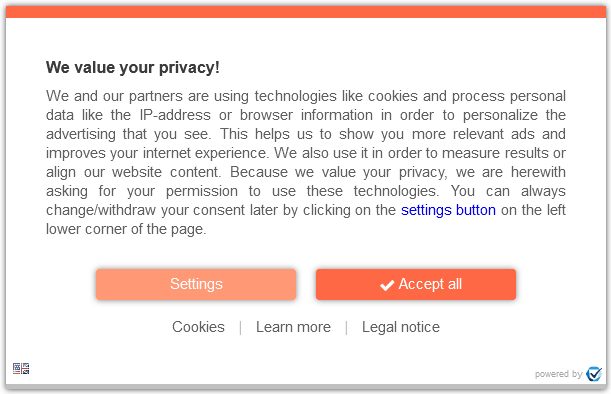
You don’t have a “Reject all” button, and if a user wants the site not to track them, you need to go into “Settings” and switch cookies off. It seems much easier just to accept all cookies and get on with it, no?
Over time, this becomes a habit. Decisions shift from intentional to reflexive. The banner appears, and the response is automatic.
Why consent fatigue keeps growing
Expanding privacy rules
Privacy laws across the EU, UK, and other regions require explicit permission before data collection. On paper, that protects users. In practice, it means nearly every website shows a consent banner on the first visit. The result is a web saturated with pop-ups that block content before users even read the headline.
Overcomplicated consent design
Design choices make the problem worse. Many banners offer one-click acceptance but bury rejection behind extra screens. Users are asked to manage long lists of toggles and dense explanations covering different types of cookies. Faced with friction, most people opt out of the process entirely and accept everything just to move on.
What this does to users
Frustration and shortcut behavior
Constant interruptions wear people down. Clicking “Accept All” becomes the default response, not a considered decision.
Less engagement with privacy controls
Repeated exposure leads users to disengage. Instead of managing preferences, they stop interacting with settings altogether.
Erosion of trust
When banners feel manipulative or excessive, users stop seeing them as protection. They become obstacles to content, not safeguards.
Why consent fatigue matters
Consent fatigue goes further than mild irritation. It changes how people read, think, and make decisions online. Every banner, prompt, and settings panel pulls attention away from the task at hand. What should be a quick visit turns into a stop-start experience filled with interruptions. Over time, patience wears thin.
There is also a quiet change in behavior. After seeing the same prompts again and again, many users click through without reading. Others stop trying to manage settings entirely. Some assume their choices no longer matter. That reaction defeats the entire point of consent frameworks, which depend on informed decisions. When consent becomes routine, it loses meaning.
You can see the effect in everyday browsing patterns:
Time wasted on repetitive prompts
A few seconds here and there does not sound like much. But across dozens of pages, those seconds pile up. Closing banners, scanning options, or hunting for a reject button turns into lost time every single session.
Interrupted focus and broken tasks
Reading an article. Comparing products. Filling out a form. Each interruption breaks concentration. Restarting that mental flow takes effort, and the experience starts to feel disjointed rather than smooth.
Reduced control over personal data
Quick clicks replace deliberate choices. Settings are accepted by default. Over time, users trade control for convenience, often without realizing it.
This leads to a feedback loop. As engagement drops, sites test louder designs and more intrusive prompts. Frustration increases on both sides.
For people who care about browsing without friction and protecting their data, the current approach falls short. Limiting repeated prompts is often the only way to restore focus, clarity, and a sense of control online.
Use Poper Blocker to stop consent fatigue
One of the easiest ways to deal with consent fatigue is to remove what causes it in the first place. If cookie banners never appear, there is no decision to make and no interruption to deal with. Poper Blocker’s cookie consent blocker handles these prompts automatically, before they interrupt your browsing flow.
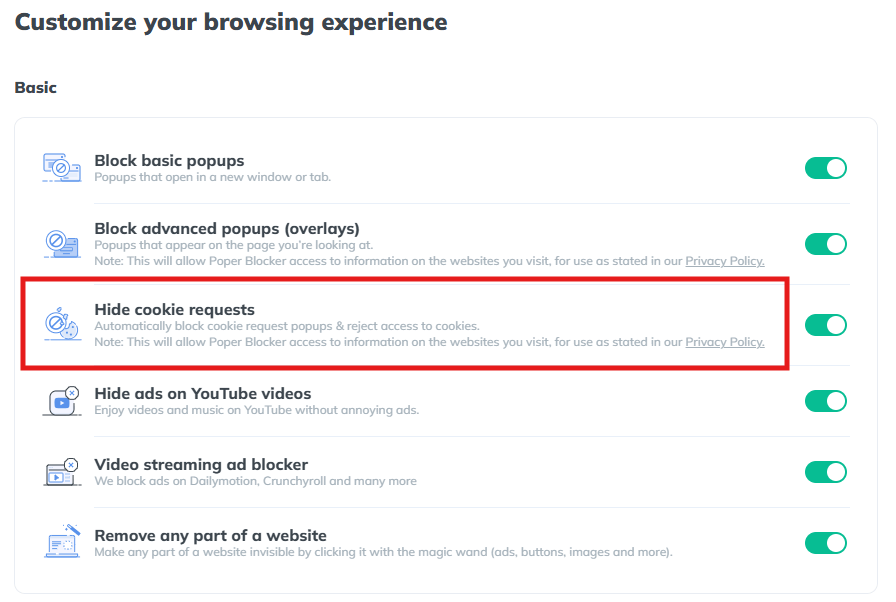
Instead of forcing you to interact with banners on every site, the tool works quietly in the background. You load a page. It does the rest.
Automatic detection of cookie banners
The moment a page loads, Poper Blocker scans it for cookie consent requests. This process runs automatically. There is nothing to configure, nothing to click, and no learning curve. You do not need to whitelist sites or adjust preferences for each domain you visit.
It simply recognizes consent banners as they appear.
Instant removal of cookie prompts
Once a banner is detected, it is removed from view. Cookie pop-ups disappear without changing the page layout or breaking site content. Text stays readable. Buttons remain usable. The site looks the way it should have from the start.
This removes visual clutter and keeps your attention on what you came to read or do.
Automatic rejection of tracking cookies
Poper Blocker goes beyond hiding banners. In the background, it automatically rejects tracking cookies by setting permissions to off. This prevents sites from collecting unnecessary data and helps users block cookies they never meant to allow in the first place.
It also removes the pressure that leads to rushed clicks on Accept All buttons.
Reduced tracking and fewer targeted ads
With tracking disabled, advertisers receive less behavioral data. Over time, this reduces the number of hyper-targeted ads that follow users from site to site. Browsing feels less monitored and more predictable.
Cleaner and uninterrupted browsing
The overall effect is simple. Fewer interruptions. No repeated choices. No constant reminders about any types of cookies. For people experiencing consent fatigue meaning real frustration, removing the prompts often solves the problem faster than managing settings on every site.
Works across Chrome, Edge, and Android
Poper Blocker works across Chrome, Edge, and Android, delivering the same uncluttered experience on desktop and mobile. Whether you browse at work or on your phone, cookie pop-ups stop getting in the way.
Escape the interruptions that drain your browsing experience
Consent fatigue has become a routine part of using the modern web, especially in regions with strict privacy rules. Every visit comes with banners to read, boxes to click, and decisions to rush through just to reach the content you came for. It slows you down, breaks concentration, and often leads to blanket consent simply to move on.
The good news is that there’s a simpler way forward. Poper Blocker removes cookie consent banners at the source and automatically rejects tracking requests in the background. You are no longer pulled into repeated prompts or forced to manage privacy choices site by site. Pages load cleanly, attention stays where it should, and data collection is reduced without extra effort.
If smoother browsing and fewer distractions matter to you, installing Poper Blocker on Chrome, Edge, or Android is a logical next step. It brings back a calmer web experience that feels usable again.
FAQs
Is blocking cookie consent banners legal?
Yes. Blocking consent banners on your own device is both legal and safe. You are simply deciding how your browser behaves and which scripts are allowed to load locally. Privacy regulations apply to websites and how they request consent, not to individuals managing their own browsing setup. In practice, you are exercising personal control, not bypassing laws.
Does Poper Blocker stop essential cookies?
No. Essential cookies remain untouched. These include cookies required for core functions like logging in, saving language preferences, or keeping items in a shopping cart. The blocker targets non-essential elements tied to tracking, analytics, and advertising, leaving site functionality intact.
Will rejecting tracking cookies affect website performance?
Usually, the opposite happens. Pages often load faster and feel less cluttered. Since tracking cookies are not required for displaying content or running basic site features, most websites continue to work exactly as expected.
How do I whitelist a site?
You can whitelist any site directly through the extension settings. This allows you to permit banners or cookies on specific domains where you prefer full access or customized behavior.
Can I still manage privacy manually if I want to?
Absolutely. You stay in control at all times. The blocker can be paused, adjusted, or disabled whenever you choose, giving you flexibility based on your browsing preferences.
If you watch YouTube regularly, you’re not alone. The average person in the U.S. spends 48.7 minutes a day on the platform. And lately, a lot of that time feels like… ads. Videos open with longer pre-rolls, content gets interrupted mid-sentence, and the breaks keep coming. What used to be a quick pause now feels like an ad overload, especially in longer videos. No matter the device, many viewers feel the same: it’s just too much.
It usually starts with frustration. You hit play, the ads pile up, and before long, you are searching for how to block YouTube ads. Most people are not trying to hack the system or do anything complicated. They just want videos to play without constant pauses, countdowns, or buttons telling them to skip, wait, or tap. This guide explains how to block YouTube ads on Chrome, Edge, Android, and iPhone with simple steps and no technical detours.
Why you’re seeing so many YouTube ads
Open YouTube to watch a five-minute clip, and it can feel like you are signing up for a commercial marathon. That is not an accident.
YouTube runs on an ad-supported model. Creators earn money when ads play. Advertisers pay to reach viewers. YouTube takes a cut in the middle. As watch time grows across TVs, phones, tablets, and computers, ads become the fuel that keeps everything running. Add rising competition and higher content costs, and the outcome is easy to guess: more ads, longer ads, and more frequent interruptions.
If it’s desktops, laptops or mobile phones, ads usually sit inside the video player. You see skippable ads, unskippable ads, and visual overlays competing for attention around the video.
Then there are the formats. Pre-roll ads play before your video even starts. Mid-roll ads interrupt the content you are already watching, often right in the middle of a sentence. Post-roll ads show up after the video ends, pushing more promotions before you can close the page or move on.
When ads stop feeling occasional and start feeling constant, patience wears thin. Back-to-back interruptions push people toward tools that block video ads entirely instead of hoping the next one will be shorter.
Should YouTube Premium be your solution?
At first glance, YouTube Premium seems like a simple fix. You pay the fee, and the ads disappear. Videos play straight through with no mid-play interruptions and no waiting for a skip button to appear.
For some viewers, that kind of simplicity is appealing.
But Premium comes with a monthly charge, and that is where many people hesitate. If your main goal is fewer interruptions, paying every month can feel like a lot. This is even more true if you drop into YouTube occasionally rather than using it every day. For casual viewing, the cost can outweigh the benefit pretty fast.
Premium does include extras like background play and offline downloads. Those features can be useful. But if you do not save videos often or you already watch while multitasking, they may not change much about your experience.
This is why many users start searching for ways to remove ads on YouTube without adding another subscription to their monthly list. For most people, the real frustration is the number of ads, not the lack of bonus features. If interruptions are the issue, there are practical alternatives that deal with ads directly and avoid another recurring payment.
Read more:
Poper Blocker vs. YouTube Premium
Use Poper Blocker to block YouTube ads everywhere
If you want a simplified way to cut down YouTube ads without paying a monthly fee, tweaking settings, or babysitting a blocker, Poper Blocker keeps things simple. It works across desktop and mobile, and it stays out of your way once it’s set up.
Block YouTube Ads on desktop
On desktop, Poper Blocker functions as a true YouTube ad blocker rather than a cosmetic fix. Instead of hiding banners or muting sections of the screen, it actively skips ads before they play. That includes pre-roll ads and mid-video interruptions.
When you press play, the extension detects ads and moves past them entirely. There is no countdown, no skip button, and no awkward pause in the middle of someone’s sentence. The video just starts. Or continues.
It runs automatically on Chrome and Edge, and there’s nothing to configure. Install the extension once, open YouTube, and play a video as usual. From that point on, ads are skipped without any extra steps.
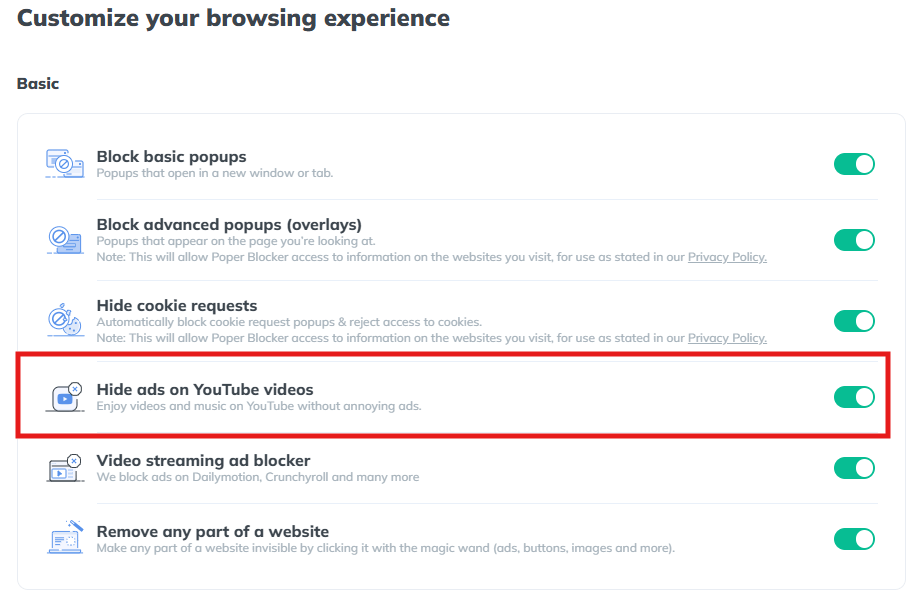
The process is deliberately boring in a good way. Install. Open YouTube. Click play. Ads disappear. You are not tapping buttons, refreshing pages, or adjusting filters every few days. The viewing experience feels closer to ad-free playback instead of a constant tug-of-war with interruptions.
Block YouTube ads on mobile
Mobile ad blocking often feels clunky, but the setup here is straightforward.
Poper Blocker is available on Google Play, the Samsung Galaxy Store, and on iOS.
To block YouTube ads on Android or iPhone, you use the built-in ad-free YouTube Player. Open the YouTube app, tap the Share button under a video, and choose Poper Blocker from the list. The video opens inside its own player, where most ads are removed automatically.
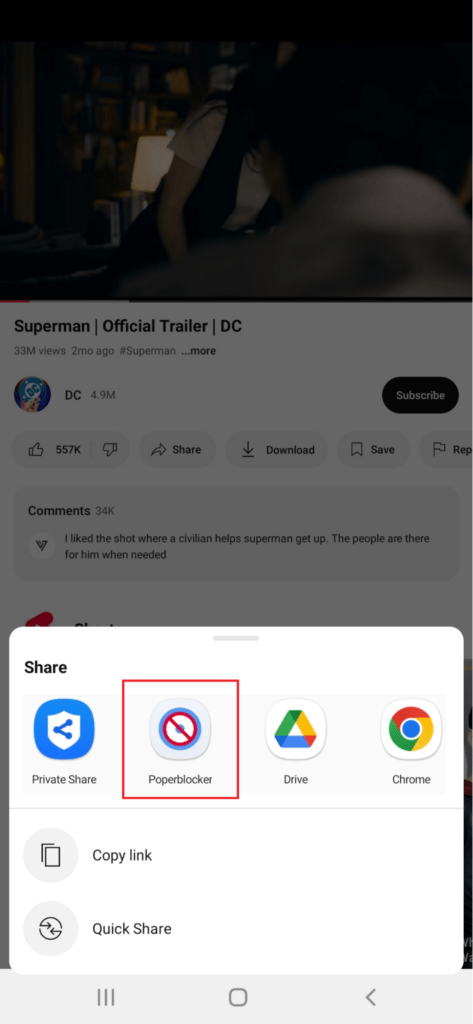
This method limits interruptions during playback and adds a few extras that standard YouTube does not always allow. You can keep audio playing in the background or continue listening with the screen off.
The main benefits are clear. Fewer breaks, smoother playback, background play, and screen-off listening. For anyone worn down by constant ad interruptions on mobile, this setup feels much closer to uninterrupted viewing than the default YouTube experience.
Watch YouTube without constant interruptions
YouTube ads are not going away anytime soon. If anything, there are more of them, they are longer, and they appear exactly when you do not want them. The good news is that you now know how to block YouTube ads across desktop and mobile without turning it into a technical project.
Whether you watch on Chrome, Edge, Android, or iPhone, there are effective but simple ways to cut interruptions down to a minimum. No complicated setup and no endless tweaking.
Install Poper Blocker and see how different YouTube feels when ads stop jumping in every few minutes.
FAQs
How do I stop ads on YouTube?
The most reliable way is to use a dedicated ad blocker that skips video ads during playback. On desktop, this usually runs in the background through a browser extension. On mobile, the experience is handled through a built-in player that cuts down interruptions, so videos play with far fewer breaks.
Why do I still see some ads occasionally?
YouTube changes how ads are delivered on a regular basis. Because of that, no tool or app catches every single format in real time. You might still see sponsored segments, creator shout-outs, or platform prompts that are baked into the video itself.
Does Poper Blocker block all types of YouTube ads?
It skips most video ads, including pre-roll, mid-roll, and post-roll formats. Promotions that are part of the video content, such as spoken sponsorships, sit outside the player and cannot be removed by any blocker.
Does this work on Chrome, Edge, Android, and iPhone?
Yes. On Chrome and Edge, it works through a browser extension. On Android and iOS, it uses an in-app YouTube player designed to reduce ad interruptions while watching.
Is it safe to use an ad blocker on YouTube?
Well-known blockers focus on skipping ads only. They do not read personal data, messages, or browsing history. Versions distributed through official app stores must also follow platform rules.
Will YouTube keep adding more ads?
Most signs point in that direction. As YouTube grows, ad placements tend to increase, which is why many viewers start looking for longer-term ways to watch without constant interruptions.
Tubi gives you thousands of shows and movies without a subscription, and that’s a big win for budget-conscious streamers. You get classics, new releases, and weird little indie films you’ve never heard of but end up loving.
And this streaming service isn’t slowing down. According to an official press release, it clocked over 97 million monthly active users and passed 10 billion streaming hours in 2024.
But here’s the tradeoff: ads. Lots of them. Mid-scene interruptions, repeated commercial breaks, and that one annoying ad you swear has played five times in a row.
Why does Tubi have so many ads?
Let’s get straight to it: Tubi has too many ads because that’s how it pays the bills.
1. It runs on an ad-supported model
Tubi isn’t trying to be Netflix or Disney+. There’s no subscription fee. No paywall. No seven-day trial that suddenly charges you on day eight. The entire platform runs on advertising.
Those commercials you see? They fund content licenses, platform maintenance, and yes, new shows and movies. Ads are the trade-off for free streaming.
2. You’re not dealing with just one kind of ad
There are layers to this.
-
- Pre-rolls hit you before the show even starts.
-
- Mid-rolls break in mid-scene (always during a plot twist, for some reason).
-
- Overlay banners creep along the bottom of your screen while you’re trying to focus.
Tubi stacks these across your session, especially if you’re binge-watching. That suspenseful thriller? Interrupted like it’s a live cable rerun from 2008.
3. Tubi keeps ads short, but frequent
In fairness, ad breaks tend to hover around two minutes. Not terrible. But when those breaks keep popping up, even short ones start to wear on you. Especially during back-to-back episodes.
Here’s the deal: Tubi ads keep the service free. But for many viewers, the frequent interruptions break immersion and patience. If you’re watching something heavy or emotional, a mid-roll for fast food delivery doesn’t exactly help the mood.
Imagine watching a thriller like The Sixth Sense, the mood is tense, the camera zooms in, and right before the twist… boom. A two-minute ad for cereal.
Or you’re bingeing Kitchen Nightmares, and every 12 minutes you’re interrupted by the same car insurance commercial, over and over.
Want fewer ads? The best solution is a browser extension built to block them on Tubi.
Use Poper Blocker to remove Tubi ads
If you’re wondering how to get rid of Tubi ads without paying for a subscription, meet your new best friend: Poper Blocker.
It’s a lightweight but powerful browser extension, blocking multiple types of ads with minimal setup, bloated toolbars, or any complicated settings. Install it on Chrome or Edge and get it to work by blocking popups, overlays, and video ads automatically.
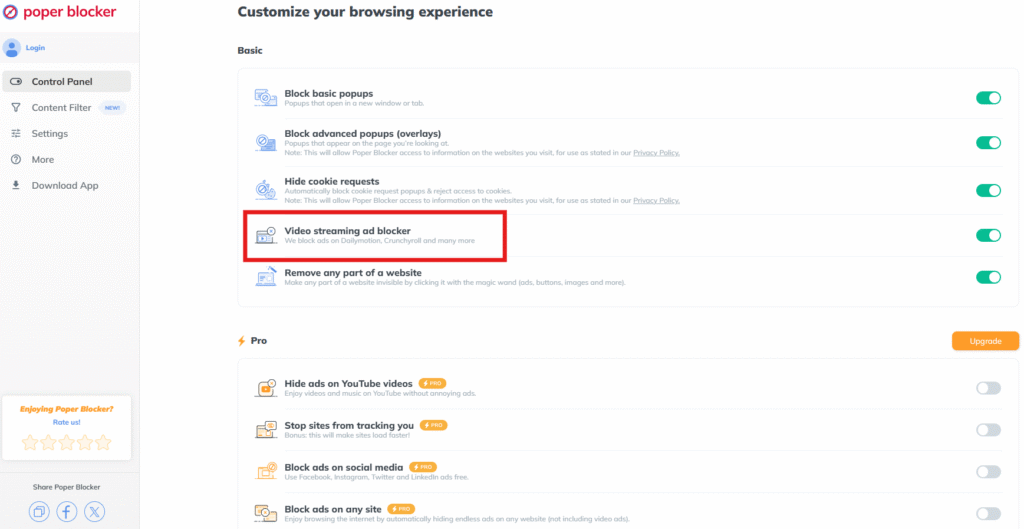
Ad blockers prevent ads from loading as well as hiding them.. But streaming sites like Tubi use more complex ad delivery methods than traditional websites.
Poper Blocker works by detecting and stopping ad scripts that trigger pre-rolls, mid-rolls, pop-ups, and overlays. These are often loaded dynamically using JavaScript, not as static banners, so generic ad blockers miss them.
By analyzing how streaming ads are injected into the page, Poper Blocker can block them before they appear, so your stream isn’t interrupted mid-episode or during a tense moment.
And yes, it’s free.
What makes it great for Tubi is that it blocks banners as well as the more disruptive interruptions. It’s fine-tuned to target the interruptions that wreck the viewing experience, especially on ad-heavy streaming sites.
Once installed, Poper Blocker works silently in the background to block video ads. You won’t see it, hear it, or have to mess with it. But you will notice the difference: a smoother, cleaner Tubi session without sudden cutaways or fake “skip ad” buttons.
It’s also optimized to run in the background without slowing your browser. This isn’t one of those memory-hogging tools that trade ads for lag.
With over 2 million users and regular updates, Poper Blocker keeps up with new ad formats before they become a problem.
Want to stop ads on Tubi without jumping through hoops? Install Poper Blocker, open Tubi, start streaming, and watch without interruptions.
Final Thoughts: Make Tubi Work for You
Tubi offers amazing free content, from cult classics to trending series. But the ad interruptions? They ruin the experience.
With Poper Blocker, you get to enjoy all of that content without the constant commercial break stress. It’s lightweight, free, privacy-friendly, and built specifically for the kind of ads Tubi throws at you.
Try it on your next binge, and stream the way it should be: clean, simple, and uninterrupted.
FAQs
How do I block ads on Tubi with a browser?
Simple fix: grab a Tubi ad blocker like Poper Blocker for Chrome or Edge. Once installed, it runs in the background while quietly scrubbing out pop-ups, overlays, and those disruptive video breaks. It’s lightweight, free, and doesn’t bog down your browsing. Just open Tubi and stream. No clicks. No interruptions. No nonsense.
Why doesn’t a regular ad blocker for Tubi work?
Most ad blockers are built for banner ads and static placements. But Tubi? It delivers dynamic, mid-stream interruptions. That’s a different beast. You need something smarter like Poper Blocker. It’s designed to detect and kill video-based intrusions that sneak past generic tools.
Does using a Tubi ad blocker affect video quality?
Not at all. Poper Blocker targets ads, not your content. You’ll still get full HD playback and clean audio. The only difference? You won’t be yanked out of your show every five minutes by another sponsored message about mouthwash.
How to turn off ads on Tubi permanently?
There’s no built-in ad-free mode on Tubi or a “Tubi Premium” version like on YouTube. But with Poper Blocker, you get the next best thing. Install it once and it’ll block popups and mid-roll ads automatically, every time. No settings to tweak. No reminders. All you have to do is hit play and enjoy uninterrupted streaming.
What makes Poper Blocker better than a basic Tubi adblocker?
It’s purpose-built. Where standard blockers miss streaming-specific formats, Poper Blocker adapts to newer ad types: popups, overlays, pre-rolls, you name it. It’s designed for platforms like Tubi. And it just works.
Is Poper Blocker good for long streaming sessions or binge-watching?
Yes, that’s where it shines. It prevents mid-roll interruptions from stacking up as you move through multiple episodes, so you can binge-watch without commercial fatigue.
YouTube on Android isn’t always smooth sailing. You fire up a video, and boom: a pre-roll ad. Then another one halfway through. Then a post-roll ad, just for good measure. Throw in banners and pop-ups, and suddenly, watching one short clip turns into an obstacle course
YouTube ads on Android aren’t just noise; they actually work. Studies show viewers are up to 84% more likely to pay attention to YouTube mobile ads compared to traditional TV ads.
Yes, YouTube Premium wipes the slate clean, but it’s a paid subscription service. And if you’re here, you’re probably asking: how to block ads on YouTube Android without spending a dime?
Good news. You’re not stuck watching ads forever.
This guide shows you how to block video ads on Android safely and for free. We’ll walk through why you’re seeing so many ads in the first place, what your options are, and how tools like dedicated YouTube players can block mid-roll ads, pre-rolls, and everything in between.
Why you’re seeing so many ads on YouTube (especially on Android)
YouTube’s not showing you more ads just to annoy you. There’s a business model behind it. And if you’re trying to figure out how to block ads on Android YouTube, you need to understand what’s driving the ad overload.
1. Free means ad-supported
YouTube runs on a freemium setup. If you’re not paying for Premium, you’re part of the ad cycle. Brands pay to get their message in front of you. And creators get a slice of the pie.
On Android, this shows up as pre-roll ads (before the video), mid-rolls (in the middle), post-rolls (after), plus banners thrown in for good measure.
2. More ads, more interruptions
Over the past few years, YouTube has cranked up the volume. Now you might get double pre-rolls or mid-rolls, breaking up short videos.
Why, you ask? More revenue per viewer. The result? A cluttered experience, particularly if you’re on Android without Premium.
3. Android gives you no easy way out
Here’s the kicker: there’s no “off switch” in the YouTube app on Android. Unlike desktop, where browser extensions can help block video ads, the Android app is locked down tight.
Google doesn’t allow other apps to interfere with how it runs either. So, unless you jump through hoops, you’re stuck watching too many ads with no clear escape hatch.
Can you really block YouTube ads on Android?
Short answer? Sort of, but not the way you might hope.
If you’ve Googled “how to block YouTube ads on Android” or something like “how to block all YouTube ads on Android,” expecting a simple toggle or browser extension like on desktop, prepare to be disappointed.
Google doesn’t make it easy. The official YouTube app is locked down tight. Standard ad blockers can’t touch it. Android browsers aren’t much better. Most won’t let you run the plugins needed to block video ads. So no, you can’t just install something and watch ad-free YouTube straight out of the box.
That said, there are workarounds.
You’ll find apps and players that sidestep YouTube’s ad system altogether. Think privacy-based frontends or tools that let you stream videos without mid-roll chaos. Some even dodge those “ad blocker detected” nags that YouTube has started rolling out.
But tread carefully. Many of these require sideloading modified APKs, which opens the door to shady software and risks violating YouTube’s terms.
So yes, you’ve got options. Just skip the shortcuts that look too good to be true.
Best ways to block YouTube ads on Android
Let’s look at how to block YouTube ads on Android for free without putting your device or data at risk.
1. Use an Ad-Free YouTube Player like Poper Blocker
The easiest fix? Switch to a player that skips the ads entirely.
The Poper Blocker Android app comes with a built-in ad-free YouTube player.
It filters out pre-roll, mid-roll, and post-roll ads. No root access, no sketchy APKs, no security risks. You still get background listening, screen-off mode, and smooth playback. Think Premium-like experience, minus the subscription fee.
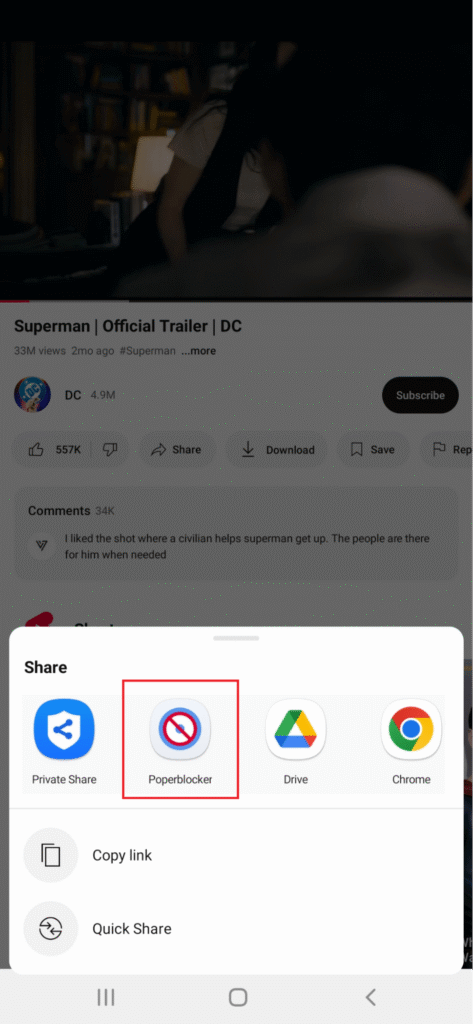
It’s also built to block cookie banners and other popups across Android browsers. So if you’re wondering how to block ads in YouTube on Android without breaking something else, this is the one to try.
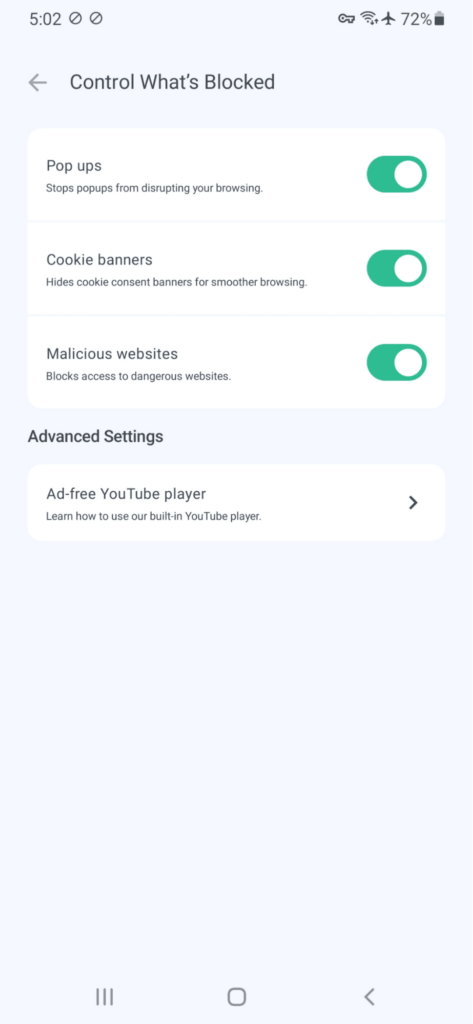
Download Poper Blocker, open the built-in player, and start browsing ad-free. It’s that simple.
2. Just Pay for YouTube Premium
Yes, the official route still exists.
YouTube Premium removes all ads, lets you play videos in the background, and even downloads them to watch offline. It’s clean and effective, if you’re willing to pay.
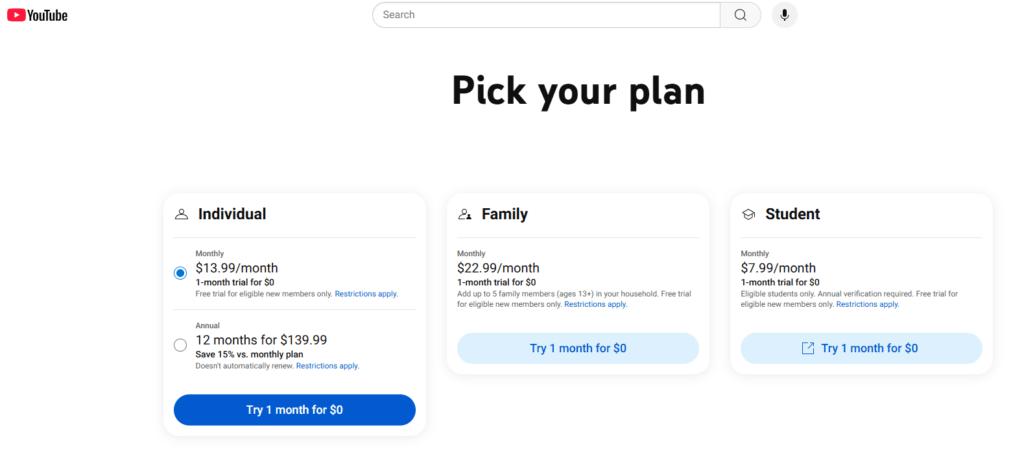
But not everyone watches enough to justify a monthly fee. If you’re only hopping on for a few videos a week, Premium might be overkill.
Which one’s better?
If you’re asking how to block YouTube ads on Android without the ongoing cost, Poper Blocker is a strong alternative. YouTube Premium still works, but only if you’re OK with the price tag.
You don’t have to sit through every YouTube ad
Watching YouTube on Android can feel like managing an ad obstacle course. You tap on a video and bam, pre-roll. A few minutes later? Mid-roll. Then a post-roll just to round things off. Toss in some banners and pop-ups, and your viewing experience is more interruption than entertainment.
But here’s the thing: you’re not stuck with it.
Sure, YouTube Premium is one way out. But if paying a subscription every month feels like a hard pass, there are better ways to clean things up.
Enter Poper Blocker. It works like a streamlined YouTube player that cuts the noise and removes video ads, cookie banners, and annoying overlays in one go. For Android users who just want to watch their content without constant stops, it’s one of the simplest ways to take control without spending a cent.
FAQs
How do I block ads on YouTube Android without rooting?
Skip the risky APKs. Tools like Poper Blocker give you a no-root-needed way to block pre-roll, mid-roll, and post-roll ads right in your Android browser. You’ll also get pop-up protection and built-in security against shady redirects. It’s fast, easy, and doesn’t mess with your device settings.
Is there a way to block YouTube ads on Android for free?
Yes, and you don’t need Premium for it. Poper Blocker and some privacy-focused browsers block most ad formats automatically. Just steer clear of sketchy modded APKs. They can carry malware and put your YouTube account at risk.
Can YouTube detect when I use an ad blocker?
It can. YouTube sometimes flashes “ad blocker detected” messages when it picks up on certain tools. Poper Blocker works to reduce that risk, so you can keep watching without warnings or access issues.
Is YouTube Premium the only official way to remove ads?
Yes, officially. YouTube Premium removes all ads and adds background play and YouTube Music. But it costs. Many users still prefer using a YouTube ad blocker on Android as a free workaround. Just know what you’re trading off.
Android phones power most of the world’s mobile devices. Great for access. Not so great when it comes to staying clean from junk.
That popularity makes Android a magnet for adware; those sneaky little apps or scripts that take over your screen with nonstop popups, sketchy redirects, and mystery ads that weren’t there yesterday.
And no, it’s not your imagination. If your phone’s suddenly crawling, glitching, or your battery drains faster than usual, adware might be the reason. You might even spot strange apps you didn’t install or get hit with scareware, fake virus warnings, or pop-ups asking you to “fix” something that isn’t broken.
These aren’t just annoying. Some are laced with malvertising or ransomware-style popups that aim to scare or scam you into tapping the wrong thing.
According to the latest Malwarebytes threat report, there’s been a massive 151% spike in attacks targeting Android devices. That’s right. Mobile threats are rising fast, and Android users are in the crosshairs.
The upside? You can clean adware from Android phones, fast. This guide gives you all the information you need on how to spot the signs, delete adware from Android safely, and stop adware on Android before it spirals. We’ll also show you how Poper Blocker helps remove adware from Chrome Android and keep it gone for good.
Let’s get started.
What is adware on Android?
Adware can take the form of intrusive behaviors as well as annoying ads that pop up while you’re using a free app.
Adware (short for advertising-supported software) pushes ads onto your Android device without asking. We’re talking full-screen interruptions, sudden browser redirects, and sneaky popups showing up in places like your lock screen or notifications. And yes, it slows things down. Your battery drains faster. Your phone starts glitching. And behind the scenes? It might be watching what you tap, browse, or download.
How does it get in?
Usually through the front door: free apps, shady APKs, or downloads from sketchy links. That fun-looking game? It might be carrying a hidden payload. Many apps bundle adware into their code. So while you think you’re installing something useful, you’re also giving the green light to a hidden ad campaign running in the background.
The problem isn’t ads. It’s control.
Legit ads stay where they belong: inside apps or websites you’re using. Adware doesn’t care. It hijacks your browser, pushes fake virus warnings, and drops scary alerts, convincing you to click or install junk “cleaners”. Sometimes those are just more adware in disguise.
It can also lead to malvertising (ads rigged with hidden malware) or pop-up scams asking for clicks, logins, or payments.
If you’ve been hit with too many ads lately or something feels off, you might be dealing with adware. Knowing how to stop adware in Android is about protecting your privacy as well as cleaning up the mess.
The good news? You can remove adware from Android with some basic cleanup steps or a proper ad blocker if you want to go the fast route.
How to spot adware on your Android
Not sure if your phone’s been taken over by adware? Here’s what to look for.
Let’s start with the obvious:
1. Popups everywhere
Ads showing up on your home screen, lock screen, or inside random apps you didn’t open? That’s not normal. These aren’t your typical ads. They’re sneakily injected by rogue processes running behind the scenes.
2. Sluggish performance
If your apps are freezing, crashing, or taking forever to load, something’s eating up your CPU. Adware loves to do that.
3. Data spikes
Notice an unexpected surge in mobile data? It could be adware phoning home to third parties, or worse, downloading more junk in the background.
4. Battery drains fast
Adware doesn’t sleep. If your phone’s battery suddenly can’t last the day, it’s probably running background scripts nonstop.
5. Strange apps appear
You might spot unfamiliar apps with names like “System Update” or “Cleaner Pro”. You didn’t install them. They just showed up, and that’s your warning sign.
6. Browser behaving badly
If Chrome keeps opening sketchy sites, showing pop-up scams, fake virus warnings, or even ransomware pop-up alerts, adware may be the culprit.
Quick check: If two or more of these sound familiar, your Android likely has a problem. And don’t worry, we’ll walk you through how to remove adware from Android step by step next. Keep reading.
How to remove adware from Android
Getting swamped by pop-up ads, weird browser redirects, or apps you don’t remember installing? That’s classic adware. And it’s more common than you think on Android phones.
Here’s how to clean it up fast.
1. Delete suspicious apps
Head to Settings > Apps. Scroll the list. If something looks shady or unfamiliar, uninstall it. Think flashlight apps with five-word names or games you never downloaded. Gone.
2. Reboot into Safe Mode
This puts your phone into a stripped-down mode where third-party apps are disabled. It’s perfect for removing stubborn adware. Hold the power button, tap and hold Power Off, then confirm Safe Mode. Once inside, go back to your apps and remove anything sketchy.
3. Clear browser data
Adware sometimes lives in your browser. Think cookies, cache, or rogue extensions. Go to Settings > Apps > [Your Browser] > Storage, then tap Clear Cache and Clear Data. That’ll help flush out any lingering junk.
4. Run a security scan
Now it’s time for backup. Download a trusted scanner like Malwarebytes, Bitdefender, or Aura. Let it scan everything. These tools are better at catching hidden adware than your eyes alone.
5. Factory reset (last resort)
If all else fails, hit the nuclear option. Backup your stuff first, then go to Settings > System > Reset Options > Erase All Data (Factory Reset). This will wipe the device clean and start fresh, with zero adware.
How to prevent adware from infecting your Android
The good news? You can stop adware on Android before it even lands.
Here’s how to get ahead of it:
1. Use a real ad blocker (hint: Poper Blocker)
Let’s start with your first line of defense.
The Poper Blocker Android app cuts adware off at the source. It works across browsers like Chrome and Samsung Internet by filtering out pop-up scams, malvertising, and scareware before they hijack your screen. It also removes cookie banners and shuts down fake virus pop-ups. All while running quietly in the background.
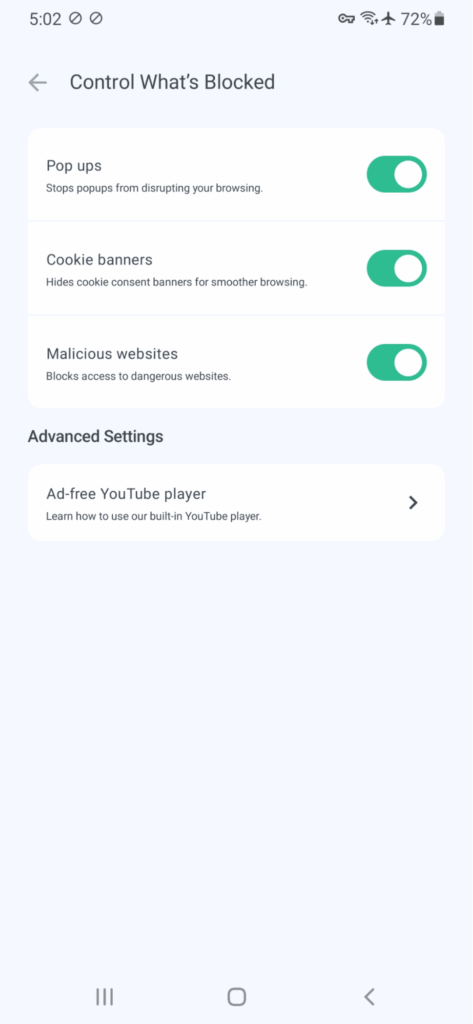
You get faster, cleaner browsing. No distractions. No shady redirects. The malicious site protection feature also blocks harmful websites before they can load.
2. Stick to trusted app sources
Most Android adware sneaks in through third-party apps. Avoid downloading anything outside the Google Play Store unless you really know what you’re doing. Sketchy APKs are one of the biggest infection points.
3. Review app permissions (seriously)
Installed a flashlight app that wants access to your microphone? That’s a red flag. Always check app permissions before installing or after updating an app.
If something doesn’t add up, uninstall it.
4. Keep Android and your apps updated
Adware loves exploiting old vulnerabilities. That update you’ve been putting off? It probably fixes something important. Run software updates regularly (including Play Store updates) to keep your device locked down.
5. Turn on Google Play Protect
Play Protect is Android’s built-in malware scanner. It checks apps for malicious behavior and disables known threats automatically. Just make sure it’s switched on.
Keep your Android clean, fast, and free from adware clutter
Adware might seem like a small issue. It isn’t. Left running, it can slow your phone to a crawl, drain battery life, mess with your data, and throw scammy pop-ups in your face.
But once you know what to look for, it’s not hard to deal with. If your phone feels sluggish or starts flashing virus warnings, you might have a problem. Deleting sketchy apps, clearing browser history, and running a quick security scan can clean adware from Android in minutes.
Want to go one better?
Stop adware before it shows up. Poper Blocker helps you block ads on Android, shut down malvertising, and filter out shady redirects and scareware. Combine that with the right habits, and you’ll avoid most adware trouble altogether.
FAQs
Can adware actually steal your data?
Yes. While most adware just floods your screen with popups and redirects, some variants get sneaky. They log browsing history, track your location, and even skim sensitive info. Combine that with malvertising and you’ve got a real privacy problem. That’s why it’s not just about how to remove adware from Android. You also need to stop it before it starts.
What separates adware from regular ads?
Regular ads stay in their lane; they show up inside apps or websites. Adware doesn’t. It throws types of pop-ups across your phone: on the home screen, in your notifications, or hijacking your browser. Some even fake virus warnings or ransomware pop-ups to trick you into downloading more junk.
Do I need to factory reset my phone to get rid of adware?
Not usually. You can often remove adware from Android by deleting suspicious apps, clearing browser data, and running a malware scan. Factory reset is the nuclear option. Save that for when everything else fails, because you’ll lose all your files and settings.
Can apps from the Google Play Store carry adware?
Yes. The Play Store is safer than shady third-party sites, but it’s not perfect. Malicious apps can slip through. Always scan the reviews, check the developer’s info, and watch for odd permission requests. For extra safety, pair Google’s Play Protect with an ad blocker like Poper Blocker.
Can an ad blocker stop all pop-ups?
A good ad blocker (like Poper Blocker) can block ads on Android, kill pop-up scams, remove cookie banners, and stop most sketchy redirects cold. It won’t delete adware from Android, but it’s great for preventing
You’ve just finished watching a video, maybe a recipe, maybe a product demo, and you’re ready to click away. But just as you reach for the mouse, an ad drops in. Too late. You’re watching a vacuum cleaner commercial.
That’s a post-roll ad.
Unlike pre-rolls that delay the start or mid-rolls that interrupt the middle, post-roll video ads show up right after the content ends. They wait, triggered the moment the credits roll or the speaker says, “That’s it for today”.
And while they’re technically less invasive, they still feel like friction, particularly when you’re trying to binge, browse, or bounce to the next thing.
The real issue? Too many ads. Pre-rolls, mid-rolls, post-rolls… it adds up.
The fix is simple. You can block video ads like these altogether. Poper Blocker is a tool that’s built to stop YouTube ad clutter, post-roll ads included. No delays, no hang-ups, no parting gifts. All you get is the content the way it was meant to play.
What are post-roll ads?
Post-roll ads are the tagalongs of the video world. They show up after your video ends, quietly waiting for the last frame to finish before stepping in. Unlike pre-rolls (which frontload themselves) or mid-rolls (which interrupt), post-rolls hang back until the end… then make their move.
Where do they show up? You’ll see them on YouTube, streaming platforms, news sites, or embedded into podcast players. Sometimes it’s a 30-second spot for a skincare brand. Other times it’s an ad asking you to click, download, or check out a deal before you move on.
In theory, they’re less annoying. You watched the full video, right? But in practice, they’re annoying. Planning to click the next episode? A post-roll ad gets in the way. Trying to scroll to the comments? Not so fast.
From the advertiser’s side, it makes sense. You’ve watched the content, you’re still looking at the screen, and they’ve got one last chance to pitch you. From a viewer’s perspective, though, it’s one more thing in the way. It’s not a dealbreaker, but it’s definitely a delay.
Why advertisers use post-roll ads
So the video ends, and then comes the ad.
Why would advertisers show their ad after the main content is done, when most people are ready to click away?
Actually, there are some good reasons:
1. Capturing the most committed viewers
If someone makes it to the end of a video, they’re not just passing by; they’re dialed in. That level of engagement makes them far more likely to notice (and act on) a message dropped in right at the finish line.
2. Brand gets the last word
Think about it. The final thing you see before closing the tab is the logo, the promo code, or that catchy line you didn’t expect to remember, yet now it’s stuck in your head. Post-roll video ads work because they close the loop with a clear, focused message.
3. Built-in call-to-action real estate
A lot of post-roll ads include a direct prompt: “Download now.” “Get 20% off.” “Visit the site.” With no video left to compete for attention, the message lands cleanly. There’s less clutter. Less distraction.
4. Viewers tolerate them more than mid-rolls
Mid-roll ads interrupt. Post-roll ads wait their turn. That subtle difference often leads to better viewer experience and higher completion rates.
Why post-roll ads are still a nuisance
Let’s be honest: post-roll ads are still annoying. Just because they appear after a video doesn’t mean they’re harmless. Here’s why they still frustrate users.
1. You’re done watching, but the ad isn’t done with you
Once a video ends, most people are already halfway to clicking the next one or shutting down the tab. A post-roll ad popping up right after feels like an awkward encore no one asked for.
2. Auto-play? More like auto-intrude
Many post-roll ads launch automatically. No warning. No opt-in. The video’s over, but your screen is hijacked for another 15 seconds. At that point, it’s not post-roll, it’s post-rude.
3. Autoplay chains get broken
Watching a playlist? Bingeing a series? Post-roll ads break the rhythm. Instead of gliding into the next video, you hit an ad wall that slows everything down. The seamless viewing experience? Gone.
4. Repetitive, irrelevant, and tired
Seeing the same ad at the end of every video? It wears thin fast. If the goal is brand recall, it backfires. What you get instead is viewer fatigue and a race to install an ad blocker.
Blocking post-roll ads with Poper Blocker
Reality check: Nobody sticks around to watch a post-roll ad. You’ve finished the video. You’re ready to move on. And then… it hits you. Another ad.
Here’s how to stop them cold:
1. Use the browser extension
Poper Blocker’s extension (available for Chrome & Edge) works straight from your browser. Install it once, and it automatically filters out post-roll ads on platforms like YouTube, Crunchyroll, Dailymotion, and a bunch of others.
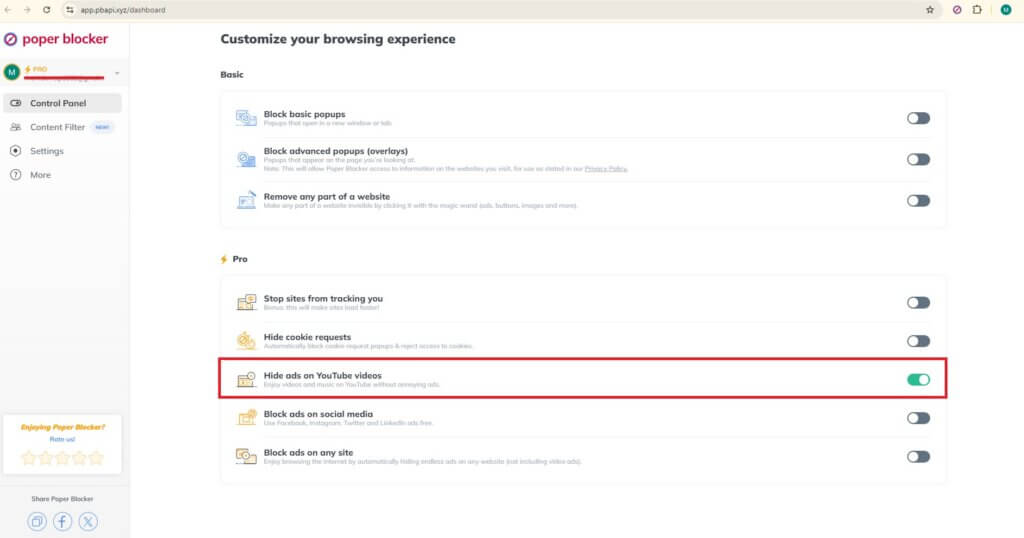
No more pre-rolls. No more mid-rolls. No more surprise ads when the video ends.
It also removes pesky banners and pop-ups while you browse. If you’re looking to block YouTube ads specifically, this is one of the most reliable tools in the game.
2. Download the Android app
If you’re on mobile, Poper blocker for Android takes things up a notch.
You get a YouTube ad blocker (yes, really) with support for background play and screen-off mode. Watch what you want, when you want, without interruptions.
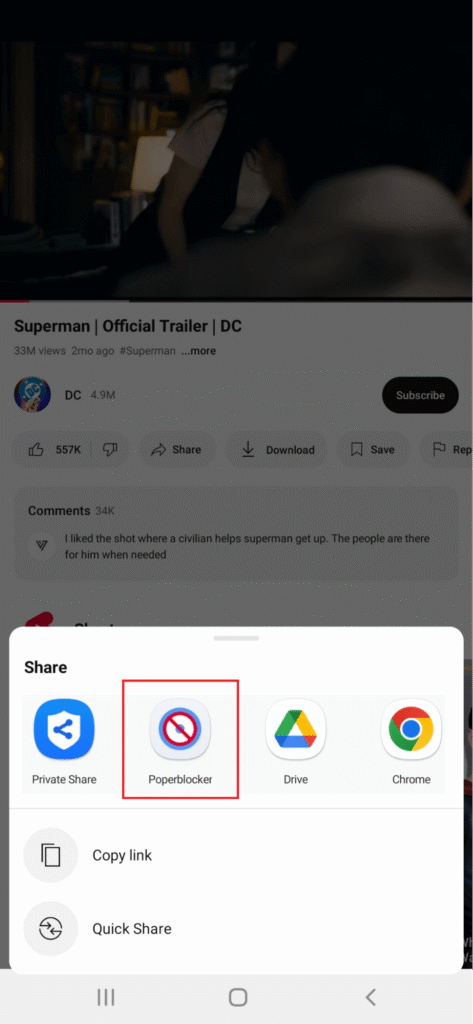
Bonus: it blocks cookie popups and malicious sites too. So your phone stays faster and safer while you scroll, search, and stream.
Watching a video shouldn’t feel like wading through a mini-commercial break
Pre-roll ads stall your start. Mid-roll ads cut in at the worst moments. Post-roll ads? They drag on when you’re already done. Together, they derail the experience.
Sure, advertisers love these formats. But viewers? Not so much. It’s no surprise that more people are looking for tools that help them skip the noise.
That’s where Poper Blocker steps in.
It blocks video ads across platforms, so you can finally stream without stops. No more interruptions or watching ads you didn’t ask for. You get the actual content, front to back.
Get your time back. Focus on the video, not the ads.
FAQs
Do post-roll ads mess with autoplay?
Yep. Post-roll ads often wedge themselves between videos in an autoplay queue. That little delay might not seem like much, but it breaks the flow, especially if you’re trying to binge a playlist or watch back-to-back tutorials. Block them, and things get smooth again.
Are post-rolls longer than pre-rolls?
Not usually. Most post-roll ads stick to 15–30 seconds, though some can stretch up to three minutes if the platform allows it. Pre-rolls tend to be the same length but are often skippable. Post-rolls hit differently. They pop up when you’re basically done watching.
Why am I seeing the same post-roll ad over and over?
That’s targeted repetition. Advertisers often retarget based on your viewing history, which can turn into ad déjà vu. If the same clip keeps chasing you down video after video, that’s ad fatigue in full force. Poper Blocker can break the loop.
Do creators actually earn money from post-roll ads?
Yes, but not as much as you’d think. Post-rolls are part of the monetization mix (like pre-rolls and mid-rolls), but since a lot of viewers bail before the video ends, these tend to earn less. Still, for creators, every second counts.
Are post-roll ads common on streaming platforms?
They pop up, but not as frequently as pre-rolls or mid-rolls. You’ll mostly spot them on platforms running ad-supported content (like free streaming services or VOD apps). Not universal, but definitely around, particularly where ad revenue plays a big role.