Chrome Web Extension
 Edge Web Extension
 Android App
 iOS App


“You won’t believe what happened next…”
That line still works because it is built to bother you. It withholds the important part, pokes at your curiosity, and pushes you to click before you stop and think. That is the basic trick behind clickbait ads. They show up on news sites, video pages, mobile apps, social feeds, and sketchy corners of the web, often dressed up as urgent warnings, miracle fixes, or shocking celebrity updates.
The problem is not only that they are annoying. Many of them lead to junk pages, scam offers, shady redirects, or pages built to squeeze one more click out of you. In Q3 2025, auto-redirects made up 80% of malicious ad activity tracked by GeoEdge, the highest share it had recorded, which gives you a sense of how aggressively deceptive ads now push users away from the page they meant to visit. No need to fret, because we’re going to cover what clickbait ads are, show common examples, what kinds of risks they bring, and how to block them before they hijack your screen.
What are clickbait ads?
Clickbait ads are ads designed to win the click first and worry about honesty later. In simple terms, clickbait advertising uses misleading or overhyped headlines, images, or messages to pull people into opening a page, starting a download, or visiting a destination that is often lower quality than promised.
Most of these ads share a few familiar traits:
- They make vague or exaggerated claims
- They lean hard on shock, fear, or curiosity
- They use thumbnails or headlines that do not match the destination
They also tend to show up in places where people react quickly, including websites, pop-ups, mobile apps, and social feeds.
A useful rule is this: if the message tries to trigger you before it explains itself, be suspicious. A clickbait ad is built around emotional pressure, not clear information.
Common clickbait ads examples
The easiest way to spot them is to look at patterns you have probably seen many times before. Here are six familiar clickbait ads examples and why they keep getting clicks.
1. “Doctors hate this one trick…”
This format borrows authority, then adds a secret. It suggests there is a hidden shortcut that experts do not want you to know. The trick is the curiosity gap. You are nudged to click to find out what is supposedly being hidden.
2. “You’ve been doing this wrong your whole life…”
This one mixes insult and intrigue. It tells you that a normal habit is somehow embarrassingly wrong, then hints that the fix is just one click away. It works because people do not like feeling uninformed.
3. “This app will change your life overnight…”
Now the hook is transformation. The message promises a huge outcome with almost no effort or time. That exaggeration is a major sign of click bait ads, especially when the landing page turns out to be a thin sales pitch.
4. “Drink This Before Bed to Burn Belly Fat Overnight!”
Health claims are one of the most common categories because they combine insecurity, urgency, and wishful thinking. The ad offers an easy answer to a hard problem, which is exactly why so many users click.
5. “This One Tip Will Save Your Life.”
This is pure pressure. It frames the message as something too important to ignore. Fear-based hooks like this are often tied to scareware, fake emergency claims, or pages that turn a small worry into a reason to act fast.
6. “You’ll Never Guess What [Celebrity] Looks Like Now!”
Celebrity bait is cheap and effective. It relies on familiarity, gossip, and surprise. Many of these ads lead to slide shows, spammy galleries, or pages packed with junk links.
These ads often send users to low-value destinations: cluttered pages, misleading offers, fake warnings, endless galleries, or forms meant to collect personal data rather than help you.
Why clickbait advertising works so well
Clickbait is not sloppy marketing. It is built on predictable human behavior.
Curiosity gap
A curiosity gap happens when an ad gives you just enough information to make you feel incomplete. You know there is more, but not enough to satisfy the question in your head. That unresolved curiosity pushes the click.
FOMO
Fear of missing out is another big driver. Some ads suggest that other people already know the trick, found the deal, or avoided the danger. You click because you do not want to be the last person left out.
Emotional manipulation
The strongest clickbait usually triggers emotion before logic. Fear, anger, hope, insecurity, or shock can all speed up decisions. That is why fake virus warnings, miracle health tips, and celebrity scandals do so well. They hit fast and ask questions later.
More clicks usually mean more ad revenue, more page views, more affiliate chances, or more leads for shady offers. That is why clickbait keeps spreading. It is intentional and the ad is not trying to inform you first. It is trying to win the click.
The hidden risks of clickbait ads
Many people treat clickbait as harmless internet junk. Some of it is just low-grade annoyance. Some of it is not.
Scam pages and misleading offers
A lot of clickbait leads to pages promising instant savings, miracle products, investment riches, or giveaway prizes. The destination is often built to collect money, email addresses, or card details rather than deliver anything useful.
Malware and unsafe redirects
Some deceptive ads act as a doorway to harmful pages, suspicious downloads, or redirect chains. In rougher corners of the web, this can overlap with malvertizing, where the ad itself becomes part of a wider abuse setup.
Privacy concerns
Some ads disguised as quizzes, surveys, or free offers are there to harvest data. They may ask for email addresses, phone numbers, or payment details, then pass you into a funnel you never intended to join.
Wasted time and mounting frustration
Even when there is no direct scam, the damage is still there. You lose time, end up on junk pages, and train yourself to distrust more of what you see online. That is part of why clickbait makes browsing feel dirtier and more tiring.
Use Poper Blocker to stop clickbait ads
Even if you know how to spot clickbait ads, avoiding them completely is almost impossible. They are built into the places people already spend time: news sites, streaming pages, sidebars, social feeds, and pages stacked with aggressive ad units.
That is where Poper Blocker comes in. Instead of asking you to manually dodge every trap, it helps remove many of the formats where clickbait shows up in the first place.
Where it works
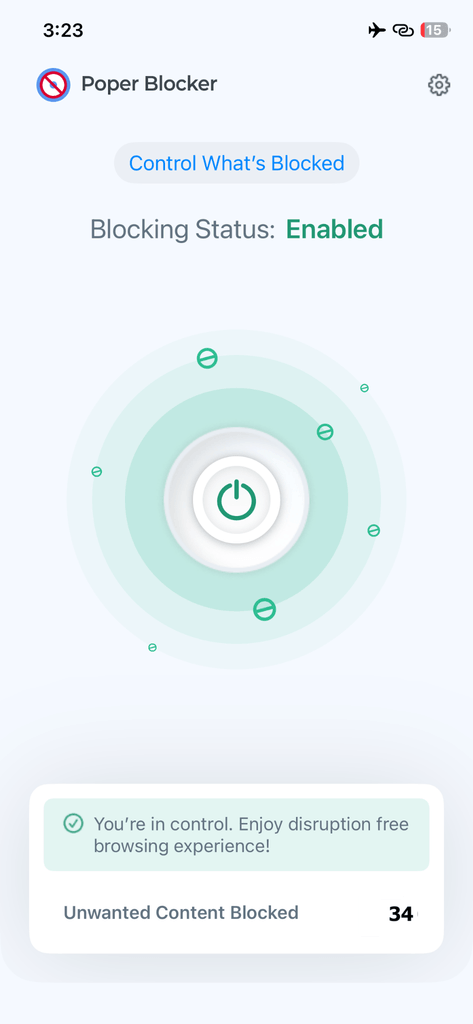
Poper Blocker is supported on Chrome and Edge for desktop browsing, and Android and iOS for mobile use.
What it helps block
Its value is not limited to one site or one ad type. It helps by cutting off the formats that clickbait leans on most:
- Pop-ups that interrupt the page and force attention
- Overlays that sit on top of content
- Redirect traps that send you somewhere you never meant to visit
- Intrusive ad surfaces that turn browsing into a chase for the close button
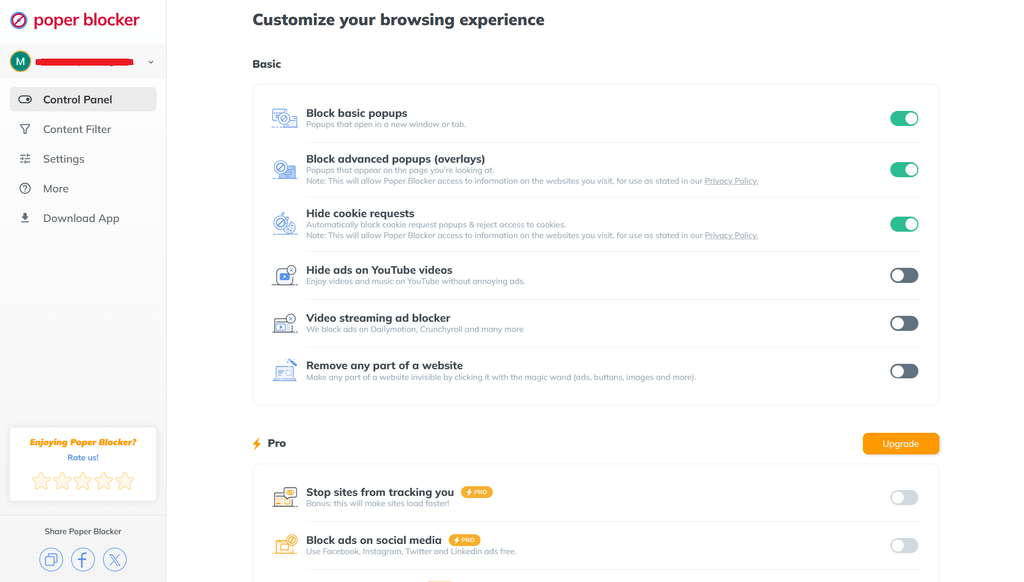
A good pop-up blocker helps here because many clickbait campaigns rely on sudden interruption. If the message cannot jump in front of you, it loses a lot of its power.
Why that improves browsing
When those interruptions are reduced, the web feels cleaner and easier to use. Pages are less cluttered. There is less bait competing for your attention. You spend more time on the content you wanted and less time closing junk.
Why ease of use helps
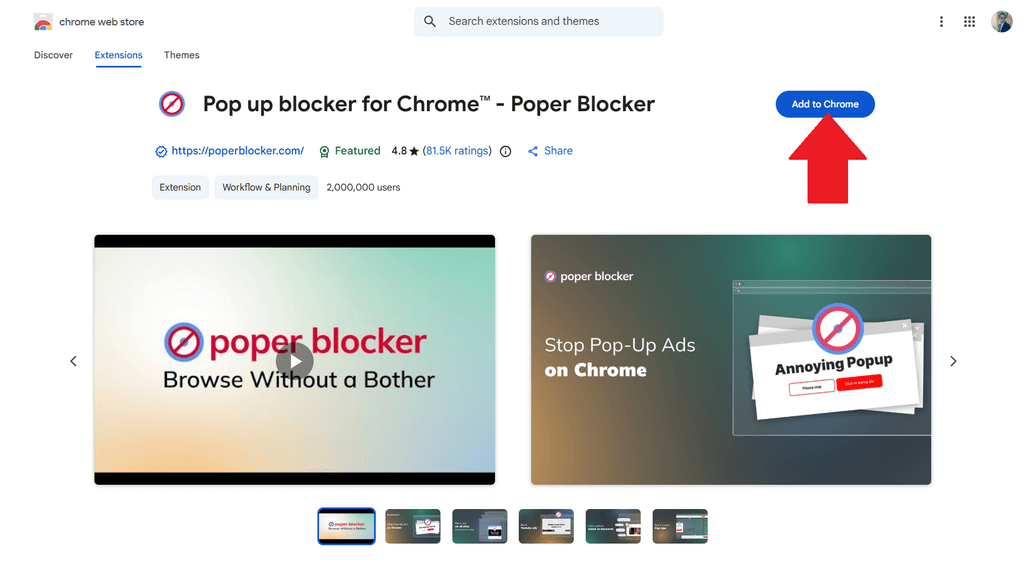
One reason people give up on blocking tools is setup fatigue. Poper Blocker is built to install simply and then keep working in the background. That helps because users dealing with clickbait are often not trying to fine-tune a dozen settings. They just want the mess reduced.
This is not only about installing an ad blocker. It is about taking back control of the page in front of you. When fewer deceptive prompts get screen space, you make fewer rushed clicks and run into fewer bait-heavy pages.
You do not have to browse on the ad ecosystem’s terms
Clickbait ads are everywhere because they are cheap to produce and good at grabbing attention. But being common does not make them harmless. They waste time, create distrust, and sometimes lead users straight into scams, junk offers, and misleading pages.
The good news is that they are avoidable. Once you know the patterns, they become easier to spot. Once you use a blocking tool that cuts off pop-ups, overlays, and redirects, they become much easier to avoid.
You do not have to keep accepting a web full of bait. Notice the patterns, avoid the hooks, and use Poper Blocker to keep more of that junk off your screen.
FAQ
What are clickbait ads in simple terms?
They are ads that use hype, vagueness, or emotional pressure to get you to click. The destination often gives you much less than the ad promised.
Are clickbait ads illegal?
Not always. Some are only misleading or low quality. Others cross into fraud, unsafe redirects, or deceptive claims that can create legal problems for advertisers or publishers.
How can I tell if a headline is clickbait?
Watch for big promises, missing details, emotional pressure, strange urgency, or a headline that seems designed to trigger curiosity rather than explain anything.
Why do I keep seeing fake virus warnings?
They work because fear is fast. Fake system alerts are built to push immediate action before you slow down and question the message.
Can a blocking tool help with clickbait on news and streaming sites?
Yes. A tool that blocks pop-ups, overlays, and redirect behavior can remove many of the formats clickbait relies on most. This is what Poper Blocker can do.
Doomscrolling usually starts in a familiar way. You check your phone late at night for one update. Then one post turns into ten. A bad headline becomes a thread, then a comment fight, then a video, then another post that makes your chest tighten a little. You tell yourself you are just catching up, staying informed, making sure you did not miss anything important. Then you look at the time and realize far more of your night is gone than you meant to give away.
That emotional pattern is part of why doomscrolling feels so sticky. Curiosity pulls you in. Anxiety keeps you there. A short burst of relief arrives when you find a post that seems to explain what is happening, but that relief rarely lasts. The feed gives you one more thing to react to, one more thing to check, one more reason not to stop.
That endless scroll is not just a habit. It is a business model. The longer you scroll, the more valuable you become.
What is doomscrolling (and why is it so hard to stop)
Doomscrolling is the repeated habit of scrolling through upsetting, stressful, or negative content, especially on social media and news-heavy feeds. Researchers have described it as persistent attention to negative information in feeds about crises, disasters, and other distressing events, and they have linked it with anxiety, poor self-control, passive social media use, and fear of missing out.
Part of the trap comes from negativity bias. Human attention is naturally drawn toward possible threats. Your brain would rather overreact to bad news than miss something important. In a social feed, that means alarming headlines, angry posts, conflict clips, and fear-heavy commentary can pull stronger reactions than neutral updates or ordinary daily content.
That is why doomscrolling can feel oddly productive even when it leaves you drained. Negative news creates the feeling that you are staying informed or staying prepared. But what often happens is not clarity. It is repeated exposure to emotionally loaded fragments that keep your attention activated without giving you a satisfying stopping point.
There is also the dopamine loop, a reward system layered on top of the stress. Even when the content feels bad, checking again can still create a small hit of anticipation. Maybe the next post will explain everything. Maybe the next reply will make the story make sense. Maybe the next update will be better. That uncertainty keeps the hand moving.
So the contradiction sits right in the middle of the experience. It feels bad, but it is hard to stop. You do not leave the feed feeling better, yet you keep checking because the design keeps offering another cue, another alert, another reason to stay.
Why social media platforms encourage doomscrolling
Social platforms do not make money because you feel better after using them. They make money by holding attention long enough to show more ads, gather more behavioral signals, and improve ad targeting.
That is the simplest way to understand the system. More time spent in the feed usually means more ad impressions. More ad impressions usually mean more revenue opportunities. More scrolling also gives the platform more information about what catches your attention, what you pause on, what you skip, what you tap, and what emotional tone keeps you engaged.
This is why engagement-based revenue influences the feed so strongly. The algorithm is not built around your well-being. It is built around signals that suggest you will stay longer, react more, and come back again. Scientific American’s take if social media is addictive summarized this plainly: never-ending feeds, autoplay, and revenue-driven recommendation systems keep people going, and experts argue that platforms benefit from holding user attention.
That also helps explain the outrage premium. Fear, anger, conflict, and shock tend to keep people watching more than neutral posts do. Platforms do not need to sit a user down and say, “Here is upsetting content because it earns more.” They only need ranking systems that keep promoting the kinds of posts that produce stronger reactions and longer sessions. If the content that performs best is emotionally charged, the system keeps feeding more of it.
Doomscrolling is not a bug. It is a feature of the system.
The role of ads in the doomscrolling cycle
Ads do not sit beside doomscrolling as a separate issue. They are woven into it.
In social feeds, ads are placed directly between posts, replies, clips, and recommendations. On Facebook, Instagram, X, and LinkedIn, sponsored content often arrives in the same visual rhythm as the rest of the feed. That means the user is not moving between “content mode” and “ad mode.” Everything arrives inside one continuous stream.
Negative content is the bait. Ads are the monetization engine.
Native ads make this stronger because they often resemble ordinary posts at a glance. You are already in a reactive state, already scanning quickly, already emotionally activated. In that condition, an ad can work as an attention reset, a curiosity trigger, or an emotional amplifier. It interrupts the previous post, but it does not fully break the session. It gives the feed a fresh prompt and keeps the thumb moving.
This becomes even more significant because doomscrolling often creates an extended, vulnerable state. When someone has been scrolling for a while, especially late at night or while feeling stressed, they are not browsing with much intention but rather reacting. That gives the platform more chances to expose them to ads and more chances to learn from what they do next.
The longer the session runs, the more precise the targeting can become. A user who lingers on posts about burnout, layoffs, conflict, parenting worries, productivity guilt, or health fears is handing the platform a stream of behavioral clues. The ads shown during or after that session are already guided by signals gathered during that scrolling behavior and don’t just appear randomly.
Infinite scroll + ads = no escape
Older media had built-in stopping cues. A newspaper page ended. A TV segment cut to something else. Even early web pages had a bottom. What’s different with social feeds is that they removed that structure.
Infinite scroll means there is no natural stopping point, only more content loaded beneath the last item. A 2026 research update from the ADDICT project also reinforces this point. It examined addictive design strategies on social media and highlighted features such as infinite scroll, autoplay, ads, and notifications as mechanisms that can encourage compulsive use patterns and keep users in the feed longer.
That design choice has a big psychological effect. When there is no clear endpoint, stopping becomes a personal discipline problem instead of a product structure. The platform does not help you pause. It waits for you to do all the work.
Ads fit neatly into that design. They are inserted between content pieces so the stream never needs to break. A stressful post is followed by a sponsored post. Then another update. Then another ad. Then a suggested account. Then a thread. The feed keeps changing just enough to prevent boredom, but not enough to create a clean exit.
There is no moment to pause, only more content, and more ads.
Once ads blend into the same rhythm as posts, they start to feel like part of the feed itself. That is one reason the experience can feel so slippery. You are moving through a mixed stream designed to keep attention alive and monetize it at the same time.
Why this feels so draining
The exhaustion is not just about “too much screen time.” It comes from the way the system stacks stress on top of interruption.
Emotional overload from negative content
If a feed keeps serving conflict, disaster, outrage, fear, or social comparison, your nervous system stays activated. Even when you know the content is not helping, the repeated exposure adds up. Doomscrolling research has linked the behavior with anxiety, and newer work continues to find positive associations between doomscrolling and anxiety in different contexts.
Cognitive fatigue from constant switching
The feed constantly switches your attention between posts, comments, clips, headlines, sponsored messages, suggested accounts, and notifications. That repeated switching is tiring on its own. Add ads into the middle of it, and the experience becomes even more fragmented.
Loss of intentional control
You may open an app to check one message or one update, but after a while you are no longer choosing what to see in any meaningful way. You are reacting to what is fed to you.
That is why doomscrolling often leaves people feeling both overstimulated and oddly empty. You spent attention, emotion, and time, but you did not get much back besides more agitation and more prompts to continue.
Use Poper Blocker to break the cycle on social media
If ads help fuel the doomscrolling experience, removing them can change the texture of the feed.
Poper Blocker can block ads and sponsored content on Facebook, Instagram, X, and LinkedIn to create a more distraction-free browsing experience across social platforms.
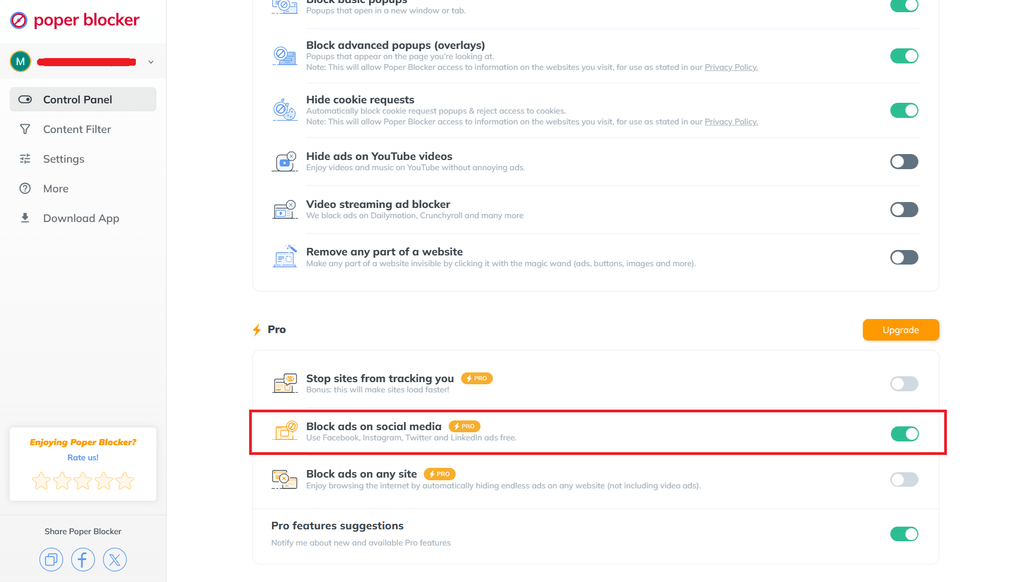
So what does that change in everyday use?
- It removes interruptions from the feed. When sponsored posts disappear, there are fewer sudden prompts competing for your attention.
- It cuts down on attention hijacking. Ads are built to interrupt, tempt, provoke, and redirect. Fewer of them means fewer artificial pulls inside a session.
- It can make scrolling less addictive. Not because one tool magically fixes doomscrolling, but because removing feed-level ad triggers can reduce some of the cues that keep the session going.
Fewer ads can also mean fewer moments where the platform tries to convert your emotional state into a click, a view, or a purchase. That matters when you are already tired, stressed, or browsing on autopilot.
When ads disappear, the scroll loses some of its grip. You are no longer being pulled as often. You have more room to choose.
That is the useful way to think about ad blocking here. It is not only about cleaning up the screen. It is about regaining control over attention in an environment built to keep taking it.
Get more control over your feed
Doomscrolling and ads are deeply connected because they serve the same attention economy. One keeps you in the feed. The other turns that time into money.
That does not mean you need to quit social media altogether or treat every platform like an enemy. Many people use these apps for work, updates, community, and entertainment. The issue is not that scrolling exists. It’s that the system is built to keep extending it, especially when emotional content and sponsored content are working together.
Small changes can shift the experience more than people expect. Removing ads will not solve every digital well-being problem, but it can reduce interruptions, cut down on triggers, and make the feed feel less engineered against you.
Start by changing what you allow into your feed.
FAQ
What is doomscrolling in simple terms?
Doomscrolling is the habit of repeatedly scrolling through upsetting or negative posts, even when the experience leaves you stressed or tired. It often feels like staying informed, but it can quickly turn into compulsive checking.
Why do social media apps make doomscrolling easy?
Because endless feeds, engagement-based ranking, and ad-driven business models all reward longer sessions. The more time people spend in the feed, the more chances platforms have to show ads and gather behavioral signals.
Are ads part of the doomscrolling problem?
Yes. Ads are not just sitting next to the experience. They are built into the feed and often blend with organic posts. That helps keep attention moving while turning long sessions into ad revenue and better targeting data.
Does removing ads stop doomscrolling completely?
No. Doomscrolling is also driven by habit, stress, curiosity, and platform design. But reducing ads can remove some of the extra triggers and interruptions that keep a scrolling session going longer than intended.
Can Poper Blocker remove ads from social media feeds?
Yes. Poper Blocker can remove ads and sponsored content on Facebook, Instagram, X, and LinkedIn, while also blocking ads across websites more broadly.
You mention a brand once, maybe a jacket, a blender, or a beach trip, and then it shows up in your feed a few hours later. Sometimes it feels even stranger than that, like you never typed anything at all and the ad still found you. That is why so many people ask why do I get ads for things I talk about and, in a more uneasy version of the same question, whether apps can somehow react to things you only half-formed in your head. For the year 2026, social media ad spending is expected to reach $124.88 billion based on EMARKETER’s December 2025 forecast, so there is a lot of money behind making ads feel highly relevant.
That feeling is easy to understand. When an ad appears right after a conversation, it does not feel random. It feels personal. It feels timed. It feels like your phone was paying attention in a way it should not. So the question becomes simple: are apps listening to you, or is something else going on?
Why it feels like some ads are based on your conversations
The creepy feeling is not made up. What you are noticing is a very specific mix of timing, data, and psychology.
First, ads often show up soon after a conversation. That timing alone makes them feel more noticeable. If you chatted about air fryers at lunch and saw one in your feed that night, your brain naturally links the two events.
Second, some ads feel too accurate to dismiss. Not just “kitchen stuff,” but the exact category you had just been discussing. That is where the suspicion starts.
Three things usually make this feeling more convincing than it is:
1. Timing coincidence
You are surrounded by ads all day, but most of them barely register. The one that lines up with a recent conversation grabs your attention instantly. It feels important because it arrived at the perfect moment.
2. Pattern recognition
Human brains are built to spot connections. That helps in daily life, but it can also make random or semi-random events feel linked with more certainty than they are.
3. Selective attention
You might have been seeing similar ads before and simply ignored them. Once a topic is in your head, those ads suddenly feel much more relevant. That can make it seem like the ad appeared out of nowhere, even when it did not.
This is also why some people describe getting ads for things I think about. It is usually not thought-reading. It is that a topic is already loosely connected to your recent searches, interests, feed behavior, or the behavior of people around you, and once it enters your awareness, you start spotting it everywhere.
Are your apps really listening to you? (short answer: not usually)
That answer is not absolute because there have been edge cases involving microphone-triggered tools, permission abuse, or privacy scandals. But for mainstream ad delivery, the simpler explanation is usually the right one: most platforms do not need to secretly listen to your private conversations in order to show you highly specific ads.
There are a few reasons for that.
Legal risks
If a major platform were secretly recording conversations for ad targeting at scale, the blowback would be enormous. Lawsuits, regulatory action, and long-term brand damage would follow quickly. That does not mean every company behaves perfectly, but it does make constant hidden eavesdropping for ads a very high-risk move.
Battery and data constraints
Always-on listening would create a lot of battery drain, bandwidth use, storage demands, and messy data. It is a clunky way to target ads when platforms already have easier signals that are cheaper, cleaner, and often better.
Lack of evidence
Ad systems already know a lot about what you search, watch, click, pause on, buy, and discuss with others online. They can also infer likely interests from shared location, device signals, account logins, and lookalike behavior. In other words, they do not need your microphone to get uncomfortably close.
So if your first thought is do our phones listen to us, the more grounded answer is this: not in the way most people imagine, and not as the main reason these ads show up.
What’s actually happening behind the scenes
If your apps are not secretly transcribing dinner-table conversations, why do the ads still feel psychic? Because the targeting system behind them is much more layered than most people realize.
Your browsing and search history
This is one of the biggest signals.
Every product page you open, every category you browse, every search you start and never finish gives ad platforms another clue. Even a quick visit to a site can put you into an audience bucket.
That includes:
- Websites you visit
- Products you view
- Pages you linger on
- Searches you type
- Shopping behavior linked to your account or device
Sometimes the signal comes from you directly. Sometimes it comes from a family member using the same network, device group, or shared account ecosystem.
Social media tracking
Social platforms build a detailed picture from tiny actions that do not feel important in the moment.
That includes:
- Likes and follows
- Watch time
- Replays
- Comments
- Shares
- Which posts make you stop scrolling
- Which topics keep pulling you back
That is why social feeds can get very close to your current interests without needing audio input. On platforms like Facebook, Instagram, X, and LinkedIn, your feed behavior alone gives the system a steady stream of clues.
If you have ever asked is Facebook listening to me, the less dramatic answer is that Facebook does not need to hear you to make a strong guess. It already has a lot of behavior data to work with.
The same goes for is Instagram listening to me. What often feels like eavesdropping is usually the result of interest modeling, feed behavior, and ad matching.
Cross-device and data sharing
This is one of the most underrated reasons ads seem spooky.
You search for hiking shoes on your laptop, then later see the ads on your phone. Or your partner shops for baby gear on one device and suddenly your feed starts filling with similar promotions.
That can happen because apps, browsers, logins, ad IDs, Wi-Fi signals, and shared data partnerships can connect activity across screens and across people in the same orbit.
So when people talk about ads based on conversations, what they are often seeing is a system connecting multiple weak signals into one confident guess.
Location and context
Your location can influence what ads you see even when you never searched for the thing directly.
Here are some scenarios:
- You were near a store or restaurant
- You attended an event
- You were in the same place as someone else who searched for the topic
- A local campaign was running in your area
- A product trend was already active around you
That can make the timing feel eerie. You mention something, then an ad appears. But the ad may have been triggered by place, timing, nearby activity, or an active campaign already aimed at people in your area.
Psychological effect
Two mental shortcuts can make targeted ads feel much more uncanny than they are.
1. Confirmation bias
Once you suspect that your phone is listening, every matching ad feels like proof. The many ads that do not match anything you said fade into the background.
2. Frequency illusion
This is often called the Baader-Meinhof effect. Once a topic becomes top-of-mind, you start noticing it everywhere. The ads may not be new. Your attention to them is.
That is also the best answer to why do I get ads for things I think about. Most of the time, the ad system is not reacting to your thoughts. It is reacting to your behavior, your context, and the behavior of similar users, while your brain is reacting to the coincidence.
Use Poper Blocker to stop these ads completely
At some point, the deeper explanation stops being the point.
Maybe the ads are showing up because of searches, site visits, social signals, shared networks, or location clues. Maybe they feel creepy because of timing and pattern recognition. Either way, the result is the same: your screen gets filled with ads you never asked to see.
This is where Poper Blocker makes the conversation much simpler. We’re no longer just talking about privacy here, but immediate control over what shows up on your screen.
Block ads across websites
Poper Blocker can hide ads on websites across the web, including the kinds of pages people open every day, like news sites, entertainment sites, blogs, and other ad-heavy destinations.
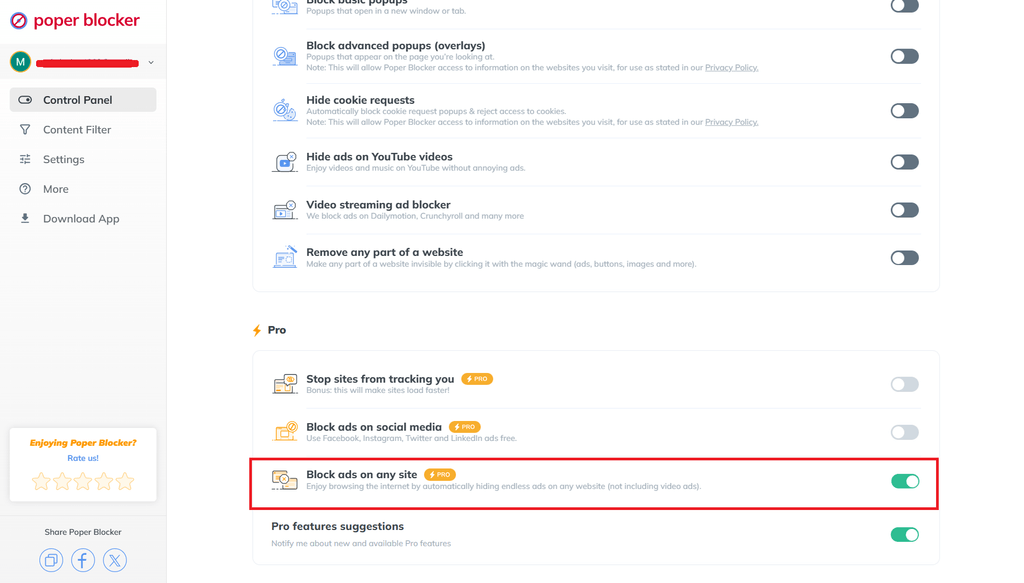
So if you read a celebrity news story, open a sports article, or browse a movie recap site, you do not have to keep dealing with banners, sponsored placements, or other interruptions.
Remove ads from social media
It can also remove ads and sponsored content from major social platforms, including Facebook, Instagram, X, and LinkedIn.
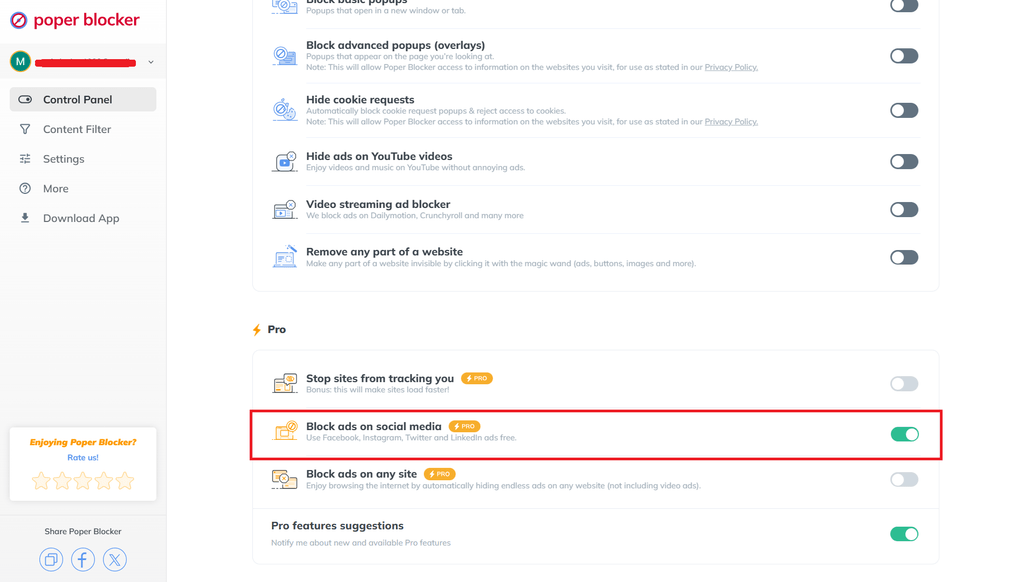
This is especially relevant here because many of the ads people find most invasive appear inside social feeds. Those are also the places where platforms collect the most signals from your watch time, interests, and scrolling habits.
Hide YouTube ads
YouTube is another place where ad targeting can feel especially personal, because it is tied so closely to what you watch and how long you watch it. Poper Blocker includes a YouTube ad-blocking feature, so video sessions are not constantly interrupted by pre-rolls and mid-rolls.
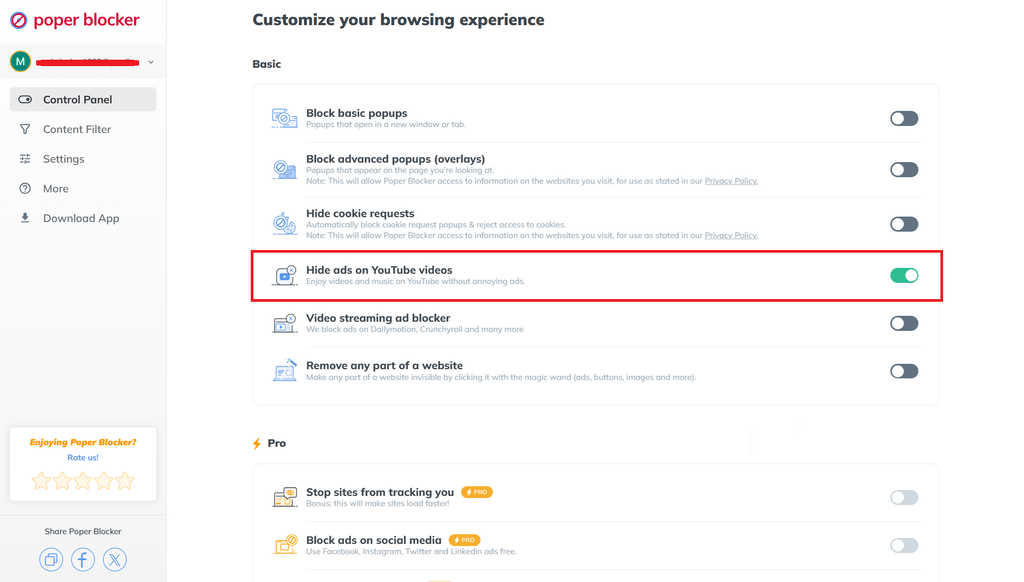
Why this works so well
Instead of trying to outsmart ad tracking systems, you can remove ads entirely and stop them from dominating the screen.
Even if ads are targeted based on your behavior, you simply won’t see them. That changes the whole experience right away.
Other upsides include:
- Cleaner browsing with fewer interruptions
- Pages that often load faster because there is less ad clutter competing for space
- Less visual noise across websites, feeds, and videos
If your main concern is how to stop getting ads for things I talk about, this is the shortest answer: reduce the data you share where you can, but also block the ads themselves so they stop showing up in the first place.
It’s not mind-reading, and you still get the final say
The unsettling part is not your imagination. Some ads really do appear at moments that feel way too close for comfort.
But that does not mean your phone is secretly reading your mind. In most cases, it is a mix of data collection, ad matching, shared signals, location clues, and the way your brain notices patterns once a topic is already on your radar.
That is also why targeted ads based on conversation can feel so convincing even when the system is mostly working from behavior and context rather than audio.
You do have options. You can trim app permissions, limit tracking, deny access that does not make sense, and clear activity data. And when you want the fastest fix, you can skip the cat-and-mouse game and just block the ads.
Poper Blocker gives you the simple version of control: fewer interruptions, fewer sponsored posts, fewer YouTube ads, and a cleaner feed.
FAQ
Can apps show me ads without listening to my microphone?
Yes. They can use browsing history, app activity, watch time, location clues, account signals, and interest modeling to make very strong guesses without relying on hidden audio recording.
Why do ads sometimes appear right after I mention something out loud?
Usually because of coincidence, existing behavior signals, or nearby activity that already made you a likely match. The timing is what makes it feel suspicious.
Can being near other people affect the ads I see?
Yes. Shared Wi-Fi, shared places, overlapping interests, and similar audience profiles can all influence ad targeting.
Is it possible for apps to ask for too many permissions?
Yes. Some apps request access they do not strictly need. It is worth checking microphone, location, contacts, camera, and phone permissions and turning off anything that feels unrelated to the app’s use.
Can an ad blocker help even if tracking still happens?
Yes. Blocking the ad itself changes what you see on the page, even if the targeting system still tried to serve it.
By 2026, Microsoft Edge has become a genuinely solid daily browser. What shapes the experience more than the browser itself, though, are the extensions. They are the layer you customize to match how you actually work, study, shop, and switch off at the end of the day.
Edge has its own Add-ons store, but it does not stop there. Because Edge is built on Chromium, it can also install extensions from the Chrome Web Store. During installation, you may see a prompt asking you to enable “Allow extensions from other stores.”
This guide organizes the best Edge extensions by what people actually use them for: privacy, productivity, writing, media, shopping, and a handful of social tools. Some are available natively on Edge Add-ons; others are Chrome extensions that run fine on Edge.
Best Microsoft Edge extensions by category
Privacy & Security Tools
A basic privacy setup in Edge comes down to two things: cutting out the worst interruptions and keeping logins under control. These four extensions cover that ground, and none of them are difficult to live with day to day.
Poper Blocker
Poper Blocker stops pop-ups, pop-unders, overlays, and anything else that hijacks your screen or opens extra tabs uninvited. It also hides YouTube ads, blocks cookie consent banners, and clears out social media sponsored content. Particularly useful on ad-heavy sites, free streaming platforms, and coupon pages where interruptions stack up fast.
Good for: Blocking pop-ups, cutting out overlays, cookie banners, YouTube ads, and surprise tab opens.
Watch for: If a site stops working correctly, you can disable the extension for that page or whitelist it in the settings to let it through.
Bitwarden
Bitwarden is an open-source password manager that stores logins, generates strong passwords, and fills your credentials on sites. Because the code is publicly available and reviewed by the security community, it has earned a strong reputation for trustworthiness. If you still reuse passwords or keep logins in a notes file, this is the most practical fix. It also reduces phishing exposure since it only fills credentials on the exact domain you originally saved.
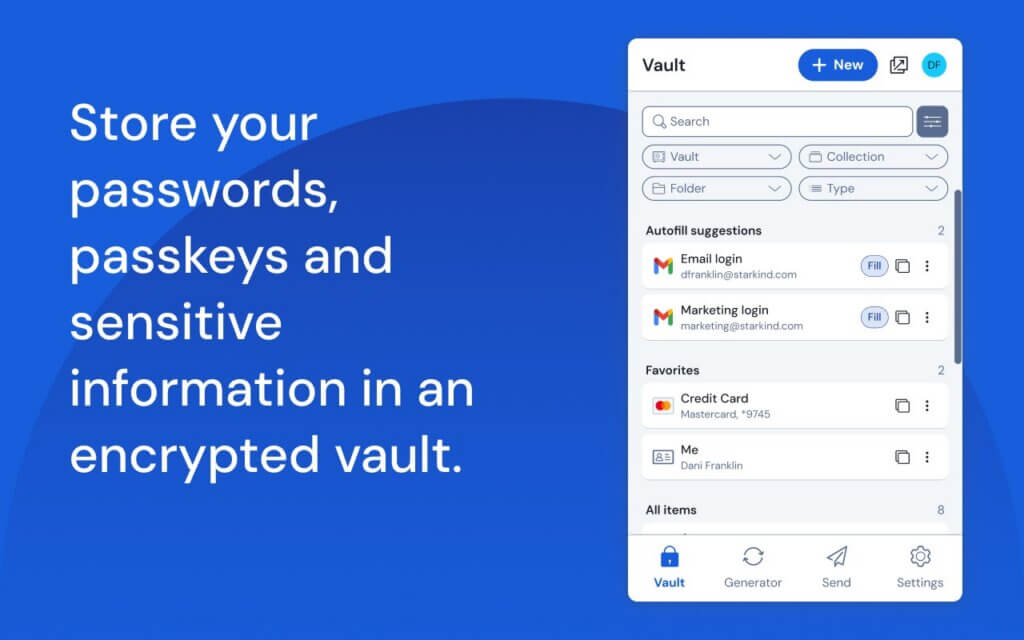
Good for: Secure sign-ins across work and personal accounts.
Watch for: Set up a strong master password and recovery options before you start relying on it.
Privacy Badger
Privacy Badger, from EFF, blocks trackers that follow you across sites. It learns as you browse and automatically blocks domains that appear to track you without permission. It also sends the Global Privacy Control signal, which tells sites to stop selling or sharing your data. No filter lists to maintain, no configuration needed. It works alongside Edge’s built-in tracking prevention and helps with the feeling that something you looked at once is now following you around the web.
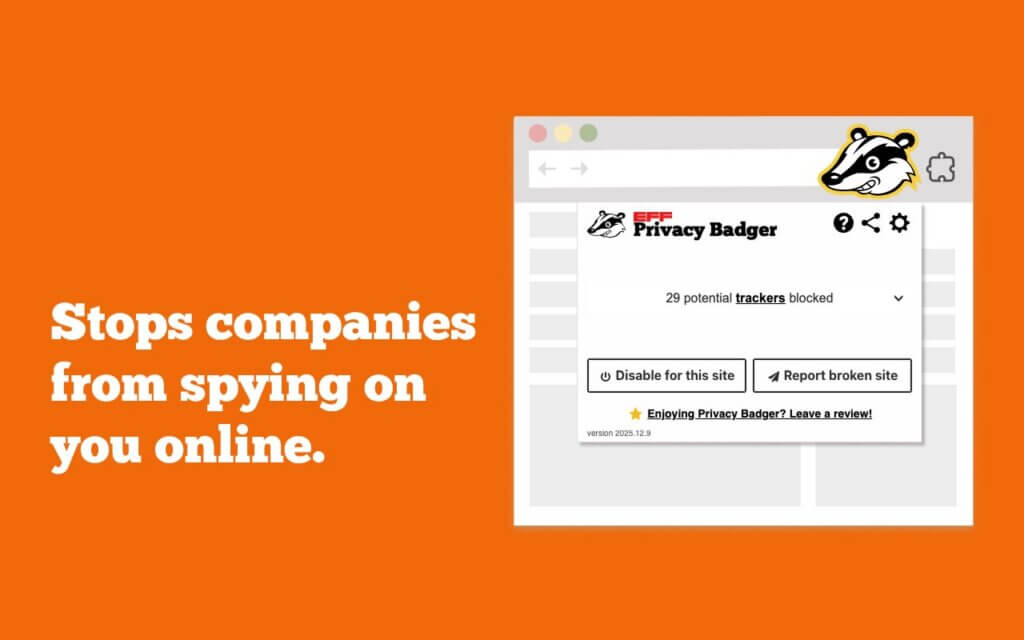
Good for: Passive cross-site tracker blocking with no ongoing setup.
Watch for: Some sites may need exceptions added if a login or payment flow breaks.
McAfee WebAdvisor
McAfee WebAdvisor flags risky links, warns you about dangerous sites before you land on them, and scans downloads for known threats. The color-coded ratings show up right in search results, so you can spot a bad link before clicking. For users who are not deep into browser security, this kind of early warning layer is useful, especially when searching for downloads, coupons, or tech support contact numbers.
Good for: Everyday browsing, students, and family PCs.
Watch for: Security add-ons can get noisy if you prefer a clean, minimal UI.
Productivity & Browsing
This category is about cutting friction: grabbing research before it disappears, saving articles to read later, getting full-page screenshots, and handling PDFs without switching to another app.
Anori
Anori is a visual bookmarking tool that lets you save links, images, and text snippets into organized boards. Good for trip planning, home projects, research, or any work that involves pulling together a lot of reference material from around the web. More structured than a bookmarks bar, less cluttered than a folder full of open tabs.
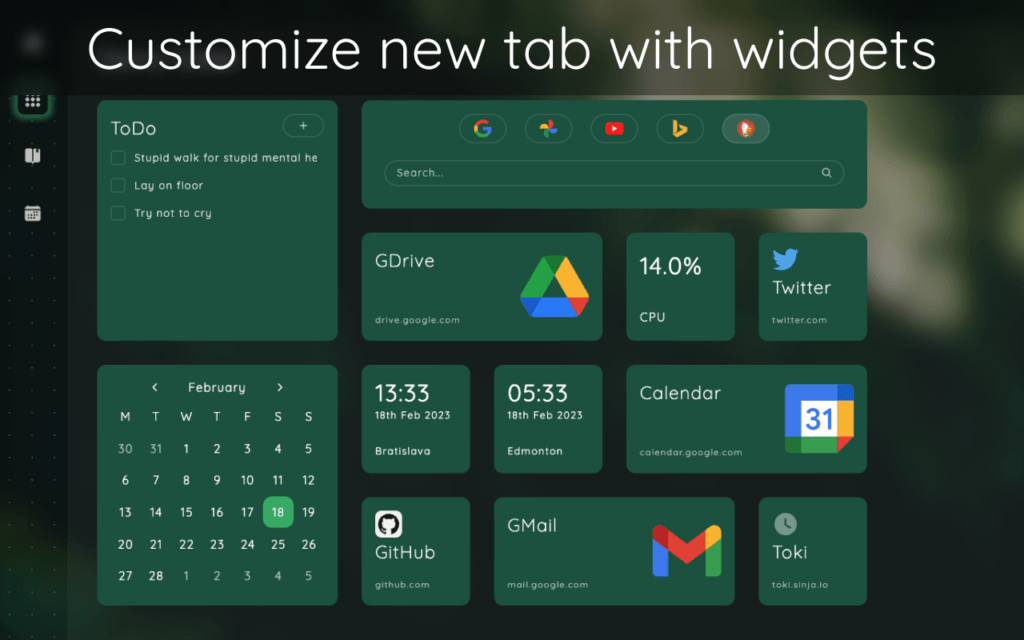
Good for: Writers, students, designers, and anyone who collects research online.
Watch for: Check whether you need cloud sync before committing, so your boards follow you across devices.
OneNote Web Clipper
OneNote Web Clipper saves pages, selected text, and snippets straight into your OneNote notebooks. Good for class notes, meeting prep, and building source libraries for writing projects. If you already use Microsoft 365, it slots right into your existing setup without any friction.
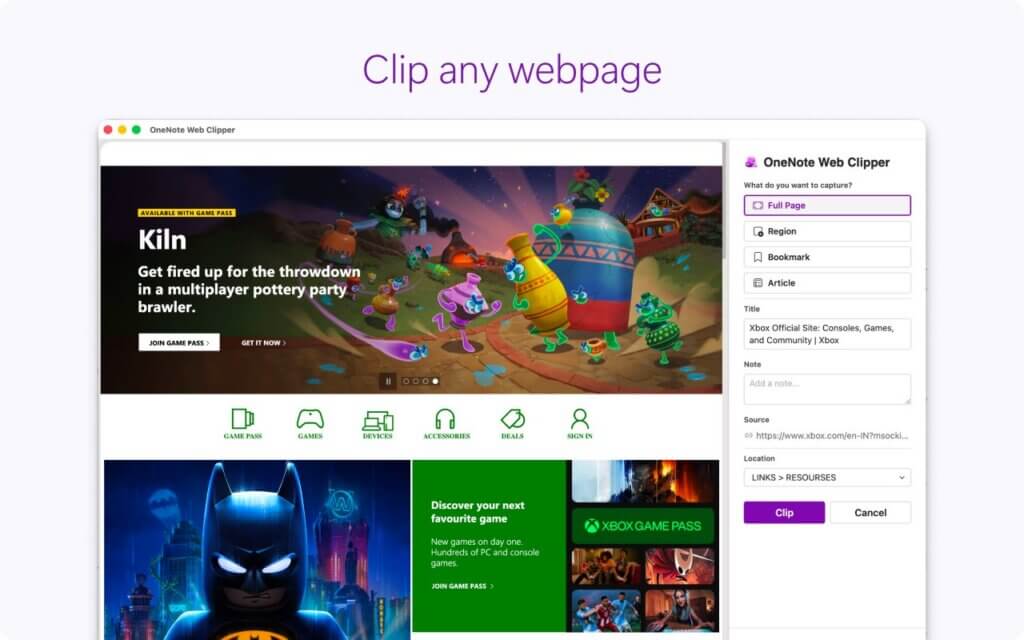
Good for: Microsoft 365 users who want their research and notes in the same place.
Watch for: Put a clip organization system in place early. Sections and tags save a lot of searching later.
Get OneNote Web Clipper on Edge
Save to Pocket
Pocket saves articles and videos so you can come back to them later, usually in a stripped-down reading view that removes most of the clutter from the original page. Offline access is one of the main draws, which comes in useful on flights or anywhere the internet is patchy.
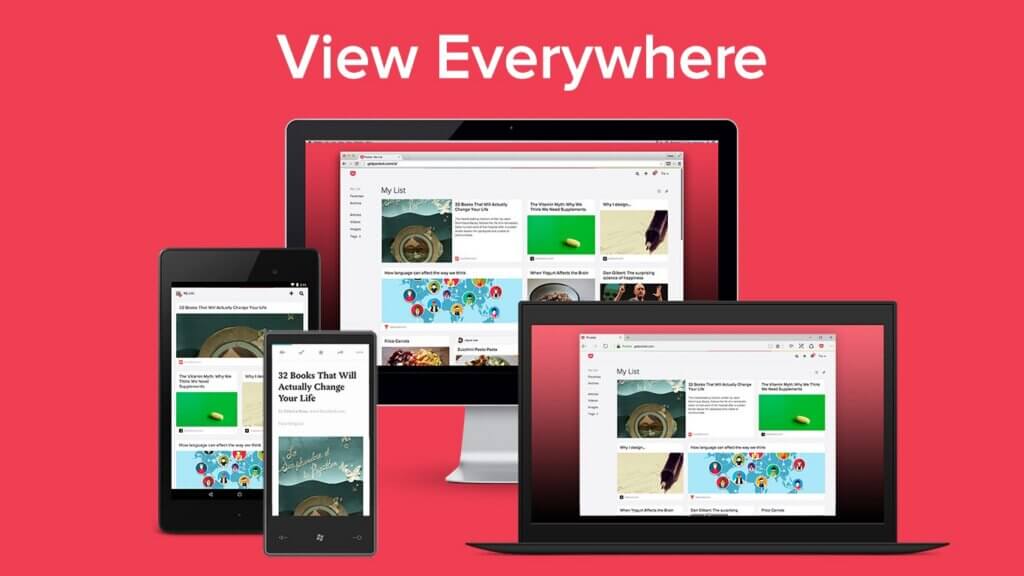
Good for: Long reads, research backlogs, and weekend reading lists.
Watch for: Pocket lists grow faster than they get read. Check in on yours occasionally, or it turns into a pile.
GoFullPage
GoFullPage takes a screenshot of the entire page, including everything below the fold. Useful for saving order confirmations, documenting bugs before they disappear, or grabbing a snapshot of a long report or product page exactly as it looked at the time.
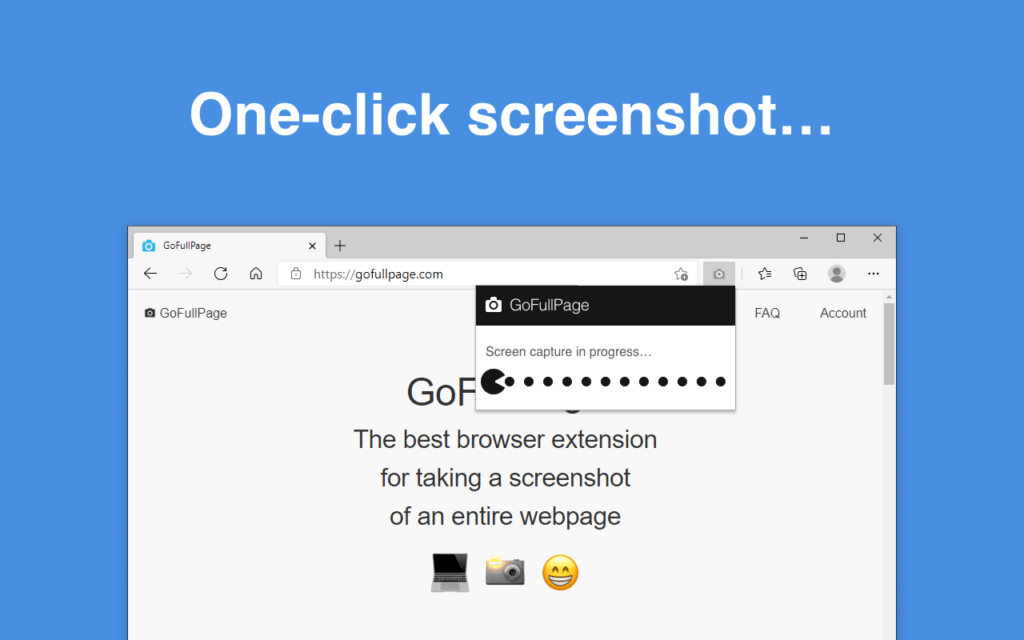
Good for: QA work, documentation, and moments where you need to capture a page precisely as it appears.
Watch for: Pages that load content as you scroll may need a second capture to pick up everything.
Reader Mode
Edge has a built-in Immersive Reader that strips out sidebars, ads, and other clutter from article pages, and it is fast because it is native to the browser. The Reader Mode extension covers the gaps where the built-in view does not trigger or gives you less control than you want.
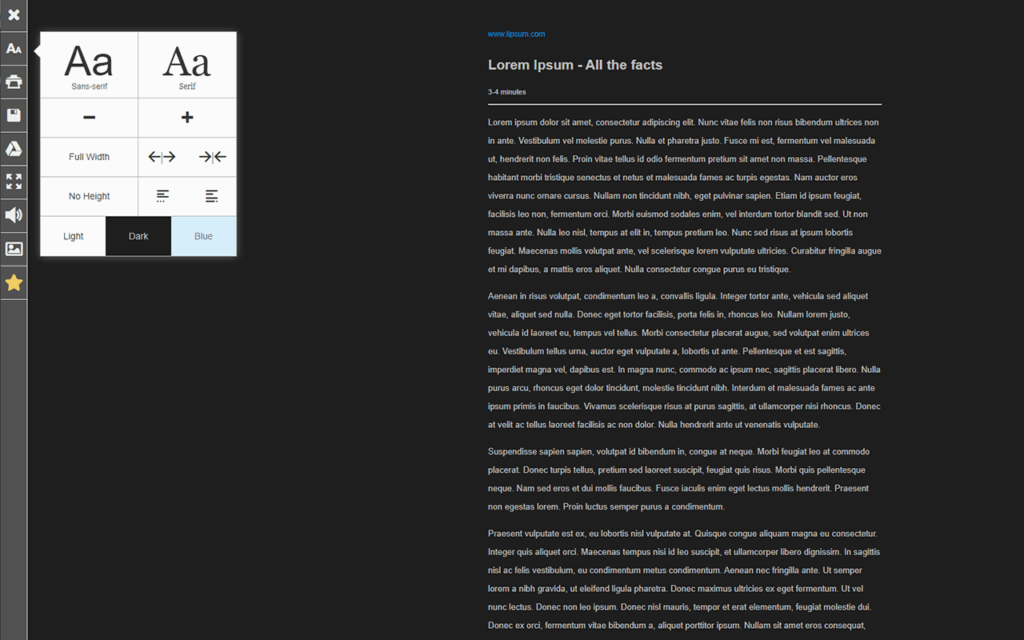
Good for: Reading articles without distractions, and accessibility features like read-aloud.
Watch for: Reader views do not work on every page type, particularly complex web apps or dashboards.
Ripple Tool
Ripple Tool surfaces mental health resources when someone searches for content related to self-harm or suicide. It is available on Edge and runs quietly in the background until it is needed.
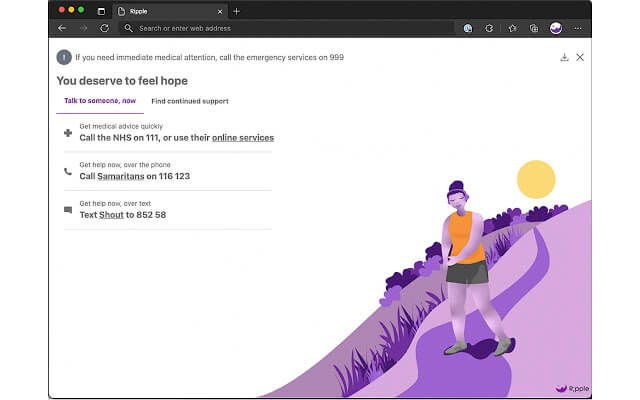
Good for: Families, schools, and organizations that want a safety net built into the browser.
Watch for: Install it as part of a deliberate wellbeing plan rather than as an afterthought.
Adobe Acrobat
Adobe Acrobat for Edge converts web pages to PDFs and handles viewing, annotating, and sharing them without leaving the browser. One of the more useful tricks is merging several open tabs or pages into one PDF.
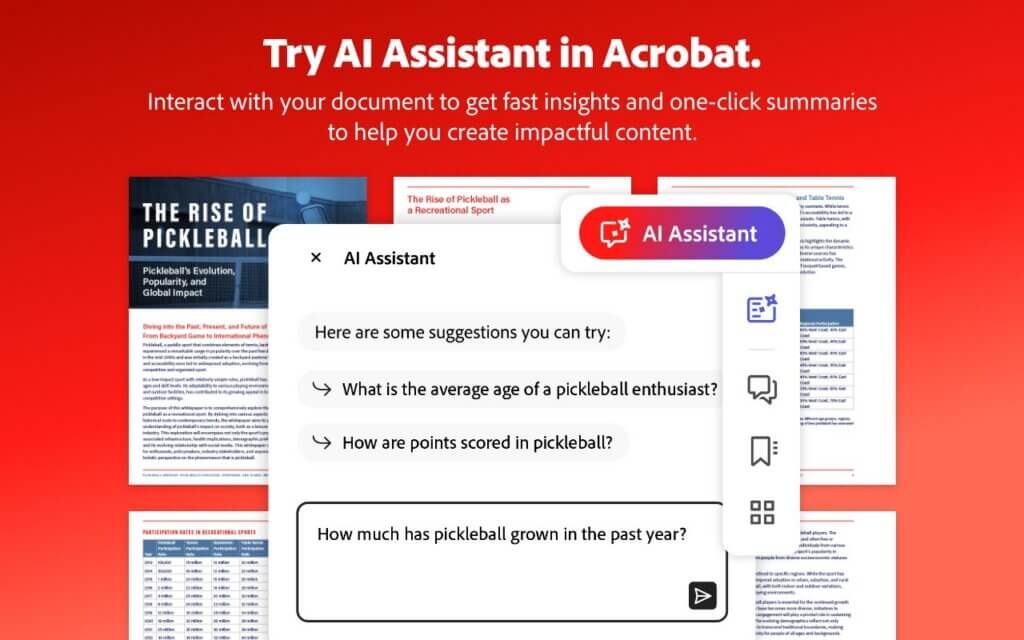
Good for: Invoices, forms, and saving web pages as clean PDFs.
Watch for: The more advanced editing features require an Adobe subscription.
AI & Writing Tools
For people who write most of their day in a browser: emails, reports, course assignments, product copy, social posts. Some of these handle grammar and clarity; others bring translation or AI chat into the sidebar.
Grammarly for Edge
Grammarly does more than catch grammar errors these days. The Edge extension checks your writing in real time across Gmail, Google Docs, and over 500,000 other sites, flagging clarity and tone issues as you go. It also includes tools for generating draft emails, rewriting passages, and producing content from a short prompt. Useful if you spend most of your day writing in a browser.
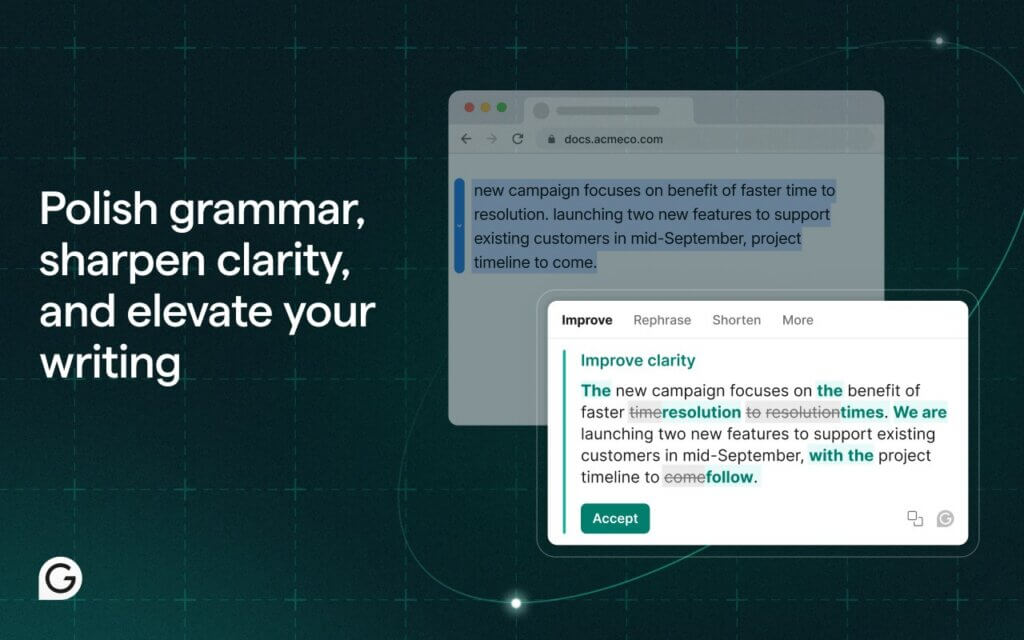
Good for: People who write a lot in the browser and want both proofreading and drafting support in one place.
Watch for: Do not paste sensitive internal content into any external writing tool without checking your organization’s policy first.
Get Grammarly for Edge on Edge
Sider: Chat with All AI Models
Sider adds an AI panel to the Edge sidebar with actions to summarize pages, rewrite selected text, and answer questions about what you are reading. The value is keeping that help available without switching tabs constantly.
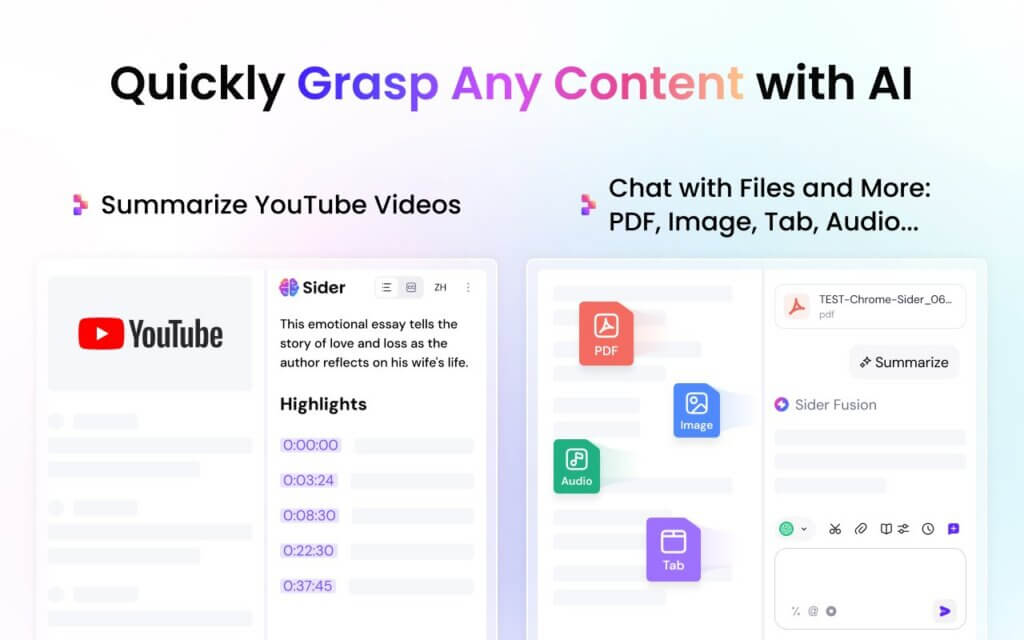
Good for: Research, quick drafts, and page summaries without losing your place.
Watch for: Look through the privacy settings before use, so you know what page content it can access.
Get Sider: Chat with All AI Models on Edge
Taskade
Taskade brings tasks, notes, and AI-assisted planning into one interface. From the extension, you can turn a page into a list of action items, jot down project notes, and handle basic team coordination without opening another app.
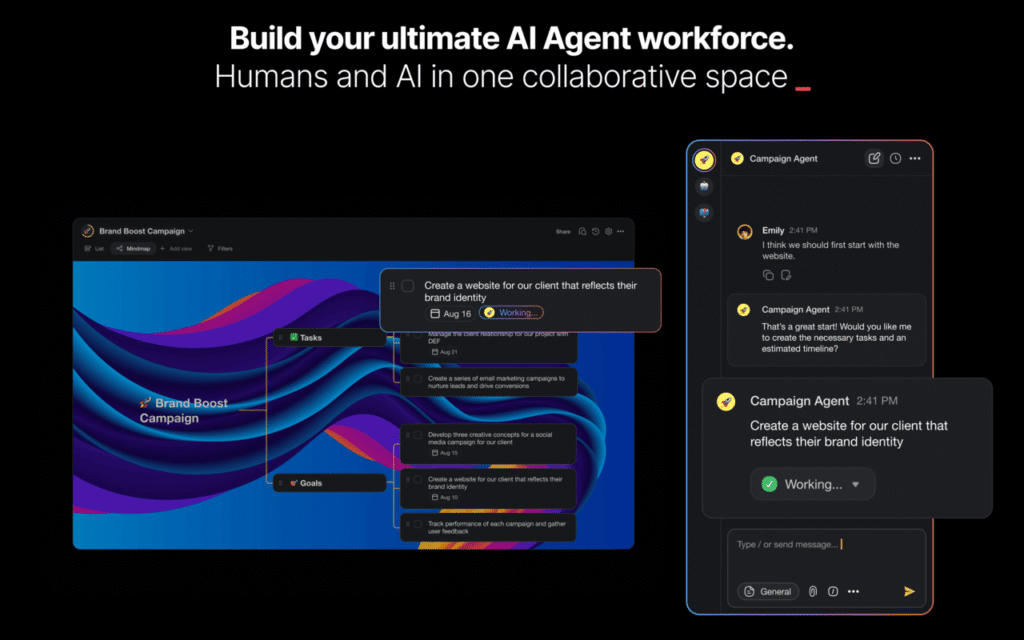
Good for: Freelancers, students, and small teams.
Watch for: If you already use another task tool, decide which one wins before adding Taskade, or work ends up in two places.
Immersive Translate
Immersive Translate handles bilingual browsing by translating pages, subtitles, and text blocks in a way that keeps the original layout intact rather than replacing the whole page. If you regularly work with sources in more than one language, it removes a lot of back-and-forth with a separate translator tab.
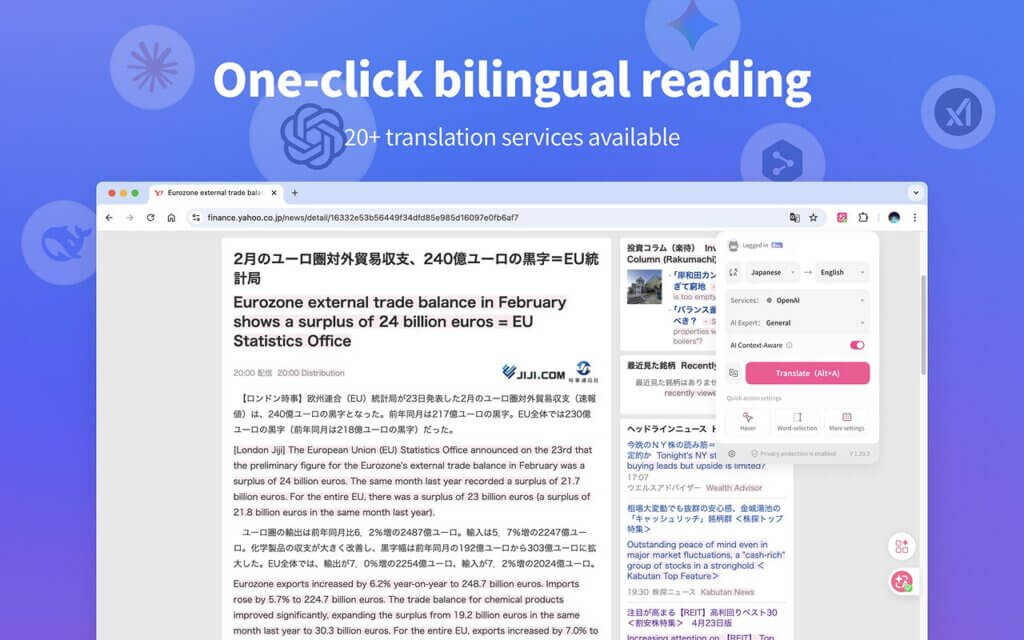
Good for: Researchers, international teams, and anyone reading across multiple languages.
Watch for: Machine translation gets close, but it can miss tone and nuance in legal, medical, or technical writing. Always verify those.
Get Immersive Translate on Edge
DeepL: Translate and Write with AI
DeepL has a strong reputation for translations that read like a human wrote them rather than a machine. The extension also includes basic writing assistance. A practical choice if your day regularly involves cross-language emails, vendor messages, or customer replies.
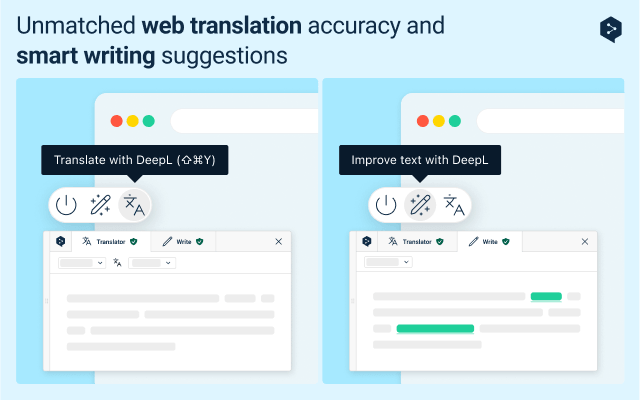
Good for: Polished translations and quick rewrites.
Watch for: Always double-check names, product terms, and numbers. These trip up automated translation more than anything else.
Get DeepL: Translate and Write with AI on Edge
Monica
Monica is an AI assistant that lives in the browser, available for chat, writing help, and page summaries without switching to a separate app. Best for users who want quick answers and drafts accessible from whatever tab they are already on.
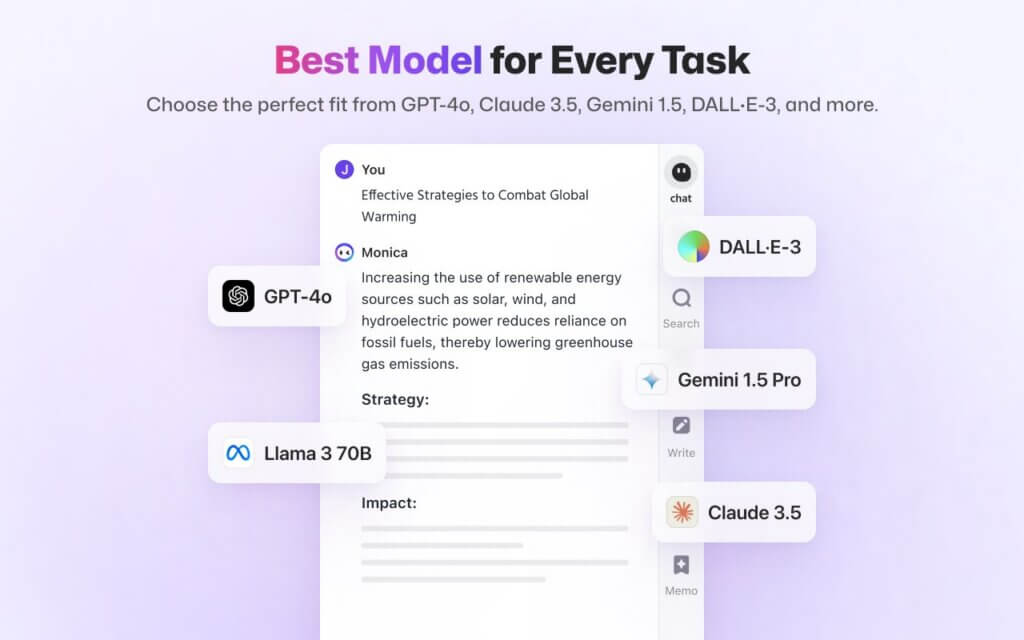
Good for: Quick drafts, summaries, and on-page Q&A.
Watch for: Check the permissions and data handling policy before using it for anything work-related.
Customization, Utility & Media Tools
Extensions for watching video more comfortably, controlling playback speed, grabbing screenshots, and working with images you find across the web.
Turn Off the Lights
Turn Off the Lights dims everything on the page except the video player, which makes YouTube, tutorials, and embedded clips easier to watch without distraction. One of those tweaks that feels unnecessary until you try it, then hard to go without.
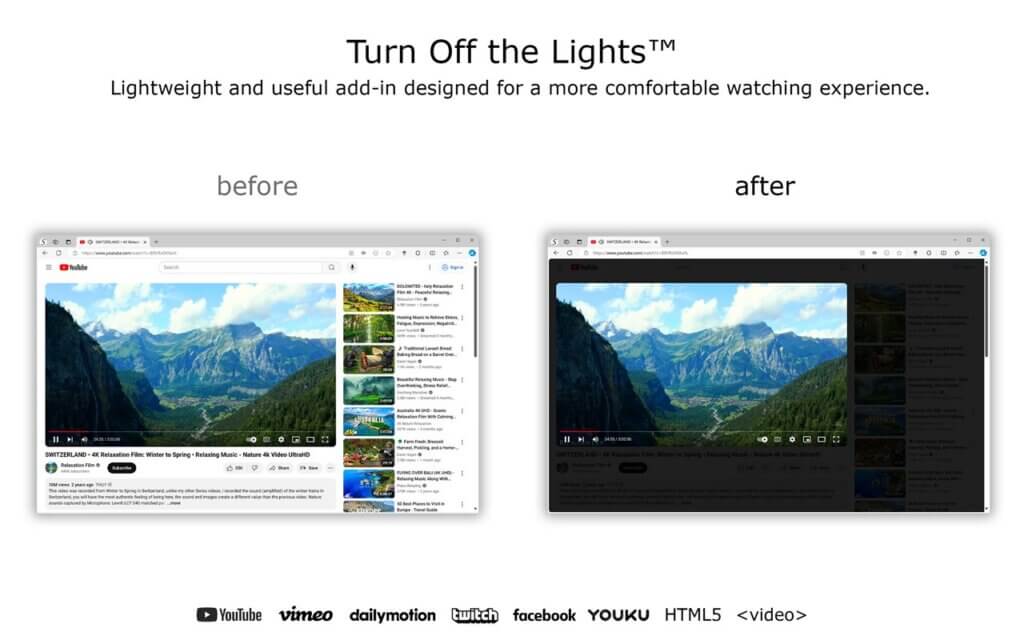
Good for: Late-night viewing and staying focused during longer instructional videos.
Watch for: The dimming overlay can clash with certain site interface elements on some pages.
Get Turn Off the Lights on Edge
Awesome Screen Recorder & Screenshot
This extension handles screen recording and screenshots from within the browser. Good for quick walkthroughs, bug reports, and short clips for teammates or clients, without needing a separate recording app.
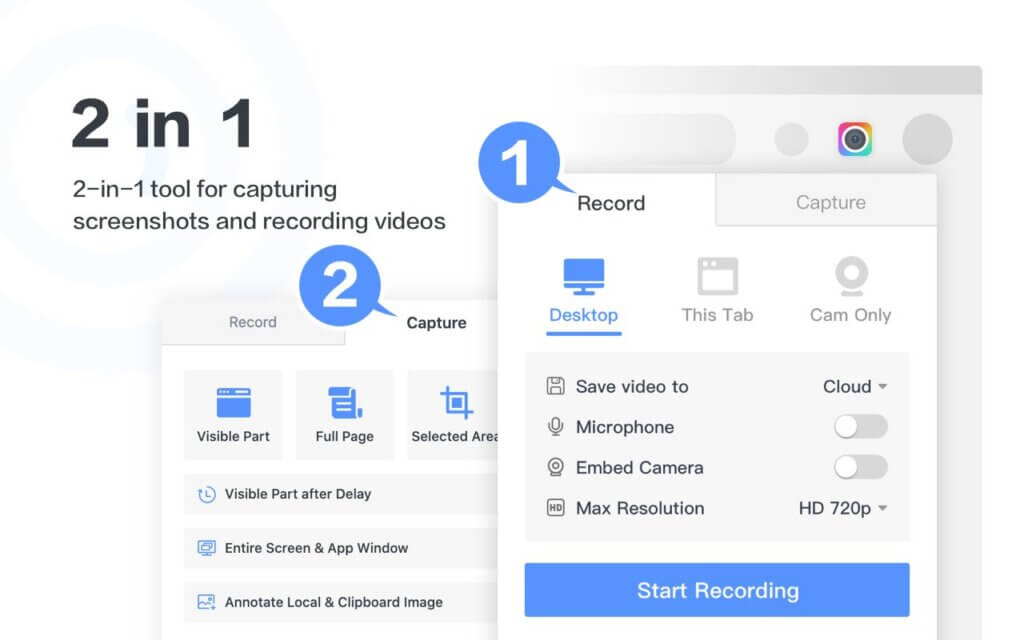
Good for: Remote work, async feedback, and simple screen tutorials.
Watch for: Recordings capture all open tabs in view. Close anything sensitive before you start.
Get Awesome Screen Recorder & Screenshot on Edge
Global Speed
Global Speed adds playback speed controls across most video sites, including ones where the built-in player does not give you many options. Particularly useful for working through online courses, long interviews, or product walkthroughs at your own pace.
Good for: Students, lifelong learners, and anyone who gets through a lot of training or tutorial video.
Watch for: Very high playback speeds can cause audio to drift out of sync on certain players.
Dislikes in YouTube
This extension brings back dislike counts on YouTube videos. A lot of people find that number useful as a rough quality check, particularly when hunting for tutorials where a high dislike ratio can signal outdated or inaccurate content.
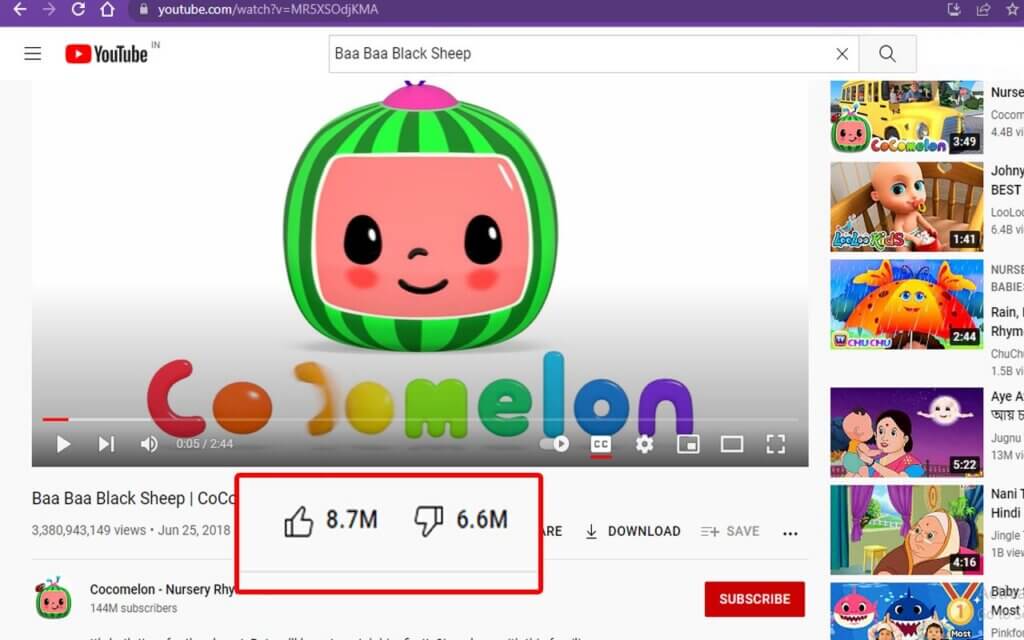
Good for: Technical tutorials and a quick read on whether a video is worth your time.
Watch for: YouTube API changes can affect how reliable the counts are, so treat them as a signal rather than a fact.
Get Dislikes in YouTube on Edge
Bulk Image Downloader
Bulk Image Downloader grabs multiple images from a page in one go. Useful for pulling down your own assets, collecting visual references with permission, or archiving images from a site you manage.
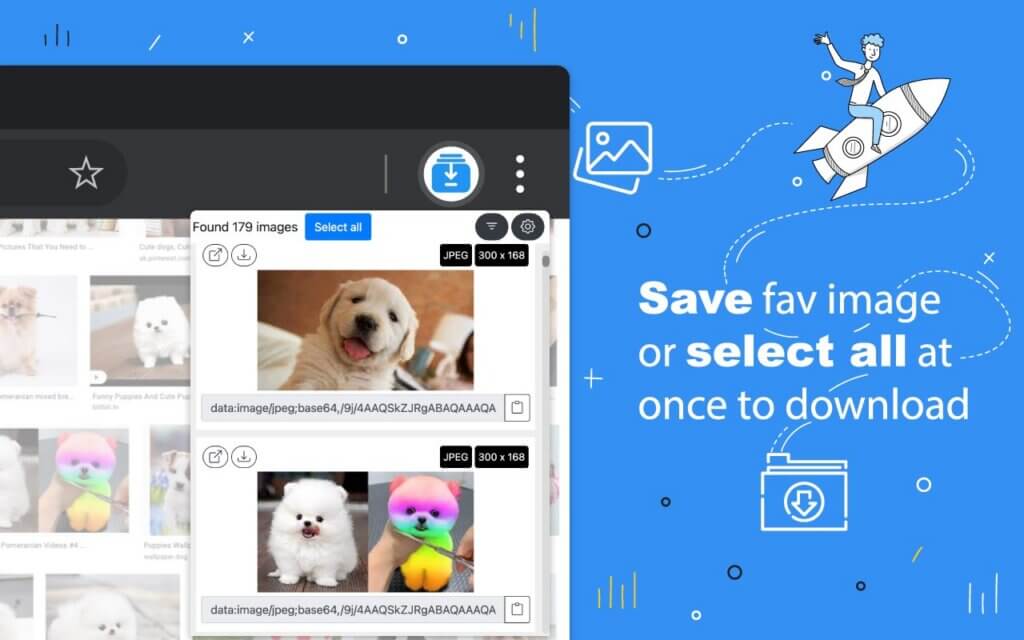
Good for: Designers and researchers working with image-heavy pages.
Watch for: Stick to content you have the right to download. Check copyright and site terms before using it on third-party pages.
Get Bulk Image Downloader on Edge
Search by Image
Search by Image adds reverse image search to the right-click menu, pulling results from multiple engines at once. Handy for tracking down where an image originally came from, finding a higher-resolution version, or checking whether something has been reposted.
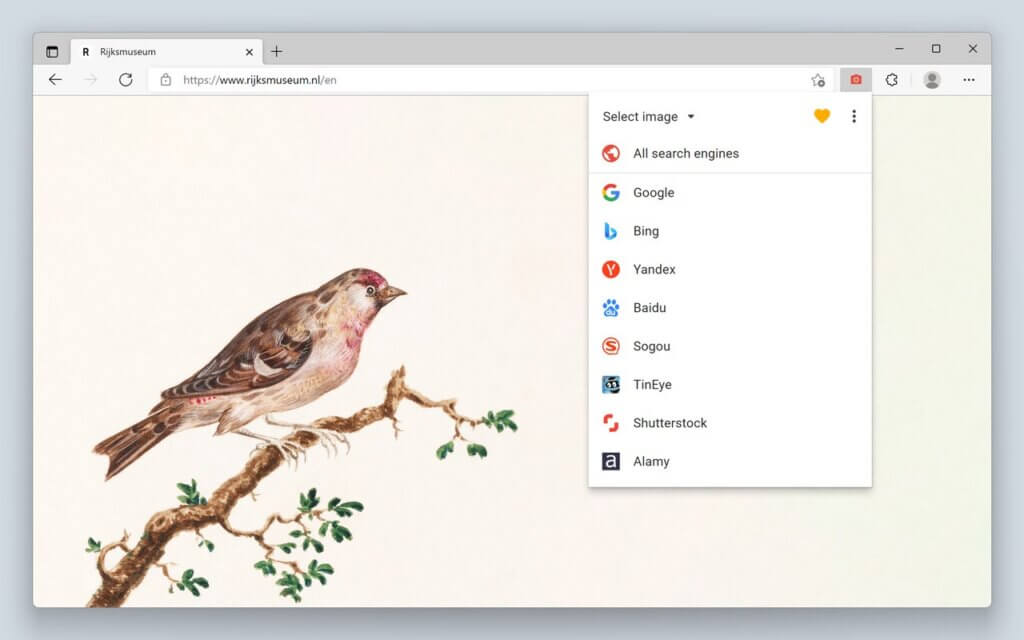
Good for: Creators, marketers, and anyone who needs to verify where images originated.
Watch for: Results vary between engines and regions, so run a few searches if the first one does not give you what you need.
Video Downloader
Video downloader extensions range from genuinely useful to outright sketchy. If you install one, pick a listing from the Edge Add-ons store with clear permissions and a tight scope, and only use it for videos you are actually permitted to download: your own content, public domain material, or sites that explicitly allow it.
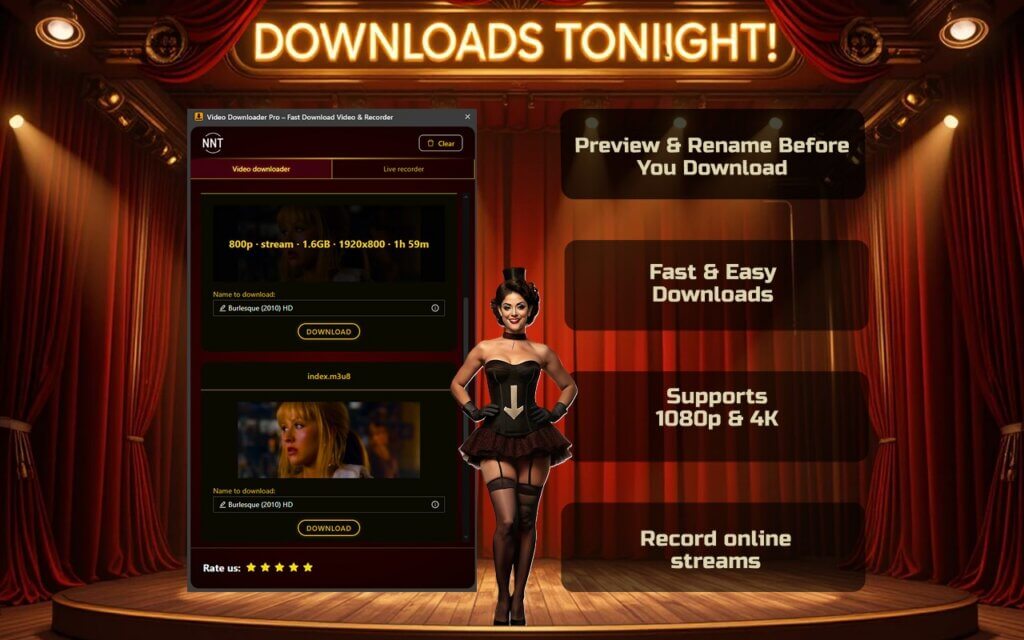
Good for: Saving permitted media for offline use.
Watch for: Avoid extensions with broad permissions or a patchy update history. Read the reviews before installing.
Shopping & Price Tracking
Two questions come up every time an “on sale” label appears online: is the price actually lower than usual, and is now a good time to buy? These extensions help answer both.
Shopping Assistant: AliExpress, Amazon, eBay
Shopping Assistant overlays price history charts on product pages across Amazon, AliExpress, and eBay, so you can see whether a sale price is actually lower than usual or just dressed up as one. It also filters out suspicious reviews, which helps cut through fake feedback on cheaper or newer listings.
Good for: Shoppers who buy across multiple platforms and want a quick read on whether a deal is genuine.
Watch for: Like most shopping extensions, it routes some links through affiliate programs. Check the settings if that matters to you.
Get Shopping Assistant: AliExpress, Amazon, eBay on Edge
Keepa: Amazon Price Tracker
Keepa embeds an interactive price history chart on every Amazon product page, showing how the price has moved over time across Amazon and third-party sellers. At a glance, you can tell whether a deal is real or whether the price was quietly inflated before the sale. You can also set alerts to get notified when a product drops to a specific price or comes back into stock.
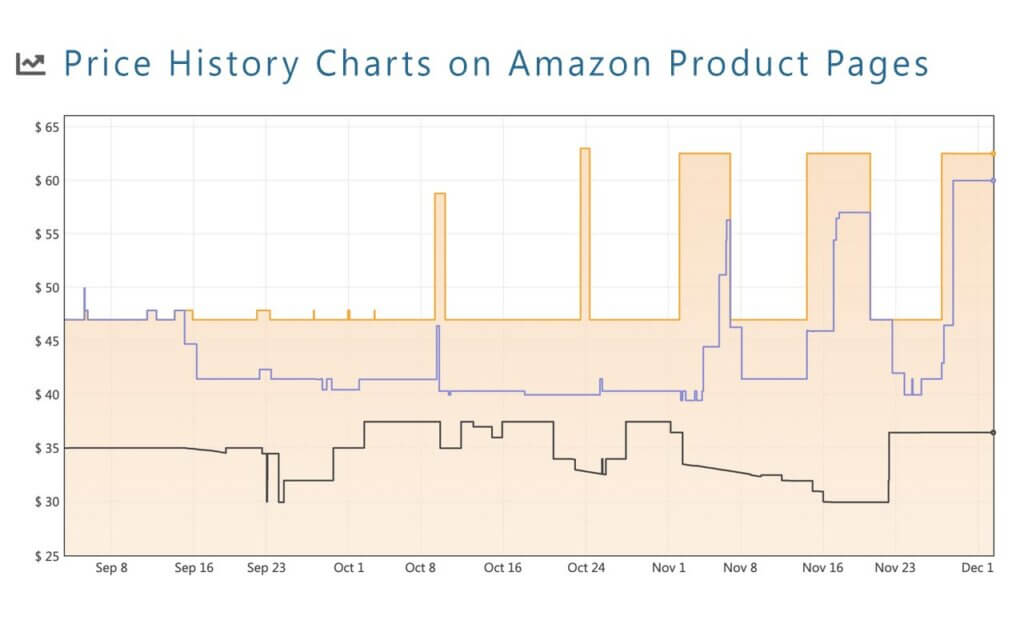
Good for: Frequent Amazon shoppers, deal hunters, and anyone planning a higher-ticket purchase.
Watch for: Keepa only covers Amazon. For other retailers, you will need a different tool.
Get Keepa: Amazon Price Tracker on Edge
The Camelizer
The Camelizer shows Amazon price history from CamelCamelCamel, directly on the product page. It is lightweight, fast, and does not add much interface clutter. Good for a quick check before you buy without digging into a separate site.
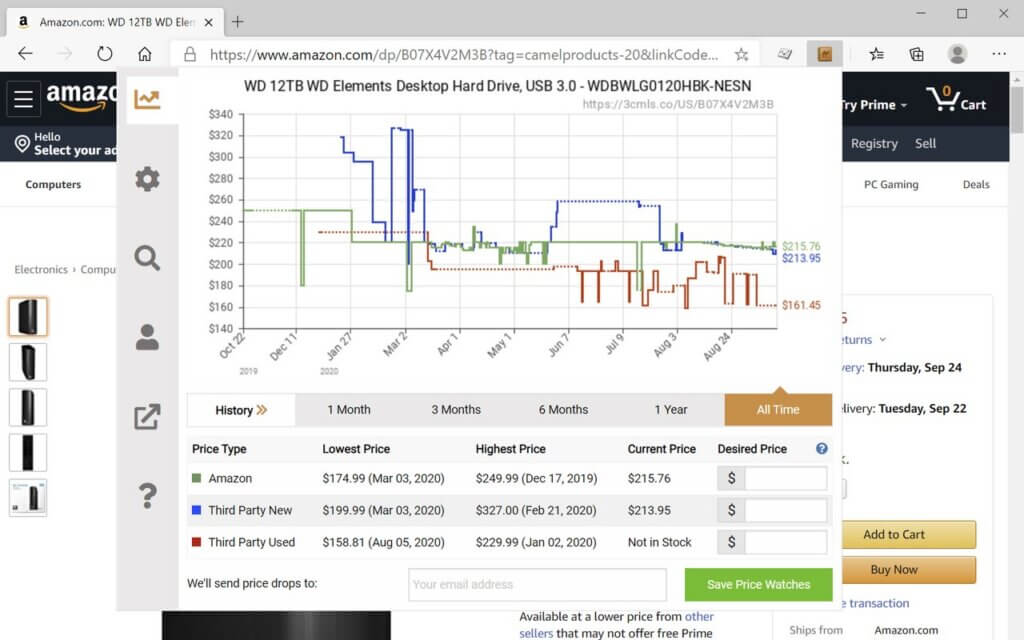
Good for: Fast “should I buy now” decisions on Amazon.
Watch for: Price history tools do not account for coupon stacking or individual account discounts, so the chart only tells part of the story.
Social, Entertainment & Community Tools
Extensions for watching with others, saving content, and making social platforms a bit less tedious to use.
Teleparty (formerly Netflix Party)
Teleparty keeps streaming playback in sync across multiple viewers and adds a group chat alongside the video. The free version covers eight services: Netflix, YouTube, Disney+, Max, Hulu, Amazon Prime Video, Pluto TV, and Tubi TV. A paid subscription adds more, including Crunchyroll, Paramount+, and Apple TV. Edge is a supported browser alongside Chrome and Safari.
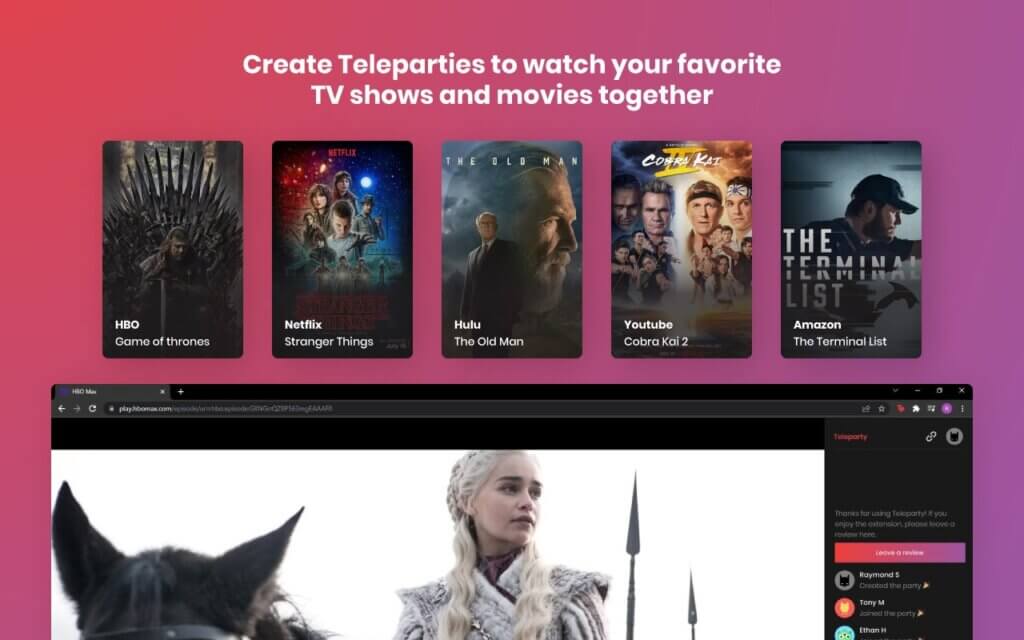
Good for: Remote movie nights and group watch sessions.
Watch for: Everyone in the party needs their own active subscription to whichever service you are watching.
Reddit Enhancement Suite
Reddit Enhancement Suite (RES) has been around for years and remains the standard kit for heavy Reddit users. It adds interface improvements and extra browsing controls that make the site considerably less tedious to navigate at volume.
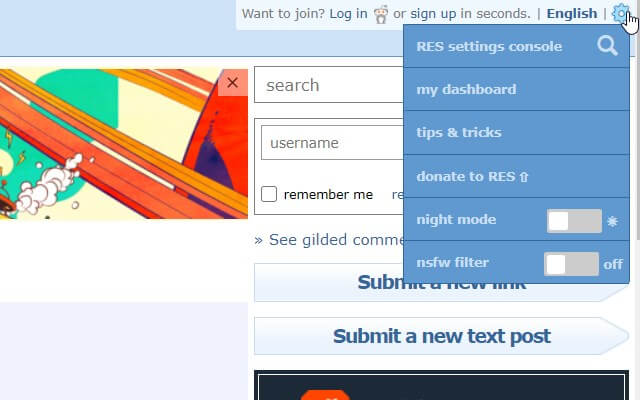
Good for: People who spend a lot of time on Reddit, particularly moderators and subreddit regulars.
Watch for: Reddit interface changes can break specific RES features. Check for updates when something stops working.
Get Reddit Enhancement Suite on Edge
Story Saver
Story Saver downloads stories from Instagram and similar platforms. Most useful for creators who want an easy way to keep copies of their own published content.
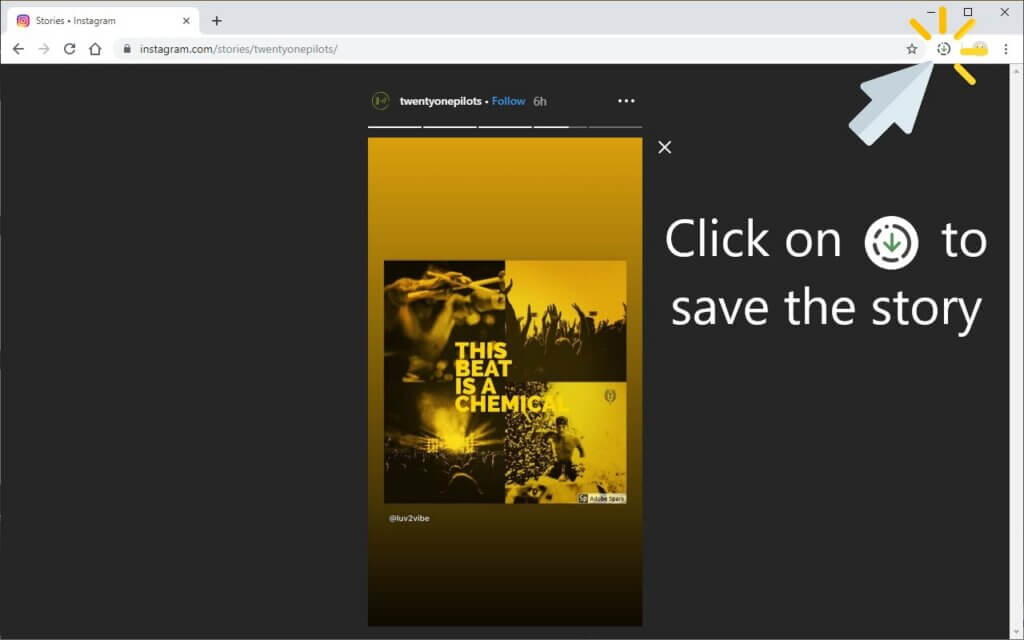
Good for: Creators archiving their own stories and posts.
Watch for: Only save content you have the right to download. Platform rules and privacy expectations apply.
Save to Pinterest
Save to Pinterest adds a save button as you browse, so you can pin things directly to your boards without going to Pinterest separately. Useful for mood boards, recipe collections, home ideas, and content planning.
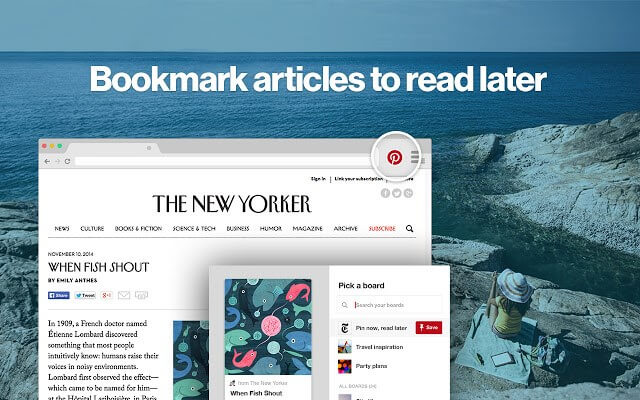
Good for: Creators, planners, and visual research.
Watch for: Name your boards clearly from the start. Vague board names make the whole system hard to use as it grows.
Picture-in-Picture Everywhere
Picture-in-Picture Everywhere keeps a small floating video window on screen while you switch to other tabs. Edge has some built-in PiP support, and this extension covers sites where the native control does not appear or does not work reliably.
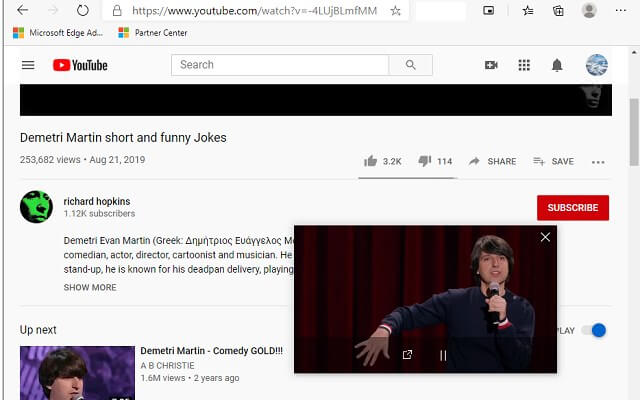
Good for: Watching lectures, podcasts, or live streams while working in other tabs.
Watch for: Some organizations restrict PiP behavior at the device policy level.
Get Picture-in-Picture Everywhere on Edge
A simple 2026 Edge setup that feels done
The goal is not to install everything on this list. A good browser setup is a small stack of tools you actually trust, kept current and tidy. Start with privacy and passwords. Add something for saving and organizing. If you write a lot or work across languages, bring in the tools that help with that.
For a cleaner reading experience, Edge’s built-in Immersive Reader, paired with a pop-up blocker, covers most of what people complain about day-to-day.
If you only install one extension, make it the one that fixes your biggest daily annoyance. Whether that is constant interruptions, logging in over and over, patchy writing, or too much noise on every page, start there. The rest tends to figure itself out.
You open Safari to read an article and a full-screen ad takes over before you can see a single word. A recipe blog auto-redirects to a pop-up offer. A YouTube video in Safari plays a 30-second pre-roll you cannot skip. If any of this sounds familiar, you are not alone. Over 530 million people worldwide now use an ad blocker, and the number keeps growing because ads on mobile keep getting worse, not better.
The good news is that blocking ads on iPhone is easier than most people think. Apple builds a few basic controls into Safari that are worth switching on, but they only cover a fraction of what you will run into. To stop ads on iPhone properly, including video pre-rolls, cookie banners, overlay pop-ups, and tracker scripts, you need one extra step. This guide walks you through both: the built-in iPhone settings that help, and the free ad and pop-up blocker for iPhone that handles everything else.
Why Ads and Pop-Ups Appear on iPhone
Before diving into the fixes, it helps to understand where iPhone ads actually come from. There are four main sources.
Most free websites, news outlets, recipe blogs, and video platforms fund themselves with display ads served through ad networks. When you load a page in Safari, those ad scripts load alongside the content. Safari does not block them by default, so every ad network that has a relationship with that site gets to load its content in your browser.
Safari includes Apple’s Intelligent Tracking Prevention, which limits how advertisers follow you across sites. But it is a privacy tool, not an ad blocker. It does not stop ads from loading. It just makes it harder for those ads to build a profile of your behavior across multiple websites.
Some websites go further than display ads. They trigger redirect loops that bounce you through multiple pages before landing somewhere unexpected, or they layer overlay banners and interstitials on top of content. These are designed to be difficult to close. Safari’s basic pop-up toggle does not catch them because they are not technically pop-up windows.
Finally, video platforms like YouTube, Dailymotion, and Crunchyroll insert pre-roll and mid-roll ads when accessed through Safari, just as they would on a desktop browser. These are served by the platform directly and are not affected by any of Safari’s built-in settings.
Use Poper Blocker to Block Ads and Pop-Ups on iPhone
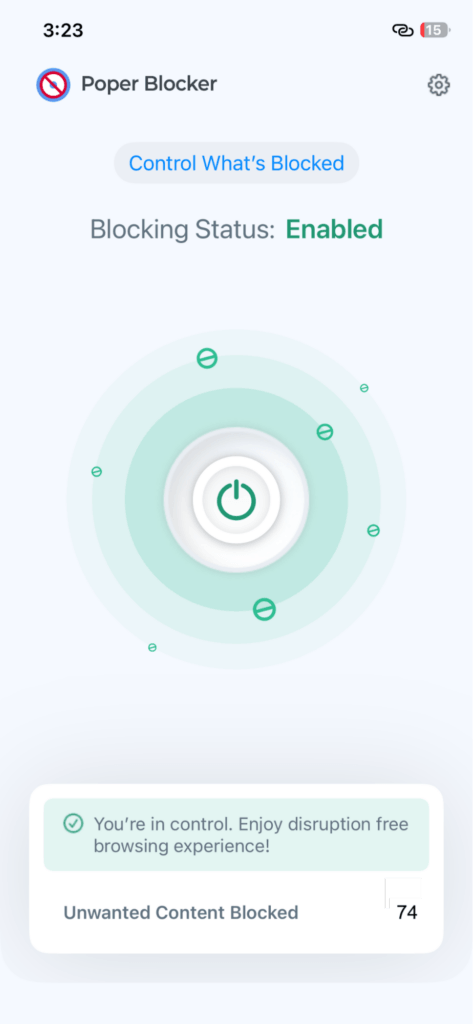
For everything Safari’s settings cannot touch, a dedicated content blocker makes the difference. Poper Blocker is a free iPhone app that blocks ads, pop-ups, video ads, cookie banners, and trackers across all the websites you visit in Safari. It requires no account, takes less than a minute to set up, and works silently in the background from that point on.
Here is what it covers that Apple’s settings do not:
- All website ads – Block banner ads, display ads, and sponsored content are removed before the page finishes loading, so you never see them and they never slow your browsing down.
- Advanced pop-ups and overlays – Beyond the basic pop-up windows that Safari’s toggle can stop, Poper Blocker removes aggressive overlay banners, interstitial ads, and the kind of full-screen takeovers that cover an article before you can read it.
- Block video ads – Pre-roll and mid-roll video ads on YouTube, Dailymotion, and Crunchyroll are blocked when you watch through Safari. If you have been putting up with unskippable ads on these platforms, this alone is worth the install. Learn more on the YouTube ad blocker feature page.
- Cookie consent banners – The cookie banner blocker automatically removes GDPR and cookie consent overlays so you reach page content immediately.
- Tracker scripts – The tracker blocker stops third-party tracking scripts from loading, which improves privacy and speeds up page loads at the same time.
Setting it up takes three steps:
- Download Poper Blocker from the App Store on your iPhone.
- Open the app and follow the on-screen instructions.
- Go to Settings > Safari > Content Blockers and enable Poper Blocker.
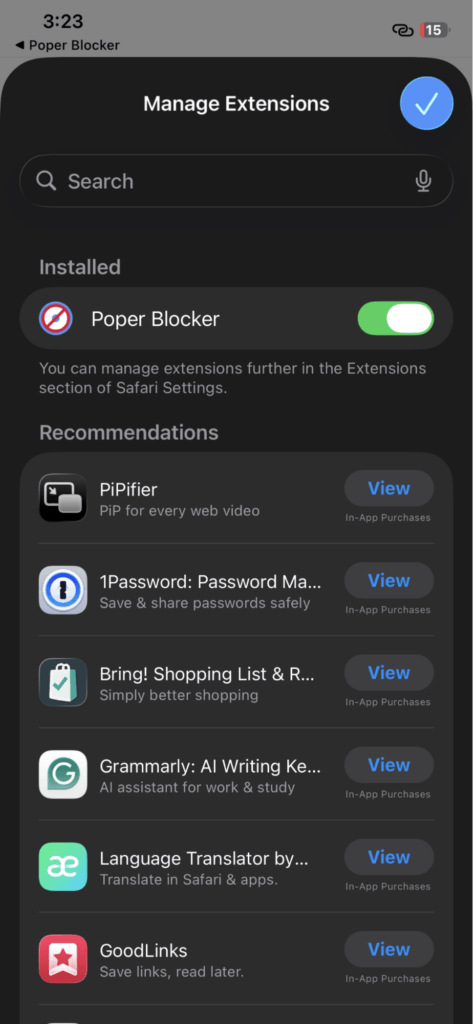
That is it. The app runs automatically every time you browse in Safari. Because it works at the content level, ads are blocked before they load rather than hidden after. Pages come in faster and cleaner.
Poper Blocker also works on iPad, and it can block ads on Safari on Mac as well, so you can install it on all of your devices.
Built-In iPhone Settings That Help Reduce Pop-Ups
Apple gives you a handful of Safari settings that are worth turning on even before you install anything. They will not block ads or stop advanced overlays, but they do reduce basic pop-up windows and limit some tracking. Here is where to find them. Full details are available in Apple’s official Safari support article.
Turn on Block Pop-Ups
Go to Settings > Apps > Safari and toggle Block Pop-Ups on. This stops the most straightforward pop-up windows, the kind that open a new browser tab or window uninvited. It will not catch overlay banners or redirect-based pop-ups that stay within the same tab.
Enable Prevent Cross-Site Tracking
On the same Settings > Apps > Safari screen, toggle Prevent Cross-Site Tracking on. This limits ad networks from following you between websites and building a behavioral profile. It reduces the creepiness factor of targeted ads but does not stop ads from loading on any individual page.
Turn on Fraudulent Website Warning
Still in Settings > Apps > Safari, toggle Fraudulent Website Warning on. This catches phishing-style pop-ups that mimic Apple alerts or claim your device has a virus. These are among the most disruptive pop-up types because they are designed to prevent you from navigating away.
Turn Off Personalized Ads from Apple
Go to Settings > Privacy and Security > Apple Advertising and toggle off Personalized Ads. One important caveat: this does not reduce the number of ads you see. It only stops Apple from using your behavioral data to target them. You will still see the same volume of ads in Apple’s own apps and properties, just less tailored ones.
All four of these settings together still will not touch website banner ads, video pre-roll ads, cookie consent banners, or advanced overlay pop-ups. For those, a dedicated content blocker like Poper Blocker is the only reliable fix.
Start Browsing Without Interruptions
You do not have to put up with constant ads and pop-ups every time you open Safari. Enable Apple’s built-in settings for a quick baseline of protection, then install Poper Blocker to handle everything else. Together they cover the full range of what iPhone users run into: banner ads, video pre-rolls, cookie banners, redirect pop-ups, advanced overlays, and tracker scripts. It is free, takes less than a minute to set up, and works in the background from then on.
FAQs
Does blocking ads on iPhone actually work?
Yes, with the right tool. Safari’s built-in pop-up toggle stops basic pop-up windows, but that is all it does. A dedicated Safari content blocker like Poper Blocker works differently: it intercepts ad scripts and tracker requests before they load, so ads are never rendered in the first place. The result is a noticeably cleaner browsing experience across all the websites you visit in Safari.
Is it safe to use an ad blocker on iPhone?
Safari content blockers are one of the safest categories of app available on iPhone. They run locally on your device and do not route your traffic through any external server. Poper Blocker requires no account to use and does not collect personal data or browsing history. If you are concerned about privacy online, an ad blocker that also blocks trackers is one of the more straightforward steps you can take.
Will blocking ads break websites or make pages load slower?
The opposite is usually true. Ad scripts and tracking code are among the heaviest elements on most web pages. Removing them before they load means pages come in faster and use less data. Some sites display a message asking you to disable your ad blocker, but you can whitelist individual sites within Poper Blocker’s settings if you want to support a specific publisher.
Can I block YouTube ads on iPhone without YouTube Premium?
Yes. When you watch YouTube through Safari rather than the YouTube app, Poper Blocker removes pre-roll and mid-roll video ads. Note that this works in the Safari browser only. The YouTube app itself cannot be blocked by an iPhone content blocker app. If you watch through Safari, you get ad-free playback without needing a Premium subscription.
Why do pop-ups still appear even with Safari’s Block Pop-Ups setting turned on?
Safari’s toggle only catches pop-up windows that open as a new tab or browser window. The more common type of pop-up people encounter today is an overlay or interstitial that loads within the same page, covering the content you are trying to read. These are not technically pop-up windows, so Safari’s setting does not apply to them. A content blocker that targets overlay elements and ad scripts is needed to stop them reliably.
You open Pinterest to find a new recipe or a bedroom refresh idea, and within seconds, you’re looking at a Promoted Pin for something you don’t want. Then another. Then another. If it feels like Pinterest has more ads than it used to, that’s because it does. The platform generated over $4.2 billion in ad revenue in 2025, and that number is only growing.
Here’s the thing most users don’t realize: there’s no setting in Pinterest that turns ads off. No toggle, no premium tier, no workaround buried in account settings. Pinterest is a free platform, and ads are how it stays that way. If you want a genuinely ad-free feed, you need a purpose-built tool to remove them before they ever appear.
That’s exactly what this guide covers.
Why You See So Many Ads on Pinterest
Pinterest runs on advertising revenue. Brands pay to have their Promoted Pins appear in your feed, and the more users Pinterest attracts, the more valuable that ad space becomes. With 619 million monthly active users as of the end of 2025, the platform is an increasingly attractive destination for advertisers, which means more sponsored posts showing up between the organic content you actually came for.
Promoted Pins are intentionally designed to blend in. They look almost identical to regular Pins, with only a small “Promoted” label to distinguish them. That’s part of what makes them feel so intrusive: you don’t always know you’re looking at an ad until you’re already there.
Use Poper Blocker’s Pinterest Ad Blocker
The cleanest, most permanent fix is Poper Blocker’s Pinterest Ad Blocker, a browser extension built specifically to strip ads and sponsored posts from your Pinterest feed.
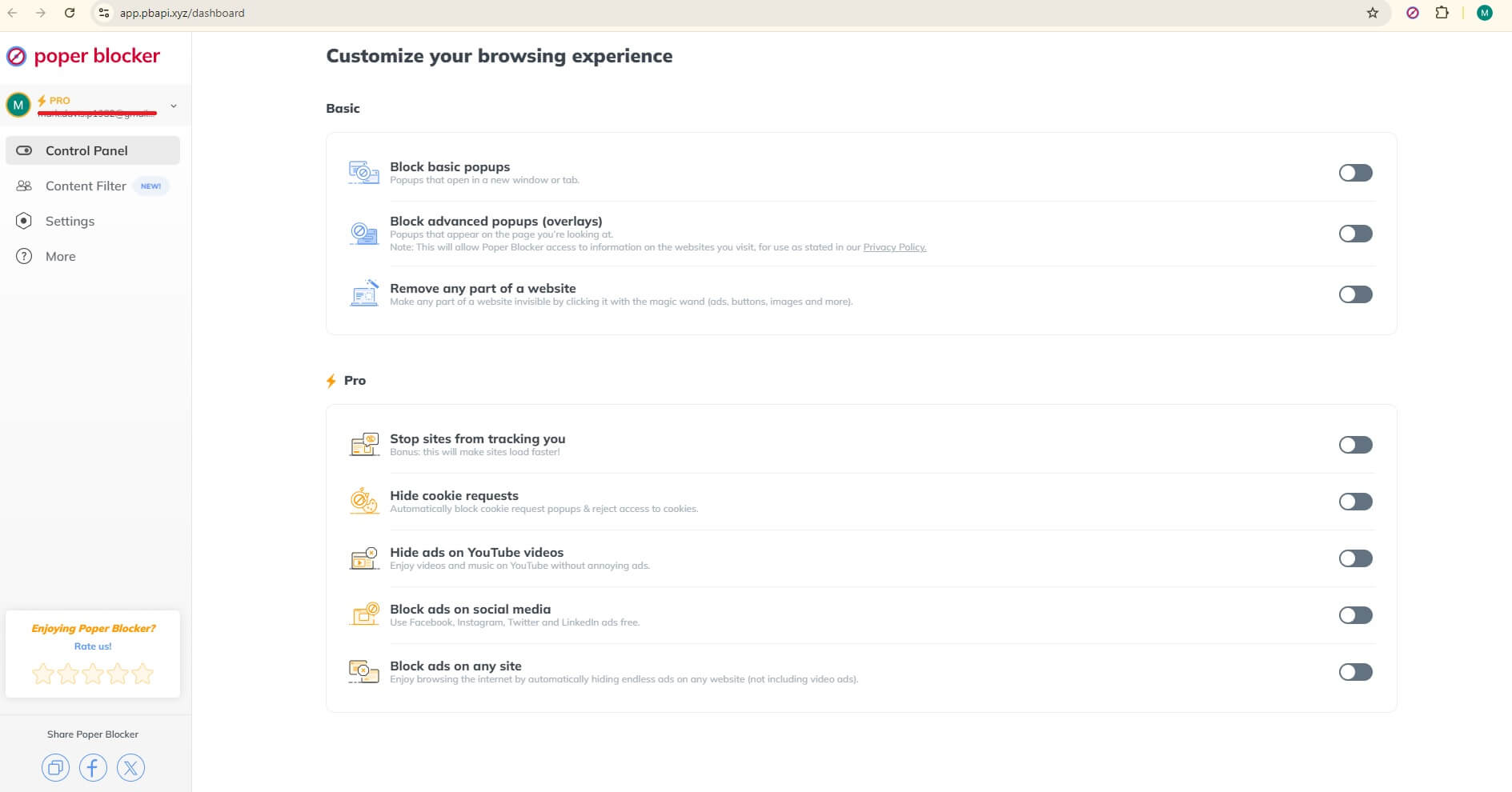
Here’s how it works: once installed, Poper Blocker scans your Pinterest feed and removes all Promoted Pins before they load. You don’t see them. They don’t take up space. Your feed becomes exactly what Pinterest was always meant to be: pure, uninterrupted visual inspiration.
What makes it stand out:
- Available for Chrome and Edge on desktop, installing in seconds directly from the browser’s extension store
- No configuration needed. It works the moment it’s installed, automatically
- No account required. Install and go, with no sign-up and no personal data collected
- Lightweight. It won’t slow your browser or interfere with how Pinterest functions; boards, searches, saves, and all other features work exactly as normal
- Purpose-built for Pinterest. Rather than a generic blocker applying broad filters, this is designed around how Pinterest specifically serves ads, making it especially effective
The difference is immediate. No more accidentally clicking a Promoted Pin thinking it’s a real recommendation. No more ads breaking up the scroll. Just the content you came for.
Adjust Your Pinterest Ad Preferences
Pinterest does give users some control over ad personalization in Settings > Privacy and Data. You can toggle off options like “Use info from sites you visit” to stop Pinterest from targeting you based on your browsing behavior elsewhere.
Worth knowing: This changes which ads you see, not how many. You’ll still get the same volume of Promoted Pins, they’ll just be less tailored to your interests. For many users, that actually makes things worse, not better, since the ads become more random and less relevant.
It’s worth adjusting if you have privacy concerns about cross-site tracking, but it won’t give you a cleaner feed.
Get Rid of Pinterest Ads for Good
Pinterest isn’t going to add an “off” switch for ads. It’s not in their interest to do so, and the native workarounds either don’t fully work or require constant upkeep.
Poper Blocker’s Pinterest Ad Blocker solves it properly: one install, no configuration, and your feed stays clean. It also handles popups, cookie banners, trackers, and ads across every other site you visit, so you’re not just fixing Pinterest, you’re fixing the whole browser.
Install Poper Blocker and enjoy Pinterest without ads →
FAQs
Can you turn off ads on Pinterest?
No. Pinterest doesn’t offer a setting to disable ads. Ads are how the platform funds itself, so there’s no built-in opt-out. The only way to remove them entirely is with a third-party tool like Poper Blocker’s Pinterest Ad Blocker.
Is Poper Blocker safe to use on Pinterest?
Yes. Poper Blocker is a lightweight browser extension that doesn’t require an account, doesn’t collect your personal data, and doesn’t interfere with Pinterest’s core functionality. Your boards, saves, searches, and everything else work exactly as normal. The only thing missing is the ads.
Does Poper Blocker work on the Pinterest mobile app?
Poper Blocker’s Pinterest Ad Blocker works on desktop browsers (Chrome and Edge). It blocks ads when you use Pinterest through your browser. For mobile, the native Pinterest app on iOS and Android operates in a separate environment that browser extensions can’t reach.
Why does Pinterest show so many more ads now?
Pinterest has been actively growing its advertising platform. The company reported over $4.2 billion in ad revenue for 2025, a 16% increase year over year, and continues to invest in AI-powered ad targeting to make Promoted Pins more effective for advertisers. More ad investment means more ads in your feed.
Will blocking Pinterest ads break anything on the site?
No. Poper Blocker removes Promoted Pins and sponsored posts while leaving all organic content, boards, and site functionality completely intact. You can save Pins, follow accounts, use search, and browse normally. You just won’t see the ads.
Is YouTube Premium really worth $15.99/month just to remove ads?
If you’ve been asking yourself that question lately, you’re not alone. YouTube has been steadily increasing ad frequency – longer pre-rolls, unskippable mid-rolls, back-to-back ads – and Google has responded by nudging users toward a Premium subscription that keeps getting pricier. Meanwhile, savvy viewers are discovering there are smarter ways to take back control of their viewing experience without paying a monthly subscription fee.
This article breaks down exactly what you get with YouTube Premium versus Poper Blocker – comparing cost, features, and real-world value – so you can decide which option makes sense for you.
What You Get With YouTube Premium
YouTube Premium is Google’s official subscription tier that removes ads and bundles a handful of extras. Here’s what’s on offer:
Pricing (current as of April 2026, when it became more expensive):
- Monthly plan: $15.99/month
- Annual plan: $159.99/year (roughly 15% savings vs. monthly)
- Premium Lite: $8.99/month – removes ads but does not include offline downloads, background play, or YouTube Music
Core features include:
- Ad-free YouTube – no pre-roll, mid-roll, or banner ads on most videos
- YouTube Music Premium – full access to Google’s music streaming service
- Offline viewing – download videos to watch without an internet connection
- Background play – continue audio when your screen is off or you switch apps
YouTube Premium is genuinely more than an ad blocker. If you’re a heavy YouTube Music listener or you frequently download videos for flights and commutes, there’s real value here. The problem is that research consistently shows the majority of Premium subscribers sign up for one reason: to get rid of ads. For that specific goal, you’re paying a significant premium for features you may never use.
The $8.99/month Lite tier strips it down to ad removal only, but even that price point is difficult to justify when free alternatives exist.
What You Get With Poper Blocker
Poper Blocker is a browser extension and mobile app that blocks ads, pop-ups, cookie banners, overlays, and more – across YouTube and far beyond it.
Available on:
Free features include:
- YouTube ad blocking on desktop – removes pre-roll, mid-roll, and overlay ads automatically
- Free YouTube ad blocker for Android and iOS – ad-free viewing on mobile, no subscription required
- Pop-up blocker – eliminates disruptive pop-up windows across the web
- Overlay blocker – removes intrusive on-page overlays that hijack your attention
- Cookie banner blocker – auto-dismisses the consent pop-ups that interrupt every site visit
- Video streaming ad blocker – blocks ads on Dailymotion, Crunchyroll, Tubi, and more
- Magic Wand tool – click any element on any webpage to make it permanently invisible (ads, buttons, images, anything)
Paid tiers (optional upgrades):
- Monthly: $4.79/month
- Annual: $1.59/month (billed yearly)
- Lifetime: $39.95 one-time payment
Upgrading to Pro unlocks:
- Social media ad blocker – removes ads on Facebook, Instagram, X/Twitter, LinkedIn, Pinterest, and Reddit
- Web-wide ad blocker – blocks banner and display ads across the entire internet
- Tracker blocker – stops third-party trackers from following you around the web
The key takeaway: Poper Blocker’s free plan already delivers the core feature most Premium subscribers are actually paying for. And even the most expensive paid tier costs a fraction of what YouTube charges.
Direct Comparison: Costs & Features
Cost Breakdown
| Plan | Monthly Cost | Annual Cost |
|---|---|---|
| YouTube Premium | $15.99/month | $159.99/year |
| YouTube Premium Lite | $8.99/month | – |
| Poper Blocker Free | $0 | $0 |
| Poper Blocker Pro (monthly) | $4.79/month | – |
| Poper Blocker Pro (annual) | – | $19.08/year ($1.59/mo) |
| Poper Blocker Lifetime | – | $39.95 once |
To put this in perspective: a single year of YouTube Premium costs more than four times a lifetime license of Poper Blocker. At $159.99, you could buy a Poper Blocker lifetime license four times over and still have money left.
Feature Comparison
| Feature | YouTube Premium | YouTube Premium Lite | Poper Blocker Free | Poper Blocker Pro |
|---|---|---|---|---|
| YouTube ads removed | ✅ | ✅ | ✅ | ✅ |
| Background play | ✅ | ❌ | ✅ | ✅ |
| Offline downloads | ✅ | ❌ | ❌ | ❌ |
| YouTube Music | ✅ | ❌ | ❌ | ❌ |
| Pop-up blocking | ❌ | ❌ | ✅ | ✅ |
| Cookie banner blocking | ❌ | ❌ | ✅ | ✅ |
| Web-wide ad blocking | ❌ | ❌ | ❌ | ✅ |
| Social media ad blocking | ❌ | ❌ | ❌ | ✅ |
| Tracker blocking | ❌ | ❌ | ❌ | ✅ |
| Streaming site ad blocking | ❌ | ❌ | ✅ | ✅ |
| Mobile support (Android + iOS) | ✅ | ✅ | ✅ | ✅ |
If your primary goal is simply watching YouTube without ads, Poper Blocker gives you that for free – on every major platform.
Premium wins in exactly two features: offline downloads and YouTube Music. Everything else either ties or goes to Poper Blocker – often at zero cost.
Use Poper Blocker to Watch YouTube Without Ads
You don’t need to subscribe to another streaming service just to remove ads. Poper Blocker delivers the single feature that drives most Premium sign-ups – ad-free YouTube – completely free, on every device you use.
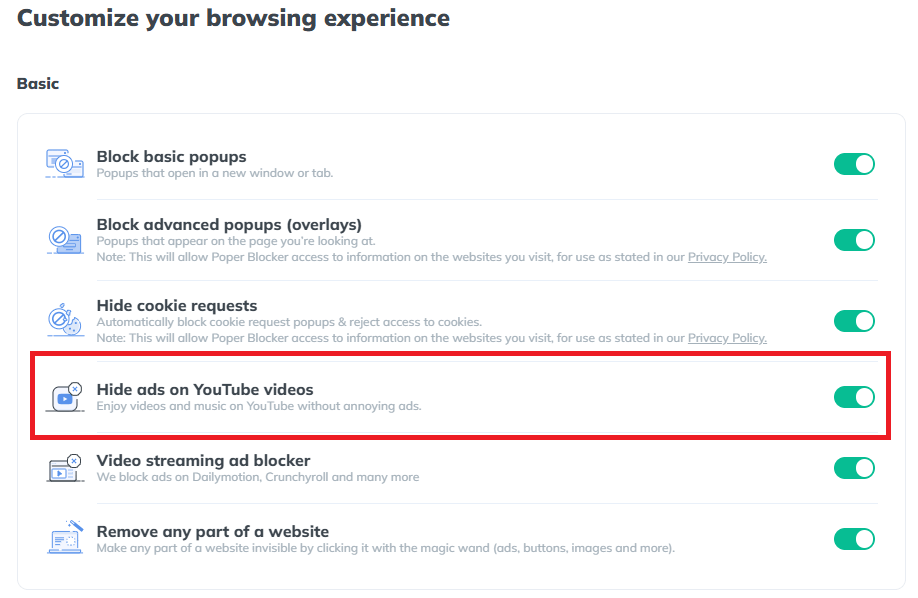
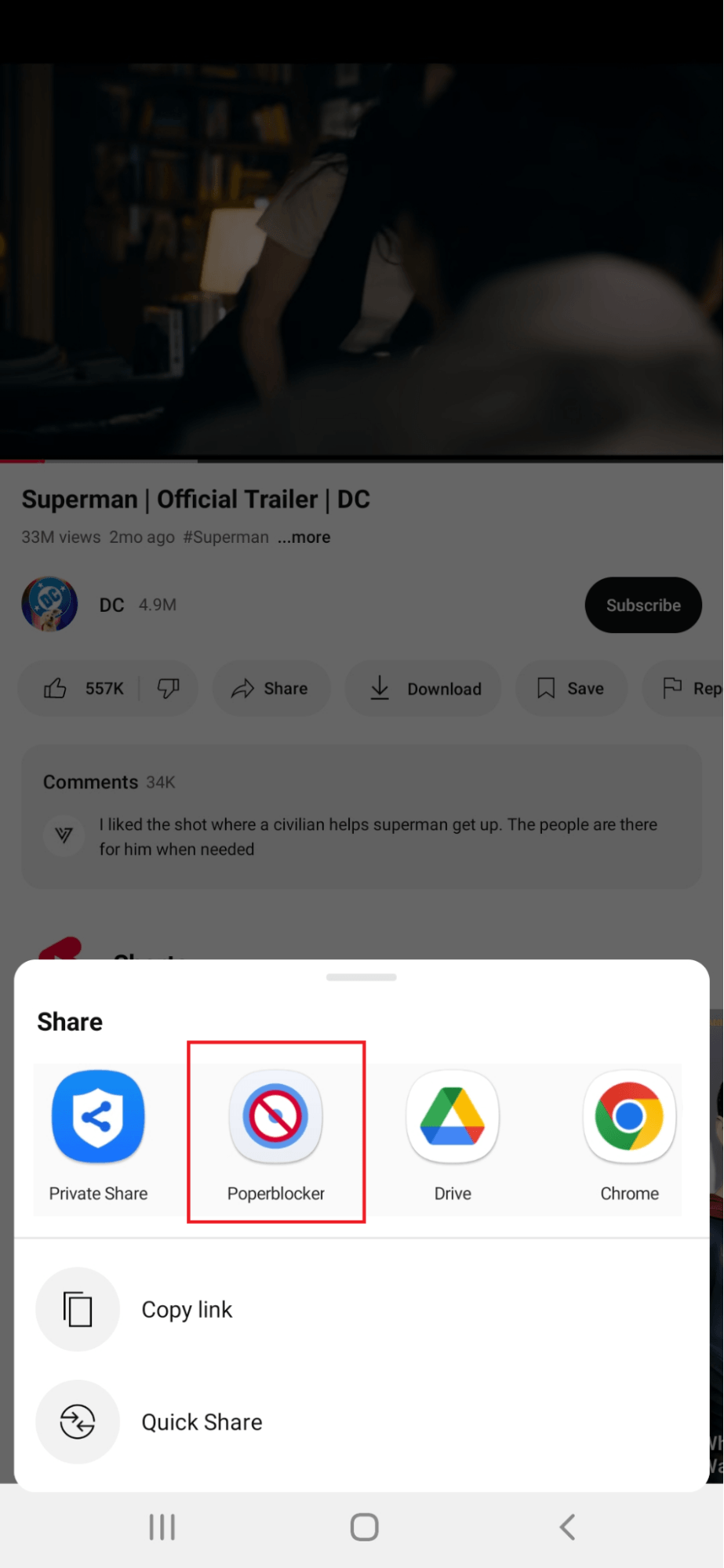
Install it on Chrome or Edge on your desktop, and your YouTube experience transforms instantly: no pre-rolls, no mid-rolls, no overlay ads, no interruptions. Prefer watching on your phone? The Android app and iOS app bring the same ad-free experience to mobile.
Poper Blocker also supports background play on mobile – so you can listen to a YouTube video with your screen off or switch to another app, just like Premium offers.
In short, Poper Blocker doesn’t just remove YouTube ads – it upgrades your entire browsing experience across every site, every platform, every day.
When YouTube Premium Might Make Sense
To be fair, there are specific use cases where YouTube Premium genuinely earns its price tag.
If you’re a heavy YouTube Music user who would otherwise pay for Spotify or Apple Music, Premium bundles both services into one bill – that changes the value equation considerably. Similarly, if you frequently travel or commute without reliable internet, offline video downloads are a feature Poper Blocker simply doesn’t replicate.
If either of those describes you, Premium may be worth it.
But for the majority of users asking is YouTube Premium worth it – people who want to sit down and watch YouTube without being interrupted by ads – those extras don’t justify a $15.99 monthly price tag. That’s $191.88 per year for features most subscribers never use. And with YouTube continuing to expand unskippable ad formats while also cracking down on third-party ad blockers, that pressure to subscribe is only going in one direction.
The Bottom Line
In any combination – free vs. free, paid vs. paid, or lifetime vs. annual – Poper Blocker is always cheaper and often more feature-rich than YouTube Premium.
Premium asks you to pay every month, indefinitely, for a bundle built around ad removal. Poper Blocker gives you that same ad-free YouTube experience for nothing, and if you want to go further, a full suite of privacy tools costs less per month than a single cup of coffee.
Try Poper Blocker free on the platform you use most – Chrome, Edge, or Android. You shouldn’t have to pay a subscription just to watch a video in peace.
FAQs
Does Poper Blocker work on YouTube mobile?
Yes. Poper Blocker’s free YouTube ad blocker is available on both Android and iOS, removing ads from the YouTube app without any subscription.
Is Poper Blocker completely free for YouTube?
Yes – YouTube ad blocking on desktop and mobile is included in the free plan. Paid tiers unlock additional features like social media and web-wide ad blocking, but they’re optional.
Does YouTube Premium Lite include background play?
No. Premium Lite removes ads but does not include background play, offline downloads, or YouTube Music. You need the full $15.99/month plan to access those features.
Can Poper Blocker block ads on other streaming sites too?
Yes. The free plan blocks ads on Dailymotion, Crunchyroll, Tubi, and other video platforms – not just YouTube.
How much does Poper Blocker Pro cost compared to YouTube Premium?
Poper Blocker Pro costs $1.59/month on the annual plan, versus $15.99/month for YouTube Premium. The Poper Blocker lifetime license ($39.95) costs less than three months of Premium.
Have you ever been immersed in an online article, only to be jolted out of your concentration by a sudden video ad? It’s a common frustration shared by many internet users today. Video ads, while a crucial part of the digital marketing ecosystem, can often be intrusive and disruptive to our online experience.
Why Should You Block Video Ads?
Video ads are more than just a minor annoyance; they can significantly hinder our online experience. They consume valuable data, slow down page loading times, and can be particularly intrusive when they play sound automatically. Blocking these ads isn’t just about avoiding irritation; it’s about reclaiming control over your digital environment.
The staggering reach of online videos, with 92.3% of internet users worldwide engaged, underscores the pervasive nature of video content, including ads. However, this extensive engagement, coupled with the fact that people are spending an average of 17 hours per week watching online videos, can lead to a saturation point where video ads become more annoying and disruptive.
This overexposure to video content, especially ads, risks overwhelming users, potentially leading to ad fatigue and a negative user experience.
What Built-in Options Do Browsers Have to Block Video Ads?
The good news is that major browsers like Chrome, Firefox, Safari, and Edge have stepped up to offer built-in options for blocking video ads. These features are designed to enhance user experience by providing more control over content visibility and reducing unwanted interruptions.
Let’s dive into how each of these popular browsers equips you with the tools in order to have a smoother, ad-free online journey:
Google Chrome: Built-in Tools for a Cleaner Browsing Experience
Google’s Chrome offers several built-in features to block video ads. Users can mute individual tabs or adjust site settings to prevent autoplay videos. However, these solutions sometimes require manual intervention for each site, which can be time-consuming.
Mozilla Firefox: A User-Friendly Approach to Ad Blocking
Firefox provides an intuitive interface for blocking autoplay videos. Through its settings, users can easily control autoplay permissions, offering a more seamless way to manage video ads. Firefox’s focus on user privacy and control makes it a strong contender in the ad-blocking arena.
Apple Safari: Streamlined Ad Blocking for Mac Users
Safari’s approach on how to block video ads is straightforward and effective. Users can mute tabs or adjust autoplay settings in the Preferences menu. Safari’s integration with macOS also ensures a smoother ad-blocking experience for Apple enthusiasts.
Microsoft Edge: The New Contender in Ad Blocking
Edge has made significant strides in offering user-friendly ad-blocking features. Its settings allow users to limit or disable autoplay videos, providing a more pleasant browsing experience, especially for Windows users.
Poper Blocker: The Ultimate Solution to Stop Video Ads
The Poper Blocker extension seamlessly integrates with your browser, offering an effortless way to block video ads. It enhances your browsing experience by eliminating disruptive advertisements, ensuring a more streamlined and uninterrupted online experience across a wide range of websites.
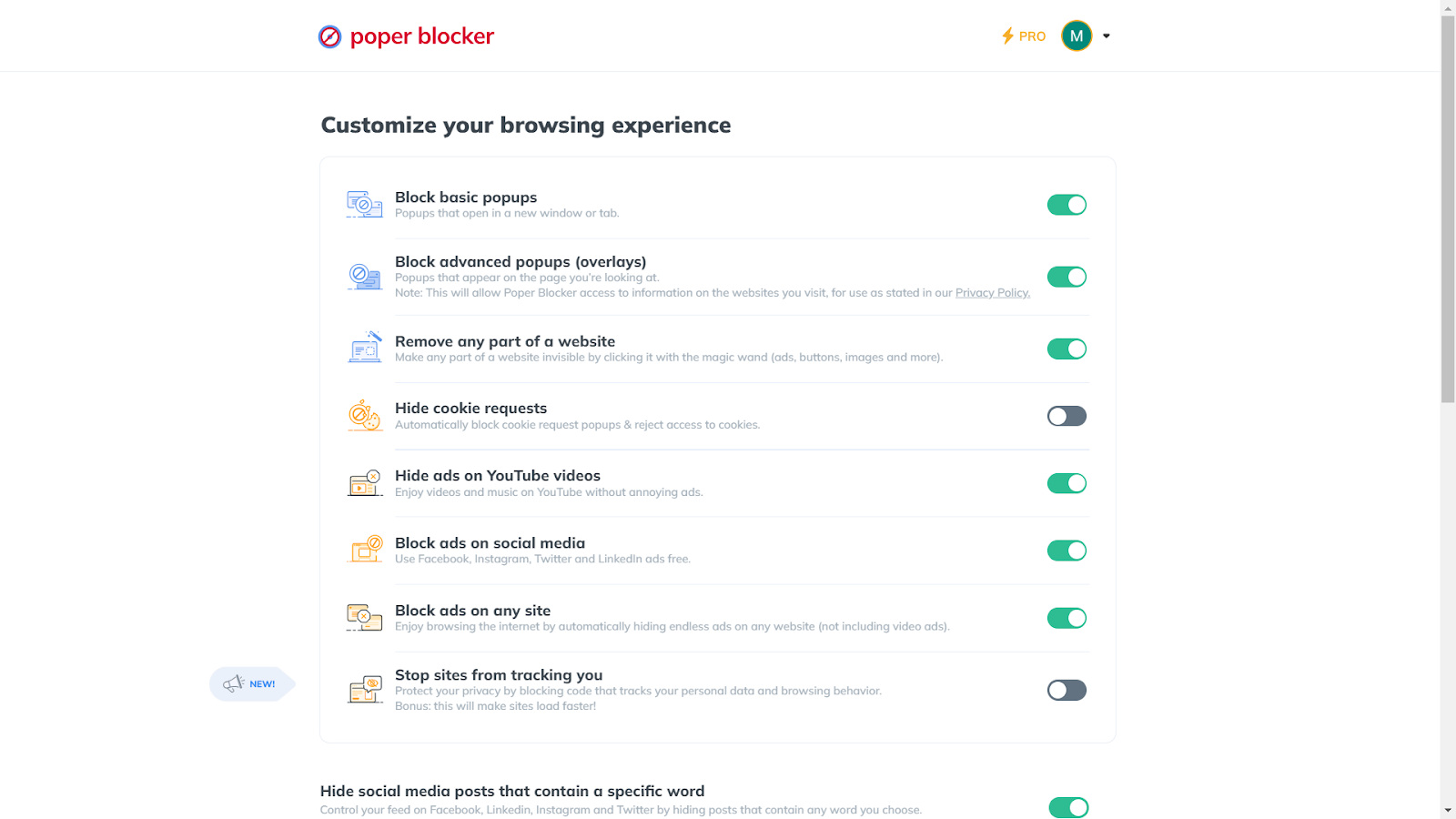
How to Stop Video Ads with Poper Blocker
Poper Blocker stands out as a comprehensive solution for blocking video ads across these browsers. Its ability to remove sponsored content on social media platforms and also hide ads on YouTube videos makes it a versatile tool for a distraction-free online experience.
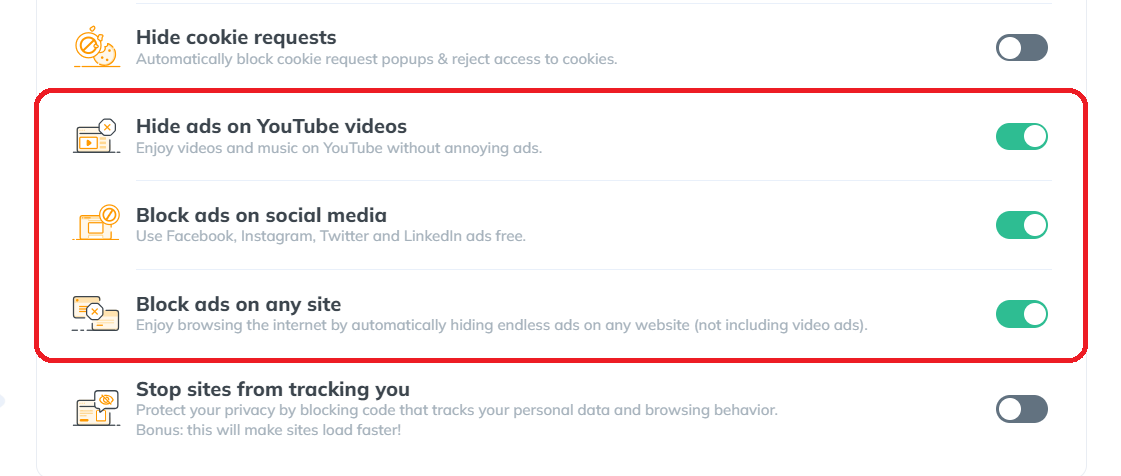
The Benefits of Using Poper Blocker
- Effortless Integration: Poper Blocker easily integrates with your browser, providing a hassle-free setup.
- Comprehensive Ad Blocking: It effectively blocks video ads across various platforms.
- Enhanced Browsing Experience: This tool effectively targets and removes ads from various websites, ensuring a smoother and more uninterrupted browsing experience.
Reduced Online Distractions: By eliminating frequent ad interruptions across different websites, Poper Blocker helps users stay focused on the content, enhancing productivity and the overall quality of their online activities.
Embrace a Cleaner, Faster, and More Enjoyable Online Experience
The power to control what you see and how you interact with content is more important than ever in today’s fast-paced online environment. Video ads, while a part of the online landscape, don’t have to be a disruptive element in your browsing experience.
By embracing ad-blocking solutions like Poper Blocker, you’re not just avoiding unwanted interruptions; you’re crafting a more personalized and efficient online journey. This tool doesn’t just remove distractions; it enhances your engagement with the content that truly matters to you.
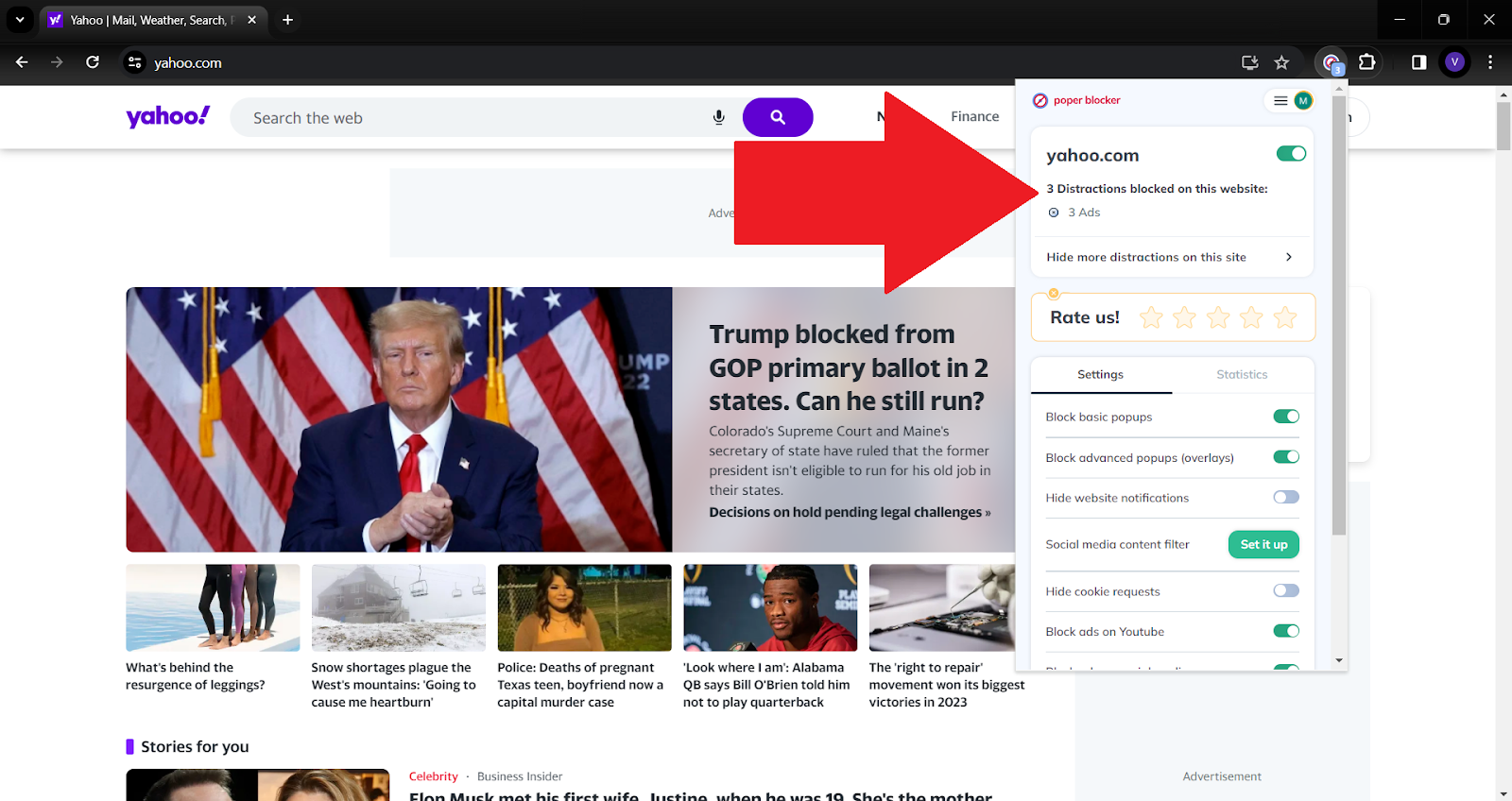
Imagine a world where every online session is smooth, uninterrupted, and tailored to your preferences. That’s the reality Poper Blocker offers. It’s not just about blocking unwanted content; it’s about reclaiming your time and attention for a more enjoyable online experience.
Remember that your browsing experience is yours to shape. With tools like Poper Blocker, you’re equipped to make every online interaction more meaningful and rewarding. Embrace this change and experience the web like never before!
Upgrade to an ad-free browsing experience with Poper Blocker – Download here!
FAQs
What are the benefits of blocking video ads?
A video ad block significantly enhances your online experience. It reduces page loading times, saves bandwidth, and eliminates the annoyance of unexpected audio and video interruptions. This leads to a more focused and enjoyable browsing session, especially when reading content or watching videos online.
Can blocking video ads improve browser performance?
Yes, blocking video ads can positively impact browser performance. Video ads consume additional resources, including CPU and memory, which can slow down your browser. By blocking these ads, you free up these resources, resulting in faster browsing and more efficient device performance.
Is it legal to block video ads?
Absolutely. Blocking video ads is a legal practice. It’s a user’s choice to control what content they want to see on their browsers. A video adblocker like Poper Blocker simply provides a tool to filter out content that users prefer not to see, such as intrusive video ads.
Will websites know if I’m using a video ad remover?
Some websites can detect the presence of ad blockers and may request that you disable them to access their content. This is because many websites rely on ad revenue. However, advanced ad blockers like Poper Blocker are designed to be discreet, minimizing the chances of detection.
How does Poper Blocker differ from other ad-blocking tools?
Poper Blocker stands out due to its user-friendly interface and effectiveness in blocking a wide range of ads. It’s designed to offer a more comprehensive ad-blocking experience, removing not just video ads but also pop-ups and sponsored content on social media platforms. Its seamless integration with various browsers makes it a convenient choice for users seeking a distraction-free online experience.
Streaming movies online should be simple. You hit play, lean back, and let the movie run. Instead, a new tab pops up. A banner covers the screen. Another site loads out of nowhere. If you are looking up how to block pop-ups on movie websites, you are not the only one. Free and semi-free streaming platforms rely heavily on interruptions that push clicks, not comfort.
A lot of people try to block pop-ups from movie sites using basic browser settings. That helps a little, but not for long. Autoplay ads, stacked overlays, and forced redirects add up fast. Latest reports suggest that the average person sees between 6,000 to 10,000 online ads each day, which explains why streaming rarely feels smooth anymore.
Here, we’re going to explain how to block pop-ups on streaming sites without overcomplicating things. We will cover why these ads show up, where browsers fall short, and how Poper Blocker fits in as the best option built for movie and TV streaming.
Why do movie and streaming sites have so many ads and pop-ups
If a movie or streaming site lets you watch without paying, advertising is mainly behind it.
Most of these platforms have no real subscription model. That means every visit needs to generate revenue somehow. The easiest way is ads. Lots of them.
Not the polite banner kind either.
To squeeze out clicks, many sites rely on aggressive formats that push far past what most people expect. A single click can trigger classic pop-ups. Another opens a pop-under, hiding behind your active tab. Start a video, and an overlay may drop straight on top of the player. Auto-play video ads fire up without warning. Some sites send you through redirect chains that bounce you across several pages before landing you somewhere completely unrelated.
All of this falls under the wider mix of types of online ads that dominate free streaming platforms.
The problem is not limited to irritation.
These ads interrupt playback, slow your browser, and can trigger fake virus warnings designed to panic users into clicking. Many of these pop-up scams mimic security alerts, update notices, or download prompts. One wrong click and you are off to a risky site you never intended to visit.
But why is it so hard to escape?
Many free movie sites run scripts designed to slip past standard browser protections. Built-in blockers struggle to keep up. That explains why people searching for how to stop pop-ups on streaming sites often feel stuck. Without a real fix, the same cycle repeats every time you press play.
What built-in browser blocking can (and can’t) do
Chrome and Edge both ship with a basic pop-up blocker and some light ad filtering. In theory, that should help clean things up. In practice, it only goes so far.
Yes, these tools can stop the most obvious pop-ups. The cheap ones. The single new tab that opens out of nowhere. For everyday browsing, that is usually enough. Once you hit streaming sites, the limits show up fast.
Built-in blockers focus on simple triggers. They are not built to deal with the layered tactics used by movie platforms. Things like rapid tab launches, background redirects, and ads injected directly into video players often slip straight through. That is why people still search for how to stop pop-ups on movie sites, even when browser protection is switched on.
Overlays are another weak point. Floating banners, sticky video frames, and click-based redirects usually survive default settings. You can tweak site permissions or block pages one by one, but that gets tedious quickly. Miss one rule and the ads are back.
Browser tools help at a surface level. They were never built to block overlays or control player-level ad behavior that dominates modern streaming sites.
Use Poper Blocker to block streaming pop-ups & video ads
Poper Blocker is built for various jobs, and one very specific job is stopping the ads that ruin streaming. It is a focused extension made for Chrome and Edge users who spend a lot of time watching movies and TV shows online. Instead of trying to catch every ad on the internet, it targets the behaviors that interrupt playback and break the viewing experience.
That focus matters. Streaming sites use aggressive formats that behave differently from standard display ads. They trigger on clicks, load in layers, and often hide behind the player itself. Poper Blocker is designed around those patterns, which makes it behave less like a generic tool and more like a purpose-built solution for video-heavy pages.
Video streaming ad blocker
Once installed, the video streaming ad blocker starts working automatically. It blocks video ads that cut into movies and episodes mid-play. It removes floating overlays that sit on top of the player and steal clicks. It stops pop-unders that quietly open behind your browser window. It also prevents tab redirects that fire when you hit play, pause, or full screen. The result is a cleaner player that stays focused on the video.
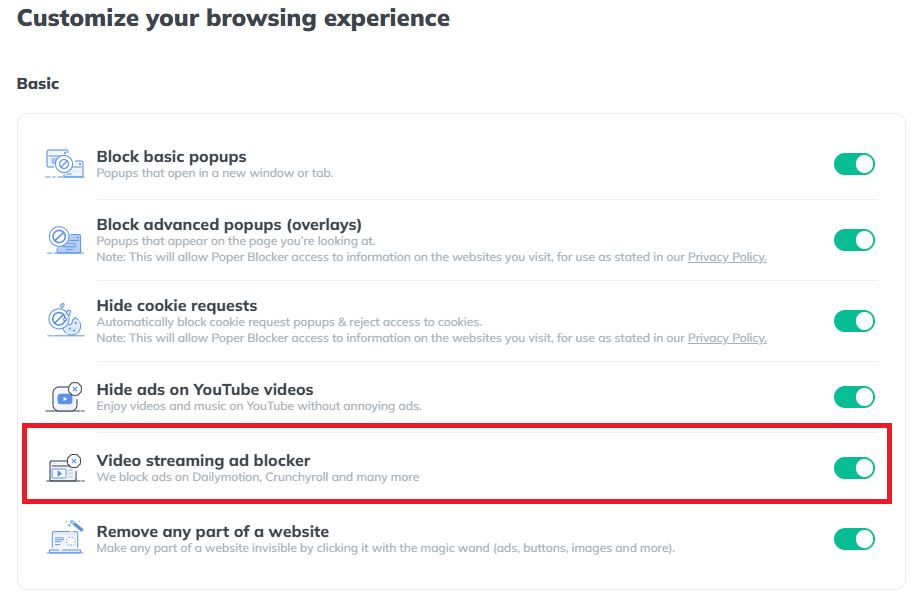
This is also where Poper Blocker tends to succeed when other extensions fall short. It can block ads on Crunchyroll, block ads on Dailymotion, and get rid of ads on Tubi, along with many similar platforms that rely on stacked scripts and deceptive triggers. These sites are known for slipping past standard blockers, but Poper Blocker is tuned to recognize and stop those specific behaviors.
The setup is pretty straightforward. There are no filter lists to manage and no advanced settings to adjust. You install the extension, turn it on, and continue streaming normally. It does not require constant tweaking or testing across different sites.
If you are searching for how to stop pop-ups on streaming sites without causing playback issues or browser slowdowns, this is the best technique. It focuses on the ads that matter most during streaming and leaves the rest of your browsing untouched.
Try Poper Blocker and watch movies without constant pop-ups
Watch without Interruptions: block streaming ads for good
Streaming should be simple. Click play, sit back, and enjoy the show. Instead, pop-ups, sketchy redirects, and loud autoplay videos pull you out of the moment. Built-in browser blockers help a bit, but anyone who streams regularly knows they barely scratch the surface.
That’s where Poper Blocker shines. It targets the ad formats that actually disrupt movie and TV sites. Overlays, pop-unders, and video ads are blocked automatically, with no tuning or tech work required.
Add Poper Blocker to Chrome or Edge. Then stream without interruptions so you can put your full attention on what you came to watch.
Install Poper Blocker on Chrome or Edge now
FAQs
What’s the best ad blocker for streaming sites?
When it comes to streaming, generic ad blockers usually fall short. They do a decent job with banners, but streaming pages play by different rules. Video players load their own overlays, pop-unders, and redirects that standard extensions often miss. That’s where a tool built specifically for streaming pages makes a difference. Poper Blocker is designed to deal with player-level ads, fake buttons, and annoying layers that show up right when you hit play.
Does Poper Blocker work on every streaming site?
No blocker can promise full coverage across the entire web. Streaming sites change layouts constantly, and new domains appear all the time. That said, Poper Blocker handles the most popular free and semi-free movie platforms very well. It looks at the patterns that are used by ad-heavy streaming pages, which means fewer interruptions on the sites people actually use.
Will it slow down my browser or affect video quality?
Short answer: no. Poper Blocker is lightweight and tuned for streaming environments. It doesn’t mess with the video player itself, and it doesn’t interfere with playback speed or resolution. You watch the same video, just without the noise around it.
YouTube ads have gotten pretty relentless. Pre-rolls, mid-rolls, back-to-back skippables, and the occasional unskippable block that shows up right in the middle of a video. There is the option of YouTube Premium, but it’s a paid service with its own set of features and yet another monthly subscription to think about. That leads a lot of people to ask themselves: Is YouTube Premium worth it?
At $13.99 a month, Premium is another line item sitting next to Netflix, Spotify, and whatever else you’re subscribed to. That adds up. So before you hand over your card details, it’s worth asking whether Premium is actually the right call, or whether a cheaper option gets you the same result.
Below, we go through what Premium includes, what you get with Poper Blocker, and how the two compare so you can figure out which one fits your habits.
Some of the Benefits & Perks You Get With YouTube Premium
YouTube Premium launched in 2018 (it was called YouTube Red before that) and has picked up a few useful features since then. Here’s what you actually get:
Ad-Free Videos
This is the main reason most people sign up. Premium removes pre-rolls, mid-rolls, and banner ads across YouTube on web, mobile, and TV. A survey by AllAboutCookies found that only 12% of YouTube users would even consider paying for Premium to avoid ads, which tells you most people are still looking for a cheaper way out.
Offline Downloads
You can save videos to your phone and watch them without a connection. Downloads go up to 1080p and stay available for 30 days. Useful for flights, commutes, or anywhere with a patchy signal.
Background Play
With background play, audio keeps going when you lock your screen or switch to another app. Handy if you use YouTube for podcasts, long interviews, or music. Without Premium, the video just stops when you leave the app.
YouTube Music Premium
Premium bundles in YouTube Music Premium, which is Google’s take on a music streaming service. You get ad-free listening, offline downloads, and background play for music. If you were already paying for a music app separately, this can replace it.
YouTube Kids Without Ads
For anyone with kids, this is a practical perk. YouTube Kids already filters content, but ads still show up by default. Premium removes them.
Plans & Pricing
- Individual: $13.99/month
- Family (up to 6): $22.99/month
- Student: $7.99/month
- Premium Lite (ads only, no extras): $7.99/month
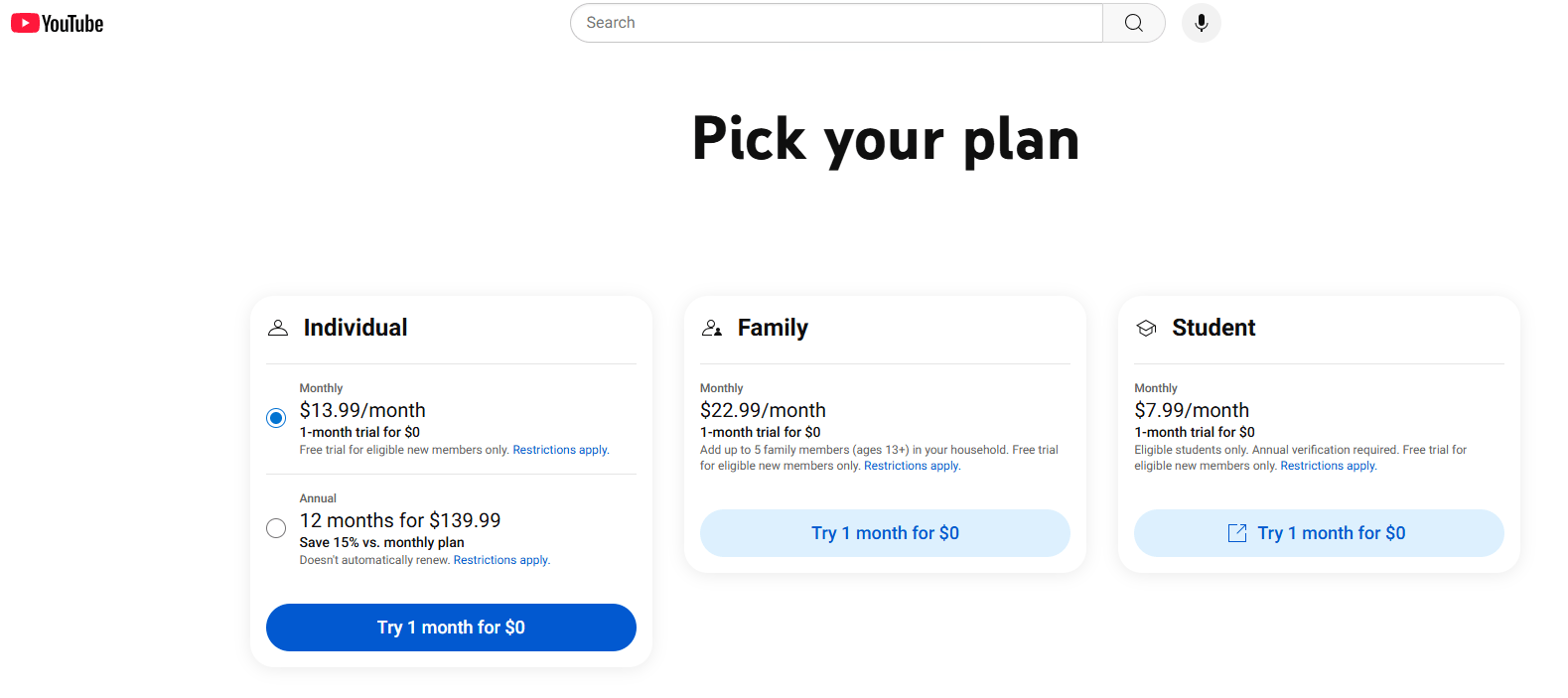
One thing to be aware of: Premium removes ads that YouTube serves, but it can’t touch sponsor segments that creators record and edit directly into the video. Those stay regardless of your subscription.
What You Get With Poper Blocker
If ads are your main issue with YouTube, there’s a free option worth looking at before you subscribe to anything.
Poper Blocker is a browser extension and mobile app focused on blocking ads and cleaning up the web more broadly. Here’s what it covers:
Free YouTube Ad Blocking on Desktop and Mobile
On desktop, Poper Blocker runs as a YouTube Ad Blocker extension for Chrome and Edge. Once it’s installed, YouTube ads stop showing up. Nothing to configure.
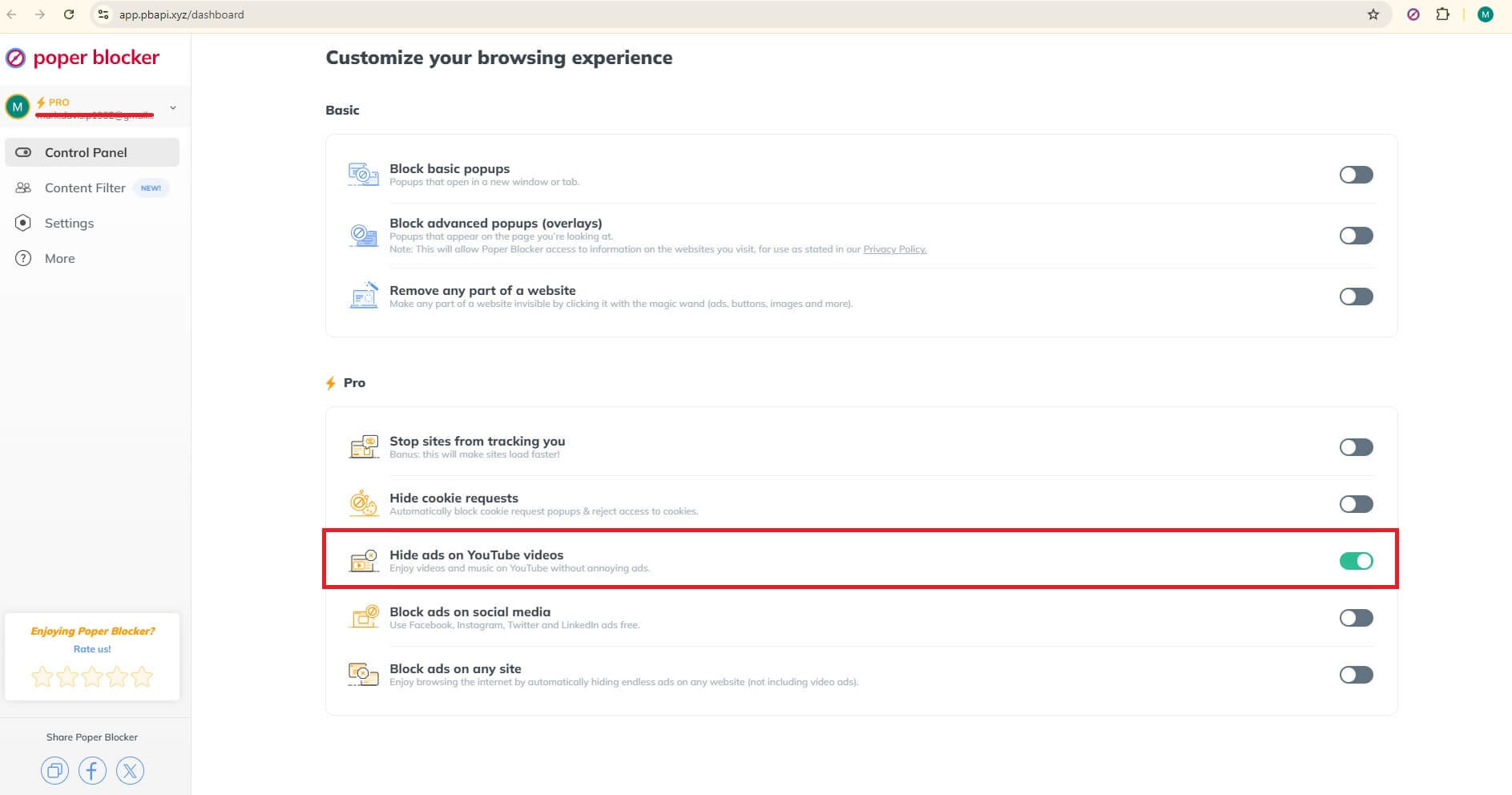
Mobile is a bit different because iOS and Android don’t allow ad blocking inside the official YouTube app. Poper Blocker works around this with a built-in Ad-Free YouTube Player, which is a browser inside the app that loads YouTube without ads.
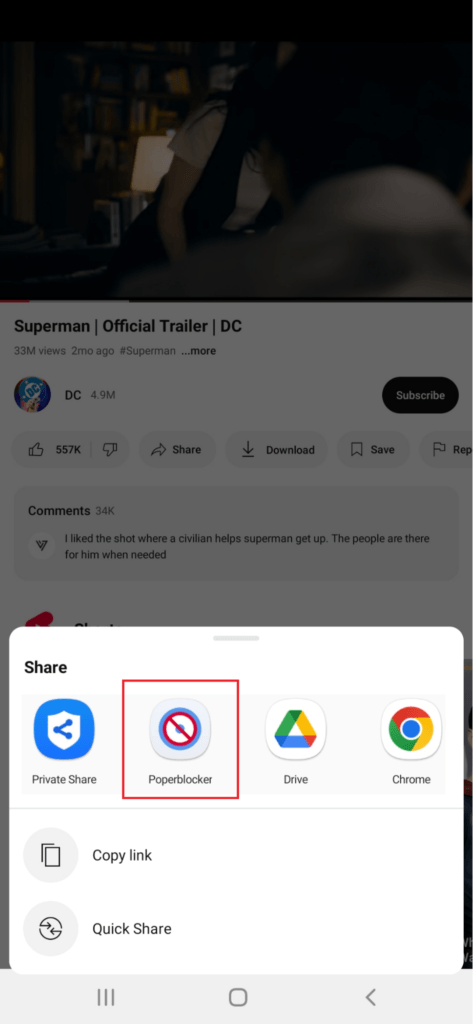
More Than Just YouTube
Beyond YouTube, the free version also covers:
- Pop-up blocker – stops pop-ups across websites
- Overlay blocker – removes those banners that cover the page, asking you to subscribe or sign up
- Cookie consent blocker – dismisses cookie notice popups automatically
- Video streaming ad blocker – works on Dailymotion, Crunchyroll, Tubi, and others
- Magic Wand – lets you hide specific parts of a page yourself, like images, buttons, or distracting sections
The Magic Wand tool is worth calling out because it goes beyond ad blocking. You can clean up pretty much any part of a site that bothers you.
Paid Plans (Optional Upgrades)
The free version handles YouTube ads and general web cleanup. If you want more, the paid options are:
- $4.79/month – monthly
- $1.59/month – billed annually
- $39.95 one-time – lifetime access
Paid features include:
- Social media ad blocker – covers Facebook, Instagram, X/Twitter, LinkedIn, Pinterest, and Reddit
- Full web ad blocker – extends to ads across all websites
- Tracker blocker – stops ad trackers from following you between sites
Even on the paid plan, the cost is well below YouTube Premium. And the lifetime option is cheaper than three months of Premium.
So, Is YouTube Premium Worth It?
The answer depends on how you actually use YouTube.
If you watch a lot on your TV or phone, use background play for podcasts, download videos for travel, or want a music streaming service included, Premium is a reasonable bundle. The price makes more sense when you’re using several of those features regularly.
If your main complaint is the ads, and you don’t care much about downloads or YouTube Music, then you’re paying $13.99 a month for something Poper Blocker handles for free.
Here’s a side-by-side to make it easier:
Feature | Poper Blocker | YouTube Premium |
Monthly Cost | Free (paid from $1.59/mo) | $13.99/mo (Individual) |
Ad-Free YouTube | ✓ Free | ✓ Included |
Ad Blocker – Full Web | ✓ (Paid plan) | ✗ YouTube only |
Pop-up Blocker | ✓ | ✗ |
Tracker Blocker | ✓ (Paid plan) | ✗ |
Social Media Ad Blocking | ✓ (Paid plan) | ✗ |
Cookie Consent Blocker | ✓ | ✗ |
Works on Android & iOS | ✓ | ✓ |
Works on Chrome & Edge | ✓ | ✓ |
Offline Downloads | ✗ | ✓ |
Background Play | ✗ | ✓ |
YouTube Music Premium | ✗ | ✓ |
YouTube Kids Ad-Free | ✗ | ✓ |
The short version: Premium removes ads on YouTube. Poper Blocker removes ads on YouTube and across the rest of the web, including pop-ups, overlays, cookie banners, and trackers. And it starts free.
For most people who are mainly tired of YouTube ads, that’s a good reason to try the free option first.
The Bottom Line
YouTube Premium is a solid subscription if you use the full bundle. Offline downloads, background play, and YouTube Music together make the price easier to justify. But if your main gripe is ads, you don’t need to pay $14 a month to fix that.
Poper Blocker removes YouTube ads for free on Chrome, Edge, Android, and iOS. The paid plan adds full web and social media coverage and costs a lot less than Premium, with a lifetime option available if you’d rather not pay monthly at all.
A simple way to decide: think about the two or three things you’d actually miss. If the list includes downloads, background play in the app, or YouTube Music, Premium is probably worth it for you. If it’s mostly just the ads, start with Poper Blocker and see if that’s enough.
Try Poper Blocker for free on your browser or phone before you commit to another subscription.
FAQs
Is YouTube Premium worth it if I only care about removing ads?
Probably not. Ad removal is one part of a $13.99/month package that also includes offline downloads, background play, and YouTube Music. If ads are the only issue, Poper Blocker handles that for free on desktop via the browser extension and on mobile via its Ad-Free YouTube Player.
What do you get with YouTube Premium?
You get ad-free YouTube across web, mobile, and TV, offline video downloads (up to 1080p, valid for 30 days), background play when your screen is locked, YouTube Music Premium, and ad-free YouTube Kids. Plans start at $7.99/month for students and $13.99/month for individuals.
What does Poper Blocker offer that YouTube Premium doesn’t?
Poper Blocker blocks ads across the whole web, not just YouTube. The free version covers YouTube ads, pop-ups, overlays, cookie consent banners, and video ads on platforms like Crunchyroll and Tubi. Paid plans extend that to social media ads on Facebook, Instagram, X, and LinkedIn, plus full web ad blocking and tracker blocking.
Is there a YouTube Premium family plan, and is it worth it?
Yes. The family plan covers up to 6 accounts for $22.99/month. Each member needs to share the same household address. It works out cheaper per person than individual plans and includes YouTube Music for everyone. Whether it’s worth it depends on how many people in your home actually use YouTube enough to benefit from Premium features.
Does YouTube Premium work on all devices?
It works on browsers, the YouTube iOS and Android apps, smart TVs, game consoles, and Chromecast. Poper Blocker covers Chrome and Edge on desktop, and Android and iOS through its Ad-Free YouTube Player. If you mainly watch on a TV, Premium is the cleaner option since browser extensions don’t run there.
Is it worth getting YouTube Premium just for background play?
Background play is useful if you listen to a lot of long-form content on your phone. But it’s packaged with everything else in the $13.99/month plan, so if that’s the only feature you want, it’s hard to justify on its own. Poper Blocker doesn’t include background play, but it does take care of the ad problem, which is usually what pushes people toward Premium in the first place.
Does Premium make more of a difference on TV?
For a lot of people, yes. Browser extensions that block ads on desktop don’t work on smart TVs, consoles, or Chromecast. Ads on TV can also feel worse since you’re often watching from across the room and have fewer ways to skip or dismiss them. If most of your YouTube watching happens on a TV, Premium’s ad removal is harder to replicate with a free tool.