Chrome Web Extension
 Edge Web Extension
 Android App
 iOS App


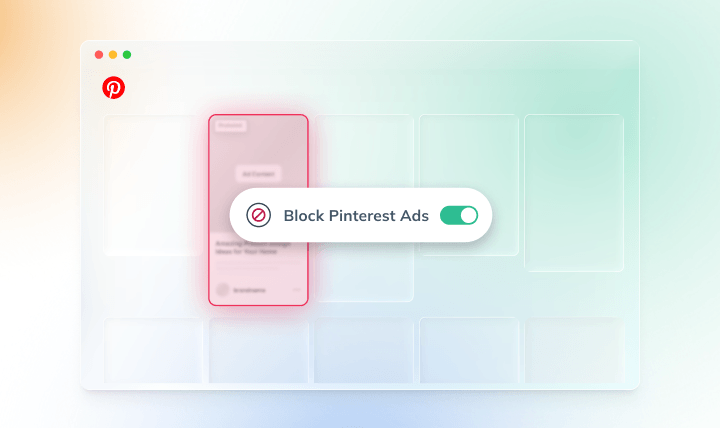
You open Pinterest to find a new recipe or a bedroom refresh idea, and within seconds, you’re looking at a Promoted Pin for something you don’t want. Then another. Then another. If it feels like Pinterest has more ads than it used to, that’s because it does. The platform generated over $4.2 billion in ad revenue in 2025, and that number is only growing.
Here’s the thing most users don’t realize: there’s no setting in Pinterest that turns ads off. No toggle, no premium tier, no workaround buried in account settings. Pinterest is a free platform, and ads are how it stays that way. If you want a genuinely ad-free feed, you need a purpose-built tool to remove them before they ever appear.
That’s exactly what this guide covers.
Why You See So Many Ads on Pinterest
Pinterest runs on advertising revenue. Brands pay to have their Promoted Pins appear in your feed, and the more users Pinterest attracts, the more valuable that ad space becomes. With 619 million monthly active users as of the end of 2025, the platform is an increasingly attractive destination for advertisers, which means more sponsored posts showing up between the organic content you actually came for.
Promoted Pins are intentionally designed to blend in. They look almost identical to regular Pins, with only a small “Promoted” label to distinguish them. That’s part of what makes them feel so intrusive: you don’t always know you’re looking at an ad until you’re already there.
Use Poper Blocker’s Pinterest Ad Blocker
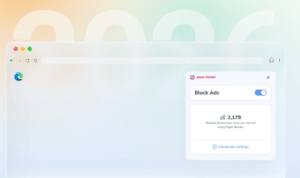
The cleanest, most permanent fix is Poper Blocker’s Pinterest Ad Blocker, a browser extension built specifically to strip ads and sponsored posts from your Pinterest feed.
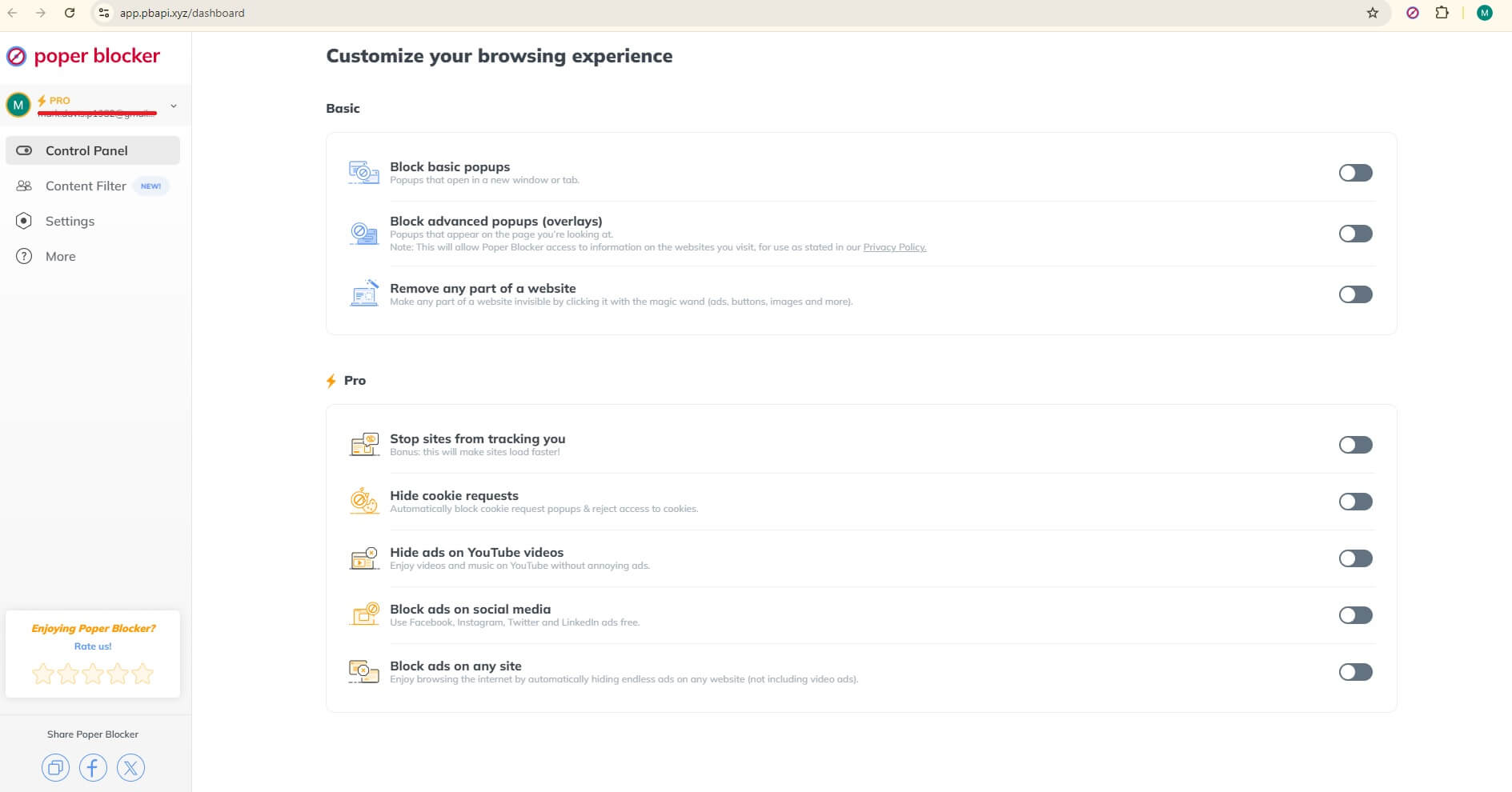
Here’s how it works: once installed, Poper Blocker scans your Pinterest feed and removes all Promoted Pins before they load. You don’t see them. They don’t take up space. Your feed becomes exactly what Pinterest was always meant to be: pure, uninterrupted visual inspiration.
What makes it stand out:
- Available for Chrome and Edge on desktop, installing in seconds directly from the browser’s extension store
- No configuration needed. It works the moment it’s installed, automatically
- No account required. Install and go, with no sign-up and no personal data collected
- Lightweight. It won’t slow your browser or interfere with how Pinterest functions; boards, searches, saves, and all other features work exactly as normal
- Purpose-built for Pinterest. Rather than a generic blocker applying broad filters, this is designed around how Pinterest specifically serves ads, making it especially effective
The difference is immediate. No more accidentally clicking a Promoted Pin thinking it’s a real recommendation. No more ads breaking up the scroll. Just the content you came for.
Adjust Your Pinterest Ad Preferences
Pinterest does give users some control over ad personalization in Settings > Privacy and Data. You can toggle off options like “Use info from sites you visit” to stop Pinterest from targeting you based on your browsing behavior elsewhere.
Worth knowing: This changes which ads you see, not how many. You’ll still get the same volume of Promoted Pins, they’ll just be less tailored to your interests. For many users, that actually makes things worse, not better, since the ads become more random and less relevant.
It’s worth adjusting if you have privacy concerns about cross-site tracking, but it won’t give you a cleaner feed.
Get Rid of Pinterest Ads for Good
Pinterest isn’t going to add an “off” switch for ads. It’s not in their interest to do so, and the native workarounds either don’t fully work or require constant upkeep.
Poper Blocker’s Pinterest Ad Blocker solves it properly: one install, no configuration, and your feed stays clean. It also handles popups, cookie banners, trackers, and ads across every other site you visit, so you’re not just fixing Pinterest, you’re fixing the whole browser.
Install Poper Blocker and enjoy Pinterest without ads →
FAQs
Can you turn off ads on Pinterest?
No. Pinterest doesn’t offer a setting to disable ads. Ads are how the platform funds itself, so there’s no built-in opt-out. The only way to remove them entirely is with a third-party tool like Poper Blocker’s Pinterest Ad Blocker.
Is Poper Blocker safe to use on Pinterest?
Yes. Poper Blocker is a lightweight browser extension that doesn’t require an account, doesn’t collect your personal data, and doesn’t interfere with Pinterest’s core functionality. Your boards, saves, searches, and everything else work exactly as normal. The only thing missing is the ads.
Does Poper Blocker work on the Pinterest mobile app?
Poper Blocker’s Pinterest Ad Blocker works on desktop browsers (Chrome and Edge). It blocks ads when you use Pinterest through your browser. For mobile, the native Pinterest app on iOS and Android operates in a separate environment that browser extensions can’t reach.
Why does Pinterest show so many more ads now?
Pinterest has been actively growing its advertising platform. The company reported over $4.2 billion in ad revenue for 2025, a 16% increase year over year, and continues to invest in AI-powered ad targeting to make Promoted Pins more effective for advertisers. More ad investment means more ads in your feed.
Will blocking Pinterest ads break anything on the site?
No. Poper Blocker removes Promoted Pins and sponsored posts while leaving all organic content, boards, and site functionality completely intact. You can save Pins, follow accounts, use search, and browse normally. You just won’t see the ads.