Chrome Web Extension
 Edge Web Extension
 Android App
 iOS App


By 2026, Microsoft Edge has become a genuinely solid daily browser. What shapes the experience more than the browser itself, though, are the extensions. They are the layer you customize to match how you actually work, study, shop, and switch off at the end of the day.
Edge has its own Add-ons store, but it does not stop there. Because Edge is built on Chromium, it can also install extensions from the Chrome Web Store. During installation, you may see a prompt asking you to enable “Allow extensions from other stores.”
This guide organizes the best Edge extensions by what people actually use them for: privacy, productivity, writing, media, shopping, and a handful of social tools. Some are available natively on Edge Add-ons; others are Chrome extensions that run fine on Edge.
Best Microsoft Edge extensions by category
Privacy & Security Tools
A basic privacy setup in Edge comes down to two things: cutting out the worst interruptions and keeping logins under control. These four extensions cover that ground, and none of them are difficult to live with day to day.
Poper Blocker
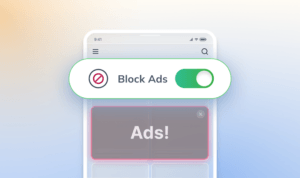
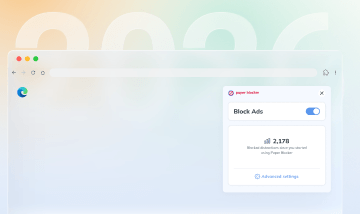
Poper Blocker stops pop-ups, pop-unders, overlays, and anything else that hijacks your screen or opens extra tabs uninvited. It also hides YouTube ads, blocks cookie consent banners, and clears out social media sponsored content. Particularly useful on ad-heavy sites, free streaming platforms, and coupon pages where interruptions stack up fast.
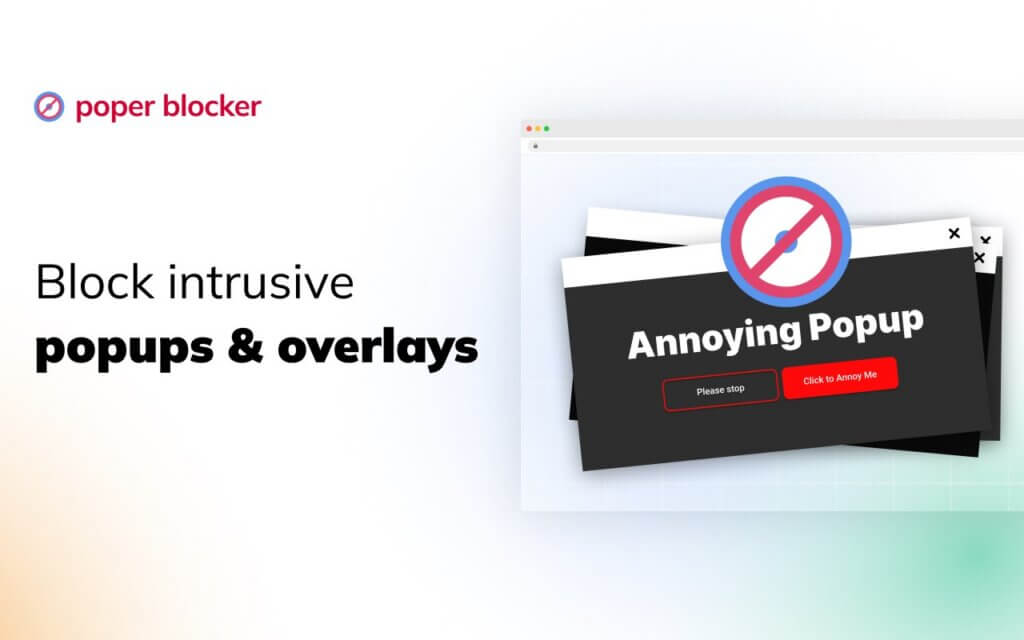
Good for: Blocking pop-ups, cutting out overlays, cookie banners, YouTube ads, and surprise tab opens.
Watch for: If a site stops working correctly, you can disable the extension for that page or whitelist it in the settings to let it through.
Bitwarden
Bitwarden is an open-source password manager that stores logins, generates strong passwords, and fills your credentials on sites. Because the code is publicly available and reviewed by the security community, it has earned a strong reputation for trustworthiness. If you still reuse passwords or keep logins in a notes file, this is the most practical fix. It also reduces phishing exposure since it only fills credentials on the exact domain you originally saved.
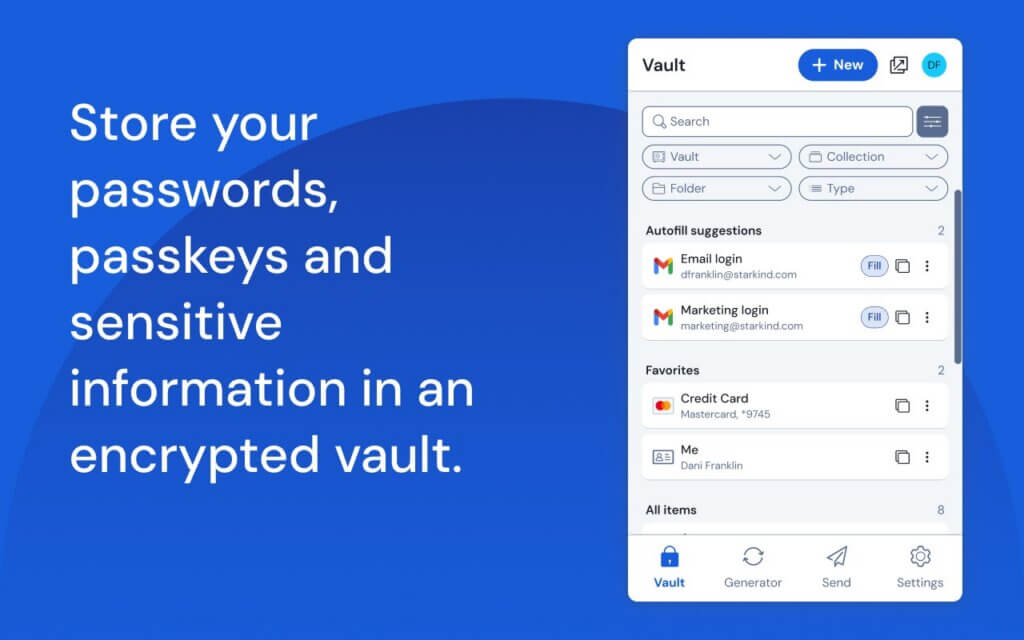
Good for: Secure sign-ins across work and personal accounts.
Watch for: Set up a strong master password and recovery options before you start relying on it.
Privacy Badger
Privacy Badger, from EFF, blocks trackers that follow you across sites. It learns as you browse and automatically blocks domains that appear to track you without permission. It also sends the Global Privacy Control signal, which tells sites to stop selling or sharing your data. No filter lists to maintain, no configuration needed. It works alongside Edge’s built-in tracking prevention and helps with the feeling that something you looked at once is now following you around the web.
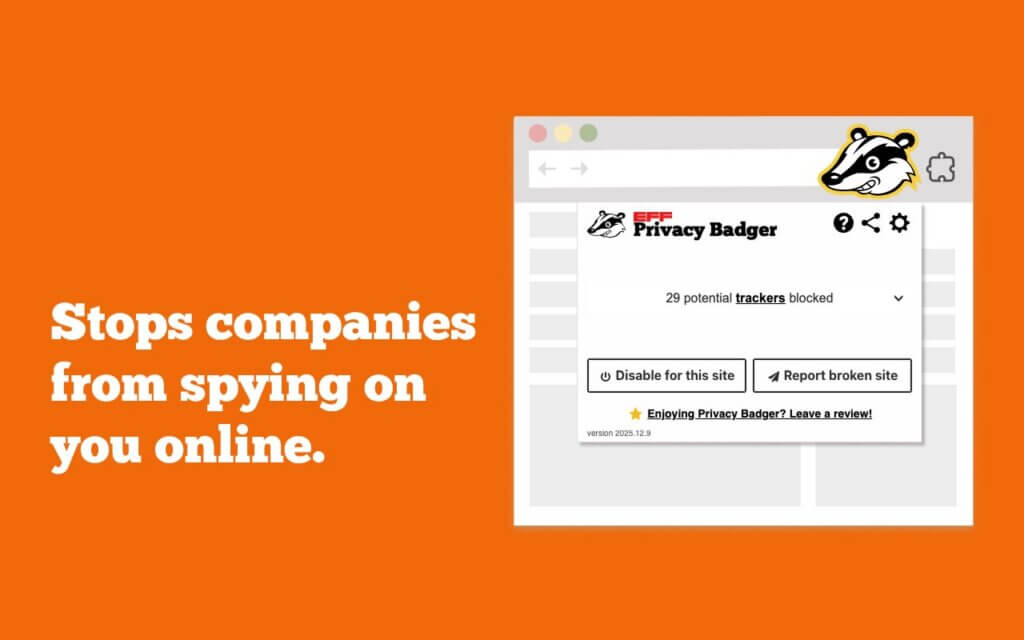
Good for: Passive cross-site tracker blocking with no ongoing setup.
Watch for: Some sites may need exceptions added if a login or payment flow breaks.
McAfee WebAdvisor
McAfee WebAdvisor flags risky links, warns you about dangerous sites before you land on them, and scans downloads for known threats. The color-coded ratings show up right in search results, so you can spot a bad link before clicking. For users who are not deep into browser security, this kind of early warning layer is useful, especially when searching for downloads, coupons, or tech support contact numbers.

Good for: Everyday browsing, students, and family PCs.
Watch for: Security add-ons can get noisy if you prefer a clean, minimal UI.
Productivity & Browsing
This category is about cutting friction: grabbing research before it disappears, saving articles to read later, getting full-page screenshots, and handling PDFs without switching to another app.
Anori
Anori is a visual bookmarking tool that lets you save links, images, and text snippets into organized boards. Good for trip planning, home projects, research, or any work that involves pulling together a lot of reference material from around the web. More structured than a bookmarks bar, less cluttered than a folder full of open tabs.
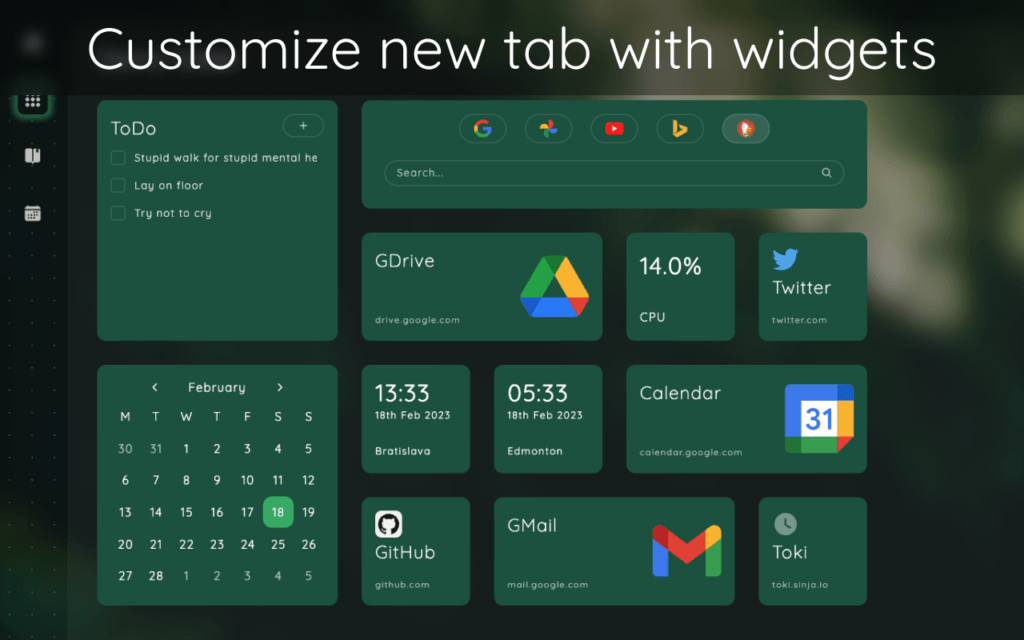
Good for: Writers, students, designers, and anyone who collects research online.
Watch for: Check whether you need cloud sync before committing, so your boards follow you across devices.
OneNote Web Clipper
OneNote Web Clipper saves pages, selected text, and snippets straight into your OneNote notebooks. Good for class notes, meeting prep, and building source libraries for writing projects. If you already use Microsoft 365, it slots right into your existing setup without any friction.
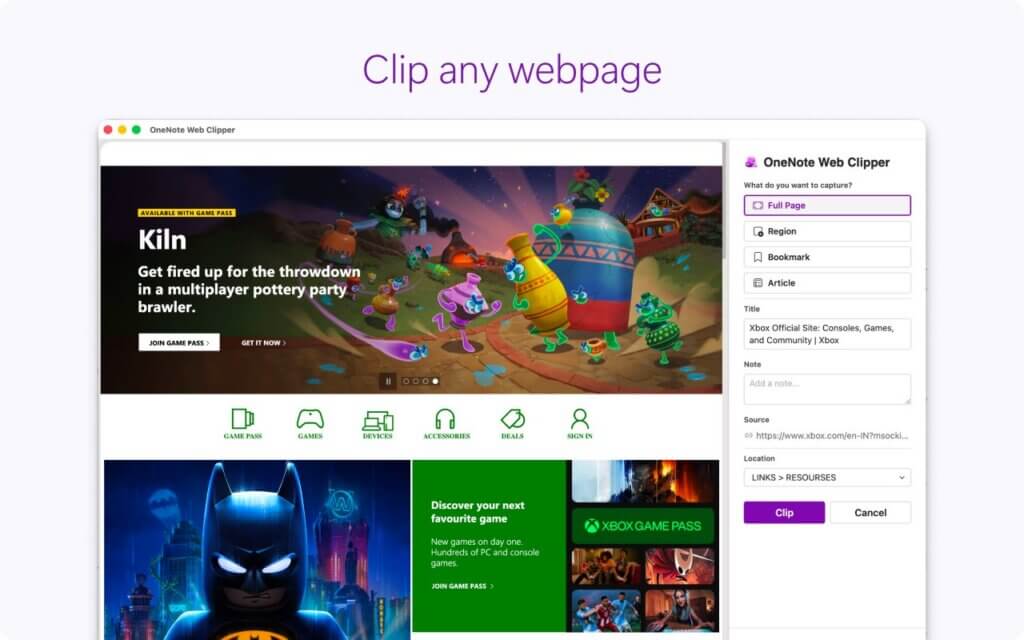
Good for: Microsoft 365 users who want their research and notes in the same place.
Watch for: Put a clip organization system in place early. Sections and tags save a lot of searching later.
Get OneNote Web Clipper on Edge
Save to Pocket
Pocket saves articles and videos so you can come back to them later, usually in a stripped-down reading view that removes most of the clutter from the original page. Offline access is one of the main draws, which comes in useful on flights or anywhere the internet is patchy.
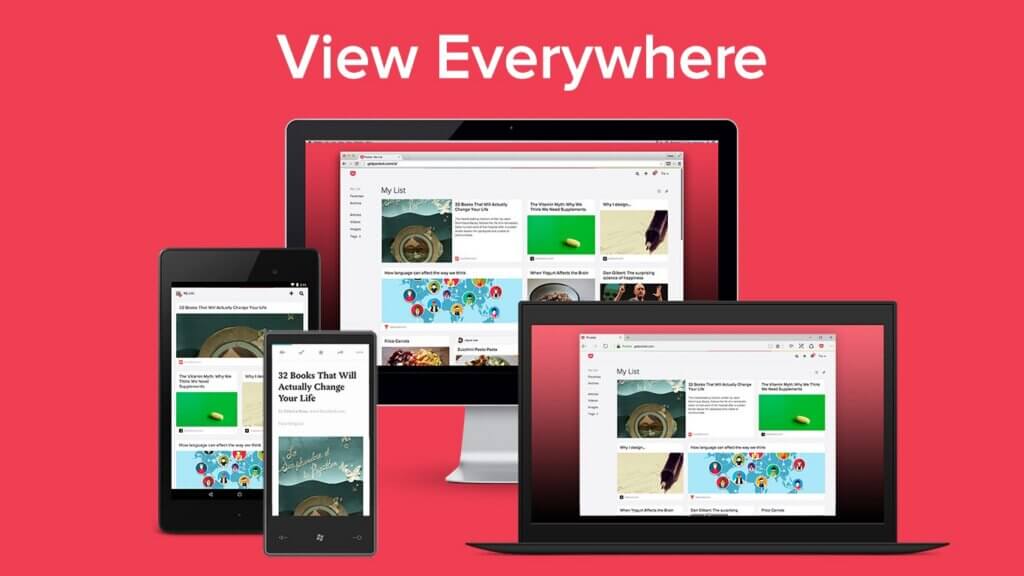
Good for: Long reads, research backlogs, and weekend reading lists.
Watch for: Pocket lists grow faster than they get read. Check in on yours occasionally, or it turns into a pile.
GoFullPage
GoFullPage takes a screenshot of the entire page, including everything below the fold. Useful for saving order confirmations, documenting bugs before they disappear, or grabbing a snapshot of a long report or product page exactly as it looked at the time.
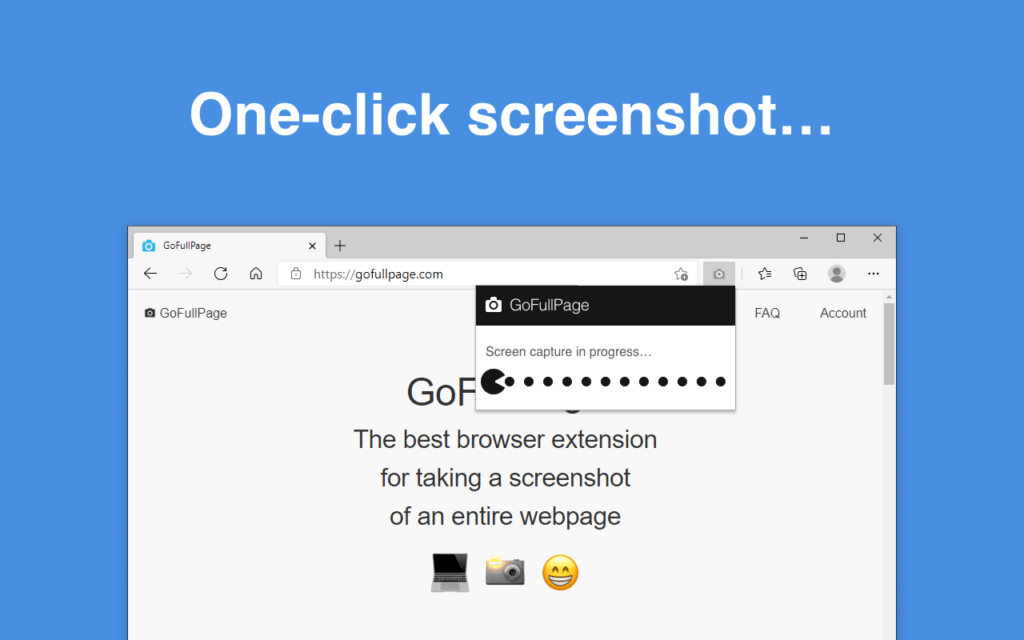
Good for: QA work, documentation, and moments where you need to capture a page precisely as it appears.
Watch for: Pages that load content as you scroll may need a second capture to pick up everything.
Reader Mode
Edge has a built-in Immersive Reader that strips out sidebars, ads, and other clutter from article pages, and it is fast because it is native to the browser. The Reader Mode extension covers the gaps where the built-in view does not trigger or gives you less control than you want.
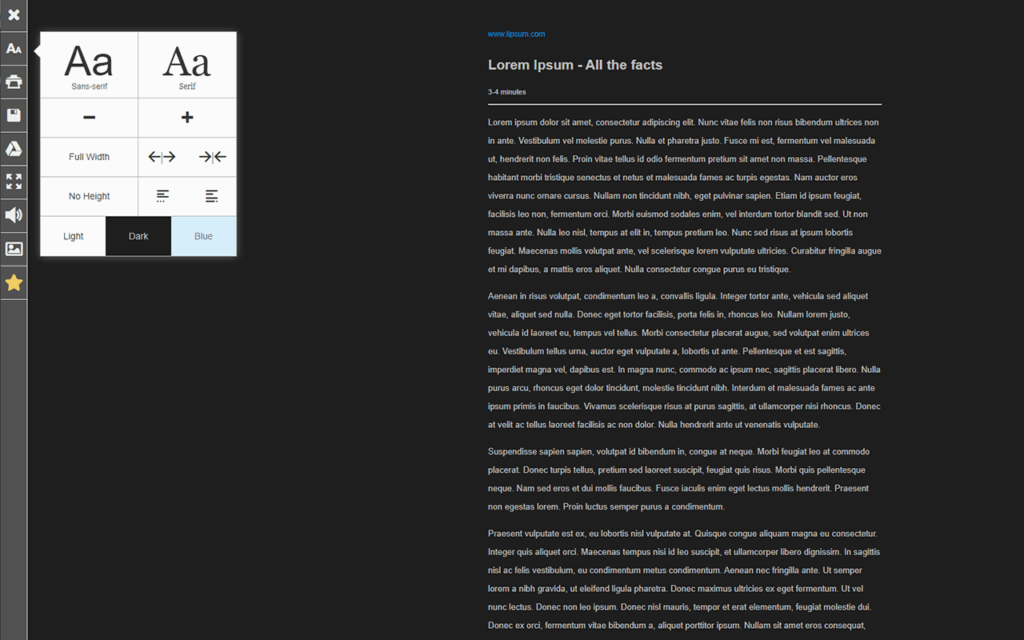
Good for: Reading articles without distractions, and accessibility features like read-aloud.
Watch for: Reader views do not work on every page type, particularly complex web apps or dashboards.
Ripple Tool
Ripple Tool surfaces mental health resources when someone searches for content related to self-harm or suicide. It is available on Edge and runs quietly in the background until it is needed.
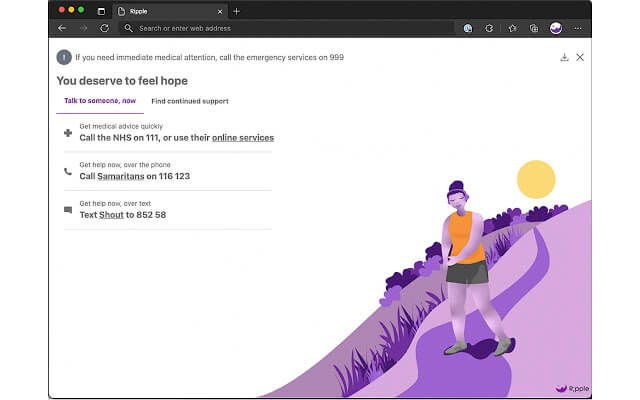
Good for: Families, schools, and organizations that want a safety net built into the browser.
Watch for: Install it as part of a deliberate wellbeing plan rather than as an afterthought.
Adobe Acrobat
Adobe Acrobat for Edge converts web pages to PDFs and handles viewing, annotating, and sharing them without leaving the browser. One of the more useful tricks is merging several open tabs or pages into one PDF.
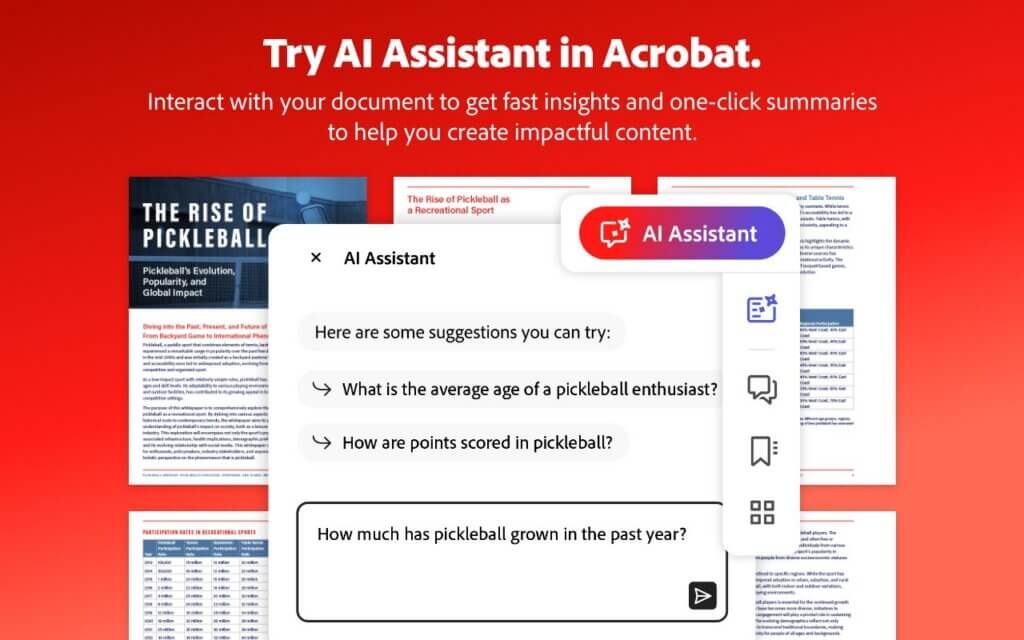
Good for: Invoices, forms, and saving web pages as clean PDFs.
Watch for: The more advanced editing features require an Adobe subscription.
AI & Writing Tools
For people who write most of their day in a browser: emails, reports, course assignments, product copy, social posts. Some of these handle grammar and clarity; others bring translation or AI chat into the sidebar.
Grammarly for Edge
Grammarly does more than catch grammar errors these days. The Edge extension checks your writing in real time across Gmail, Google Docs, and over 500,000 other sites, flagging clarity and tone issues as you go. It also includes tools for generating draft emails, rewriting passages, and producing content from a short prompt. Useful if you spend most of your day writing in a browser.
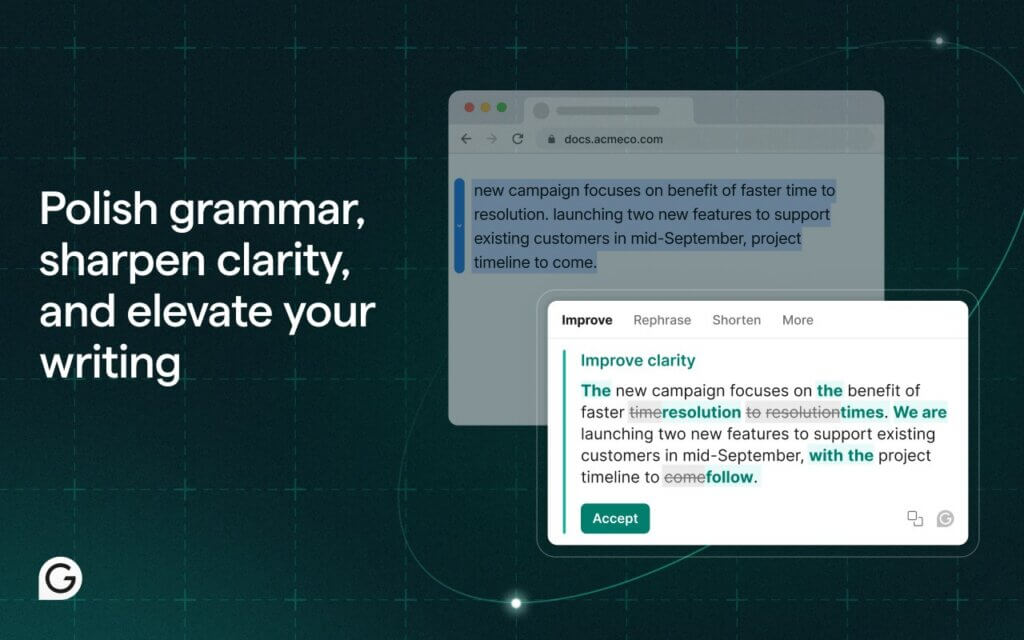
Good for: People who write a lot in the browser and want both proofreading and drafting support in one place.
Watch for: Do not paste sensitive internal content into any external writing tool without checking your organization’s policy first.
Get Grammarly for Edge on Edge
Sider: Chat with All AI Models
Sider adds an AI panel to the Edge sidebar with actions to summarize pages, rewrite selected text, and answer questions about what you are reading. The value is keeping that help available without switching tabs constantly.
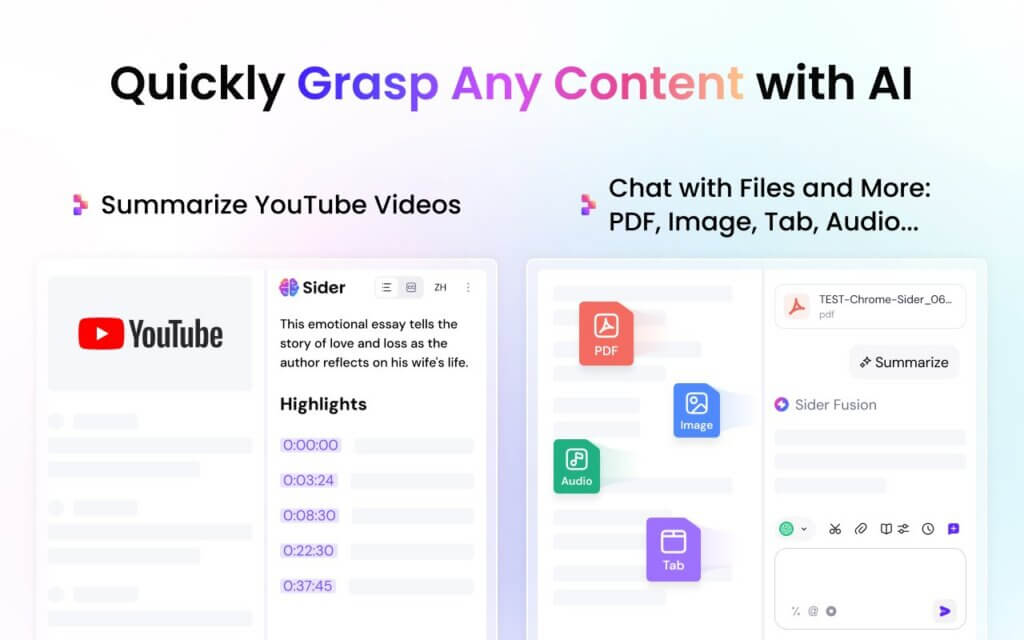
Good for: Research, quick drafts, and page summaries without losing your place.
Watch for: Look through the privacy settings before use, so you know what page content it can access.
Get Sider: Chat with All AI Models on Edge
Taskade
Taskade brings tasks, notes, and AI-assisted planning into one interface. From the extension, you can turn a page into a list of action items, jot down project notes, and handle basic team coordination without opening another app.

Good for: Freelancers, students, and small teams.
Watch for: If you already use another task tool, decide which one wins before adding Taskade, or work ends up in two places.
Immersive Translate
Immersive Translate handles bilingual browsing by translating pages, subtitles, and text blocks in a way that keeps the original layout intact rather than replacing the whole page. If you regularly work with sources in more than one language, it removes a lot of back-and-forth with a separate translator tab.
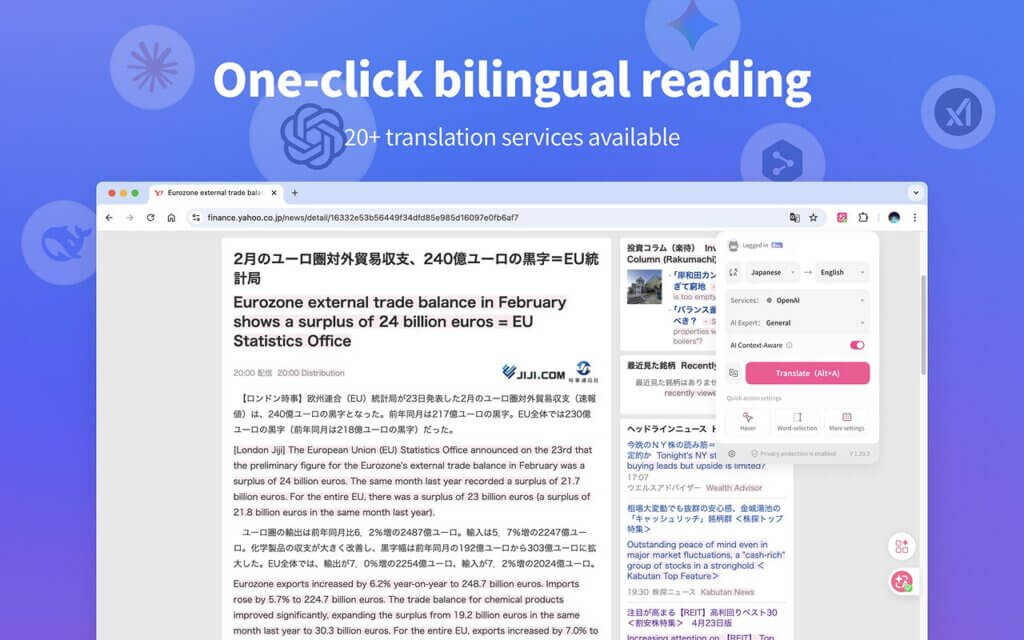
Good for: Researchers, international teams, and anyone reading across multiple languages.
Watch for: Machine translation gets close, but it can miss tone and nuance in legal, medical, or technical writing. Always verify those.
Get Immersive Translate on Edge
DeepL: Translate and Write with AI
DeepL has a strong reputation for translations that read like a human wrote them rather than a machine. The extension also includes basic writing assistance. A practical choice if your day regularly involves cross-language emails, vendor messages, or customer replies.
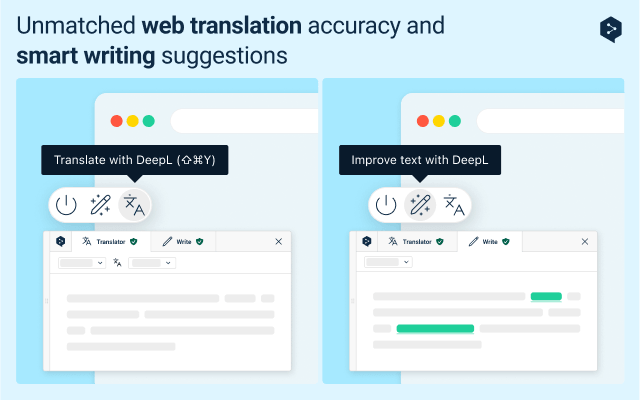
Good for: Polished translations and quick rewrites.
Watch for: Always double-check names, product terms, and numbers. These trip up automated translation more than anything else.
Get DeepL: Translate and Write with AI on Edge
Monica
Monica is an AI assistant that lives in the browser, available for chat, writing help, and page summaries without switching to a separate app. Best for users who want quick answers and drafts accessible from whatever tab they are already on.
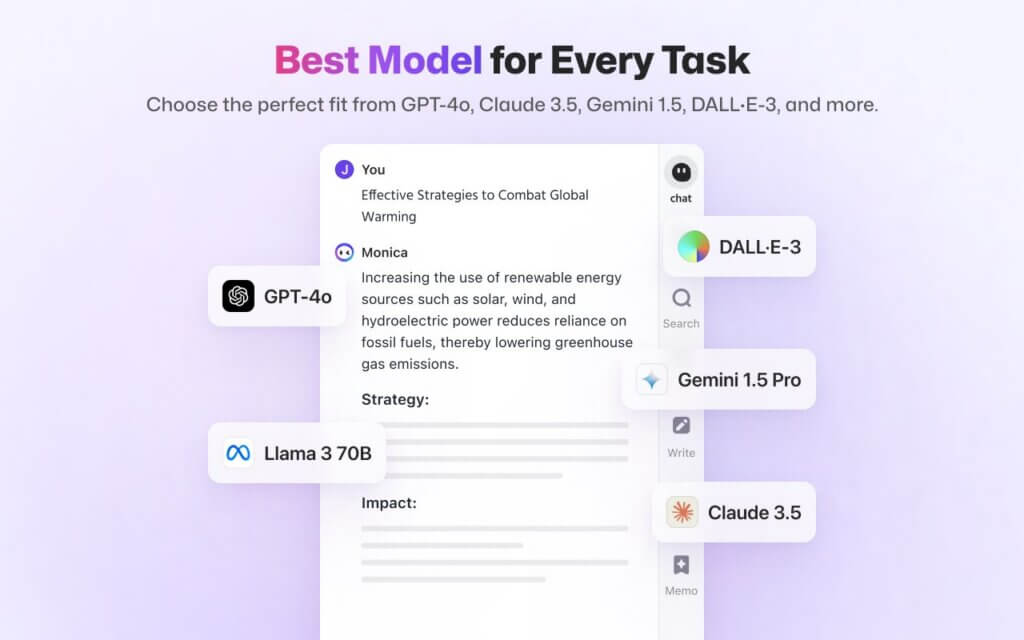
Good for: Quick drafts, summaries, and on-page Q&A.
Watch for: Check the permissions and data handling policy before using it for anything work-related.
Customization, Utility & Media Tools
Extensions for watching video more comfortably, controlling playback speed, grabbing screenshots, and working with images you find across the web.
Turn Off the Lights
Turn Off the Lights dims everything on the page except the video player, which makes YouTube, tutorials, and embedded clips easier to watch without distraction. One of those tweaks that feels unnecessary until you try it, then hard to go without.
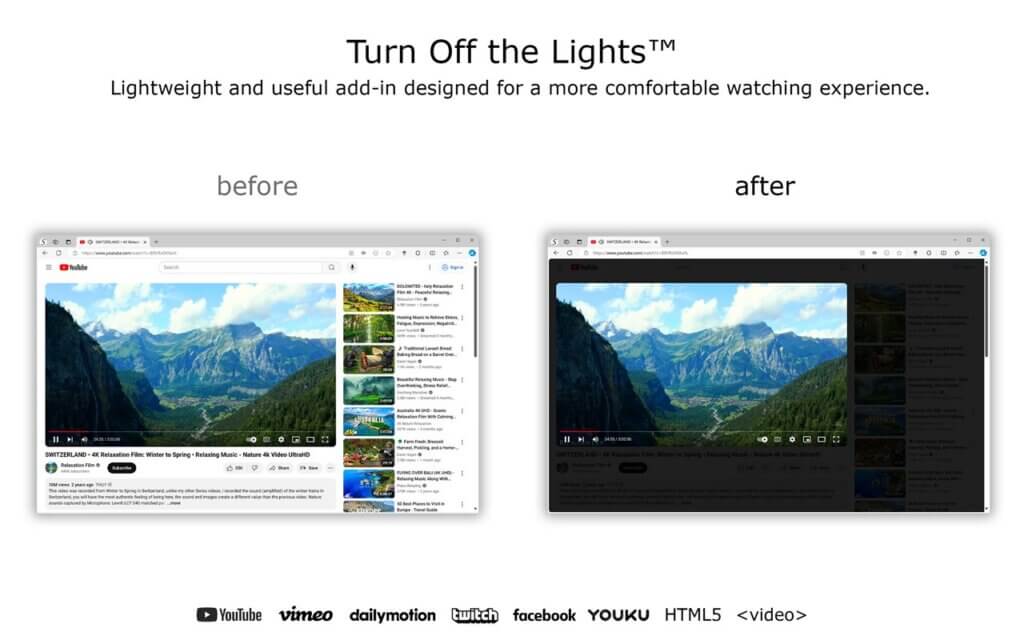
Good for: Late-night viewing and staying focused during longer instructional videos.
Watch for: The dimming overlay can clash with certain site interface elements on some pages.
Get Turn Off the Lights on Edge
Awesome Screen Recorder & Screenshot
This extension handles screen recording and screenshots from within the browser. Good for quick walkthroughs, bug reports, and short clips for teammates or clients, without needing a separate recording app.
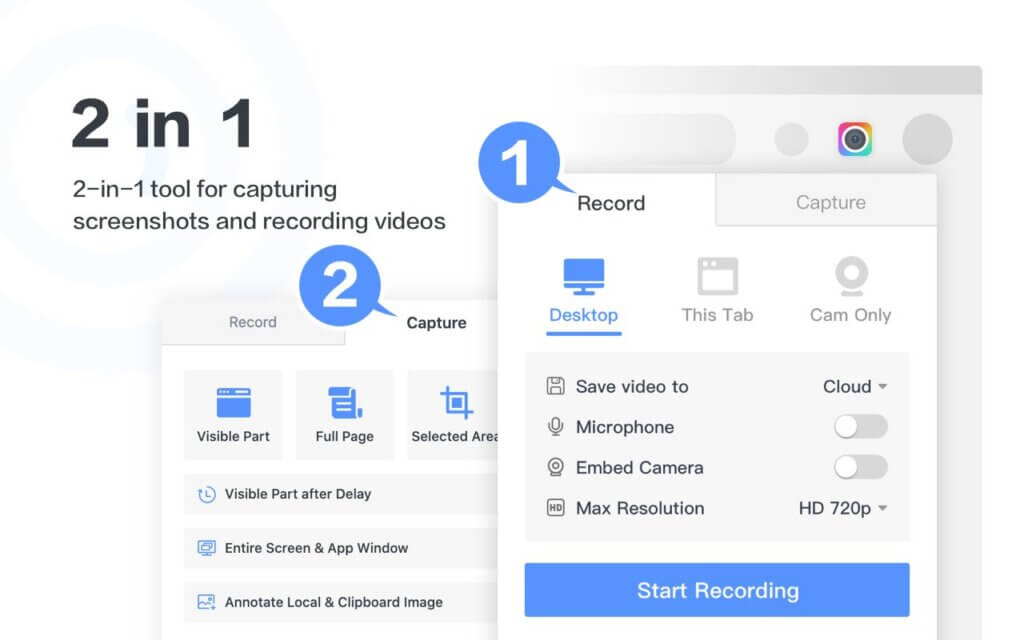
Good for: Remote work, async feedback, and simple screen tutorials.
Watch for: Recordings capture all open tabs in view. Close anything sensitive before you start.
Get Awesome Screen Recorder & Screenshot on Edge
Global Speed
Global Speed adds playback speed controls across most video sites, including ones where the built-in player does not give you many options. Particularly useful for working through online courses, long interviews, or product walkthroughs at your own pace.

Good for: Students, lifelong learners, and anyone who gets through a lot of training or tutorial video.
Watch for: Very high playback speeds can cause audio to drift out of sync on certain players.
Dislikes in YouTube
This extension brings back dislike counts on YouTube videos. A lot of people find that number useful as a rough quality check, particularly when hunting for tutorials where a high dislike ratio can signal outdated or inaccurate content.
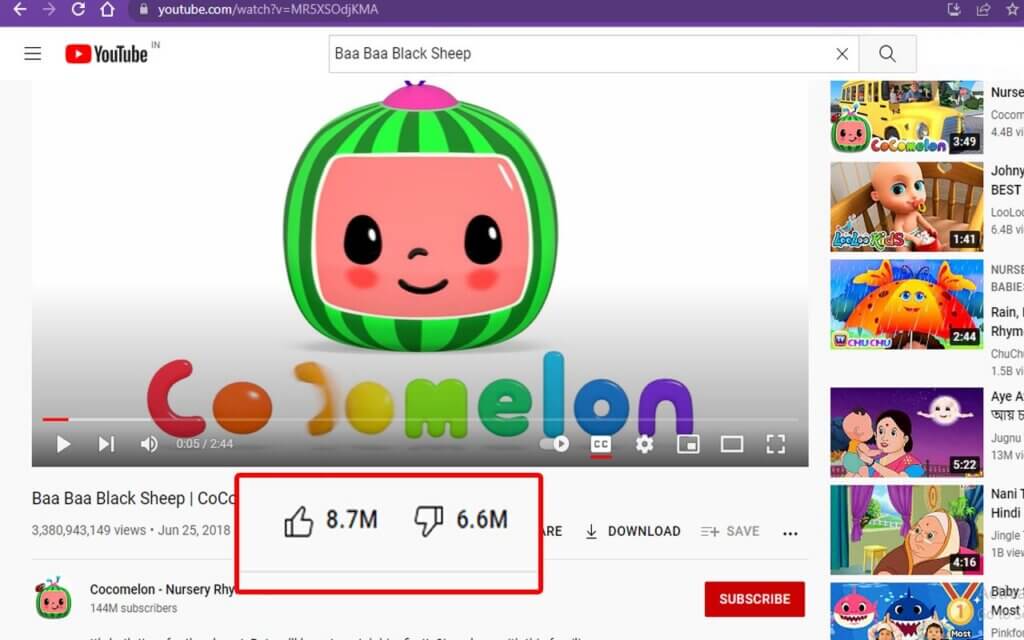
Good for: Technical tutorials and a quick read on whether a video is worth your time.
Watch for: YouTube API changes can affect how reliable the counts are, so treat them as a signal rather than a fact.
Get Dislikes in YouTube on Edge
Bulk Image Downloader
Bulk Image Downloader grabs multiple images from a page in one go. Useful for pulling down your own assets, collecting visual references with permission, or archiving images from a site you manage.
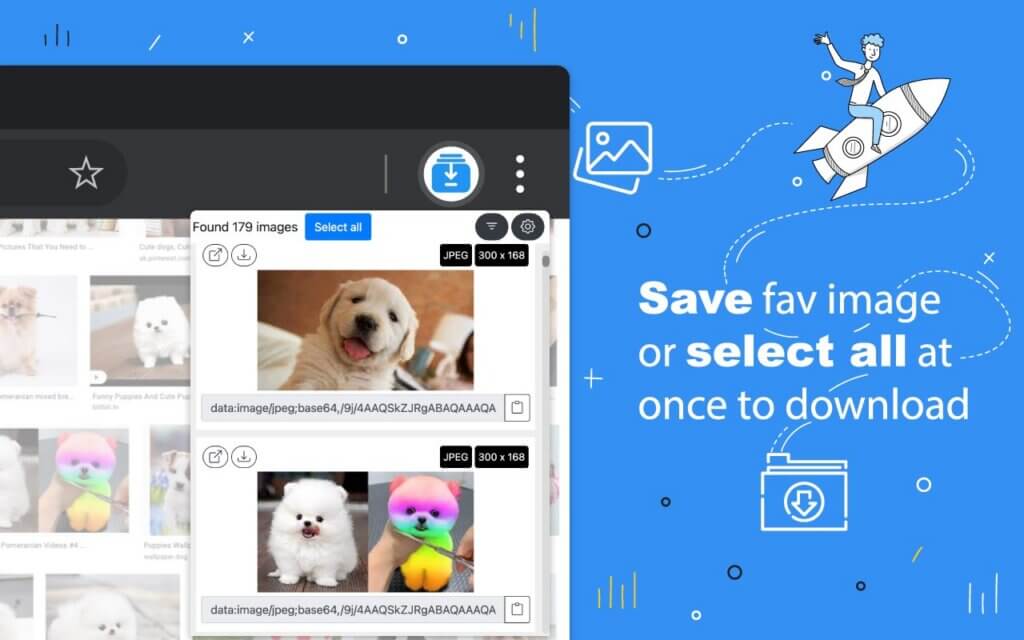
Good for: Designers and researchers working with image-heavy pages.
Watch for: Stick to content you have the right to download. Check copyright and site terms before using it on third-party pages.
Get Bulk Image Downloader on Edge
Search by Image
Search by Image adds reverse image search to the right-click menu, pulling results from multiple engines at once. Handy for tracking down where an image originally came from, finding a higher-resolution version, or checking whether something has been reposted.
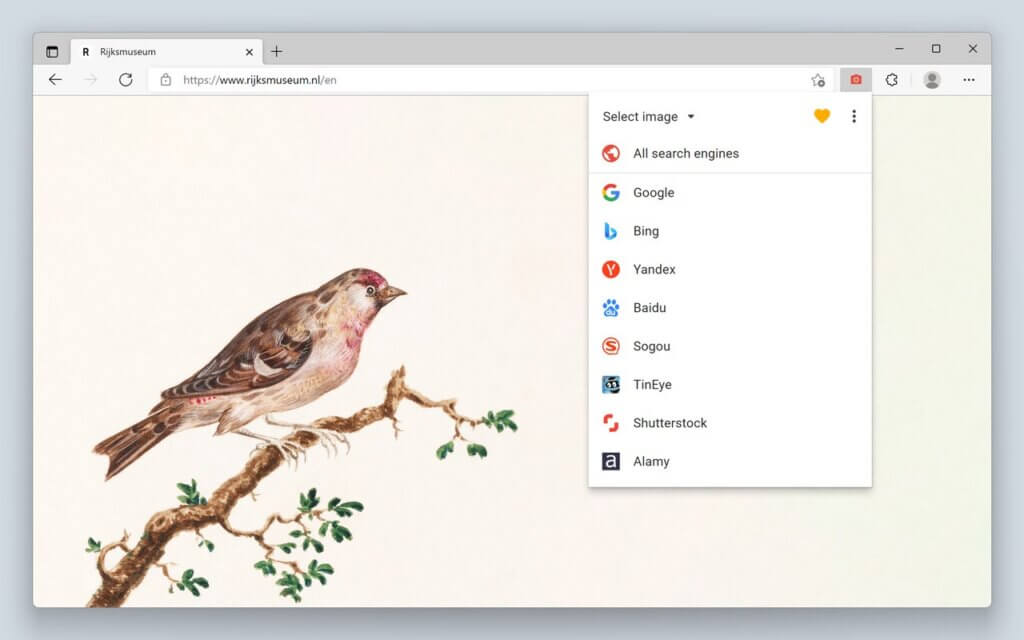
Good for: Creators, marketers, and anyone who needs to verify where images originated.
Watch for: Results vary between engines and regions, so run a few searches if the first one does not give you what you need.
Video Downloader
Video downloader extensions range from genuinely useful to outright sketchy. If you install one, pick a listing from the Edge Add-ons store with clear permissions and a tight scope, and only use it for videos you are actually permitted to download: your own content, public domain material, or sites that explicitly allow it.
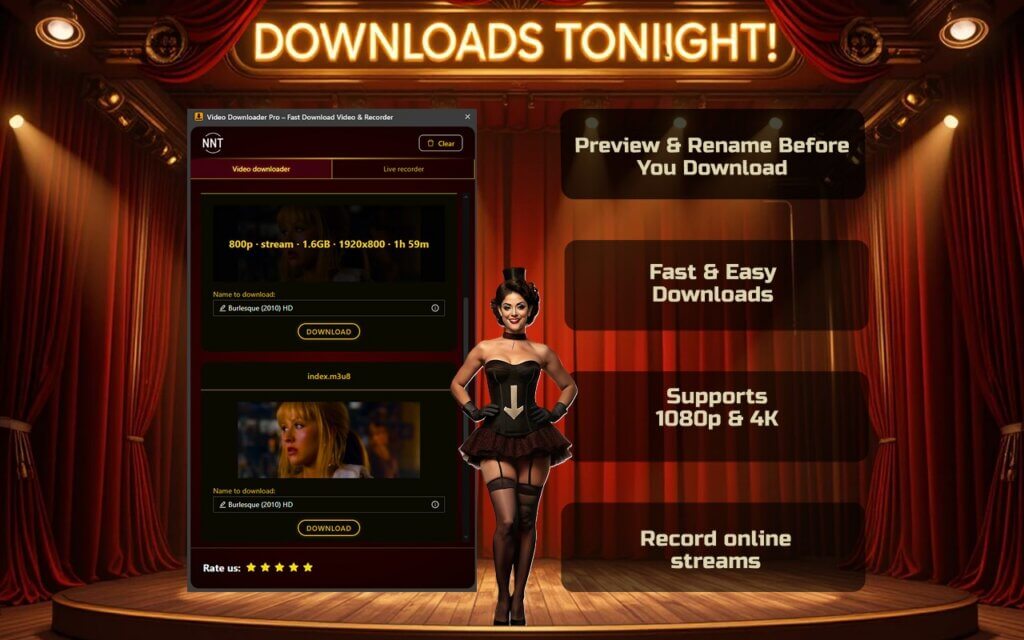
Good for: Saving permitted media for offline use.
Watch for: Avoid extensions with broad permissions or a patchy update history. Read the reviews before installing.
Shopping & Price Tracking
Two questions come up every time an “on sale” label appears online: is the price actually lower than usual, and is now a good time to buy? These extensions help answer both.
Shopping Assistant: AliExpress, Amazon, eBay
Shopping Assistant overlays price history charts on product pages across Amazon, AliExpress, and eBay, so you can see whether a sale price is actually lower than usual or just dressed up as one. It also filters out suspicious reviews, which helps cut through fake feedback on cheaper or newer listings.
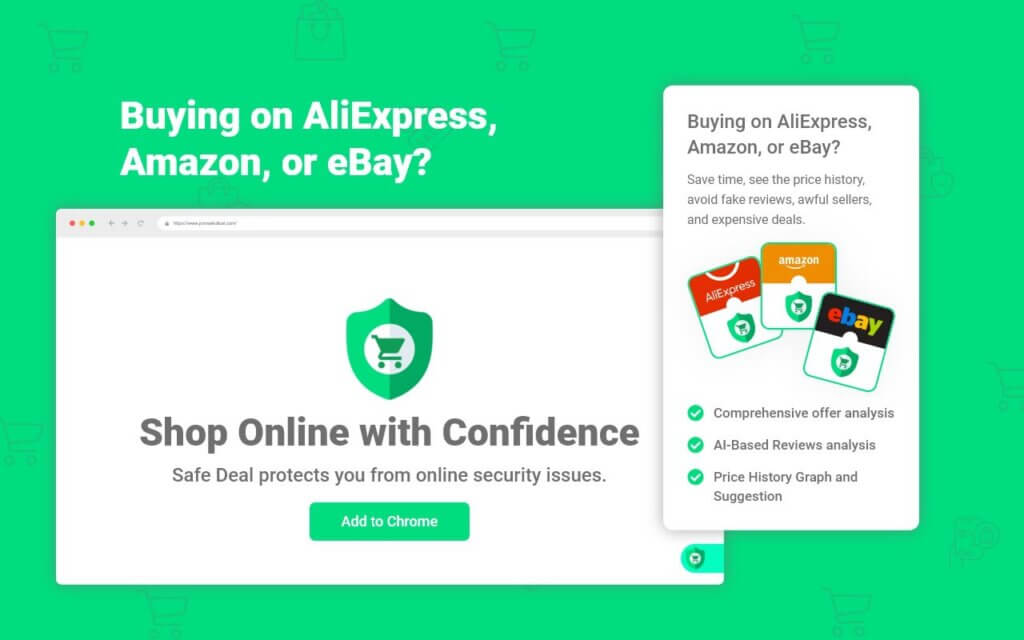
Good for: Shoppers who buy across multiple platforms and want a quick read on whether a deal is genuine.
Watch for: Like most shopping extensions, it routes some links through affiliate programs. Check the settings if that matters to you.
Get Shopping Assistant: AliExpress, Amazon, eBay on Edge
Keepa: Amazon Price Tracker
Keepa embeds an interactive price history chart on every Amazon product page, showing how the price has moved over time across Amazon and third-party sellers. At a glance, you can tell whether a deal is real or whether the price was quietly inflated before the sale. You can also set alerts to get notified when a product drops to a specific price or comes back into stock.
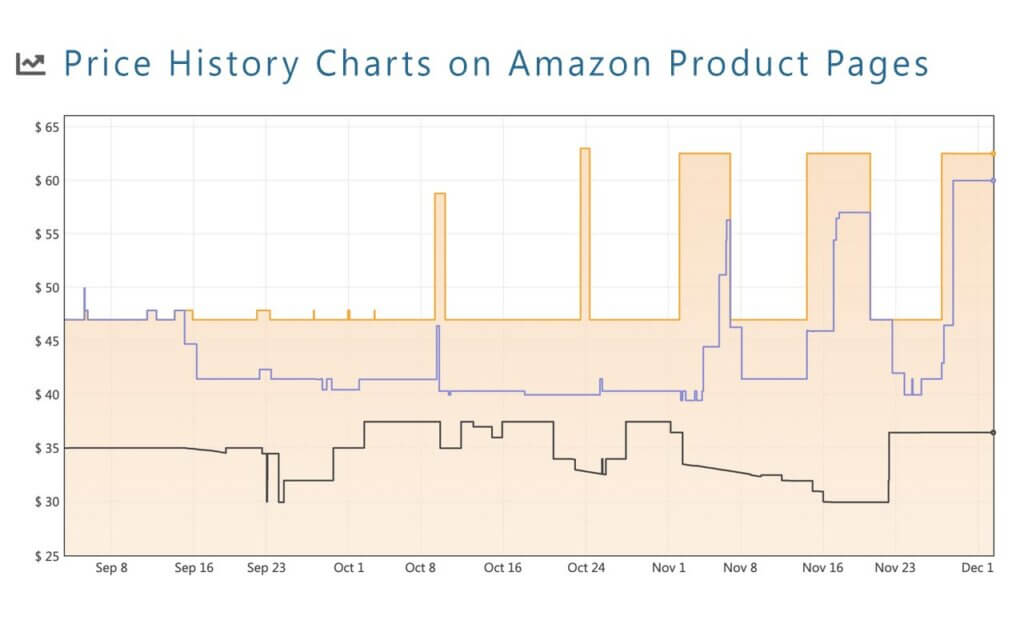
Good for: Frequent Amazon shoppers, deal hunters, and anyone planning a higher-ticket purchase.
Watch for: Keepa only covers Amazon. For other retailers, you will need a different tool.
Get Keepa: Amazon Price Tracker on Edge
The Camelizer
The Camelizer shows Amazon price history from CamelCamelCamel, directly on the product page. It is lightweight, fast, and does not add much interface clutter. Good for a quick check before you buy without digging into a separate site.
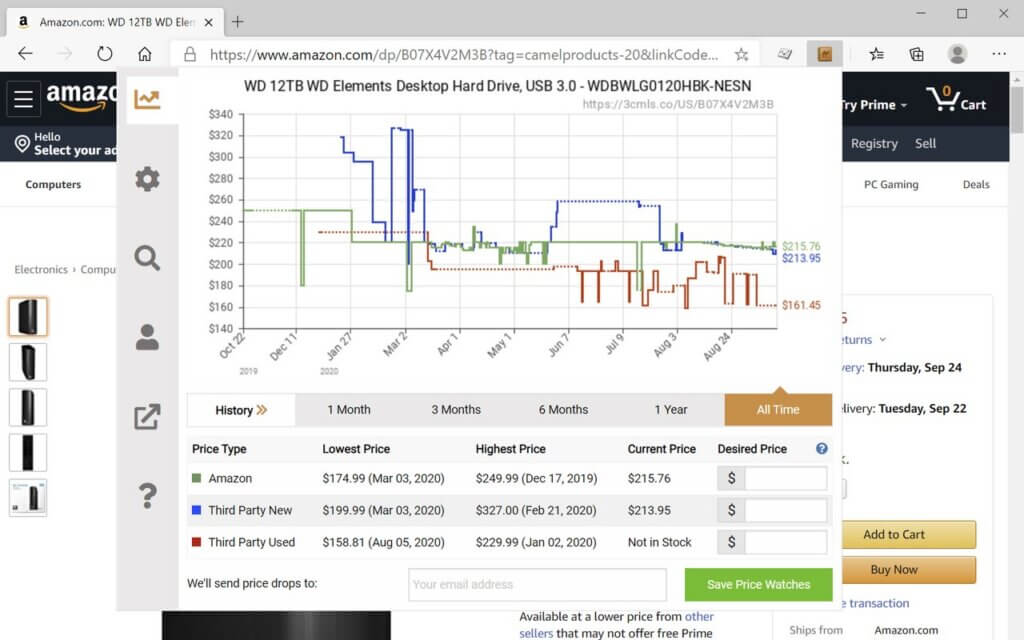
Good for: Fast “should I buy now” decisions on Amazon.
Watch for: Price history tools do not account for coupon stacking or individual account discounts, so the chart only tells part of the story.
Social, Entertainment & Community Tools
Extensions for watching with others, saving content, and making social platforms a bit less tedious to use.
Teleparty (formerly Netflix Party)
Teleparty keeps streaming playback in sync across multiple viewers and adds a group chat alongside the video. The free version covers eight services: Netflix, YouTube, Disney+, Max, Hulu, Amazon Prime Video, Pluto TV, and Tubi TV. A paid subscription adds more, including Crunchyroll, Paramount+, and Apple TV. Edge is a supported browser alongside Chrome and Safari.
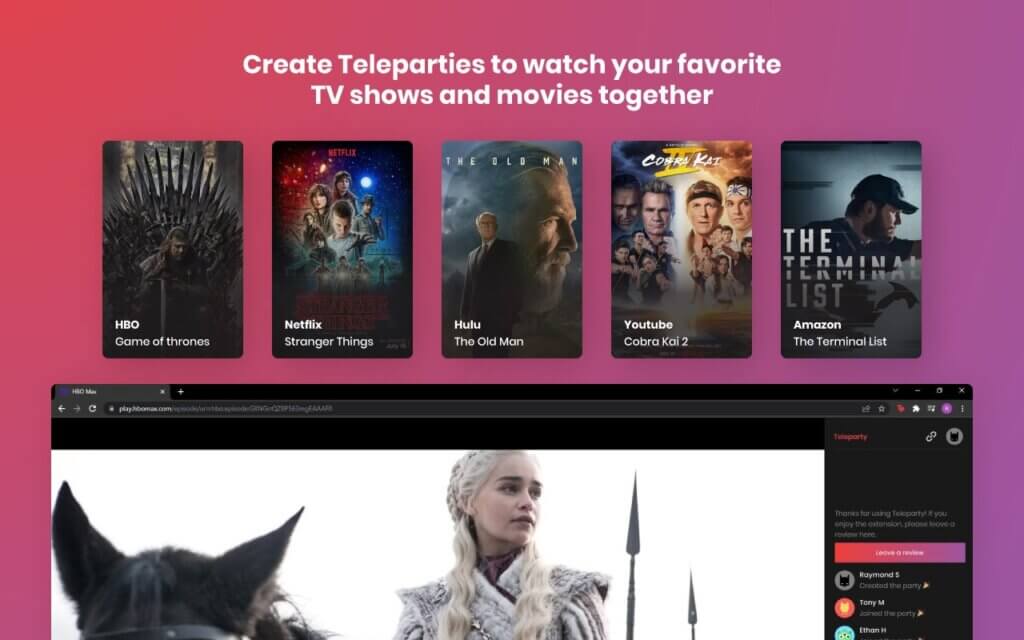
Good for: Remote movie nights and group watch sessions.
Watch for: Everyone in the party needs their own active subscription to whichever service you are watching.
Reddit Enhancement Suite
Reddit Enhancement Suite (RES) has been around for years and remains the standard kit for heavy Reddit users. It adds interface improvements and extra browsing controls that make the site considerably less tedious to navigate at volume.
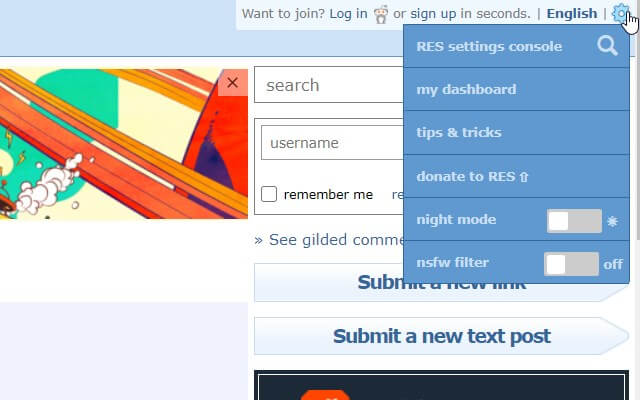
Good for: People who spend a lot of time on Reddit, particularly moderators and subreddit regulars.
Watch for: Reddit interface changes can break specific RES features. Check for updates when something stops working.
Get Reddit Enhancement Suite on Edge
Story Saver
Story Saver downloads stories from Instagram and similar platforms. Most useful for creators who want an easy way to keep copies of their own published content.
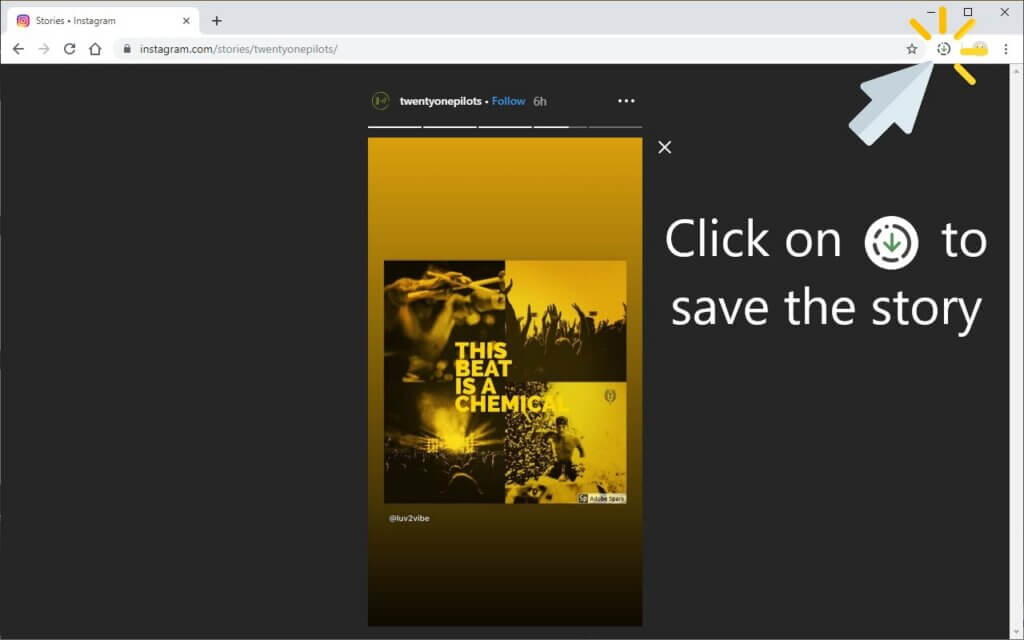
Good for: Creators archiving their own stories and posts.
Watch for: Only save content you have the right to download. Platform rules and privacy expectations apply.
Save to Pinterest
Save to Pinterest adds a save button as you browse, so you can pin things directly to your boards without going to Pinterest separately. Useful for mood boards, recipe collections, home ideas, and content planning.
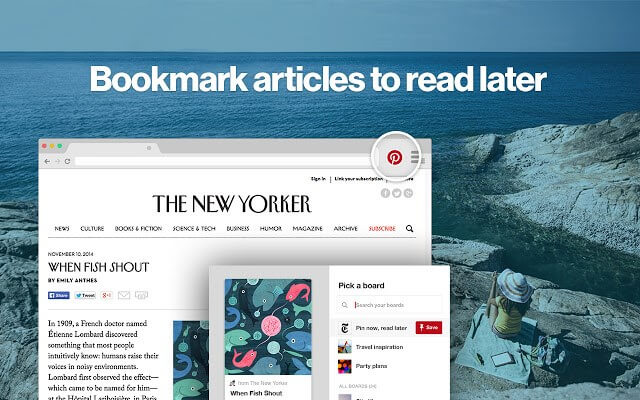
Good for: Creators, planners, and visual research.
Watch for: Name your boards clearly from the start. Vague board names make the whole system hard to use as it grows.
Picture-in-Picture Everywhere
Picture-in-Picture Everywhere keeps a small floating video window on screen while you switch to other tabs. Edge has some built-in PiP support, and this extension covers sites where the native control does not appear or does not work reliably.
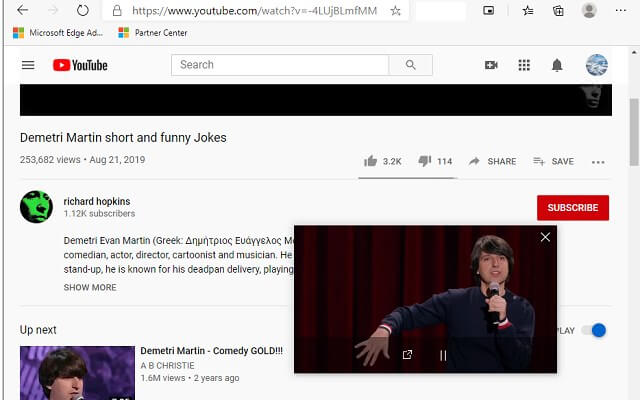
Good for: Watching lectures, podcasts, or live streams while working in other tabs.
Watch for: Some organizations restrict PiP behavior at the device policy level.
Get Picture-in-Picture Everywhere on Edge
A simple 2026 Edge setup that feels done
The goal is not to install everything on this list. A good browser setup is a small stack of tools you actually trust, kept current and tidy. Start with privacy and passwords. Add something for saving and organizing. If you write a lot or work across languages, bring in the tools that help with that.
For a cleaner reading experience, Edge’s built-in Immersive Reader, paired with a pop-up blocker, covers most of what people complain about day-to-day.
If you only install one extension, make it the one that fixes your biggest daily annoyance. Whether that is constant interruptions, logging in over and over, patchy writing, or too much noise on every page, start there. The rest tends to figure itself out.