Chrome Web Extension
 Edge Web Extension
 Android App
 iOS App


You open Safari to read an article and a full-screen ad takes over before you can see a single word. A recipe blog auto-redirects to a pop-up offer. A YouTube video in Safari plays a 30-second pre-roll you cannot skip. If any of this sounds familiar, you are not alone. Over 530 million people worldwide now use an ad blocker, and the number keeps growing because ads on mobile keep getting worse, not better.
The good news is that blocking ads on iPhone is easier than most people think. Apple builds a few basic controls into Safari that are worth switching on, but they only cover a fraction of what you will run into. To stop ads on iPhone properly, including video pre-rolls, cookie banners, overlay pop-ups, and tracker scripts, you need one extra step. This guide walks you through both: the built-in iPhone settings that help, and the free ad and pop-up blocker for iPhone that handles everything else.
Why Ads and Pop-Ups Appear on iPhone
Before diving into the fixes, it helps to understand where iPhone ads actually come from. There are four main sources.
Most free websites, news outlets, recipe blogs, and video platforms fund themselves with display ads served through ad networks. When you load a page in Safari, those ad scripts load alongside the content. Safari does not block them by default, so every ad network that has a relationship with that site gets to load its content in your browser.
Safari includes Apple’s Intelligent Tracking Prevention, which limits how advertisers follow you across sites. But it is a privacy tool, not an ad blocker. It does not stop ads from loading. It just makes it harder for those ads to build a profile of your behavior across multiple websites.
Some websites go further than display ads. They trigger redirect loops that bounce you through multiple pages before landing somewhere unexpected, or they layer overlay banners and interstitials on top of content. These are designed to be difficult to close. Safari’s basic pop-up toggle does not catch them because they are not technically pop-up windows.
Finally, video platforms like YouTube, Dailymotion, and Crunchyroll insert pre-roll and mid-roll ads when accessed through Safari, just as they would on a desktop browser. These are served by the platform directly and are not affected by any of Safari’s built-in settings.
Use Poper Blocker to Block Ads and Pop-Ups on iPhone
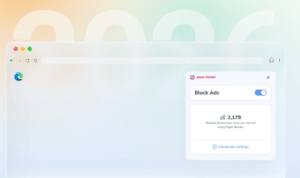
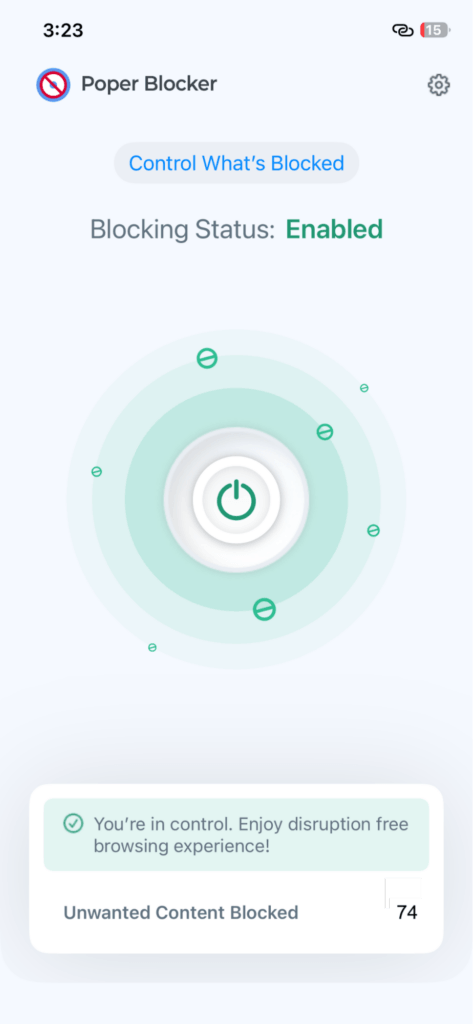
For everything Safari’s settings cannot touch, a dedicated content blocker makes the difference. Poper Blocker is a free iPhone app that blocks ads, pop-ups, video ads, cookie banners, and trackers across all the websites you visit in Safari. It requires no account, takes less than a minute to set up, and works silently in the background from that point on.
Here is what it covers that Apple’s settings do not:
- All website ads – Block banner ads, display ads, and sponsored content are removed before the page finishes loading, so you never see them and they never slow your browsing down.
- Advanced pop-ups and overlays – Beyond the basic pop-up windows that Safari’s toggle can stop, Poper Blocker removes aggressive overlay banners, interstitial ads, and the kind of full-screen takeovers that cover an article before you can read it.
- Block video ads – Pre-roll and mid-roll video ads on YouTube, Dailymotion, and Crunchyroll are blocked when you watch through Safari. If you have been putting up with unskippable ads on these platforms, this alone is worth the install. Learn more on the YouTube ad blocker feature page.
- Cookie consent banners – The cookie banner blocker automatically removes GDPR and cookie consent overlays so you reach page content immediately.
- Tracker scripts – The tracker blocker stops third-party tracking scripts from loading, which improves privacy and speeds up page loads at the same time.
Setting it up takes three steps:
- Download Poper Blocker from the App Store on your iPhone.
- Open the app and follow the on-screen instructions.
- Go to Settings > Safari > Content Blockers and enable Poper Blocker.
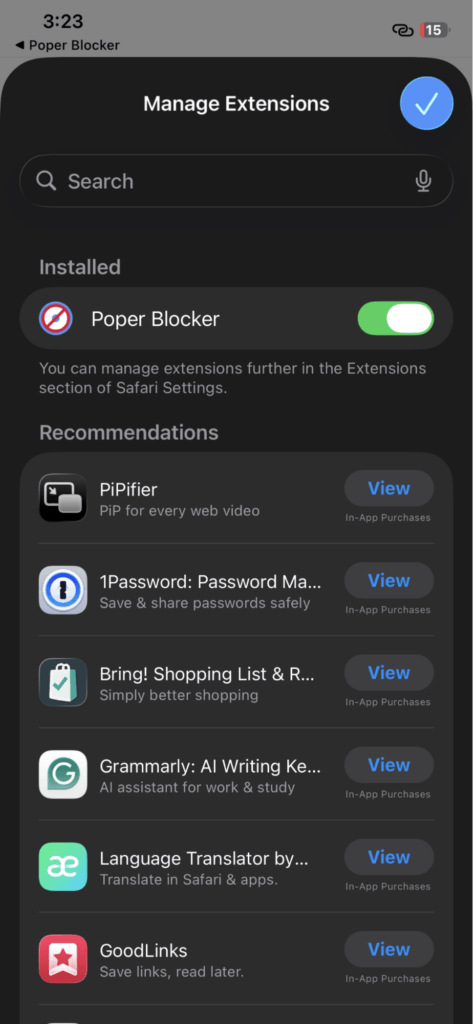
That is it. The app runs automatically every time you browse in Safari. Because it works at the content level, ads are blocked before they load rather than hidden after. Pages come in faster and cleaner.
Poper Blocker also works on iPad, and it can block ads on Safari on Mac as well, so you can install it on all of your devices.
Built-In iPhone Settings That Help Reduce Pop-Ups
Apple gives you a handful of Safari settings that are worth turning on even before you install anything. They will not block ads or stop advanced overlays, but they do reduce basic pop-up windows and limit some tracking. Here is where to find them. Full details are available in Apple’s official Safari support article.
Turn on Block Pop-Ups
Go to Settings > Apps > Safari and toggle Block Pop-Ups on. This stops the most straightforward pop-up windows, the kind that open a new browser tab or window uninvited. It will not catch overlay banners or redirect-based pop-ups that stay within the same tab.
Enable Prevent Cross-Site Tracking
On the same Settings > Apps > Safari screen, toggle Prevent Cross-Site Tracking on. This limits ad networks from following you between websites and building a behavioral profile. It reduces the creepiness factor of targeted ads but does not stop ads from loading on any individual page.
Turn on Fraudulent Website Warning
Still in Settings > Apps > Safari, toggle Fraudulent Website Warning on. This catches phishing-style pop-ups that mimic Apple alerts or claim your device has a virus. These are among the most disruptive pop-up types because they are designed to prevent you from navigating away.
Turn Off Personalized Ads from Apple
Go to Settings > Privacy and Security > Apple Advertising and toggle off Personalized Ads. One important caveat: this does not reduce the number of ads you see. It only stops Apple from using your behavioral data to target them. You will still see the same volume of ads in Apple’s own apps and properties, just less tailored ones.
All four of these settings together still will not touch website banner ads, video pre-roll ads, cookie consent banners, or advanced overlay pop-ups. For those, a dedicated content blocker like Poper Blocker is the only reliable fix.
Start Browsing Without Interruptions
You do not have to put up with constant ads and pop-ups every time you open Safari. Enable Apple’s built-in settings for a quick baseline of protection, then install Poper Blocker to handle everything else. Together they cover the full range of what iPhone users run into: banner ads, video pre-rolls, cookie banners, redirect pop-ups, advanced overlays, and tracker scripts. It is free, takes less than a minute to set up, and works in the background from then on.
FAQs
Does blocking ads on iPhone actually work?
Yes, with the right tool. Safari’s built-in pop-up toggle stops basic pop-up windows, but that is all it does. A dedicated Safari content blocker like Poper Blocker works differently: it intercepts ad scripts and tracker requests before they load, so ads are never rendered in the first place. The result is a noticeably cleaner browsing experience across all the websites you visit in Safari.
Is it safe to use an ad blocker on iPhone?
Safari content blockers are one of the safest categories of app available on iPhone. They run locally on your device and do not route your traffic through any external server. Poper Blocker requires no account to use and does not collect personal data or browsing history. If you are concerned about privacy online, an ad blocker that also blocks trackers is one of the more straightforward steps you can take.
Will blocking ads break websites or make pages load slower?
The opposite is usually true. Ad scripts and tracking code are among the heaviest elements on most web pages. Removing them before they load means pages come in faster and use less data. Some sites display a message asking you to disable your ad blocker, but you can whitelist individual sites within Poper Blocker’s settings if you want to support a specific publisher.
Can I block YouTube ads on iPhone without YouTube Premium?
Yes. When you watch YouTube through Safari rather than the YouTube app, Poper Blocker removes pre-roll and mid-roll video ads. Note that this works in the Safari browser only. The YouTube app itself cannot be blocked by an iPhone content blocker app. If you watch through Safari, you get ad-free playback without needing a Premium subscription.
Why do pop-ups still appear even with Safari’s Block Pop-Ups setting turned on?
Safari’s toggle only catches pop-up windows that open as a new tab or browser window. The more common type of pop-up people encounter today is an overlay or interstitial that loads within the same page, covering the content you are trying to read. These are not technically pop-up windows, so Safari’s setting does not apply to them. A content blocker that targets overlay elements and ad scripts is needed to stop them reliably.