Chrome Web Extension
 Edge Web Extension
 Android App


Data from Pew Research Center shows that more seniors are now using the Internet. About 96% of those aged 50 to 64, and 75% of those 65 years and older, are online. Staying connected and informed has many benefits. However, these benefits also come with risks like scams and fraud, which often target older adults. It’s necessary to be alert and knowledgeable about online safety to protect yourself and your personal information.
Why Are Elderly People More Prone to Online Scams?
Older adults often face unique challenges that make them more vulnerable to online scams. Knowing these factors can help in taking steps to promote internet safety for seniors:
Limited Tech Skills
Many seniors did not grow up with modern technology and this makes them less familiar with online dangers. This lack of experience can be a challenge for them to spot phishing attempts, fake websites, or other scams. They might not know about the latest security measures or understand how to use them, like recognizing secure websites or using two-factor authentication.
High Trust in Others
Older adults often come from a time when trust was more common. Scammers exploit this trusting nature by using convincing tactics to deceive them. They often create a sense of urgency or make up believable stories and this makes it easier for them to gain the trust of seniors and get their personal information or money.
Social Isolation
Many seniors experience loneliness, which can make them more open to scams. Scammers exploit this by forming relationships through social media or dating sites. These relationships can lead to requests for money or personal information under false pretenses. The emotional bond can make it hard for seniors to recognize the scam.
Financial Stability
Scammers often target seniors because they are seen as having significant savings or assets. Older adults might be managing retirement funds, pensions, or other investments, which makes them attractive targets for financial scams. Scammers use fake investment opportunities, lottery scams, or fraudulent charities to exploit their financial stability.
Cognitive Decline
As people age, their thinking abilities can decline, and this could also affect their memory and decision-making skills. This decline can make it harder for seniors to critically evaluate information and identify scams. Scammers take advantage of this by creating complex scenarios that confuse and deceive their victims.
Lack of Cybersecurity Knowledge
Cyber security for seniors might seem confusing as they might not be aware of all the best practices, such as updating software, using antivirus programs, or setting strong passwords. This lack of knowledge can leave them open to various online threats, including malware and ransomware. Education and awareness are important in helping seniors protect themselves online.
Online Safety Tips for Seniors
Staying safe on the internet is very important for seniors who use it for talking to friends, shopping, banking, and socializing. Knowing how to protect yourself from scams and other online threats can help keep you secure and private:
Know the Red Flags
If someone contacts you asking for payment by wire transfer or gift card, it’s likely a scam. These requests often come with urgent messages to make you act quickly. Ending the conversation immediately can help you avoid becoming a victim. Scammers use these methods because they are hard to trace and undo.
Use Strong Passwords
Longer passwords are better than complex ones. A strong password should be at least 12 characters long. Use positive and easy-to-remember phrases like “IL0veCountryMusic!.” Keep a written list of passwords stored safely away from your computer. Using a different password for each account can stop one security breach from affecting other accounts.
Think Before You Click
This one never gets old (no pun intended). Don’t click on links in emails or social media posts from banks, credit card companies, government agencies, or other organizations unless you are sure they are real. Phishing scams use links to take you to fake websites to steal your information. Even if the web address looks familiar, it’s safer to type it into your browser. If you’re not sure, call the organization using a known phone number.
Dealing with Unsolicited Email
Junk email, or spam, is common but can be managed. Legitimate companies usually let you unsubscribe. However, true spammers often ignore these requests. Use the spam filter provided by your email service to reduce unwanted emails. Avoid clicking on links in unsolicited emails, as they may lead to scam sites or infect your computer with malware.
Always Verify
Emails, text messages, or phone calls that create urgency and ask for sensitive information should be viewed with caution. Instead of responding right away, verify the request by contacting a trusted source. Scammers often create panic to get quick responses without proper checking.
People Online Aren’t Always Who They Say They Are
Be careful when interacting with strangers online. Criminals can easily pretend to be friends or family. Only accept social media friend requests from people you know. If someone asks for money or personal information, verify their identity through a trusted method, like a phone call. Avoid sending money or sensitive details to anyone you haven’t met in person.
Meet New Friends and Romantic Partners Responsibly
Online dating scams are common and target both seniors and younger people. Always be cautious when meeting new people online. Verify their identity through multiple ways and be wary of those who quickly ask for money or personal information. Building a relationship should not involve financial transactions.
How Poper Blocker Can Help Seniors Stay Safe Online
Poper Blocker is a browser extension for Chrome and Edge that helps make online activities safer, especially for seniors. It blocks annoying pop-ups and ads and filters harmful content on social media. With this tool, seniors can have a safer and more pleasant time on the web.
1. Pop-up and Ad-Blocking
Blocking Basic Pop-ups
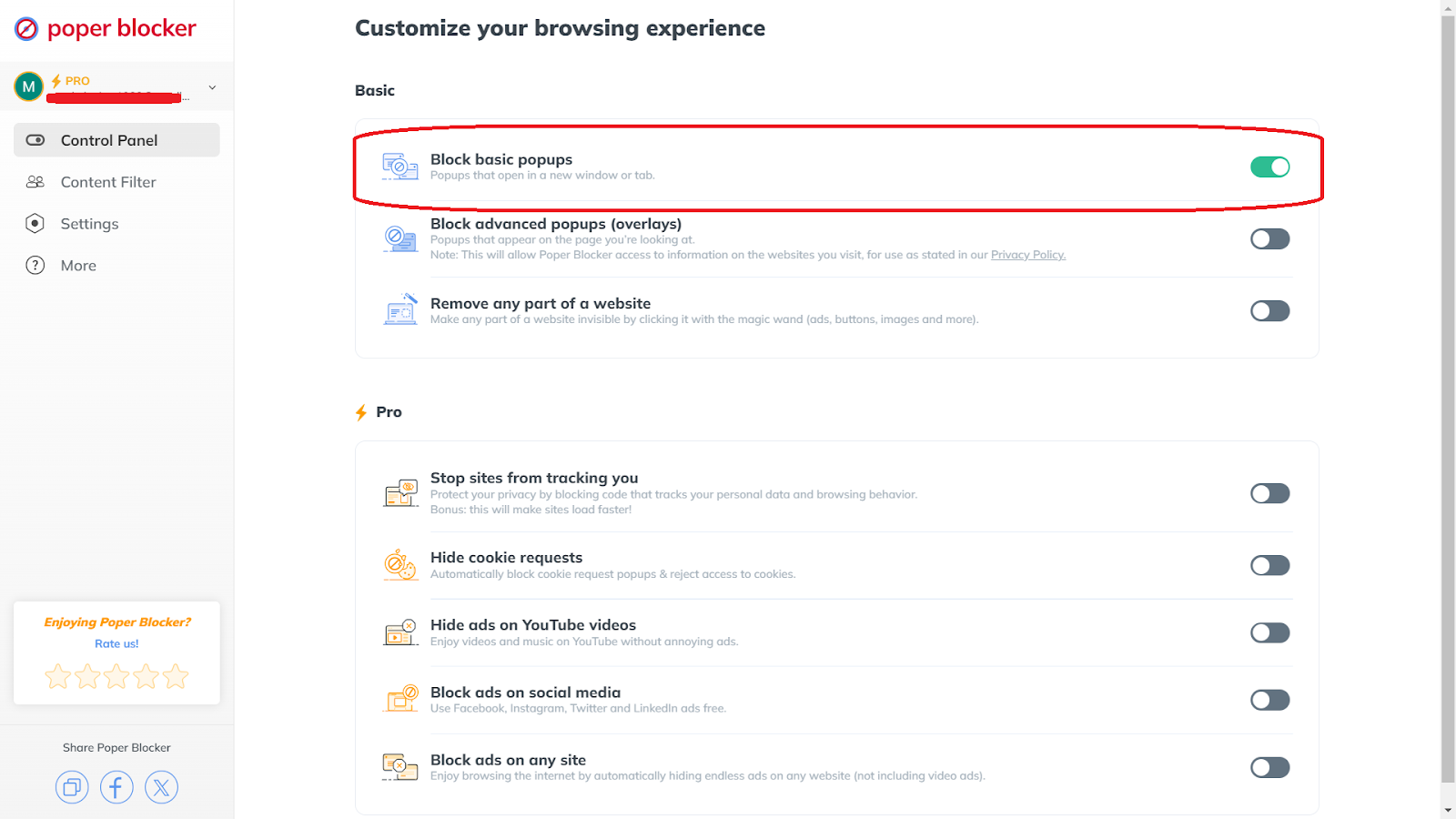
Basic pop-ups that open in a new window or tab can be annoying and risky, leading to harmful websites. Poper Blocker’s “Block basic popups” feature stops these interruptions, making browsing smooth and reducing the chance of clicking on scam pop-ups, landing on dangerous sites
Blocking Advanced Pop-ups (Overlays)
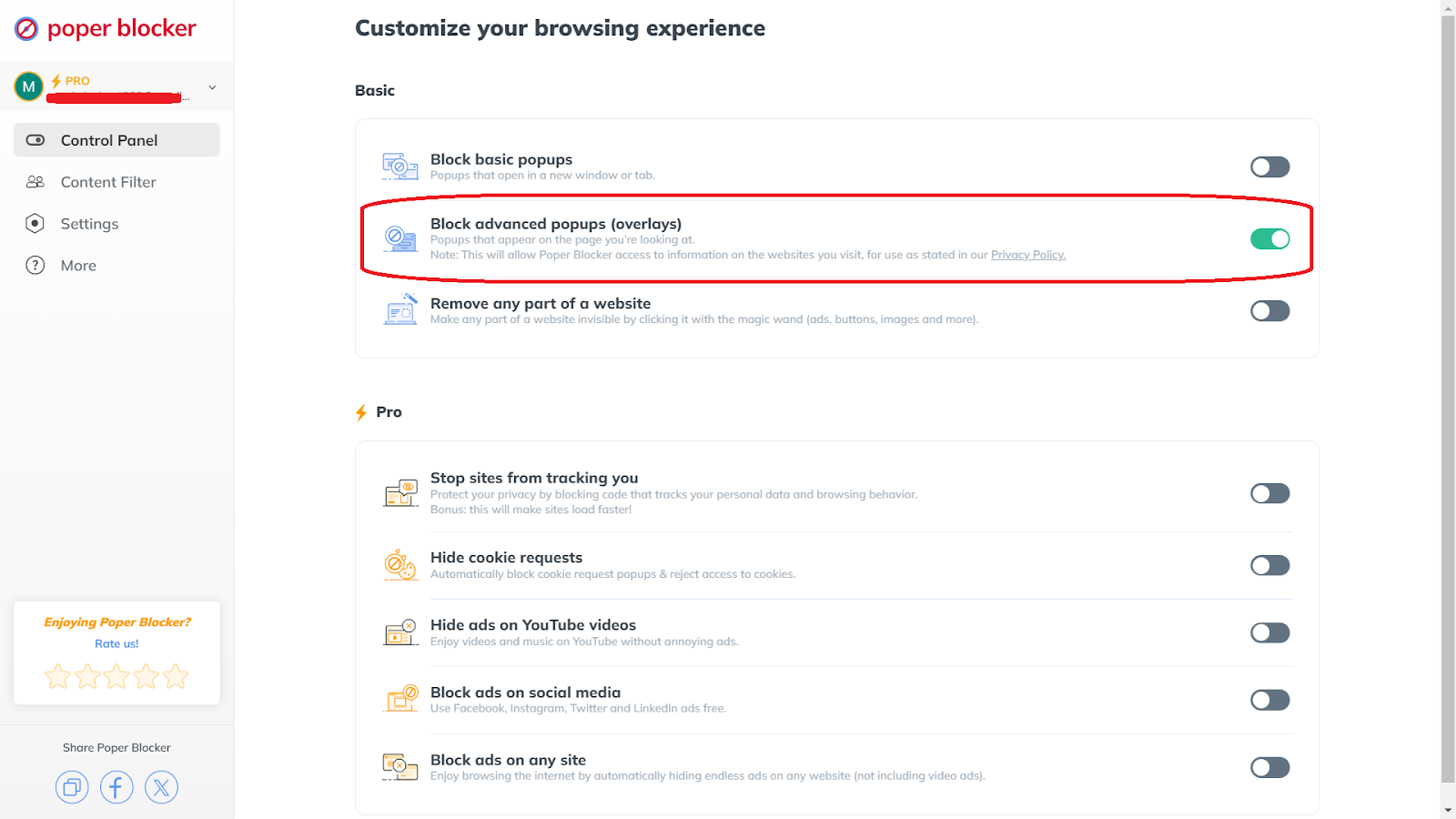
Advanced pop-ups, or overlays, appear on the current page, often blocking content and trying to catch your attention. These can be tricky, mimicking important messages or alerts. Using the “Block advanced popups (overlays)” feature of this pop-up blocker helps avoid these distractions so users will be able to focus on what matters without being misled.
Ad-Blocking on YouTube
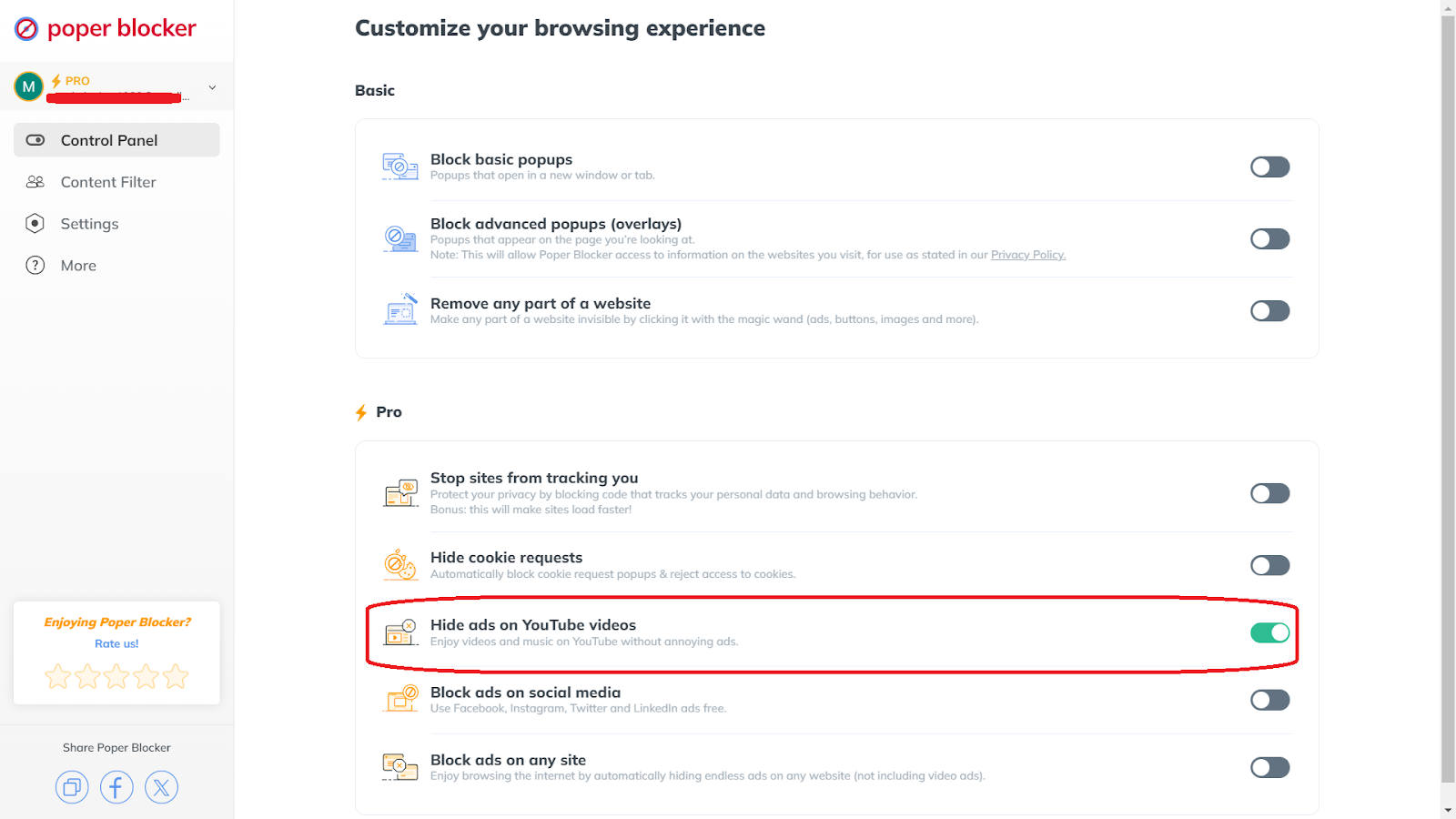
YouTube is popular for watching videos and music, but constant ads can be annoying. Poper Blocker’s “Hide ads on YouTube videos” feature can block ads on Chrome or Edge so seniors can enjoy watching videos from these browsers without interruptions from these misleading or harmful ads.
Blocking Ads on Social Media
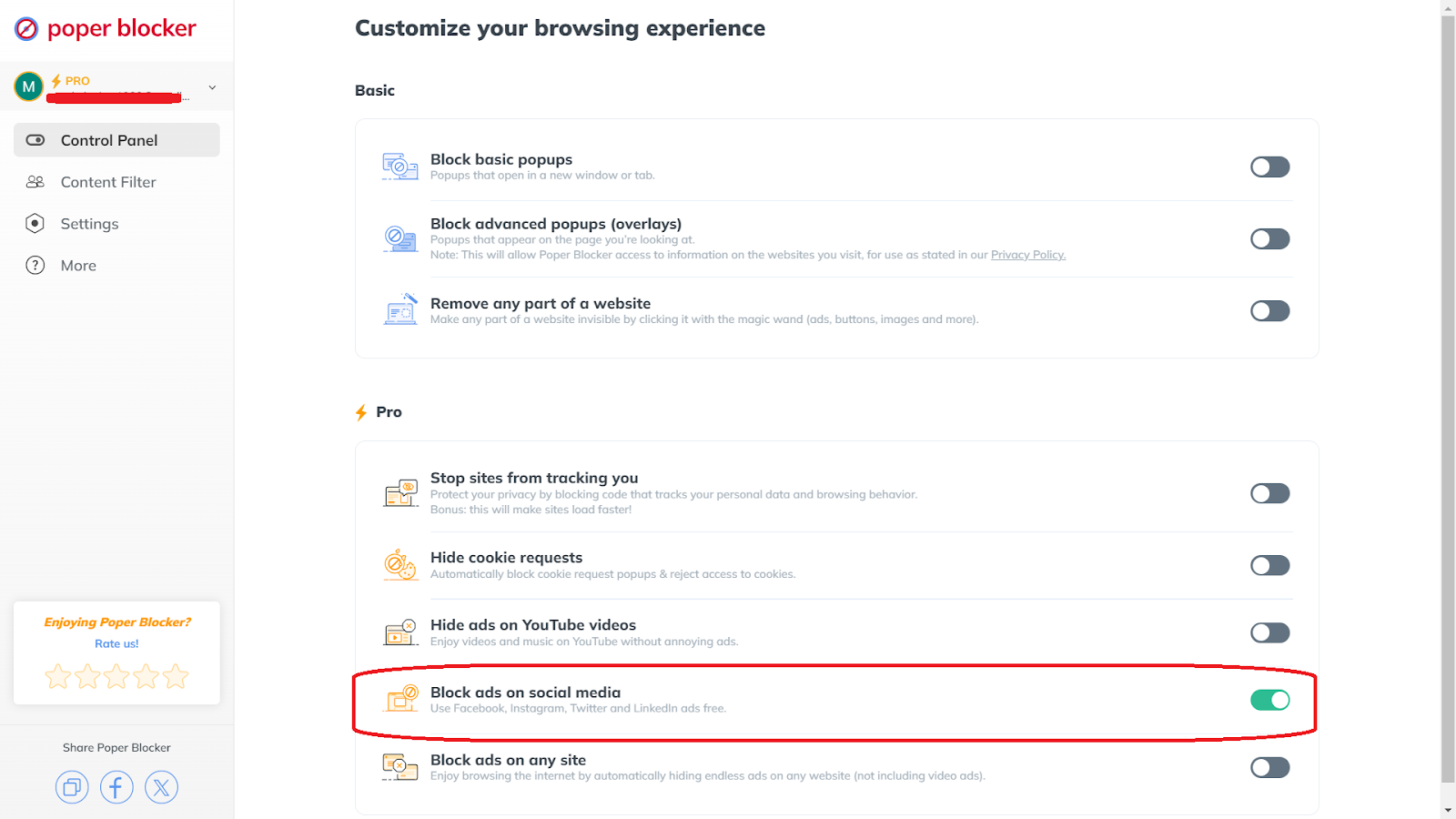
Social media platforms like Facebook, Instagram, Twitter, and LinkedIn are full of ads, some of which can be misleading or inappropriate. This ad blocker has a “Block ads on social media” feature that creates a cleaner and safer browsing environment. This is especially helpful for seniors who may find it hard to tell the difference between real content and ads.
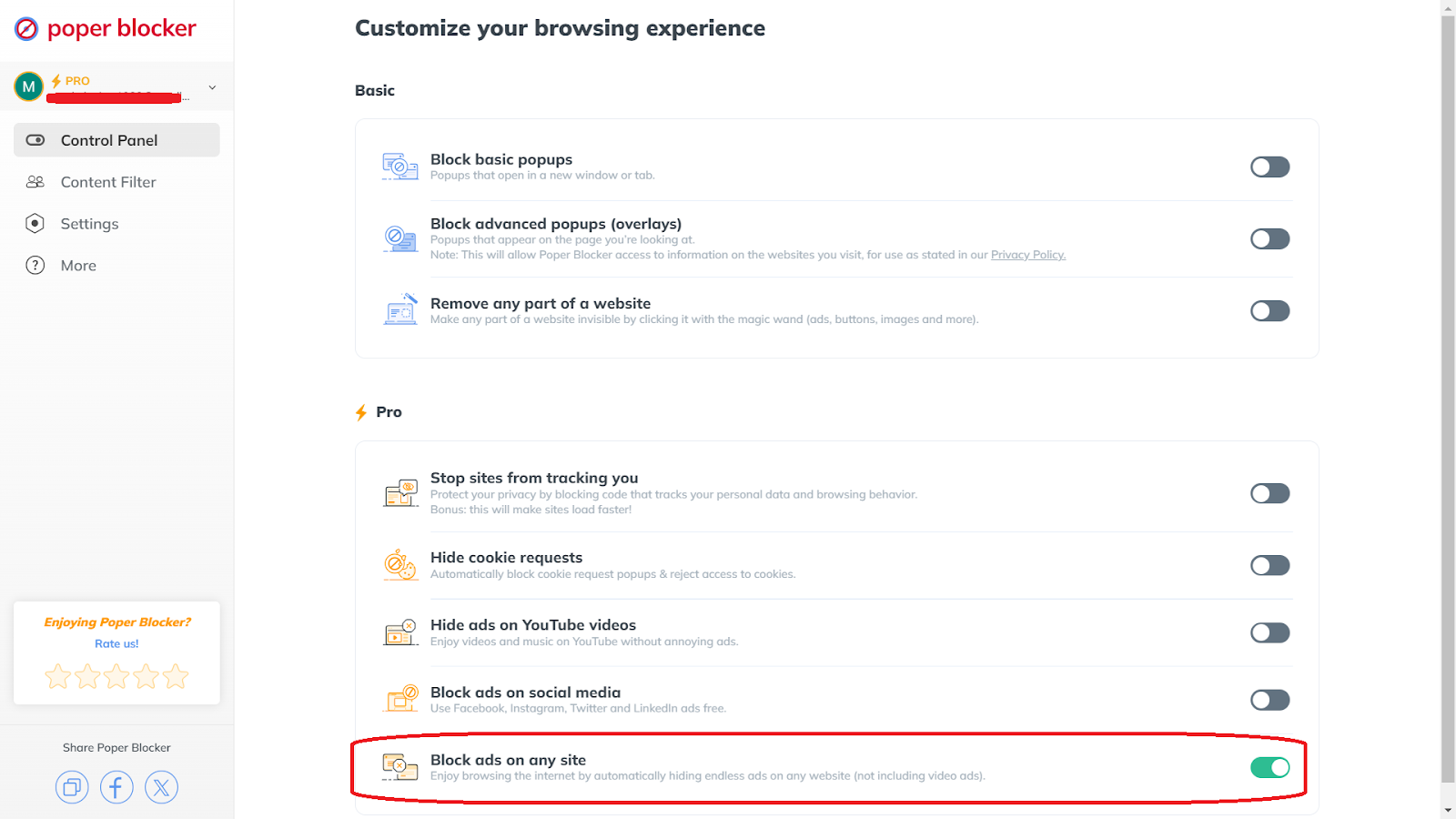
Blocking Ads on Any Site
There are too many ads on the internet and this often clutters the browsing experience. This tool’s “Block ads on any site” is an ad-blocking feature that hides them automatically and helps seniors browse without constant distractions. It can block ads on news sites, blogs, online magazines and other types. This makes the online experience more enjoyable and safer by reducing the chances of clicking on these harmful advertisements.
2. Social Media Filtering
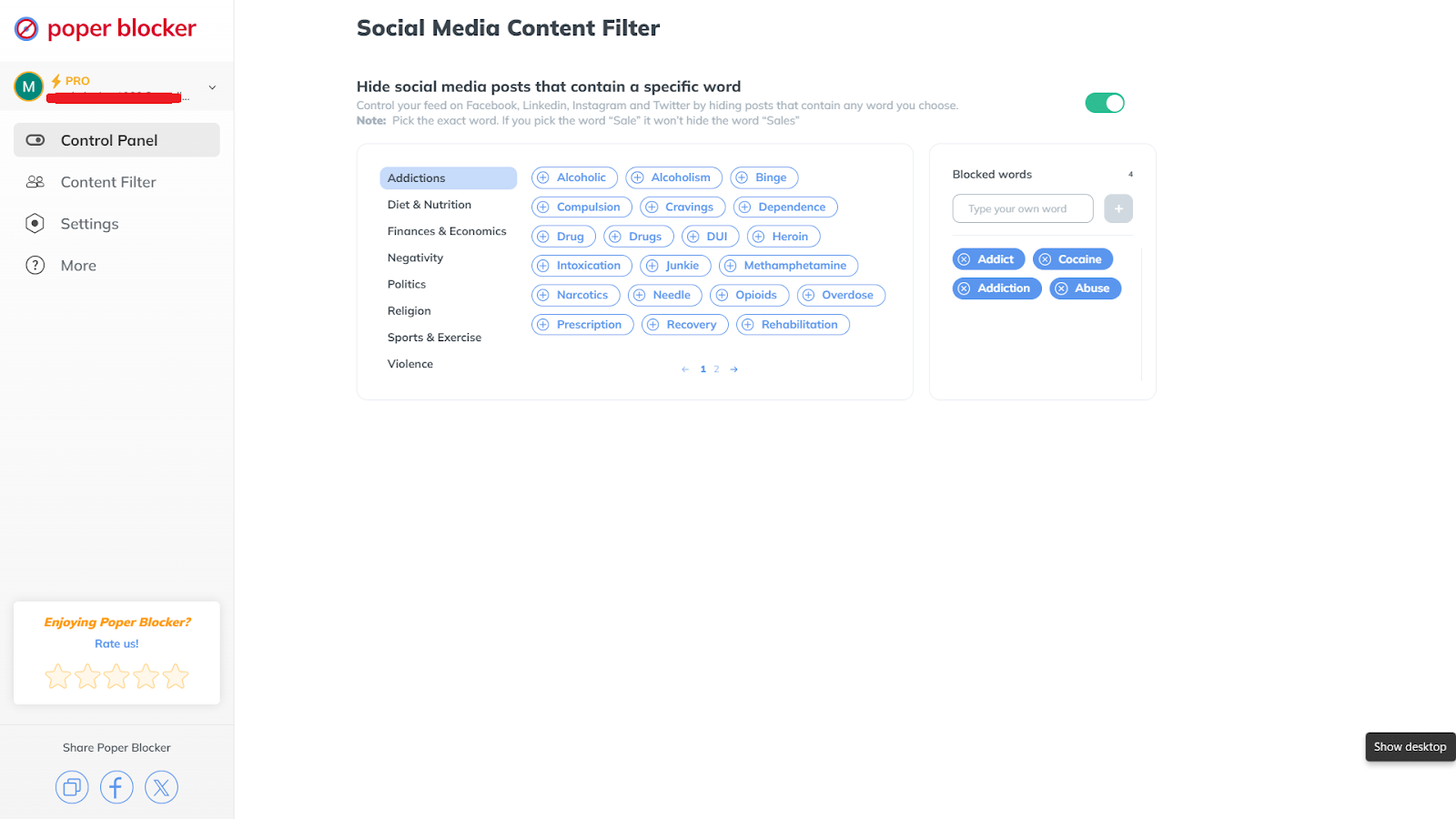
Filtering Harmful Words
Social media platforms can sometimes show harmful or inappropriate content. Poper Blocker’s social media filtering feature protects seniors by filtering out harmful words and phrases on Facebook, Twitter, Instagram, and LinkedIn. This creates a safer online environment, reducing exposure to offensive or distressing content.
Staying Safe Online as a Senior
Staying safe online as a senior means being aware of possible dangers and taking steps to protect yourself. When you follow the tips in this guide—like spotting warning signs, using strong passwords, thinking carefully before clicking on links, and checking unexpected messages—you can lower your chances of being tricked by online scams.
Also, tools like Poper Blocker can make your online experience better as it can successfully block annoying spam popups and ads and filter harmful content on social media. Use these practices so you can enjoy the internet safely and with confidence.
Stay safe online; get the Poper Blocker extension
FAQs
How can I tell if a website is secure?
To check if a website is safe, look for an “https” at the start of the URL and a padlock symbol next to it. The “s” in “https” means that the site uses encryption to keep your information safe. Click on the padlock to see the security certificate details. Verify that the certificate is valid and that it came from a trusted source. Avoid sites with security warnings or those without these features.
What should I do if I receive a suspicious email?
If you get a suspicious email, don’t click any links or open attachments, as they might contain malware or lead to scam sites. Mark the email as spam or junk in your email program. Report the email to your email provider’s abuse team. If the email claims to be from a real company, it would be best to contact the company directly using information from their official website to check if this email is indeed genuine. Always be careful with unexpected emails, especially those asking for personal details or money.
How can I protect my personal information on social media?
To keep your personal information safe on social media, adjust your privacy settings to control who can see your posts and details. Never share sensitive information like your address, phone number, or financial details to further protect your privacy online. Be careful about accepting friend requests and interacting with strangers. Regularly check your friends list and remove people that you don’t know. You might also want to use two-factor authentication for added security. Be careful about what you share, as even harmless information can be misused.
What are some common signs of a phishing scam?
Common signs of a phishing scam include generic greetings like “Dear User,” spelling and grammar mistakes, and urgent requests for personal information. Phishing emails often pretend to be from real companies but may have slight differences in email addresses or domains. Be cautious of messages that create a sense of urgency, like threats that they will close your account if you don’t act quickly. Look for inconsistencies in the email’s design, such as logos or formatting that look off. If you’re unsure, contact the company directly using a trusted source.
How often should I update my passwords?
Updating your passwords every 3 to 6 months is a good idea. Use strong, unique passwords for each of your accounts to prevent multiple accounts from being compromised if one of your passwords is stolen. A strong password should be at least 12 characters long and include letters, numbers, and symbols. Avoid using easily guessable information like birthdays or common words. Consider using a password manager to keep track of your passwords and create strong ones. Regular updates also help in protecting against unauthorized access.
The internet offers endless opportunities, but it’s also a playground for cybercriminals. One of the most sneaky threats today is malvertising. This involves placing harmful code into online ads, which may lead to malware infections, data theft, and other cybercrimes.
A report by Safety Detectives says that the total damage from malvertising and other malware-related frauds may reach a whopping $10.5 trillion by the end of 2025. This shows how common it is and the need for strong security measures.
What is Malvertising and How Does It Work?
Malvertising, or malicious advertising, involves putting harmful code into legitimate online ads to spread malware or direct users to dangerous websites. Cybercriminals take advantage of the complex advertising system, and this makes it hard for even well-maintained websites to avoid showing these harmful ads.
Auto-Redirects
This method automatically redirects you to a harmful site without your knowledge. When you visit a page with an auto-redirect ad, the ad then triggers a script that will send you to a dangerous website that may contain malware.
URL Malvertising
Using this technique, harmful ads include URLs leading to malware-filled sites. These ads may look legitimate and harmless, but when you click on them, they will take you to a compromised site that’s been designed to exploit your browser’s weaknesses or trigger downloading malware.
Malicious Ad Cloaking
Cybercriminals disguise their harmful ads to pass through ad network security checks. They use methods like hiding the true destination URL or showing different content to ad network reviewers and regular users. This makes it more challenging to detect and block.
Malvertising Campaigns
This involves coordinated efforts to spread malvertisements across multiple websites. Cybercriminals create seemingly harmless ads that pass through ad network checks and appear on popular sites. Once these ads are displayed, they can infect many users. This is why staying informed and updated about the current malvertising trends is a good practice. Doing this helps in reducing the risks that are associated with these campaigns.
Malvertising vs. Ad Malware
Malvertising and ad malware both involve harmful ads but differ a lot in how they work and their effects:
Distribution Method
Malvertising uses legitimate ad networks to spread harmful ads and these can appear on any website displaying those ads. Cybercriminals insert harmful code into these ads to reach many people. Ad malware, on the other hand, gets installed directly onto a user’s device. This is often bundled with software downloads or phishing attacks. Once the malware is installed, it shows unwanted ads directly on the infected device.
Scope of Effect
Malvertising affects many users by taking advantage of widely used ad networks. It targets anyone who visits a site that’s displaying harmful ads. An ad malware primarily affects the individual user who unknowingly installs it on their device, which will then get persistent unwanted ads and experience system slowdowns.
Detection and Prevention
It’s harder to detect malvertising because it exploits legitimate advertising channels. This makes them difficult to differentiate from ads that are safe and harmless. Preventing malvertising can be done by using tools with ad-blocking features and keeping security measures updated. Ad malware is easier to detect with the help of antivirus software since the software resides on the device. Preventing these can be done by implementing safe browsing practices and being careful when installing any software.
User Interaction
Malvertising often doesn’t require user interaction to execute. For example, just viewing an ad can trigger auto-redirects. Ad malware typically requires some form of user action before it starts displaying unwanted ads. The most common action involves downloading and installing a harmful program.
How Do Malvertisements Affect Users?
Malvertisements pose serious threats to users by delivering harmful software and causing various problems. Here are the most common ways on how they can impact you:
Malware
Malvertisements often deliver malware, which can damage or disrupt systems. This harmful software has the capability to corrupt files, slow down your device, and open backdoors for further cyberattacks. You might not realize that your device has been compromised until it shows signs of an infection.
Ransomware
As the term suggests, this type of malware encrypts files or locks devices and, in exchange for their release, they will demand payment from you. Ransomware can spread through malvertising, and those that get infected with it may incur significant data loss and financial damage. The ransom is often demanded in cryptocurrency so it’s more challenging to trace and recover the funds.
Spyware
Spyware silently monitors user activities and steals sensitive information, such as login details and personal data. Delivered via malvertising, this software can track your browsing habits, record your keystrokes, and send this information back to cybercriminals without your knowledge.
Adware
Adware displays unwanted advertisements that are often intrusive and annoying. It can also slow down your device and make it difficult to use. Malvertisements often introduce adware and this can result in a frustrating experience as your computer, tablet, or smartphone gets bombarded with different types of pop-ups and banners.
Read more: How to Remove Adware from Android Phones and Tablets
Viruses
Viruses are malicious programs that replicate themselves and spread to other files and programs. They can cause significant damage to systems and may result in data corruption and loss. Malvertisements can carry viruses that infect a user’s device, leading to widespread issues and potentially costly repairs.
The Main Types of Malvertising Attacks
There are different kinds of malvertising attacks and all of them are designed to do one thing: take advantage of different weaknesses and trick users. This is why knowing the main types of these tactics can help you spot and avoid these threats:
Drive-by Downloads
These are among the most dangerous types of malvertising. It automatically downloads and runs malware on your device without your permission or knowledge. Its advantage is that it exploits weaknesses in browsers, plugins, or operating systems. In fact, just loading a webpage with an infected ad can start the malware. You don’t even need to click on the ad for the attack to happen. This is why regularly updating your software and using security tools is critical to protect your devices against drive-by downloads.
Clickjacking
What this type of tactic does is that it tricks you into clicking on something that you really didn’t intend to. This technique places invisible or disguised elements over real content or buttons on a webpage. For example, a malicious link might be hidden under a play button for a video or an exit button for a pop-up. When you click on these elements, you unknowingly activate the malicious link and this can take you to harmful websites or start malware downloads. It’s important to be aware and careful with every click to avoid clickjacking.
Fake Alerts
These alerts are malvertisements that show fake warnings or offers on your screen to scare or tempt you into clicking. Examples of these alerts are:
- Your device is infected with malware
- That software needs updating
- That you’ve won a prize
- That a free program is available for download
Clicking on these fake alerts often starts the malware installation or redirection to phishing websites that are designed to steal personal information. As a user, you should be skeptical of unsolicited alerts and check the legitimacy of any warning before you take any action.
Examples of Malvertising
Malvertising may appear in various forms and each is designed to trick and harm users. Knowing these examples can help you spot and avoid potential threats:
Pop-ups
Malvertising often uses pop-ups to grab attention. These pop-ups might claim that you:
- Have won a prize
- Need to update software
- Have a virus
Clicking on these pop-ups usually results in malware installation or phishing sites.
Ads
Regular display ads can also deliver harmful content and it’s sometimes hard to detect them. These ads may look like regular banners or sidebars on websites and appear legitimate but the thing is, they contain hidden malware. When you click on these ads, you might unknowingly download harmful software or be redirected to bad sites.
Video
Video ads are another common tactic that’s used to spread malware. Malvertisers might take advantage of weaknesses in video players by embedding harmful code within video content. Your device might get infected without clicking on anything and just by simply watching a video ad.
Compromised URLs
Clicking on an ad may redirect you through multiple URLs before you land to the final page. If any of these URLs are compromised, your device can be exposed to malware. Malvertisers use this redirection process to insert harmful code at any point so it’s hard to trace and block.
Landing Pages with Malware
Did you know that even legitimate websites can have malvertising if their ad networks are compromised? If you click on an ad from a trusted site, it could take you to a landing page that looks seemingly safe but has hidden malware. This can then infect your device through drive-by downloads or exploit kits.
How to Prevent Malvertising
Malvertising poses significant risks, but there are several effective strategies that you can use to protect your devices and personal information. Check out these tips so you’ll be able to reduce the chances of encountering these harmful ads:
1. Use an Ad Blocker
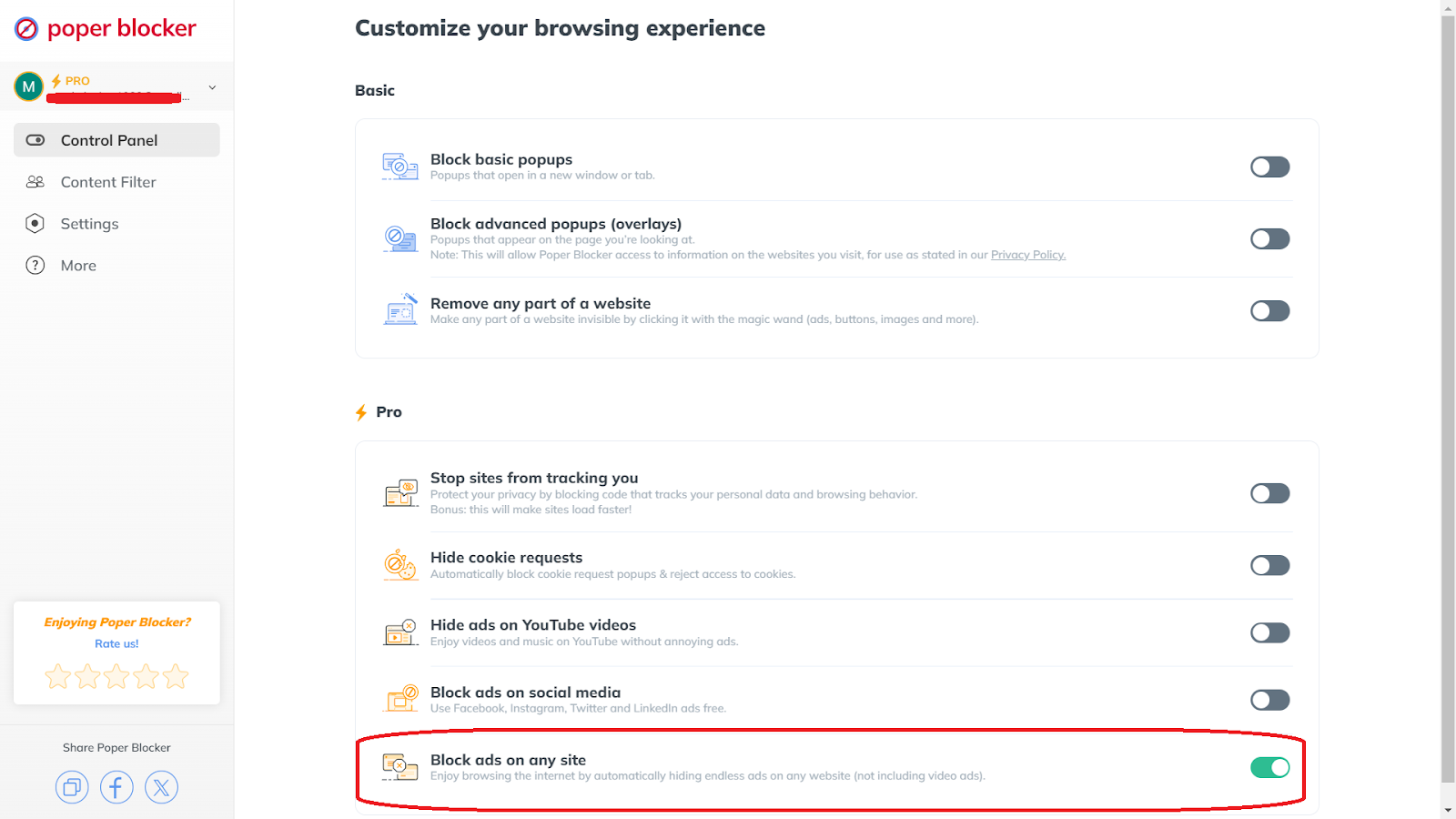
This comes in the form of software, app, or browser extension, which is designed to prevent different types of online ads from loading on a web browser. This is how ad blockers work and this feature is essential in stopping malvertising. Poper Blocker is among the top Chrome and Edge extensions today that includes a number of useful tools:
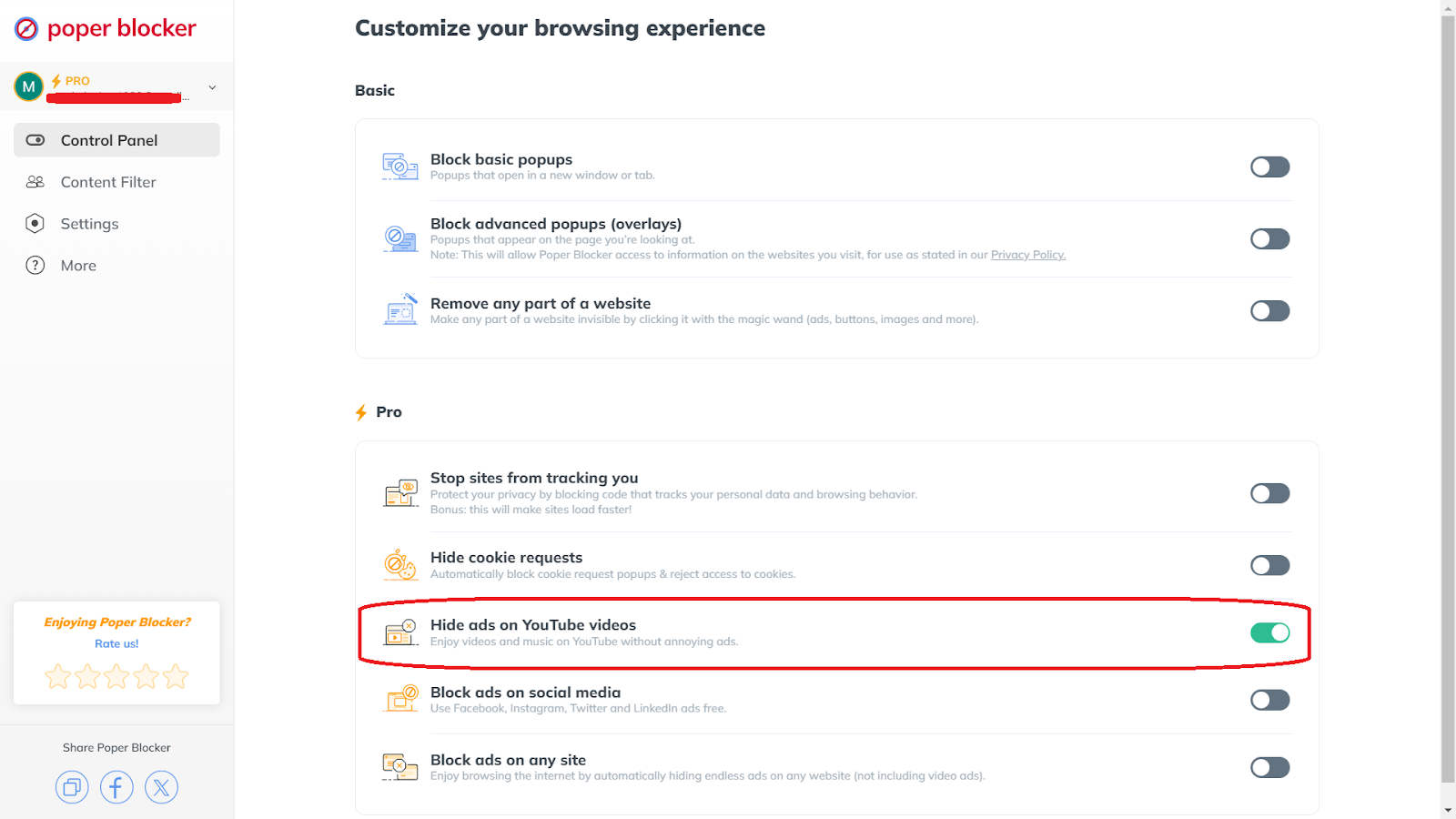
Hide ads on YouTube
Turn this on so you can block video ads, and watch videos without any ad interruptions.
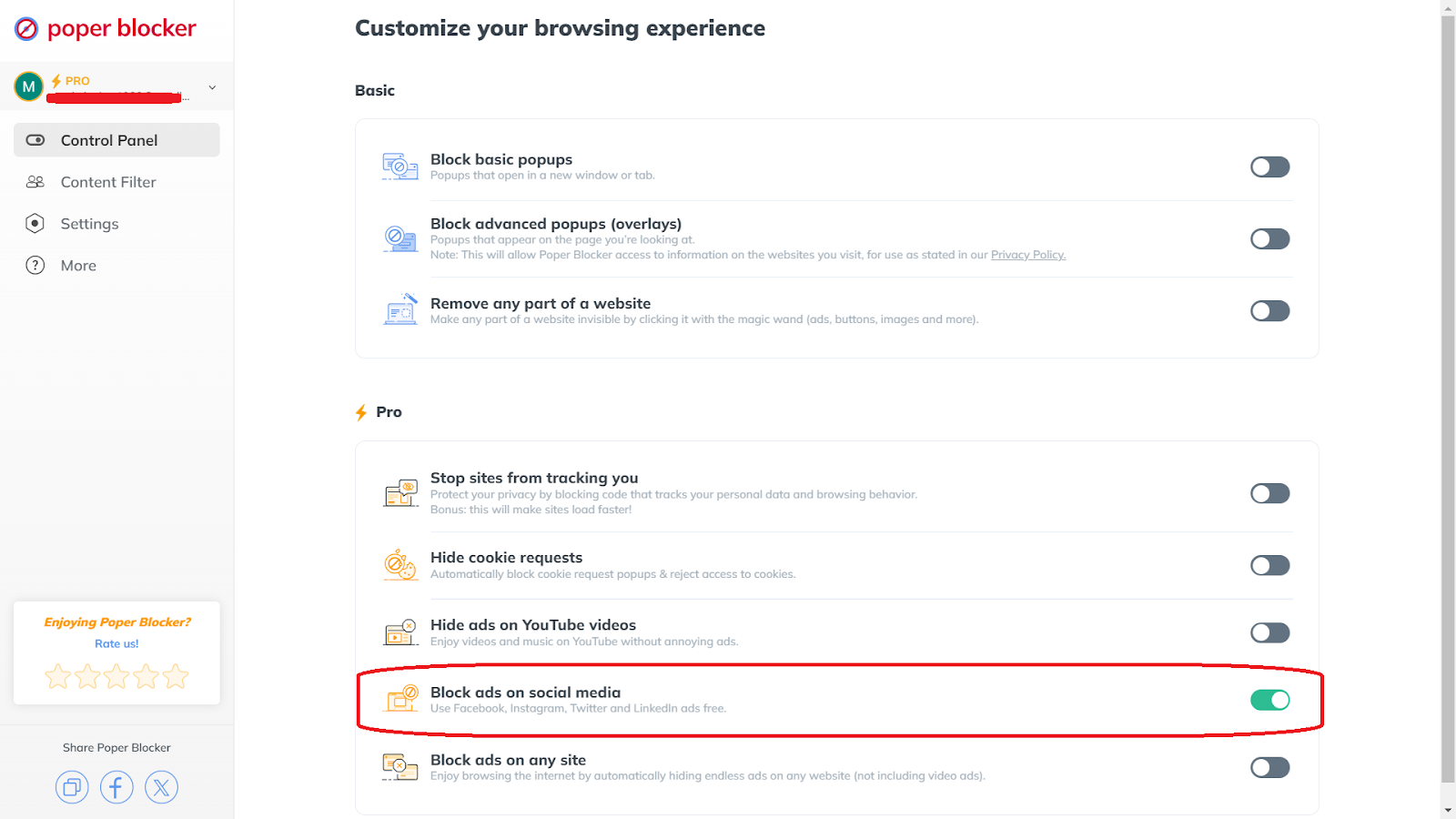
Block ads on social media
If you’re always on Facebook, Instagram, or Twitter, use this to browse without ads.
Block ads on any site
Enable this feature to remove ads from all websites (except video ads).
2. Be Careful with Pop-ups
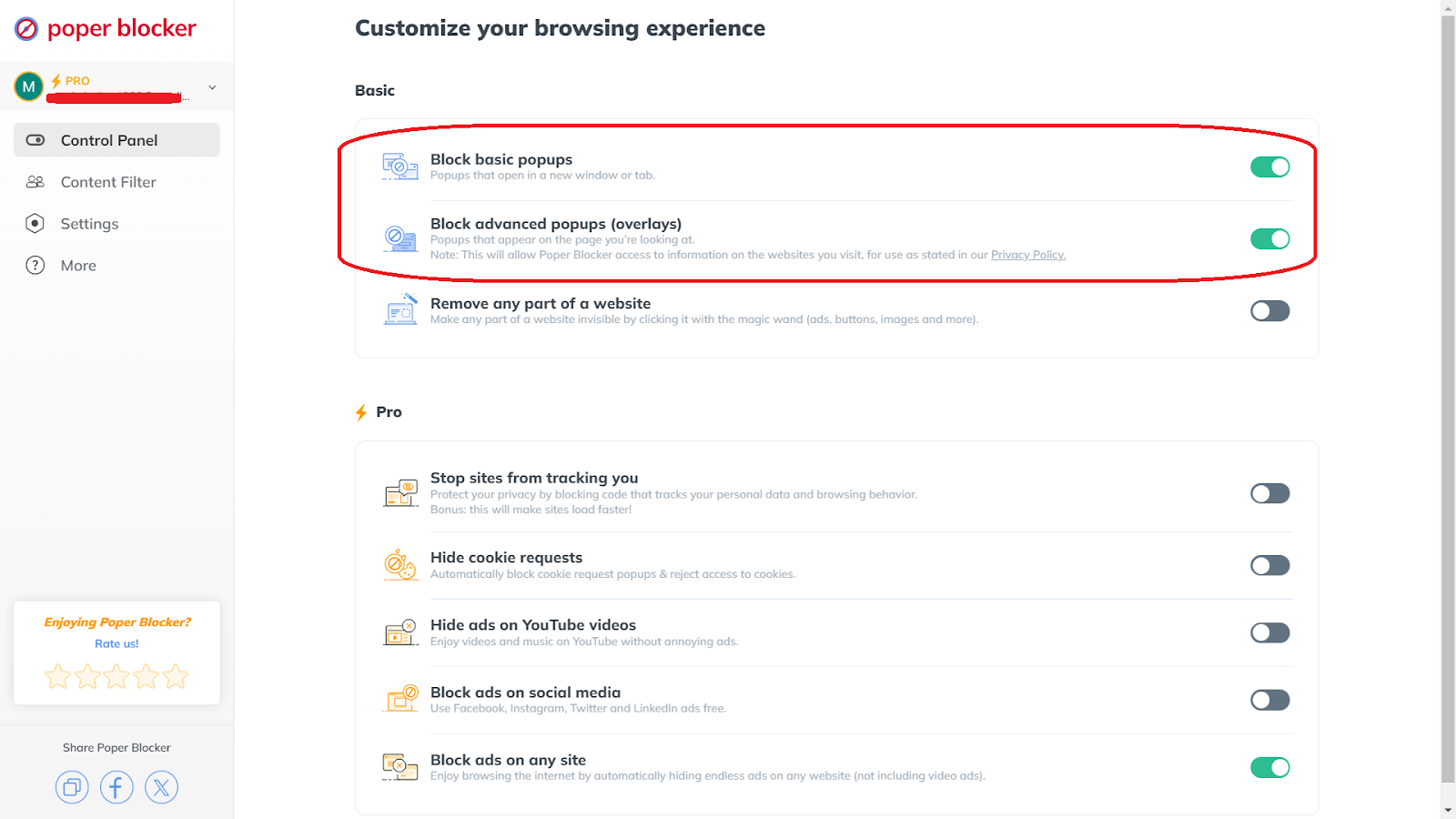
Pop-ups often carry malvertising so blocking these can prevent accidental clicks on harmful content. Poper Blocker can address that with its 2 pop-up blocking features:
- Block basic popups: This stops new windows or tab spam pop-ups that may contain ads.
- Block advanced popups (overlays): It prevents pop-ups that appear on the current page.
3. Use an Anti-virus
The great thing about antivirus software is that it adds an extra layer of protection by finding and removing malware. Be sure to regularly update your antivirus software to guard against these latest threats. Good antivirus programs can effectively detect and stop malvertising before it harms your device.
4. Keep Your Software Updated
Outdated software can have weaknesses that malvertisers can potentially exploit. This is why you need to regularly update your operating system, browsers, and plugins so that critical security patches are applied, which can then greatly reduce the risk of attacks. Automated updates help keep your software secure without the need to do constant manual checks.
5. Disable JavaScript and Flash
JavaScript and Flash are often used to run malicious code. Disabling these features can help to prevent some malvertising attacks. Do take note though that while this might limit some website functions, it greatly increases security. Most modern browsers will let you enable these features only on trusted sites.
6. Be Skeptical When You’re Online
Be cautious when you see ads that seem too good to be true, have spelling mistakes, or look unprofessional. Avoid clicking on suspicious links and check the legitimacy of websites before interacting with them. Promoting online safety for seniors, family members, and friends, and educating others about these risks can also help prevent them from falling victim to malvertising.
The Battle Against Malvertising Continues!
Malvertising is no doubt a big threat to online safety, but with the right tools and precautions, you’ll be able to protect yourself and your organization. Using Poper Blocker is an effective way to block harmful ads and pop-ups, and even make your browsing smoother. Additionally, regularly updating software, using antivirus programs, and being careful with unknown links can greatly reduce the risk of falling victim to this new cyberattack tactic. Stay alert and proactive to have a safer online experience.
Install Poper Blocker to block malicious ads instantly
FAQs
How does malvertising spread across websites?
Malvertising uses legitimate ad networks to spread malware. What cybercriminals do is that they create ads that have harmful code and use these networks to distribute them. Since these ads will appear on many different websites it’s capable of reaching numerous users. There’s even a chance that well-maintained sites can accidentally show these harmful ads.
What should I do if I suspect malvertising?
The first thing that you should do if you suspect that an ad is malicious is to avoid clicking on it. Immediately close that page and do a thorough antivirus scan (use the most comprehensive one) to look for any potential threats and remove them. It would be wise to do regular updates on your antivirus software and use an ad blocker as well.
Can malvertising affect mobile devices?
Yes, malvertising can also target mobile devices. They do this by using ads in mobile apps and websites. Just like on desktops, these ads can redirect users to phishing sites or download malware.
Is it safe to click on ads?
While many online ads are safe, it’s still important to be careful. You should use an ad blocker to reduce your exposure to potentially harmful ads. Be wary of ads that seem too good to be true or those that look unprofessional. Consider visiting the company’s website directly instead of clicking on the ad if you’re interested in a product or service.
Can malvertising affect my personal information?
Yes, malvertising can steal your personal information. Cybercriminals may use hidden harmful code in ads to install spyware on your device. This spyware can then track your online activities, capture your login details, or access your personal data. They can use this information for identity theft, financial fraud, and other harmful activities.
Get Poper Blocker and shield yourself from malvertising
Visiting a website and later seeing ads related to the content you viewed is the work of tracking cookies. These are small text files that store your browsing information to personalize ads and improve user interactions. It’s important to understand that around 42% of websites globally use cookies. However, this may also raise privacy concerns, which is why knowing how they function and learning to manage them is important for maintaining your online privacy.
What is a tracking cookie?
Tracking cookies are small text files placed on your browser by websites you visit. These cookies are designed to collect data about your online behavior and preferences. When you visit a website, the server generates a unique identifier and stores it in a cookie on your device. This identifier is used to track your interactions with the site and other websites that recognize the same cookie. There are different types of internet cookies. They can be first-party, which are set by the website you are visiting, or third-party, those that are set by external domains, typically for advertising purposes.
The primary goal of tracking cookies is to monitor your browsing habits and gather information so that they can create a detailed profile of your interests. This data is then used to personalize your online experience, such as displaying targeted ads that are more relevant to you. However, their extensive data collection capabilities also raise significant privacy concerns, as they can track your activities across multiple sites and over long periods, which may potentially lead to unwanted profiling and data misuse.
How do tracking cookies work?
Cookies and tracking operate by embedding small text files into your browser. When you visit a website, the server places a cookie on your device with a unique identifier. This identifier allows the server to track your activities and also recognize you when you visit in the future. So every time you access the website or another site that recognizes the same cookie, the browser sends this identifier back to the server. This helps them monitor your behavior, such as the pages you visited, the links you clicked, and the time you’ve spent on each page. They collect this data to build a profile based on your interests and preferences.
What information do tracking cookies collect?
Tracking cookies collect various types of data to build a detailed profile of your online activities. This information helps websites and advertisers understand your behavior and preferences for the purpose of offering personalized content and ads. Here’s a detailed look at what these persistent cookies collect:
Browsing history
They monitor the websites you visit, the pages you view, and the time you spend on each page. They use this information to create a detailed log of your online activities and interests.
IP address
Your IP address reveals your geographic location and this allows websites to show tailored content and advertisements based on your region. It also helps them in localizing search results and services.
Device information
Cookies can also collect data about the device you are using. This may include:
- Type of device
- Operating system
- Browser version
This helps websites optimize their functionality and appearance for different kinds of devices or platforms.
Purchase history
Cookies record your activities across different sites, including your online purchases and also the products that you viewed. Such data can be used for retargeting ads, so that they can show you similar products which you might find interesting.
Search queries
The terms you’ve searched on websites and search engines can be tracked and advertisers utilize them to know your interests and preferences. This information is often used to display relevant ads and content according to your search history.
Login credentials
Cookies can store login information such as usernames and session IDs to keep you logged in on websites. This feature eliminates the need to sign in repeatedly.
Are tracking cookies dangerous?
Tracking cookies themselves are not inherently harmful like malware or viruses but they do pose significant privacy concerns. These cookies track your online activities and collect extensive data, which can then lead to unwanted profiling and privacy invasion.
Privacy invasion
Websites that use cookies can collect information about your browsing habits, such as the sites you visited, the pages you viewed, and the items you clicked on. This data can be used to create comprehensive profiles that may feel intrusive, especially when this is used without your consent.
Data sharing
Collected data from tracking cookies can be shared with third parties, including advertisers and data brokers. This sharing can lead to the dissemination of your personal preferences and browsing history across various platforms.
Security risks
Although tracking cookies are not malicious, they can still pose security risks. If a third-party cookie is compromised, it could potentially expose your browsing data to cybercriminals. Additionally, some cookies may track sensitive information and this could increase the potential for data breaches.
Examples of how tracking cookies are used
Tracking cookies serve multiple purposes and they provide valuable data for website owners and advertisers. Here are some detailed examples of how they are utilized:
Personalized advertising
Advertisers use tracking cookies to display ads tailored to your interests. When they analyze your browsing history and search queries, they’ll be able to show products or services you are more likely to be interested in. For instance, if you frequently visit sports equipment websites, you might see ads for running shoes or gym gear.
E-commerce recommendations
Online stores make use of tracking cookies to suggest products based on your browsing history or previous purchases. If you viewed a particular item but didn’t purchase it, you might still see it featured in a “Recommended for You” section or receive follow-up emails that showcase similar products.
Social media integration
Cookies help social media platforms track your interactions with social media buttons and plugins across different websites. They can use this to personalize your social media feed with content related to your online activities, such as articles that you read or products that you recently liked or viewed.
User preferences
Tracking cookies remember your preferences and settings on various websites. For example, they can store your language selection, log in details, and personalized settings, so they’ll keep these settings each time you return to the site.
How to block tracking cookies on your browser
Tracking cookies can compromise your privacy by collecting data about your online activities. So how do you delete tracking cookies to maintain your privacy? Here’s a detailed guide for the major browsers:
Chrome
- Open Chrome and go to “Settings”.
- Click on “Privacy and security”.
- Select “Cookies and other site data”.
- Choose “Block third-party cookies”.
Edge
- Open Edge and go to “Settings”.
- Click on “Cookies and site permissions”.
- Select “Manage and delete cookies and site data”.
- Toggle on “Block third-party cookies”.
Safari
- Open Safari and go to “Preferences”.
- Click on “Privacy”.
- Check the box for “Prevent cross-site tracking”.
- Select “Block all cookies”.
Firefox
- Open Firefox and go to “Options”.
- Click on “Privacy & Security”.
- Under “Enhanced Tracking Protection”, choose “Custom”.
- Check the box for “Cookies” and select “All third-party cookies”.
Using Poper Blocker to block cookie consent pop-ups
Poper Blocker is a browser extension for Chrome and Edge that offers a simple solution to stop cookie pop-ups and maintain your privacy. Here’s how to use it:
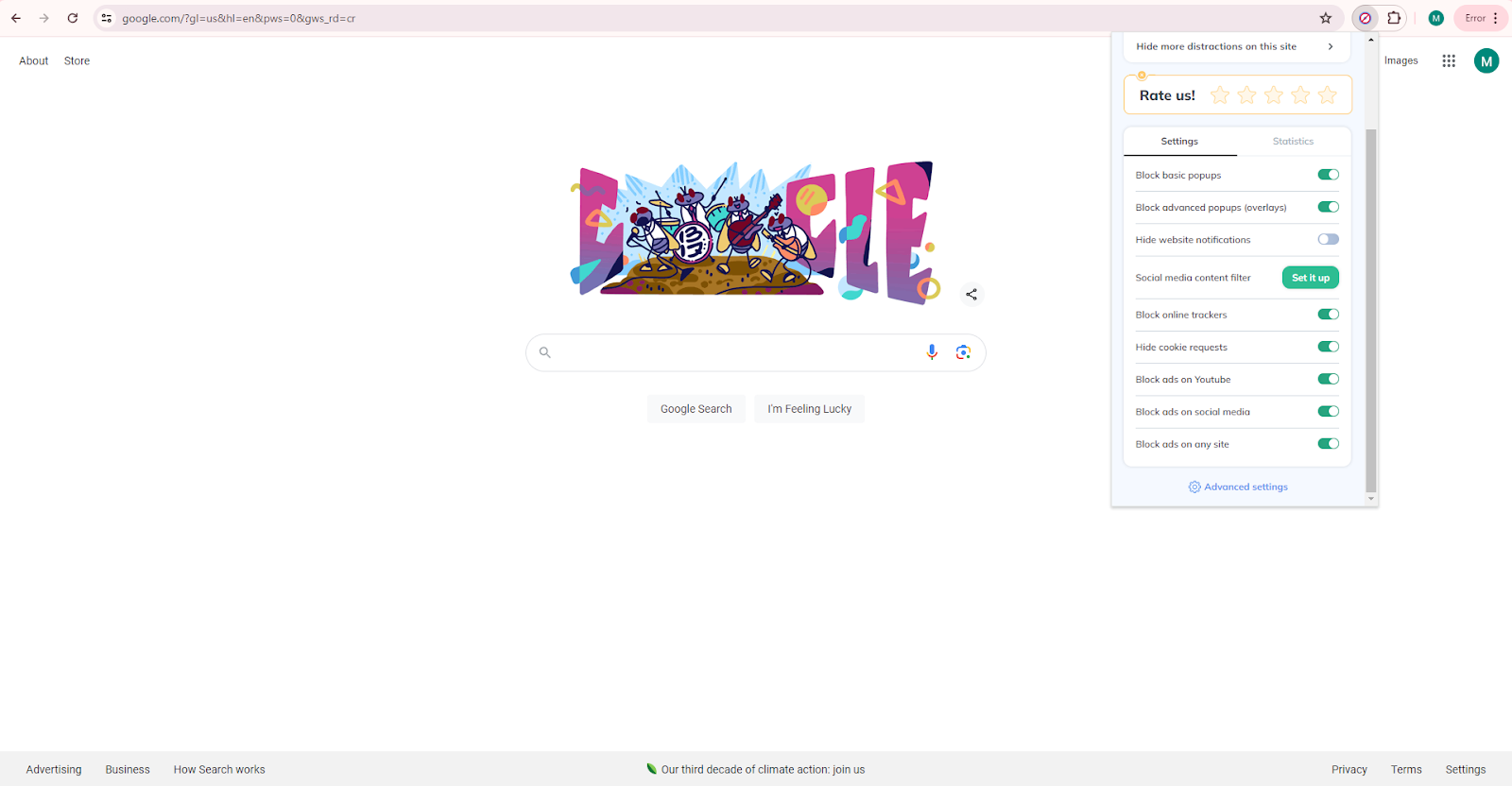
1. Open the Control Panel
Click on the Poper Blocker icon in your browser’s toolbar. Select “Advanced settings” to access the Control Panel.
2. Enable cookie consent blocking
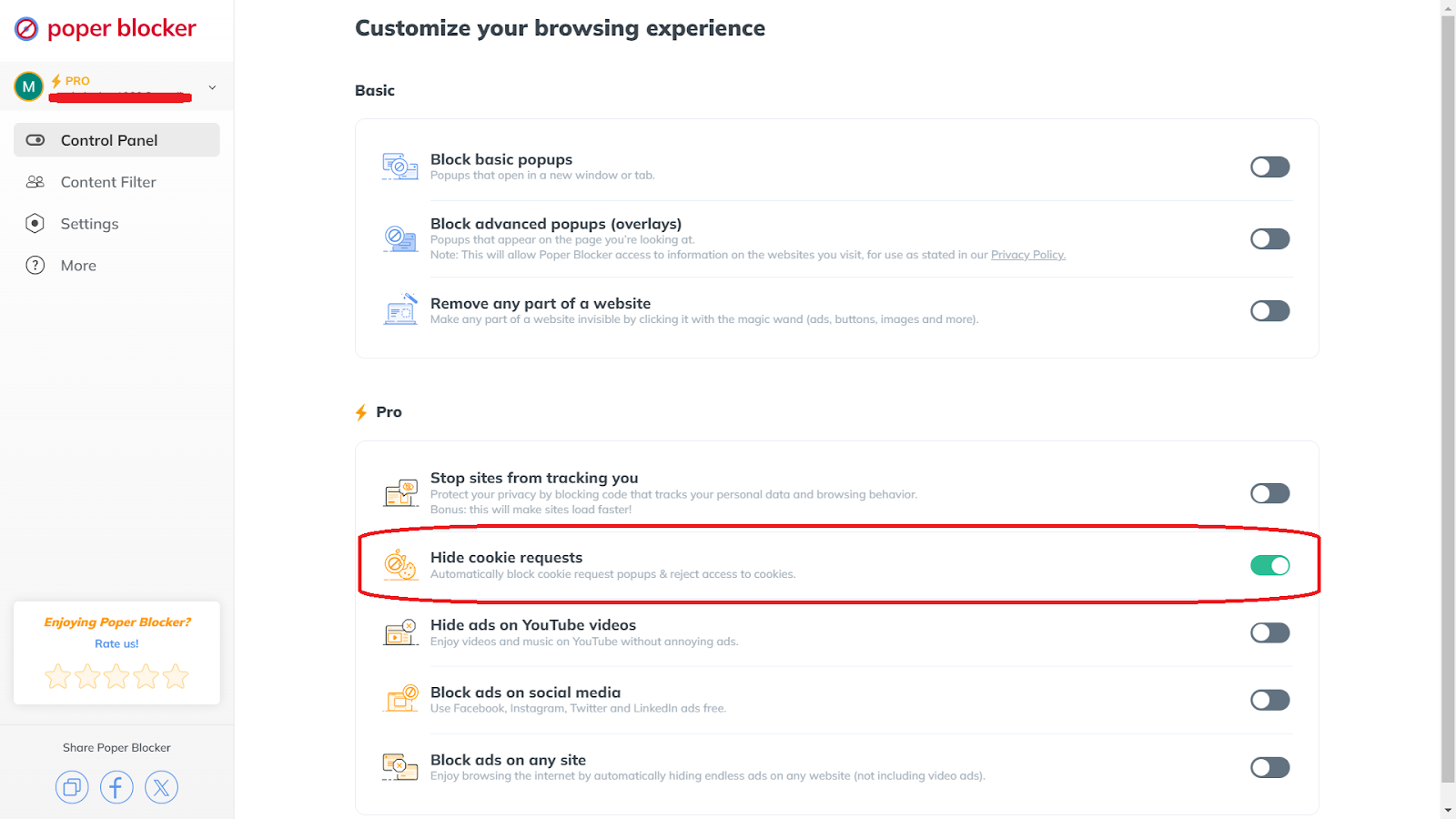
Under the Pro section, locate “Hide cookie requests”. Turn on this feature by clicking the toggle button.
3. Automatic blocking starts
With the cookie request feature enabled, Poper Blocker will automatically hide cookie consent pop-ups and block cookies so you won’t have constant interruptions from these annoying notices.
Start taking control of your privacy
Tracking cookies are a common tool used by websites to monitor user behavior, gather data, and personalize ads. And while they offer convenience, they also pose significant privacy risks. It’s important for you to know how tracking cookies work and what information they collect so you can make informed decisions about your online privacy.
When you implement measures to block trackers like cookies on your browser and use tools like Poper Blocker to handle cookie consent pop-ups, you’ll be able to protect your data and enjoy a safer browsing experience. So stay proactive in managing your online privacy and take the necessary steps to prevent unwanted tracking.
FAQs
Can tracking cookies see my personal information?
No, tracking cookies do not have access to your personal information like your passwords, social security numbers, or banking details. They only collect data that are related to your online activities, such as the websites you visit, the items you’ve clicked on, and how much time you spend on specific pages. Such information is used to build a profile of your interests and habits so that they can provide you with targeted advertising or to improve the functionality of their website.
Do tracking cookies slow down my browser?
Tracking cookies themselves are small files and do not inherently slow down your browser. However, having a large number of them stored on your computer or device can have a slight effect on the performance of your browser. Over time, as cookies accumulate, they can take up storage space and cause your browser to load more slowly. Regularly clearing your cookies and cache can help maintain optimal browser performance.
Are tracking cookies legal?
Yes, tracking cookies are legal but their use is regulated by privacy laws such as the General Data Protection Regulation (GDPR) in Europe and the California Consumer Privacy Act (CCPA) in the United States. These laws require websites to inform you about the presence of tracking cookies and obtain your consent before collecting such data. You also have the right to know what information is being collected and how it will be used.
Can I clear tracking cookies manually?
Yes, you can clear cookies of this type manually through your browser’s settings. Most browsers have an option to delete cookies, and it’s either for individual websites or all at once. In Chrome, for instance, you can go to Settings > Privacy and Security > Clear Browsing Data. This removes cookies and other site data so you can free up storage space.
Do all websites use tracking cookies?
No, not all websites use tracking cookies but a significant number do. Websites use these cookies for various purposes. This includes understanding user behavior, improving user experience, and delivering targeted advertisements. While some websites might not use tracking cookies at all, others heavily rely on them to function effectively and generate revenue through personalized ads. This is why it’s always a good idea to check a website’s privacy policy so you’ll be able to understand how they will use your data.