Chrome Web Extension
 Edge Web Extension
 Android App
 iOS App


Did you know that the average person spends 2 hours and 24 minutes daily on social media? But what if you could make those hours more enjoyable, tailored to your preferences, and free from unwanted content? This is where social media filtering comes into play.
Why Would You Want to Filter Content on Social Media?
Social media is a double-edged sword. It connects us to the world but also exposes us to content that can be distracting, upsetting, or irrelevant. Filtering social media content isn’t just about comfort; it’s about mental health, productivity, and creating a digital space that aligns with your values and needs.
The staggering number of global social media users, reaching 4.95 billion as of October 2023, underscores the integral role social media plays in our daily lives. With the average person engaging with seven different social networks each month and spending almost 2.5 hours daily on these platforms, the digital landscape has become a significant part of our social and informational world.
This extensive engagement highlights the critical need for effective social media filtering tools to manage and personalize the vast array of content encountered, ensuring a positive and relevant online experience.
Example Topics to Filter from Your Social Media Feed
Your feed is your sanctuary. It’s a space that should reflect your interests, values, and comfort levels. But often, this space is cluttered with unwanted content that can range from mildly annoying to deeply distressing. Here’s a deeper dive into what you might consider filtering out for a more tailored and enjoyable social media experience.
- Spoilers to Movies and TV Shows: There’s nothing quite as frustrating as having the climax of a much-anticipated movie or TV show spoiled by an untimely social media post. Whether it’s the latest plot twist in a popular series or the unexpected ending of a blockbuster movie, spoilers can ruin the experience of enjoying a story unfolding in its intended pace and sequence.
- Adult Themes: Social media can sometimes expose users to adult themes that they might find inappropriate or uncomfortable. This could include explicit content, suggestive material, or topics that are of a mature nature. Filtering out such content helps maintain a feed that is safe and aligns with your personal boundaries.
- Politics: In an increasingly polarized world, political content on social media can be overwhelming. It often leads to heated debates and can create a stressful environment. By filtering out political content, you can keep your feed neutral and avoid unwanted confrontations or the stress of political arguments.
- Bullying: Cyberbullying is a significant concern in the online world. It’s important to create a safe space where negative comments, harassment, or any form of bullying are promptly removed. This not only protects your mental well-being but also fosters a positive and supportive online community.
- Cursing: The use of offensive language can be off-putting for many users. Filtering out curse words helps in maintaining a more respectful and pleasant social media environment. This is particularly important for younger users or those who prefer a more refined online experience.
- Spam: Unsolicited advertisements, repetitive posts, or irrelevant content can clutter your feed and detract from your social media experience. Filtering out spam helps in keeping your feed clean, relevant, and focused on content that truly interests you.
- Health and Fitness: For those sensitive to content about body image or diet, filtering out health and fitness topics can be beneficial.
- Financial Content: Avoiding posts about investments, stocks, or financial advice might be preferable for some who find these topics stressful or triggering.
- Personal Triggers: Everyone has unique triggers. Identifying and filtering out topics that cause personal discomfort or anxiety can significantly improve your social media experience.
Filter Social Media Content with Poper Blocker
Poper Blocker stands out as a versatile tool in this realm. It’s not just an ad blocker; it’s a customizable filter for your social media experience. You can hide posts containing specific words, ensuring your feed remains relevant and enjoyable.
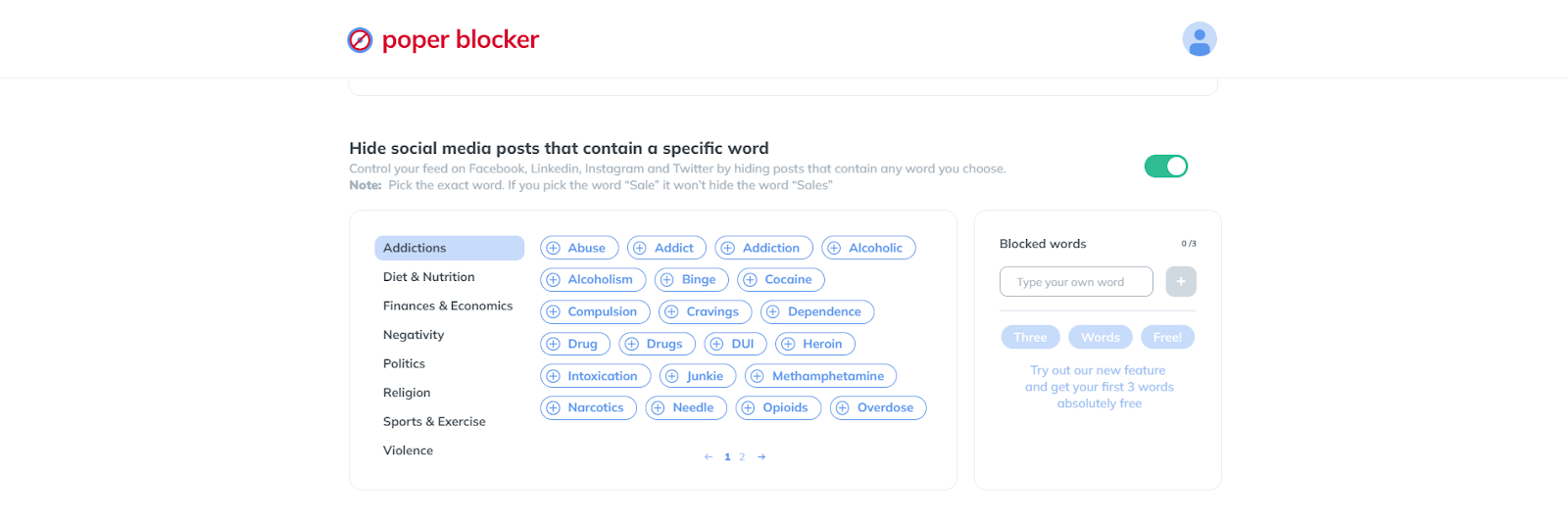
Features of Poper Blocker
- Word-Specific Blocking: Choose the exact word to block. For instance, blocking the word “sale” won’t hide the word “sales” so you need to be very specific about this.
- Pre-Set Categories: Browse through categories like Politics, Religion, or Sports to quickly set up your filters. For example, if you’d like to avoid topics about Addiction, this category will already give you a set of suggested words like abuse, addict, alcoholic, binge, etc.
- Platform Versatility: This tool works across major social media platforms. Whether it’s Facebook, LinkedIn, Instagram, or Twitter, Poper Blocker gives you control.
A Tailored Social Media Experience
The power to personalize your social media experience is not just a luxury; it’s a necessity for maintaining mental well-being and ensuring a positive digital experience. Poper Blocker emerges as a pivotal tool in this journey towards a customized online world.
Imagine logging into your social media accounts and being greeted by content that’s not just random, but carefully curated to match your interests and preferences. This is the reality that the Poper Blocker extension offers. By filtering out the noise and focusing on what truly matters to you, your time online becomes more enjoyable and less overwhelming.
Moreover, the impact of this tool goes beyond mere convenience. It’s about creating a safe space where you can freely explore, engage, and connect without the constant bombardment of unwanted content. Whether it’s avoiding spoilers, sidestepping political debates, or simply keeping your feed positive, this tool puts you in the driver’s seat of your social media experience.
Read More:
- How to Mute Words on Twitter
- How to Mute Words on Instagram
- How to Mute Words on Facebook
- Can You Mute Words on LinkedIn?
Tailor Your Social Media Experience with Poper Blocker – Start Now!
FAQs
What is Social Media Filtering, and How Does Poper Blocker Enhance It?
Social media filtering is the process of customizing your online feed to exclude unwanted content. Poper Blocker elevates this by allowing you to specify keywords or phrases that trigger the hiding of posts. This means you can avoid spoilers, political content, or any topic you prefer not to see, creating a more enjoyable and personalized social media experience.
Is Poper Blocker Easy to Use for Non-Tech-Savvy Individuals?
Absolutely! Poper Blocker is designed with user-friendliness in mind. It offers a straightforward interface where you can easily enter the words or phrases you want to filter out. There’s no need for technical know-how – it’s as simple as typing in a word and letting the tool do the rest.
Can I Filter Out Specific Topics Like Politics or Spoilers with Poper Blocker?
Yes, Poper Blocker is perfect for filtering out specific topics. Whether it’s avoiding spoilers for your favorite TV show or steering clear of political discussions, you can set your preferences to ensure these topics don’t appear in your feed.
Does Poper Blocker Work Across All Social Media Platforms?
Poper Blocker is versatile and works with major social media platforms like Facebook, LinkedIn, Instagram, and Twitter. This cross-platform functionality ensures a consistent social media filtering experience, no matter where you like to spend your time online.
Is There a Risk of Missing Important Content with Poper Blocker?
Poper Blocker is precise in its filtering, targeting only the words or phrases you specify. This precision minimizes the risk of missing out on important content. However, it’s always a good idea to review your filter settings regularly to ensure they align with your current preferences and needs.
Filter Your Feed Effortlessly – Discover Poper Blocker Today!
Imagine scrolling through your Instagram feed, a daily ritual for unwinding, connecting, and getting inspired. You come across vibrant photos, heartwarming stories, and updates from friends. But then, amidst this pleasant journey, you encounter a jarring post – a spoiler for the latest episode of your favorite show, a string of offensive comments, or perhaps a barrage of political rants that disrupt your peace. It’s like a sudden jolt in an otherwise smooth sail, isn’t it?
| Focus Area | Key Statistic | Source |
| Instagram and Mental Health | Instagram and Snapchat are the worst social media networks for mental health, according to a survey of teenagers and young adults. | TIME |
| Instagram Use Among Teens | Teens aged 13-17 make up 8.5% of registered Instagram users. 11% of parents say their 9-11-year-olds use their accounts, and 67% of teens report using Instagram. | Consumer Notice |
These statistics provide a comprehensive view of the various alarming aspects of Instagram content, particularly its impact on mental health and social dynamics among different age groups and demographics.
Why Would You Want to Mute Words on Instagram?
Instagram is a vibrant social media platform, but not all content is welcome. The need for a word muting feature or social media filtering isn’t just a luxury; it’s a vital tool for curating a space that aligns with our comfort and values. Let’s explore the reasons why this feature is so essential:
- Spoilers: There’s nothing quite as frustrating as having the climax of your favorite series or the twist in a much-anticipated movie revealed unwittingly through an Instagram post. Spoilers can ruin the experience of enjoying a story unfold at your own pace.
- Politics: While political discourse is essential, Instagram is often a space for relaxation and escape. Unsolicited political content, especially during heated election cycles or polarizing events, can turn a leisurely scroll into a source of stress.
- Inappropriate, Disrespectful, or Offensive Content: Social media should be a safe space, but often it’s marred by content that offends or disrespects personal values and beliefs. The ability to mute such content is crucial for maintaining mental well-being.
- Adult Themes: Not all content is suitable for every age group or personal preference. Muting adult themes helps in keeping your feed appropriate and comfortable for your viewing.
- Aggressive Marketing: Constant bombardment with ads and promotional content can be overwhelming. Muting specific marketing keywords can make your Instagram experience more about connections and less about commerce.
How to Mute Words in Instagram Comments and Message Requests
Instagram offers a built-in feature to mute words in comments and message requests. To utilize this, simply follow these steps:
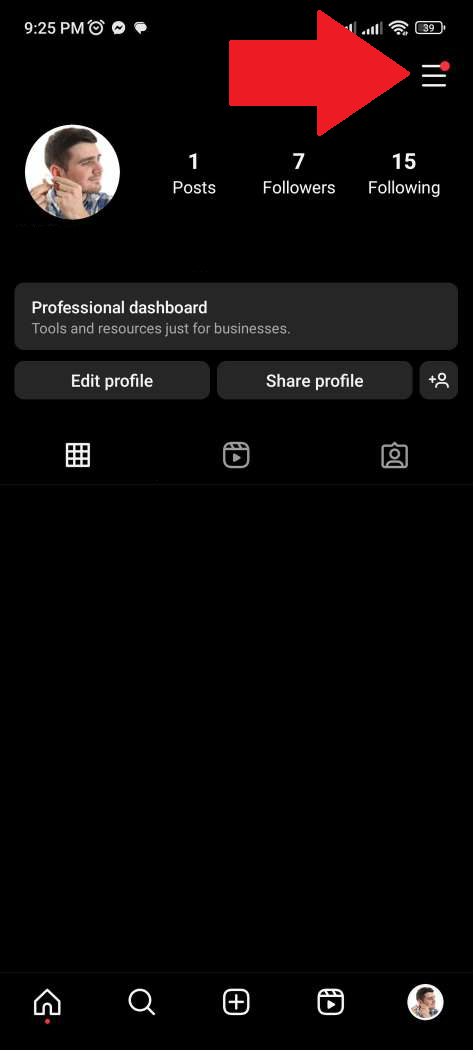
1. Access Settings: Tap the hamburger menu on your profile page.
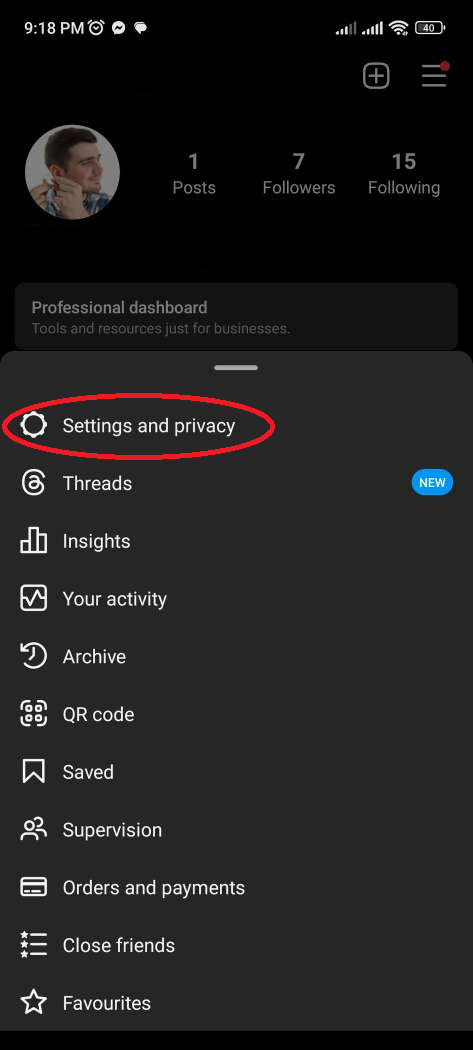
2. Navigate to Privacy: Select ‘Settings and privacy’ and then ‘Hidden Words’.
3. Manage Custom Words: Tap ‘Manage custom words and phrases’ and enter the words or phrases you wish to mute, separated by commas.
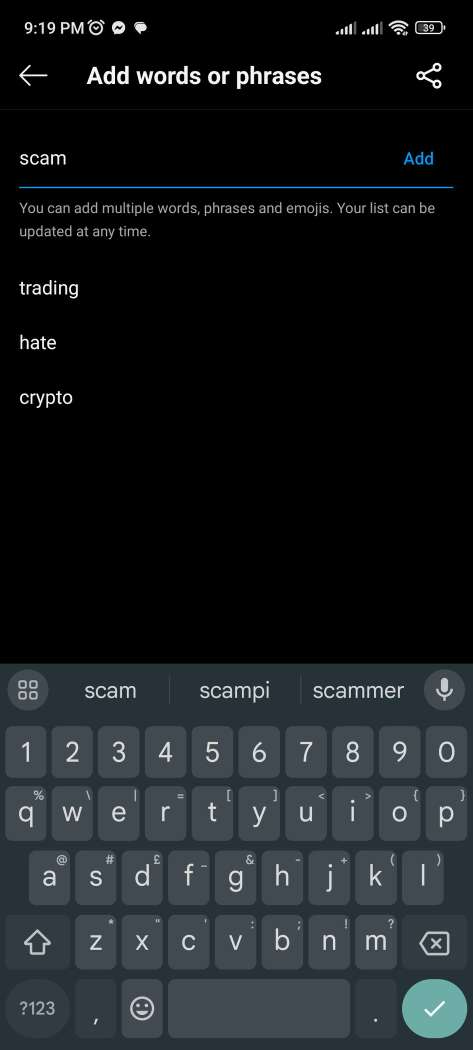
4. Activate the Feature: Ensure ‘Hide comments’ and ‘Hide message requests’ are toggled on.
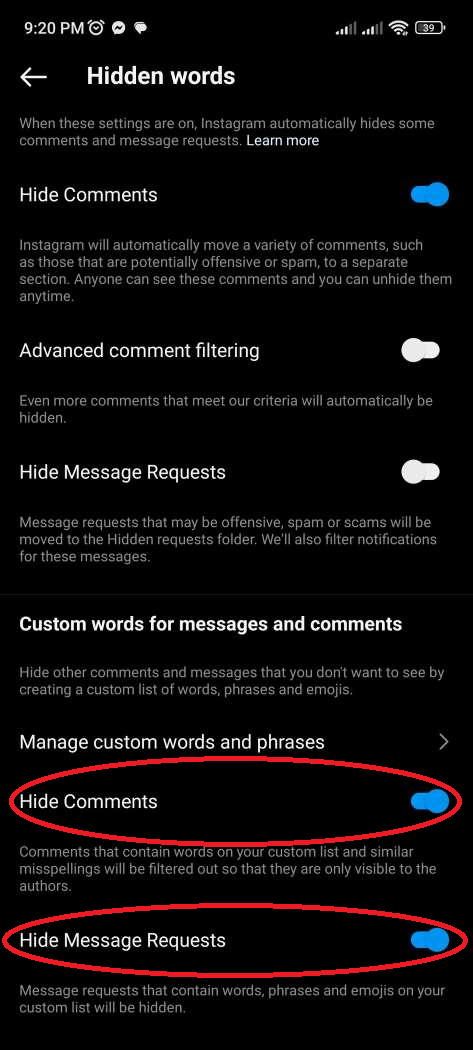
This feature is a first step in controlling your social media environment, but do take note that it has limitations.
How to Block Posts with Specific Words from Your Instagram Feed
While Instagram allows you to hide comments and message requests, as well as block suggested posts containing certain keywords, it doesn’t offer a way to block posts containing specific words from people you follow. This is where Poper Blocker steps in, and enables you to control your feed on Instagram by hiding posts containing any word you choose.
To use this tool for muting specific words on Instagram, follow these simple steps:
1. Access Poper Blocker: Start by accessing the Poper Blocker extension. This is your gateway to a more personalized Instagram experience.
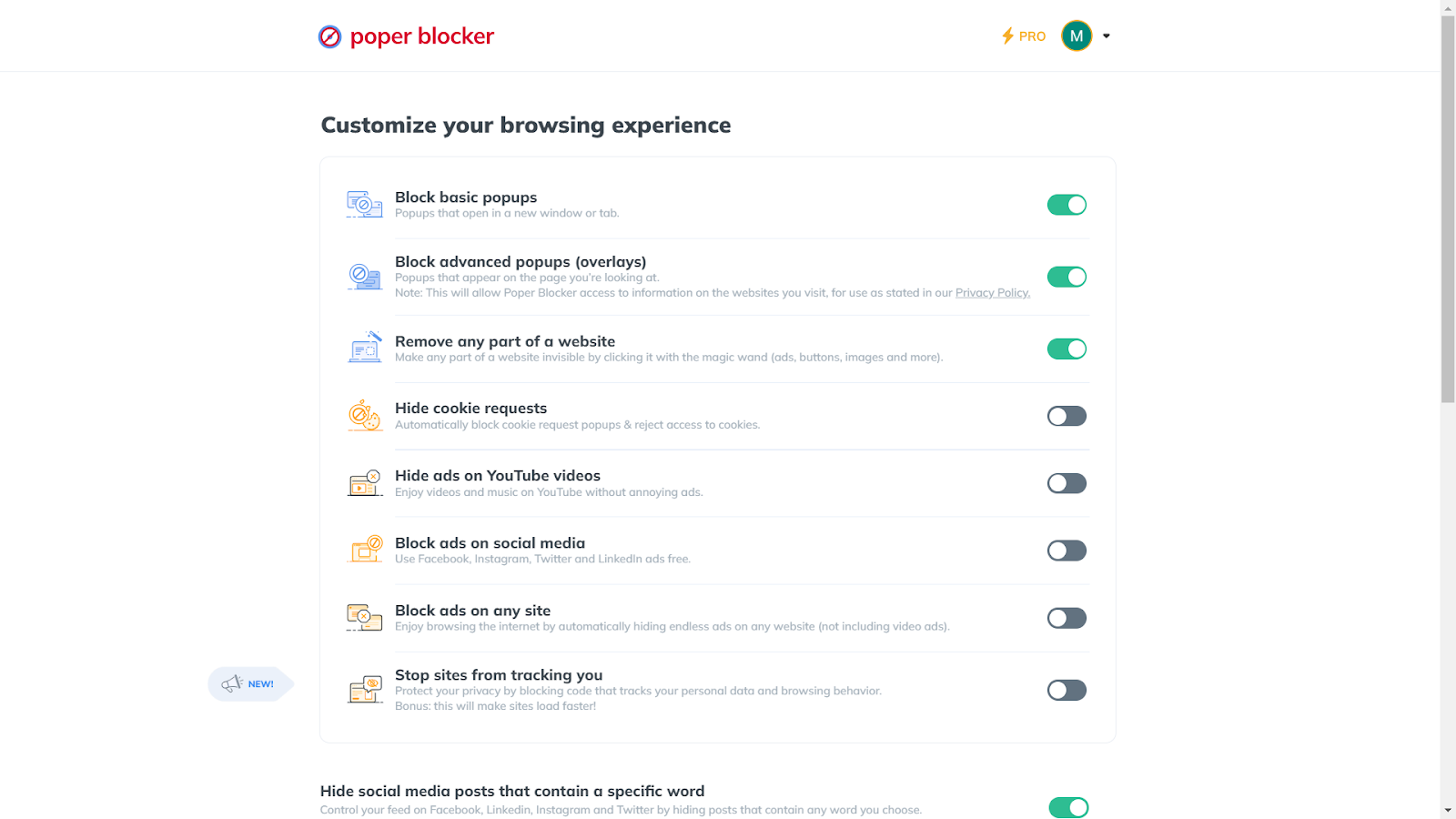
2. Turn on the Feature: Look for “Hide social media posts that contain a specific word” within the tool and toggle the feature on. This is where the magic happens, allowing you to start filtering out unwanted content.
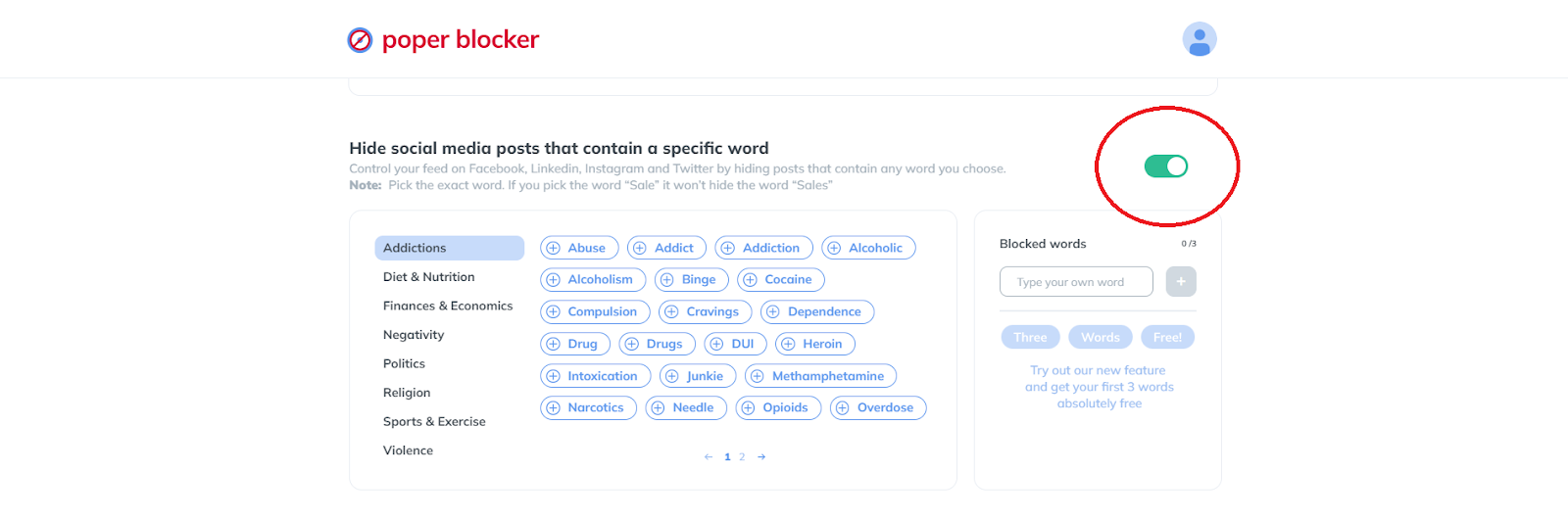
3. Set the Words You Want to Mute: You can choose words from a suggested list or input your own. For those who opt for the Pro version, there’s the added benefit of an unlimited word list, offering even greater control over your feed.
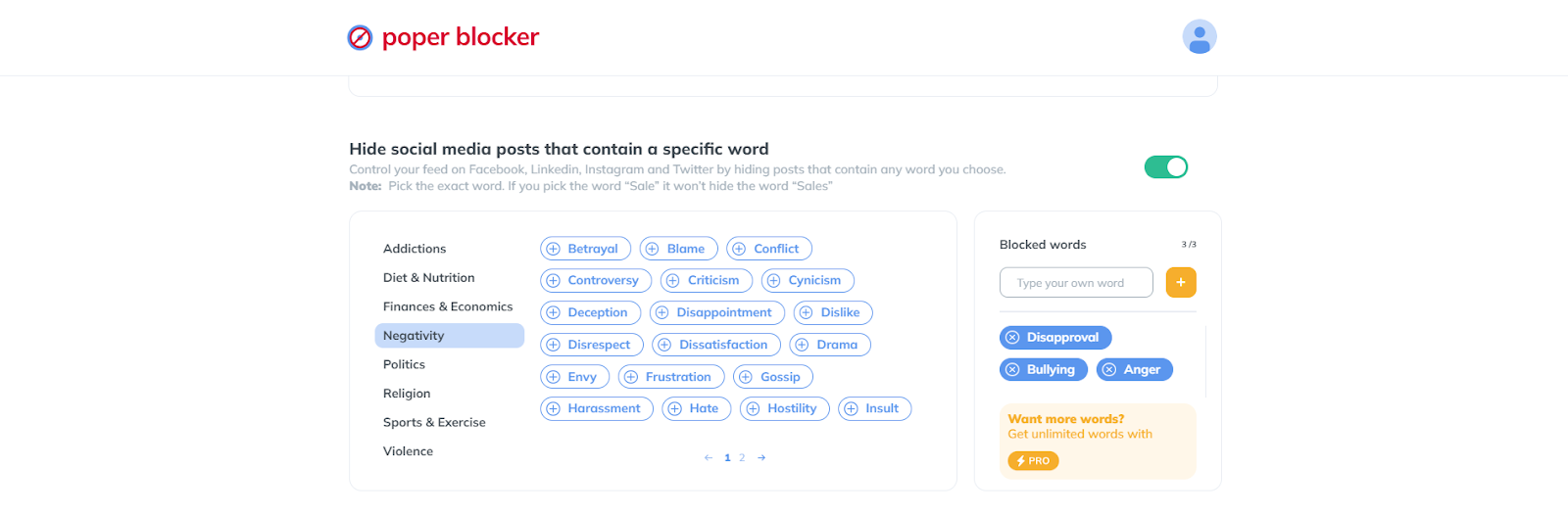
4. Start Browsing Instagram: Once you’ve set your preferences, your Instagram feed will transform, now free from the triggers or content you wish to avoid. Sit back and enjoy a more pleasant, customized browsing experience.
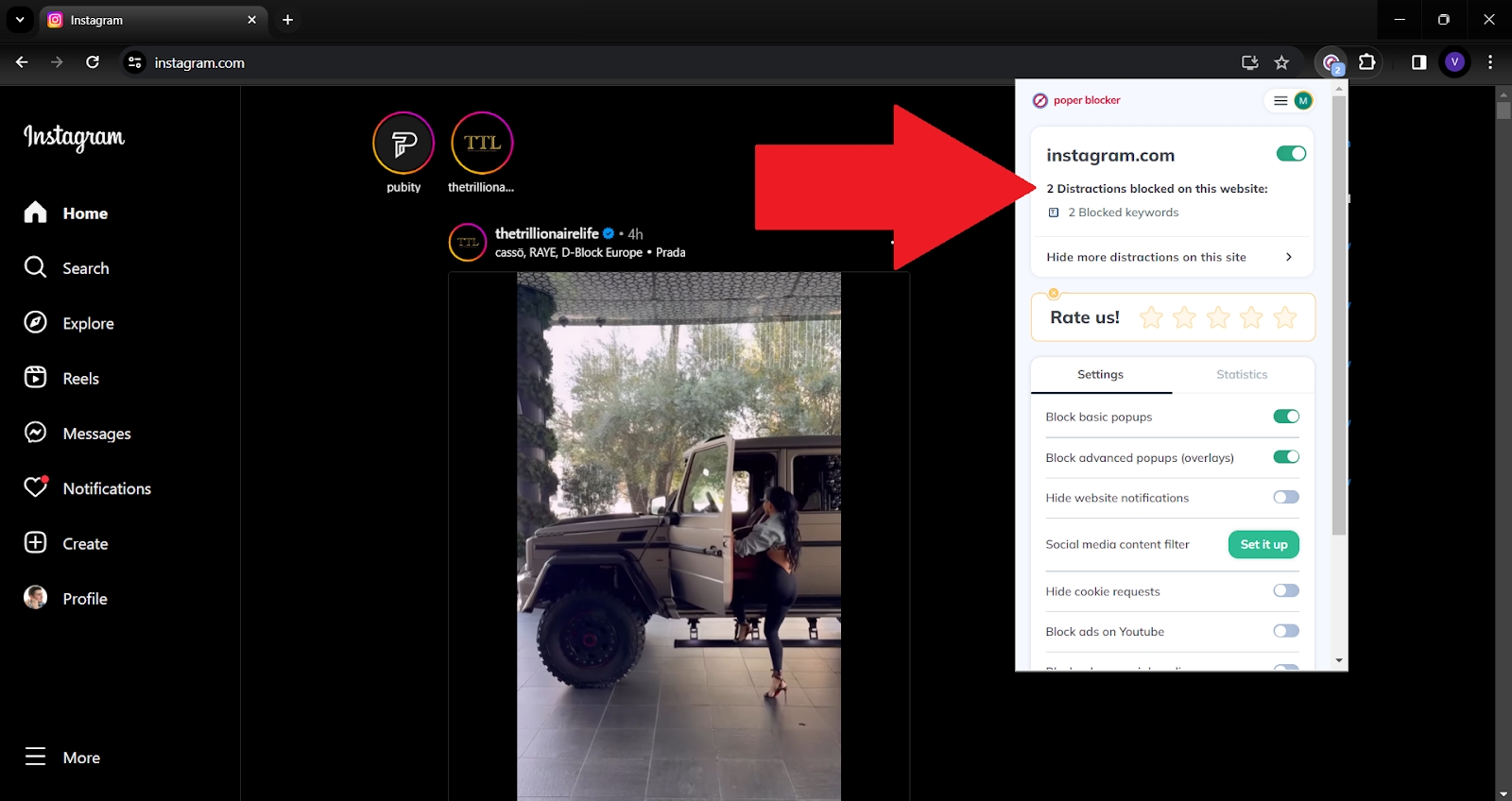
With Poper Blocker, you’re not just using Instagram; you’re shaping it to fit your unique preferences and needs.
The Final Piece: Crafting Your Ideal Social Media Space
Creating a personalized Instagram experience is akin to curating an art gallery. Each post you see should resonate with your tastes, interests, and comfort levels. This is where the power of word muting, especially with tools like Poper Blocker, becomes a game-changer in your social media journey.
Moreover, the flexibility to customize your feed extends beyond just avoiding negatives. It’s about enhancing positives too. You can tailor your feed to be more uplifting, educational, or entertaining based on your specific interests. The control is in your hands, and the possibilities are endless.
Read more:
- How to Mute Words on Twitter
- How to Mute Words on Facebook
- Can You Mute Words on LinkedIn?
- How to Block Ads on Instagram?
Say Goodbye to Unwanted Content on Instagram with Poper Blocker!
FAQs
How does muting specific words on Instagram enhance my browsing experience?
Muting words on Instagram allows you to tailor your social media environment to your preferences and comfort level. By filtering out unwanted content such as spoilers, political debates, or offensive language, you create a more enjoyable and stress-free browsing experience. This customization ensures that your time on Instagram remains aligned with your interests and values, making it a more positive and engaging space.
Can I mute words in Instagram stories and reels, or is it limited to comments and posts?
Currently, Instagram’s muting feature is primarily focused on comments and posts. This means you can prevent specific words or phrases from appearing in these areas. However, the feature does not extend to stories and reels. For more comprehensive control over the content you encounter, third-party tools like Poper Blocker can be useful, as they offer broader filtering capabilities across various types of content on Instagram.
Is the word muting feature on Instagram effective in different languages?
Yes, the word muting feature on Instagram is effective across different languages. When you add words or phrases to your mute list, Instagram filters them out regardless of the language. However, it’s important to add variations of the word or phrase in different languages if you’re multilingual or follow accounts that post in multiple languages to ensure comprehensive filtering.
Will other users know if I’ve muted certain words or phrases on Instagram?
No, other users will not be notified or aware if you mute certain words or phrases on your Instagram. The muting feature is a personal setting that only affects what you see on your feed and does not impact how others view content on the platform. Your privacy and choices are respected, allowing you to customize your experience discreetly.
How can I keep up with changes or updates to Instagram’s word muting feature?
To stay updated with changes or enhancements to Instagram’s word muting feature, you can regularly check the app’s update notes in your device’s app store and follow Instagram’s official blog or help center. These sources often provide detailed information on new features, improvements, and tips for optimizing your use of the platform. Additionally, tech news websites and social media forums are good resources for learning about user experiences and creative ways to use new features.
Make Instagram Yours – Filter Words Easily with Poper Blocker!
Here’s a scenario that you can definitely relate to: You’re deeply engrossed in an online article or eagerly watching a video when suddenly, an ad pops up, shattering your focus. Frustrating, isn’t it?
These unexpected interruptions not only break the rhythm of your engagement but also raise concerns about how your browsing data is being used. Ads often track your online behavior, collecting data to target you more effectively. It’s a cycle that invades your privacy and disrupts your online experience.
Ads are not just annoying; they can also compromise your online privacy. This brings us to a pivotal question: Can VPNs, known for their privacy and security prowess, also block these intrusive ads?
The Ad Nuisance: A Statistical Overview
| Statistic | Detail | Source |
| Percentage of Internet Users Annoyed by Social Media Ads | 74% | SurveyMonkey |
| Percent of Internet Users Worldwide Using Ad Blockers | 42.7% | Backlinko |
These statistics highlight a growing trend of ad aversion among internet users, underscoring the need for effective ad-blocking solutions.
The core issue here is twofold: privacy invasion and disrupted user experience. Ads not only intrude on your online activities but also track your browsing habits, raising significant privacy concerns.
Do VPNs Work to Block Ads?
VPNs, primarily designed for online privacy and security, are often perceived as tools that might also block ads. It’s important to understand that their main role is to encrypt your data and conceal your IP address, creating a secure and anonymous online environment. This function is crucial in safeguarding your personal information from prying eyes and cyber threats. However, the question of whether VPNs can effectively block ads is more nuanced.
Ad-Blocking Capabilities of VPNs
While not their primary purpose, some VPNs do offer ad-blocking capabilities as an additional feature. These VPNs go beyond their standard role of encryption and IP masking to provide users with a cleaner browsing experience. They do this by integrating ad-blocking technologies within their service. This integration can filter out a variety of ads, from pop-ups to banners, reducing the amount of unwanted content that appears during your internet sessions.
However, it’s essential to recognize that the ad-blocking ability of VPNs can vary significantly. Some may offer basic ad-blocking features, which can reduce the visibility of ads to a certain extent. Others might be more advanced, capable of filtering out a wider range of ads and even blocking trackers that collect your browsing data for targeted advertising.
Despite these features, VPNs are not a complete solution for ad blocking. They might struggle to block ads that are more deeply integrated into websites or those that are served by sophisticated ad servers, such as the ones used by video streaming platforms. In these cases, ads might still appear, as they are not solely based on the user’s IP address but are also embedded in the content itself.
How to Block Ads with a VPN?
By following these steps, you can effectively navigate the online world with minimal interruptions, ensuring a cleaner and more focused internet experience.
1. Select a VPN with Ad-Blocking Features
Begin your ad-free journey by choosing a VPN that offers more than just privacy. Look for one that boasts ad-blocking capabilities. This is similar to selecting a shield in your digital arsenal, not just for defense but also for a proactive strike against ads.
2. Dive into the VPN Settings
Once your VPN is installed, navigate to its settings. Here lies the key to unleashing its ad-blocking power. Look for options or toggles labeled something similar to ‘Ad Blocker’ or ‘Content Filters’. Activating these settings is like flipping a switch that starts filtering out the digital noise, clearing your path for cleaner browsing.
3. Understand the Limitations of VPN Ad-Blocking
Be aware that while VPNs can block many ads, they might not catch them all, especially those embedded in videos or on platforms like YouTube and Twitch. It’s important to recognize that a VPN is not an all-encompassing ad blocker but rather a significant first line of defense.
4. Integrate a Dedicated Ad Blocker like Poper Blocker
For a more robust defense against ads, pair your VPN with a dedicated ad blocker. Poper Blocker specializes in targeting and eliminating various types of ads, including those that a VPN might miss. This integration ensures a more comprehensive ad-blocking strategy, enhancing your overall browsing experience.
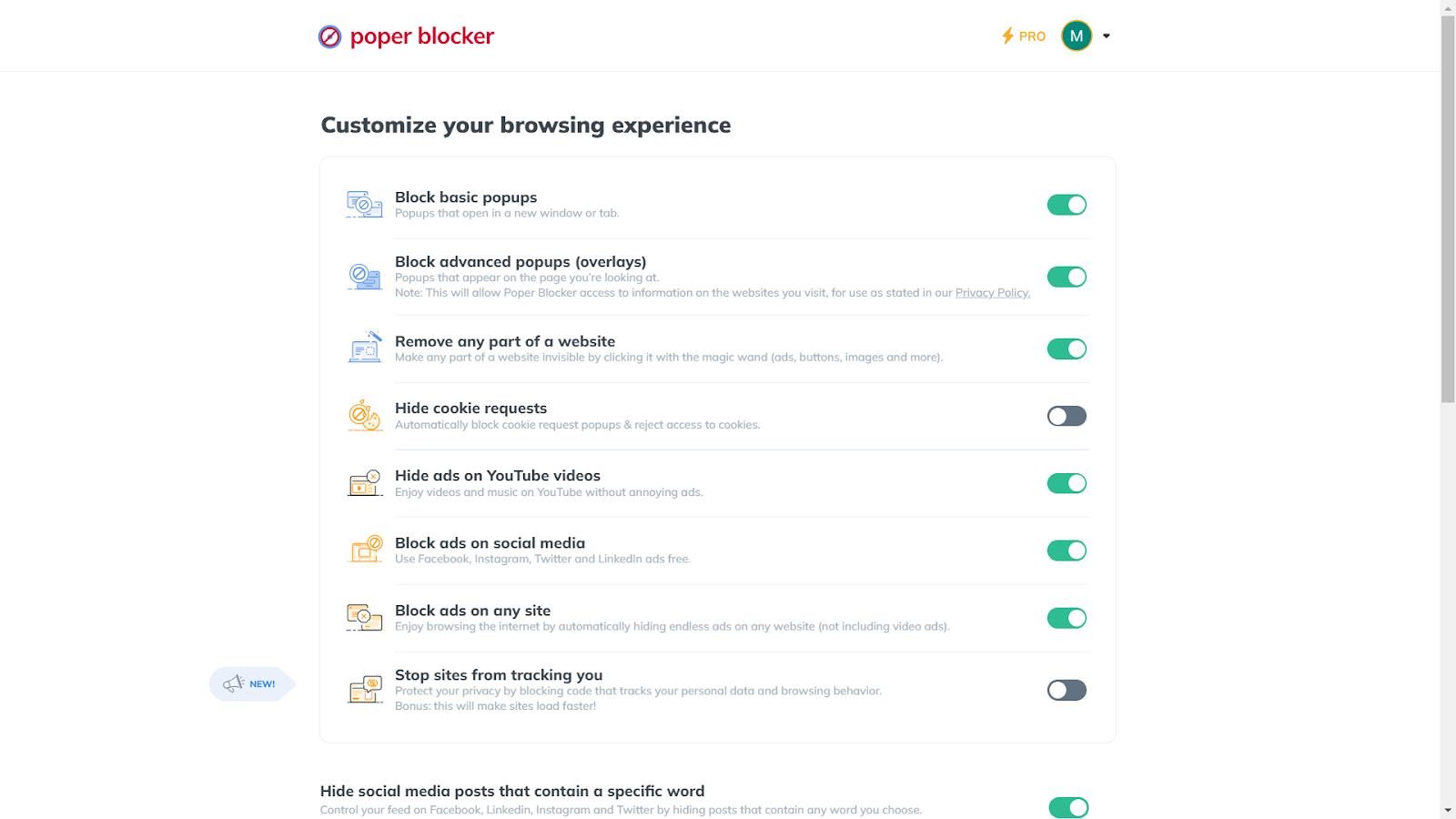
Poper Blocker stands out in the ad-blocking arena with features that surpass those of a typical VPN:
- Wide Array of Ad Blocking: Poper Blocker excels in blocking various types of ads, including pop-ups, banners, and video ads.
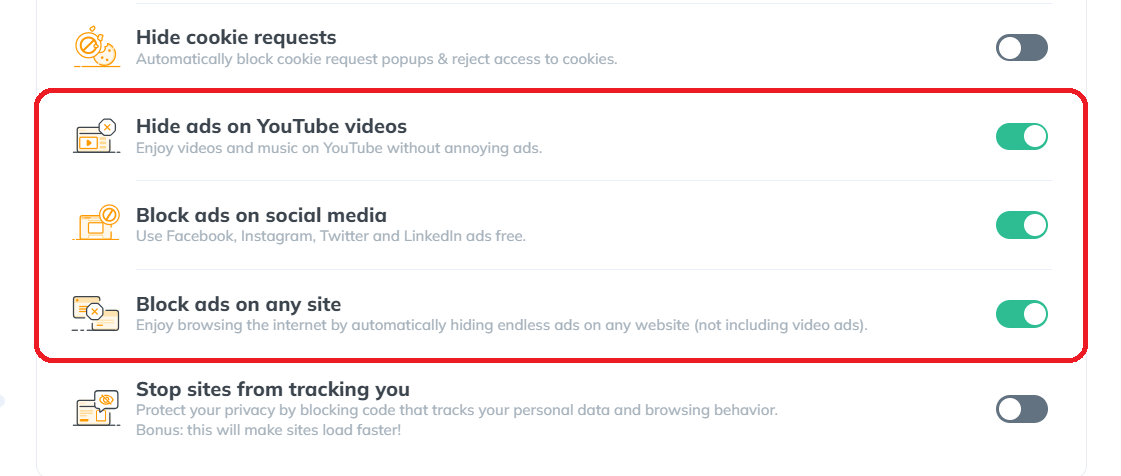
- Targeted Ad Elimination: Designed specifically for ad removal, this tool efficiently targets and eliminates ads directly, unlike VPNs whose primary focus is on privacy.
- Precision in Blocking Stubborn Ads: It demonstrates superior accuracy in identifying and blocking embedded ads within websites, a task that often challenges VPNs.
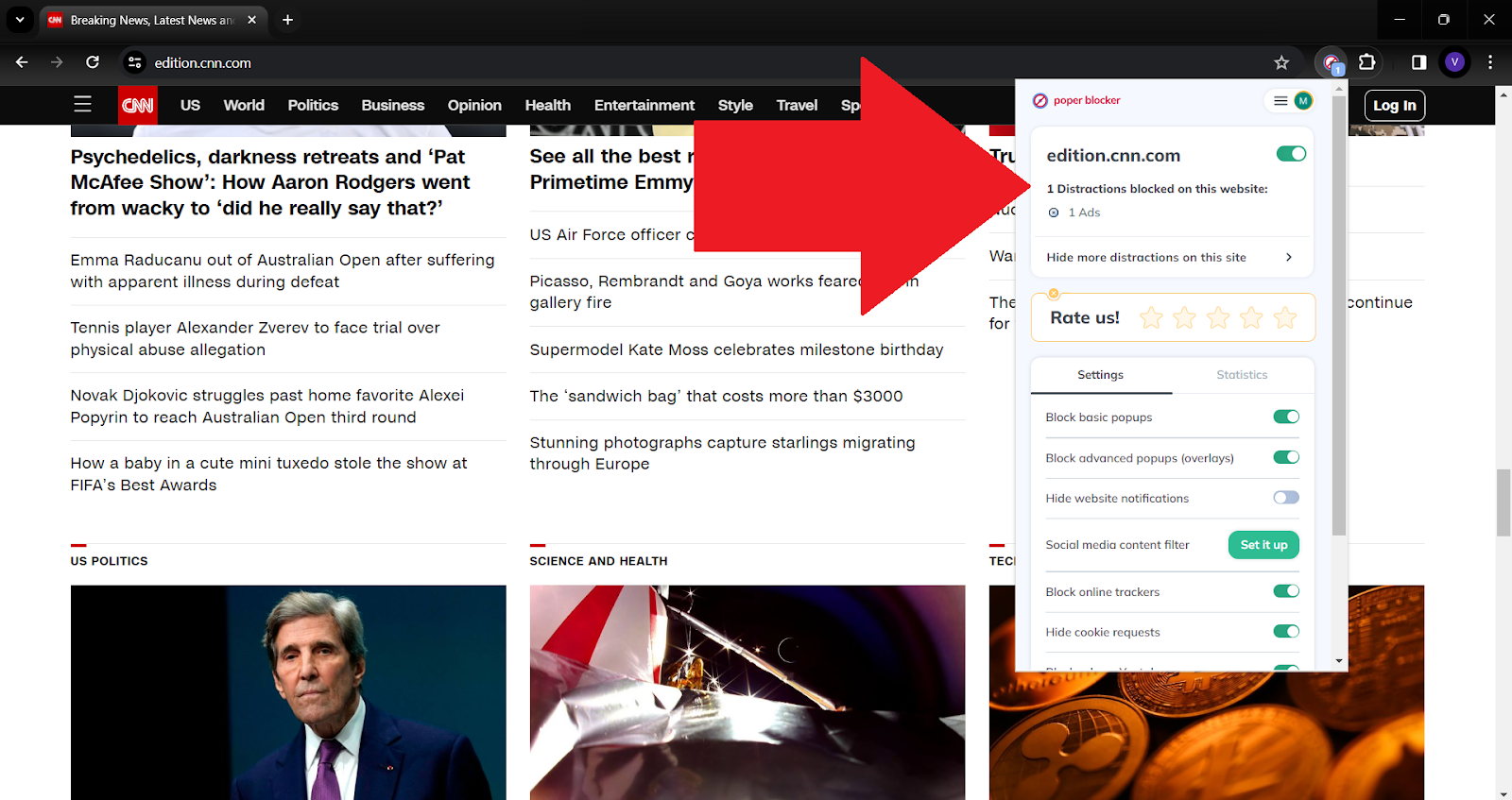
- Enhanced Browsing Speed: By reducing the load of unwanted ad content, this blocker not only cleans your browsing space but also significantly speeds up your online experience.
5. Enjoy a Synergistic Ad-Blocking Experience
With both a VPN and Poper Blocker at your service, you’re now equipped with a dynamic duo. This combination ensures a smoother, faster, and more enjoyable browsing experience. It’s like having both a shield and a sword in your digital journey, offering protection and proactive ad elimination.
Enjoy an Ad-Free Online World
Embarking on an ad-free journey online transforms your browsing into a seamless, uninterrupted experience. Imagine clicking on a video and diving straight into the content, no pre-roll ads to skip. Picture reading an article without pop-ups obscuring your view. This isn’t just a dream; it’s a reality within reach.
By combining the strengths of a VPN with a dedicated ad blocker like Poper Blocker, you’re not just avoiding annoyance; you’re reclaiming your online space. It’s about enjoying purity in your digital interactions, where content flows uninterrupted, and your privacy remains intact. Welcome to a cleaner, faster, and more enjoyable online world.
Say goodbye to annoying ads – Install Poper Blocker today!
FAQs
Do VPNs Block Personalized Ads?
While VPNs are adept at enhancing your online privacy, their ability to block personalized ads is limited. By masking your IP address, VPNs can prevent advertisers from tailoring ads based on your location. However, many ads are designed to adapt based on your browsing behavior, which VPNs do not directly influence. For a more comprehensive solution to block personalized ads, integrating a dedicated ad blocker like Poper Blocker is recommended. This tool specifically targets and blocks various forms of advertising, ensuring a more private and uninterrupted browsing experience.
Do VPNs Block YouTube Ads?
The question of whether VPNs can block YouTube ads is a common one. Generally, VPNs are not effective in blocking these types of ads because these are served directly from YouTube’s servers and are an integral part of the platform. YouTube ads are sophisticated and often bypass the traditional ad-blocking methods used by VPNs. For a more effective solution, using a specialized ad blocker that can handle the complexity of YouTube’s advertising system is advisable.
Do VPNs Block Ads on Twitch?
When it comes to Twitch, a platform known for its streaming content and accompanying ads, VPNs face a similar challenge as with YouTube. The ads on Twitch are integrated into the streams, making them difficult for VPNs to block. While a VPN can provide some level of privacy and security, it does not specifically target the ads that appear on Twitch streams. For users looking to enhance their viewing experience by eliminating these ads, turning to a dedicated ad blocker would be a more effective approach.
Do VPNs Block Viruses from Downloads?
VPNs play a crucial role in securing your online activities and protecting your data from interception. However, their primary function does not extend to scanning or protecting against viruses that may be present in downloads. While a VPN can secure your connection and keep your activities private, it is not a substitute for antivirus software. To safeguard your device from viruses, especially those that might accompany downloads, it is essential to use reliable antivirus software alongside your VPN.
Do VPNs Block iPad Ads?
Using a VPN on an iPad can offer a certain level of ad blocking, primarily by hiding your IP address and thus reducing location-based ads. However, many ads are not dependent on your IP address and will still appear. To effectively block ads on an iPad, it is advisable to use a dedicated ad blocker. These tools are designed to work seamlessly with mobile devices and browsers, providing a more comprehensive ad-blocking solution that enhances your browsing experience on the iPad.
Twitter (also known as X), a bustling hub of global conversations, can sometimes feel overwhelming with its unfiltered stream of content. Whether it’s spoilers from your favorite show, political debates, or topics that trigger discomfort, the need for a more controlled and personalized browsing experience is evident. This is where the power of muting words on Twitter comes into play.
Take a look at these alarming statistics:
| Key Statistic | Focus Area | Source |
| A sharp increase in hate speech and problematic content | Hate Speech | New York Times |
| Black women are 84% more likely to be targeted in abusive tweets | Online Abuse Against Women | Amnesty International |
| Impact of alarming vs reassuring messages during COVID-19 | Public Health Communication | PMC – NCBI |
| Teens spending 5–7 hours on social media are twice as likely to have mental health problems | Social Media Addiction | The Lanier Law Firm |
| High rate of COVID-19 misinformation spread | Misinformation | PMC – NCBI |
Why Would You Want to Mute Words on Twitter?
Twitter users often encounter unwanted content that can range from mild annoyances to deeply upsetting topics. Here are some common reasons why blocking words on Twitter is essential:
- Adult Themes: For those who prefer a more family-friendly feed, muting adult-themed content is necessary.
- Politics: Escaping the often polarizing world of political debates can create a more peaceful online experience.
- Inappropriate or Offensive Content: Steering clear of content that may be disrespectful or offensive is crucial for many users.
- Spoilers: Avoiding spoilers for movies, TV shows, or books is a top priority for many.
- Overwhelming News: In times of crisis or overwhelming news cycles, learning how to block certain words on Twitter, or topics more specifically, can help manage anxiety.
- Marketing Overload: Muting aggressive marketing or specific product promotions can declutter your feed.
- Personal Triggers: Everyone has specific words or topics that can trigger negative emotions or memories.
How to Block Words on Twitter With Poper Blocker: Your Social Media Content Guardian
While Twitter offers built-in features to mute words, Poper Blocker elevates this functionality, especially for those seeking a more robust solution. Here’s how to leverage this tool:
1. Launch Poper Blocker: Begin by accessing the Poper Blocker extension, a tool designed to refine your Twitter experience.
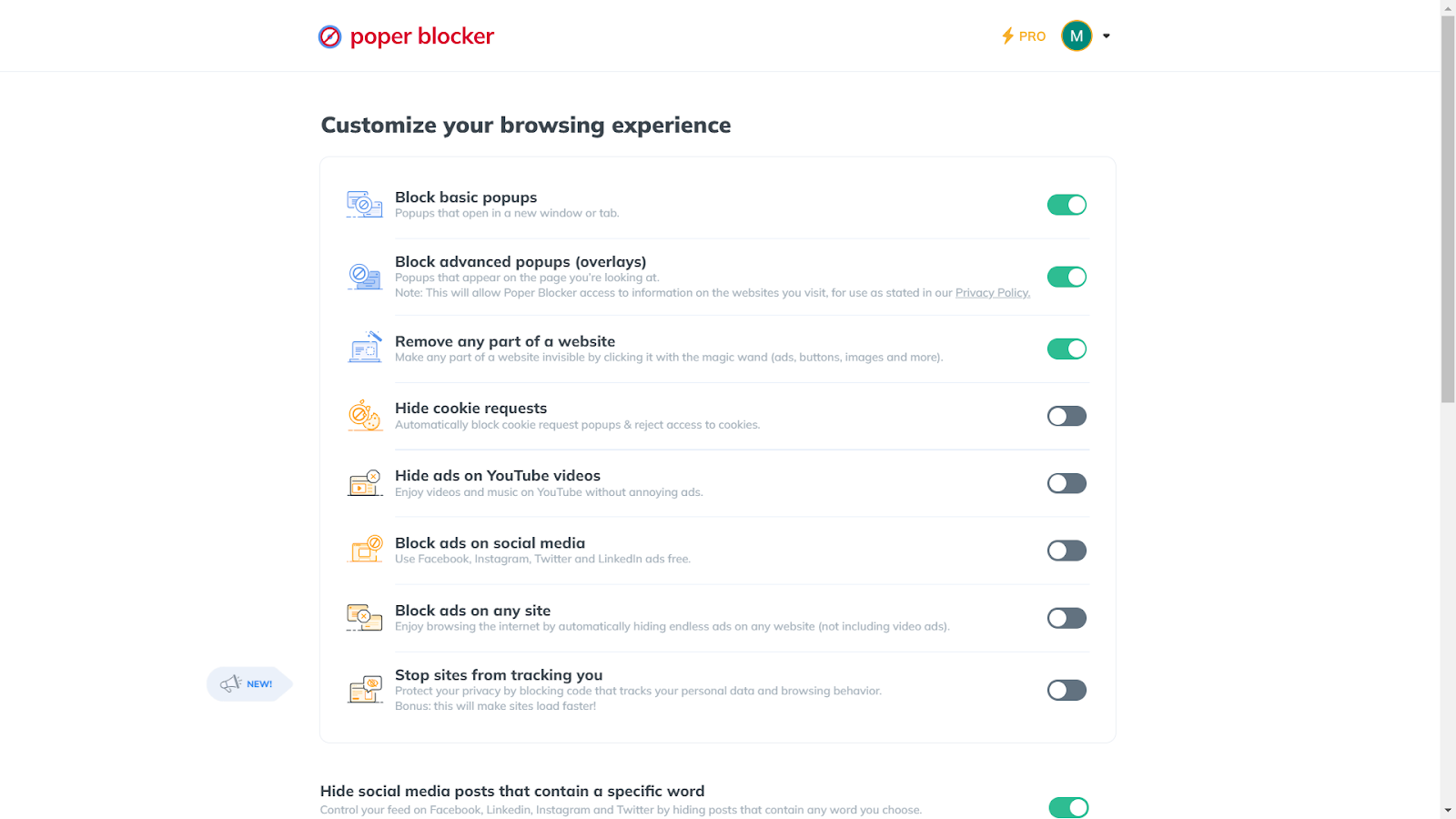
2. Activate the Feature: Within Poper Blocker, find and activate the “Hide social media posts that contain a specific word” feature.
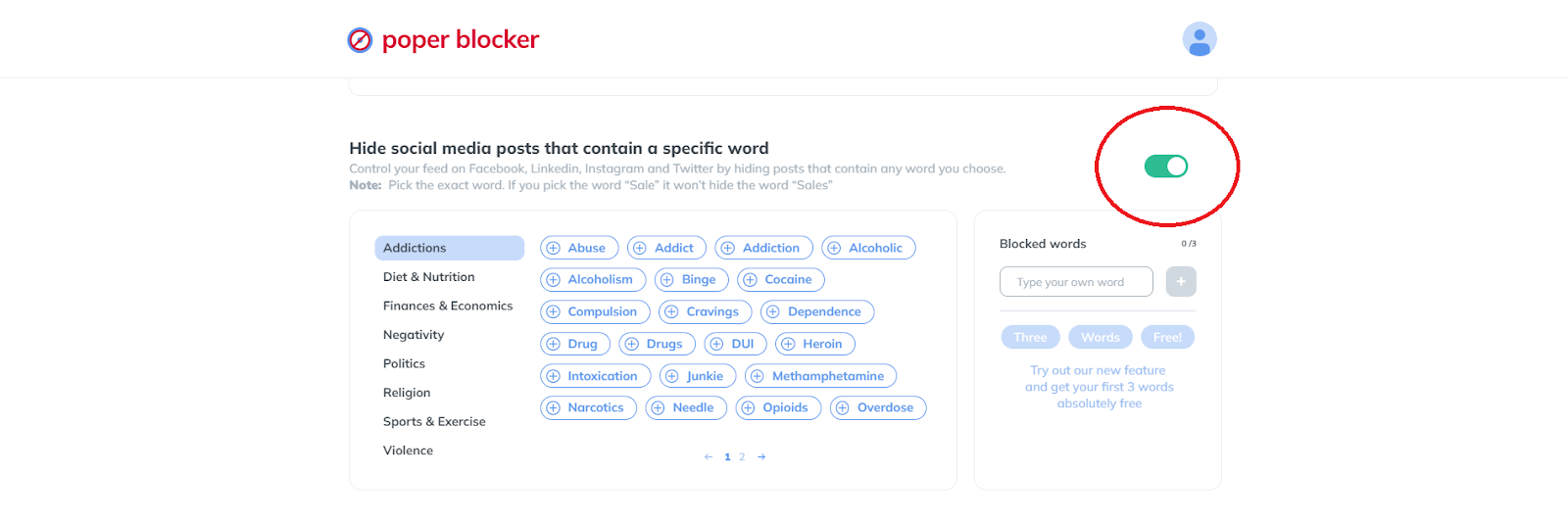
3. Customize Your Mute List: So how do you mute words on Twitter? Choose words to mute from a suggested list or add your own. The Pro version offers an unlimited word list for unparalleled control.
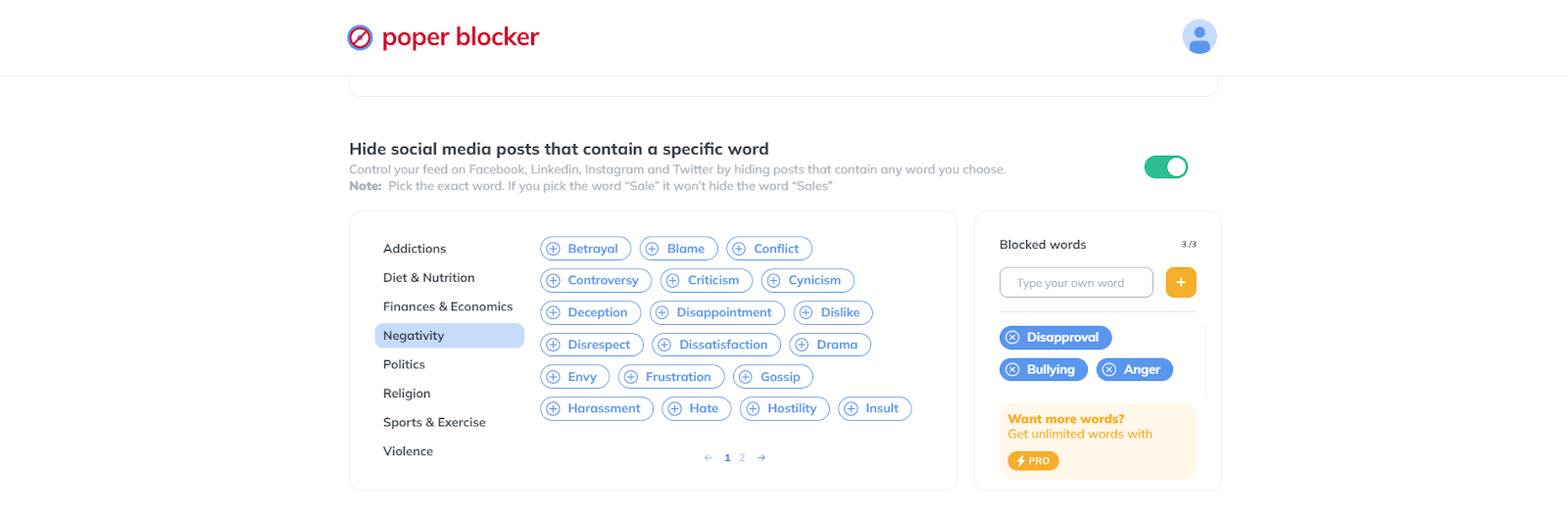
4. Transform Your Twitter Feed: With your preferences set, your Twitter feed becomes a curated space, free from unwanted content.

Seize Control of Your Twitter Feed
The dynamic world of Twitter, with each scroll bringing a new wave of information, offers the power to mute words – a feature that is truly a gateway to tranquility and relevance. By carefully selecting the words, phrases, and hashtags to mute, you transform your Twitter feed into a personalized oasis, a reflection of your interests and values.
The journey through Twitter’s vast landscape can often be overwhelming, but with tools like Poper Blocker, you’re equipped with the power of social media filtering so you can focus on what truly matters to you. Whether it’s avoiding spoilers, sidestepping political debates, or creating a safe space free from triggering content, the ability to mute words is your shield against the unwanted.
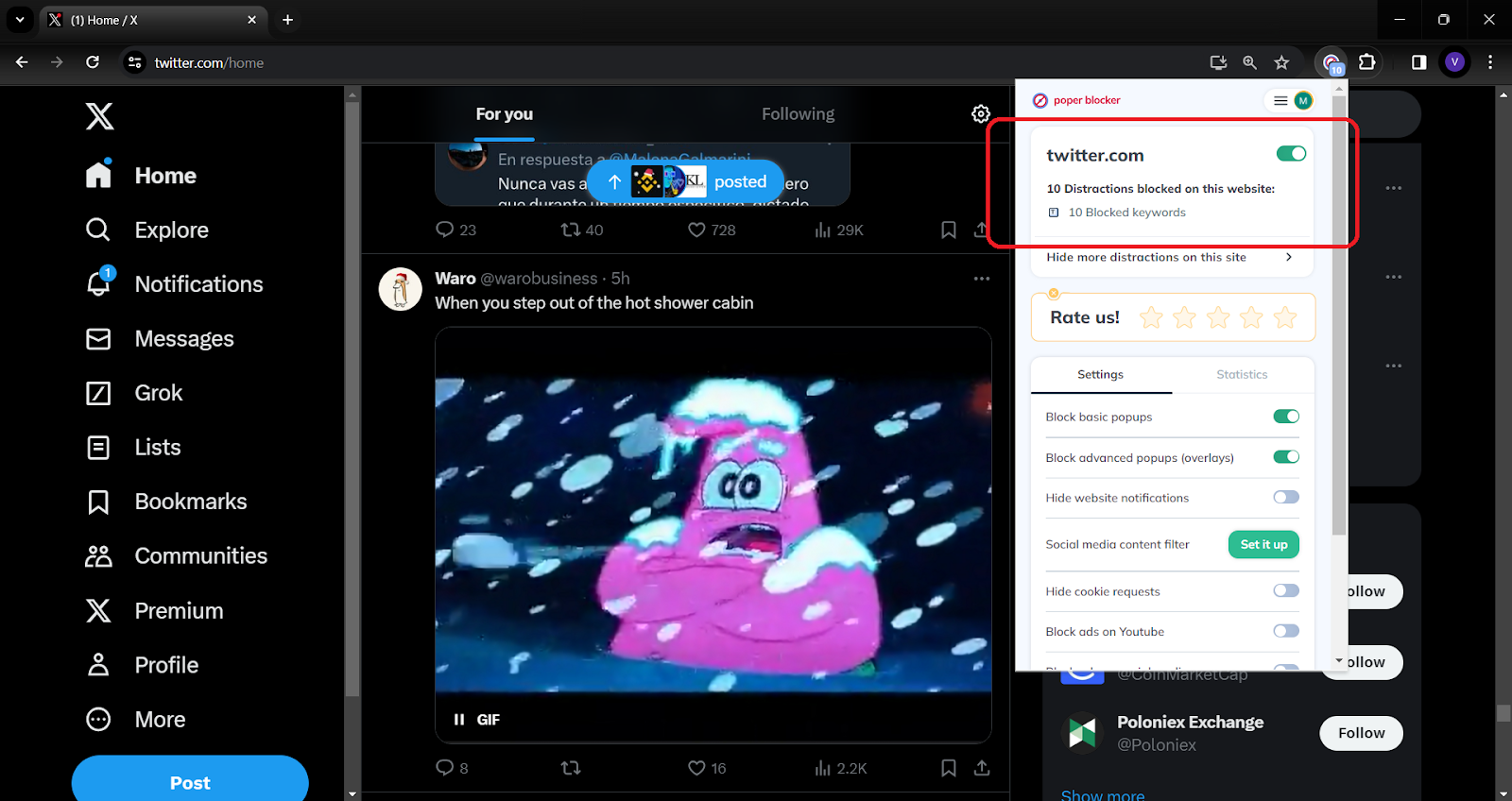
So, take the reins and tailor your Twitter experience. With each word you mute, you’re not just filtering content; you’re crafting a space that speaks to you and you alone. Embrace this power, and watch as your Twitter world transforms into a realm that aligns perfectly with your unique perspective.
Read More:
- How to Mute Words on Instagram
- How to Mute Words on Facebook
- Can You Mute Words on LinkedIn?
- How to Block Ads on Twitter?
FAQs
How does muting words on Twitter improve my experience?
Muting specific words, phrases, or hashtags on Twitter significantly enhances your browsing experience by filtering out content that you find irrelevant, disturbing, or simply uninteresting. This feature allows you to tailor your feed to your interests and comfort, creating a more enjoyable and personalized social media environment. Whether it’s avoiding spoilers for a much-anticipated movie or steering clear of sensitive topics, muting ensures that your Twitter feed aligns with your preferences, contributing to a more positive online experience.
Can I mute phrases and hashtags on Twitter?
Absolutely! Twitter’s muting feature isn’t limited to single words. You have the flexibility to mute entire phrases and hashtags. This is particularly useful for avoiding broader topics or specific campaigns that you might not want to engage with. For instance, if a particular event or topic becomes too overwhelming or pervasive on your feed, muting its associated hashtag can provide immediate relief.
Will muting words on Twitter also affect my notifications?
Yes, when you mute words on Twitter, it not only affects your main feed but also your notifications. This means that tweets containing the muted words or phrases will not appear in your timeline or trigger notifications, providing a more serene Twitter experience and ensuring that you’re not alerted about the content you prefer to avoid.
How does Poper Blocker complement Twitter’s mute feature?
While Twitter’s mute feature offers control over your feed and notifications, Poper Blocker can provide an additional layer of customization. It allows for more nuanced control over the content you see, making your social media experience even more tailored to your preferences.
Does muting words on Twitter affect my visibility to others?
Muting words on Twitter is a personal content preference and does not impact how others view your profile or interact with your tweets. It’s a user-specific setting that alters only your feed and has no bearing on your visibility or engagement with other Twitter users. This means you can freely mute any content without worrying about altering your social media presence or interactions.
Streamline your feed – Poper Blocker mutes words on Twitter. Use it now!
Every day, millions of internet users are greeted by an all-too-familiar sight: cookie consent pop-ups. These notifications, while intended to protect privacy, often lead to frustration and a cluttered browsing experience. But what exactly are these pop-ups, and why have they become a staple of our online world?
What Are Cookie Consent Pop-Ups, and Why Do Websites Use Them?
For starters: Cookie consent pop-ups are small dialog boxes that appear on websites, asking for your permission to collect and store data. This practice stems from privacy laws like the GDPR, which mandate user consent before websites can track their online activities.
Read More: Technically Speaking: What are the Different Types of Internet Cookies?
Purpose of Cookie Consent Pop-Ups
- Compliance with privacy laws like the GDPR.
- Inform users about data collection practices.
Reasons for Using Cookie Consent Pop-Ups on Websites
- Legal requirement to obtain user consent before tracking.
- Enhance transparency about data usage and privacy.
While these pop-ups serve a crucial role in protecting privacy, they can also disrupt the user experience, leading many to seek effective cookie blockers.
The prevalence of cookie pop-ups has significantly impacted the online browsing experience:
- Sources like Vox highlight that these pop-ups, while intended for privacy protection, often lead to user annoyance and a worsened browsing experience due to their intrusive nature.
- The rapid increase in these pop-ups since GDPR, along with the tendency of users to quickly dismiss them (as reported by Deseret News), underscores the growing need for more user-friendly privacy notification methods.
The Ultimate Solution: Poper Blocker
Enter Poper Blocker’s extension, a Chrome cookie blocker that stands out in the realm of cookie notice blocker solutions. This powerful tool not only blocks annoying cookie pop-ups but also enhances your browsing experience by eliminating distractions. With Poper Blocker, you can navigate the web seamlessly, free from the constant barrage of cookie acceptance pop-ups.
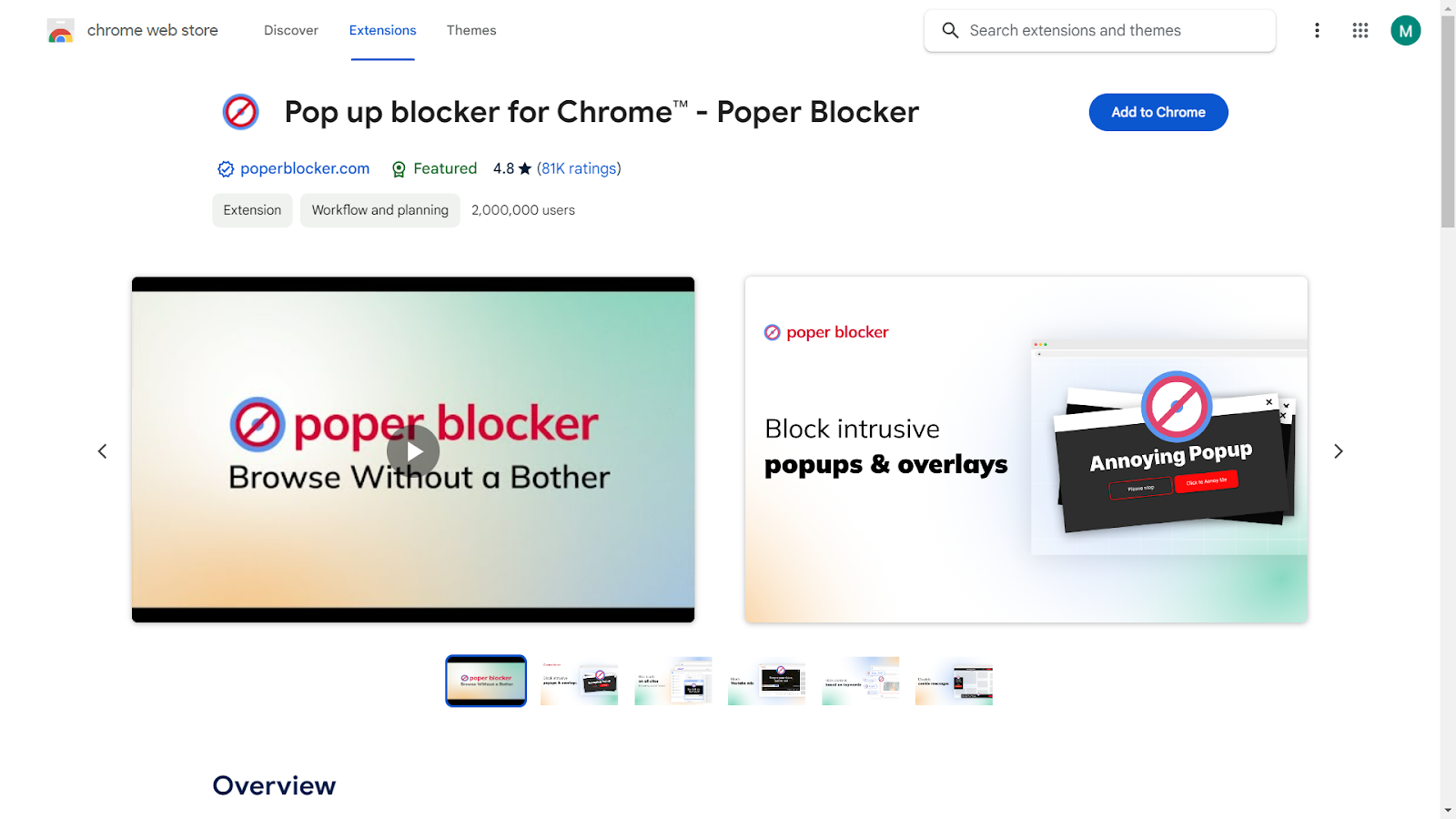
How to Stop Cookie Pop-Ups with Poper Blocker
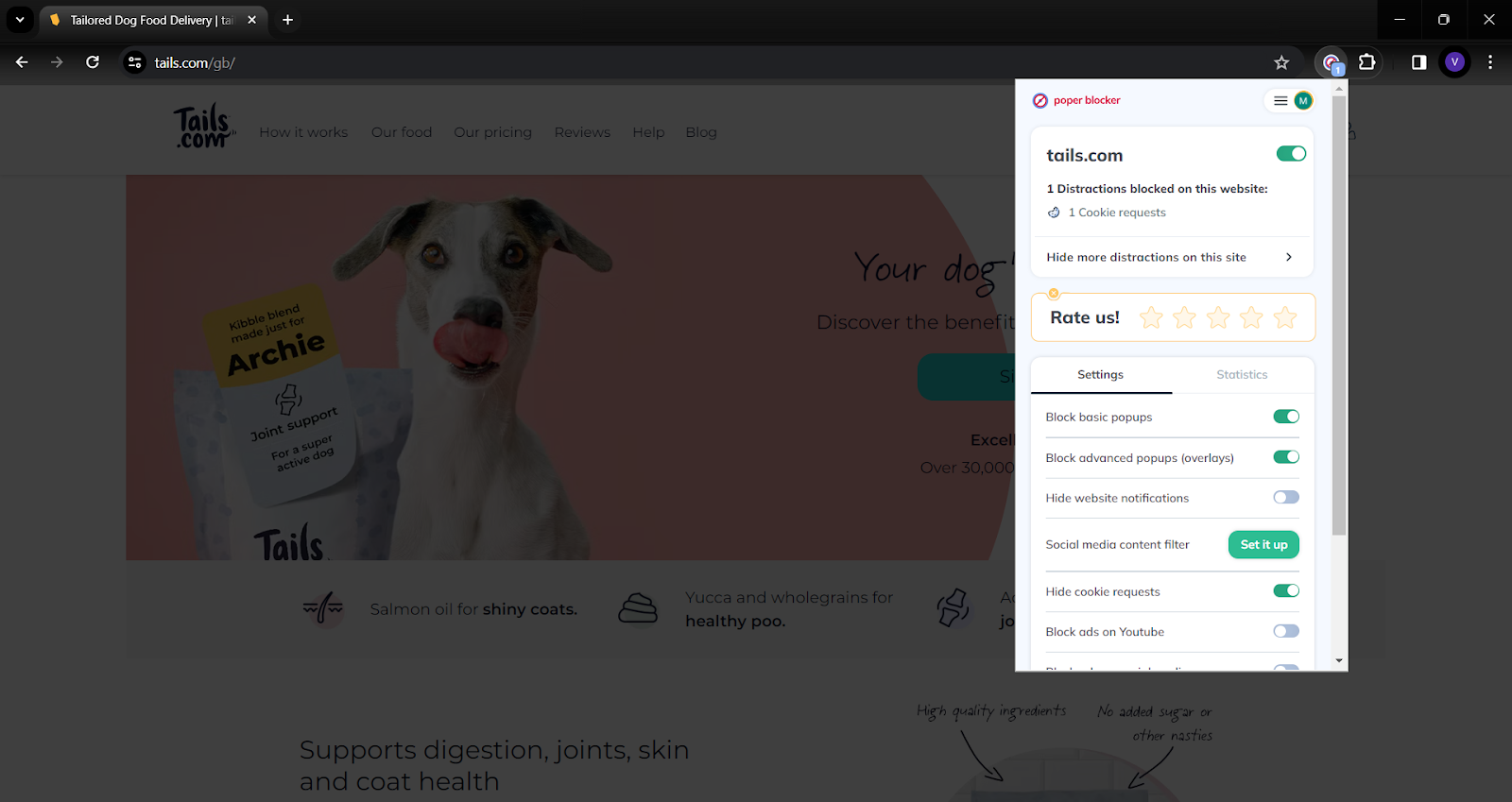
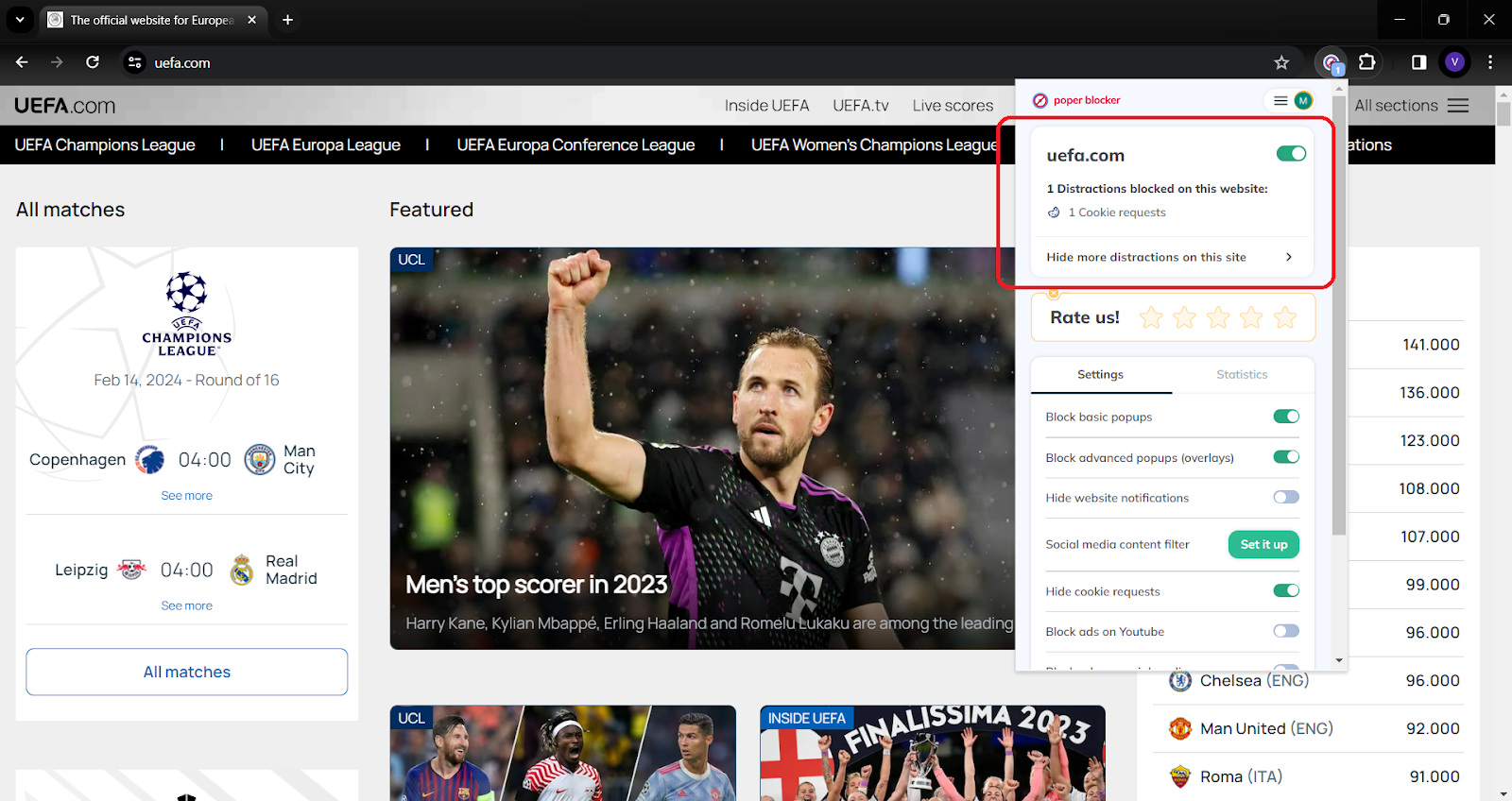
Step 1: Open the Poper Blocker Extension
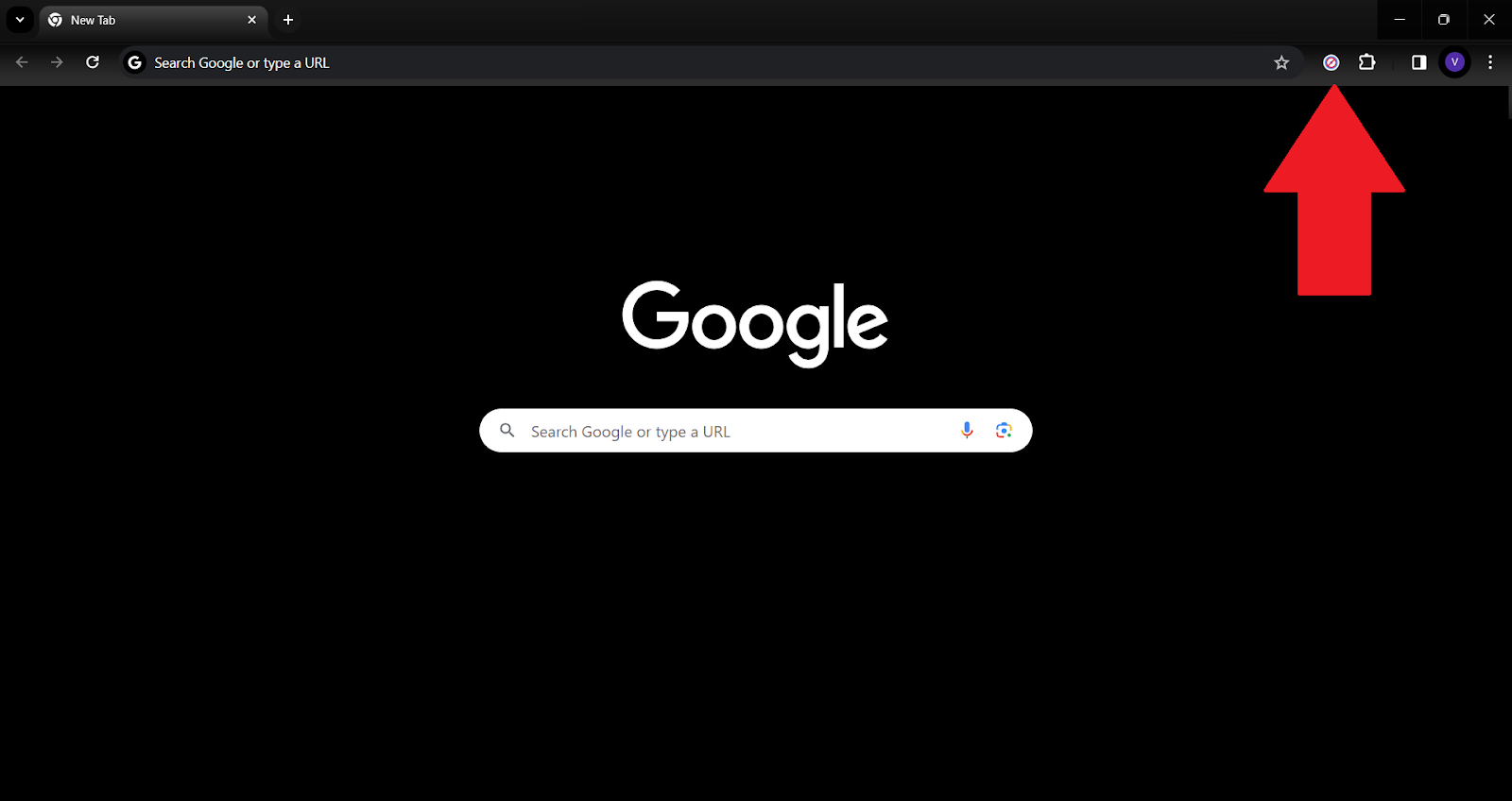
Begin by launching your web browser. Click on the Poper Blocker extension icon, typically located in the upper right corner of your browser toolbar.
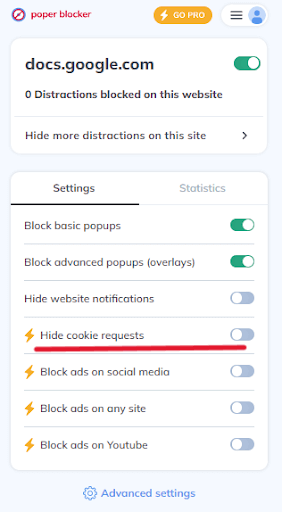
Step 2: Enable the “Hide Cookie Requests” Feature
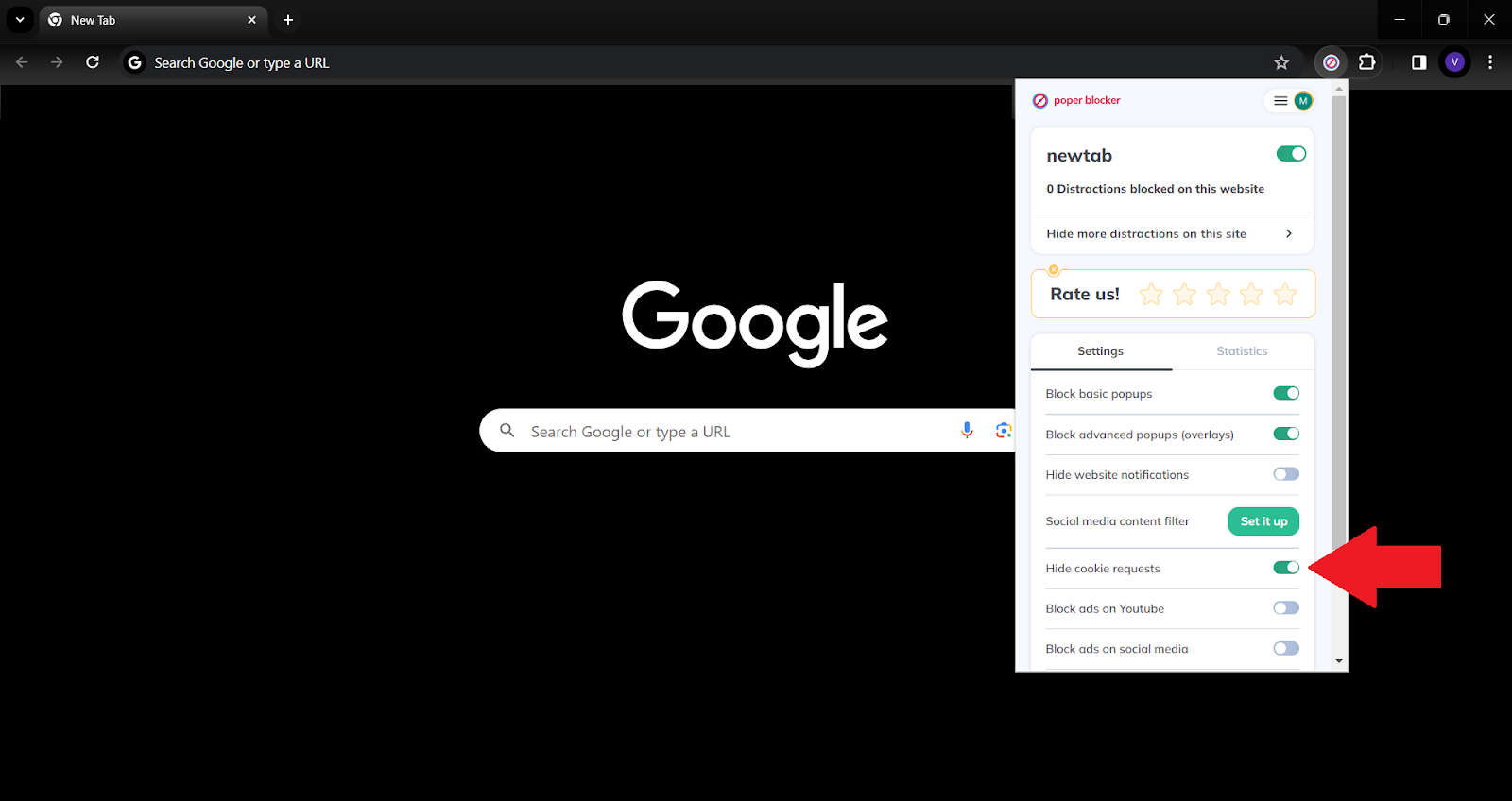
Within the extension’s interface, look for the option labeled “Hide cookie requests.” Click on this option to activate it. This action enables Poper Blocker to start filtering out cookie consent pop-ups.
Step 3: Start Browsing Without Annoying Cookie Pop-Ups
With the “Hide cookie requests” feature now active, you can navigate the web seamlessly. Enjoy a cleaner, uninterrupted browsing experience as the tool efficiently blocks those pesky cookie consent notifications.
Will Blocking Cookie Pop-Ups Impact the Sites You Use, or Your Experience on Those Websites?
Poper Blocker offers a nuanced approach to cookie blocking. By giving you control over which cookies to block, it ensures that your online experience remains smooth and uninterrupted, while still respecting your privacy preferences.
Say Goodbye to Annoying Pop-Ups with Poper Blocker – Get It Now!
Embrace a Cookie-Free Browsing Experience
Cookie pop-ups have become more than just a minor annoyance; they are a recurring obstacle to seamless web navigation. This is where Poper Blocker shines as a pivotal tool, transforming our interaction with the web. Its ability to block cookie pop-ups in Chrome, Edge and other browsers makes it an invaluable tool for anyone seeking a more streamlined and enjoyable online experience.
As we wrap up, remember that the power to shape your online experience is in your hands. With tools like Poper Blocker, you’re not just avoiding a nuisance; you’re enhancing your digital journey, making every online session more productive and enjoyable.
So, why wait? Step into a cleaner, more focused browsing world. Give Poper Blocker a try and experience the difference for yourself. The web is vast and full of wonders; explore it on your terms.
Enhance Your Web Experience – Block Cookies Easily with Poper Blocker!
FAQs
What Exactly Does Poper Blocker Do?
Poper Blocker is a specialized tool designed to enhance your online experience by efficiently blocking any cookie consent popup. These pop-ups, which are requests from websites to store data on your device, can often be intrusive and disrupt your browsing. Poper Blocker identifies and suppresses these pop-ups, allowing for a smoother, more uninterrupted browsing experience. It’s particularly effective on Chrome, where it seamlessly integrates to provide a clutter-free web experience.
Is It Legal to Block Cookie Pop-Ups?
Yes, using tools like Poper Blocker to block cookie pop-ups is legal. These tools are designed to give users more control over their online experience and privacy. While websites are required to ask for consent to track user data, users are equally entitled to use tools to manage or refuse these requests. However, it’s important to note that blocking cookies might affect the functionality of some websites, as they rely on cookies for essential features.
Can Poper Blocker Be Customized According to Individual Preferences?
Absolutely! One of the standout features of Poper Blocker is its customizable nature. Users have the flexibility to adjust their settings according to their preferences. This means you can choose to block all cookie pop-ups or allow some based on your browsing habits and privacy concerns. This level of customization ensures that your online experience is tailored to your needs, balancing convenience and privacy.
Will Blocking Cookies Affect Website Functionality and User Experience?
Blocking cookies can sometimes impact the functionality of websites. Cookies are often used to remember login details, personalize web content, and ensure the smooth operation of online shopping carts. When these are blocked, you might find that some websites require manual login each time, or personalized settings are not saved. However, Poper Blocker’s nuanced approach allows you to block only the intrusive or non-essential cookies, thereby minimizing any negative impact on your browsing experience.
Is Poper Blocker Free to Use, and Where Can It Be Downloaded?
Yes, Poper Blocker is free to use, making it an accessible option for anyone looking to enhance their web browsing experience. It can be easily downloaded and added as an extension in web browsers, particularly Chrome. To download, simply visit the Poper Blocker website or the extension section of your web browser and follow the straightforward installation process. This accessibility ensures that more users can enjoy an uninterrupted browsing experience without the hassle of constant cookie consent pop-ups.
Do you often have notifications appear when you visit a website asking if you would like to accept cookies and you have no clue what that means? Don’t worry, most people don’t fully understand what they’re agreeing to when they accept cookies on a webpage. In the United States, it was found that 49% of people only somewhat understand what internet cookies are and 24% of people don’t understand what they are at all. In this article, we’re going to get into all things cookies to educate people on what they’re giving permission to when they accept cookies on a website. Here we will give the full rundown explaining all the types of internet cookies, if they’re dangerous, and how you can avoid receiving a cookie notification when you browse the web.
What are internet cookies?
Internet cookies collect data on your online activity as you navigate a website and then store it for future purposes when you revisit the website. They essentially track and collect your online behavior to improve your browsing experience in a variety of ways, making your online life and website owners’ online jobs easier. Internet cookies accumulate different types of information like your online preferences, login information, and browsing history. Let’s dive deeper into the different types of data collected.
Cookies collect all sorts of online preferences. For example, when you are online shopping at amazon.com, the items you add to your cart (even if you don’t purchase all of them) are recorded, stored, and remembered by internet cookies. So, if you add those popular LED string lights to your shopping cart but exit the page without purchasing them, the next time you browse Amazon, cookies will remember and tell Amazon about your interest in this product, and Amazon will display LED lights while you browse the site.
You know when you visit a website and your account information automatically fills into the username and password fields? The website remembers your login information because of internet cookies. When you visit a website and give permission to cookies to collect and save your login credentials, this website is able to retrieve this information in the future when you revisit the page. So, the next time your login information automatically appears upon entering a website, it comes from cookies data.
Do you ever wonder why flight prices jump within days or even hours after searching for flights for your summer vacation? It’s not just because the demand for flights to your destination skyrocketed in the last 12 hours, 4 months before the dates of your trip. It’s likely because cookies were tracking your browsing history when you searched for flights to Italy. Thus, when you revisited the website, internet cookies shared your browsing interests with the airline company, so they increased the price. How annoying is that, right? As you can see, for better or for worse, there is a lot of different information internet cookies collect. If you feel as though it is an invasion of privacy, would like to remain more anonymous to websites, or want to limit price increases based on your browsing history, there are ways for you to avoid tracking and delete cookies notifications from your browser. Continue reading to learn all about the types of cookies to look out for and how to take control of internet cookies that currently are controlling your browsing.

What are the Different Types of Web Cookies?
There are multiple types of internet cookies that exist for different purposes, collecting different types of data. The most common types of web cookies are session cookies, persistent cookies, first-party cookies, third-party cookies, and flash cookies. Follow along to learn about how these types of website cookies work.
Session Cookies
Session cookies are temporary files that are stored on a person’s computer for the duration of their visit to a website. This type of web cookie allows websites to remember information about a person’s activity during their session and is typically deleted when the browser is closed.
Online shopping websites use session cookies to retain essential information like what you have added to your shopping cart. Without session cookies, your cart would clear each time you visit another page on an e-commerce website. Thus, session cookies enable you to have your cart filled with all the products you would like to purchase when you visit the checkout page.
The main features of Session Cookies:
- Allows you to use websites
- Enable websites to remember visitors for a short period of time (one session)
- Anonymous browsing sessions can become personalized sessions after registration
- Required to make e-commerce sites effective
Persistent Cookies
Persistent cookies are longer-lasting files that are stored on your computer for an extended period. These cookies allow websites to remember information about a person’s activity over multiple sessions and can be used to store data like language preferences or login information.
Have you ever been browsing on your Facebook account, then closed your browser, left your computer for 10 minutes, then went back onto your browser to check Facebook and you are still logged in? That happens because of persistent cookies. Your login information and activity on Facebook was stored by persistent cookies on your computer for an extended period of time (10 minutes) which enabled you to still be logged into Facebook when you revisited the site once time passed.
The main features of Persistent Cookies:
- Allow websites to remember information about your activity over multiple sessions
- Stores your personal preferences, bookmarks, or login information
- Stored on your hard drive
- Accessible by the website that created them and other websites that have been authorized to access them
First-Party Cookies
First-party cookies help website owners understand how you navigate their site and what preferences you like to help improve the site features. They are created by a single website and are only accessible by this site. This type of browser cookie is the long-term memory of a specific website you visit, keeping data for a year or more. It stores specific information relevant to you and the website to improve and maximize your experience on this site. First-party cookies collect information like your settings, key identifications, or data analytics.
The main features of First-Party Cookies:
- First-party cookies are created by the website that a person is visiting
- Websites can use these cookies to remember a user’s preferences or keep them logged in to the website
- First-party cookies are typically stored on the computer’s hard drive and can only be accessed by the website that created them
Third-Party Cookies
Third-party cookies are external sites that track your online behavior, interests, and preferences on a website you visit and sell it to advertisers or other website owners. Advertisers and website owners use these types of web cookies to implement targeted advertising based on your browsing history, activity, and behavior.
Are you ever concerned that your phone is listening to you? It’s not, that’s just third-party cookies. Let’s say you really want a fresh pair of Nike runners and you can’t stop talking about it or looking them up on Nike’s website, and all of a sudden Nike runner advertisements are everywhere! You see Nike runners on Instagram story ads, and side advertisements on blog websites, and as you scroll your Facebook feed – these Nike runners are everywhere. Third-party cookies are embedded all over the internet and track your online interests and behaviors so if you Google search “Nike Runners”, third-party cookies will collect and store that data and sell it to websites that will display Nike runners ads, so you see them everywhere you go on the web.
The main features of Third-Party Cookies:
- They are generally known as tracking cookies.
- Track your personal data as you enter multiple sites
- Redirect you to sites that sell items that align with your interests
- Create custom advertisements for your interests
- Third-party cookies give internet cookies a bad reputation
- Sites that created third-party cookies sell various types of user data to advertisers
Flash Cookies
Flash Cookies (also known as Local Shared Objects) are files that are stored on the personal computer by Adobe Flash Player. These files can be used to save game progress or remember playback settings for videos.
The main features of Flash Cookies:
- They are typically used in videos and web ads.
- Flash Cookies are also known as Local Shared Objects. They are files stored on a private computer by Adobe Flash Player.
- These files can be used to save game progress or remember playback settings for videos.
- Flash cookies are typically stored on a computer hard drive and can be accessed by both the website that created them and any other websites that have been authorized to access them.
- Thanks to respawning, Flash cookies are not deleted when you delete your browser’s HTTP cookies. This process of cross-browser tracking raises privacy concerns.
Should I Block Internet Cookies?
Do you want online anonymity? Would you like your online behaviors and interests to be private? If the answer is yes, then you should block internet cookies. To an extent, internet cookies are important because they make your online life and website owners’ lives easier. On the other hand, internet cookies can be very invasive, tracking your every online move, and leaving you with no privacy. Some believe cookies are necessary for providing personalized content and experiences and that they are not generally used to collect sensitive information, but many types of cookies (like third-party cookies) don’t play within those boundaries, they’re invasive; collecting sensitive information that does not benefit your online browsing experience.
Ultimately, it is up to you to decide whether you’re comfortable with the different types of cookies tracking your online behavior. You need to ask yourself “Does it bother me that my online behavior is being collected and stored?”, “Do I feel like cookies are invading my privacy?”, “Do I feel that I experience the benefits of website cookies based on the data they collect from me?”. Based on your answers, continue reading to learn how to restrict, remove, and block web cookies.
Ways to Delete Internet Cookies
There are several ways to remove current internet cookies that have already been stored on your browser and block cookies from being stored in the future. Some browsers have privacy tools like incognito mode that allows you to browse the web without storing any cookies. Additionally, there are a number of third-party programs that sites use to manage cookies.
A third-party extension that blocks cookies from collecting your data is Poper Blocker. Poper Blocker maintains your online integrity by enabling you to block all sorts of notifications and ads from your browser including cookie requests. Poper Blocker also works on Incognito mode. This ad-blocking tool prevents your online behavior and information from being stored by denying permission for websites to collect cookies. Poper Blocker blocks all types of cookies so you do not have to worry about any cookie type from tracking your. To activate the “hide cookies request” tool with Poper Blocker, follow the steps below:
Using Poper Blocker is easy. To start, download the extension onto your browser.
- Click on the puzzle piece icon in the top right corner of your browser (this is the extensions icon)
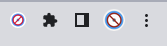
- Find and click the pin on the right side of the Poper Blocker extension
- Now the Poper Icon will appear on the top right side of your browser beside the Chrome extensions icon
- Click on the Poper Blocker icon
- Look for and select Hide Cookie Requests
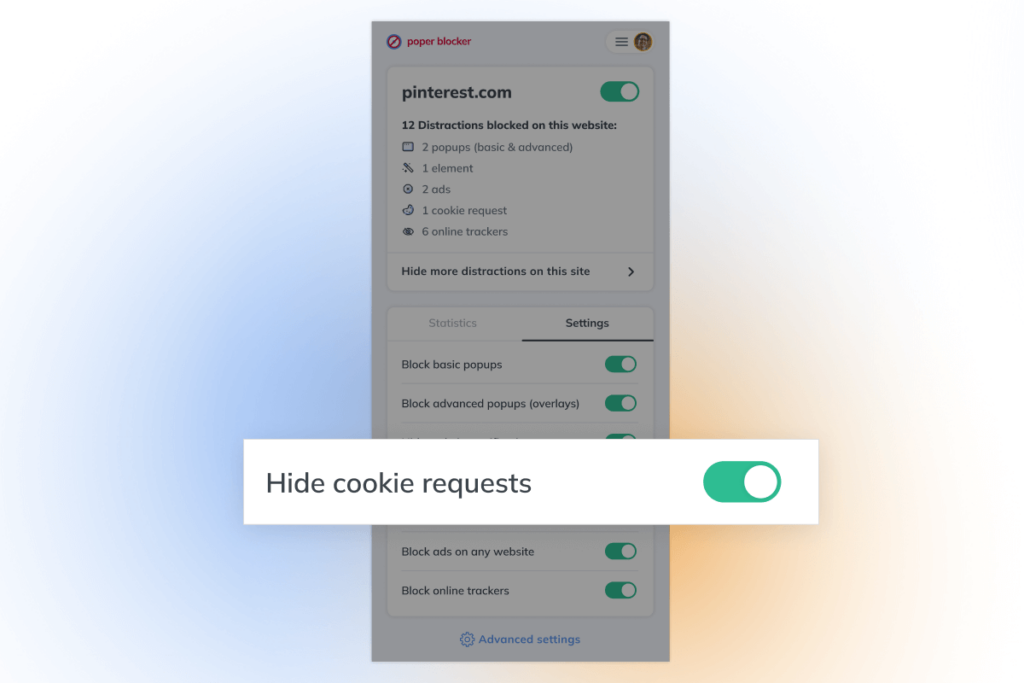
In addition to Poper Blockers removing cookie requests from your browser, it is beneficial for multiple other reasons. Poper Blocker gives you control over what you want to see when you surf the web. For example, ad blockers like Poper Blocker enable you to block overlays and pop-ups that appear on websites and try to distract you, obtain your information, or track your online activity.
Read more:
Stop Internet Cookies from Tracking you
If Internet cookies aren’t removed from your browser, they remain stored, and all data can be read by the website you’re visiting. It’s a double-edged sword: cookies make it easy to log in to websites next time around (since data is stored), but your browsing activity is also tracked by advertisers and occasionally by third parties with ill intent. Out of all the different types of internet cookies, third-party cookies are the most invasive and non-essential. Did you know that 60% of cookies are third-party cookies? These types of web cookies have an abundant presence on the internet and live off your private information for their benefit. Fortunately for you, tools like Poper Blocker allow you to block all types of cookie notifications including third-party cookies. Keep your online behavior, information, and interests confidential by blocking cookie requests with Poper Blocker.
FAQs
How many types of internet cookies are there?
There are many types of internet cookies with different motives, functions, and purposes. The most common types of web cookies are session cookies, persistent cookies, first-party cookies, and third-party cookies.
What are the different types of internet cookies?
There are various web cookie types. Session cookies, persistent cookies, first-party cookies, and third-party cookies are the most common. There are many other types of cookies that aren’t as popular as zombie cookies and flash cookies.
How do I block internet cookies?
You can block internet cookies in various ways. Your browser’s settings will have a tool that enables you to clear all cookies storage on your device so that the “memory system” of cookies on your browser has been wiped. A very efficient way to block internet cookies is by downloading a blocking extension like Poper Blocker that hides all cookie requests from your browser so that cookies aren’t able to ask you for permission to track your data.
Do you find that Chrome notifications interfere with your browsing experience? Not to worry, whthere are multiple solutions for you! Irritating notifications can be easily disabled with just a few clicks. Continue reading below to learn a step-by-step guide on how to block notifications on Chrome.
Why Are Chrome Notifications Bad?
Chrome notifications are considered a form of spam. They can drain your device’s central processing unit (CPU) by forcing your browser to upload and stream unnecessary links and ads that you aren’t interested in seeing. The impact it has on your device’s CPU causes your online browsing to slow down and be less efficient. Often the notifications are trying to gain access to your online behavior by getting you to accept cookies on your browser. Responding to some notifications can result in malware infecting your device.
The different types of Chrome notifications vary based on the different websites you visit and what information they are trying to collect from you. The notifications you come across may ask for things such as your location, joining a mailing list, by accepting cookies or viewing a video advertisement. These notifications appear on all areas of the website: the bottom corners, the top or sides of the webpage, right in the middle blocking the site, or even behind the page you’re visiting. They are intrusive, repetitive, and annoying.
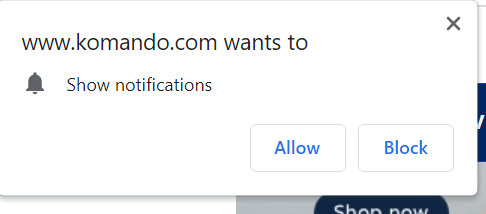
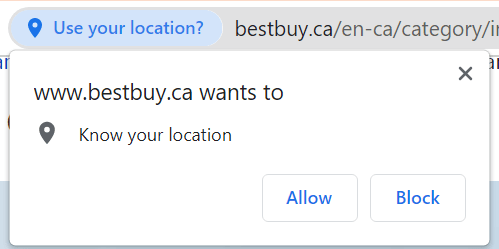
A reliable and safe tip to avoid notifications on Chrome is to disable notifications through Chrome’s settings and download a trusted blocking extension that removes intrusive pop-ups and improves your browsing. Follow along to learn the best tips to block notifications on Chrome and improve your online experience.
How to Block Notifications from Within Chrome

Chrome’s settings offer tools that disable notifications while you search the web. Here are the steps to blocking notifications:
- Open the Chrome browser
- In the top right-hand corner click the three-dot menu icon
- Select Settings from the menu
- Click Privacy and Security on the left-hand side
- Select Site Settings
- Scroll down and click on Notifications
- Click and enable Don’t allow sites to send notifications
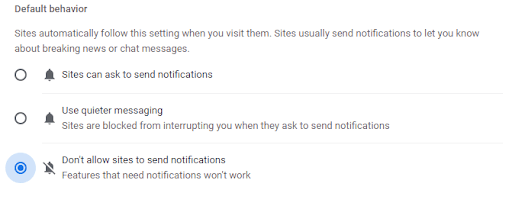
For a more comprehensive solution on mobile, Poper Blocker’s Android app blocks notification requests automatically, so you don’t have to manage them site by site.
How to Block Chrome Notifications on Android
Turning off Chrome notifications is easy on your Android device as well. it’s quite similar to how you disable notifications through Chrome settings. Here are the steps:
- Open Chrome on your Android device
- In the top right-hand corner click the three-dot menu icon
- Tap on Settings from the menu
- Click Privacy and Security
- Select Site Settings
- Scroll down and tap on where it says Notifications
- Click and enable Don’t allow sites to send notifications
Block Notifications on iOS
Blocking Chrome notifications on iOS can be achieved as follows:
- Open Chrome on your iOS device
- Tap the three dots menu icon on the bottom right of the screen
- Scroll through the different tools to find and select Settings
- Scroll down and click on Content Settings
- Enable the Block Pop-ups function
It’s as quick and simple as that. By enabling the functions for blocking notifications and pop-ups through Chrome’s settings you will experience fewer notifications as you surf the web.
Using a Pop-Up Blocker to Block Notifications on Chrome
Chrome’s settings features are great for limiting the amount of notifications you encounter, but additional tools are very advantageous for ensuring all the notifications are blocked from your browser. There’s no harm in using a pop-up blocker extension simultaneously with Chrome’s settings – it’s providing a double filter to keep notifications out of your browser. So let’s explore effective third-party Chrome notification blockers to further improve your online experience.
Arguably the most effective way to block notifications on Chrome is by using Poper Blocker’s notification blocker feature. The Poper Blocker extension has features designed to stop notifications from appearing as you visit websites. By enabling and disabling the different blocking features, you have full control over which types of pop-ups, notifications, and ads you wish to see or be blocked.
Here’s how to block notifications on Chrome with Poper Blocker:
- Get the Poper Blocker for Chrome extension
- Click on the puzzle piece icon in the top right corner of your browser (this is known as the extension’s icon)
- Find and click on the pin on the right side of the Poper Blocker extension
- Now the Poper Icon will appear on the top right side of your browser beside the Chrome extensions icon
- Click on the Poper Blocker icon
- Find and enable Hide website notifications
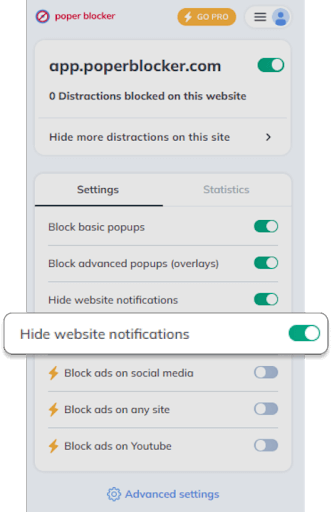
Extensions work harder and are more effective than built-in browser settings. They also give you more control over what you want to be blocked and what you wish to still appear. For example, you may be happy for some specific websites to send you notifications but in general, you wish to have most websites notifications blocked. Using an extension like Poper Blocker will allow you to whitelist websites from which you wish to receive notifications.
Here’s how to create a whitelist with Poper Blocker:
- Click on Poper Blocker’s extension icon in the top right corner of your browser
- Find Advanced Settings at the bottom of the drop-down menu
- You will be brought to a new tab of Poper’s advanced settings
- At the bottom of the page find allow popups on these websites (whitelist)
- Enter the websites you wish to add to your whitelist in the appropriate field

Block Cookie Notifications
When you visit a website, you have probably come across notifications asking you to accept cookies. If you accept cookies, you are giving cookie script access to your device so that it can track and save your behavior on that specific site. So when you return to that website in the future, the cookies script will have your preferences saved and the website will tailor what it shows you based on these preferences.
To avoid cookie notifications, Poper Blocker’s cookie banner blocker feature does the trick to hide all cookies. Deleting cookies from your browser is so effortless and easy with Poper Blocker, all you have to do is enable hide cookie requests under the Poper Blocker extensions icon in the top right corner of your Chrome browser.
Block Auto-Playing Videos
Auto-play videos are startling, irritating, and irrelevant to you as you browse the web. Have you ever visited a website and all of a sudden an auto-playing video appears in the corner and the disruptive sound and content startle you and impact your experience on the website? It’s very common and can be very frustrating and intrusive. There are ways to automatically remove auto-playing videos from popping up on your browser. Poper Blocker is coming out with a feature that blocks auto-play videos from running when you visit websites. To activate and utilize this feature, you will follow similar steps as listed above for activating other Poper Blocker features. Stay tuned for the release of the block auto-play videos feature!
Wrapping Up
There are various types of notifications that appear and disrupt your browsing experience as you surf the web on Google Chrome. Luckily, there are useful tools in Chrome’s settings that limit the amount of notification pop-ups you see and there are also amazing third-party tools that block the additional notifications that Chrome’s tools miss. Poper Blocker is a reliable and helpful extension that will ensure all the notifications you wish to block on Chrome will be hidden, including cookies notifications, and in the near future, auto-play videos as well. Simplify your online experience and hide annoying notifications on Chrome today!
Read More – How to Block Ads on Chrome: Effective Strategies
FAQs
You can block notifications on Chrome by downloading a pop-up blocker extension such as Poper Blocker.
You can block notifications with Chrome’s settings by clicking Menu (three-dot icon) > Settings > Privacy & Security > Site Settings > Notifications > Don’t allow to send notifications.
You can block Chrome notifications on an Android device by clicking Menu (three-dot icon) > Settings > Privacy & Security > Site Settings > Notifications > Don’t allow to send notifications.
You can block cookie notifications by downloading a trusted extension onto your Chrome browser like Poper Blocker. Poper Blocker has a feature that allows you to hide cookie notifications from appearing on websites.
You’re fed up with pop-ups ruining your online experiences, so you’ve decided that it’s time to put a stop to it with a blocker app. Good thinking, blockers are the ideal way to stop those irritating boxes from bombarding your screen. Poper Blocker is an excellent choice to make when choosing the right blocker for you, but why is that? Today, we’re going to let you know the advantages you can expect once you’ve installed Poper Blocker on your device.
The Ideal Blocker for Chrome and Edge
First off, it’s important to make sure that the blocker app you choose is suitable for you. The first question to ask is whether it will work on your browser of choice. The good news is, that Poper Blocker is compatible with two of the most popular browsers out there, Chrome and Edge. The app will work at stopping frustrating pop-ups on both browsers, on your PC, laptop, and even your mobile devices. It’s quick and easy to install, doesn’t intrude on your experience as you browse, and it works.
More than Blocking Pop-ups
There are several blockers that work well at blocking pop-ups, but that’s all they do. Poper Blocker goes further to enhance your online browsing experience. Yes, the pop-ups that open on the page when you visit will be prevented from opening. But that’s not all. Did you know that Poper Blocker is also designed to stop other ads from appearing too?
Stop the Popunders
You know the ads that open below the window you’re on? They are called popunders. You may not even be aware they are there until you close down your current open tab. One common giveaway of a popunder is sound, as they can commonly be videos or pages with sound files that can leave people confused as to where the sound is coming from. If there’s no sound, the popunder can stay open for a long time, draining the performance of your PC.
Prevent the Overlays
Another common form of intrusive advertisement is known as an overlay. Overlay pop-ups appear on top of the page you’re currently visiting. These overlay ads don’t open as a new tab or a new window but simply appear right in front of your face. These can be extremely frustrating, especially if they’re delayed from opening until you’re already engaged and reading the page. Furthermore, the cross to close the overlay popup is often hard to find or click, especially on mobiles.
Poper Blocker stops popunders and overlays from opening in addition to the pop-ups that you might be more familiar with. Therefore, this blocker is a great one to choose. You take care of three common problems in one go. Perfect!
Works in Harmony with other Blocker Website Apps
The advantages of using Poper Blocker don’t stop there. You may wish to install or already have installed ad blockers. These might be designed to stop advertisements running on websites such as YouTube or Twitch. Other forms of blocker website tools are designed to stop banner ads and display ads. Some blockers will not work in harmony with other ad blockers that are available. Thankfully, Poper Blocker is compatible and purposely designed to work alongside other ad blockers that are out there. This will give you a full interruption-free online experience, each time you open your browser.

User Feedback is Encouraged
Poper Blocker consistently receives amazing feedback by working directly with its users. This blocker app is driven by the community it serves. There are over two million users with the app installed, all of which can provide us with user reports. These reports ensure the blocker stays on top of changes and new trends to ensure it remains effective, day after day. The huge community feedback gives it a unique edge over the competition.
Poper Blocker is Easy to Install
Not everyone is comfortable when it comes to installing apps on their devices. If you consider yourself to be a technophobe, don’t panic. Here’s a simple step-by-step guide that will help you traverse the act of blocker installation.
Installing Blocker for Chrome
Visit the Chrome Web Store or click the download link on the Poper Blocker website. Here you’ll be shown an overview of the blocker, along with reviews and the number of users. There’s a button that says ‘Add to Chrome’ on the right-hand side of the page. Give that a click with your mouse. A small window will open at the top of the page where you have the option to Add Extension or Cancel with the click of the mouse. To install, select Add Extension.
Once you have clicked Add Extension, you’ll be asked for your permission to block popups. Agree to continue with the installation. After this step, follow the online instructions to create an account, log in, or log in later. Continue working through the easy-to-follow instructions online. You will have options to continue for free or select a low-cost payment plan. Once you have made your choice the app will begin working.
Managing the Blocker App
If you would like to learn more about the capabilities of the blocker app, click on the three vertical dots in the corner of your browser and go down to where it says ‘More Tools’ in the menu. Select ‘Extensions’ in the new menu that opens. A new tab will open, showing you all the installed Chrome extensions you have on your device. Find Poper Blocker and click on ‘Details.’ You can also quickly turn the extension off and on as you wish from within this window or remove it entirely.
When managing the extension by following the steps above, you’ll see a clear description of the app, including the version you’re using and the size of the app. Furthermore, you have options such as allowing Poper Blocker to work in incognito mode. Additionally, you can decide if you want to stop data from being shared from all sites you visit, on click, or on specific sites only.
You may also like to make changes to the blocker app preferences. Click where it says ‘Extension Options’ to open a new tab.
Here you can change things such as:
- enable overlay blocking
- show notifications when blocking a pop-up
- show a badge on the extension icon when blocking
- manage your subscription if applicable
On the same page, you have the choice to whitelist websites you wish to allow popups on. These are websites you trust, add the URL of each of the websites you wish to allow in the box and select add.
Interference Free Online Browsing with Adblockers
We hope you feel confident about installing and using a blocker app. With so many advantages, it’s clear to see why Poper Blocker has over two million users. Your online experience will be greatly improved in just a few clicks of the mouse or taps on the screen. The app will run silently in the background, but still be accessible so you’re able to make preference changes as and when you please.
Are you getting irritated by all the ads that pop up while you’re watching YouTube videos? YouTube is inundated with ads that can last half an hour or more. They appear at the start, middle, and end of videos, flooding your webpage and impacting your video-watching experience. Regardless of how long or short the video is, ads will pop up numerous times. Not to worry because there are multiple tips and tricks to help you block YouTube ads. If you are a part of the YouTube community, are frustrated with polluting video ads, and also browse YouTube on Google Chrome, this article is perfect for you! Continue reading to learn about how to block YouTube ads on Chrome.
Block YouTube ads with Poper Blocker
A highly recommended tip to stop YouTube ads is to install an ad blocker extension to your Chrome web browser. Poper Blocker is an amazing ad-blocking extension that is available for Google Chrome. It is a great ad blocker because it is reliable and it does what it is meant to do: block any type of advertisement you do not want to see on websites. Poper Blocker is a strongly recommended choice for blocking ads because not only does it remove ads on YouTube, but it also improves your browsing experience across all platforms and websites. To have access to the ad-blocking feature for YouTube, you must upgrade to Poper Blocker Pro for just a small fee. Poper blocker will block all ads and pop-ups that you encounter anywhere on the internet. Whether you’re watching videos on YouTube, scrolling on social media, or browsing any website, Popper Blocker has your back. You are able to download Poper Blocker for Chrome directly from the Poper Blocker website or through the Chrome web store.
To download Poper onto your Chrome browser, click “Add to Chrome” in the top right corner of the Poper Blocker Chrome web store page. This will start the installation process which should take no longer than a couple of seconds.
Using Poper Blocker is easy. To start, look for the small puzzle-piece icon on the top right corner of the screen, this is the extension’s icon.
If the extensions icon does not appear on your Chrome Browser you can add it by doing the following:
- Click the three dots on the right-hand corner of the browser (this is the more icon)
- Selecting More Tools in the menu
- Selecting Extensions
- You will be brought to a page where you can manage your extensions and are able to add Poper Blocker to the extensions bar of your Chrome browser
Once Poper Blocker appears under the extension bar of your Chrome Browser, you can activate the ad-blocking feature for YouTube by following the steps below:
- Click on the puzzle piece icon in the top right corner of your browser (this is the extensions icon)
- Find and click on the pin on the right side of the Poper Blocker extension
- Now the Poper Icon will appear on the top right side of your browser beside the Chrome extensions icon
- Click on the Poper Blocker icon
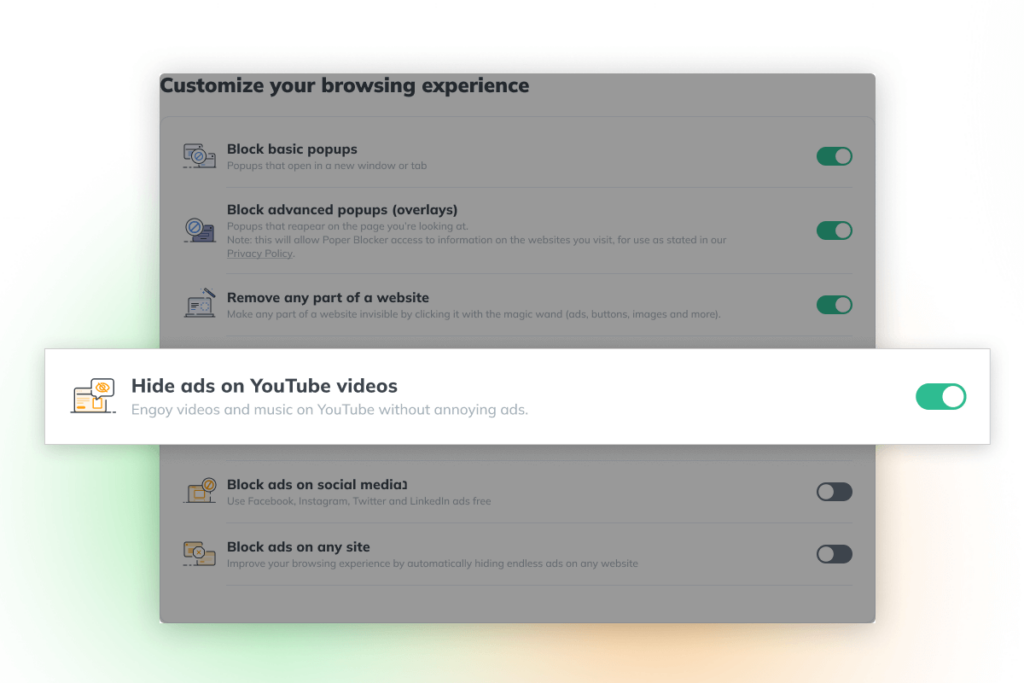
- Look for and select Hide ads on YouTube videos
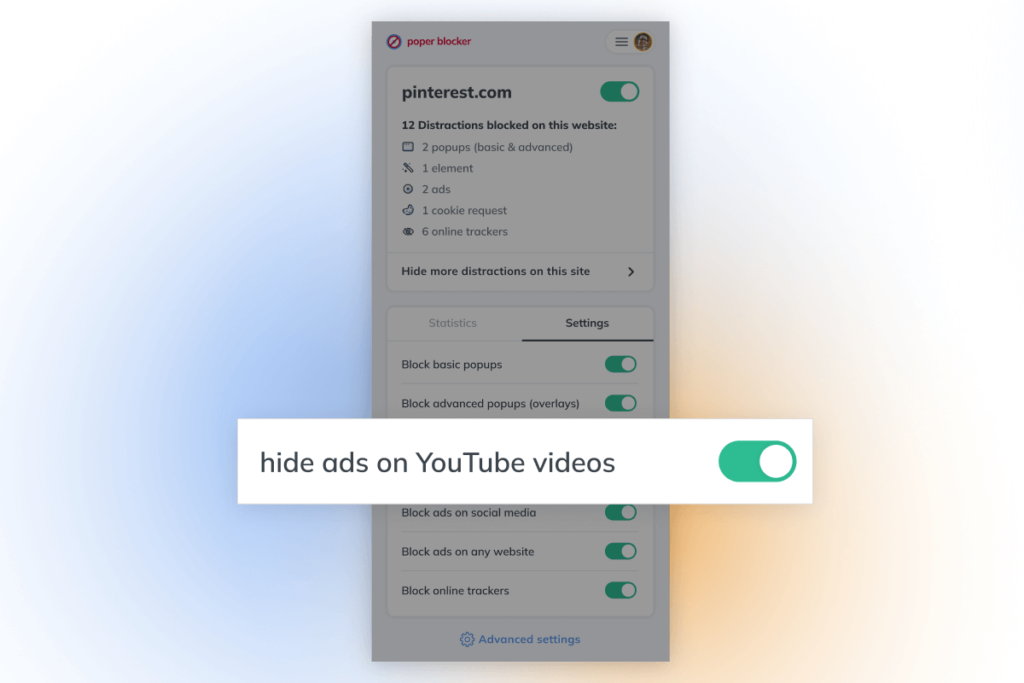
An alternative way to enable blocking ads on YouTube is by visiting the Poper Blocker feature page where you can manage which features you would like to have enabled or disabled. Find and activate the feature that says “Hide ads on YouTube videos” and you will no longer be disrupted by intrusive ads.
Stopping YouTube ads by paying for YouTube Premium
Another way to block YouTube on Chrome is by upgrading your account to YouTube Premium. A huge perk to YouTube Premium is that it automatically blocks all advertisements so your video-watching experience is no longer interrupted. You can pay an annual fee of $119.99 or a monthly fee of $11.99.
A pro of subscribing to YouTube Premium is that you are supporting creators on the platform. A con of subscribing to YouTube Premium is that its ad-blocking abilities are not as advanced as an ad blocker like Poper Blocker. This is because YouTube Premium is limited to YouTube, whereas Poper Blocker is able to remove all forms of ads from all types of websites – it is a universal ad blocker in the online world. Thus, many people rather use an ad blocker because it covers all the bases, such as pop-up advertisements, as opposed to only blocking YouTube ads.
Read More:
- Why You Should Use an Ad Blocker
- How to Block Ads on Chrome: Effective Strategies
- How to Block Ads on Microsoft Edge: Comprehensive Blocking Strategies
Utilize Chrome’s own ad-blocking tool
Another option to consider to remove YouTube ads on Chrome is by utilizing Chrome’s default settings. Enabling Chrome’s very own ad blocker won’t stop all YouTube ads from running, but this tool is still beneficial for limiting some ads from appearing. When visiting websites, Chrome’s ad blocker tool helps prevent some ads, pop-ups, and irritating notifications from appearing.
Follow these steps to enable Chrome’s ad blocker:
- Sign into Chrome
- Click the extensions icon on the top right corner of your browser window
- Select Settings
- Click on Privacy and Security on the left-hand side of the page
- Select Site Settings
- Scroll to the bottom where it says Additional Content Settings and select the down arrow
- Click Intrusive Ads
- Select Ads are blocked on sites known to show intrusive or misleading ads
When this feature is enabled some ads will still appear on websites you visit including YouTube. This is a step that will help prevent disruptive ads from showing as you navigate the internet on Chrome. It isn’t the most effective ad blocker, specifically with blocking ads on YouTube, but it is worth having enabled.
Follow the steps below to enable Chrome’s blocking feature for pop-ups and redirects:
- Sign into Chrome
- Click the extensions icon on the top right corner of your browser window
- Select Settings
- Click on Privacy and Security on the left-hand side of the page
- Select Site Settings
- Select Pop-ups and Redirects
- Enable Don’t allow sites to send pop-ups or use redirects
Keep in mind that these additional steps will not stop ads from running on YouTube. However, they can improve your online browsing experience. These settings work simultaneously with an ad blocker extension, working together to stop ads from disrupting your day. Having the Chrome settings on and an ad blocker extension downloaded onto Chrome (like Poper Blocker) are the best ways to stop ads from running on YouTube or any other website you browse. The quality of your online life will improve with just a few clicks.
Read More: How does Poper Blocker compare against other popup blockers?
Support your favorite YouTubers without watching ads
Many ads on YouTube exist because creators need them to make money. Watching and clicking on adverts that appear while watching a YouTuber’s video helps YouTubers and their online career (if their account is monetized). However, many creators are aware of how intrusive ads are, so they have different ways for viewers to provide financial support.
Here are the ways that you can financially support your favorite YouTubers:
- Making donations
- Become a member of their channel for a small monthly fee
- Buy merch
- Sign up for the creators’ Patreon
- Click on affiliate links in the video description
- Watch and like their videos, and subscribe to their channel
If you’re worried that blocking ads will impact your favorite creator’s brand, don’t panic. You can turn them off and find other ways to support them. Downloading the Poper blocker extension to Chrome will not hurt the YouTube creators who bring you so much joy and entertainment. You are still able to give your support without being forced to watch and sit through ad after ad on YouTube.
We hope you found this article to be useful. Download Poper Blocker to your Chrome browser, take advantage of Chrome’s ad-blocking features, or subscribe to YouTube Premium. Once you have followed the tips provided above to remove ads playing on YouTube you can start enjoying watching videos on your favorite video-streaming platform ad-free!
Want to block video ads on other websites? Read Block Video Ads: A Guide to Uninterrupted Surfing
FAQs
Do ad blockers block ads on YouTube?
Yes, ad blockers remove YouTube ads. An ad blocker like Poper Blocker is a great extension to have downloaded onto your browser to remove ads on YouTube videos.
Can I watch YouTube without watching ads?
Yes! You can stop ads while you watch videos on YouTube. The best tip to block YouTube ads is to download an ad blocker like Poper Blocker.
Does YouTube Premium block YouTube ads?
Yes, YouTube Premium blocks YouTube ads. With a small subscription fee, YouTube Premium removes all ads from playing while watching videos.
Does Chrome’s ad-blocking tool block YouTube ads?
Chrome’s ad-blocking tool does not directly block YouTube ads, but it is a great feature to take advantage of when you are browsing the web. Chrome’s ad-blocking tool removes some unwanted ads on websites and there is no harm in enabling it!